The Procurement overview is the summary statistics page of the whole procurement process. It does not list single documents but brings together the data of the four procurement modules – Supplier orders, Incoming invoices, Received supplier quotes and Sent supplier quotes (offer requests) – and shows how a purchase progresses from the offer request to the payment. It can help you answer questions like these:
The possible statuses of a Supplier order are: Draft, Closed, Cancellation, Cancelled, Fulfilled, Finalized, Approved, Partially fulfilled, Ready to ship. The possible statuses of an Incoming invoice, a Received offer and an Offer request are: Draft, Closed, Cancellation, Cancelled. The statistics count the valid documents: those that are not deleted and are not in Draft, Cancellation or Cancelled status (for orders, Closed and the more advanced statuses are therefore counted). A Draft document appears only in the Draft orders and Draft invoices tiles of the backlogs. The page shows only the elements of the modules that are assigned to you.
Click Main menu / Procurement / Analytics / Procurement overview to open the page. You can choose from three tabs: Overview, Process and Workload. On the Search tab you can narrow the period with the Document date field pair (from – to), then click the Search button. When you open the page, the period from 1 January of the current year to today is shown. There is no other filter field; for a breakdown by supplier, product or colleague use the related analytics pages. When you switch tabs, the period returns to the default, so enter the dates again on the new tab. The screenshots are taken from the Hungarian demo interface.
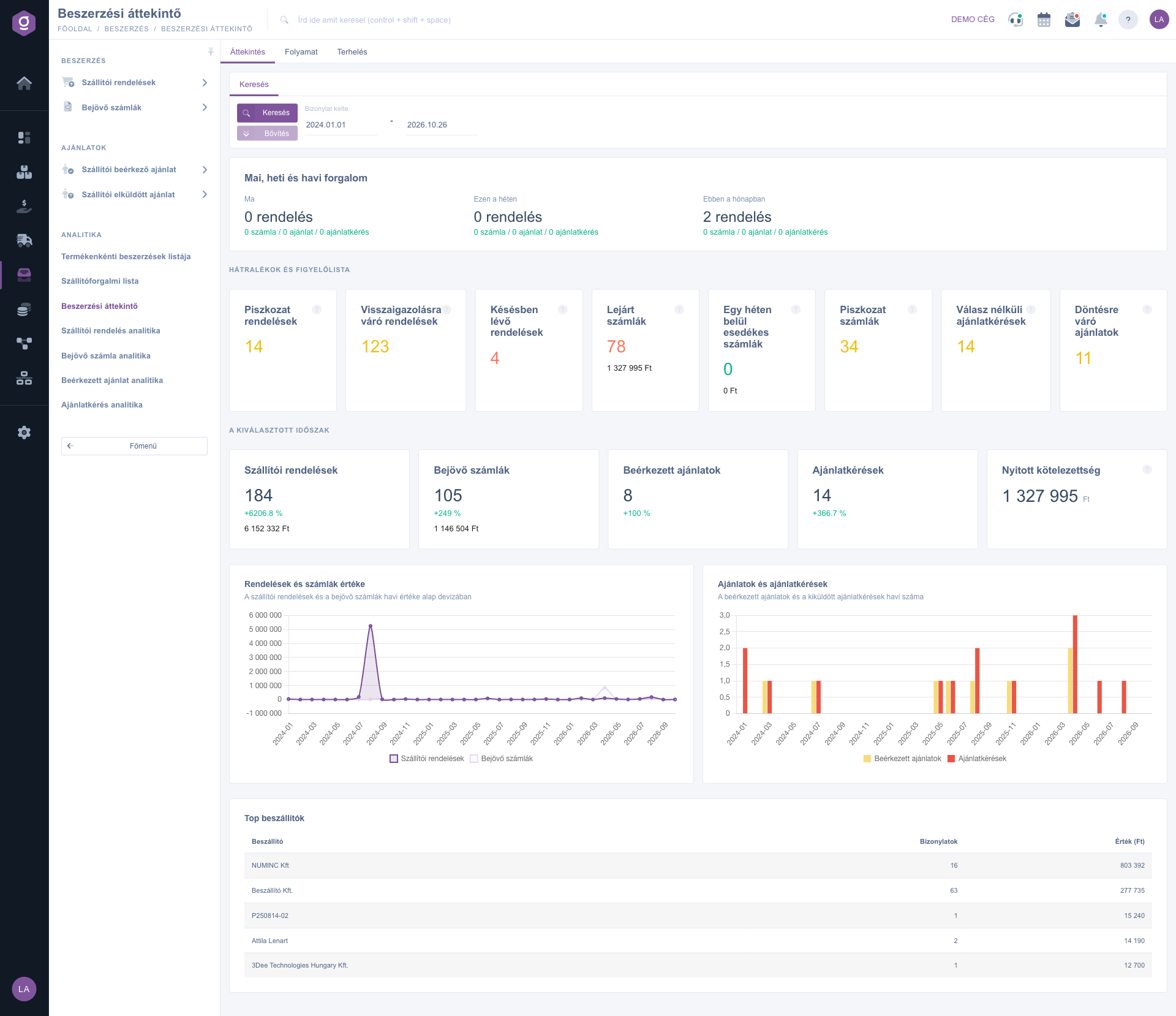
The top strip (Today, weekly and monthly traffic) shows the number of valid documents created Today, This week and This month; the first available module is the big number, the others are below it in smaller text. It does not depend on the filter.
The tiles of Backlogs and watch list show what needs your attention now; they do not depend on the filter either. A value of 0 is green, a positive value is yellow, and a positive value of Late orders and Overdue invoices is red:
The tiles of the Selected period block show the indicators of the period set in the filter: the number and value of Supplier orders and Incoming invoices, the number of Received offers and Offer requests, and the Open payables, that is the remaining amount of the unpaid incoming invoices (independent of the period). The tiles also show the percentage change compared with the directly preceding period of the same length (the value for orders and invoices, the number for offers and offer requests); if there was no data in the previous period, the change is not shown.
The Value of orders and invoices line chart shows the monthly value of the orders and the incoming invoices, the Offers and offer requests bar chart shows the monthly number of the received offers and the sent offer requests. The Top suppliers table ranks the five biggest suppliers of the period with the Supplier, Documents and Value columns; by the value of the invoices if you have the Incoming invoices module, otherwise by the value of the orders.
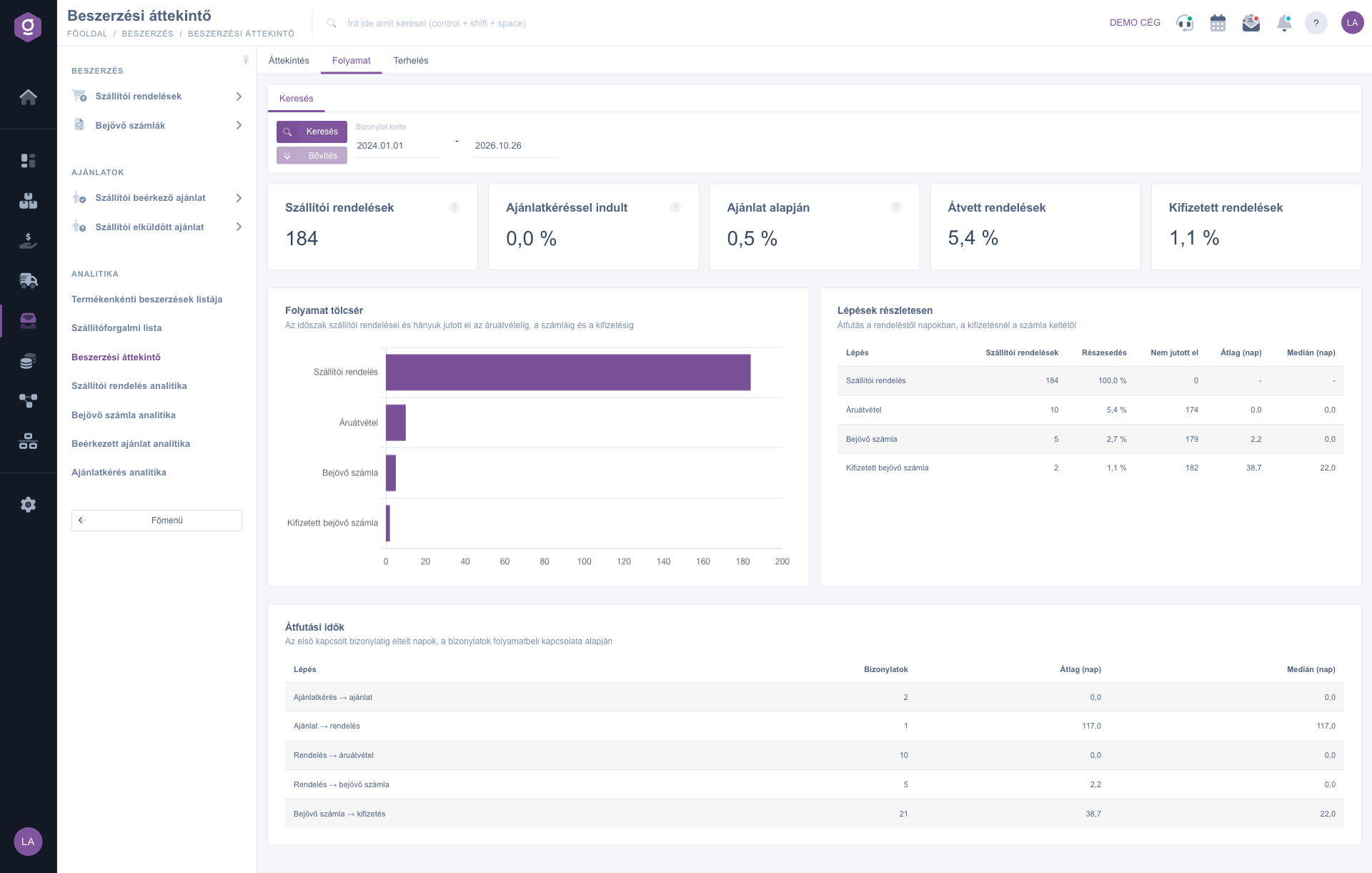
The tab follows the path of a purchase starting from the Supplier order. The five top indicators are: the number of orders (Supplier orders), then the share of those that were started with an offer request (Started with an offer request), based on an offer (Based on an offer), and the share of the Received orders and the Paid orders. The Process funnel chart and the Steps in detail table show how many orders reached the Goods receipt, the Incoming invoice and the Paid incoming invoice. In the table, Share is the percentage of the orders, Not reached is the number of orders that did not get as far as the given step, and Average (days) and Median (days) are the time elapsed since the order, for the payment since the invoice date. The Lead times table gives the average and the median of five steps: Offer request → offer, Offer → order, Order → goods receipt, Order → incoming invoice and Incoming invoice → payment. The system takes the link from the belonging of the documents in the process, so only documents created from each other count as linked.
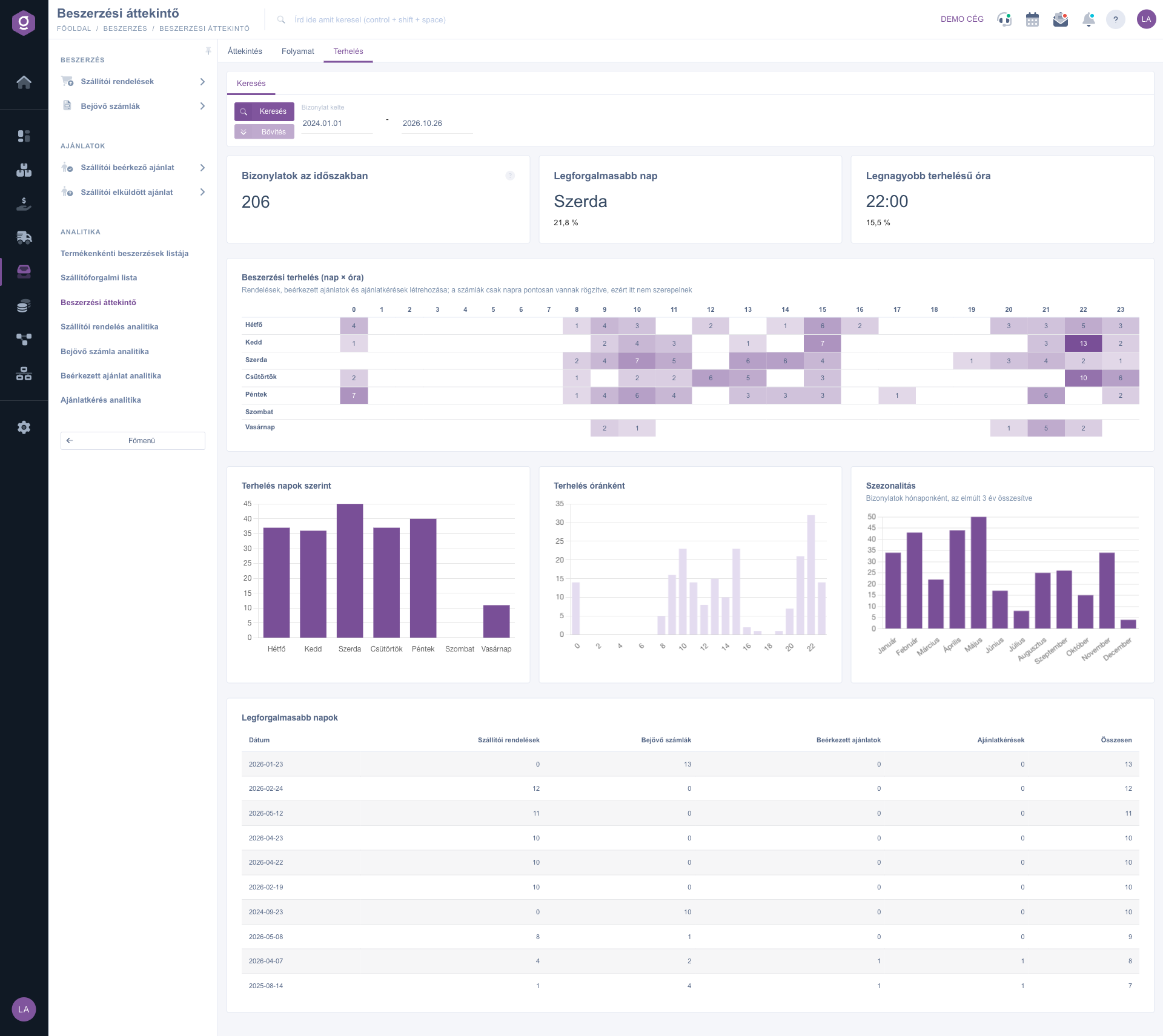
The tab shows when the procurement work arises. Documents in the period is the total number of orders, received offers and offer requests (without invoices); below Busiest day and Peak hour the share is shown in percent. The Procurement load (day × hour) heat map colors by weekday and time of day when the documents were created; invoices are recorded by date only, so they are not included. The Workload by weekday and Workload by hour charts summarize the same, Seasonality shows the documents of the last 3 years by month (independent of the filter, invoices included). The Busiest days table lists the 10 days with the most documents with the Date, Supplier orders, Incoming invoices, Received offers, Offer requests and Total columns.
Start the week on the Overview tab: if the Late orders tile is red, call the suppliers concerned, and plan the weekly payment with the amount below Overdue invoices. The Invoices due within a week tile shows how much money you will need in the next 7 days.
On the Process tab, look at the Median (days) next to the Average (days): if the average is much higher than the median, a few very protracted orders spoil the average. In that case look for the oldest orders that have not been received yet in the Supplier orders list at the Goods receipt step.

The elements of the Search tab and their meaning:
| Field / Element | Required | Description |
|---|---|---|
| Document date (from – to) | The period of the document dates. By default 1 January of the current year and today. It applies to most indicators, except where the description says that it is independent of the filter. | |
| Search button | Reloads the active tab with the given period. |
The indicators of the Overview tab:
| Indicator | What it shows | How it is calculated |
|---|---|---|
| Today, weekly and monthly traffic | The number of valid documents by type. | Documents created today, in the week starting on Monday and in the calendar month; independent of the filter. |
| Orders awaiting confirmation | Sent but unconfirmed orders. | Closed status, older than 7 days, and none of the items has a confirmed date or a fulfilled quantity. |
| Late orders | Orders with an expired deadline that have not been received. | Closed, Approved or Partially fulfilled order where the confirmed deadline of an item has passed and the process contains no goods receipt. |
| Overdue invoices | Unpaid incoming invoices past their deadline. | Valid invoice with a payment deadline earlier than today and a remaining amount (the difference between the gross amount and the settled amount). |
| Invoices due within a week | Invoices payable in the next 7 days. | Valid, partly or fully unpaid invoice whose payment deadline falls between today and the next 7 days. |
| Unanswered offer requests | Sent but unanswered offer requests. | Valid offer request older than 7 days whose process contains no received offer. |
| Offers awaiting a decision | Received offers without an order. | Valid offer older than 14 days whose process contains no supplier order. |
| Supplier orders and Incoming invoices | The number and gross value of the documents of the period. | The gross amount of the valid documents in the default currency, converted with the exchange rate of the document; the change is the percentage compared with the value of the previous period of the same length. |
| Received offers and Offer requests | The number of the documents of the period. | The number of the valid documents; the change is the percentage compared with the number of the previous period of the same length. |
| Open payables | The remaining amount of the unpaid incoming invoices. | The remaining amount of the valid invoices in the default currency, regardless of the period. |
| Top suppliers | The five biggest suppliers of the period. | Number of documents and gross value by supplier in descending order of value (by invoices, or by orders if there is no invoice module). |
The indicators of the Process tab:
| Indicator | What it shows | How it is calculated |
|---|---|---|
| Supplier orders | The starting point of the process. | The number of valid supplier orders created in the period. |
| Started with an offer request | The share of the orders that started from an offer request. | The percentage of the orders whose process contains an offer request. |
| Based on an offer | The share of the orders made on the basis of an offer. | The percentage of the orders whose process contains a received offer. |
| Received orders | The share of the orders that reached the goods receipt. | The percentage of the orders whose process contains a Goods receipt or an Incoming delivery note. |
| Paid orders | The share of the orders that end with a fully paid invoice. | The percentage of the orders whose process contains a fully settled, valid incoming invoice. |
| Not reached | How many orders got stuck before the given step. | The difference between all orders and the orders that reached the given step. |
| Average (days) and Median (days) | The lead time of the steps in days. | The average and the middle value of the whole days elapsed until the first linked document; for the payment from the invoice date to the last settlement, only for fully paid invoices. |
The indicators of the Workload tab:
| Indicator | What it shows | How it is calculated |
|---|---|---|
| Documents in the period | The amount of the procurement work. | The total number of orders, received offers and offer requests, without invoices. |
| Busiest day and Peak hour | When most documents are created. | The weekday and the hour with the most documents, with the percentage share of all documents. |
| Procurement load (day × hour) | The time of the creation of the documents. | Number of documents from Monday to Sunday and by hours; without invoices. |
| Seasonality | The distribution of the documents by month. | The sum of all four document types of the last 3 years by month, independent of the filter. |
| Busiest days | The 10 days with the most documents. | Number of documents by type and in total, in descending order of the total. |
The menu item appears if at least one of the procurement modules is assigned to you: Supplier orders, Incoming invoices, Received supplier quotes or Sent supplier quotes. If you have none of them, ask your administrator to check your module assignment.
The Overview tab shows only the elements of the modules that are assigned to you. Without the Incoming invoices module, for example, there are no Open payables, Overdue invoices and Invoices due within a week tiles, and the Top suppliers table is made by the value of the orders. This is not an error.
The tiles of Backlogs and watch list, the Today, weekly and monthly traffic strip and the Open payables always show the current state, so they do not depend on the Document date filter. The indicators bound to the period are in the Selected period block, on the charts and in the tables.
The system determines the link of the documents from the business process, so it counts only what you created from the offer or the offer request (for example you made an order from the received offer). If you recorded the order independently of it, it is not linked to the offer and does not appear in the indicator. The same applies to the goods receipt and the invoice.
The statistics count only the valid documents: a deleted, Draft, Cancellation or Cancelled document is included neither in the number nor in the value. Draft orders and invoices are shown by a separate tile among the backlogs so that no unfinalized document is left behind. This is why a number can differ from the total of the rows of the lists.
Incoming invoices are recorded by date only, without the time, so they cannot be placed on the day × hour heat map, on the Workload by weekday and Workload by hour charts or in the Documents in the period indicator. They are included, however, in the Busiest days table and on the Seasonality chart.
This page summarizes; the detailed breakdown is given by the analytics page of each of the four source modules: Supplier order analytics, Incoming invoice analytics, Received offer analytics and Offer request analytics. The turnover by supplier is shown by the Supplier turnover list.
Don't want to spend hours searching for a solution? Choose the most efficient way: book a personalized, 45-minute online training session dedicated entirely to you. Whether it's a walkthrough of the basics or a detailed setup of a specific module, our expert colleague will guide you through the whole process, step by step.
Don't waste your time - ask for help!
Our goal is to get you using our system as quickly and efficiently as possible. Whether you're completely new to us or stuck on a specific setting, don't hesitate to ask for help!
Create your account now,
pay later!

