1. Opening the page and filtering
Click Main menu / Procurement / Analytics / Supplier order analytics to open the page. On the Search tab you can narrow the data with the Document date field pair, a part of the company name typed into the Supplier field and the Employee list, then click the Search button. When you open the page, the period from 1 January of the current year to today is shown. The filter works the same way on every tab, but when you switch to another tab the page loads with the default period again, so set the filter again on the new tab. The screenshots were taken in the Hungarian demo interface.
2. Overview
The top strip shows the number and value of the valid orders broken down into Today, This week, This month, This year and All (this does not depend on the filter). Below it come the indicators of the selected period: the number of Supplier orders, the Order value, the Average order value, the number of Suppliers (how many different suppliers you ordered from) and the number of Items (order lines) with the ordered Quantity under it. These show the percentage change compared to the previous period of the same length. The Drafts indicator counts the unfinished orders (yellow if there are any), the Storno ratio shows the ratio of cancellation and cancelled documents. The bars of the Monthly trend chart show the monthly order value, its line shows the number of orders, and the Split by status doughnut shows how many orders are in each status.
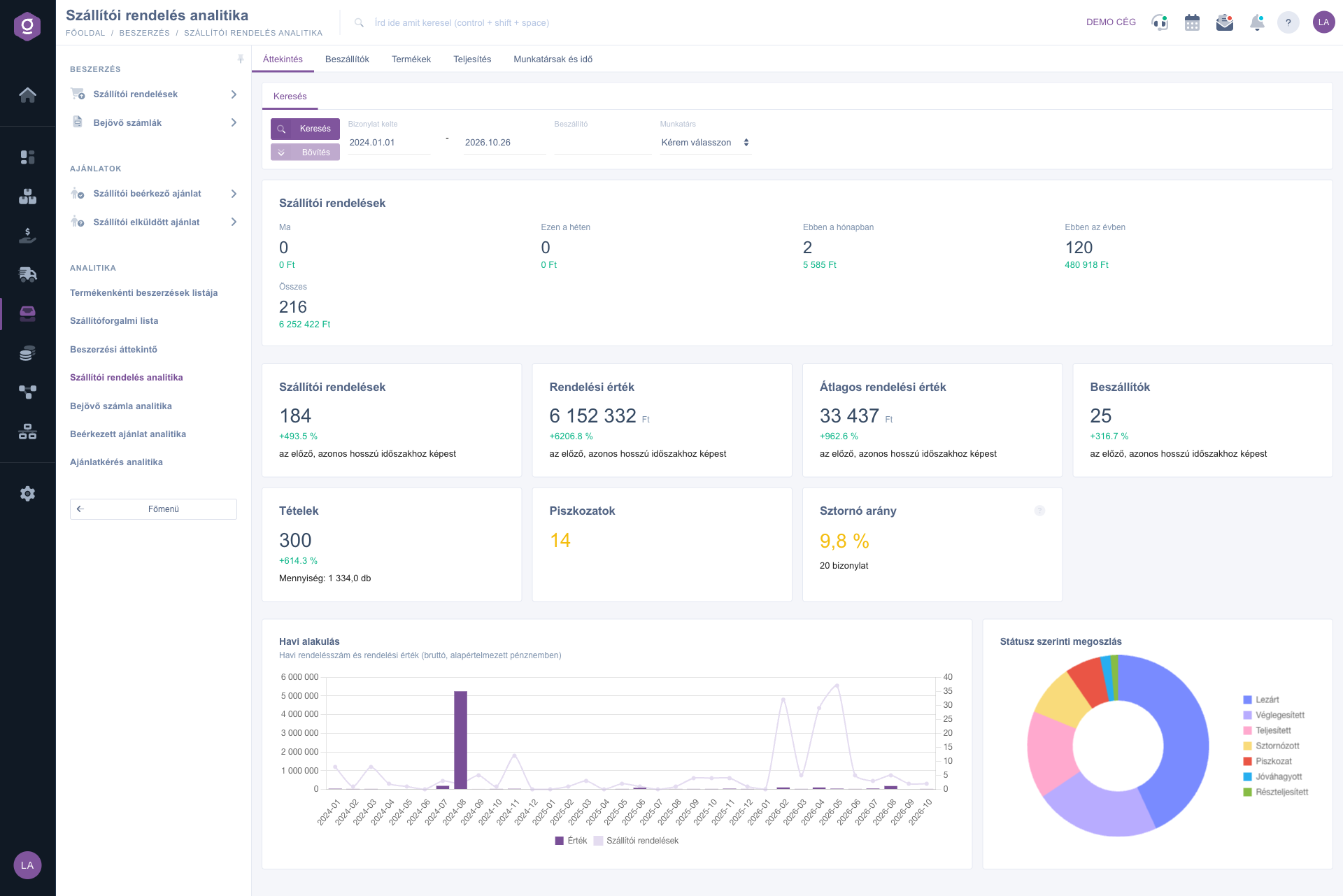
Supplier order analytics – Overview tab
3. Suppliers
The TOP3 share is the combined value share of the three biggest suppliers: above 60 % it turns yellow because it signals a concentration risk. The Concentration index (HHI) gives the same in one number between 0 and 10,000: below 1500 the concentration is low (green), between 1500 and 2500 moderate (yellow), above 2500 high (red), meaning you practically rely on one or two suppliers. The New suppliers are those you ordered from for the first time in the period, the Inactive suppliers are those you ordered from before but have not ordered from for 90+ days. The Top suppliers chart shows the ten biggest suppliers by value, the New and returning suppliers chart shows per month how many suppliers you ordered from for the first time and how many were returning. The Supplier ranking table (up to 25 rows) ranks by value, and its Share and Cumulative share columns give the Pareto picture: you see how many suppliers make up 80 % of the order value. The Inactive suppliers table lists up to 15 inactive suppliers with the highest value, with the date of the Last document and the Days passed; this list does not depend on the filter. The Split by currency chart and table show the currencies you ordered in: Amount (order currency) is in the currency of the document itself, the Value column is in the default currency.
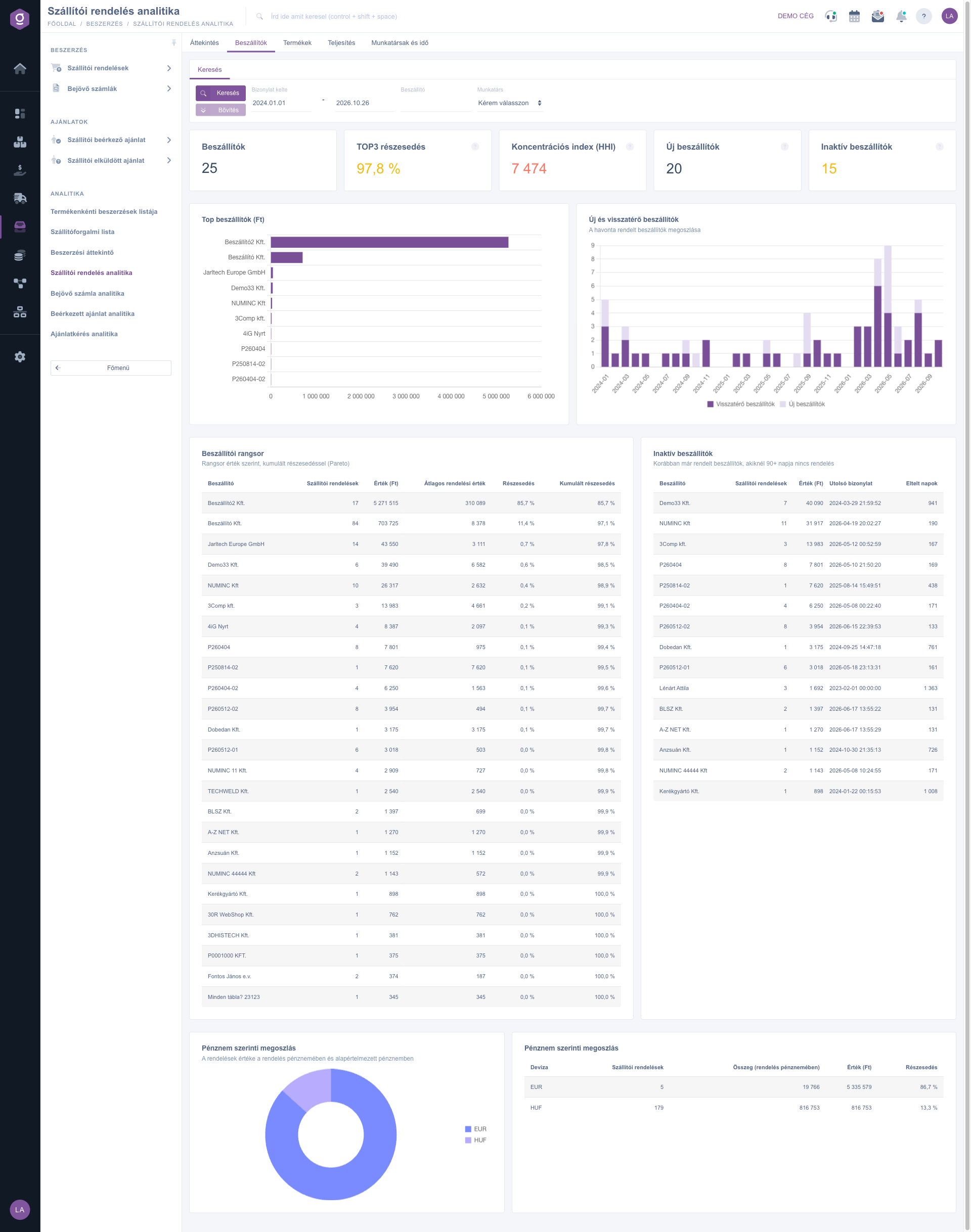
Supplier order analytics – Suppliers tab
4. Products
Besides the ordered Items and the Quantity, the top indicators show how well you use the supplier market. The Multi-supplier products are those you ordered from at least two different suppliers in the period (the Average price spread is shown under it). The Estimated saving shows how much lower the order value would have been if you had always ordered these products at the cheapest supplier unit price. The Preferred supplier compliance shows, for the products that have a preferred supplier set, what percentage of the order lines went to that supplier; if no product has a preferred supplier, the value is 0 / 0 lines. The Top products by value and Top products by quantity charts show the ten biggest products, the Product category split (value) shows the value of the categories, and the Split by target store shows which warehouse you ordered the goods to (the table has the Warehouse, Items, Quantity and Value columns). The Ordered price against the average purchase price table shows how the Ordered unit price differs from the Average purchase price: the Change column shows the difference in percent, the Extra cost in money (a positive number means the price went up), with the largest extra costs first. The Multi-supplier products table gives per product the number of Suppliers, the Lowest unit price, Average unit price and Highest unit price, the Price spread (the difference of the highest and lowest price as a percentage of the lowest price) and the estimated saving of the product. In the demo data, for example, the Ceruza product appears at 11 different suppliers, so it has the biggest estimated saving.
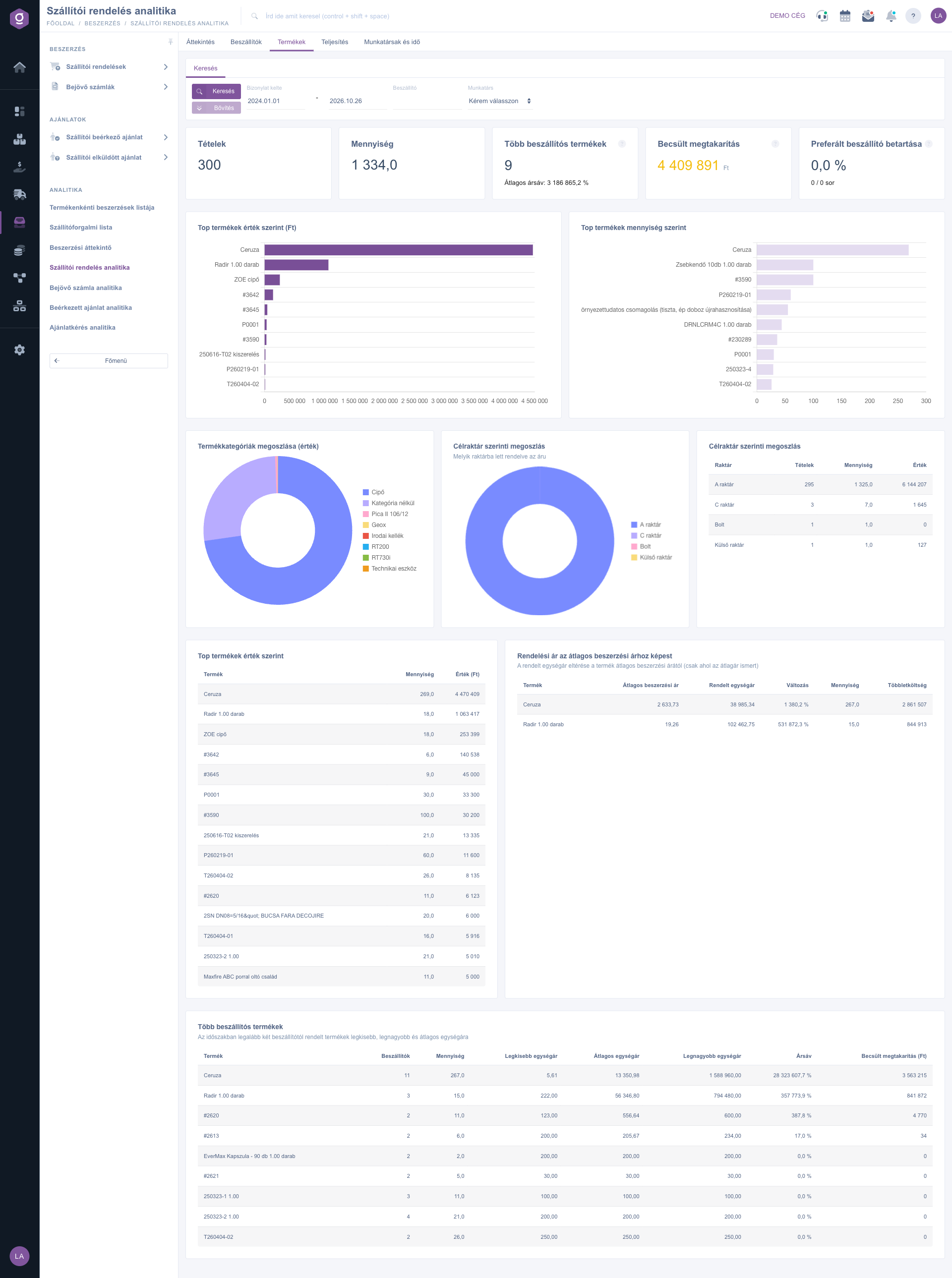
Supplier order analytics – Products tab
5. Fulfillment
This tab shows what happens after you place the order. The Confirmation rate is the share of the orders confirmed by the supplier, the Confirmed / ordered quantity shows what percentage of the ordered quantity the supplier committed to on the confirmed orders. The Order → confirmed delivery date and Order → first goods receipt indicators give the average and the median in days: the time between the order and the confirmed date or the first goods receipt. The On-time delivery shows whether the first goods receipt happened by the confirmed date, the Average delay is the average delay of the late orders in days. The Open orders are the Closed, Approved or Partially fulfilled orders that do not have a goods receipt yet (the overdue number shows those whose confirmed date has already passed). The Demand-driven orders indicator is the ratio of the orders linked to customer orders (back-to-back), the Direct shipping is the ratio of the orders the supplier delivers directly to the customer, and the Supplier link opened is the ratio of the orders where the supplier opened the shared order link. Hover the question mark icon next to an indicator name to see its exact definition. The Lead times table gives the average and the median in days, the Demand-driven and stock replenishment doughnut separates the purchases tied to customer orders from the ones ordered for your own stock. The Open orders chart gives an aging breakdown by the document date (0–7 days, 8–30 days, 31–90 days, over 90 days). The Oldest open orders table lists up to 20 of the oldest open orders; click the Document number to open the order in a new tab. The Supplier scorecard shows per supplier (up to 15, by value) the number and value of the orders, the Confirmed and On-time delivery ratios and the Average lead time (days) from the order to the first goods receipt. The Ratio of linked documents chart and the Links in detail table show what percentage of the orders has a Goods receipt, Incoming delivery note, Incoming invoice, Order and Delivery note in the same business process, and how many are Not linked.
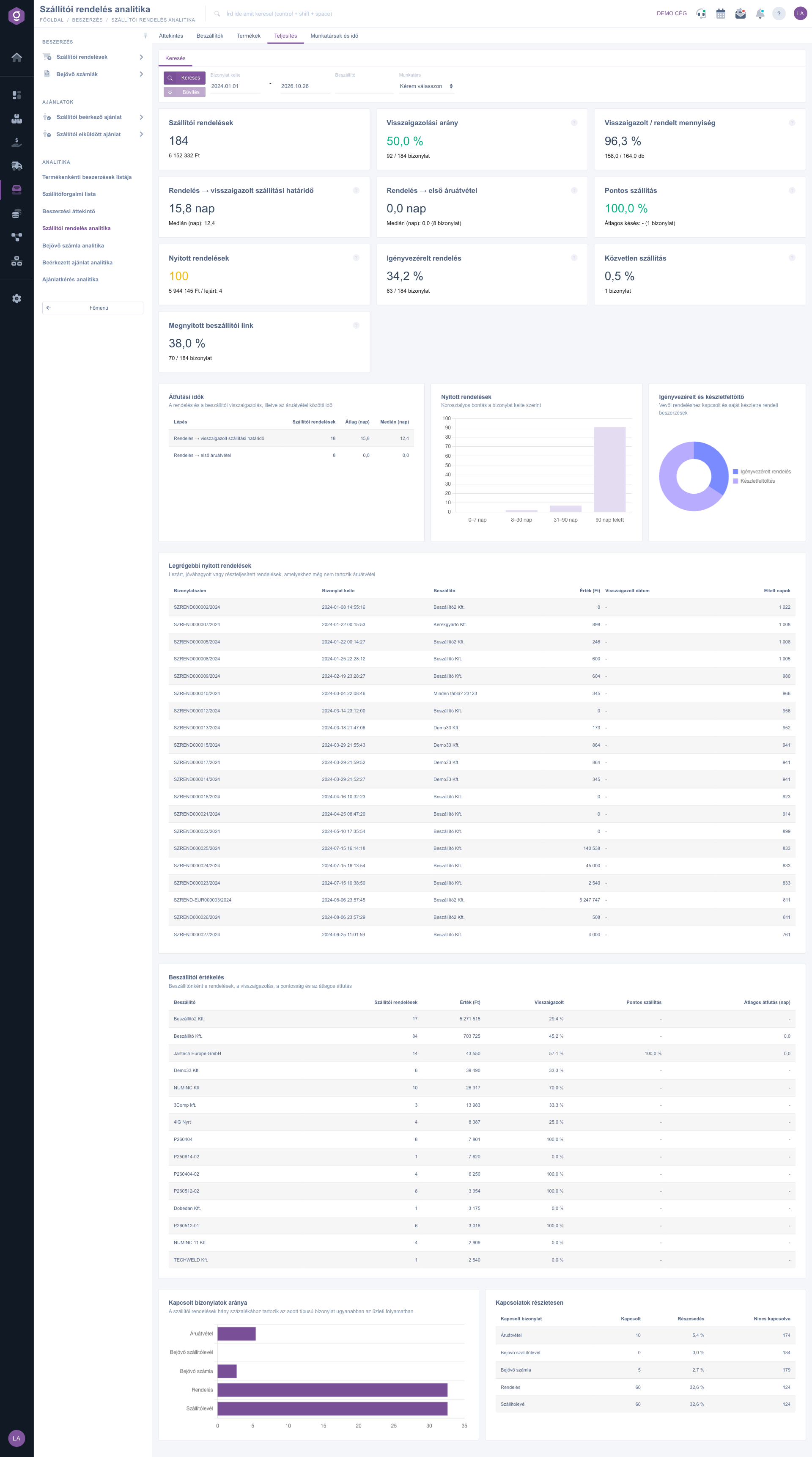
Supplier order analytics – Fulfillment tab
6. Colleagues and time
The Creation time (weekday x hour) heatmap shows when the orders are created by weekday and hour. The Colleagues doughnut and table show who placed how many orders (Supplier orders), in what Value, and the Average order value. The Split by job number and Split by department tables break the orders down by internal cost centers; where nothing is set, the order goes to the Unknown row.
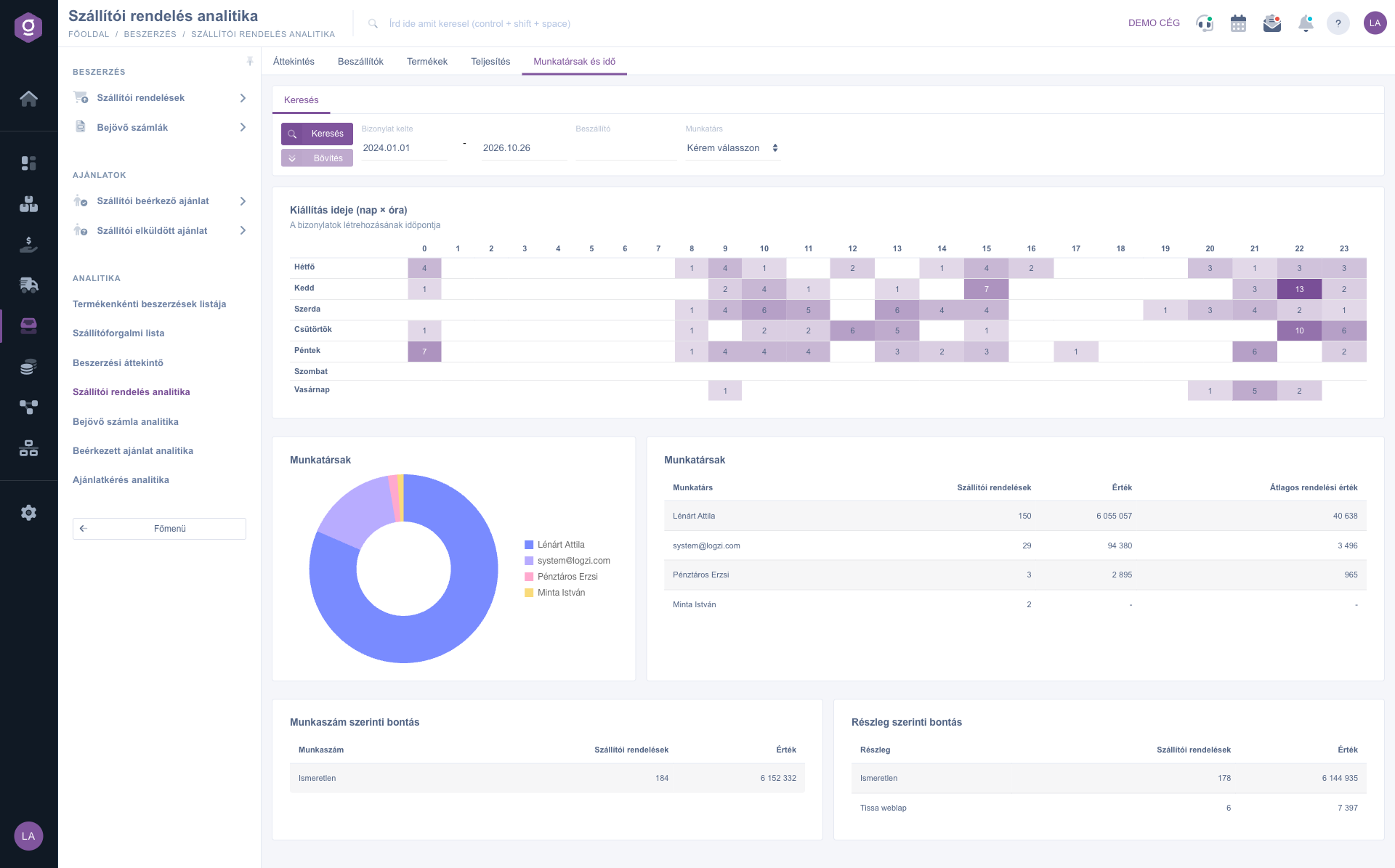
Supplier order analytics – Colleagues and time tab
Tip
As a weekly purchasing routine, open the Fulfillment tab and go through the Oldest open orders list: if an order is older than 30 days and has no Confirmed date next to it, call the supplier and ask for a confirmation. Before a purchasing negotiation, the first row of the Multi-supplier products table on the Products tab shows right away which product would be worth the most if you ordered it from the cheapest supplier.



