1. Opening the page and searching
Click Main menu / Procurement / Purchases list by product and the list opens with the Search tab selected. The pager above and below the table shows the page number and the total number of results (e.g. 1 - 10 / 113). Important: this total is not the number of products but the number of the invoice items behind them, so the pager can show more than the number of products actually in the list (see the Frequently asked questions section). The screenshots were taken from the Hungarian demo interface, so the Hungarian labels are given in parentheses in the image descriptions.
On the Search tab you find two filters: in the Product/Item number field you can enter a part of the product name or the exact item number, and with the Document date field pair you can specify a period from date to date. You apply the set conditions with the Search button. The Expand button is inactive on this page.
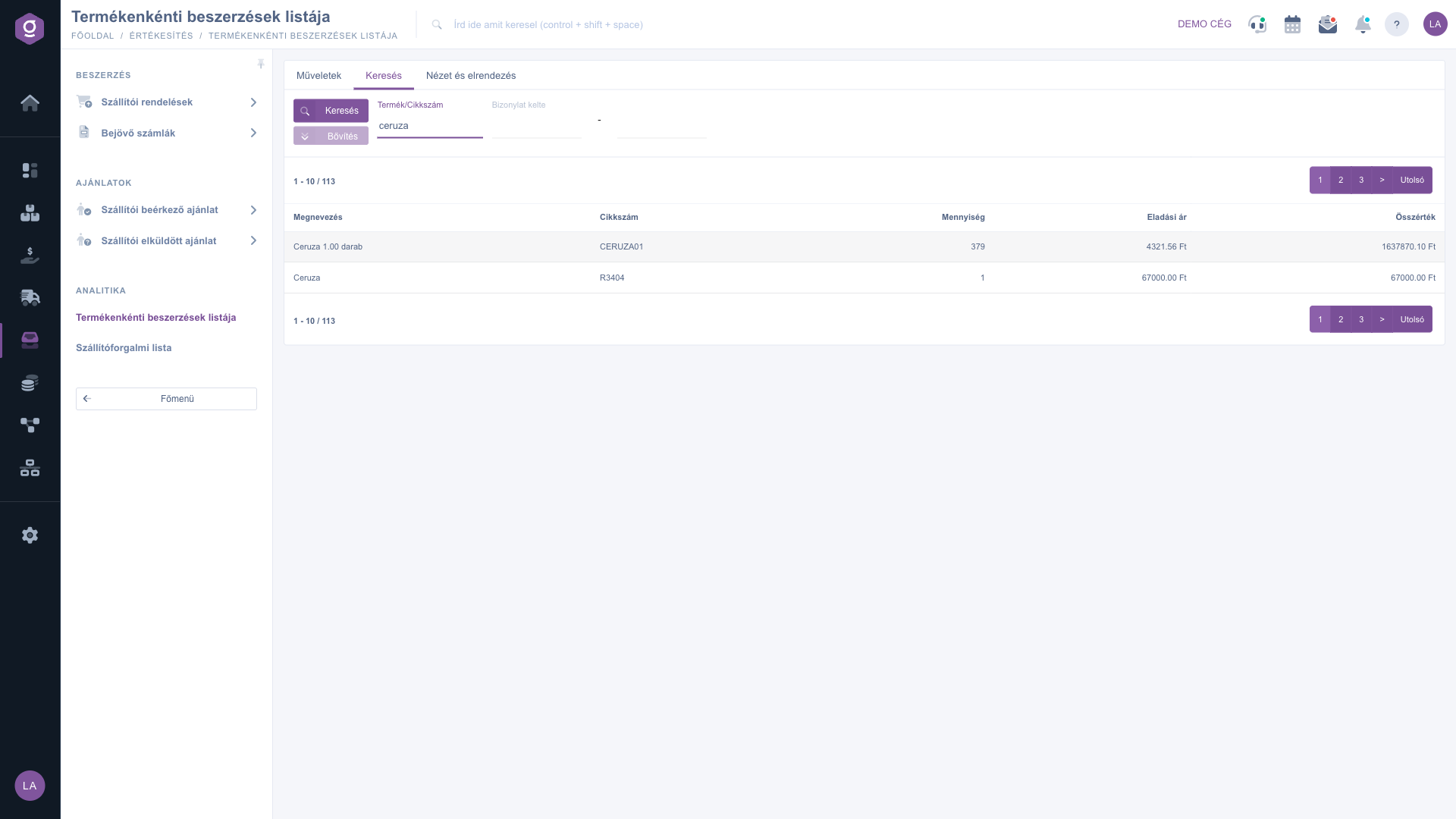
Purchases list by product – Search tab (Keresés) with the Product/Item number filter and the summary table
2. How to read the table
One row means one product. The system calculates the values of the row from the incoming-invoice items of the product. The meaning of the columns:
- Name: the name of the product with its unit of measure, for example Ceruza 1.00 darab.
- Item number: the item number of the product.
- Quantity: the quantity of all incoming-invoice items of the product added up. Business question: how many pieces (or other units) have I procured of it in total?
- Selling price: the header is misleading: this is not a selling price but the average purchase unit price of the items, in the default currency. The system converts the unit price of every item of the product to the default currency (for an item in another currency, with the exchange rate recorded on the item) and then takes the simple arithmetic mean of the items. Business question: what do I pay for this product on average?
- Total value: the average unit price multiplied by the total quantity (Selling price × Quantity). Business question: how much value does this product represent in my procurement?
A concrete example from the screenshot: you have procured 379 pieces of the product CERUZA01 in total, the average unit price is 4 321,56 Ft, so the Total value is 379 × 4 321,56 = 1 637 870,10 Ft (the system multiplies with the average before rounding, so there can be a difference of a few forints compared to the displayed values).
Important: the average is calculated per item, not weighted by quantity. If you bought a product, for example, once 1 piece for 2 000 Ft and another time 20 pieces for 500 Ft, the average price is (2 000 + 500) / 2 = 1 250 Ft and the Total value is 21 × 1 250 = 26 250 Ft, while the amount actually paid is 1 × 2 000 + 20 × 500 = 12 000 Ft. So the Total value is an estimate, not the actual sum of the invoices. For the amount actually paid use the items of the Purchase list.
3. Download to Excel
On the Actions tab, choose XLSX lista from the Download menu and the list is downloaded as an Excel file. The download uses the filters set on the Search tab and contains all results, not just the page you are currently looking at. If you only need the procurement of a given period or product, set the filter first and download the file only after that.
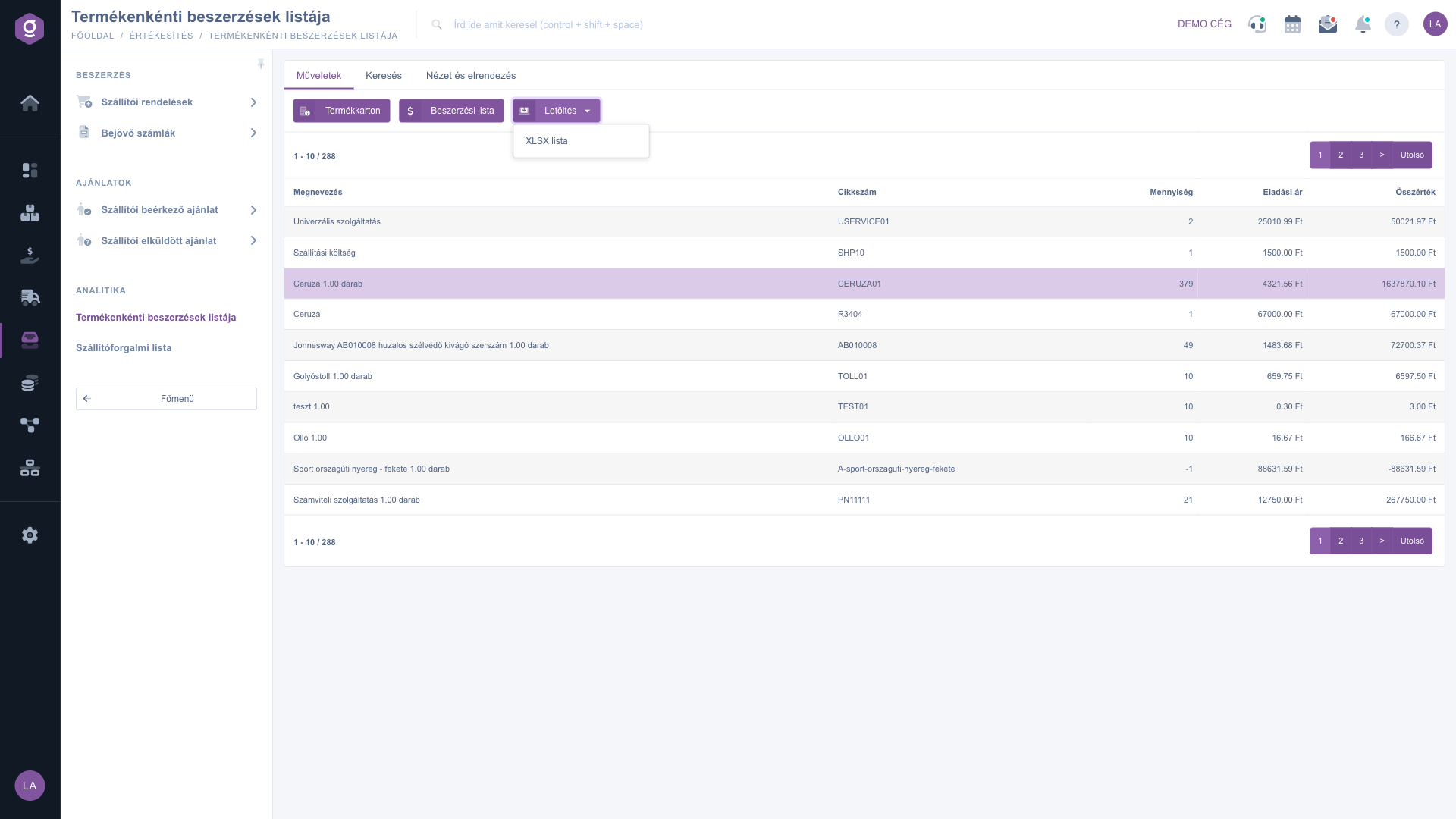
Purchases list by product – Actions tab (Műveletek): Product card, Purchase list and the Download menu
4. Customizing the view
On the View and layout tab you set how the list is displayed for you:
- Oszlopok (columns): you can choose which fields appear in the table and in what order. In the pop-up window you work with the Save, Default, Select all and Deselect all buttons, and with the search field you can quickly find the column you want. In this window some column names (for example Mennyiség and Összérték) always appear in Hungarian. If you save your own set of columns, the table headers use the labels of the Oszlopok window and the values appear unformatted as raw numbers (for example without a currency sign).
- Sorok (rows): you can set how many rows appear on a page (10, 25, 50 or 100). On this list a row means a product.
- Sorting: in the pop-up window you can select a column and the Ascending or Descending direction, but on this list the sorting setting currently does not change the order.
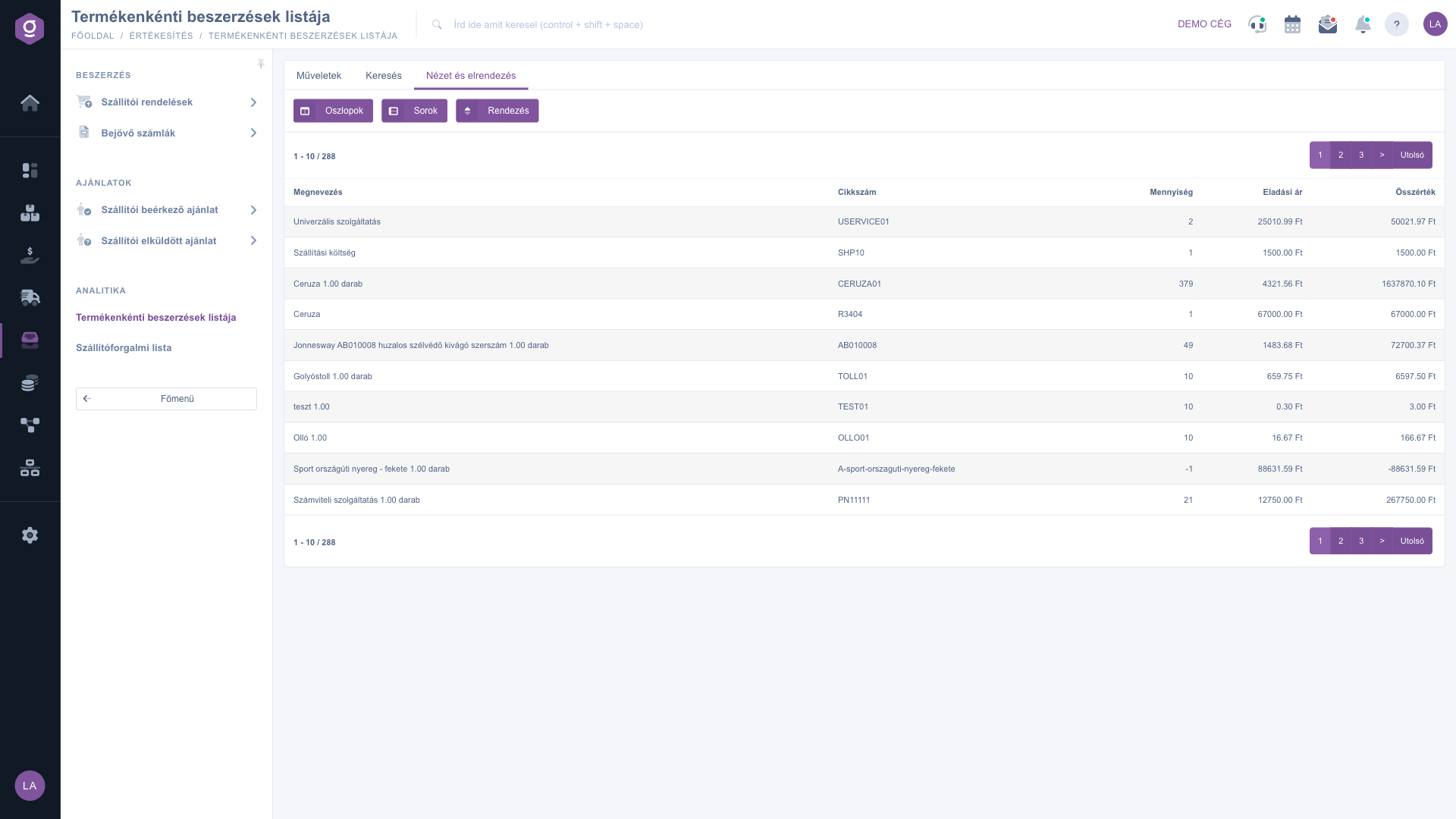
Purchases list by product – View and layout tab (Nézet és elrendezés): Oszlopok, Sorok, Sorting
5. Product card
If you want a summary overview of a product without leaving the list, first select the row in the table (click any of its columns), then click the Product card button on the Actions tab. The pop-up window has three tabs (Product card, Product data, Files). On the Product card tab, under the item number and name of the product, you see the physical, reserved, available and incoming stock (Physical stock, Reserved stock, Available stock, Incoming stock), the stock broken down by warehouse and location code, and the selling and purchase price. With the buttons above (Product data sheet, Warehouse stock, Stock history, Customer orders, Stock reservation, Price list, Historical price list, Historical warehouse stock) you can open the related detailed lists.
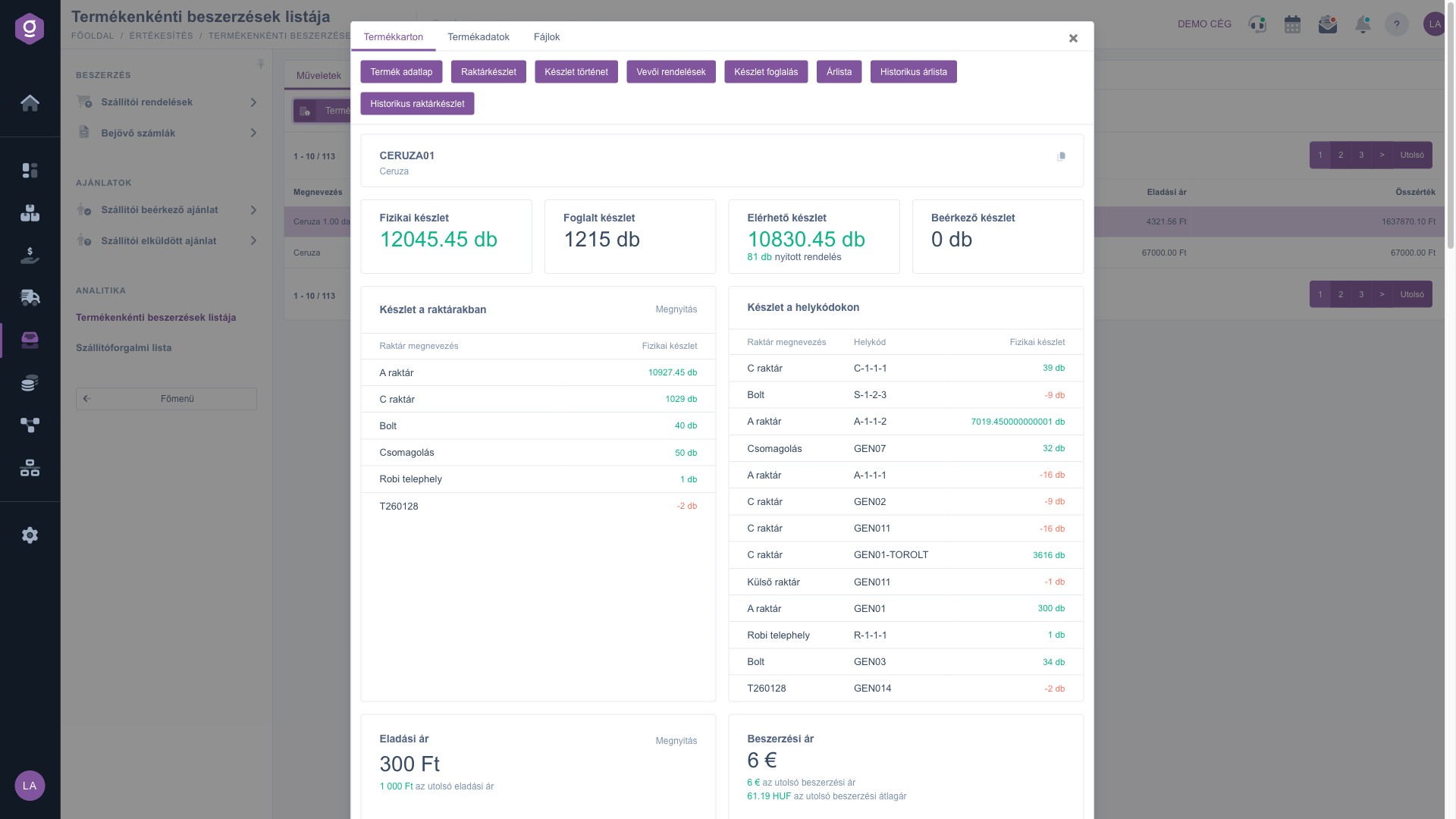
Purchases list by product – Product card (Termékkarton) window with stock and price information
6. Purchase list
You can view the procurement of the selected product item by item with the Purchase list button of the Actions tab. In the Procurement block of the pop-up window you see in every row the Document number of the incoming invoice (if you click the number, the invoice opens in a new tab), the Partner company name, the Date, the Quantity, the Net unit price in the currency of the invoice, the Net average price in forints and the Status. The Total row at the bottom of the table adds up the quantities. In the header of the block, All items is the view you are currently looking at, while Outgoing invoices, Incoming invoices and Retail sales open the corresponding list filtered to the product in a new tab. The window shows only items with the status Draft and Closed, so the quantities you see here can differ from those summarized in the list.
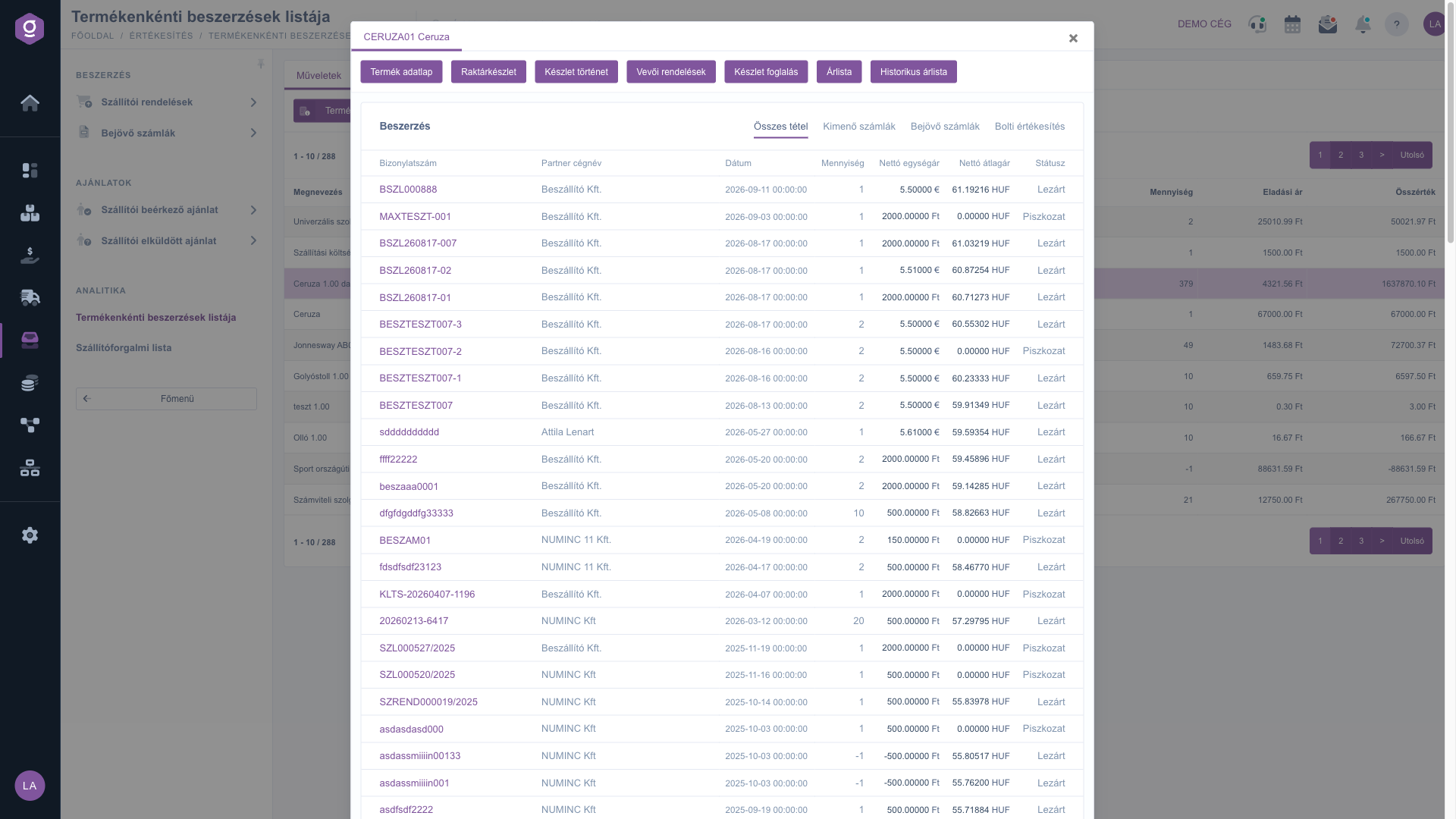
Purchases list by product – Purchase list (Beszerzési lista) window with the incoming-invoice items of the product
Tip
If you want to find out how much you spent on a product in a given quarter, enter the first and last day of the quarter in the Document date field, filter for the product and check the items in the Purchase list window. The Total value is only an estimate; you can calculate the actual cost from the quantities and unit prices of the items. If you want to analyze the whole list, you can take it to Excel with Download / XLSX lista.



