The Offer request analytics is the statistics page of the offer requests you sent to suppliers. It does not list single documents but summarizes them: it shows how many offers you requested, from whom, for which products, whether the suppliers answered, how fast, and whether a supplier order followed. It helps you answer questions like these:
One offer request document always goes to one supplier. If you ask several suppliers for a price for the same need, you record several documents, and together with the incoming offers and supplier orders linked to them they belong to one business process (one link group). The page uses this link to decide whether an offer request received an offer and whether an order followed.
The possible states of an offer request (Quote sent to supplier) are: Draft, Closed, Cancellation, Cancelled. The statistics treat the Closed (sent) offer requests as valid. Drafts and Cancellation/Cancelled documents are left out of the calculations, but you can see them in the Drafts and Storno ratio indicators and in the split by status. Deleted documents do not appear anywhere.
Click the Main menu / Procurement / Analytics / Offer request analytics menu item to open the page. At the top you see four tabs: Overview, Supplier responsiveness, Demand and Process. On the Search tab you can narrow down the data with the Document date field pair, with a part of the company name typed in the Supplier field and with the Employee list, then click the Search button. When the page opens, it shows the period from 1 January of the current year until today. The filter works the same way on all four tabs, but when you switch tabs it returns to the default period, so choose the tab first and filter afterwards. Hover over the small question mark icon next to an indicator to read its exact definition. The screenshots are taken from the Hungarian demo interface.
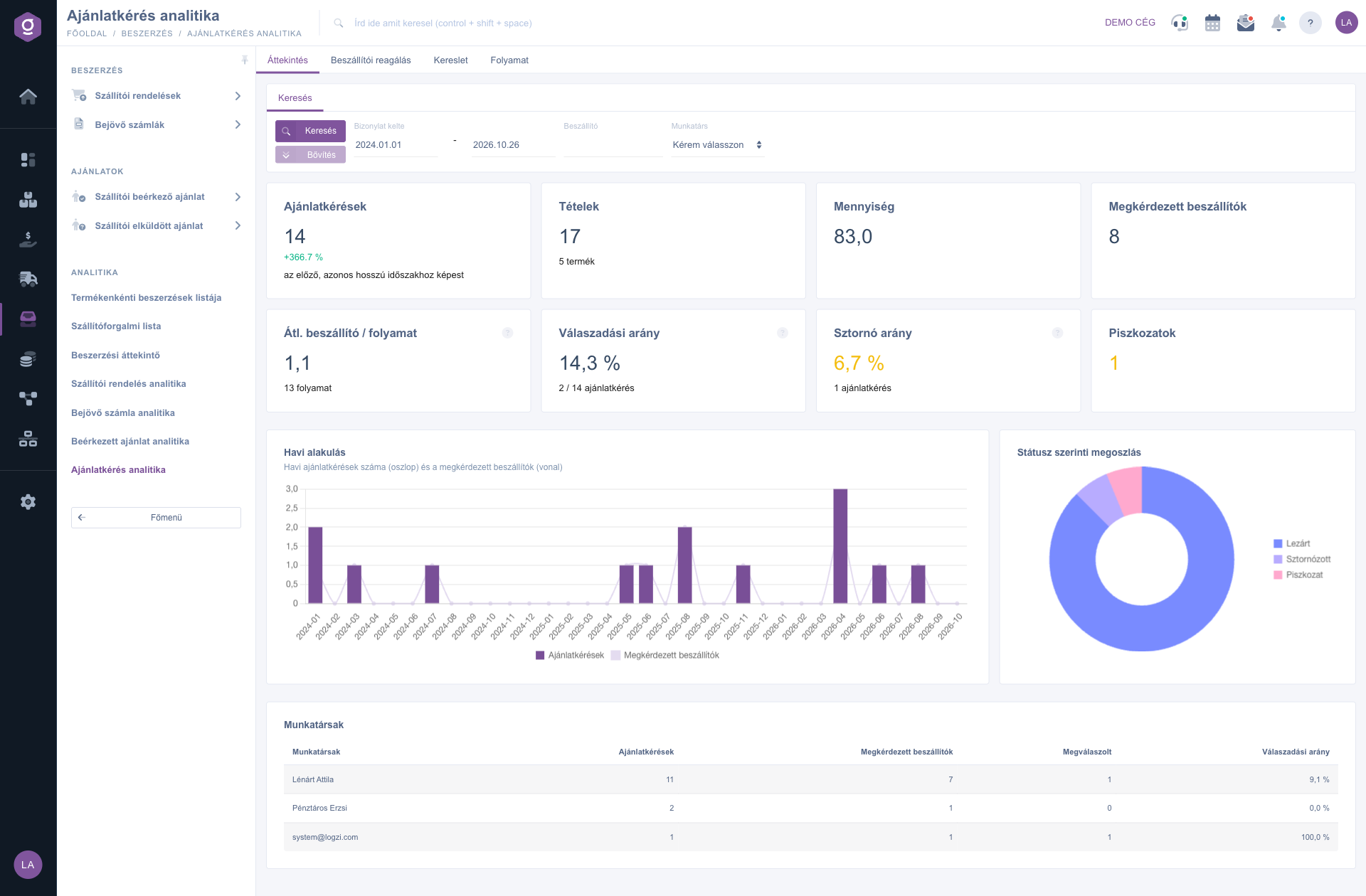
The top row shows the data of the selected period. Offer requests is the number of valid offer requests compared to the previous period of the same length (with the percentage change). Items is the number of requested item lines, below it you see how many different products they cover, and Quantity is the sum of the requested quantities. Suppliers asked is the number of different suppliers contacted, while Avg. suppliers / process shows from how many suppliers you request an offer in one business process on average: if the value is around 1, you usually ask only one supplier for a price, so there is nothing to compare with. The Response rate is the percentage of the offer requests that received an offer from the same supplier. The Storno ratio and the Drafts indicators show abandoned or withdrawn requests, in yellow if there are any. Further down, the bars of the Monthly trend chart show the monthly offer requests and the line shows the suppliers asked. The Split by status doughnut chart breaks the offer requests down by state, and the Colleagues table shows who sent how many offer requests, to how many suppliers and how many of them were answered. Where a document has no employee, it goes to the Unknown row.
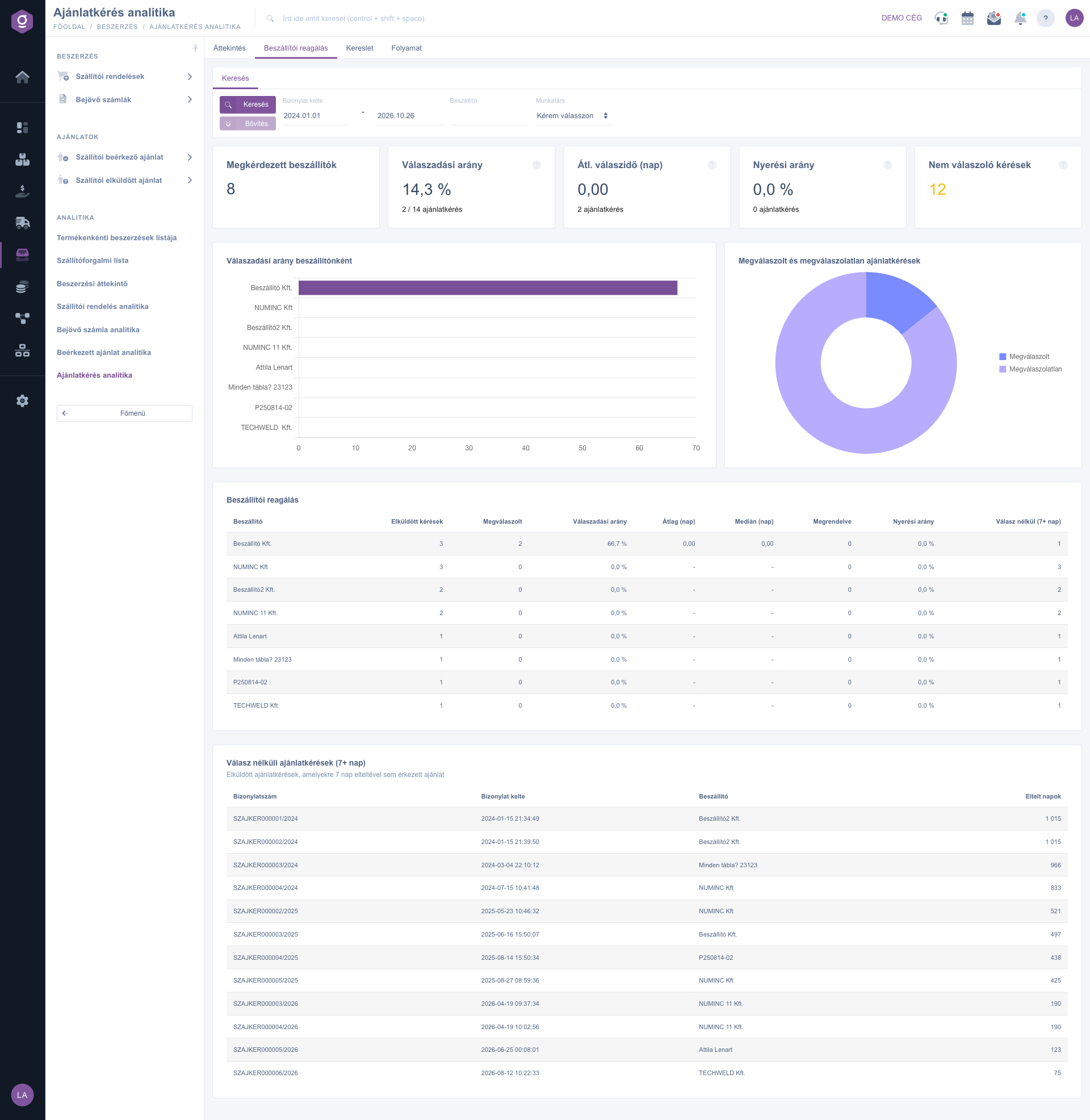
This tab shows which suppliers answer and how fast. The Response rate and the Win rate are calculated on the valid offer requests: the win rate tells you after how many offer requests you actually placed a supplier order with the supplier asked. The Avg. response time (days) is the average time between the creation of the offer request and the received offer, and Requests without response is the number of requests sent at least 7 days ago that are still unanswered (yellow if there are any). The Response rate by supplier chart compares the ten suppliers that received the most offer requests, and the doughnut chart shows the ratio of answered and unanswered requests. The Supplier responsiveness table lists the Requests sent, Answered, Ordered and No response (7+ days) counts by supplier, the percentages, and the response time as Average (days) and Median (days) (the median shows the typical supplier, because one or two extremely slow answers do not distort it). Where a supplier has never answered, a dash replaces the response time. The table shows the 50 suppliers with the most offer requests. Below it, the Requests without response (7+ days) list shows the 20 oldest such requests, and clicking the Document number opens the offer request in a new tab.
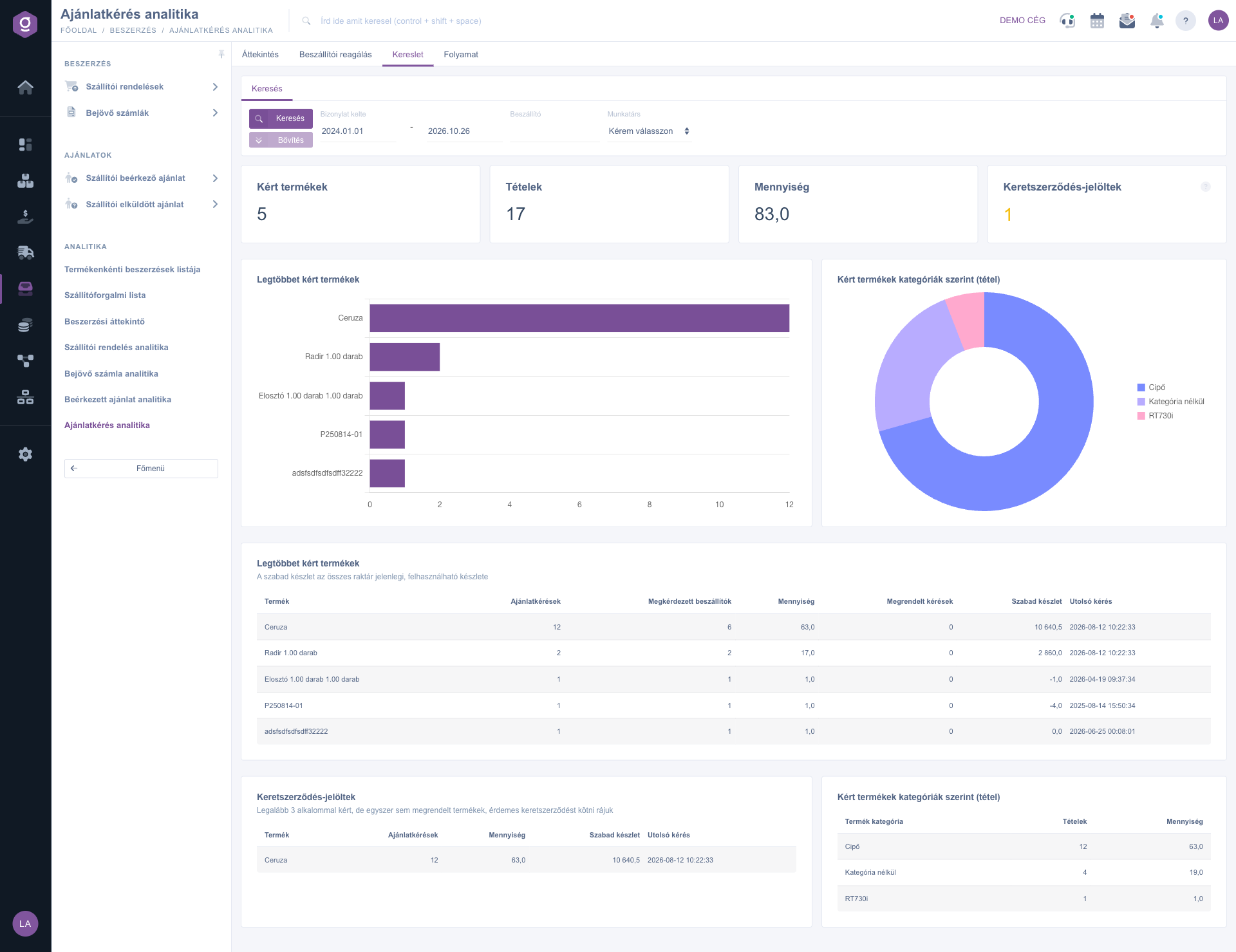
This tab shows what you ask offers for most often. The top row shows the Requested products (number of different products), the Items, the Quantity and the number of Framework agreement candidates. The Most requested products chart and table rank by the number of offer requests: you see from how many suppliers you requested a price, for what quantity, how many requests led to a supplier order (Requests ordered), when the Last request was, and the current Available stock of the product in all stores. The Framework agreement candidates table collects the products that were requested in at least 3 offer requests but none of them led to a supplier order. The Requested products by category (items) doughnut chart and table total the requested items by product category, and products without a category go to the Uncategorized row. The product and category tables show the top 15 and 12 rows. For example, in the demo data the Ceruza appears in 12 offer requests but has never been ordered, so it is a framework agreement candidate.
Here you see where the offer request process gets stuck. The Request → offer → order funnel and the Steps in detail table show what percentage of the valid offer requests reached the received offer, the supplier order and the order placed with the supplier asked. The Not reached column gives the number of offer requests that dropped out at the given step. The Lead times table shows the time between the offer request and the nearest later linked offer or supplier order, as an average and a median. The Unanswered indicator counts the offer requests that were sent but have no offer, Over 15 days counts the oldest ones (red if there are any), and the chart splits them into age groups (0–3, 4–7, 8–14 and over 15 days) by the date of the offer request. The Oldest unanswered requests list gives the 20 oldest ones with the supplier name and the Days passed. In the demo data, for example, 2 of the 14 valid offer requests received an offer, so the funnel narrows to 14.3 % at the second step.
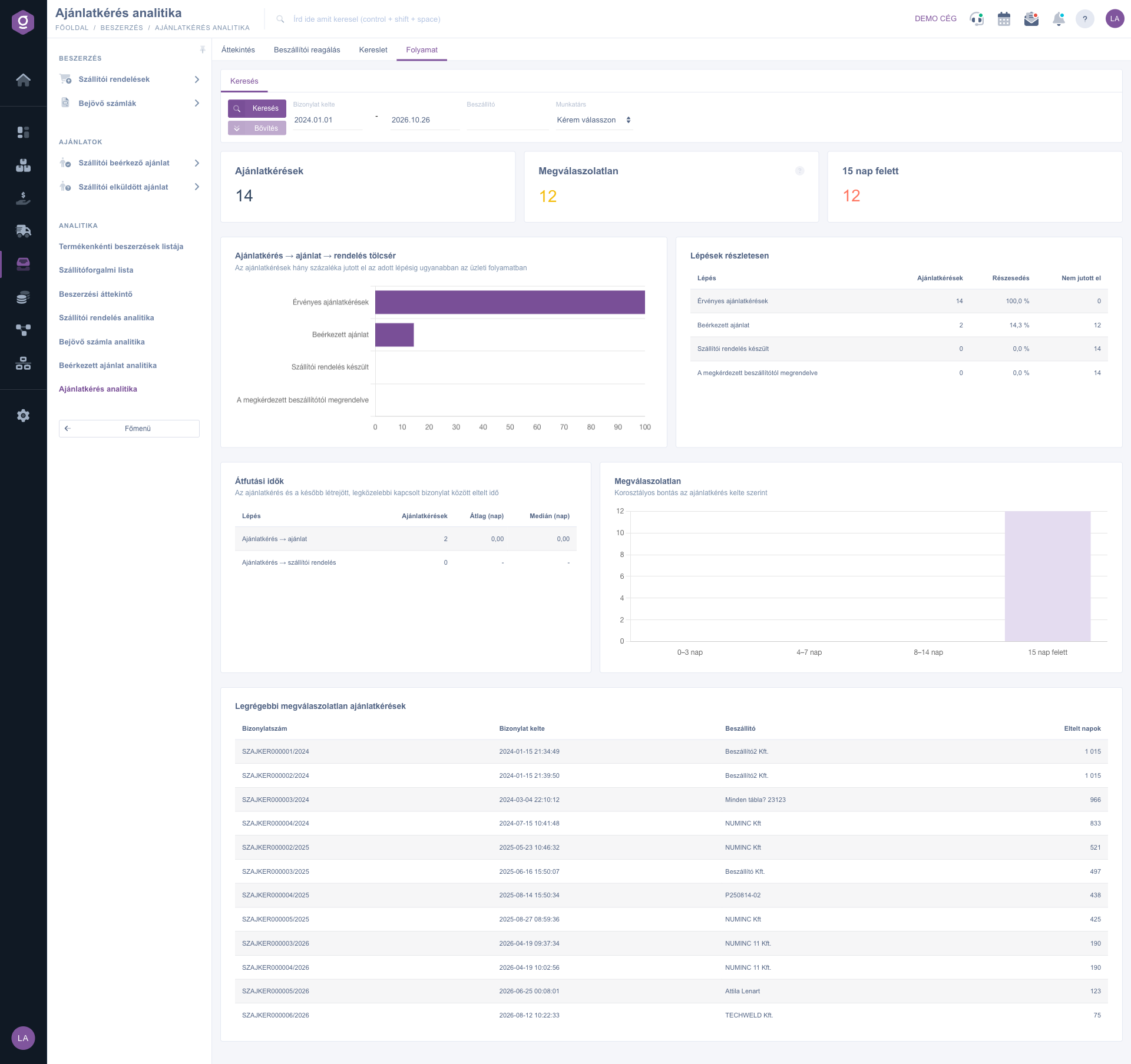
At the beginning of every week, open the Process tab and go through the Oldest unanswered requests list. Clicking the Document number opens the offer request, where you can immediately chase the supplier, or, if the Over 15 days bar is not empty, send the same request to another supplier.
Before a negotiation with a supplier or a framework agreement, check the Framework agreement candidates list on the Demand tab and see who answers fastest on the Supplier responsiveness tab. This way you can conclude the framework agreement for your most requested product with a supplier who also reacts reliably.

The elements of the Search tab and their meaning:
| Field / Element | Required | Description |
|---|---|---|
| Document date (from – to) | The date the offer request was issued. By default, 1 January of the current year and today. | |
| Supplier | A part of the company name of the supplier. If left empty, all suppliers are shown. | |
| Employee | The employee who issued the offer request. The Please choose row means all employees. | |
| Search button | Reloads the active tab with the given filters. |
The meaning of the main indicators:
| Indicator | What it shows | How it is calculated |
|---|---|---|
| Offer requests | The number of valid offer requests. | Closed, not deleted offer requests in the filtered period. The percentage change is compared to the previous period of the same length. |
| Suppliers asked | From how many different suppliers you requested an offer. | The number of different suppliers of the valid offer requests. |
| Avg. suppliers / process | How many suppliers you asked in one business process on average. | The average of the different suppliers asked per process. An offer request without any link counts as a process on its own. |
| Response rate | What part of the offer requests received an offer. | Answered / valid offer requests. An offer request is answered if the same business process contains a not cancelled Incoming supplier quote from the same supplier. |
| Storno ratio | The share of the cancelled requests. | Cancellation and cancelled / (valid + cancellation and cancelled) offer requests. |
| Avg. response time (days) | How fast the offer arrives. | The average of the hours between the creation of the offer request and the nearest later offer from the same supplier, converted to days. Only the answered requests are counted. |
| Win rate | After how many offer requests you placed an order with the supplier asked. | The share of the valid offer requests whose process contains a not draft and not cancelled Supplier order to the same supplier. |
| Requests without response | The offer requests left without an offer for 7 days. | Closed offer requests dated at least 7 days ago that received no offer. |
| Unanswered | All the sent offer requests without an offer. | Closed offer requests that have not received an offer yet, regardless of their age. Over 15 days counts those older than 15 days. |
| Requested products | How many different products you requested. | The different products of the product items of the valid offer requests. Text lines without a product are not counted. |
| Framework agreement candidates | The number of the often requested but never ordered products. | Products that appear in at least 3 offer requests and no process of these has a supplier order. |
The columns of the tables and of the funnel:
| Column | Where you see it | Description |
|---|---|---|
| Requests sent | Supplier responsiveness | The number of valid offer requests of the given supplier. |
| Answered | Supplier responsiveness, Overview | For how many offer requests an offer arrived. The Response rate is its ratio to the requests sent. |
| Average (days) and Median (days) | Supplier responsiveness, Process | The average and the middle value of the response time or lead time in days. A dash means there is no data. |
| Ordered | Supplier responsiveness | After how many offer requests a supplier order was created to the same supplier. The Win rate is its ratio to the requests sent. |
| No response (7+ days) | Supplier responsiveness | The number of offer requests unanswered for at least 7 days, by supplier. |
| Days passed | Supplier responsiveness, Process | The number of days between the date of the unanswered offer request and today. |
| Offer requests (in the product table) | Demand | In how many different offer requests the product appears. |
| Requests ordered | Demand | The number of offer requests whose process has a supplier order. |
| Available stock | Demand | The current usable stock of the product in all stores. It does not depend on the filtered period. |
| Last request | Demand | The date of the last offer requested for the product. |
| Share | Process | What percentage of the valid offer requests reached the given step. |
| Not reached | Process | How many of the valid offer requests did not reach the given step. |
The menu item appears if the Quote sent to supplier module is assigned to you. If you cannot see it, ask your administrator to check your module assignment. The Procurement overview is visible regardless of this, if any of the procurement modules (supplier order, incoming invoice, incoming quote, quote sent) is assigned to you.
The page matches the offer to the offer request through the link of the business process. A request counts as answered if the same process contains a not cancelled incoming offer from the same supplier. If you recorded the offer independently of the offer request, without a link, or under the name of another supplier, the system cannot see the connection. The same applies to the Win rate: it only counts if the supplier order was created in the same process and addressed to the same supplier. This is why it is worth creating the incoming offer and the order starting from the offer request.
Only Closed, that is actually sent offer requests are valid. A Draft has not gone out to the supplier yet, and a Cancellation or Cancelled document is a withdrawn request, so none of them distorts the response rate. You see them separately in the Drafts and Storno ratio indicators and in the Split by status chart of the Overview tab. Deleted documents do not appear anywhere.
Unanswered (Process tab) counts every closed offer request that has not received an offer yet, even if you sent it yesterday. Requests without response (Supplier responsiveness tab) counts only those among them that are dated at least 7 days ago. So the second one shows the suppliers that are really silent, and the first one shows the whole pending stock, split into age groups.
The list only contains the products for which you sent at least 3 offer requests in the filtered period and no process of these requests has a supplier order. If you have already ordered every frequently requested product, or you requested none of them more than twice, the list is empty. This is not an error. By widening the filtered period, more products can reach 3 offer requests.
A dash means that none of the offer requests of the filtered period received an offer, so there is nothing to average. The value 0.00 appears if you recorded the incoming offer within one hour of the offer request. The system compares the time when the two documents were created, not the time of the actual answer of the supplier. For an accurate response time, record the offer when it arrives.
This page only tracks whether an offer request received an answer and an order. The value of the offers and the comparison between suppliers is shown by the Received offer analytics, the development of the placed orders by the Supplier order analytics, and the invoices that arrive for them by the Incoming invoice analytics.
Don't want to spend hours searching for a solution? Choose the most efficient way: book a personalized, 45-minute online training session dedicated entirely to you. Whether it's a walkthrough of the basics or a detailed setup of a specific module, our expert colleague will guide you through the whole process, step by step.
Don't waste your time - ask for help!
Our goal is to get you using our system as quickly and efficiently as possible. Whether you're completely new to us or stuck on a specific setting, don't hesitate to ask for help!
Create your account now,
pay later!

