1. Opening the page and filtering
Click Main menu / Procurement / Analytics / Received offer analytics to open the page. At the top you see four tabs: Overview, Suppliers, Prices and products and Process and lead time. On the Search tab you can narrow down the data with the Document date field pair, with a part of the company name typed into the Supplier field and with the Employee list, then click the Search button. The date filter applies to the day the offer was issued; when you open the page, the period from January 1 of the current year to today is shown. If you switch tabs, the default settings return, so set the filter again on the tab you have just opened. Hover over the question mark icon next to an indicator to read its exact definition. The screenshots come from the Hungarian demo interface.
2. Overview
The top row shows the indicators of the selected period. Offers is the number of valid offers and Value is their gross value in the default currency; next to both you see the change compared to the previous period of the same length. The Average offer value is the total value divided by the number of offers, Suppliers is the number of different offering suppliers. The Storno ratio is the share of the cancellation and cancelled offers compared to the valid and cancellation offers, and Drafts is the number of offers not closed yet. Offers without exchange rate are the foreign currency offers that have no exchange rate: they are included in the number of offers, but their value cannot be converted, so they are missing from the totals. Below, in the Monthly trend chart the bar shows the value and the line shows the number of offers by month, the Split by status chart divides the non-deleted offers by status, and the Colleagues table shows who recorded how many offers, in what value and with what average value. Where the colleague is not specified, the offer goes to the Unknown row.
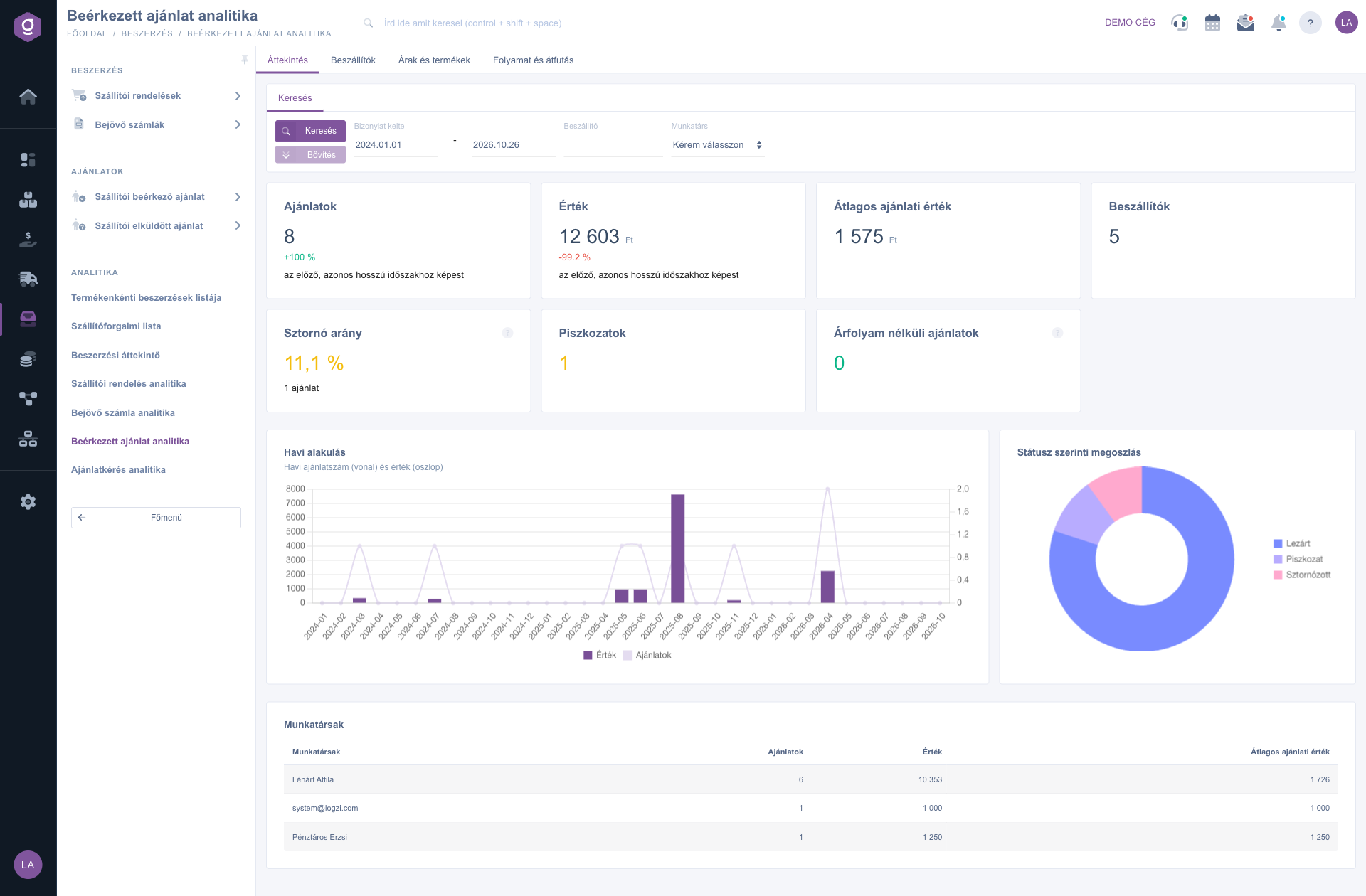
Received offer analytics – Overview tab
3. Suppliers
The four indicators in the top bar: the number of Suppliers, the Share of requested offers (the percentage of the offers that came in answer to a request you sent to the same supplier in the same business process; the rest are unsolicited), the Win rate (the share of the offers that were followed by a purchase order to the offering supplier) and the Avg. response time (days) (the average time between the creation of the request and the received offer, requested offers only; if there is none, you see a dash). The Top suppliers by offer value chart ranks the ten suppliers with the highest offer value, and the Requested and unsolicited offers doughnut chart shows how large a part of the offers came in on a request. The Supplier ranking table (up to 50 suppliers, in descending order of value) gives, per supplier, the number of Offers, the Value, the Average offer value, the Share of the total value, the Share of requested offers, in the Ordered column the number of offers after which you ordered from the supplier, and from these the Win rate and the Avg. response time (days).
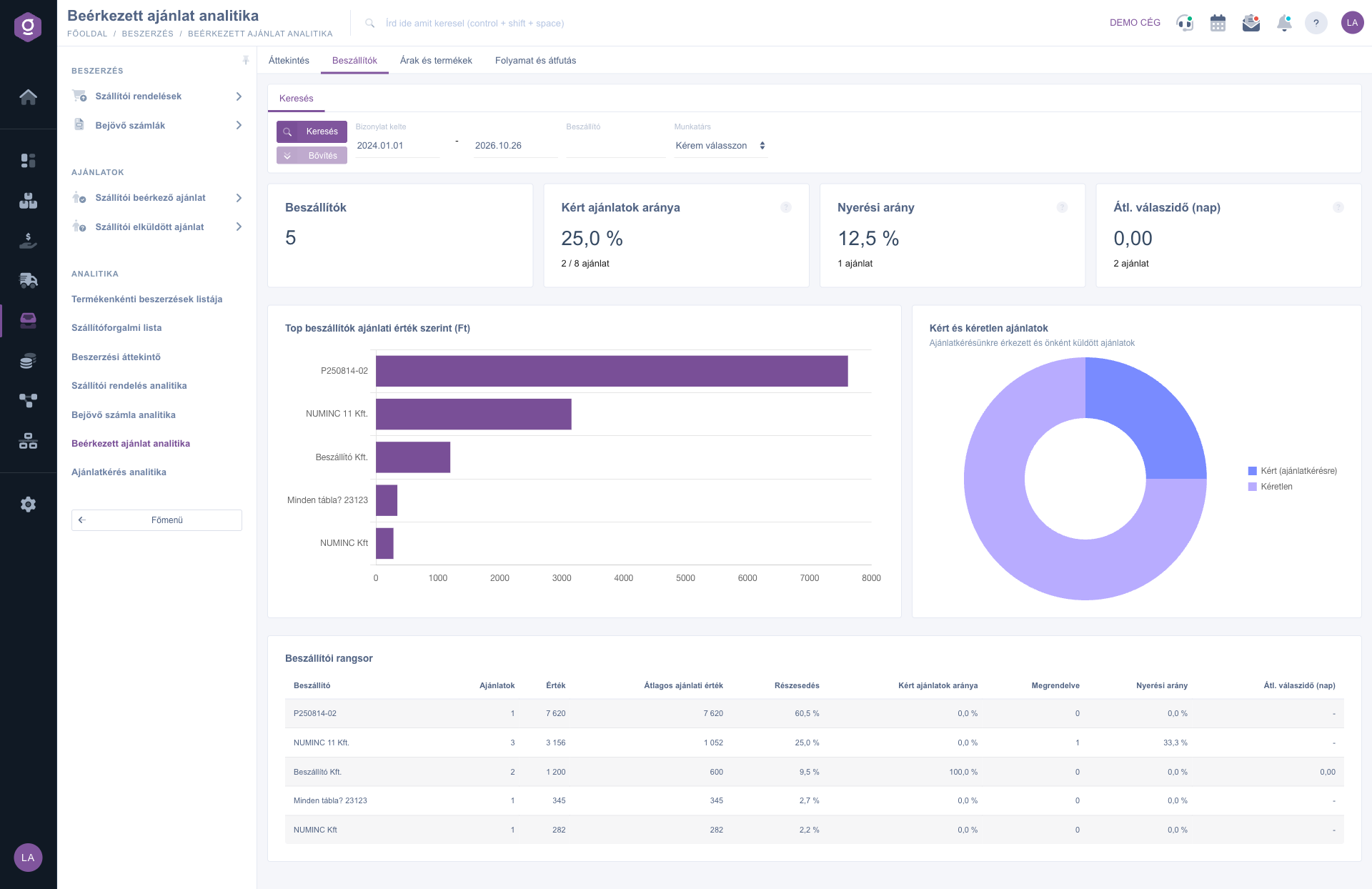
Received offer analytics – Suppliers tab
4. Prices and products
This tab examines the unit prices of the items: only items entered for a real product with a price count, and foreign currency items appear in the default currency at net unit price (a foreign currency offer without exchange rate is left out). Offered products is the number of different products (below it the number of item lines), and Comparable products are the ones offered by at least two suppliers. The Average price spread is the difference between the most expensive and the cheapest offer as a percentage of the cheapest offer, averaged over the comparable products. Cheaper than last purchase and Dearer than last purchase count the products whose best offered price is lower (saving) or higher (price increase) than the last purchase price. The Products with the largest price spread chart shows the price spread of the first ten products. The Price competition: products offered by several suppliers table shows, per product, the number of Suppliers, the Min. price, Max. price and Avg. price values, the Price spread and, in the Best offer column, the supplier with the cheapest offer (up to 30 products, in descending order of price spread). In the Offered price vs purchase / sale price table, next to the best offer you see the Last purchase price, the Change (− saving) (a negative number means a cheaper offer), the Average purchase price, the Sale price and the Margin. The table contains the 30 most frequently offered products, so the two “last purchase” indicators also refer to this group. Where a value is missing (for example there is no purchase price yet), the cell is empty.
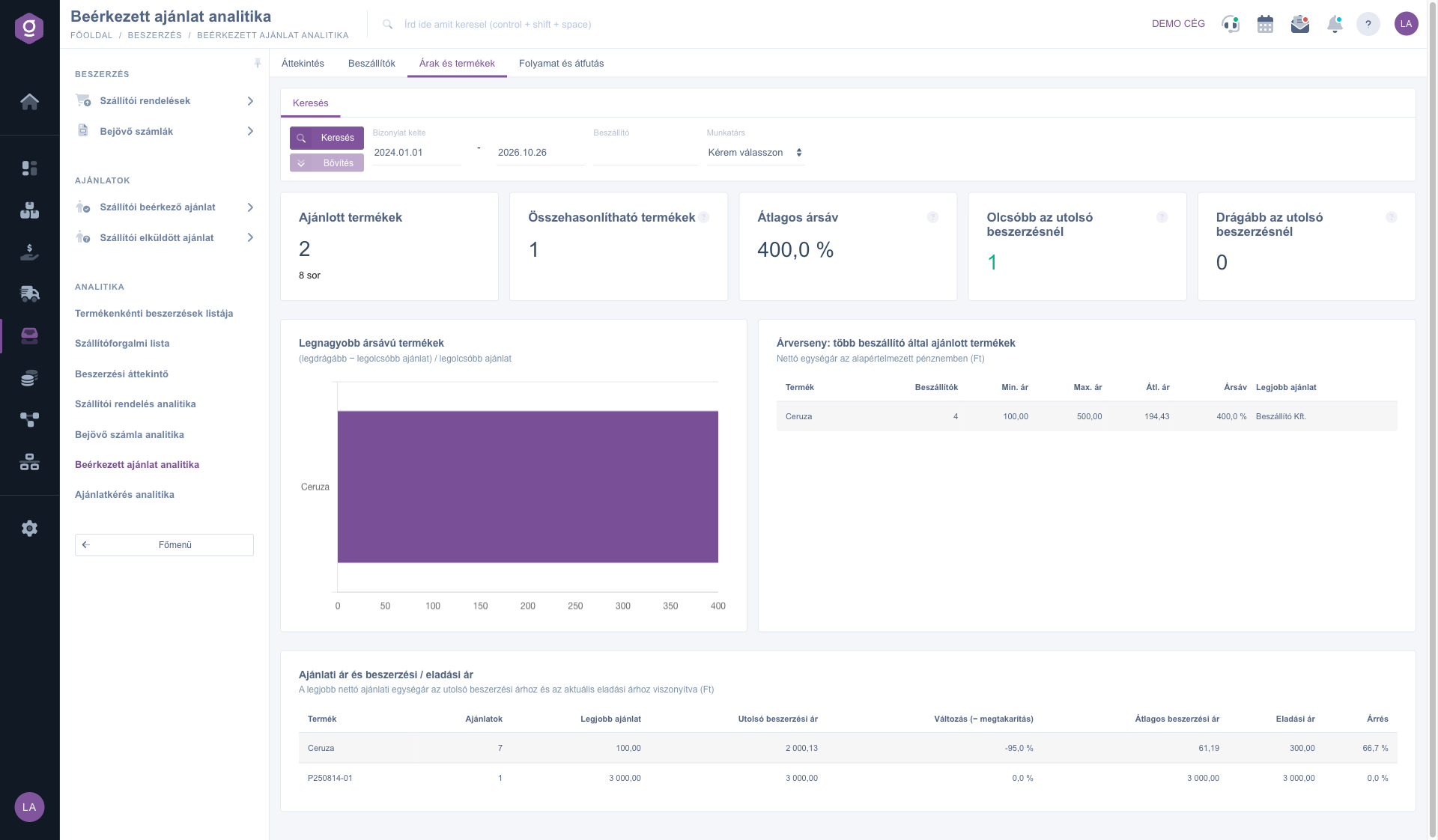
Received offer analytics – Prices and products tab
5. Process and lead time
The Offer → order funnel shows what percentage of the valid offers reached the given step in the same business process. The Steps in detail table lists the four steps with the number of Offers, the Share and the Not reached count: Valid offers, Received on a request, Purchase order created (to any supplier) and Ordered from the offering supplier. The Lead times table gives the average and the median in days of the Request → offer and the Offer → purchase order step, measured to the nearest linked document. Offers waiting for a decision are the closed offers that have no purchase order yet; the top bar shows their number and value, and the number of offers Older than 90 days. The chart shows them in the age groups 0–7 days, 8–30 days, 31–90 days and Over 90 days, counted from the document date to today. The Oldest offers waiting for a decision table lists the 20 oldest ones with the columns Document number, Document date, Supplier, Value and Days passed; click the document number and the offer opens in a new tab.
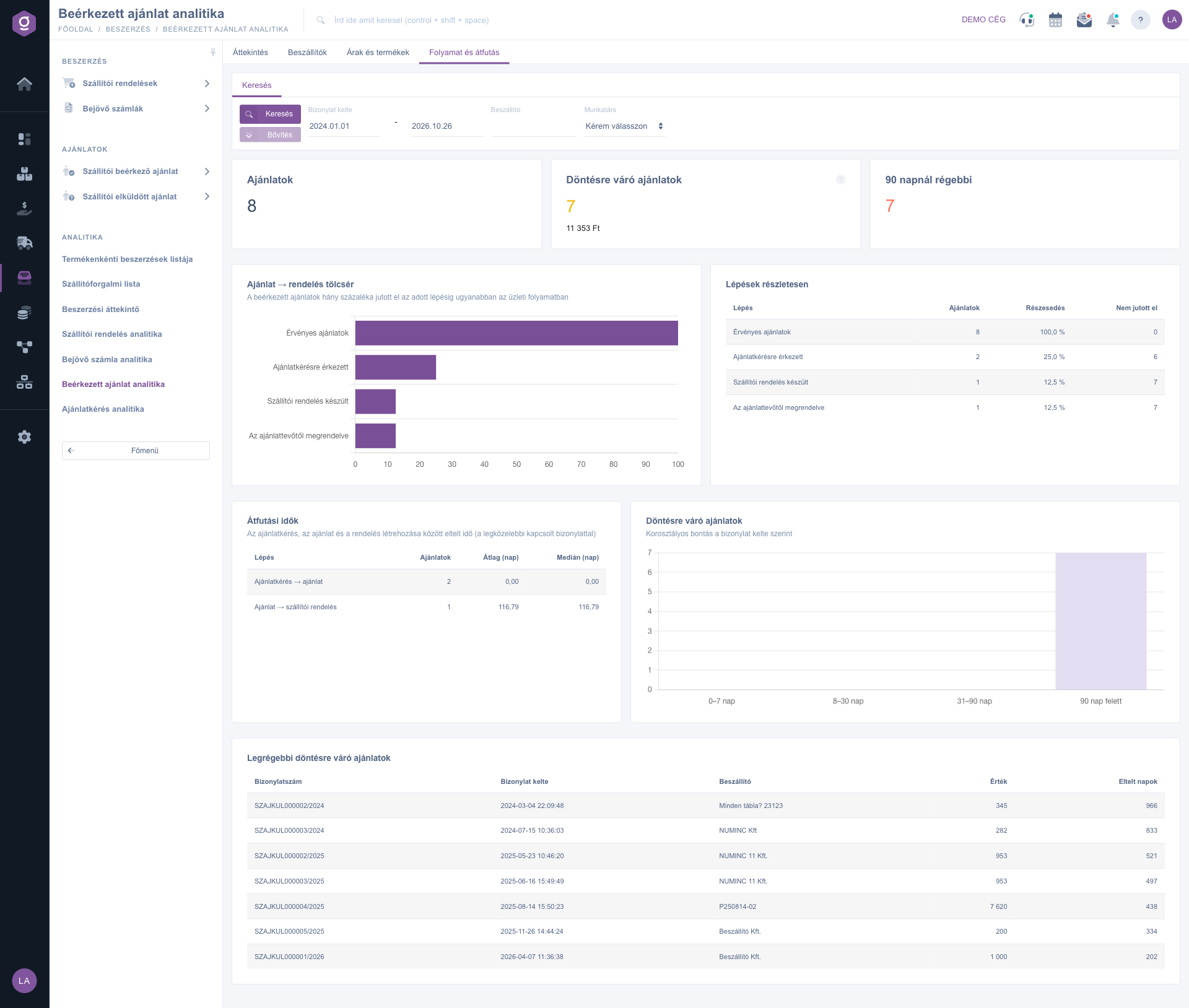
Received offer analytics – Process and lead time tab
Tip
Before a purchasing decision open the Prices and products tab: if the price spread of a product in the Price competition table is 25 %, the Best offer column immediately tells you which supplier to order from, and the negative value in the Change (− saving) column shows by what percentage it is cheaper than the last purchase price. As a weekly routine, go through the Oldest offers waiting for a decision list on the Process and lead time tab to quickly decide which offer should become a purchase order and which one should be closed or declined.



