1. Viewing the list and the actions available on documents
Click Main menu / Procurement / Quote sent to supplier / List and all the quote requests created so far are displayed. Above the table, the buttons on the Actions tab let you work with the selected document. You can create a new document with the Main menu / Procurement / Quote sent to supplier / New menu item or with the New button of the list. The screenshots were taken in the Hungarian demo interface.
- New: creating a new quote request on an empty sheet.
- Open: opening the sheet of the selected document to view or edit the header data and the items.
- Close: closing the document — possible only for a document in Draft status. With the arrow next to the button you can combine closing with printing (Close and print) or downloading (Close and download), so you can send the closed request to the supplier right away.
- Delete: deleting the document, or with the Delete and copy option deleting it and creating a copy at once. Documents in Draft and Closed status can be deleted; a deleted document gets the Cancelled status and cannot be restored.
- Cloning: creating a new document based on the data of the selected one — if you ask several suppliers for a quote for the same list, it is enough to create it once, then copy it and replace the partner.
- History: viewing the history related to the selected document.
- Send email: opens the e-mail window of the selected document, where you can view the e-mails previously sent for the document or start a new one. Available only for a document that is closed (or beyond).
- Download: exporting the list or the selected document. In the List operation block you can download the whole list (XLSX list, XLSX item list), and in the Document operation block the data of the selected document (XLSX items, XLSX serial number list, PDF, PDF Preview, Download attachments). The final PDF can be created only from a document that is closed (or beyond); the PDF Preview and XLSX items are also available for a draft.
- Document management: starting a new document from the selected one: Incoming supplier quote (the priced reply of the supplier), Worksheets, as well as the Cloning option. Except for cloning, these are available only for a document that is closed (or beyond); the system then opens the sheet of the new document prefilled with the data of the request, which you save and close.
At the right end of the row of tabs, the Analytics link leads to the statistics page of the quote requests sent.
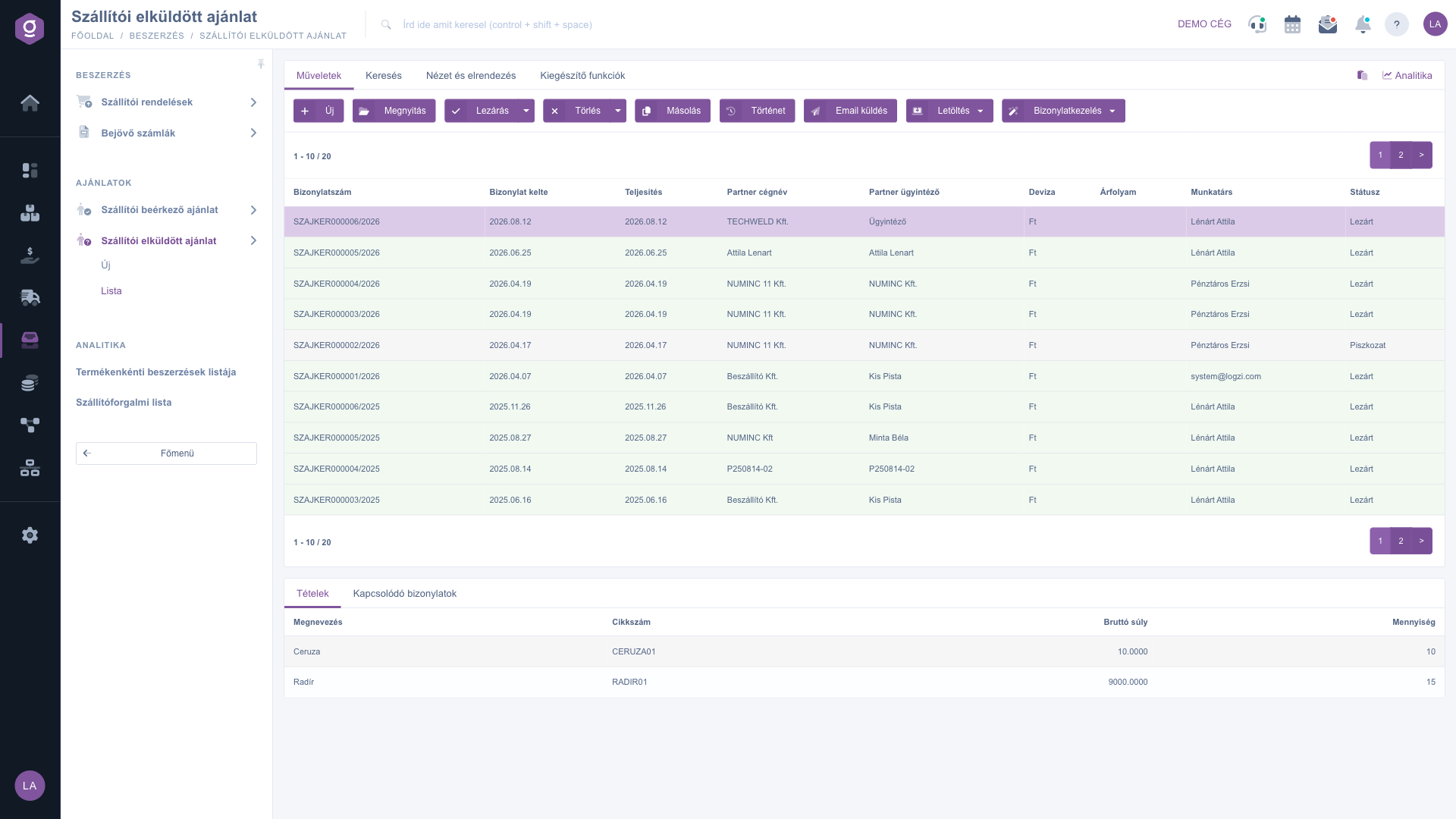
Quote sent to supplier list – Actions tab (Műveletek) and the preview window (Betekintő ablak)
The Document management menu starts a new document from the selected, closed request. For a document in draft status only Cloning can be used.
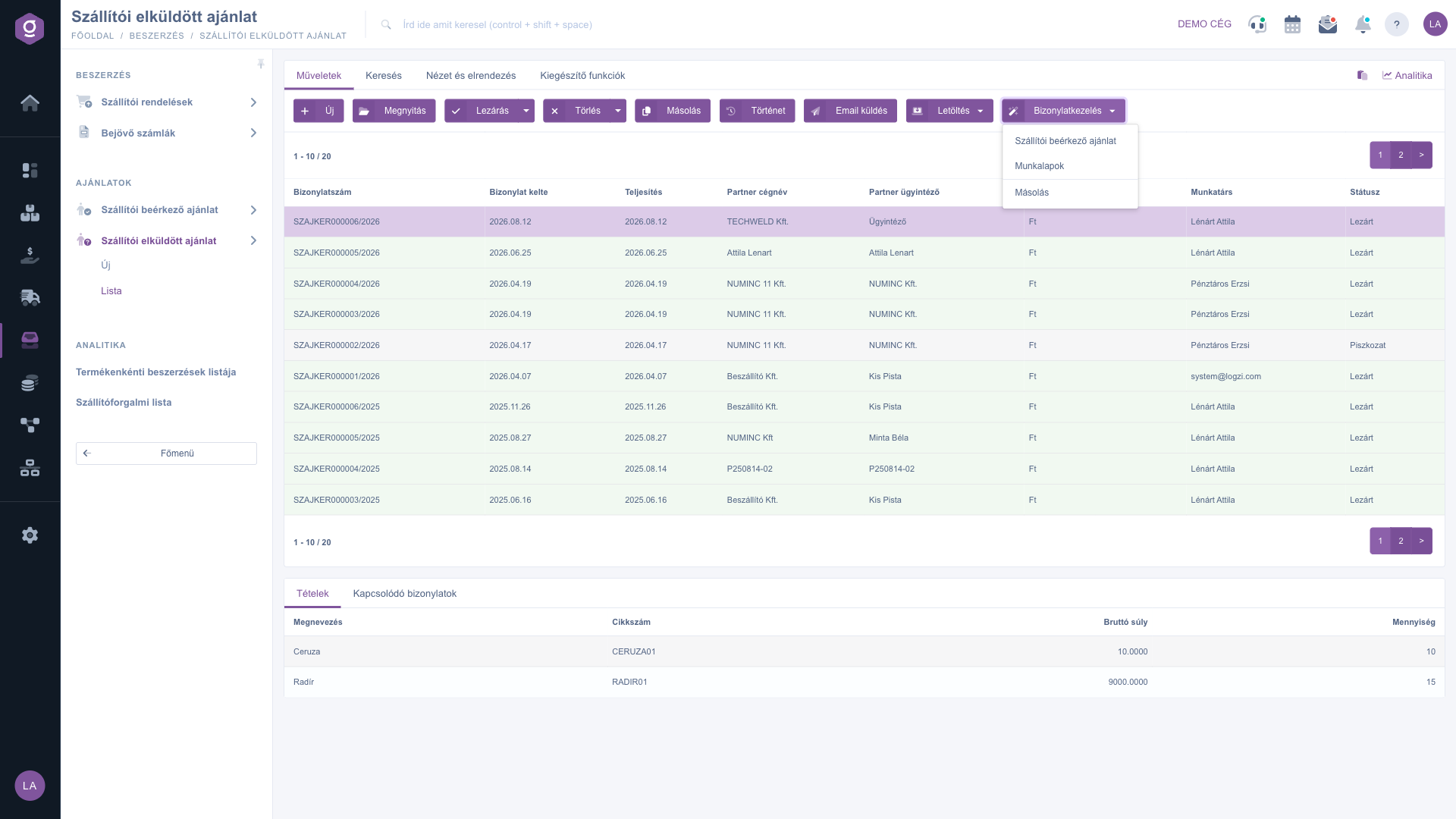
Quote sent to supplier list – Document management menu (Bizonylatkezelés)
2. Searching among the documents
Click the Search tab above the table to display the filter options. The fields visible right away are Partner company name, Document number, Currency and Status (you can select several statuses). With the “Expand” button more filters open: Document date and Performance date from–to, Employee, Project, Job number, Department number, and the Item number, with which you find the requests that contain a given product. Use the Search button to filter by the set conditions. With the floppy disk icon next to the button you can save the current search (the list then loads according to the saved state), and with the X icon you can delete the saved search, after which the full list is loaded again.
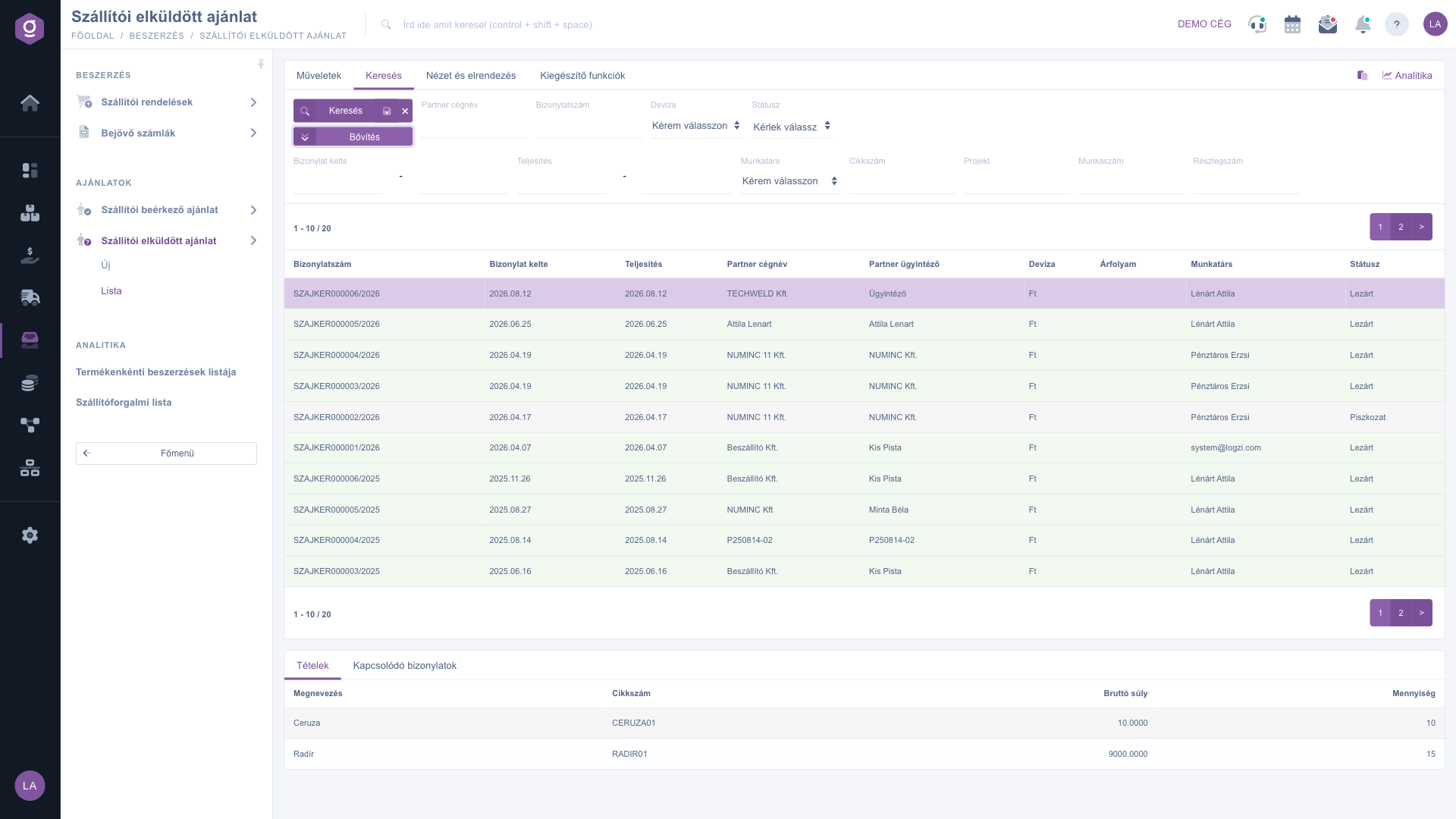
Quote sent to supplier list – Search tab expanded (Keresés)
3. Customizing the view
On the View and layout tab you can set how the list is displayed for you:
- Columns: you can choose which fields are displayed in the table and in what order.
- Rows: you can set how many documents are shown on a page.
- Sorting: you can choose by which column and in which direction the list is sorted by default.
- Preview window: the settings of the preview panel below the list.
- Interface and behavior: other display-related settings of the list interface.
These settings are saved per user, so they are kept the next time you sign in. The labels Columns and Rows appear in Hungarian (Oszlopok, Sorok) in the interface.
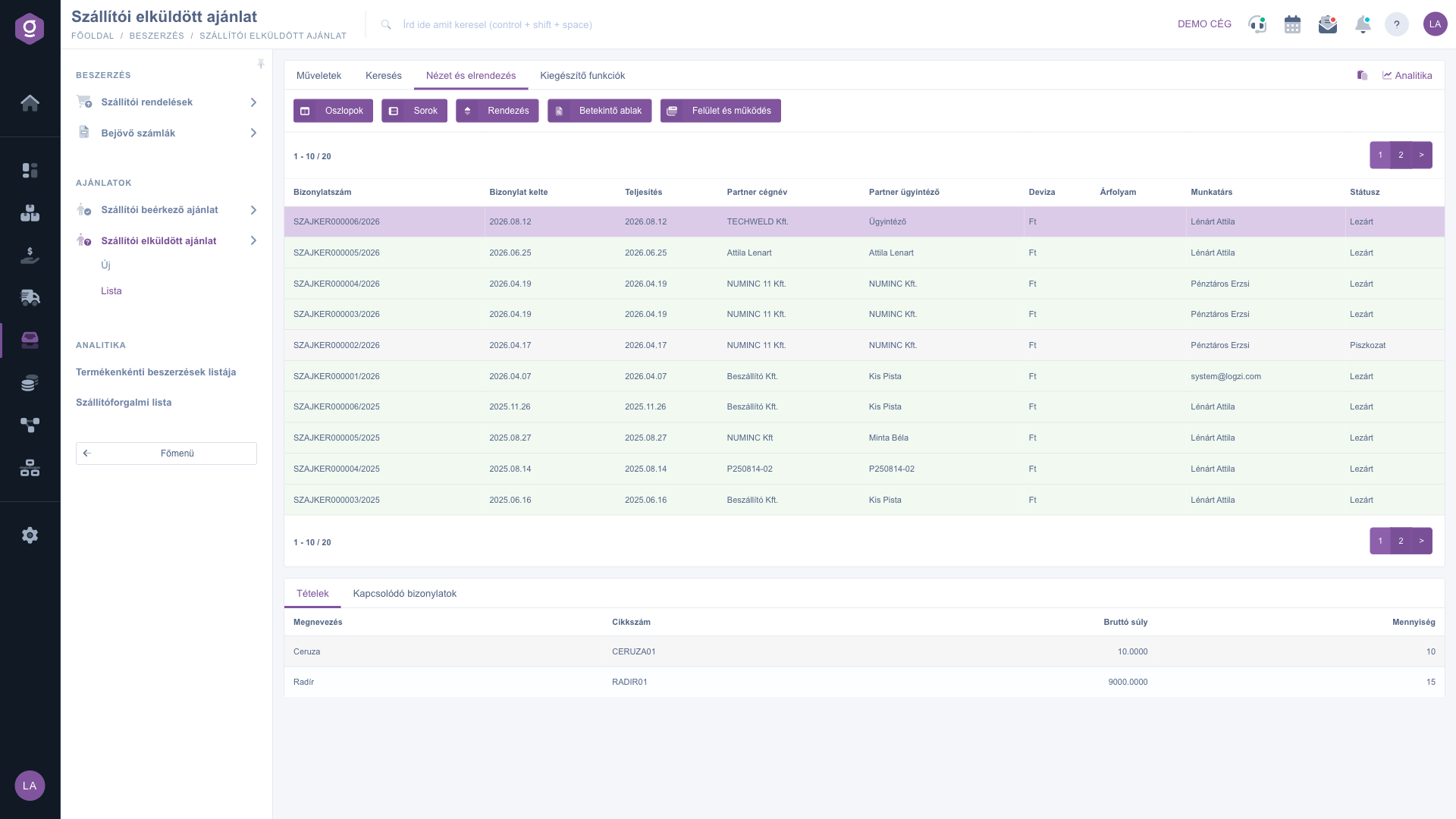
Quote sent to supplier list – View and layout tab (Nézet és elrendezés)
4. The preview window
In the panel below the list you can quickly view the details of a selected document without opening the document itself. The panel has two tabs:
- Items: the name, item number, gross weight and quantity of the products on the document — without prices, since a quote request contains no price.
- Related documents: other documents linked to the document, for example the customer quote request from which the request was created, or the incoming supplier quote started from it.
The panel can be pinned (set to a fixed size) with the icon in its top right corner, and its size can be adjusted by dragging the divider line at the top of the panel.
5. Additional functions
On the Additional functions tab you find extra options for the selected document that help your daily work:
- Sent items: viewing the e-mails previously sent for the document.
- New email: writing a new e-mail related to the document, either with the External mail client or with the Internal mail client built into the system.
- New task: creating a task related to the document, for example a reminder to follow up the reply of the supplier.
- Partner card: opening the detailed sheet of the supplier on the document (shown as Partnerkarton in the interface).
- CRM: viewing the CRM notes and records of the partner.
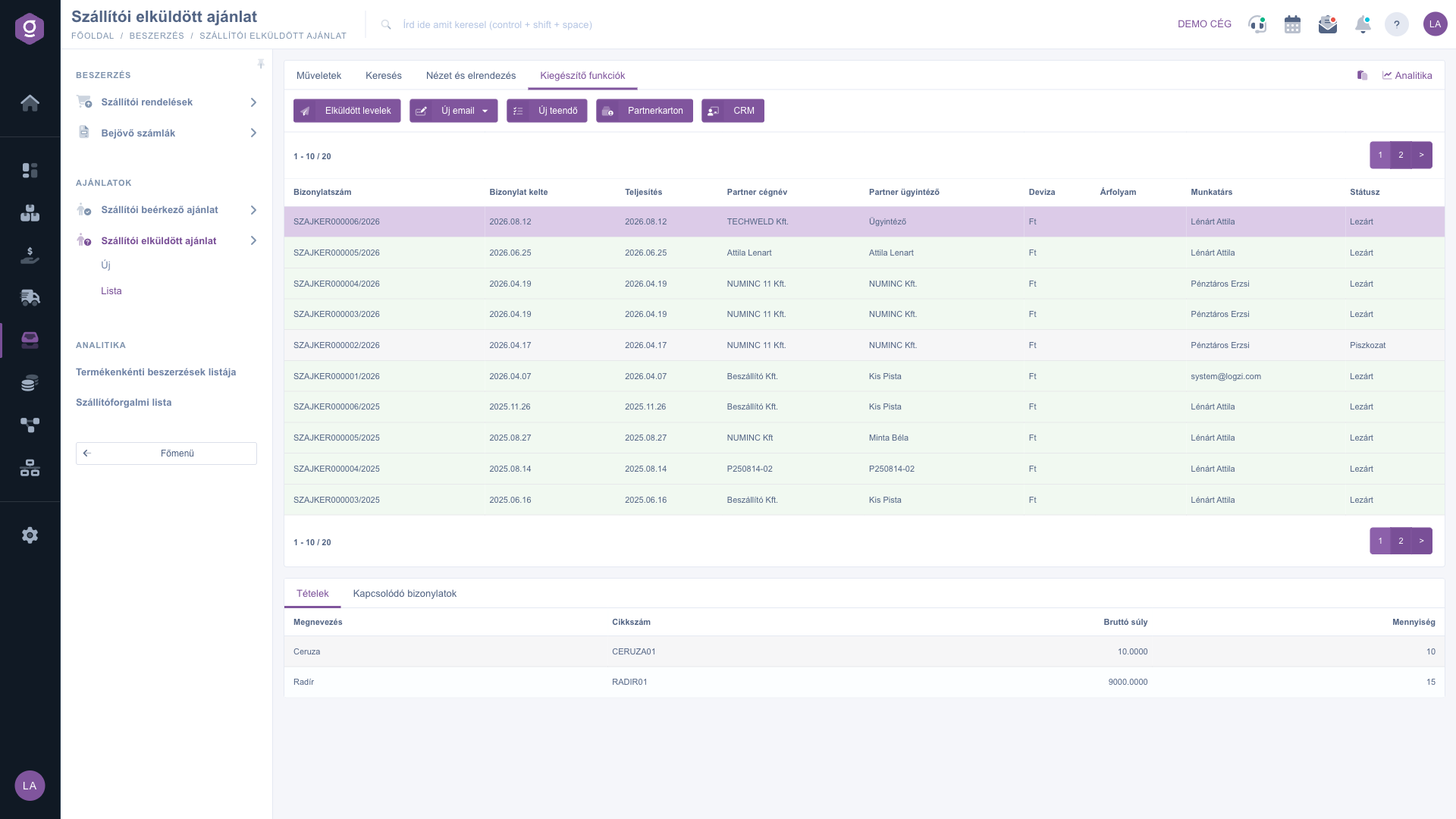
Quote sent to supplier list – Additional functions tab (Kiegészítő funkciók)
6. A typical process with an example
Suppose a customer asks you for 20 pieces of a product, but you do not know the purchase price yet. With the Quote sent to supplier / New menu item you create the request to the supplier with the item number and the quantity, enter the requested performance date, then close it and send it to the supplier (for example with the Close and download option). When the supplier replies, you select the request in the list and with the Document management > Incoming supplier quote option open the prefilled incoming quote, where you only need to enter the prices and the validity.
Tip
If you ask several suppliers for a quote for the same list of items, do not create each one separately: create the first request, then use the Cloning button and on the new document only replace the partner. With the Item number filter you can later quickly find whom you have already sent a request to for a given product.



