Product search

Learn how to search your products and supplier feeds, how to collect the selected items in the cart, and how to start a customer order, an invoice or a customer quote from them.

Function overview

Product search (Hungarian: Termék keresés) is the quick search and picking screen of the master data. On a single page you find your products together with their stock data, collect the selected items in a cart, and start a customer order, an invoice or a customer quote from the cart with one click. You can also browse the product feeds of your suppliers here, and create a new product directly from an item found in a feed.

The page has three parts:

  • Category tree (left side): the tree of product categories. When you select a category, the list immediately narrows to the products of that category.
  • Upper tabs: the Actions, Search and View and layout tabs. On the Actions tab you work with the selected rows, on the Search tab you filter, and on the View and layout tab you set how the table looks.
  • Lower tabs: the Results, Cart and Product feeds tabs, described below.
  • Results: the filtered list of your own products with stock data (physical, reserved, available and incoming stock) and the selling price.
  • Cart: the products collected with the Add to cart button. The red counter on the tab shows how many items are in the cart. The cart is tied to your signed-in session and is not permanent storage: it is emptied when you sign out or the session expires.
  • Product feeds: the products loaded from the supplier product feeds (feed source, name, item number, price, quantity, last update). The blue counter on the tab shows the number of hits found in the feeds.

Product search has no document status (no draft or closed state). You can filter the products by stock: the In stock field has two values, Every item (all products regardless of stock) and Yes (only the products in stock). The so-called system products used by the automatic processes of the system cannot be edited or deleted.

You can read about handling the documents started from the cart in the articles Customer orders list, Invoice list and Quote sent to customer list. The maintenance of categories and product parameters is described in the articles Product category list and Product schema list.

Step by step

1. Opening the list and filtering by category

Main menu / Master data / Product search. The search page opens. On the left side you see the tree of product categories: when you click the check box of a category, the search runs automatically and only the products of that category remain in the list. At the top right there are the Actions, Search and View and layout tabs, and below them the Results, Cart and Product feeds tabs. When you enter the page, the Search and Results tabs are active.

Note: the screenshots show the Hungarian demo interface; the names in your own language are the ones written in bold in this guide.
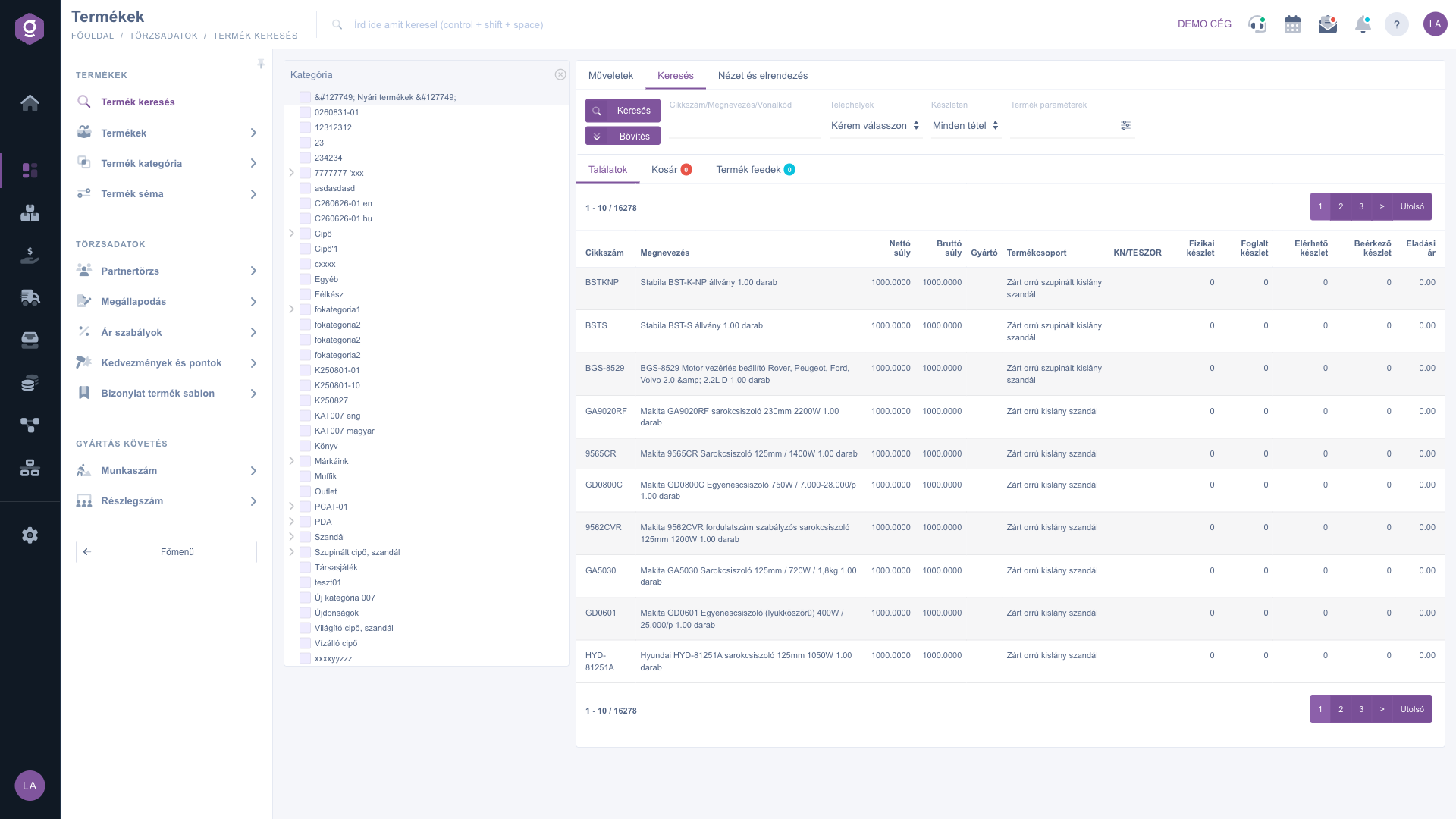
Product search – default view with the category tree

2. Searching among the products

On the Search tab you can filter with the following conditions:

  • Part number/Name/Barcode: searches the given text in the item number, the name and the barcode of the product.
  • Sites: if you select a site, the stock data refer to that site. The Please choose value means all sites.
  • In stock: Every item or Yes (only the products that are in stock).
  • Product parameters: a text parameter filter. With the settings icon next to the field (Visual filtering of product parameters) you can also build the condition by clicking in a window.

If you click the Expand button, further filters open: the Manufacturer, the Preferred supplier, and the field of every product parameter whose schema has the Visible in ERP filter setting turned on. Click the Search button to filter by the conditions you set.
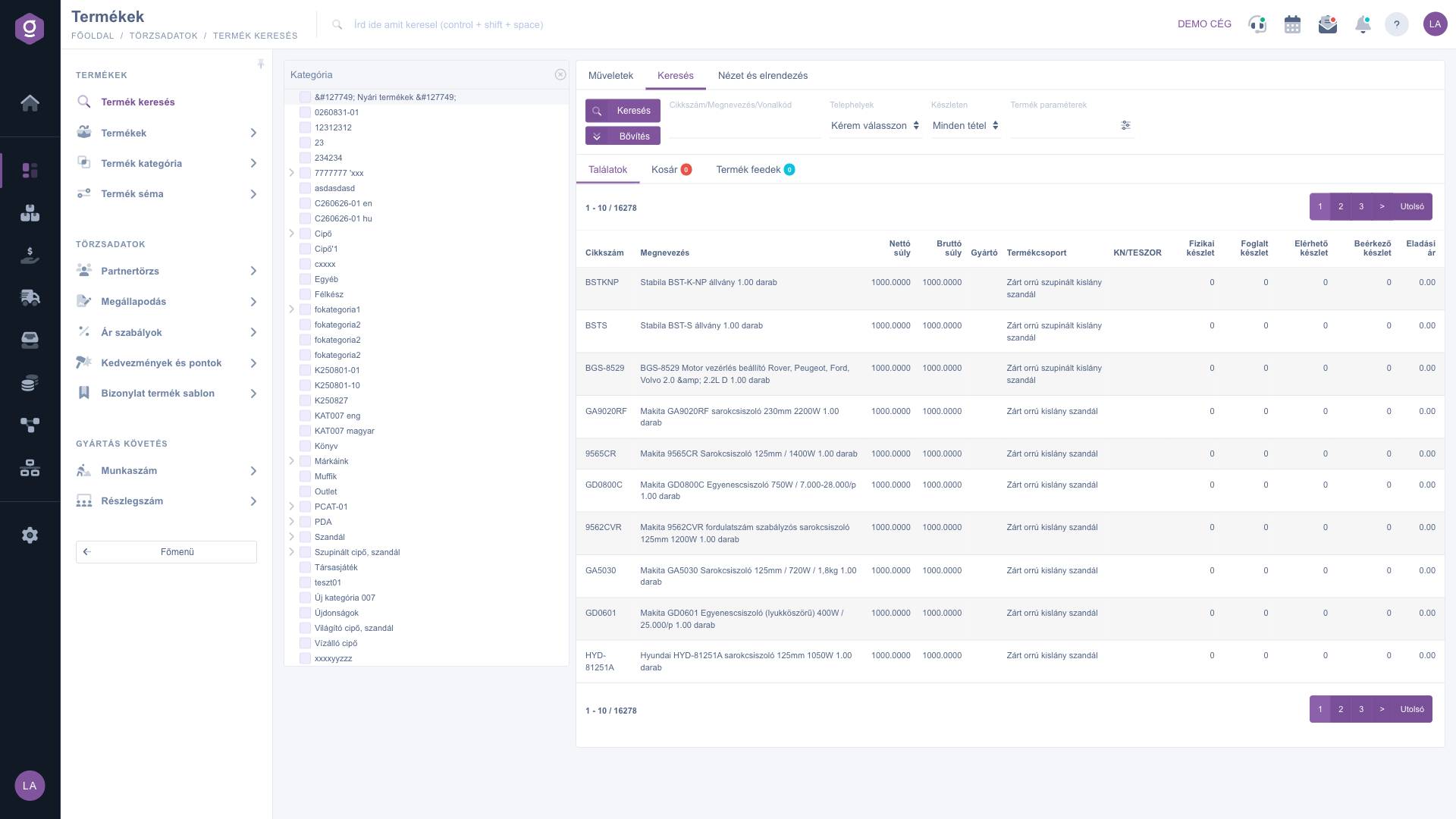
Product search – filter fields of the Search tab

3. Actions with the selected products

With the buttons on the Actions tab you work with the rows selected in the table (click a row to select it, you can select several rows). If no row is selected, the system shows a warning that you should choose an item from the list (in Hungarian: Kérlek válassz egy tételt a listából!).

  • New: opens a new product in a new tab.
  • Open: opens the sheet of the selected product.
  • Delete: deletes the selected product after confirmation. System products cannot be deleted.
  • Cloning: creates a copy of the selected product.
  • Product card: opens the product card of the selected product.
  • Import and Export: mass loading and reading of products with the import and export wizards.
  • Download: the XLSX list item of the List operation menu saves the content of the list to an XLSX file (at most 10,000 rows).
  • Print: with the Product label item you can print labels for the selected products.
  • Prices: opens the price list filtered to the item number of the selected product.
  • Stock history: opens the stock movements of the selected product.
  • Serial numbers: opens the serial number based stock list of the selected product.
  • Send to webshop: starts sending the data of the selected products (one or more) to the webshop. As feedback, the system shows a notification that the event was created.
  • Add to cart: puts the selected products in the cart (see step 5).
You can find the details of prices, stock history and serial numbers in the articles Itemized price list, Stock history list and List of warehouse products by serial number.

4. Customizing the view

The View and layout tab has five buttons:

  • Columns: opens a window where you can use the Active check boxes to choose which columns are shown, and the drag icon to reorder them. In the window you can use the Save, Default (reset), Select all and Deselect all buttons.
  • Rows: set how many rows are shown on one page.
  • Sorting: choose which column and in which direction the list is sorted.
  • Preview window: set the range of information shown in the preview panel under the list.
  • Interface and behavior: controls the general behavior of the list (for example whether an opened document opens in a new tab).

These settings are saved for your user, so they are kept the next time you sign in. You can also sort the list directly by clicking the arrows next to the column names in the header.
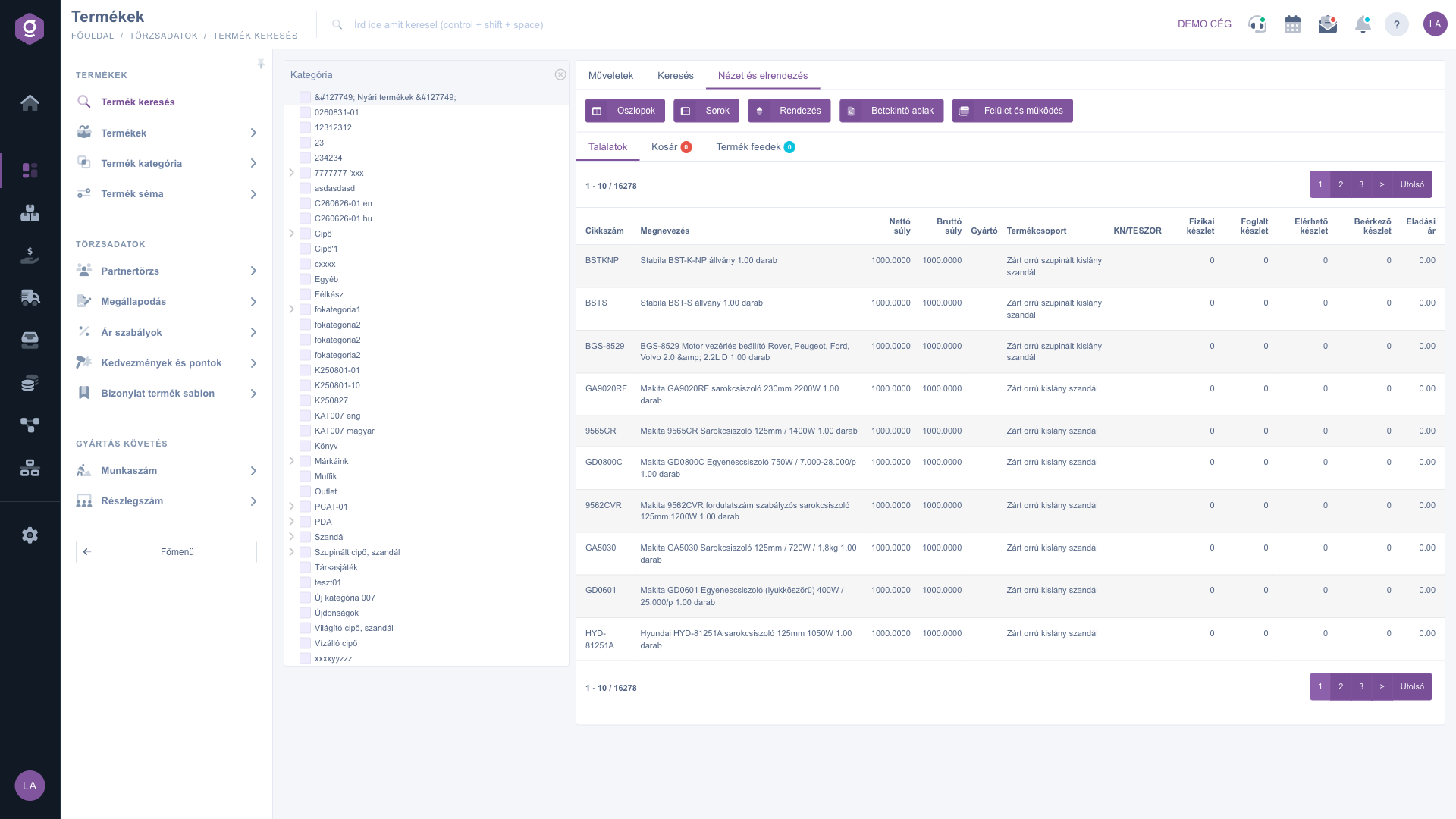
Product search – View and layout tab

5. Using the cart

Select one or more rows on the Results tab, then click the red Add to cart button. The selected products go into the cart and the counter of the Cart tab increases. A product can be in the cart only once: if you add it again, it is not duplicated. On the Cart tab the products are shown in the Item number, Name and Quantity columns; with the delete icon at the end of the row you remove one item, with the Empty cart button you remove all of them.

6. Starting a document from the cart

The Cart tab has three buttons that start a new document from the content of the cart: Customer order, Invoice and Customer quote. The chosen document opens as a new, not yet saved sheet, with every product of the cart as an item. Each item comes in with a quantity of 1, the default warehouse, and the selling price, currency and tax rate of the product; you can change these inside the document. The document is created permanently only when you save it. The content of the cart is kept even after the document is opened, until you empty it.

7. Product feeds

The products of the supplier feeds are loaded when you click the Product feeds tab (until you open the tab, the table shows the message Click the tab to load the data). The loading also respects the text and the stock filter given on the Search tab. The table shows 50 rows per page with the Feed source, Name, Item number, Price, Quantity and Last update columns, and the cheapest offer is highlighted. If you double-click a feed row and the feed row already belongs to a product of yours, the sheet of that product opens; if not, a new product sheet opens with the data of the feed row prefilled.

Tip


If a customer asks for a quick quote for three products, find them with the Part number/Name/Barcode field, select the three rows, click Add to cart, then click Customer quote on the Cart tab. The quote opens filled with the three items, and you only need to enter the quantities and the partner.


Field descriptions

The fields of the Search tab and their meaning:

Field / ElementRequiredDescription
Part number/Name/BarcodeFree text, searched in the item number, the name and the barcode.
SitesSelects the site of the stock data. The Please choose value means all sites.
In stockEvery item or Yes. Yes shows only the products that are in stock.
Product parametersA text parameter filter, with a visual filter window.
ManufacturerUnder Expand: filtering by the manufacturer of the product.
Preferred supplierUnder Expand: filtering by the preferred supplier of the product.

The columns of the default table and their meaning:

Field / ColumnRequiredDescription
Item numberThe item number of the product.
NameThe name of the product.
Net weightThe net weight of the product.
Gross weightThe gross weight of the product including the packaging.
ManufacturerThe manufacturer of the product.
Product groupThe product group of the product.
KN/TESZORThe customs tariff number or TESZOR number of the product.
Physical stockThe quantity actually found in the warehouse.
Reserved stockThe quantity already reserved for orders.
Available stockThe quantity that can be sold freely.
Incoming stockThe quantity that has been ordered but has not arrived yet.
Selling priceThe default selling price of the product.

The range of the displayed columns can be customized in the View and layout > Columns setting, where further columns can also be chosen (for example purchase price, net and gross selling price, net and gross sale price). Some of these column names may appear in Hungarian. The list above shows the default view.

Frequently asked questions

Most likely one of the filters narrows the list. Check the categories selected in the category tree on the left, the In stock field (the Yes value filters out the products without stock), the Sites field and the parameter filters. By default the list shows 10 rows per page; with the View and layout > Rows setting you can choose more.

The system products used by the automatic processes of the system are protected and cannot be edited or deleted. Any other product can be deleted after confirmation, and a deleted product no longer appears in the list.

The content of the cart is kept until you remove it with the Empty cart button or your session expires. The document opens as a new, not yet saved sheet, so you can start several kinds of documents from the cart one after the other. You can read about handling the documents in the articles Customer orders list and Invoice list.

The data of the tab is loaded only at the first click, and the system also respects the text and the stock filter given on the Search tab. If there are no hits, try without filters and check that a supplier product feed is set up.

On the Product feeds tab double-click the row you want. If the feed row does not belong to a product of yours yet, a new product sheet opens with the data of the feed row prefilled, which you can finalize by saving.

The menu item appears under Main menu / Master data if the module is assigned to your user. If you cannot see it, ask the system administrator to check the module assignment in your user settings.

Need personalized help?

Don't want to spend hours searching for a solution? Choose the most efficient way: book a personalized, 45-minute online training session dedicated entirely to you. Whether it's a walkthrough of the basics or a detailed setup of a specific module, our expert colleague will guide you through the whole process, step by step.

Don't waste your time - ask for help!
Our goal is to get you using our system as quickly and efficiently as possible. Whether you're completely new to us or stuck on a specific setting, don't hesitate to ask for help!

Logzi warehouse management software

Get in touch with us

Interested in our software? Feel free to write to us!

Need help?

If you can't find the answer and need assistance

Create your account now,
pay later!

Try it free for 3 days, no risk, no obligation!
