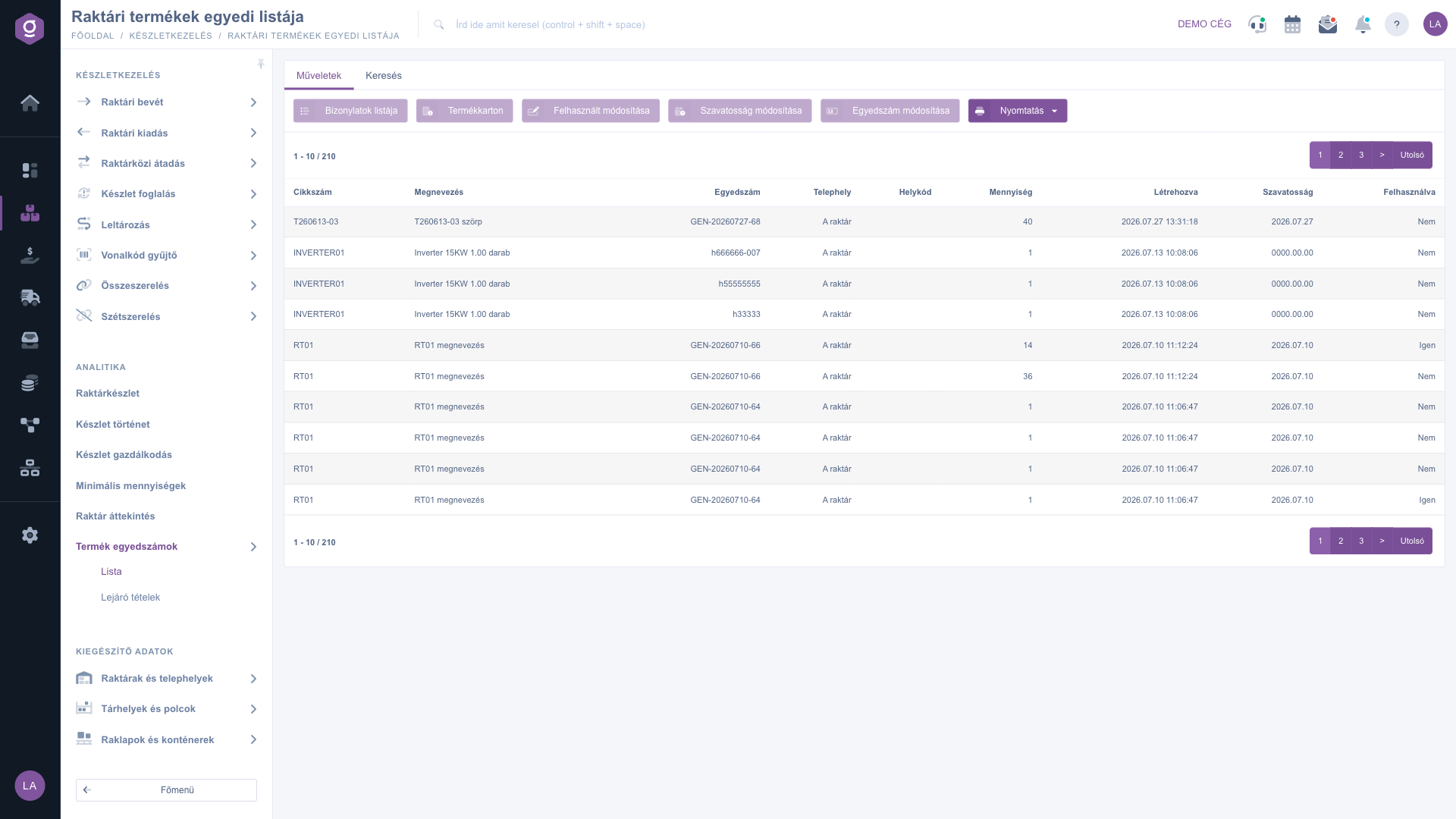
The List of warehouse products by serial number collects the warehouse items that you track by serial number and shelf life. Here you can search by serial number, item number or name, see which items expire soon, open the documents and the product card of an item, and correct the serial number, the shelf life and whether the item has been used. The list shows only products that are tracked in stock.
Where to find it: Main menu / Stock management / Product serial numbers / List. For expiring items use Main menu / Stock management / Product serial numbers / Expiring items.
Note: the screenshots show the Hungarian interface. A few labels in the table and in the dialogs (Telephely = site, Igen = yes, Nem = no) are displayed in Hungarian in every language.
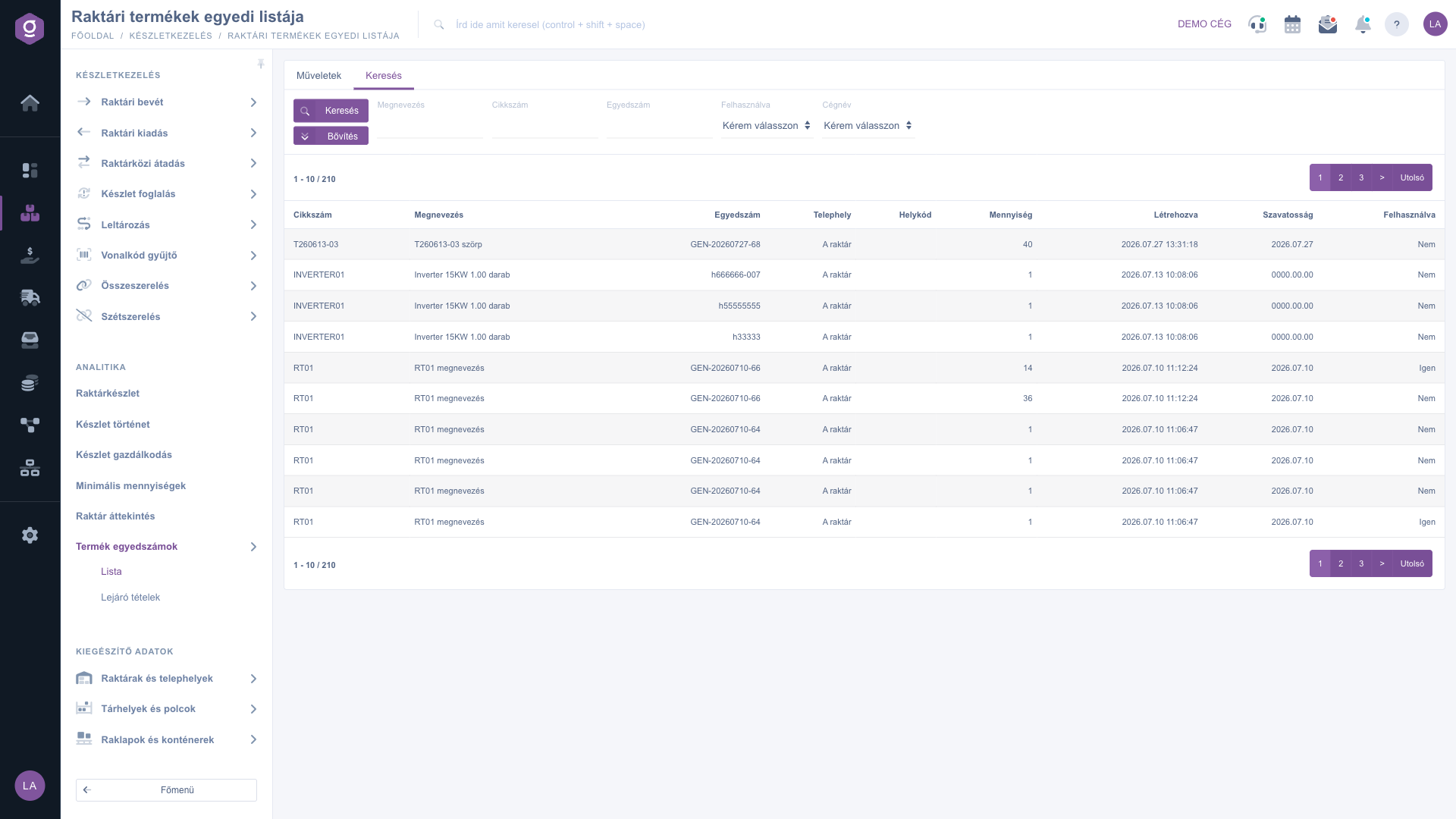
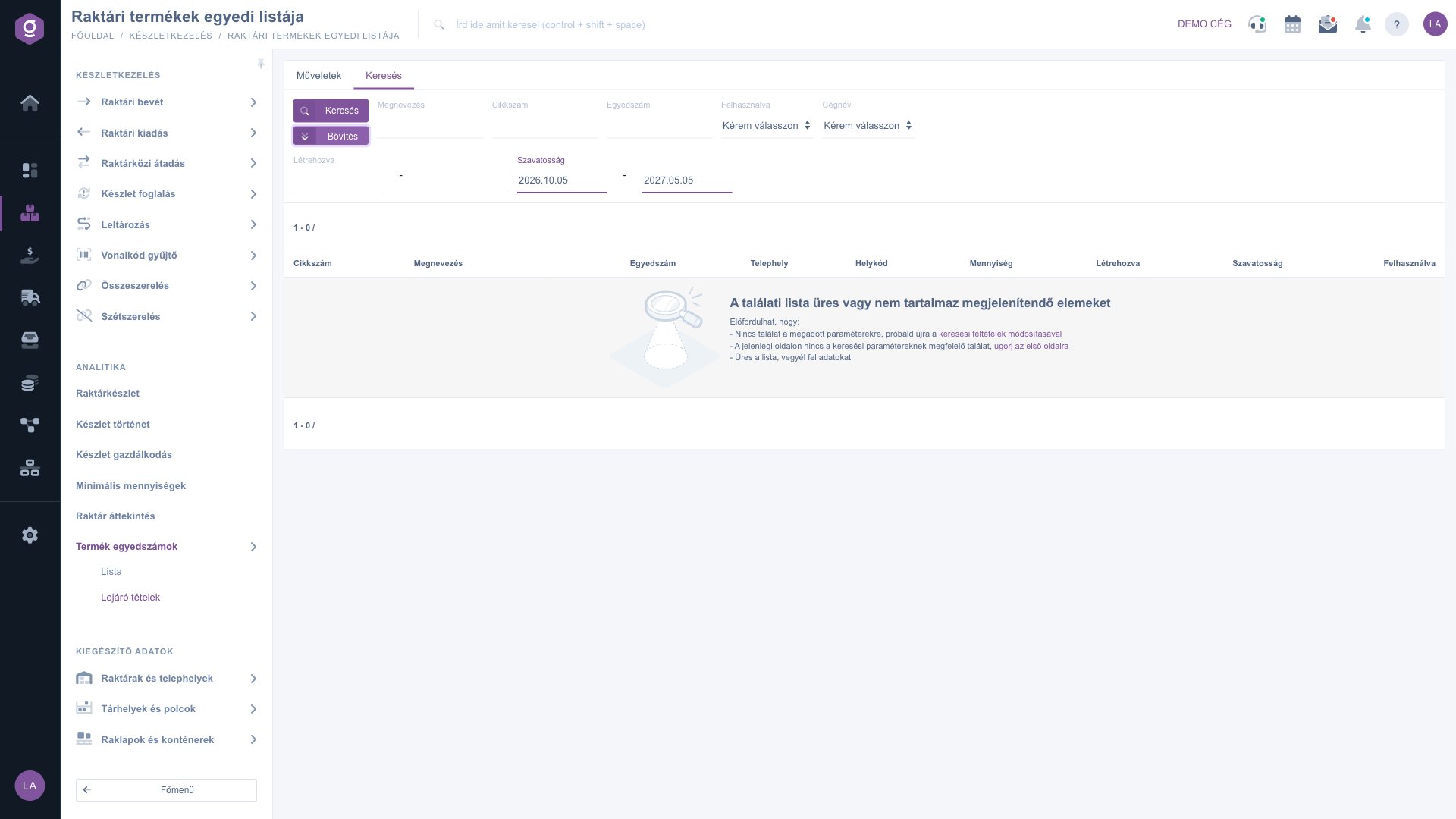
The page opens on the Search tab. Fill in the filter fields you need, then click the Search button:
Click the Expand button to show the Created and Shelf life fields. For both you can enter the start and the end of a period, so you can find, for example, the items that expire in a given month.
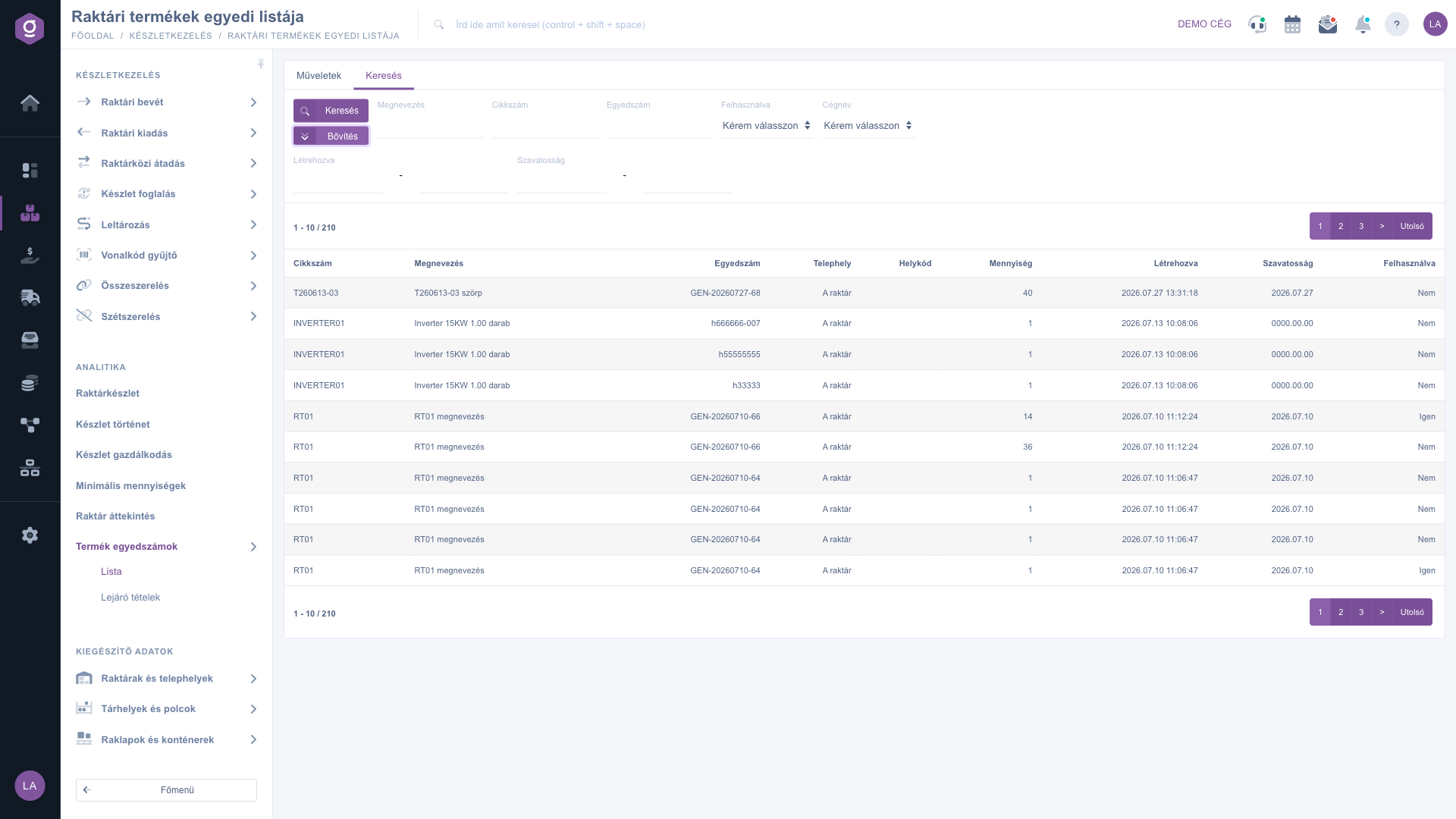
The table shows 10 items per page, the newest first. Each row shows the Item number, the Name, the Serial number, the site (Telephely), the Location code, the Quantity, the Created and Shelf life dates, and whether the item is Used. If the list is empty, the search found no matching item; change the filters or jump to the first page.
The Expiring items menu item opens the same list, but the Shelf life filter is already filled in for the 7 months starting from today. This way you see with one click which items expire soon.
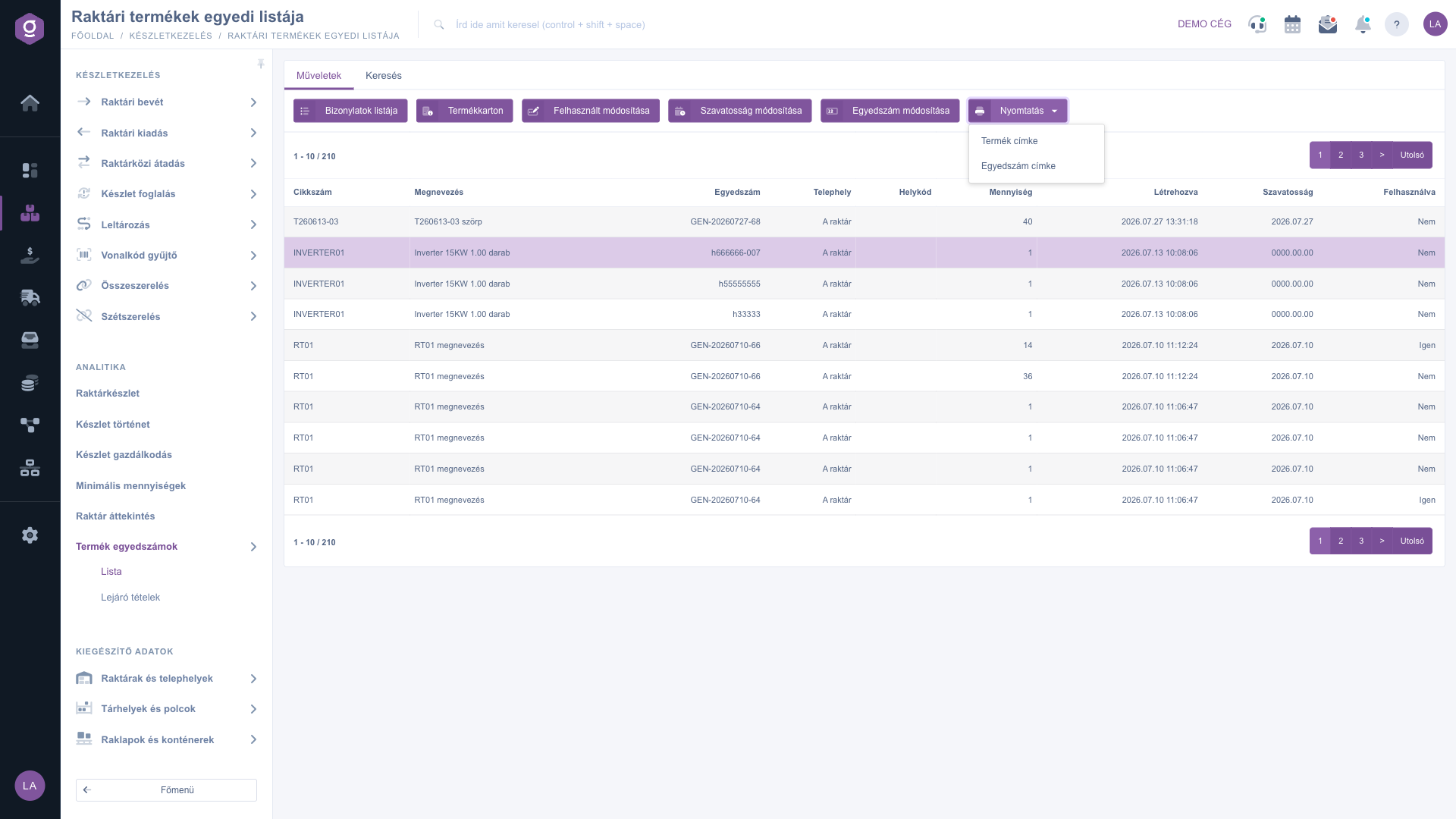
Click the row you want to work with in the list so that it is highlighted, then switch to the Actions tab. If no row is selected, a warning window asks you to choose an item from the list. The following buttons are available:
Each of the three modify buttons opens a small window with an Actions tab. In the Used field choose Igen (yes) or Nem (no), in the Shelf life field enter the new date, and in the Serial number field type the new serial number. Use the Save button to record the change, or Close to leave without saving. After saving, the page reloads.
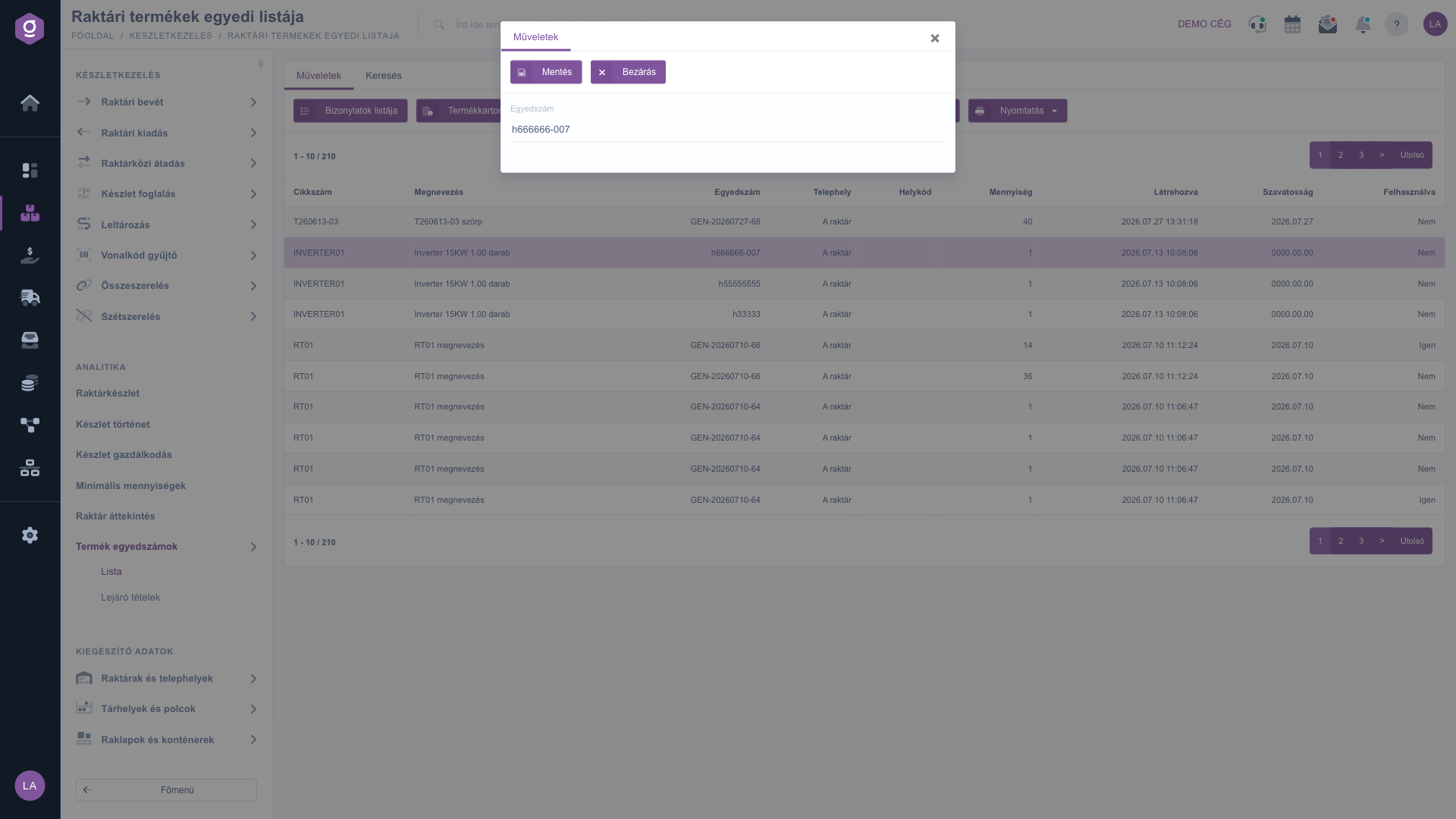
A change only corrects the serial number data and creates no stock movement. Type the new serial number carefully, because the search expects an exact match.

| Field | Required | Description |
|---|---|---|
| Name (search) | Part of the product name; a partial match is enough. | |
| Item number (search) | Part of the item number or the exact barcode. | |
| Serial number (search) | The exact serial number; a partial match is not searched. | |
| Used (search) | Please choose: no filtering; Nem: only items not yet used; Igen: only used items. | |
| Company name (search) | A filter field by company. It does not narrow the list at the moment, so search with the other fields. | |
| Created (from – to) | In the expanded search, the period in which the item was created. | |
| Shelf life (from – to) | In the expanded search, the period of the shelf life date. | |
| Telephely (site) | A column of the list: the site where the item is located. | |
| Location code | A column of the list: the code of the storage place. Empty if no location code is assigned to the item. | |
| Quantity | A column of the list: the quantity belonging to the serial number. | |
| Used (modify window) | Igen or Nem value that shows whether the item has been used. | |
| Shelf life (modify window) | The new shelf life date, selectable from a calendar. | |
| Serial number (modify window) | The new serial number as text. |
The menu item is shown based on module permissions. Ask your company administrator to enable the List of warehouse products by serial number module for your user and to check that your subscription includes the Stock management features.
Check that you typed exactly the serial number in the Serial number field, because there is no partial match here. Also look at the date filters under Expand: the Expiring items menu item, for example, shows only the items that expire in the next 7 months. The list contains only products that are tracked in stock.
It means that no shelf life date is set for the item. If you want to set one, select the row and use the Modify shelf life button.
Every action applies to a selected item. First click the row you want in the list so that it is highlighted, and only then use the button.
No. Changing the serial number, the shelf life and the used status only rewrites the data of the item. No stock movement is created, and the data is saved without any validation.
The stock value, the warehouse fullness and the split by category are on the Warehouse stock overview page.
Don't want to spend hours searching for a solution? Choose the most efficient way: book a personalized, 45-minute online training session dedicated entirely to you. Whether it's a walkthrough of the basics or a detailed setup of a specific module, our expert colleague will guide you through the whole process, step by step.
Don't waste your time - ask for help!
Our goal is to get you using our system as quickly and efficiently as possible. Whether you're completely new to us or stuck on a specific setting, don't hesitate to ask for help!
Create your account now,
pay later!