Stock history list

Trace when and because of which document the stock of a product changed. This guide covers the All items, Incoming items, Outgoing items and Items in stock views, searching, the item movement panel and opening the related documents.

Feature overview

The Stock history list shows every warehouse item that changed the stock: the items of Warehouse receipt, Warehouse issue and Inter-warehouse transfer documents. From it you can trace when, by how much and because of which document the stock of a product changed, and how much physical, reserved, available and incoming stock there was before and after the movement. The list is read-only: you do not record or modify anything here, but you can open the document with one click.

The items are available in four views; you switch between them with the tabs above the table:

  • All items: every item of receipts, issues and transfers in chronological order, the latest first.
  • Incoming items: only the items of warehouse receipts, that is, what arrived in the warehouse.
  • Outgoing items: only the items of warehouse issues, that is, what left the warehouse.
  • Items in stock: the outgoing items of those products that still have a positive stock in at least one site.

In the All items view a receipt appears in a green row with an upward arrow, and the other movements in a red row with a downward arrow, so you see the direction of the movement at a glance.

Step by step

1. Opening the list and the All items view

Click Main menu / Stock management / Stock history. At the top of the page you see the Actions, Search and View and layout tabs, and below them the table of items. The default columns are: the direction of the movement (arrow), Type, Site, Document date, Item number, Name, Quantity, Physical stock, Reserved stock, Available stock, Incoming stock, Partner company name and Employee.

If you hover over a stock column, a tooltip shows the change, for example from how many pieces the stock changed to how many. So you see not only the new value but also what it was before.
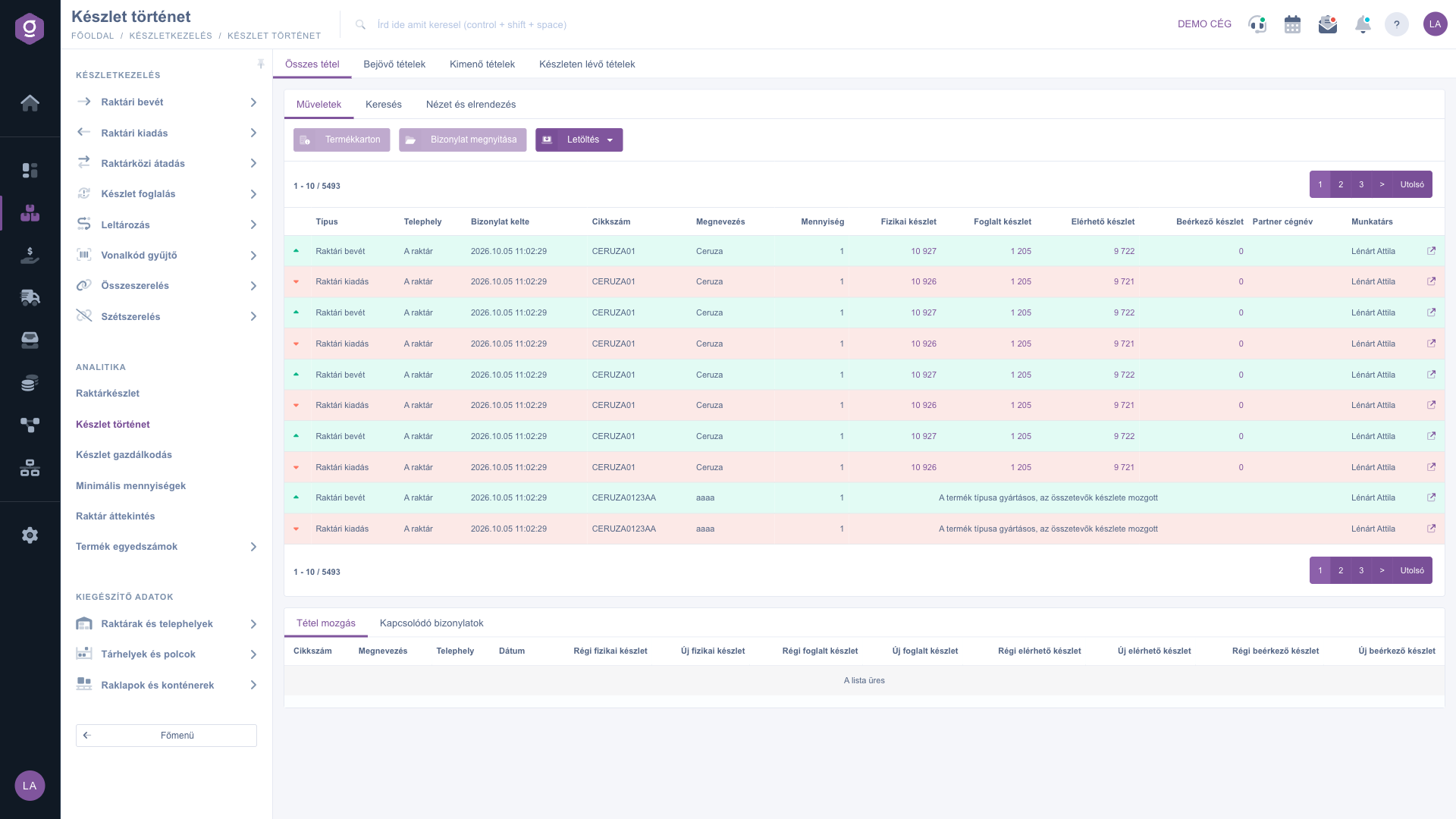
Stock history list – All items view, Actions tab (Hungarian UI: Összes tétel, Műveletek)

2. Searching among the items

On the Search tab you can narrow the list with these fields: Name, Item number, Partner company name, Storage areas and shelves, Pallets and containers, Sites and Movement reason. The Expand button opens further filters: the Document date from-to range, the Project, the Product category and the Employee. For the complete history of one product it is enough to enter the Item number. If you arrive here from the Warehouse stock list with the Stock history button, the list opens already filtered by the item number of the selected product.
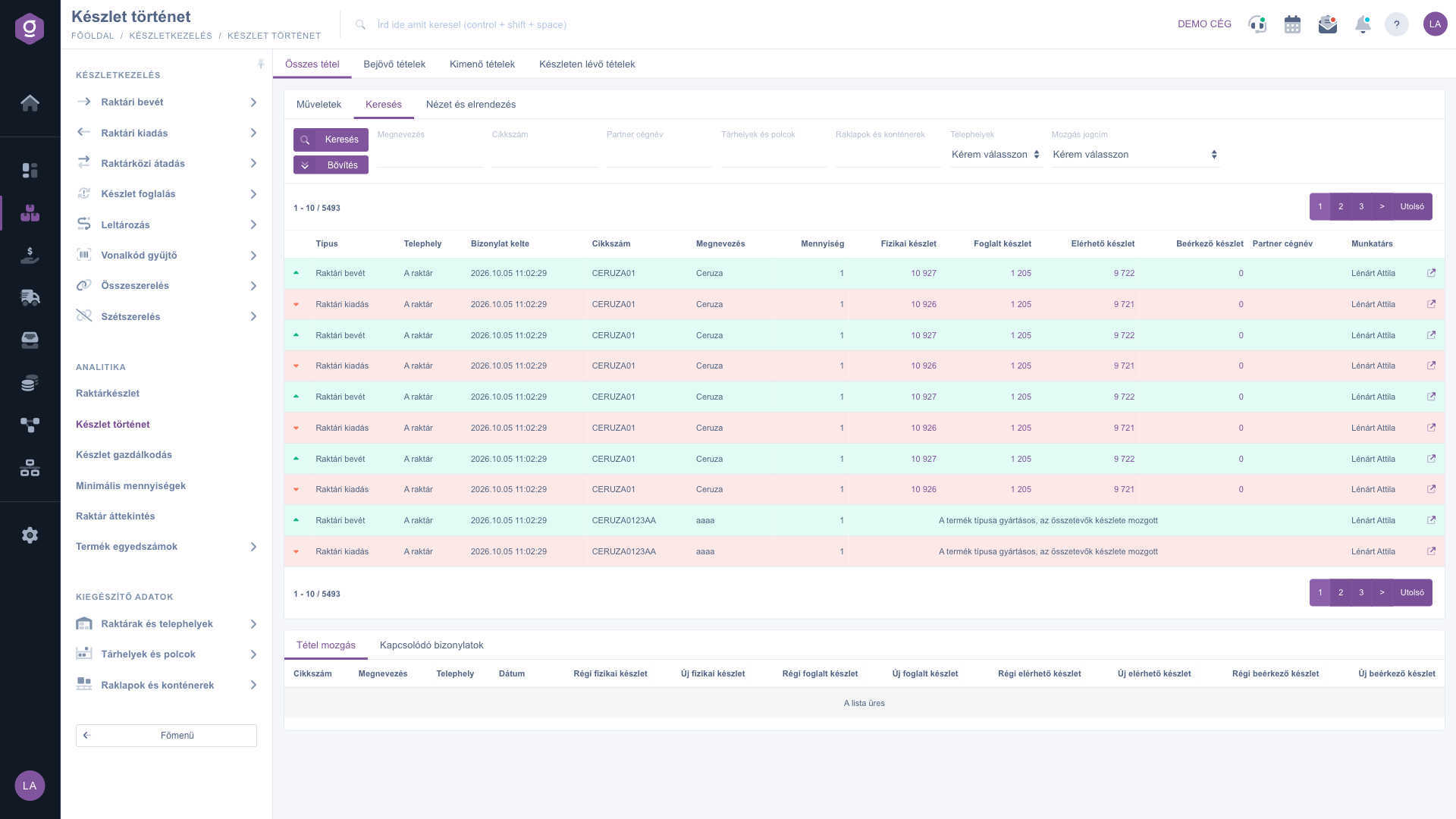
Stock history list – Search tab (Hungarian UI: Keresés)

3. Item movement and related documents

Click a row in the table. The two tabs of the panel that appears below the list give the details of the selected item:

  • Item movement: the old and new value of the Physical, Reserved, Available and Incoming stock side by side. The old value is shown in red and the new one in green, so you immediately see by how much the stock changed.
  • Related documents: the documents connected to the item: Document number, Document date, Document type, Issuing employee, and the opening action in the Action column.

For manufactured products an informative message is shown in place of the stock columns, saying that the movement affected the stock of the components. In that case look for the change in the rows of the components.
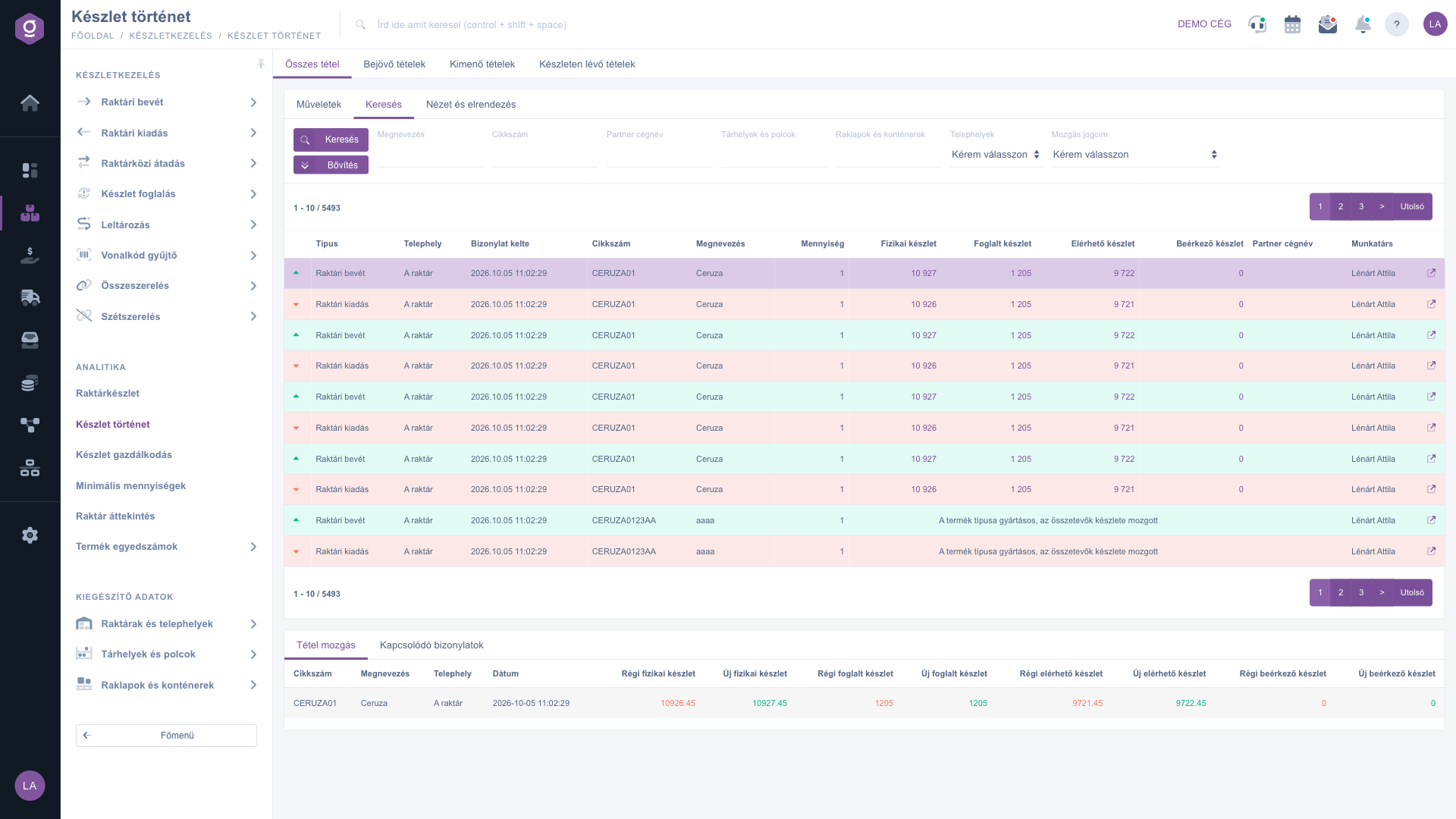
Stock history list – Item movement panel of the selected item (Hungarian UI: Tétel mozgás)

4. Actions on the selected item

On the Actions tab select a row first, then choose the action you need:

  • Product card: the detailed data sheet and analytics of the product of the selected item.
  • Open document: opens the receipt, issue or transfer document the item belongs to.
  • Download: the XLSX lista is a spreadsheet export of the list (this label is always shown in Hungarian), the Accounting export list is a statement you can hand over to accounting. The download follows the filters set in the search.

5. Incoming, outgoing and in-stock views

The Incoming items and Outgoing items tabs are simplified views with their own filters. You can search by Product/Item number, Partner company name, Pallets and containers, Employee, Sites, Product category and Movement reason; the Expand button adds the date range, the Project, the Job number and the Department number. The table shows the direction of the movement, the Document date, Item number, Name, Quantity, the physical, reserved, available and incoming stock, the pallet and the project. These views show 10 rows per page, and the Download cannot be used in them; for a full export go back to the All items view.
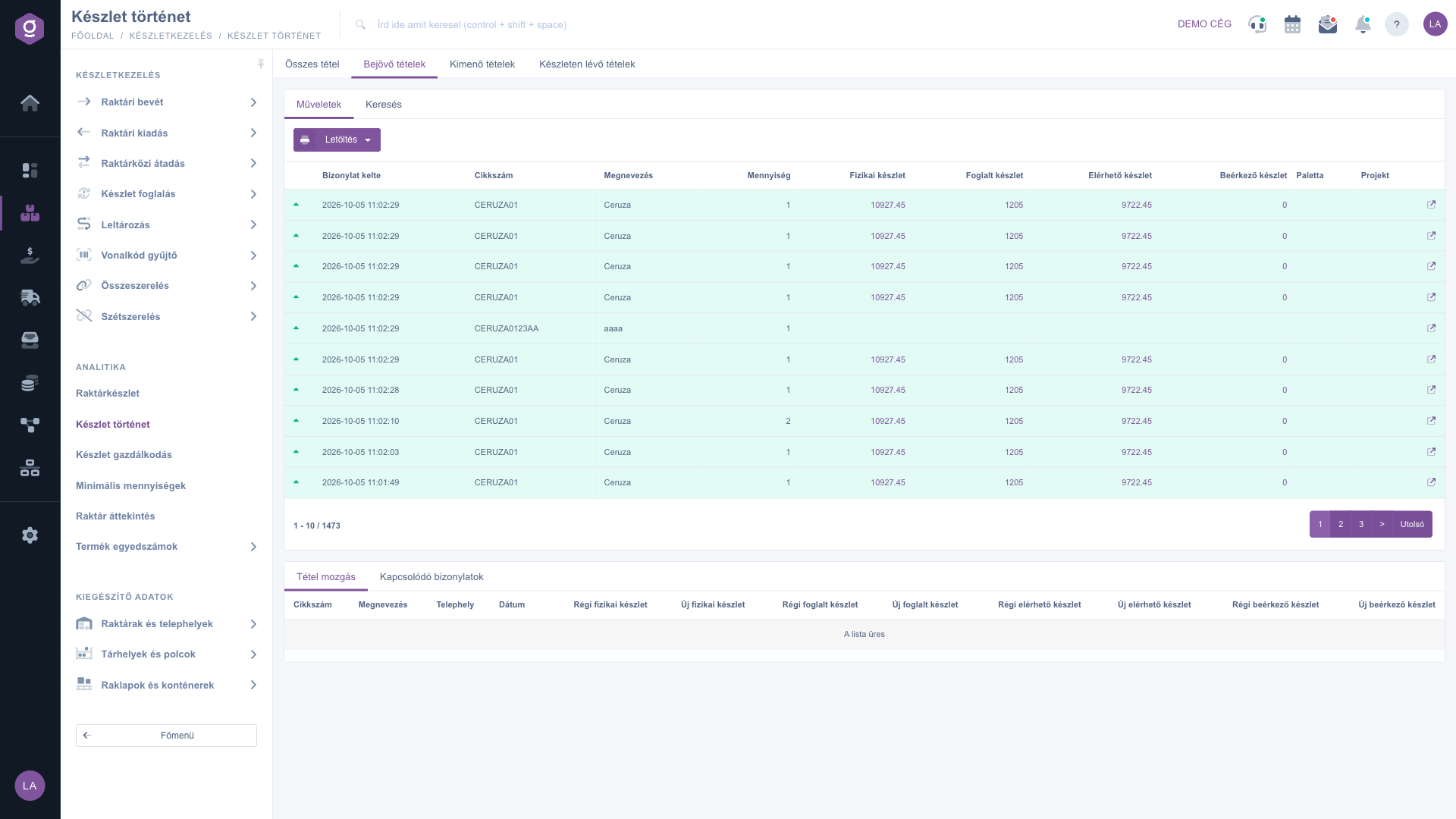
Stock history list – Incoming items view (Hungarian UI: Bejövő tételek)

The Items in stock tab collects the outgoing movements of those products that still have stock in some site. It is useful when you want to review the earlier issues of a product that is still in the warehouse.
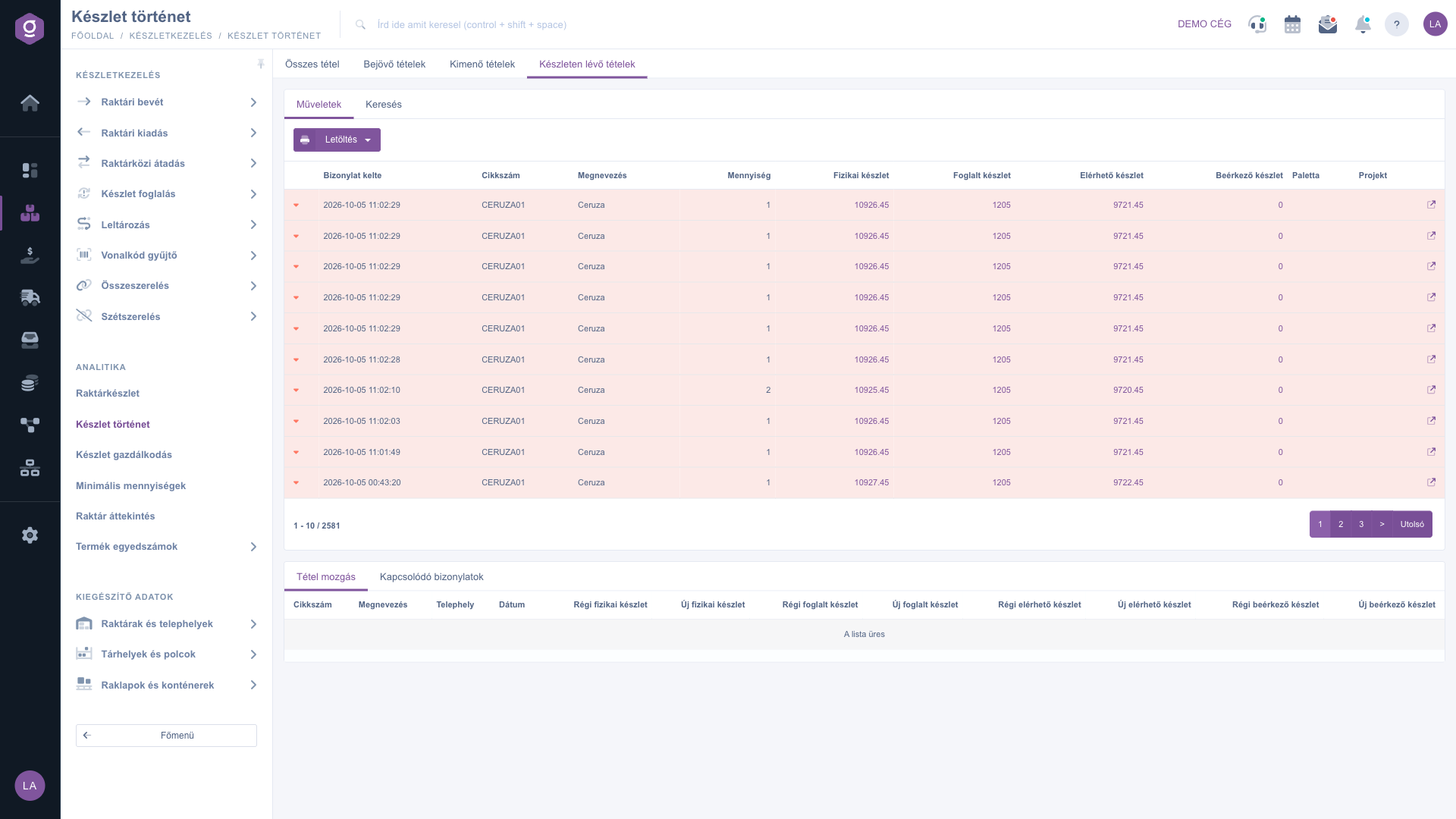
Stock history list – Items in stock view (Hungarian UI: Készleten lévő tételek)

6. View and layout

In the All items view, on the View and layout tab the Oszlopok button lets you choose which columns are displayed (for example Movement reason, the item comment, the manufacturer or Storage areas and shelves), the Sorok button sets the number of rows per page, and the Sorting button sets the column and the order (Ascending or Descending). The labels Oszlopok and Sorok, and the column names in the column selector, are always displayed in Hungarian. The system remembers your settings per user.

Tip


If the stock of a product does not add up, filter by its item number in the All items view and read the rows from the oldest to the newest: the old and new values are linked, so the row where the old value no longer equals the new value of the previous row shows where the stock went off. You can then open the document right away with the Open document button.


You can read about handling the documents shown in the list in the Warehouse receipt list, Warehouse issue list and Inter-warehouse transfer list guides, and about the current stock of products in the Warehouse stock list.

Field descriptions

The fields of the Search tab in the All items view:

Field / ElementRequiredDescription
NameFilters by the name of the product.
Item numberFilters by the item number of the product.
Partner company nameFilters by the name of the partner linked to the document.
Storage areas and shelvesFilters by the storage area or shelf involved in the movement.
Pallets and containersFilters by the pallet or container involved in the movement.
SitesFilters by the site of the movement.
Movement reasonFilters by the reason of the stock movement (the reason recorded on the item).
Document dateOpens with the Expand button; you can filter from-to.
ProjectOpens with the Expand button; filters by the project linked to the document.
Product categoryOpens with the Expand button; filters by the category of the product.
EmployeeOpens with the Expand button; filters by the employee who issued the document.

The default columns of the All items view:

Field / ElementRequiredDescription
TypeThe type of the document: Warehouse receipt, Warehouse issue or Inter-warehouse transfer.
SiteThe site where the stock changed.
Document dateThe time of the movement.
Item numberThe item number of the product involved in the movement.
NameThe name of the product.
QuantityThe quantity moved on the item.
Physical stockThe quantity physically in the warehouse after the movement; the tooltip also shows the change.
Reserved stockThe reserved quantity after the movement.
Available stockThe available quantity after the movement, that is, the physical stock minus the reserved stock.
Incoming stockThe quantity ordered from the supplier and still on its way after the movement.
Partner company nameThe partner linked to the document; it can be empty for internal movements.
EmployeeThe employee who issued the document.

The colour of the arrow shows the direction of the movement: a green upward arrow is a receipt, a red downward arrow is an issue or a transfer.

Frequently asked questions

The warehouse items that changed the stock: the items of receipts, issues and inter-warehouse transfers. Each row shows how much was moved and how the physical, reserved, available and incoming stock changed.

The All items view shows the items of all three document types. Incoming items shows only warehouse receipt items, Outgoing items only warehouse issue items. Items in stock lists the outgoing movements of those products that still have stock.

Select the row, then on the Actions tab click Open document. You can also find the document on the Related documents tab below the list, by its Document number and the opening action.

If you hover over a stock cell, the tooltip shows how many pieces there were before the movement and how many there are after it. It is the same information you see as old and new values in the Item movement panel below the list.

The stock of a manufactured product comes from its components, so the movement changes the stock of the components. In such rows an informative message appears in place of the stock cells; look for the details in the rows of the components.

On the Actions tab of the All items view, choose XLSX lista or Accounting export list in the Download menu. The download follows the filters you set. In the Incoming items, Outgoing items and Items in stock views the download cannot be used.

In the Warehouse stock list select the product and click the Stock history button: the list opens filtered by the item number of the product. You can also enter the Item number directly on the Search tab.

The Stock history module only appears under Main menu / Stock management if it is assigned to your user. If you do not see it, ask your system administrator to check the module assignment in your user settings.

Need personalized help?

Don't want to spend hours searching for a solution? Choose the most efficient way: book a personalized, 45-minute online training session dedicated entirely to you. Whether it's a walkthrough of the basics or a detailed setup of a specific module, our expert colleague will guide you through the whole process, step by step.

Don't waste your time - ask for help!
Our goal is to get you using our system as quickly and efficiently as possible. Whether you're completely new to us or stuck on a specific setting, don't hesitate to ask for help!

Logzi warehouse management software

Get in touch with us

Interested in our software? Feel free to write to us!

Need help?

If you can't find the answer and need assistance

Create your account now,
pay later!

Try it free for 3 days, no risk, no obligation!
