Product schema list

Get to know the product schema list: what a product schema is, how it relates to the Parameters tab of the product and to categories, and how to search, open, delete, import and export schemas.

Function overview

The Product schema list (in Hungarian: Termék séma) shows the field definitions of the product parameters, that is, the product schemas, in a single table. A product schema describes what individual property (parameter) you can record on products: what the name of the field is, what type its value has (text, number, logical value, text link or a value chosen from a value set), whether it has a unit, and in what order it is shown. The schema itself does not contain a value yet; it only gives the frame of the field.

The relationship between a schema and a product works like this:

  • The schema is the field: for example Colour (text), Width (number, unit: mm) or Material (value set, multi-valued) are each a schema.
  • The product is the value: the fields of the schemas valid for the product appear on the Parameters tab of the product sheet, and you fill in the values of that product there.
  • The category is the link: a schema can be tied to categories. It then appears on every product whose categories include the category of the schema or one of its parents. This can be set on the Product categories tab (see the schema sheet).

Schemas can reach a product on the Parameters tab in three ways: category based (by the categories of the product), directly (with the New parameter schema button on the Parameters tab of the product, without a link to a category) or globally (they appear on all products). Which way a schema works is decided in the Field display field of the schema.

Product schemas have no document status (no Draft or Closed state): a schema either exists or is deleted.

The editing of schema data is described in Product schema sheet. You can read about categories in Product category list and about searching by schemas in Product search.

Step by step

1. Viewing the list and the actions with schemas

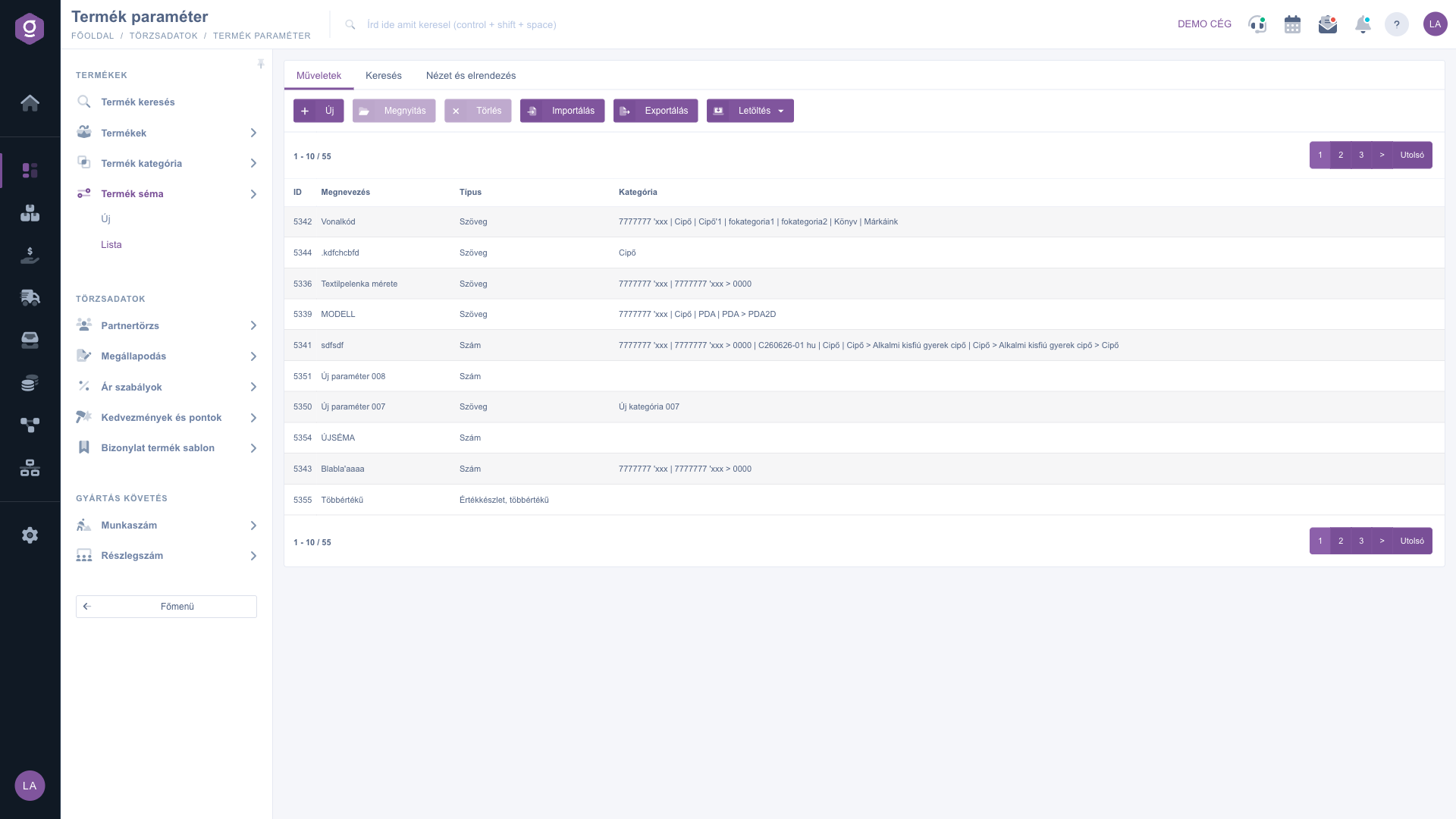
Click Main menu / Master data / Product schema / List and all created schemas are shown (the page title is Termék paraméter in the Hungarian interface). Above the list there are three tabs: Actions, Search and View and layout. With the buttons on the Actions tab you work with the selected row (click the row in the table to select it):

  • New: create a new schema on an empty sheet (the same is available with the menu item Main menu / Master data / Product schema / New).
  • Open: open the sheet of the selected schema.
  • Delete: delete the selected schema after confirmation. A deleted schema disappears from the list.
  • Import: load schemas in bulk with the import wizard.
  • Export: read out the schemas with the export wizard.
  • Download: the XLSX item of the drop-down menu of the button saves the content of the list to an XLSX file.

Note: the screenshots show the Hungarian demo interface; the names in your own language are the ones written in bold in this guide.

Product schema list – Actions tab

2. Searching among the schemas

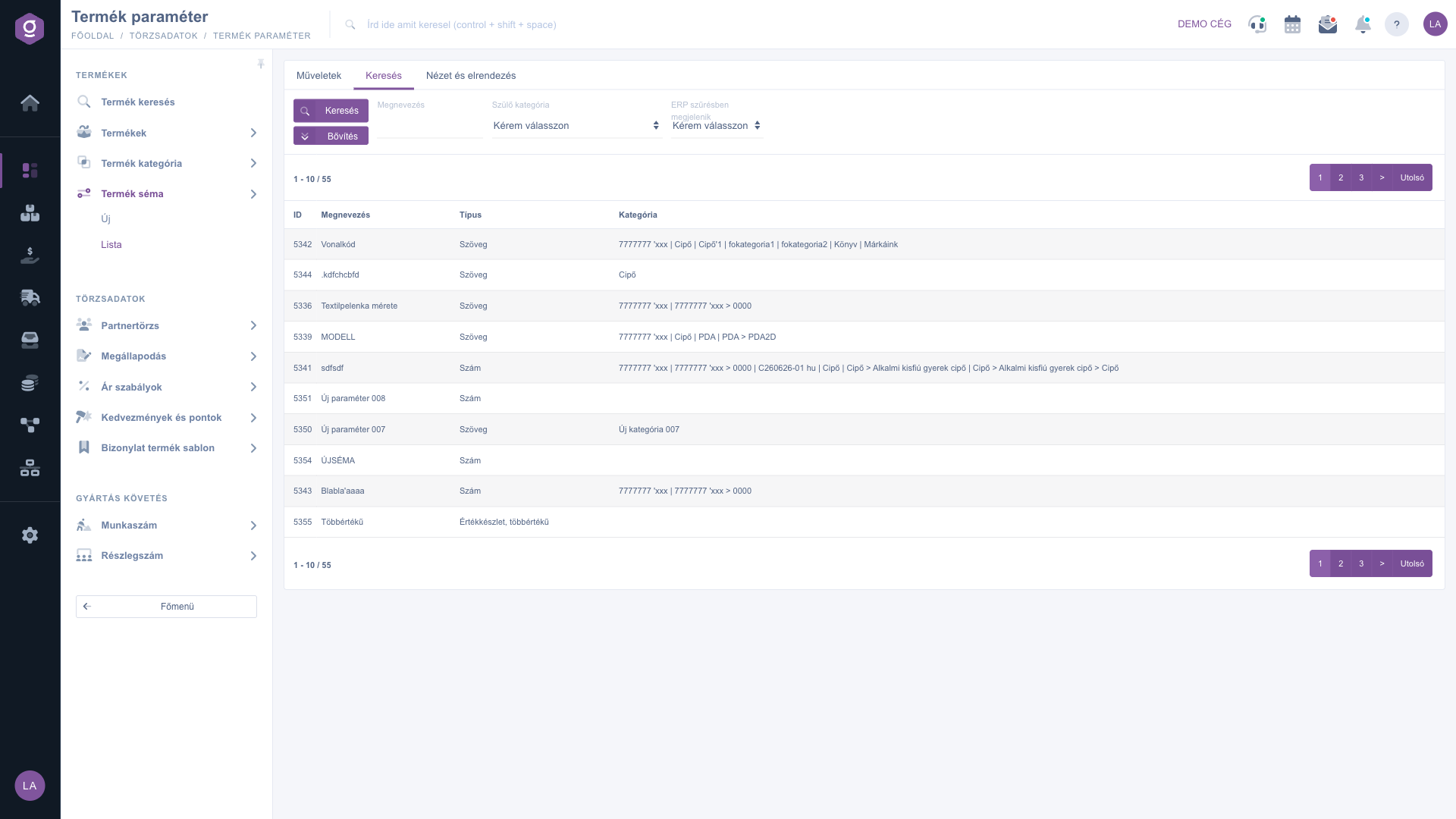
On the Search tab you can filter by three conditions: in the Name field you can enter part of the schema name; in the Parent category field you can choose a category, and then you see the schemas that belong to the chosen category or to any of its subcategories; with the Visible in ERP filter field (Please choose, Yes or No) you can filter for schemas that have this setting switched on. Use the Search button to filter by the set conditions.

Product schema list – Search tab

Customizing the view

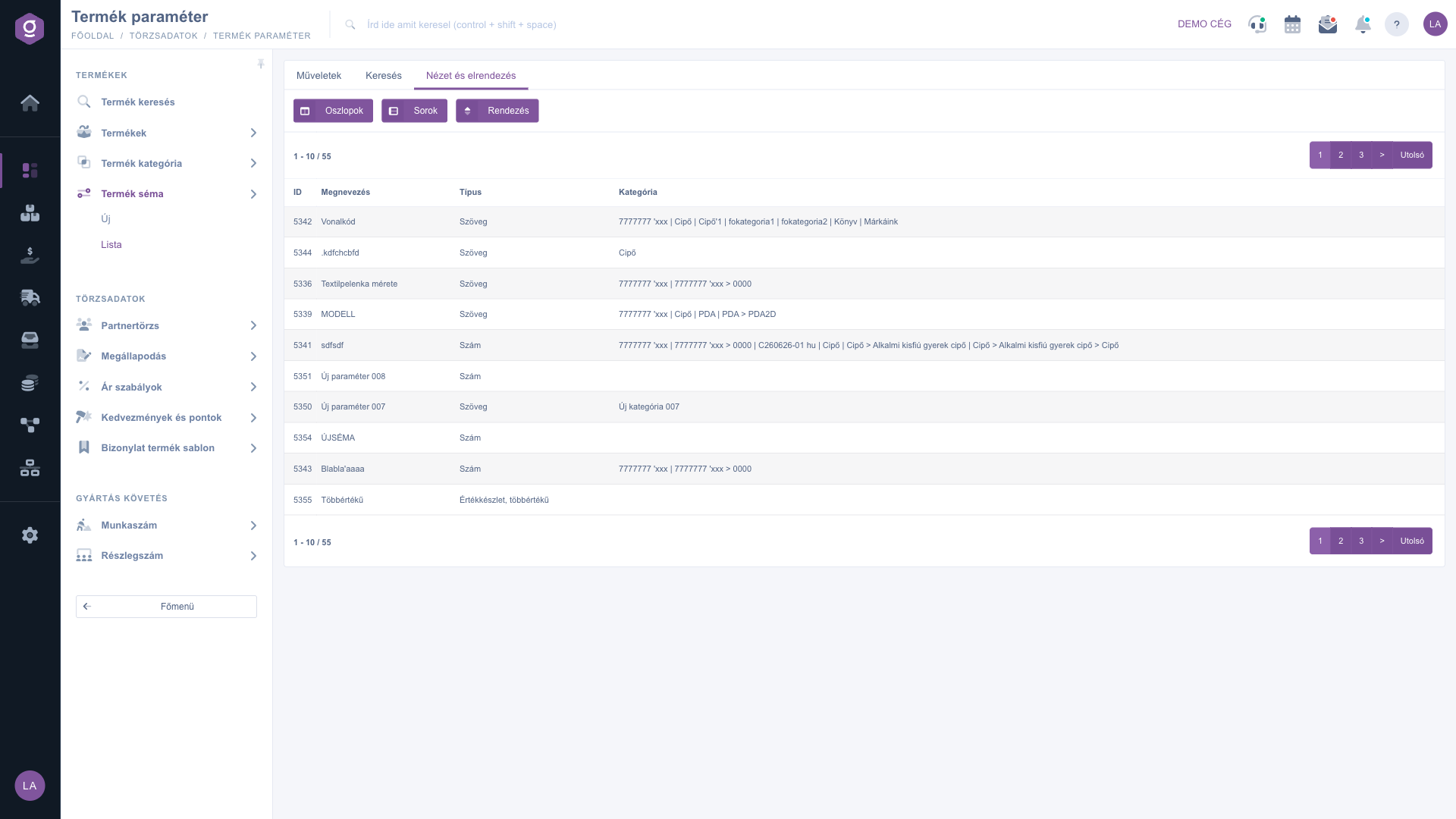
The View and layout tab has three buttons:

  • Columns: opens a window where you can use the Active check boxes to choose which columns are shown, and the drag icon to reorder them. In the window you can use the Save, Default (reset), Select all and Deselect all buttons.
  • Rows: set how many rows are shown on one page.
  • Sorting: choose which column and in which direction the list is sorted.

These settings are saved for your user, so they are kept the next time you sign in. You can also sort the list directly by clicking the arrows next to the column names in the header.

Product schema list – View and layout tab

Tip


If you want to record the size of shoes, create a number-type schema named Size and link it to the Shoe category on the Product categories tab. The Size field then appears on the Parameters tab of every shoe product, and in the Category column of the list you can see that the schema belongs to the Shoe category.

Field descriptions

The columns of the default table and their meaning:

Field / ColumnRequiredDescription
IDThe unique identifier of the schema. It is assigned by the system and cannot be changed. In print templates the [$param_ID] notation uses this identifier.
NameThe name of the schema (the product parameter field).
TypeThe type of the value of the field, for example Text, Number or Value set, multi-valued.
CategoryThe categories the schema is linked to. Empty if the schema is not tied to a category.

The set of displayed columns can be customized in View and layout > Columns, where you also decide the order of the columns. The list above shows the default view.

Frequently asked questions

There is no restore in the interface: a deleted schema disappears from the list. Before deleting, check in the Category column of the list which categories the schema is linked to. If you just do not want to use it for a while, rather change its settings with the Open button.

For a category-based schema, the product must belong to a category (or a subcategory of it) to which the schema is assigned on the Product categories tab. You can add a direct schema on the Parameters tab of the product with the New parameter schema button, and a global schema appears on all products. Also check the Field display setting of the schema.

On the Search tab, choose the category in the Parent category field: the list shows the schemas belonging to the category and to all its subcategories. You can read about how categories are built in Product category list.

An empty Category column means that the schema is not tied to a category. This is natural for a direct or global schema, but a category-based schema does not appear on any product until you assign a category to it on the Product categories tab of the schema sheet.

The menu item appears under Main menu / Master data if the module is assigned to your user. If you cannot see it, ask the system administrator to check the module assignment in your user settings.

Need personalized help?

Don't want to spend hours searching for a solution? Choose the most efficient way: book a personalized, 45-minute online training session dedicated entirely to you. Whether it's a walkthrough of the basics or a detailed setup of a specific module, our expert colleague will guide you through the whole process, step by step.

Don't waste your time - ask for help!
Our goal is to get you using our system as quickly and efficiently as possible. Whether you're completely new to us or stuck on a specific setting, don't hesitate to ask for help!

Logzi warehouse management software

Get in touch with us

Interested in our software? Feel free to write to us!

Need help?

If you can't find the answer and need assistance

Create your account now,
pay later!

Try it free for 3 days, no risk, no obligation!