1. Viewing the list and actions on prices
Click Main menu / Sales / Price list / Itemized price list to see all the prices recorded so far. Above the list there are three tabs: Search, Actions and View and layout. The buttons on the Actions tab work with the selected row (click a row in the table to select it). Note: the screenshots show the Hungarian demo interface; the names in your own language are the ones written in bold in this guide.
- New: create a new price on an empty form. Choose it when a product has no price yet for the given partner type or site.
- Open: open the details of the selected price for editing. Use it when you only need to change the value of an existing price.
- Delete: delete the selected price. Deletion asks for confirmation and is final: the price history of that row is deleted as well.
- Product card: open the card of the product in the selected row, where you can see stock, orders and prices in one place.
- Price history: view the earlier values of the selected price by date. Useful when you want to know when and to what a price was changed.
- Import: opens the import interface in a new tab so you can load prices in bulk. When you record the prices of many products at once, this is faster than entering them one by one.
- Export: opens the export interface in a new tab.
- Download: with the XLSX option the currently shown list can be downloaded as a spreadsheet.
If you right-click a row, the New, Open and Delete actions are also available from the context menu.
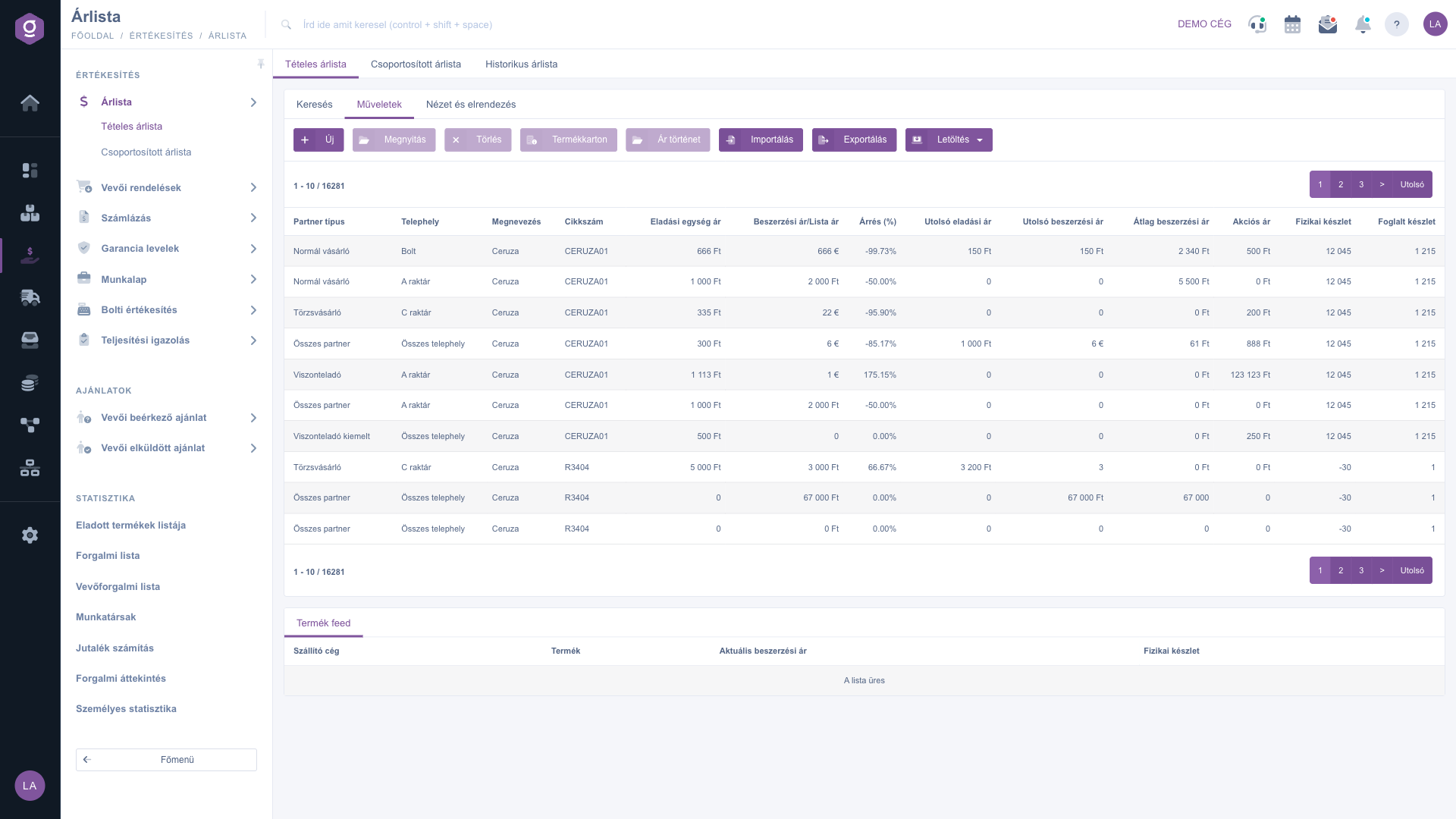
Itemized price list – Actions tab
Creating a new price and editing an existing one
The New or Open button opens a pop-up window. At the top, the Site and Partner type drop-downs define who the price applies to and where (All sites and All partner types mean the general price). You identify the product with the Item number and Name fields: the icon next to the Name field lets you pick a product from the master data, and the icon opens the creation of a new product in a new tab if the product does not exist yet. When you open an existing price, the Item number and Name can no longer be changed.
Below that you enter the prices in three sections: under Selling prices the net and gross selling price, the currency, the VAT rate, the promotional price and its validity; under Purchase prices the net and gross purchase and cost price; in the List price section the net and gross list price. When you type one amount (for example the net selling price), the related one (the gross) is calculated automatically from the selected VAT rate. The Save button saves the price, the Close button closes the window without saving.
Only one price can belong to a product, partner type and site at a time: if you save a combination that already has a row, the system updates the existing row instead of creating a second one. Every change can be looked up in the Price history window.
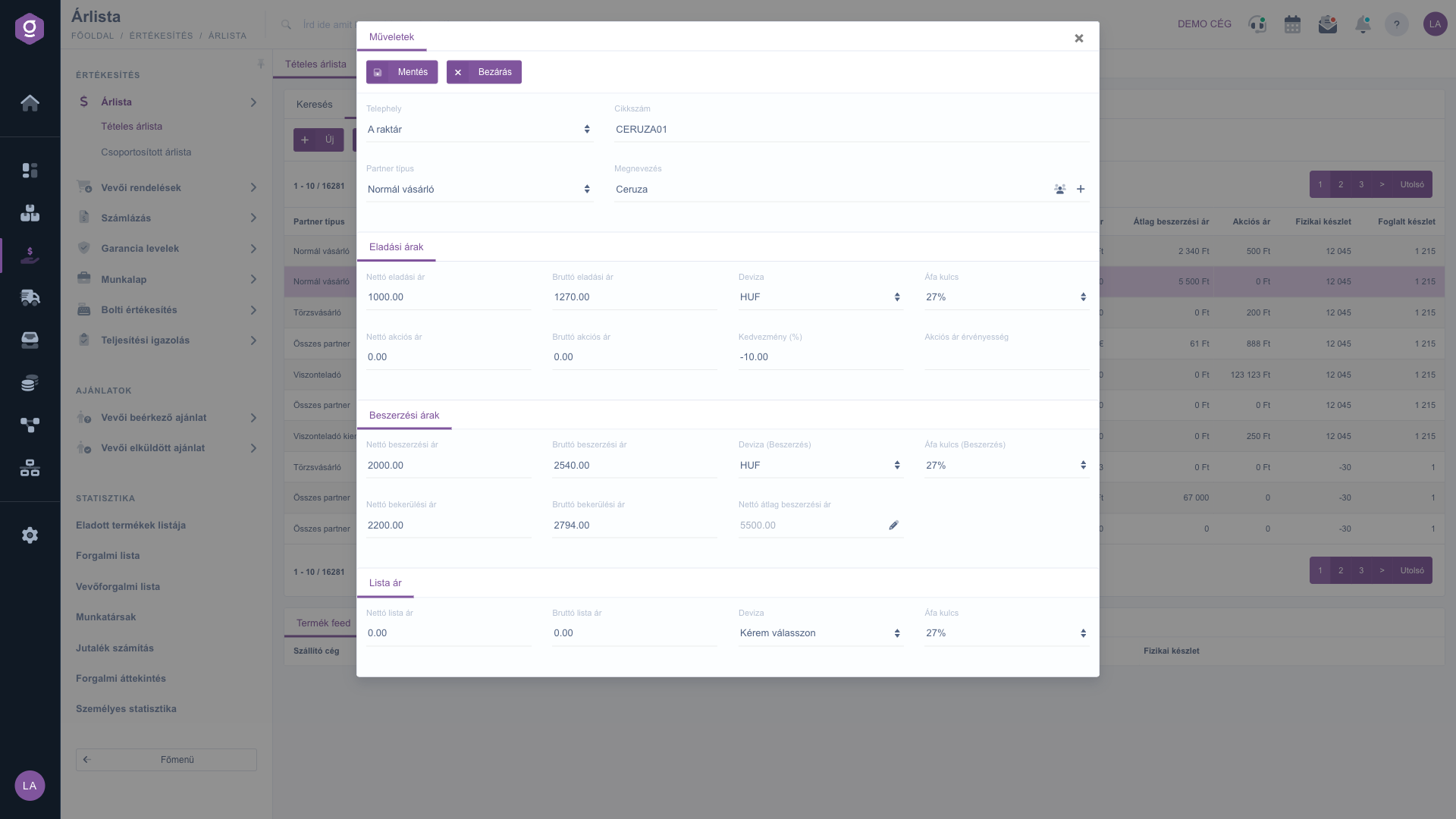
Opening a price – selling, purchase and list price
The price history
After clicking the Price history button, the earlier prices of the selected row appear in chronological order, with the Date, Selling price and Purchase price columns. The latest change is at the top.
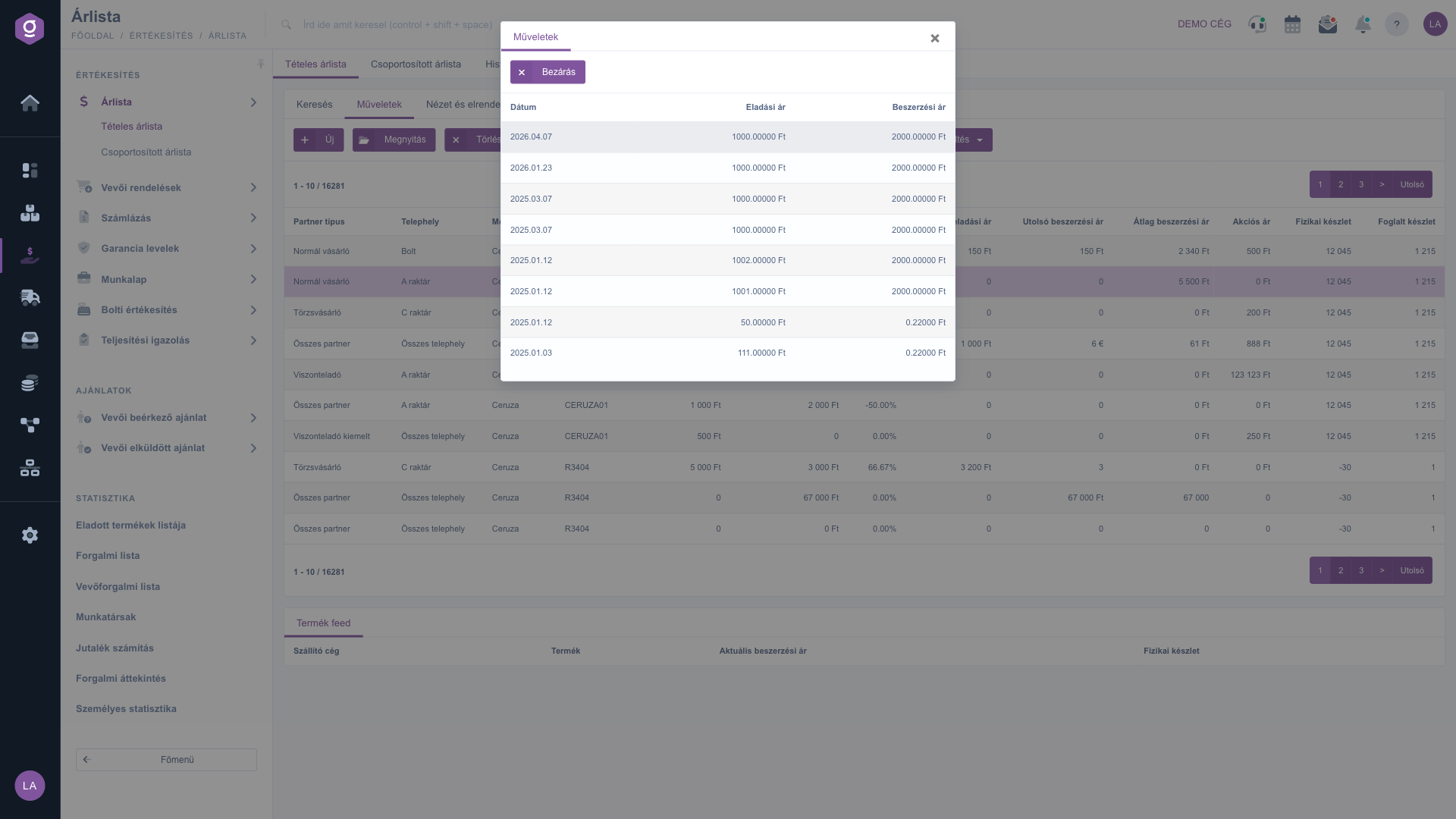
Price history window
The product card
The Product card button opens the summary card of the product in the selected row: physical, reserved and available stock, stock by warehouse and by location code, and the selling and purchase price. From the card you can go on to the product sheet, the stock history, customer orders, stock reservation or the historical price list.
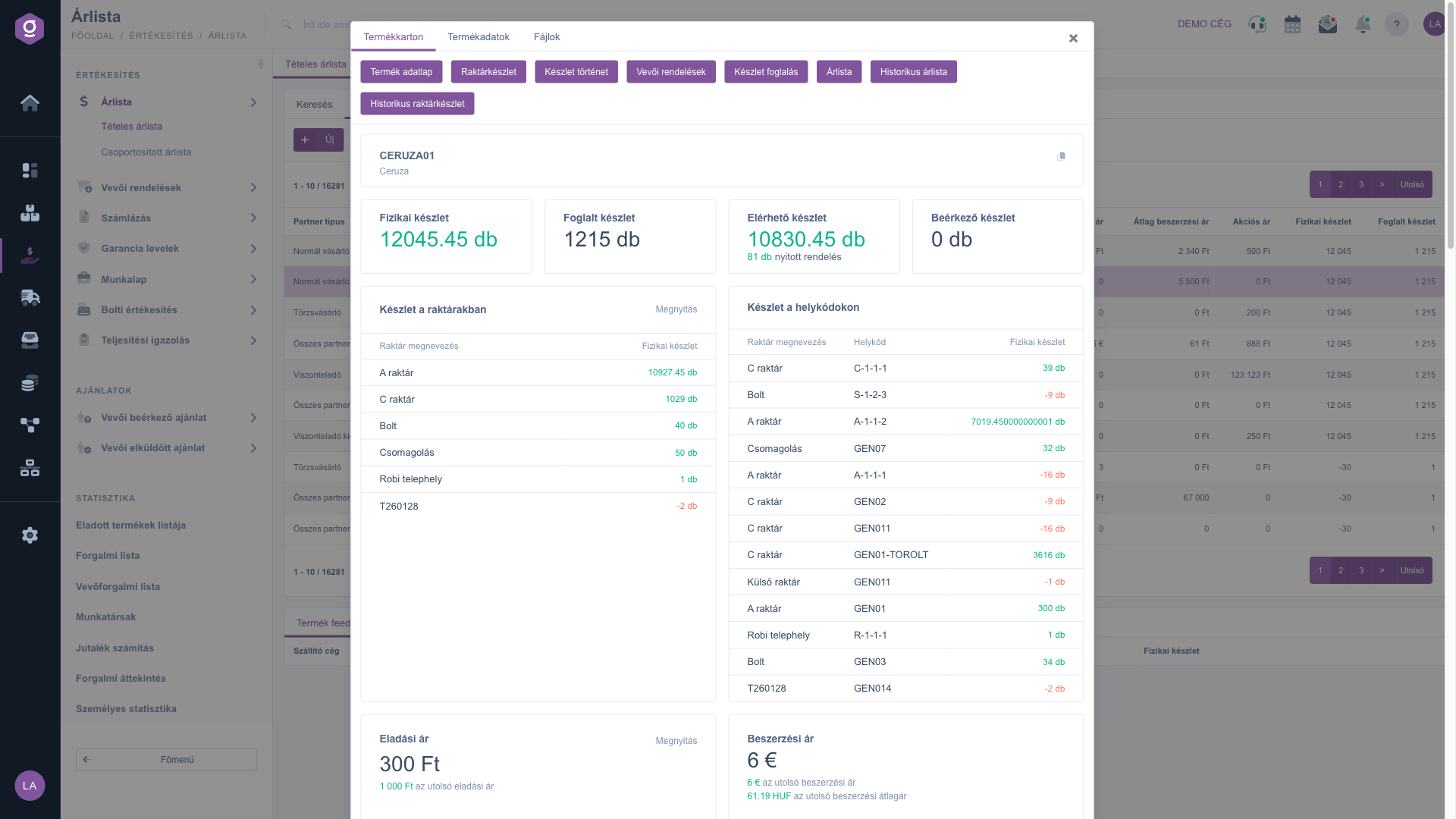
Product card from the price list
Searching among the prices
On the Search tab you can filter by: Name, Item number, Product category, Site, Partner type and Product type (several values can be selected here). The Expand button opens three more filters:
- Purchase price empty: with the Products without a purchase price option it lists the rows where there is no (or a zero) purchase price.
- Selling price empty: with the Products without a selling price option it lists the rows where there is no (or a zero) selling price.
- Negative margin: with the Products with negative margin option it lists the rows where the selling price is not higher than the purchase price.
Use the Search button to filter by the conditions you have set.
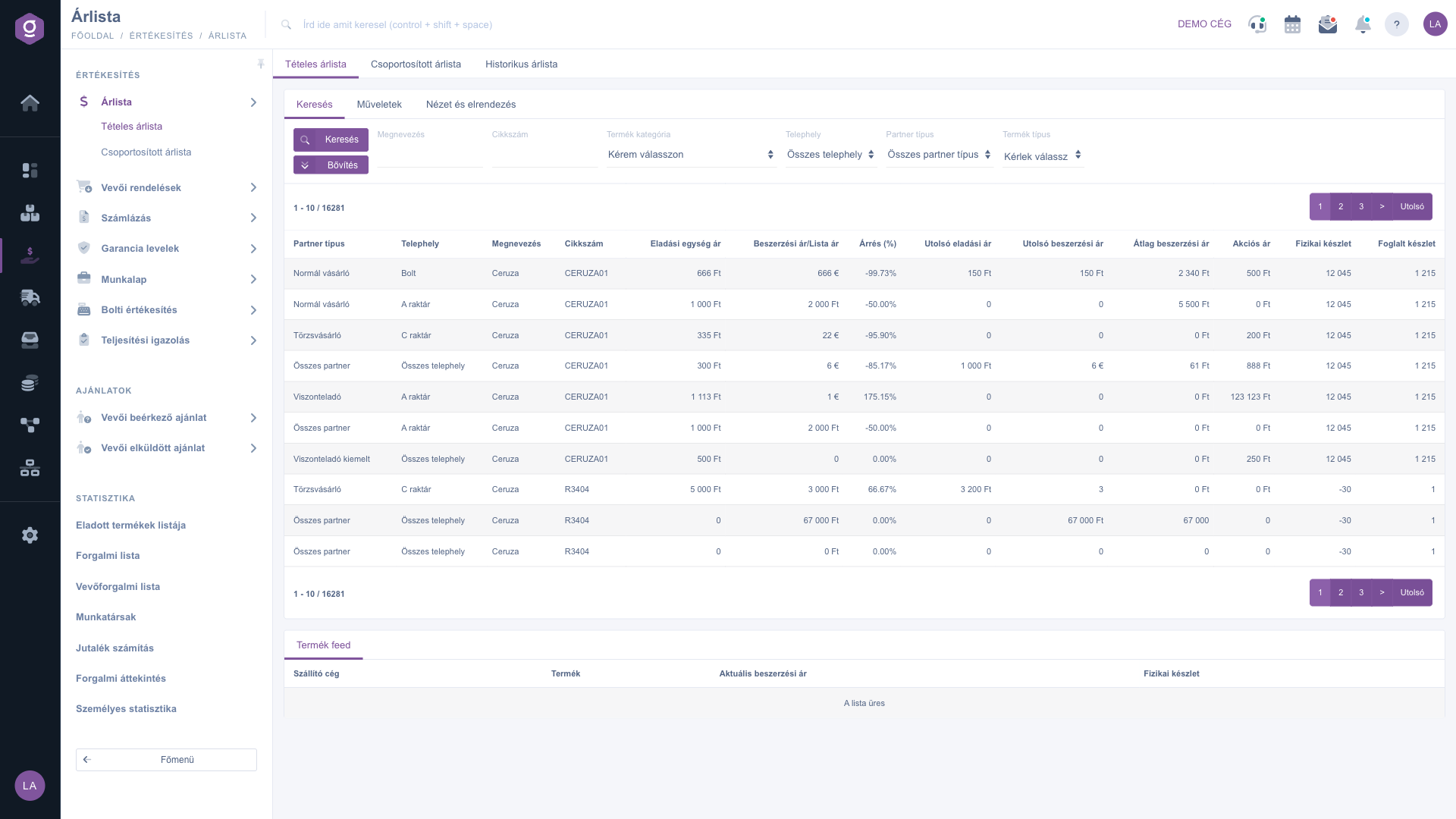
Itemized price list – Search tab
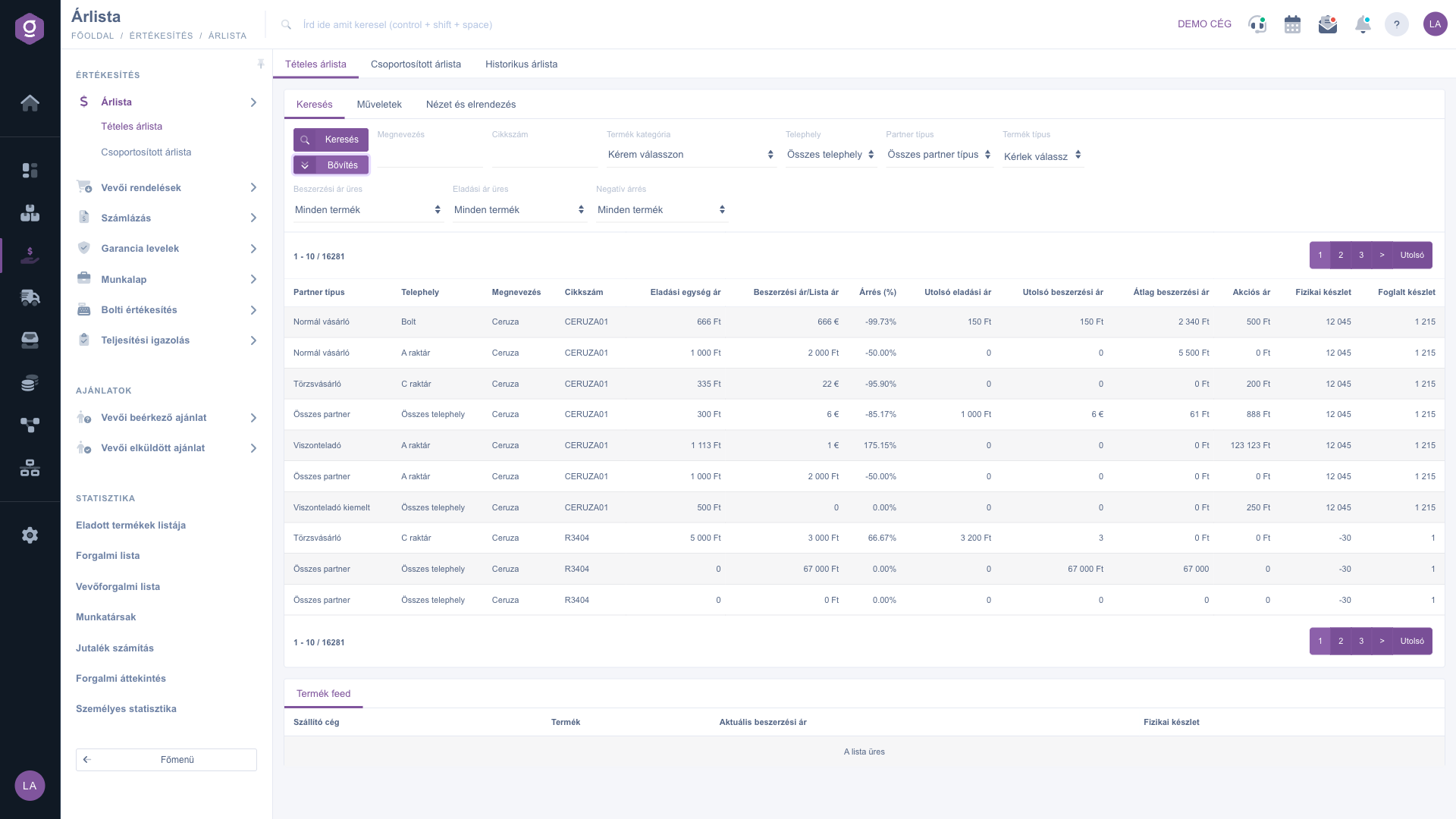
Itemized price list – expanded search
Customizing the view
The View and layout tab has three buttons:
- Columns: opens a window where you can use the Active check boxes to choose which columns are shown, and the drag icon to reorder them. In the window you can use the Save, Default (reset), Select all and Deselect all buttons.
- Rows: set how many rows are shown on one page.
- Sorting: choose which column and in which direction the list is sorted.
These settings are saved for your user, so they are kept the next time you sign in. You can also sort the list directly by clicking the arrows next to the column names in the header.
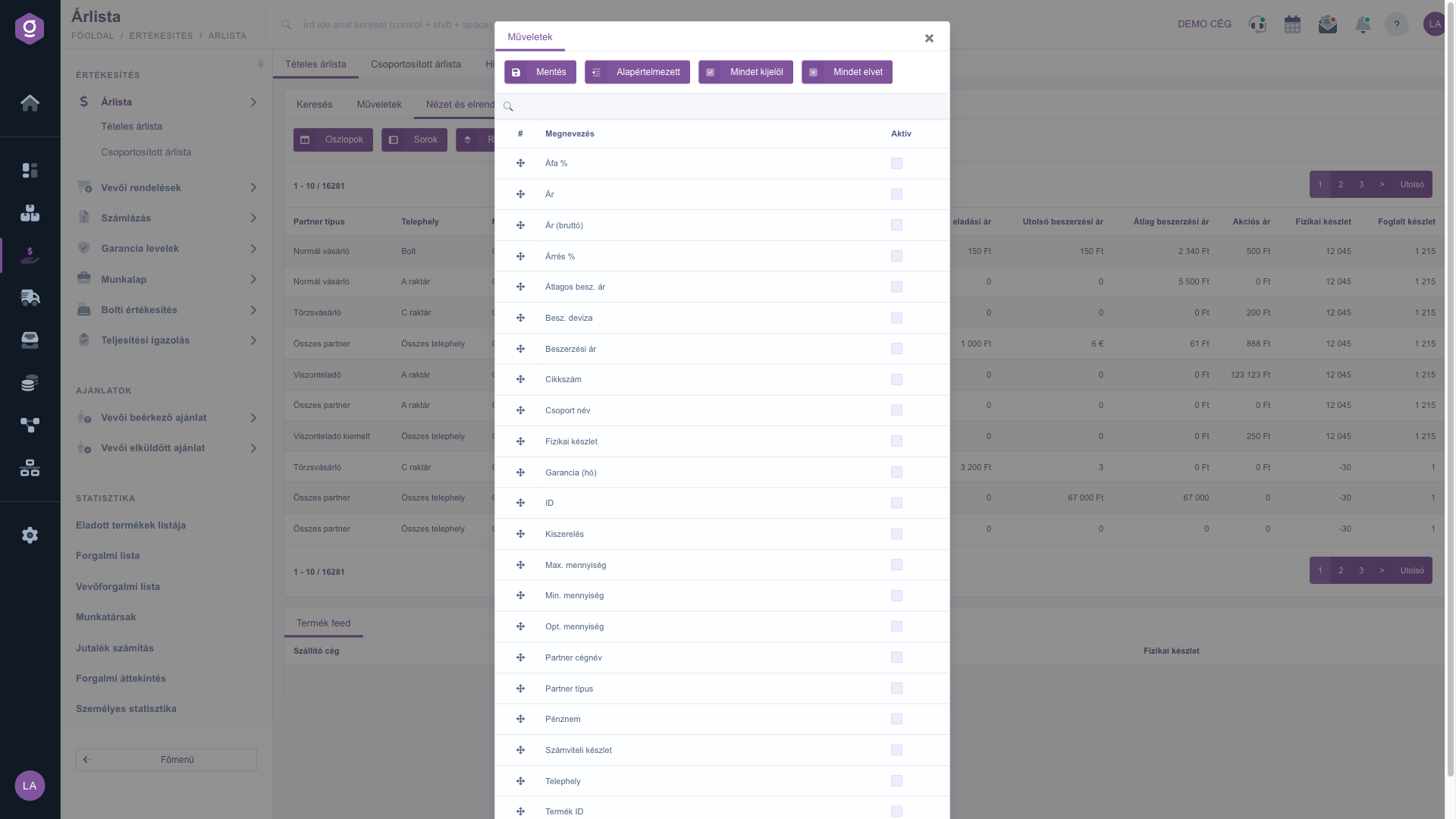
Itemized price list – column settings
The Product feed panel
Below the list the Product feed panel shows the products coming from the supplier product feed with the Shipping company, Product, Current purchase price and Physical stock columns, so you can compare your own price list with supplier prices and stock in one place. If no feed source has been set up yet, the There is currently no external/supplier product feed specified warning appears instead of the panel. Opening it explains what a feed is (What is a feed?) and what it is good for (What is this product file for and why is it useful?), and the Product feed setup button takes you to the feed source settings page.
Besides the Itemized price list, the
Grouped price list view shows how many price rules belong to each partner type and site combination. If you want to see where prices are defined, read the
Grouped price list guide.
Tip
If you want to check where you lose money on a product, open the Expand section on the Search tab, choose Products with negative margin at the Negative margin filter, then click the Search button. The result list immediately shows the prices where the selling price does not cover the purchase price, and you can fix them right away with the Open button.



