1. Viewing the list and the actions available for an order
Clicking the Main menu / Sales / Customer orders / List menu item shows all orders. Above the table, the Actions tab gives you the buttons for working with the selected order (some of them are only active for an order in the appropriate status):
- New: record a new customer order on a blank form. From the arrow next to the button you can also choose New based on PDF: the system extracts the data of the order from the uploaded PDF and pre-fills the new order.
- Open: opens the selected order to edit its items and header data.
- Close: closes the order — only available for an order in Draft status. Clicking the arrow lets you combine closing with printing (Close and print) or downloading (Close and download).
- Delete: deletes the selected order. The arrow also offers Delete and copy (delete and create a copy in one step) and Permanent deletion.
- Cloning: creates a new order with the data of the selected order — faster than entering everything again for recurring orders.
- History: shows the history and the related documents of the selected order.
- Fulfilled: marks the order as fulfilled after confirmation — only for an order in Closed or Partially fulfilled status.
- Payment status and External status: set the payment status of the order (OK, Warning, Error) and its external status that is also visible towards the webshop.
- Download: in the List operation block you can download the entire list (XLSX list, XLSX item list), and in the Document operation block the data of the selected order (XLSX items, XLSX serial number list, PDF, PDF preview, Download attachments). The final PDF can only be created from a closed order, while the PDF preview is also available for a draft.
- Print: prints the Product label or the Document.
- Transport organization: New parcel label creates a new parcel label for the order, Parcel labels opens the list of labels already recorded for the order.
At the right end of the tab row, the Analytics link takes you to the statistics page of customer orders, and the clipboard icon copies the contents of the table to the clipboard.
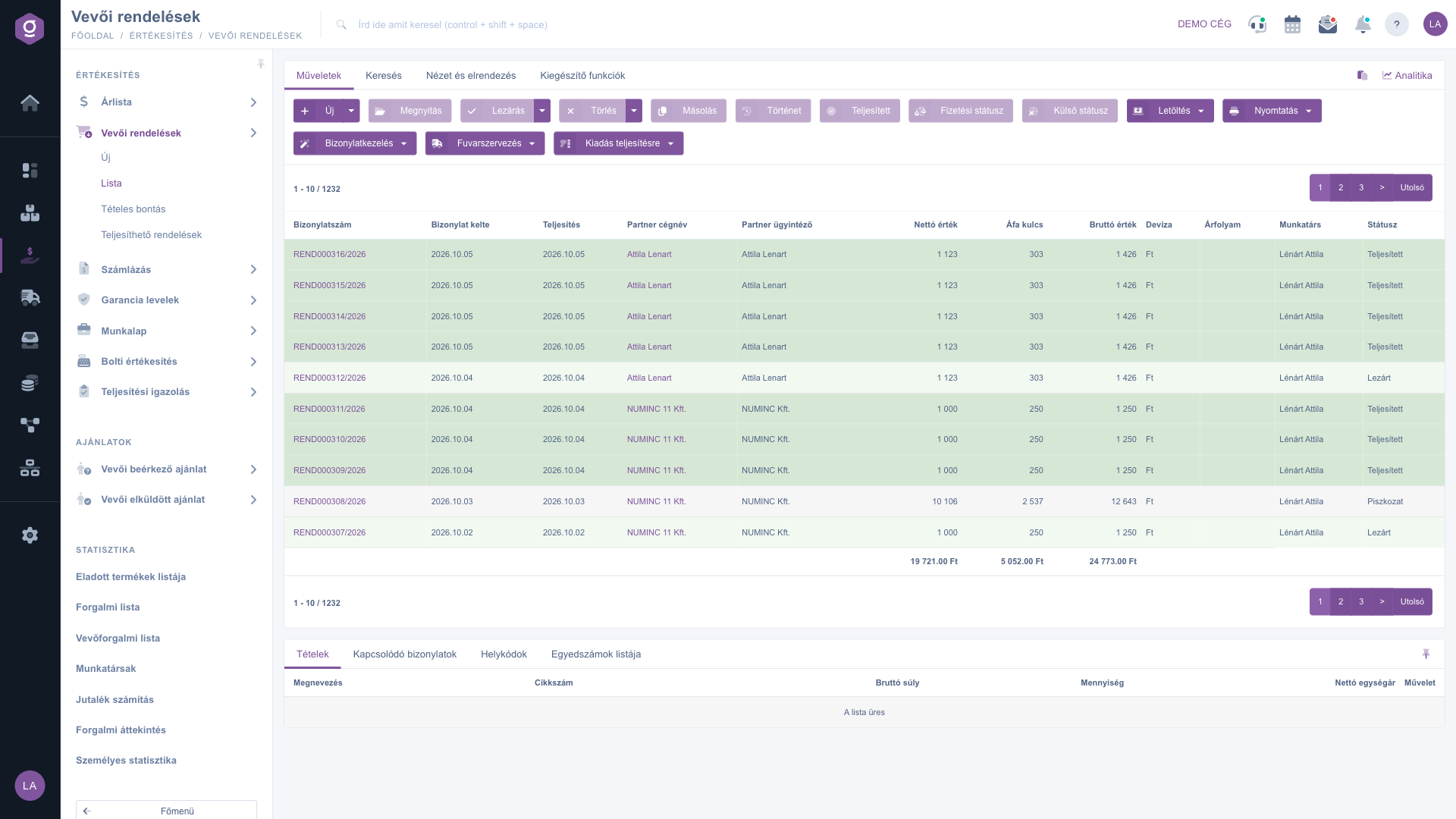
Customer orders list – Actions tab and preview panel
2. Order statuses, closing and fulfillment
A new order starts in Draft status. The life of an order goes as follows:
- Draft: the order can still be edited; it can be closed, deleted and cloned.
- Closed: closing makes the order final. From this point you can create an invoice, proforma invoice, warehouse issue or delivery note from it, download the PDF, and mark it as fulfilled.
- Partially fulfilled and Ready to ship: statuses that show the progress of fulfillment, when part of the order has already been fulfilled or can be issued.
- Fulfilled: all items of the order are fulfilled. With the Fulfilled button you can also mark a closed or partially fulfilled order as fulfilled yourself.
- Cancelled: a withdrawn order.
An order in Draft, Closed, Partially fulfilled or Fulfilled status can be deleted. If a warehouse issue task linked to the order has already been picked, deletion is not allowed — you must delete that task manually first.
Creating a new document from the order
The Document management menu carries the items of the selected (closed or later-stage) order over into the new document, so you do not have to enter them again:
- Invoicing, Proforma invoice, Advance invoice: an invoice, proforma invoice or advance invoice created from the order.
- Warehouse issue and Delivery note: the document of the issue or the delivery.
- Stock reservation: reserves the ordered products from stock.
- Worksheets, Quote sent to customer, Retail sales, Assembly, Quote sent to supplier, Supplier orders: further documents with the items of the order.
- Cloning: creates a copy of the order.
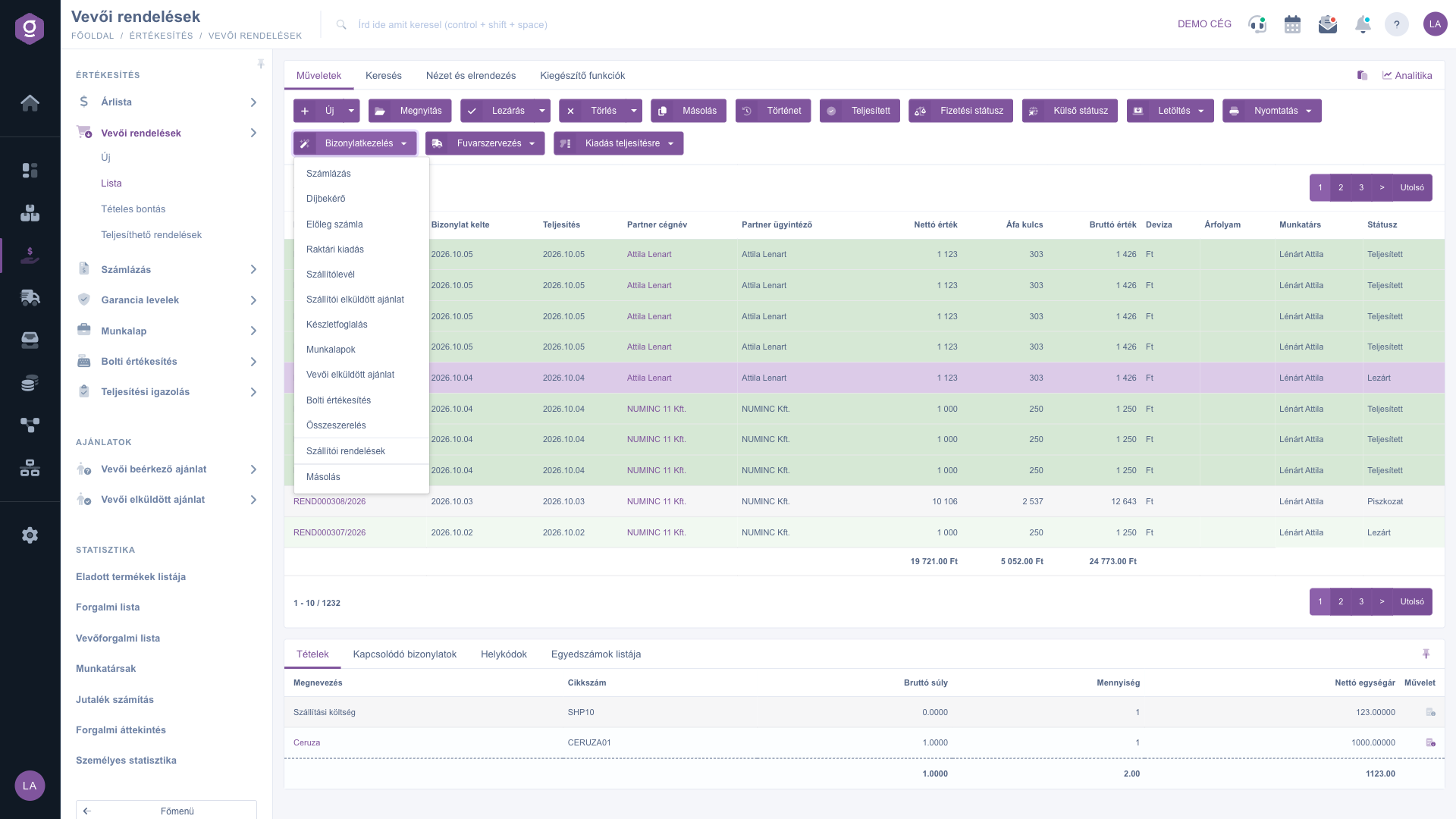
Document management menu for the selected order
Issuing orders for fulfillment
From the Issue for fulfillment menu you can send the selected order(s) off from the warehouse:
- Issue to barcode collector: the items of the order are placed on a barcode collector, from where the warehouse worker can pick them.
- Issue for packing and Issue for packing and pack: the order is sent to packing; with the latter the packing screen opens immediately.
- Fulfillment handover: handing the order over to the fulfillment process.
Please note: these functions do not check the payment status or the stock, so you must filter the appropriate orders in the list first. If you want to see which orders can be fulfilled from stock right away, use the Fulfillable orders page.
Searching among orders
Clicking the Search tab above the table reveals the filtering options. The most commonly used fields (partner company name, partner contact person, document number, customer order number, external/webshop status, status, shipping method) are shown right away. Clicking “Expand” opens further filters (e.g. search by date, by employee, by item number, by project, by job number, whether an invoice or delivery note has been issued, payment status, comments, parcel courier status). Use the Search button to apply the conditions; the icons next to it let you save the current search or delete the saved search.
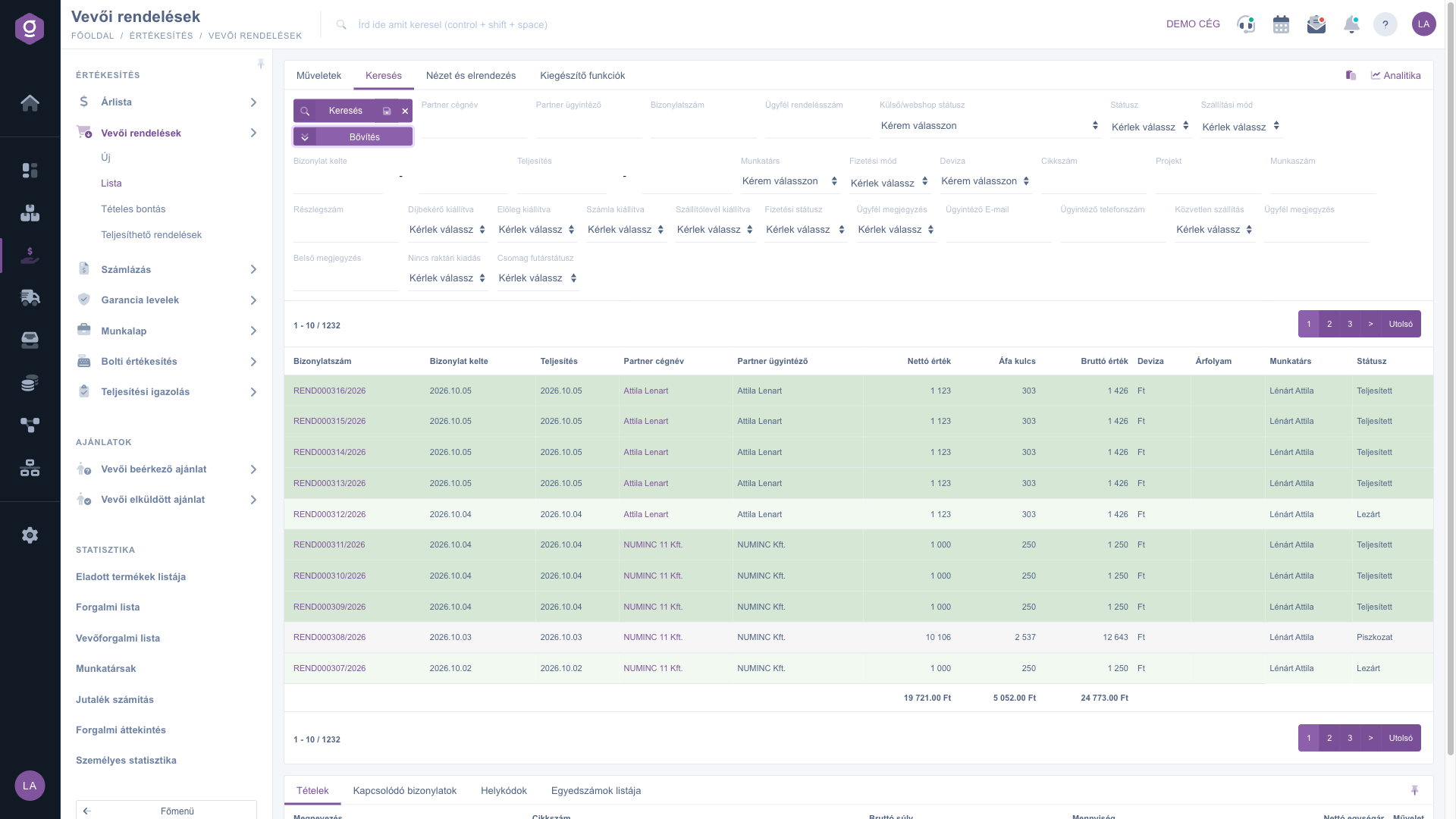
Search tab – expanded filters
Customizing the view
The View and layout tab lets you set how the list is displayed to you:
- Columns: choose which fields appear in the table, and in what order.
- Rows: set how many orders appear per page.
- Sorting: choose which column and direction the list is sorted by default.
- Preview window: turn the preview panel below the list on or off, or pin it (see below).
- Interface and behavior: other display-related settings for the list.
These settings are saved per user, so they are kept the next time you log in as well.
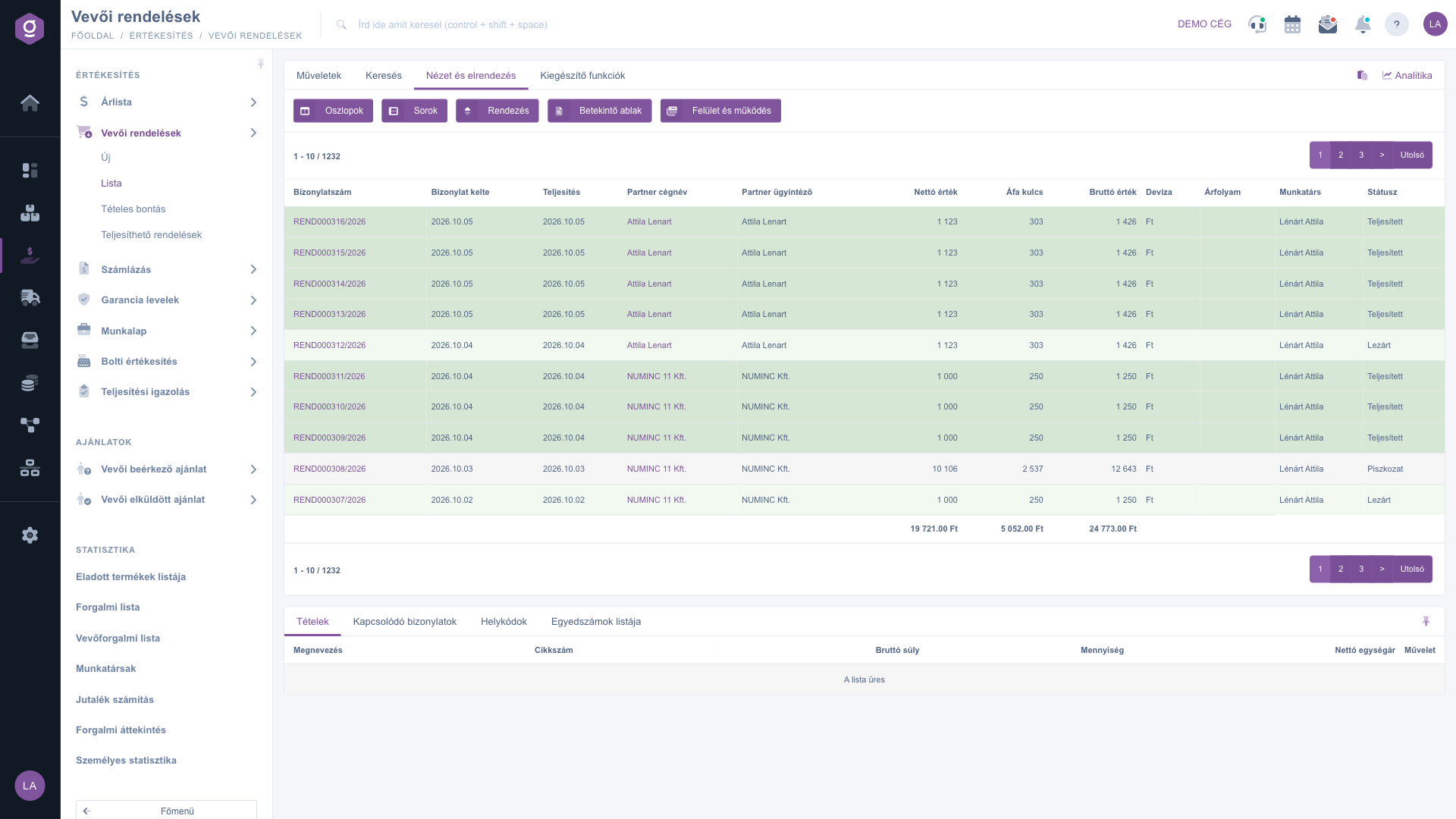
View and layout tab
The preview panel
The panel shown below the list lets you quickly check the details of a selected order without having to open it. The panel contains several tabs:
- Items: the products, quantities and prices listed on the order.
- Related documents: other documents linked to the order (e.g. invoice, delivery note, warehouse issue).
- Location codes: warehouse location, warehouse and pallet information for the items.
- List of serial numbers: a breakdown of the individual identifiers recorded for the items (serial number, expiry date).
The panel can be pinned (fixed to a set size) using the icon in its top-right corner, and its size can be adjusted by dragging the divider line at the top of the panel.
Additional functions
The Additional functions tab offers extra options for the selected order that support your daily work:
- Sent items: view the emails previously sent for the order.
- New email: write a new email related to the order, either through the External mail client or the built-in Internal mail client.
- New task: create a task related to the order.
- Partner card: opens the detailed profile of the partner listed on the order.
- CRM: view the CRM notes recorded for the partner.
- Shipping method: change the shipping method of the selected order.
- Document split: split the items of the order into two documents.
- Direct shipping: mark the order as direct shipping — such orders do not appear in the Fulfillable orders list.
- Webshop link: a link to the page of the order in the webshop it came from.
Right-clicking an order row gives you the same quick actions (open, close, delete, clone, etc.) from a context menu as the Actions tab.
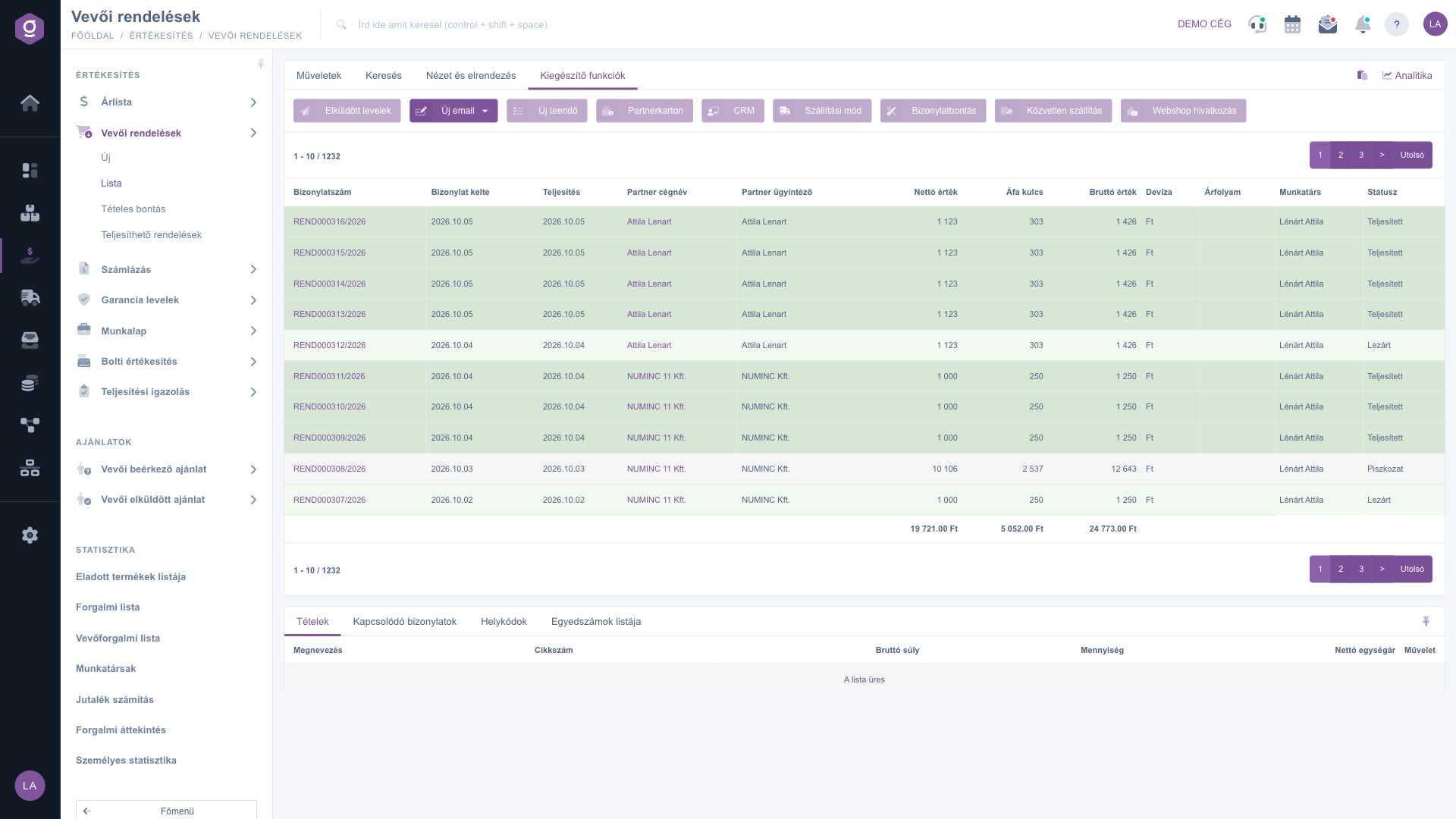
Additional functions tab
Tip
If the order has to be invoiced or shipped, do not enter the items again: select the closed order and choose the document you need from the Document management menu — the system carries the items over. If you need the file of the order right after closing, choose Close and download from the arrow next to the Close button.
If you want to record a new order or learn about the edit page of an order, see the
Customer order document guide. If you want to see which orders can be fulfilled from stock right away, read the
Fulfillable orders guide.



