1. Viewing the list and the actions you can do with categories
Main menu / Master data / Product category / List. All the categories you have created are shown. Above the list there are three tabs: Actions, Search and View and layout. With the buttons on the Actions tab you work with the selected row (click the row in the table to select it):
- New: creating a new category on an empty sheet (the same is available with the menu item Main menu / Master data / Product category / New).
- Open: opening the sheet of the selected category.
- Delete: deleting the selected category after confirmation. When deleting, the system does not check whether products or subcategories belong to the category, so check these before deleting.
- Import: mass loading of categories with the import wizard.
- Export: reading out the categories with the export wizard.
- Download: the XLSX list item of the List operation menu saves the content of the list to an XLSX file.
Note: the screenshots show the Hungarian demo interface; the names in your own language are the ones written in bold in this guide.
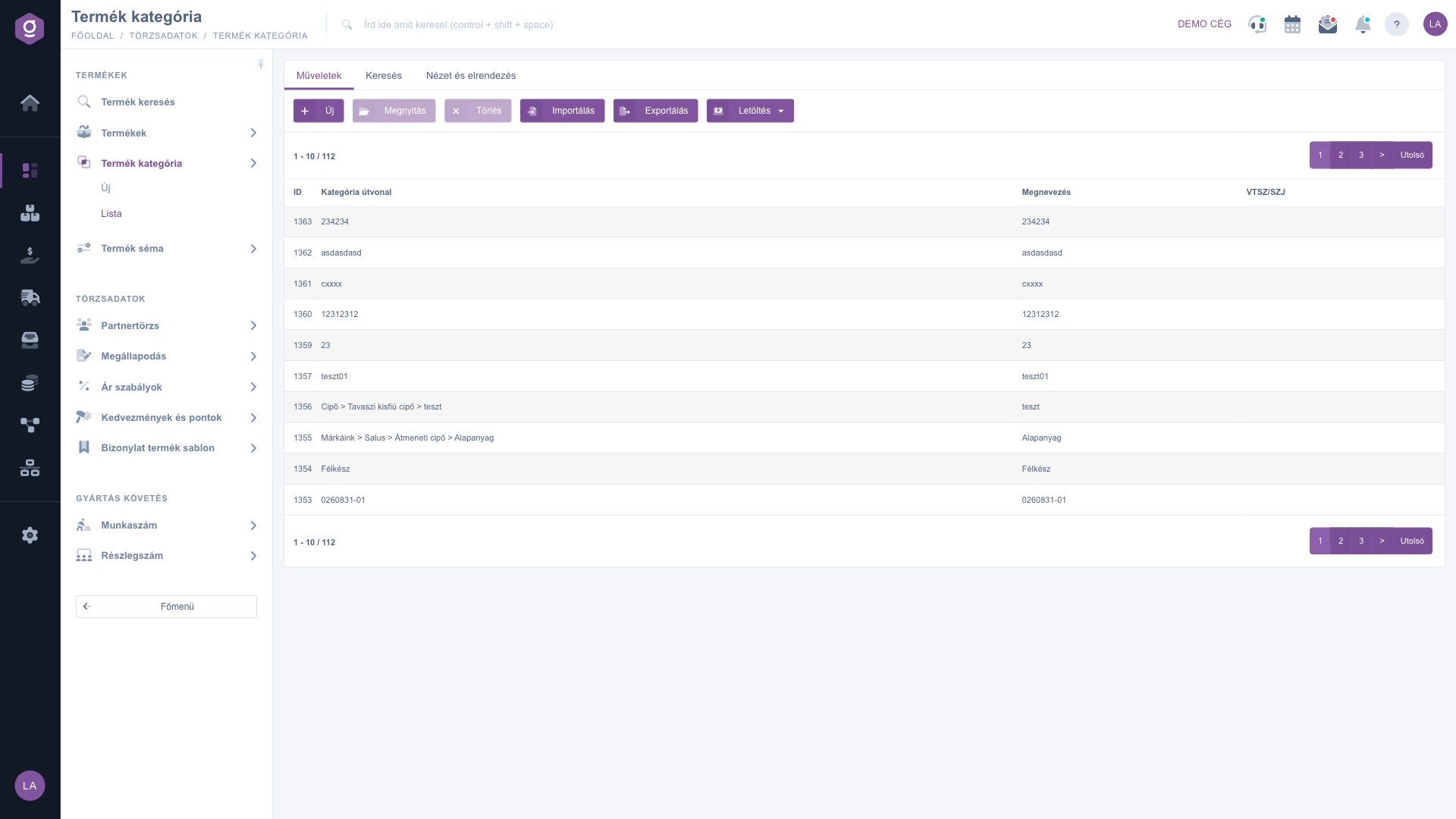
Product category list – Actions tab
2. Searching among the categories
On the Search tab you can filter with two conditions: in the Name field you can type a part of the category name, and in the Parent category field you can select a category, in which case the list shows the direct subcategories of the selected category (without the deeper levels). Click the Search button to filter by the conditions you set.
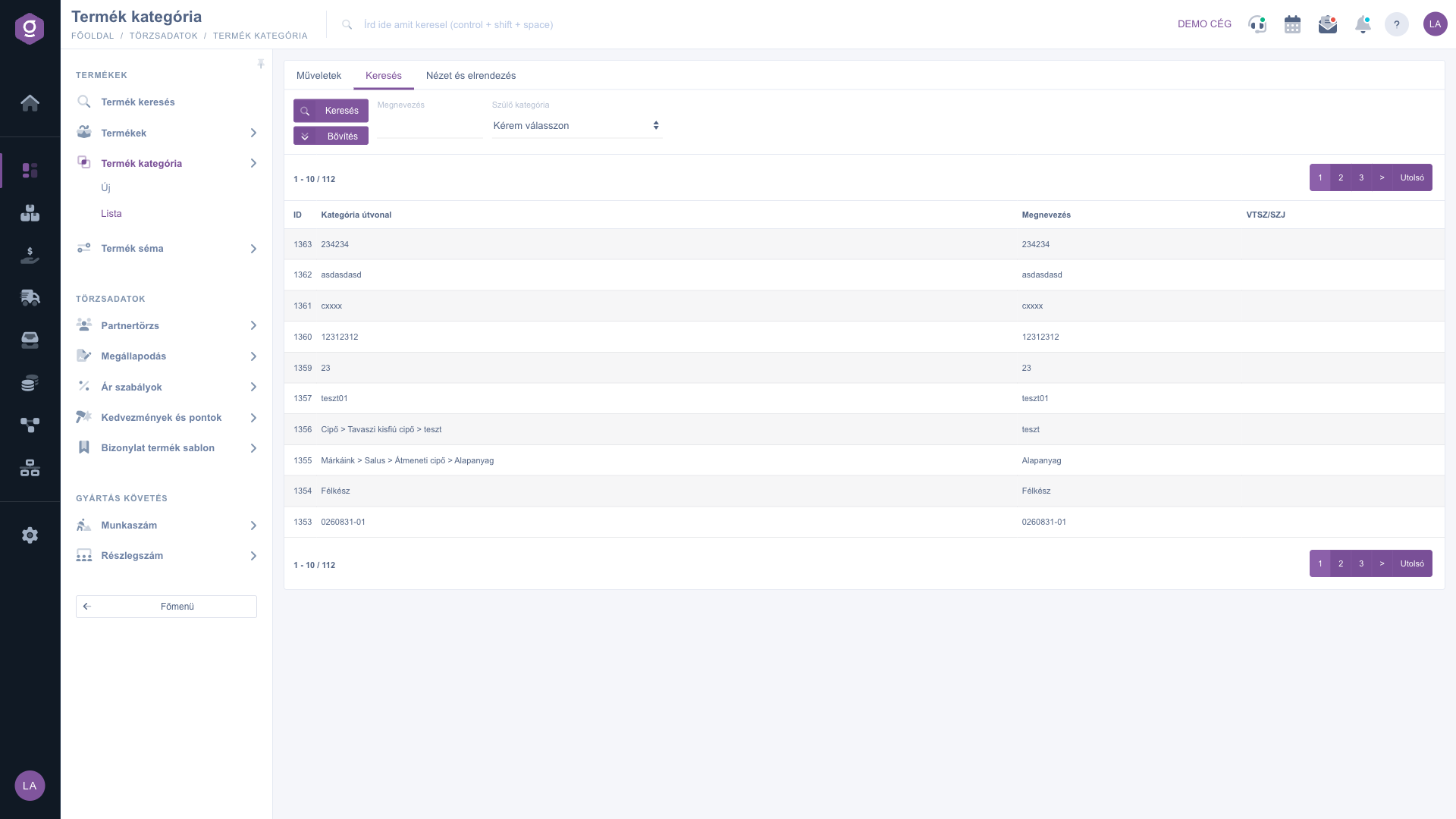
Product category list – Search tab
Customizing the view
The View and layout tab has three buttons:
- Columns: opens a window where you can use the Active check boxes to choose which columns are shown, and the drag icon to reorder them. In the window you can use the Save, Default (reset), Select all and Deselect all buttons.
- Rows: set how many rows are shown on one page.
- Sorting: choose which column and in which direction the list is sorted.
These settings are saved for your user, so they are kept the next time you sign in. You can also sort the list directly by clicking the arrows next to the column names in the header.
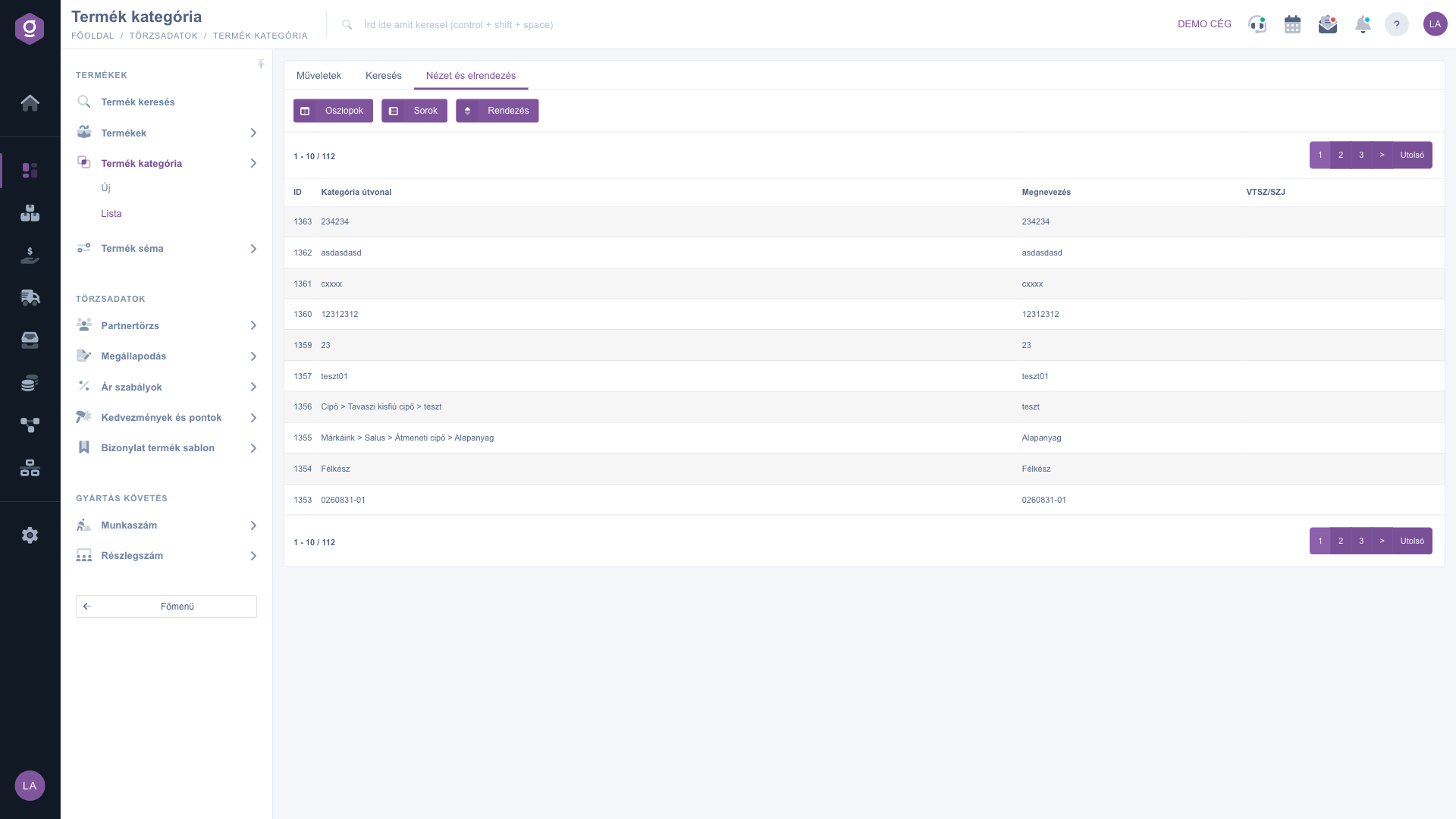
Product category list – View and layout tab
Tip
If you want to move the Transitional shoe category under Shoe, find it in the list with the Name field, open it, and on the Parent category tab select the Shoe category. After saving, the Category path column of the list already shows the path Shoe > Transitional shoe.



