Fulfillable orders

Learn how to find the customer orders that can be fulfilled from stock right now and release them for fulfillment in Logzi.

Feature overview

The Fulfillable orders page shows which of your closed customer orders you can fulfill right now from the stock you have. From here you can also pass them on directly: release them to the barcode collector or to packing, add them to a manual picking list, or create documents from them. Two tabs are shown at the top of the page, and they are separate pages: By FIFO and reservation (this guide covers it) and By maximum fulfillment.

  • Fulfillment in order sequence: the list takes both the order sequence and the stock reservations into account, so the oldest orders are fulfilled first.
  • Only orders that can be released: an order appears only if every stock-managed item on it has a stock reservation and the warehouse stock actually covers the quantity.
  • Preset filters: by default the page shows only orders with a payment status of OK; you can change the filters on the Search tab.
  • Next steps from one place: you can open the selected orders, mark them as fulfilled, create documents from them, or send them to the warehouse with the Issue for fulfillment menu.
  • Manual picking list: in the panel on the right you can collect the items of orders with the Manual picking button and print them.

The By maximum fulfillment tab follows a different logic: it looks for the maximum possible number of orders that can be fulfilled from the warehouse stock, and it takes neither the order sequence nor the stock reservations into account. If the order sequence matters or you rely on reservations, use this page.

Step by step

1. Open the page

Click Main menu / Sales / Customer orders / Fulfillable orders to open the page. At the top you see the two tabs (By FIFO and reservation, By maximum fulfillment), below them the Actions, Search and View and layout tabs, and then the table of orders. Because the default filters are set, the page opens on the Search tab. The panel on the right shows the manual picking list.
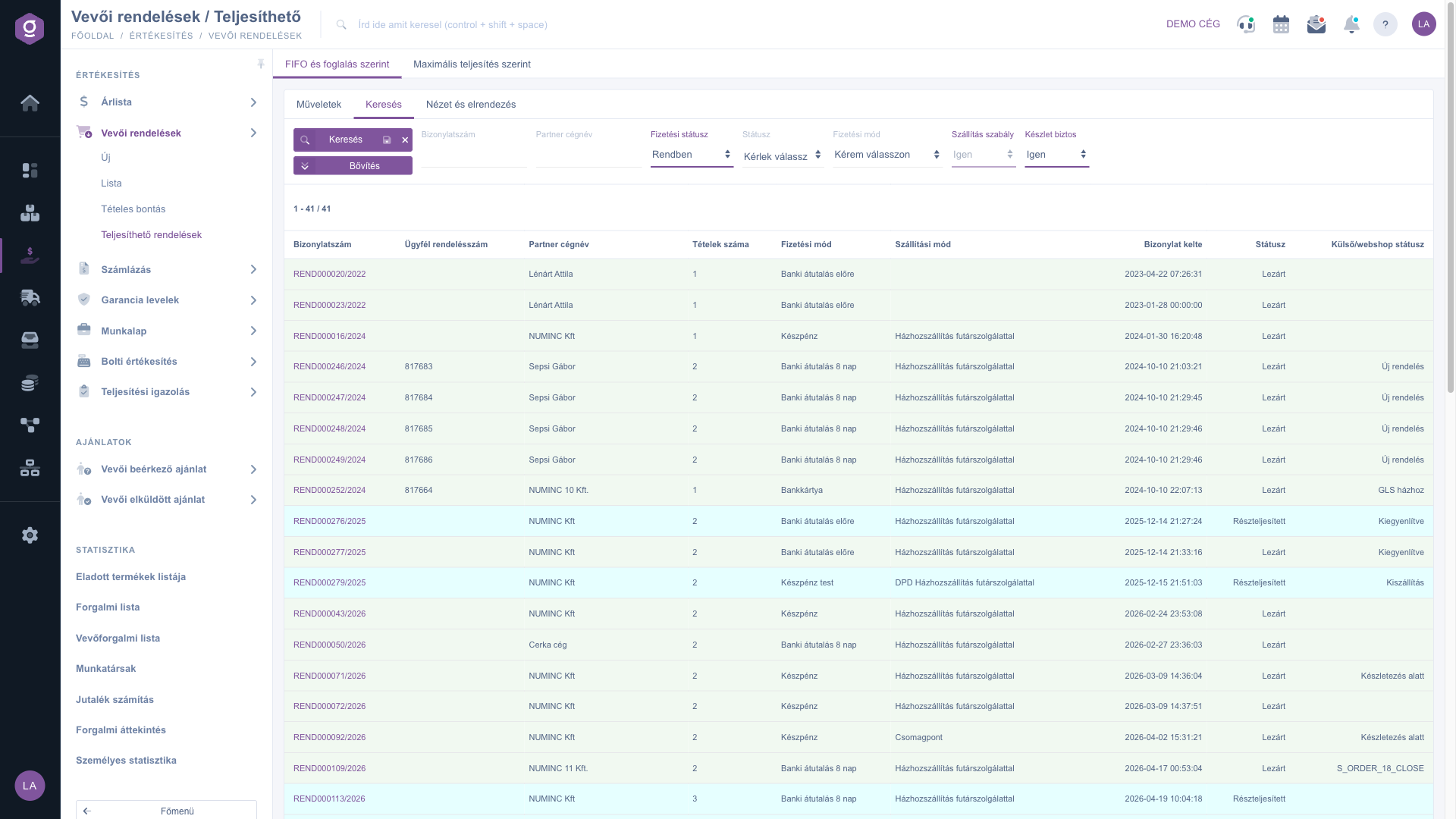
Fulfillable orders – Search tab with the default filters

2. When does an order appear in the list?

An order is added to the list only if all of the following conditions are met:

  • the order has the status Closed or Partially fulfilled and is not a direct shipping order;
  • it has no active release task yet, which means you have not released it to the barcode collector or to packing;
  • every stock-managed item on the order has a stock reservation;
  • the physical warehouse stock covers the quantity of the item, after deducting the quantities in release tasks that were already issued;
  • the orders are processed in their sequence: whatever an earlier order takes from the stock is no longer available to a later order.

If an order is missing from the list, the Frequently asked questions section walks you through the possible reasons.

3. Filter the list

On the Search tab you can narrow down the results. Three filters are active by default: Payment status is set to OK, Shipping rule is set to yes (this field cannot be changed on this page), and Stock safe is set to yes. The Expand button opens further filters, for example the shipping method, the site/warehouse, the external/webshop status, the item number or the name. You can also save the search: the page then loads with the saved filters next time.

4. Select orders and pass them on

Select the orders you need in the table, then choose one of the buttons on the Actions tab:

  • Open: opens the selected order.
  • Fulfilled: after confirmation, marks the order as fulfilled.
  • Document management: creates a document from the selected order: Invoicing, Proforma invoice, Advance invoice, Warehouse issue, Delivery note, Quote sent to supplier, Stock reservation, Supplier orders, or Cloning.
  • Issue for fulfillment: sends the order into the warehouse workflow (see the next step).
  • Manual picking: adds the selected orders to the manual picking list on the right. The function does not check the payment status or the stock, so you have to filter these in the list.
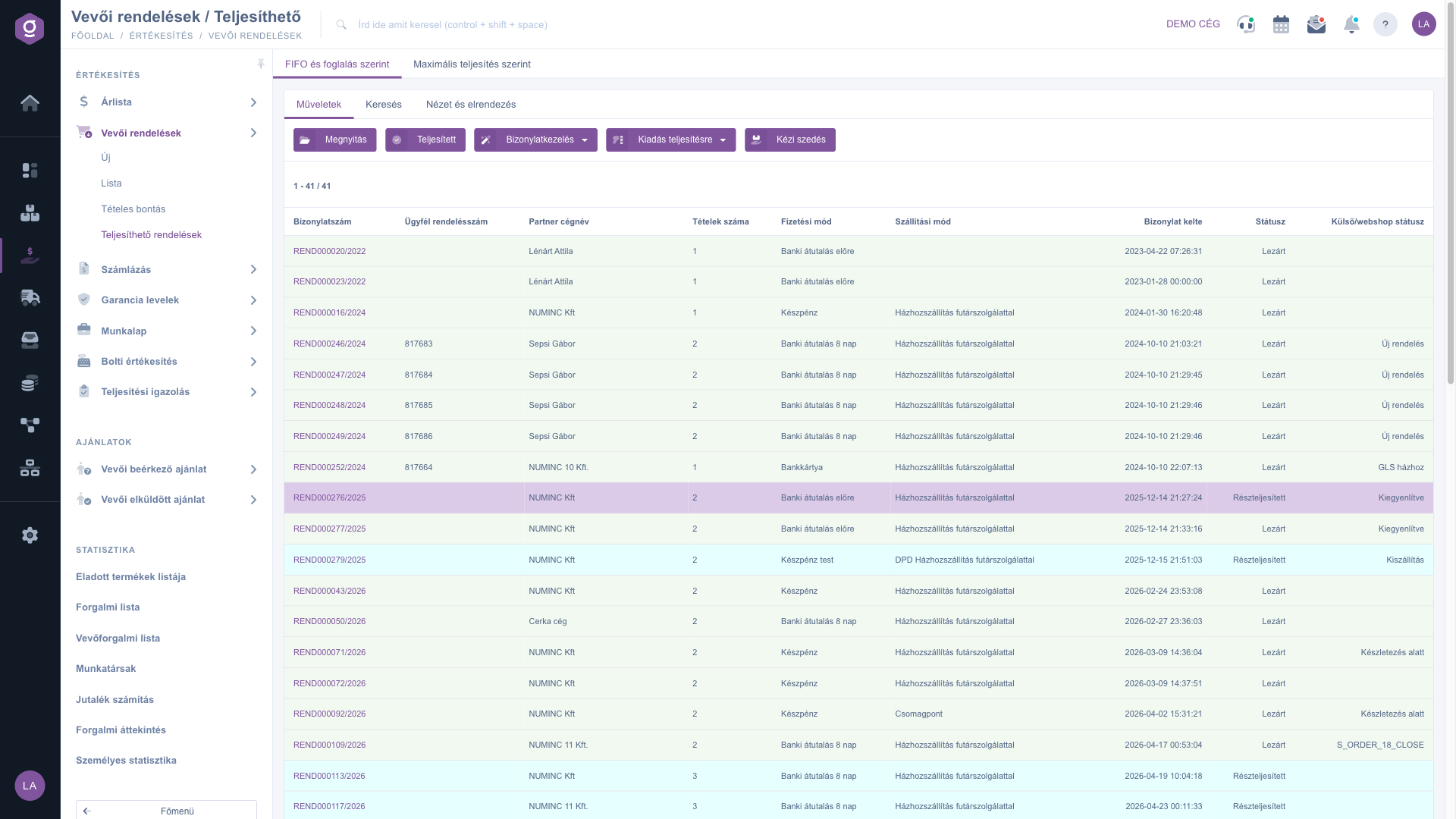
Actions tab with a selected order

5. Issue for fulfillment

The Issue for fulfillment menu offers three options:

  • Issue to barcode collector: sends the selected order(s) to the barcode collector.
  • Issue for packing: sends the selected order(s) to packing.
  • Issue for packing and pack: sends the order(s) to packing and opens them as well.

These functions check neither the payment status nor the stock, so filter the list before you release orders. A released order disappears from the list, because it now has an active release task.
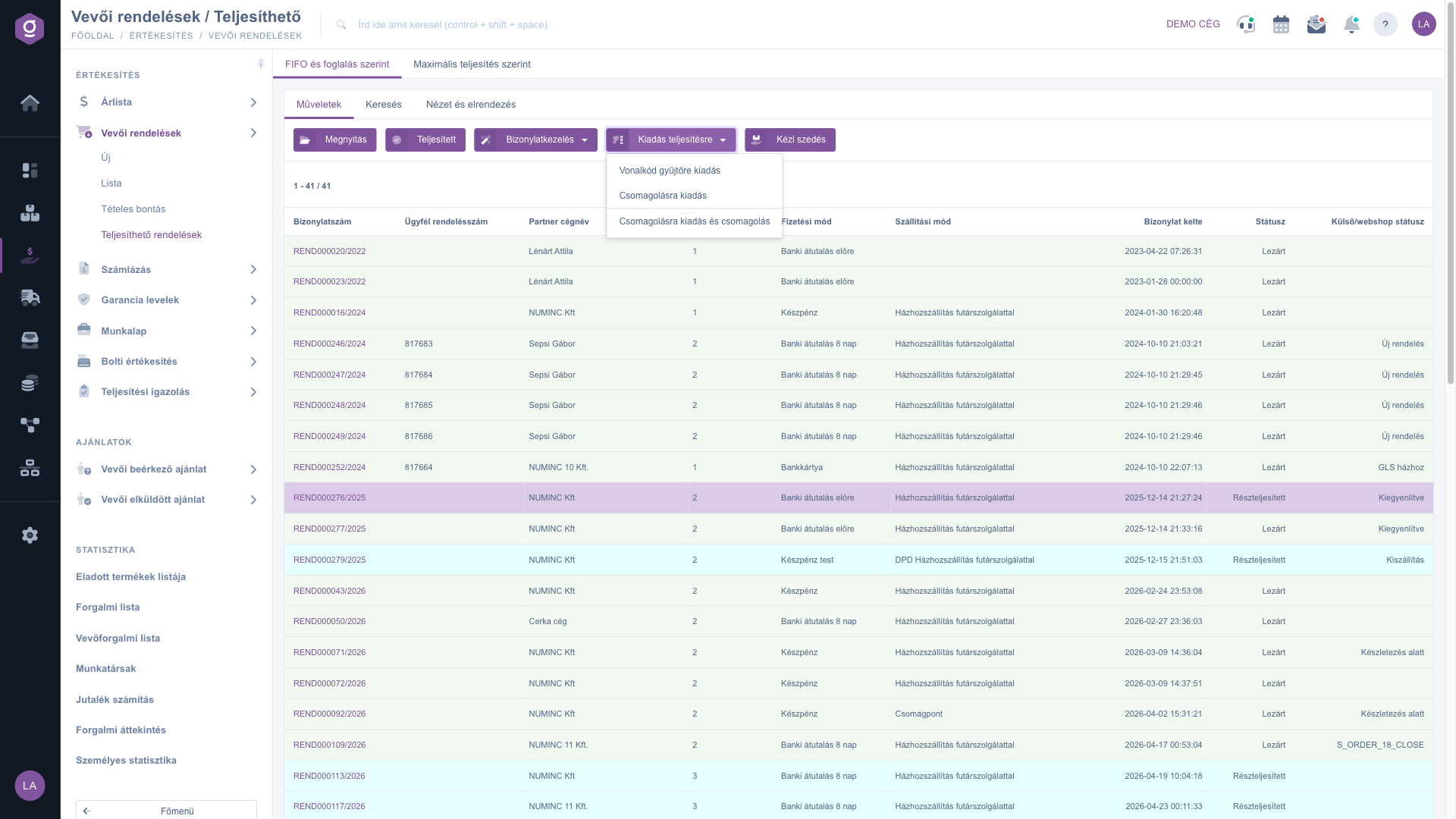
Issue for fulfillment menu

6. Use the manual picking list

The panel on the right shows the items of the orders added with the Manual picking button by item number, name and quantity. If the list is empty, a message tells you so. The Actions tab of the panel has three buttons: Create invoice, Itemized list and Order list; use the last two to print the picking list.

Tip


Before you release orders, check the Payment status filter. By default only orders with the status OK are visible; if you change the filter, the release functions still do not check the payment, so verify those orders separately.


You can read about editing orders and about the full list in the Customer orders list and Customer order document guides. Released tasks can be followed on the page described in the Barcode collector list guide, and you can read about reserving stock in the Stock reservation list guide.

Field descriptions

The basic filters of the Search tab (none of them is required):

Field / ElementRequiredDescription
Document numberThe identifier of the order; the filter looks for an exact match.
Partner company nameEnter the name of the partner or a part of it.
Payment statusThe payment state of the order: OK, Warning or Error. The default is OK.
StatusThe status of the order; you can select several. The list contains only Closed and Partially fulfilled orders, so any other status gives no results.
Payment methodThe payment method set on the order.
Shipping ruleThe default is yes and it cannot be changed on this page. When yes, the order is split or not according to the shipping rule set on the order.
Stock safeThe default is yes. When yes, it ensures that only one order is fulfilled at a time for a given product.

The further filters opened with the Expand button:

Field / ElementRequiredDescription
Shipping methodThe shipping method set on the order.
Customer commentWhen the value is no, only orders without a customer comment are shown.
Sites/WarehousesOnly the stock of the selected sites or warehouses counts in the stock calculation.
External/webshop statusThe status sent by the webshop or by an external system.
Primary carrierThe name of the primary carrier.
Item numberThe item number or barcode of one item on the order.
NameThe name of one item on the order.

The columns of the results table:

Field / ColumnRequiredDescription
Document numberThe identifier of the order.
Customer order numberThe order number of the customer or of the webshop.
Partner company nameThe partner who placed the order.
Item countThe number of items on the order.
Payment methodThe payment method set on the order.
Shipping methodThe shipping method set on the order.
Document dateThe day the order was created.
StatusThe status of the order.
External/webshop statusThe status sent by the webshop or by an external system.

The preview window below the table shows the Items and Related documents tabs of the selected order. The columns, the rows, the sorting and the preview window can be customized on the View and layout tab.

Frequently asked questions

Check the following in order:

  • whether the status of the order is Closed or Partially fulfilled (Draft orders do not appear);
  • whether the order is a direct shipping order;
  • whether you have already released it to the barcode collector or to packing, because it then disappears from the list;
  • whether every stock-managed item on the order has a stock reservation (if not, create one with Document management / Stock reservation);
  • whether the warehouse stock is sufficient: if an earlier order has already taken the stock, the later order does not appear;
  • whether one of the filters hides the order, for example Payment status or Sites/Warehouses.

The By FIFO and reservation tab takes both the order sequence and the stock reservations into account and fulfills the oldest orders first. The By maximum fulfillment tab looks for the maximum possible number of orders and ignores both the sequence and the reservations. The two tabs are separate pages and you can switch between them with the tabs at the top.

Technically yes: the Issue for fulfillment and Manual picking functions check neither the payment status nor the stock. That is why the Payment status filter is set to OK by default. If you change it, you have to check the payment yourself.

When Stock safe is set to yes, it ensures that only one order is fulfilled at a time for a given product. When Shipping rule is set to yes, the order is split or not according to the shipping rule set on it. The latter field cannot be changed on this page.

When the release task is created, the order disappears from this list, because it now has an active task. You can follow the task on the barcode collector page, and you still find the order on the Customer orders / List page.

The page is available under Main menu / Sales / Customer orders / Fulfillable orders if the module is assigned to your user. If it is missing, ask the administrator of your company to check the module assignment of your user.

Need personalized help?

Don't want to spend hours searching for a solution? Choose the most efficient way: book a personalized, 45-minute online training session dedicated entirely to you. Whether it's a walkthrough of the basics or a detailed setup of a specific module, our expert colleague will guide you through the whole process, step by step.

Don't waste your time - ask for help!
Our goal is to get you using our system as quickly and efficiently as possible. Whether you're completely new to us or stuck on a specific setting, don't hesitate to ask for help!

Logzi warehouse management software

Get in touch with us

Interested in our software? Feel free to write to us!

Need help?

If you can't find the answer and need assistance

Create your account now,
pay later!

Try it free for 3 days, no risk, no obligation!
