Stock reservation list

Learn how to list, search and manage stock reservation documents in Logzi.

Feature overview

This module lets you review and manage Stock reservation documents. A stock reservation document records that you set aside a given quantity of a product for a partner or an ongoing deal — so a reservation does not mean shipping, it means that the quantity concerned should not be offered to anyone else. The list view gives you access to every reservation document you have created in one place: you can search among them and start the most important actions directly from here (create a new reservation, close, delete, download, print, create an invoice or a warehouse issue, arrange shipping).

  • Clear overview list: documents are shown in a paginated table by document number, date, partner, amount and status, with the most recently created document at the top. At the bottom of the table there is a summary row for the listed documents (net value, VAT, gross value).
  • Quick actions: open, close, delete, clone, download or print the selected document with a single click, without having to enter each document individually.
  • Preview panel: the items and other details of the selected document can be checked instantly below the list, without leaving the list.
  • Customizable view: you can set which columns are shown, how many rows appear per page, and in what order the data is sorted.

The possible statuses of a Stock reservation document are:

  • Draft: the document is still open and freely editable; only a document in this status can be closed.
  • Closed: the document has been finalized and its content can no longer be changed. The Document management actions for creating an invoice, a delivery note or a warehouse issue start from here, and the final PDF can also be created in this status.
  • Cancellation: the counter-document created when a closed document is cancelled — it appears in the list with negative amounts.
  • Cancelled: the original document that has been cancelled; its amounts are the same as the original, but the cancellation counter-document offsets them.

The restrictions of each status are explained in the Frequently asked questions section.

Step by step

1. Viewing the list and the actions available for a document

Clicking the Main menu / Stock management / Stock reservation / List menu item shows every reservation document created so far. Above the table, the Actions tab gives you the following buttons for the selected document:

  • New: create a new stock reservation document on a blank form — choose this if you want to record the reservation manually, from scratch.
  • Open: opens the detailed view of the selected document, to check or edit its items and header data (only a document in Draft status can be edited).
  • Close: closes the document, which finalizes the reservation — only available for documents in Draft status. Clicking the arrow next to the button lets you combine closing with printing (Close and print) or downloading (Close and download), so the paper or file for the reservation is immediately at hand.
  • Delete: deletes the document, or with the Delete and copy option deletes it and creates a copy in one step — if you entered a reservation with incorrect data but still need it, you can redo it in a single action. Documents in Draft and Closed status can be deleted.
  • Cloning: creates a new document based on the data of the selected one — faster than starting from scratch with the New button for recurring reservations (e.g. goods regularly reserved for the same partner).
  • History: shows other documents related to this one (e.g. the preceding document, or an invoice or issue created from the reservation).
  • Download: exports the list or the selected document. In the List operation block you can download the entire list (XLSX list, XLSX item list), and in the Document operation block the data of the selected document (XLSX items, XLSX serial number list, PDF, PDF preview, Download attachments). The final PDF can only be created from a closed document, while the PDF preview is also available for a draft.
  • Print: prints the selected document. The Product label option prints the product labels belonging to the items, while the Document option opens the printable version of the reservation in a new tab.
  • Document management: creates a new document from the selected, closed reservation, carrying over its items. Choose Invoice if the reserved goods need to be invoiced, Incoming invoice to prepare an incoming invoice, Delivery note if the goods must be accompanied by a delivery note, Retail sales for a point-of-sale transaction, and Warehouse issue if you are actually issuing the reserved goods from the warehouse. The Cloning option creates a copy in the same way as described above.
  • Transport organization: manages the parcel labels of the document — New parcel label creates a new label, while Parcel labels opens the list of labels already recorded for the document.

At the right end of the tab row, the Analytics link takes you to the statistics page of stock reservations, and the clipboard icon copies the contents of the table to the clipboard, for example to paste into a spreadsheet. This list has no separate send-email button: if you want to write an email about a document, use the New email button on the Additional functions tab (see below). Please note that the screenshots show the Hungarian interface; in your language the labels are the ones given in the text.
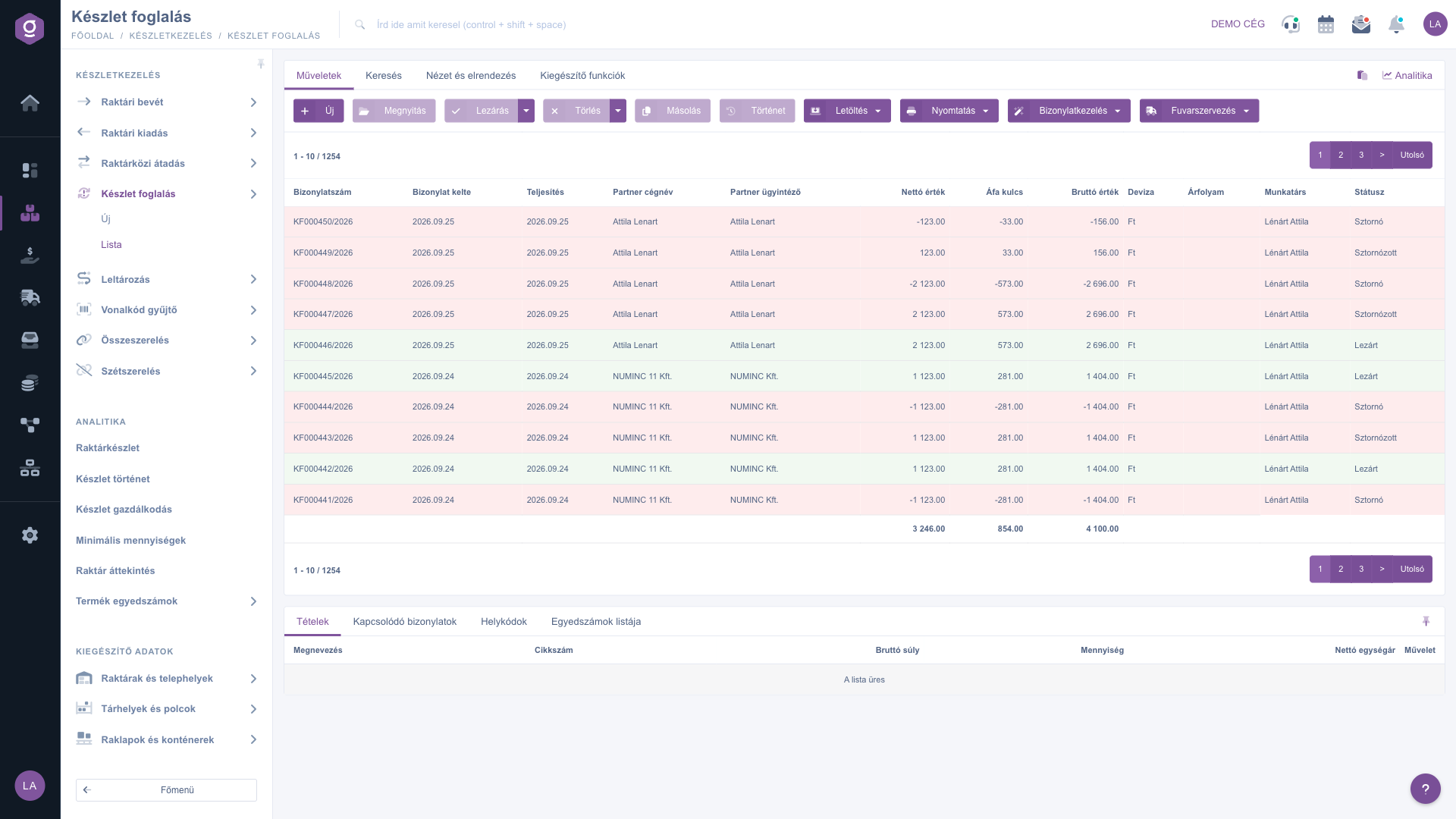
Stock reservation list – Actions tab (Műveletek)

Searching among documents

Clicking the Search tab above the table reveals the filtering options. The most commonly used fields (Partner company name, Document number, Currency, Status) are shown right away. Clicking "Expand" opens further, more detailed filters: searching by date (Document date, Performance date), and by Employee, Item number, Project, Job number, Department number, Customer comment and Internal comment. Use the Search button to apply the selected conditions. In the Status field you can select several statuses at once.
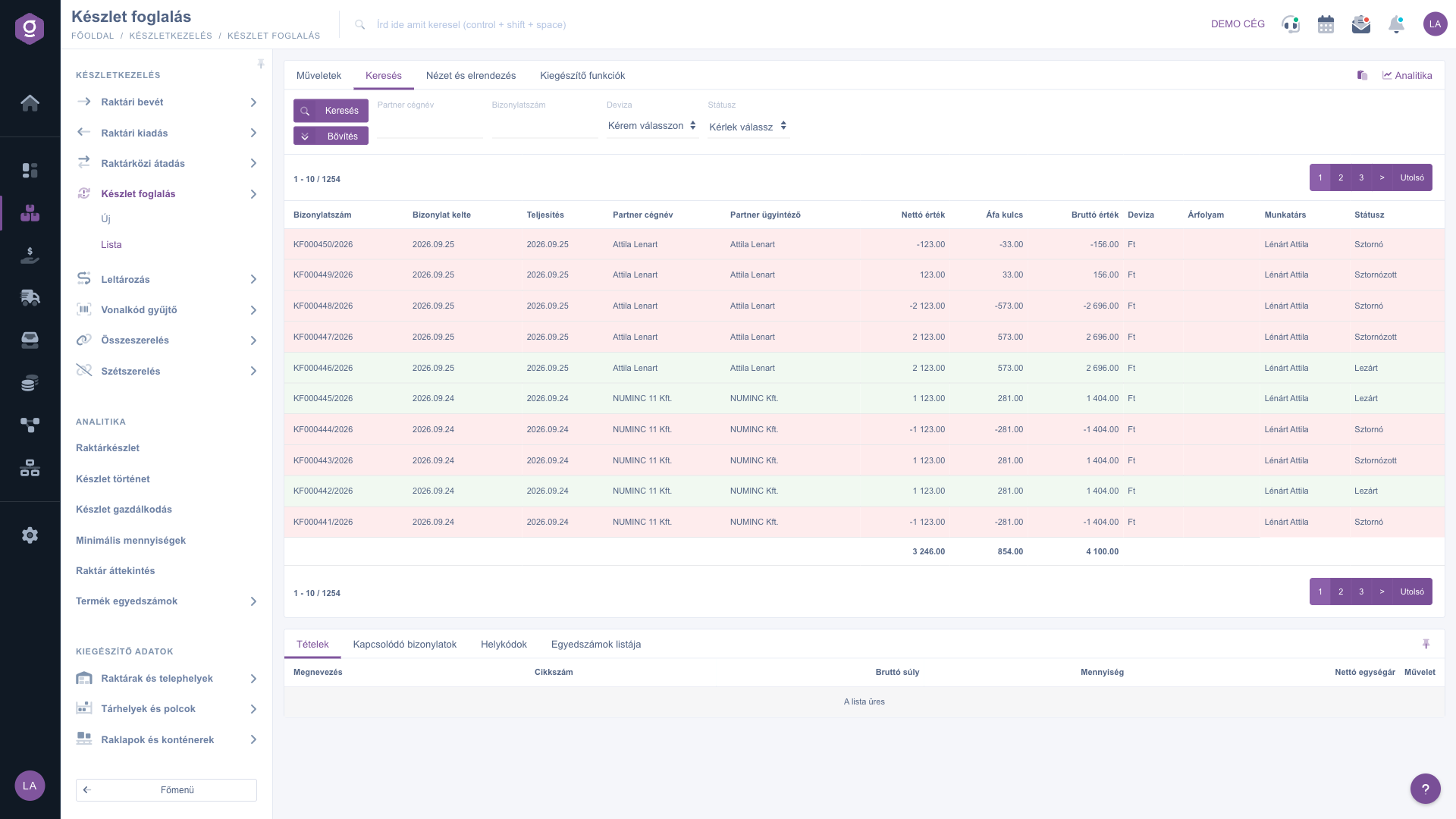
Stock reservation list – Search tab (Keresés)

Customizing the view

The View and layout tab lets you set how the list is displayed to you:

  • Columns: choose which fields appear in the table, and in what order.
  • Rows: set how many documents appear per page.
  • Sorting: choose which column and direction the list is sorted by default.
  • Preview window: turn the preview panel below the list on or off, or pin it (see below).
  • Interface and behavior: other display-related settings for the list.

These settings are saved per user, so they are kept the next time you log in as well.
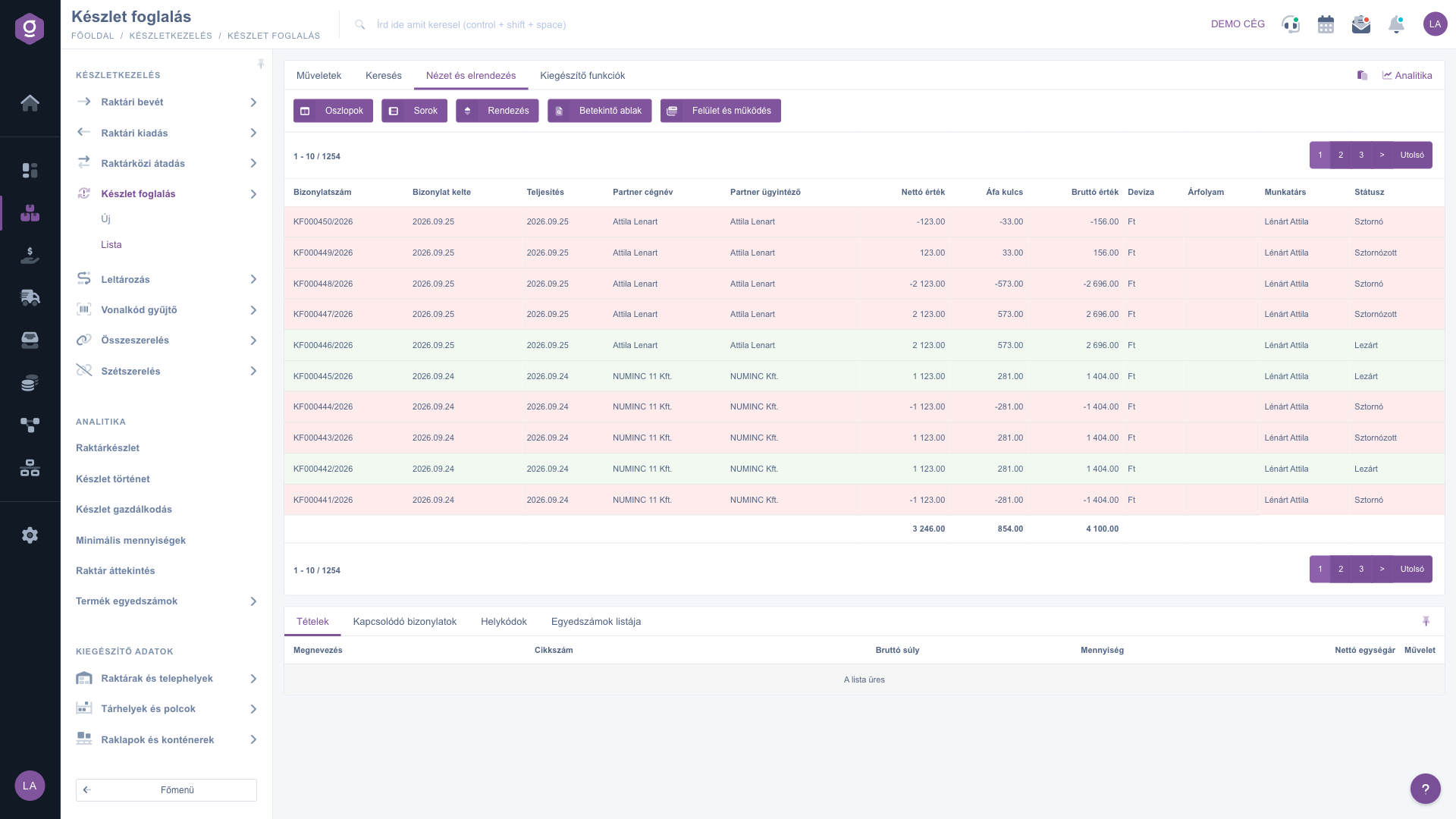
Stock reservation list – View and layout tab (Nézet és elrendezés)

The preview panel

The panel shown below the list lets you quickly check the details of a selected document without having to open it. The panel contains several tabs:

  • Items: the products, quantities and prices listed on the document.
  • Related documents: other documents linked to this one (e.g. the preceding document, a linked delivery note).
  • Location codes: warehouse location, warehouse and pallet information for the items.
  • List of serial numbers: a breakdown of the individual identifiers recorded for the items (serial number, expiry date).

The panel can be pinned (fixed to a set size) using the icon in its top-right corner, and its size can be adjusted by dragging the divider line at the top of the panel.

Additional functions

The Additional functions tab offers extra options for the selected document that support your daily work:

  • Sent items: view the emails previously sent for the document.
  • New email: write a new email related to the document, either through the External mail client or the built-in Internal mail client.
  • New task: create a task related to the document.
  • Partner card: opens the detailed profile of the partner listed on the document.
  • CRM: view the CRM notes recorded for the partner.

Right-clicking a document row gives you the same quick actions (open, close, delete, clone, etc.) from a context menu as the Actions tab.

Tip


If the reserved goods later need to be issued or invoiced, do not enter the items again: select the closed reservation, then use Document management > Warehouse issue or Document management > Invoice, and the system creates the new document by carrying over the items. And if you need a printed copy of the reservation right after closing, choose Close and print from the arrow next to the Close button — this way you do not have to print in a separate step.

If you want to know how to enter the items and header data of a reservation, see the Stock reservation document guide. And if you are looking for the actual issue of the reserved goods, you will find the details in the Warehouse issue list guide.

Field descriptions

The default table columns and their meaning:

Field / Element Required Description
Document number The unique identifier of the stock reservation document, generated according to the configured numbering.
Document date The date the document was created.
Performance date The performance date of the reservation.
Partner company name The name of the partner linked to the document, for whom the reservation was made.
Partner contact person The name of the contact person on the partner side.
Net value The total net value of the items listed on the document. Negative on a cancellation document.
VAT rate The total VAT amount of the items listed on the document.
Gross value The total gross value of the items listed on the document.
Currency The currency used on the document (e.g. HUF, EUR).
Exchange rate The exchange rate applied on the document, if it was not created in the company base currency.
Colleague The name of the colleague who created the document.
Status The current status of the document (Draft, Closed, Cancellation, Cancelled).

The set of visible columns can be customized under View and layout > Columns — the list above shows the default view.

The columns of the Items tab in the preview panel and their meaning:

Field / Column Required Description
Name The name of the product on the item line.
Item number The product unique item number, which can also be used to identify it in the product master data.
Gross weight The total gross weight of the item (quantity multiplied by unit weight), calculated from the unit weight recorded in the product master data.
Quantity The reserved quantity of the product, in the product unit of measure — may be a fractional number, depending on the master data setting.
Net unit price The net price per unit of the product on the document.
Action Quick actions for the row (e.g. opening or editing the item) — only editable after opening the document; in the preview panel it is view-only.

Frequently asked questions

Only documents in Draft status can be closed, and only documents in Draft or Closed status can be deleted — documents in Cancellation and Cancelled status can be neither closed nor deleted. If closing or deleting stops with an error message, read the message, check the items of the document, and try again. If a closed reservation needs to be corrected, you can quickly create the corrected version with the Cloning or Delete and copy option.

The final PDF and the Document management options (Invoice, Incoming invoice, Delivery note, Retail sales, Warehouse issue) are only available for documents in Closed status (or beyond), because until then the reservation can still change. For a document in Draft status you can use Download > PDF preview and the XLSX exports — if you need the final copy, close the document first (even with the Close and download option). Also make sure the row is selected in the table, because without a selection the buttons are not active.

The Actions tab of the stock reservation list has no separate send-email button. Select the document, then on the Additional functions tab use the New email button and choose the External mail client or the Internal mail client — you can view the emails sent earlier with the Sent items button.

A Warehouse issue records that the goods have actually left the warehouse. A Stock reservation, in contrast, only sets aside the given quantity for a partner or a deal, without shipping. If you later issue the reserved goods as well, select the closed reservation and create an issue document from it with Document management > Warehouse issue — you do not have to enter the items again.

Filter the list down to the documents you need on the Search tab, then use Download > XLSX list to export the entire, currently visible list into a spreadsheet — even without selecting anything. If you also need the items, use the XLSX item list option.

The Stock reservation module only appears under Main menu / Stock management if it is assigned to your user. If you do not see it, ask your system administrator to check the module assignment in your user settings.

Need personalized help?

Don't want to spend hours searching for a solution? Choose the most efficient way: book a personalized, 45-minute online training session dedicated entirely to you. Whether it's a walkthrough of the basics or a detailed setup of a specific module, our expert colleague will guide you through the whole process, step by step.

Don't waste your time - ask for help!
Our goal is to get you using our system as quickly and efficiently as possible. Whether you're completely new to us or stuck on a specific setting, don't hesitate to ask for help!

Logzi warehouse management software

Get in touch with us

Interested in our software? Feel free to write to us!

Need help?

If you can't find the answer and need assistance

Create your account now,
pay later!

Try it free for 3 days, no risk, no obligation!

