Barcode collector list

Learn how to list, search and manage barcode collector documents and how to use the filtered views in Logzi.

Feature overview

This module lets you review and manage Barcode collector documents. A barcode collector document (a collector for short) is the basis for preparing and tracking warehouse movements — Goods receipt, Goods issue and Relocation — done with a mobile data collector device (for example with the Logzi Picklist app): it records which items, in what quantity and from which location code or pallet have to be moved, while the status of the document shows how far the task has progressed. The list gives you one place to reach all collectors, search among them and start the most important operations directly (new document, closing, status change, deletion, download, sending e-mail, transport organization, packing and check).

  • Clear list: documents appear in a paged table, and the columns can be freely selected (for example document number, type, partner, status, order-related data).
  • Status-driven quick actions: depending on the state of the selected collector, the Ready to ship, Shipped, Prepared, Ready to pack, Ready for pickup and Picked up buttons become active, so you can move a document forward without opening it.
  • Filtered views: the menu has separate items for Items ready to ship, Items not ready to ship, Items ready for pickup, Prepared items, Relocation tasks and Items ready to pack — the same screen with a preset filter.
  • Preview window: below the list, the items, related documents and location codes of the selected document are visible immediately.

The possible states of collector documents are: Draft, Closed, Cancellation, Cancelled, Ready to ship, Shipped, Awaiting preparation, Prepared, Ready to pack, Ready for pickup, Picked up and Not ready to ship. By default the List does not contain documents in the Not ready to ship state; you will find them in the Items not ready to ship view. The meaning of the states and the related actions are explained in the steps and in the Frequently asked questions.

Step by step

1. Viewing the list and the actions available for documents

Click Main menu / Stock management / Barcode collector / List to see all collectors created so far. Above the table, the buttons on the Actions tab let you work with the selected document:

  • New: create a new barcode collector document on an empty form (see the Barcode collector document guide).
  • Open: open the detailed view of the selected document to manage its items and header data.
  • Close: close the document — available only for Draft documents. Closing checks the stock rules; a Goods issue collector then becomes Ready to ship, while Goods receipt and Relocation collectors become Closed. The arrow next to the button lets you combine closing with printing (Close and print) or downloading (Close and download).
  • Delete: delete the document. A confirmation window lists the documents related to the collector (with total and paid amounts), and here you decide whether the related Delete proforma invoice and Delete customer order actions should be performed too; you can also add a comment. Behind the arrow, Delete and copy creates a copy in addition to deleting.
  • Cloning: create a new document based on the data of the selected one.
  • History: view the history related to the selected document.
  • Ready to ship, Shipped, Prepared, Ready to pack, Ready for pickup, Picked up: set the status of the document to the next step of the process (details in the Frequently asked questions).
  • Send email: send the document by e-mail — available from the Closed state (or any later state).
  • Download: the List operation block downloads the whole list (XLSX list, XLSX item list), the Document operation block the data of the selected document (XLSX items, XLSX serial number list, PDF, PDF preview, Download attachments). The final PDF can be created from a closed document, while the PDF preview also works for a draft.
  • Print: print the Product label and the Document.
  • Document management: create a new document from a closed collector: Warehouse receipt, Warehouse issue, Stocktaking, Invoicing, Retail sales, Incoming invoices, Incoming delivery note, Delivery note, or Cloning.
  • Transport organization: manage the parcel labels of the document — New parcel label creates a new label, Parcel labels lists the existing ones.
  • Packing and check: start the packing and checking process of a Ready to pack or Ready for pickup collector (see the Packing and check guide).
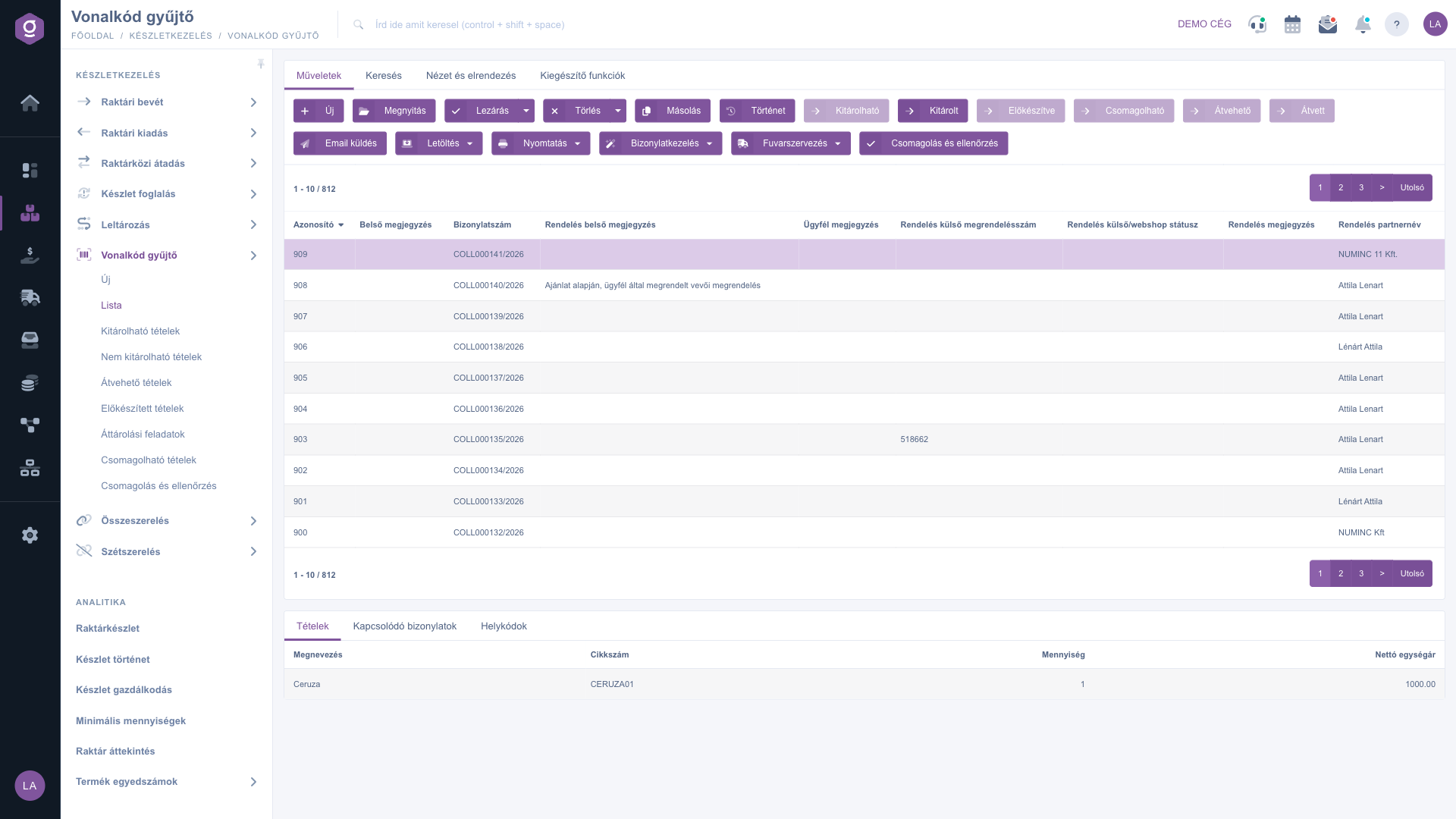
Barcode collector list – Actions tab

2. Document management and transport organization from the list

The drop-down menu of the Document management button offers the documents you can continue with (stock, invoicing, delivery note) in groups, while Transport organization creates not a document but a parcel label for the selected collector. At the end of the row, the Packing and check button starts the packing process.
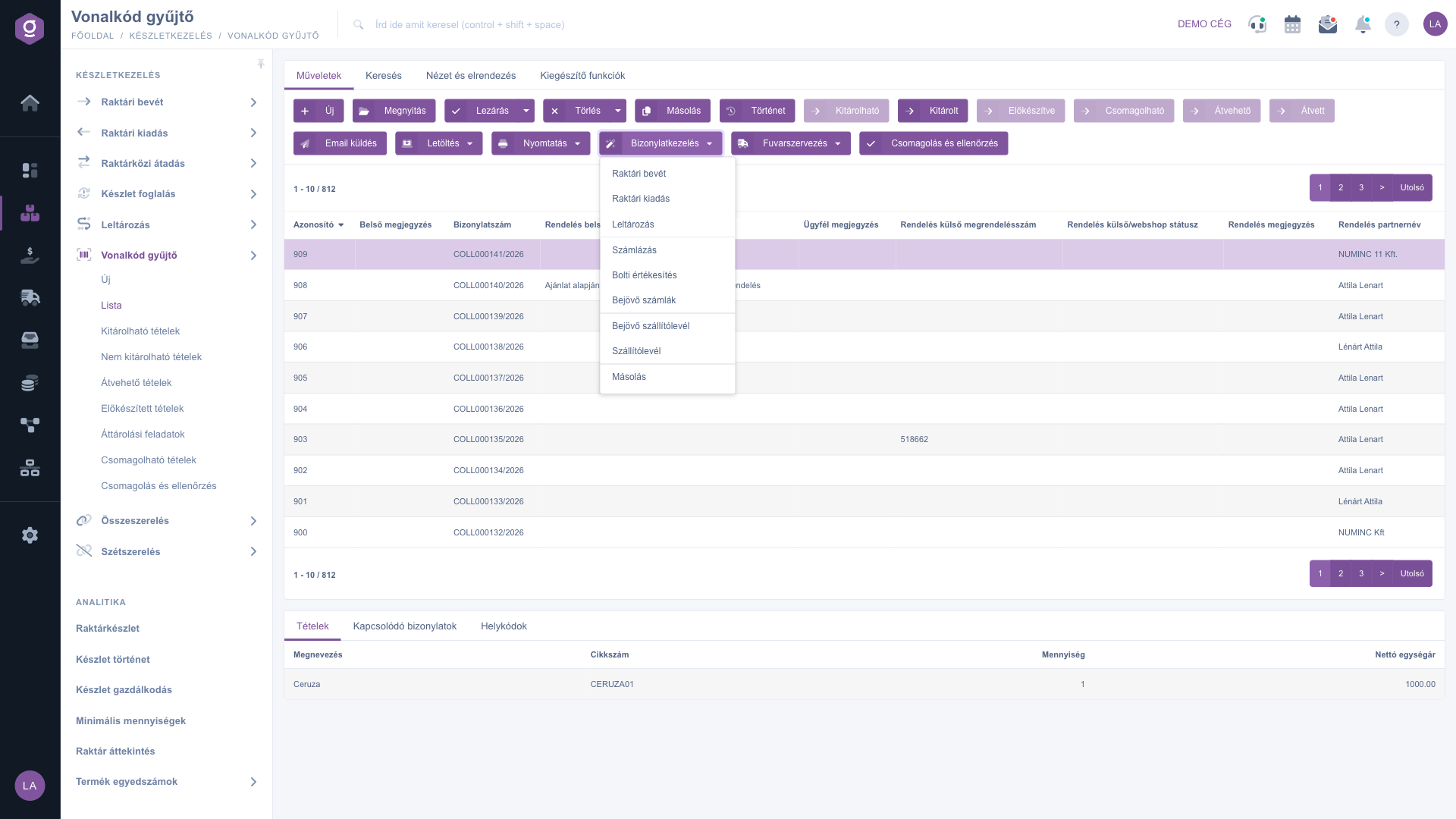
Barcode collector list – Document management menu

3. Searching among documents

On the Search tab you can set the filter conditions. The fields visible right away are: Document number, Status, Type (Goods receipt, Goods issue, Relocation), Order shipping method and Parcel label. The “Expand” button opens further filters: the creation date (from, to), Colleague, Item number, Name, Product manufacturer, Project, Job number, Department number, Pallet code, Location code, External webshop status and External webshop identifier. Use the Search button to filter; the save icon next to it stores the search (the list then loads in the saved state), and the delete icon restores the full list.
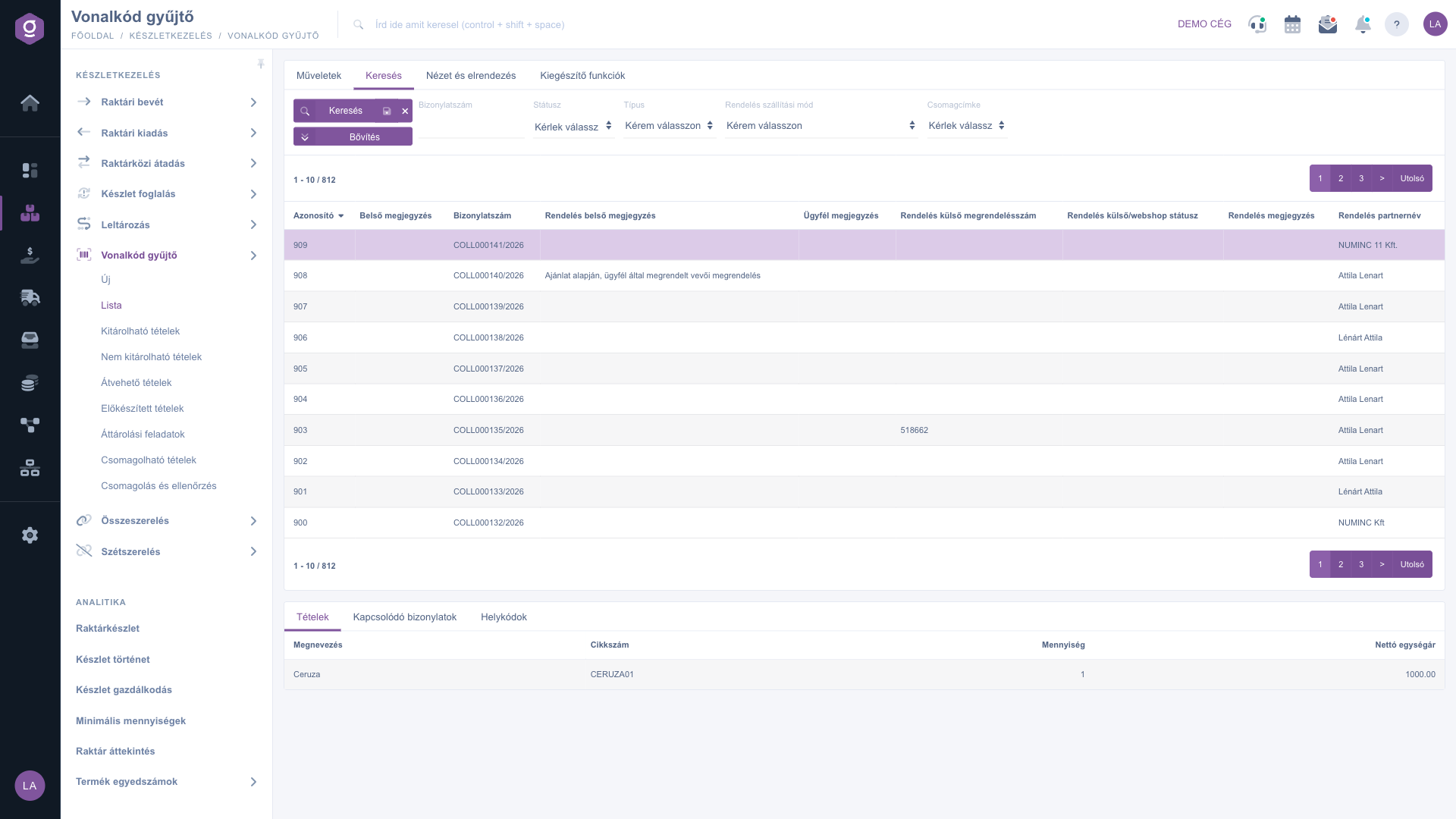
Barcode collector list – Search tab

4. Customizing the view

On the View and layout tab you can set how the list is displayed for you:

  • Columns: choose which fields appear in the table. In the window the order of fields can be changed by dragging, fields can be ticked in the Active column, and the Select all, Deselect all and Default buttons quickly restore the view; the change is stored with Save.
  • Rows: set how many documents appear on one page.
  • Sorting: choose by which column and in which direction the list is sorted by default.
  • Preview window: switch the preview panel below the list on or off and configure it.
  • Interface and behavior: other display settings of the list.

The settings are stored per user, so they are kept the next time you sign in.
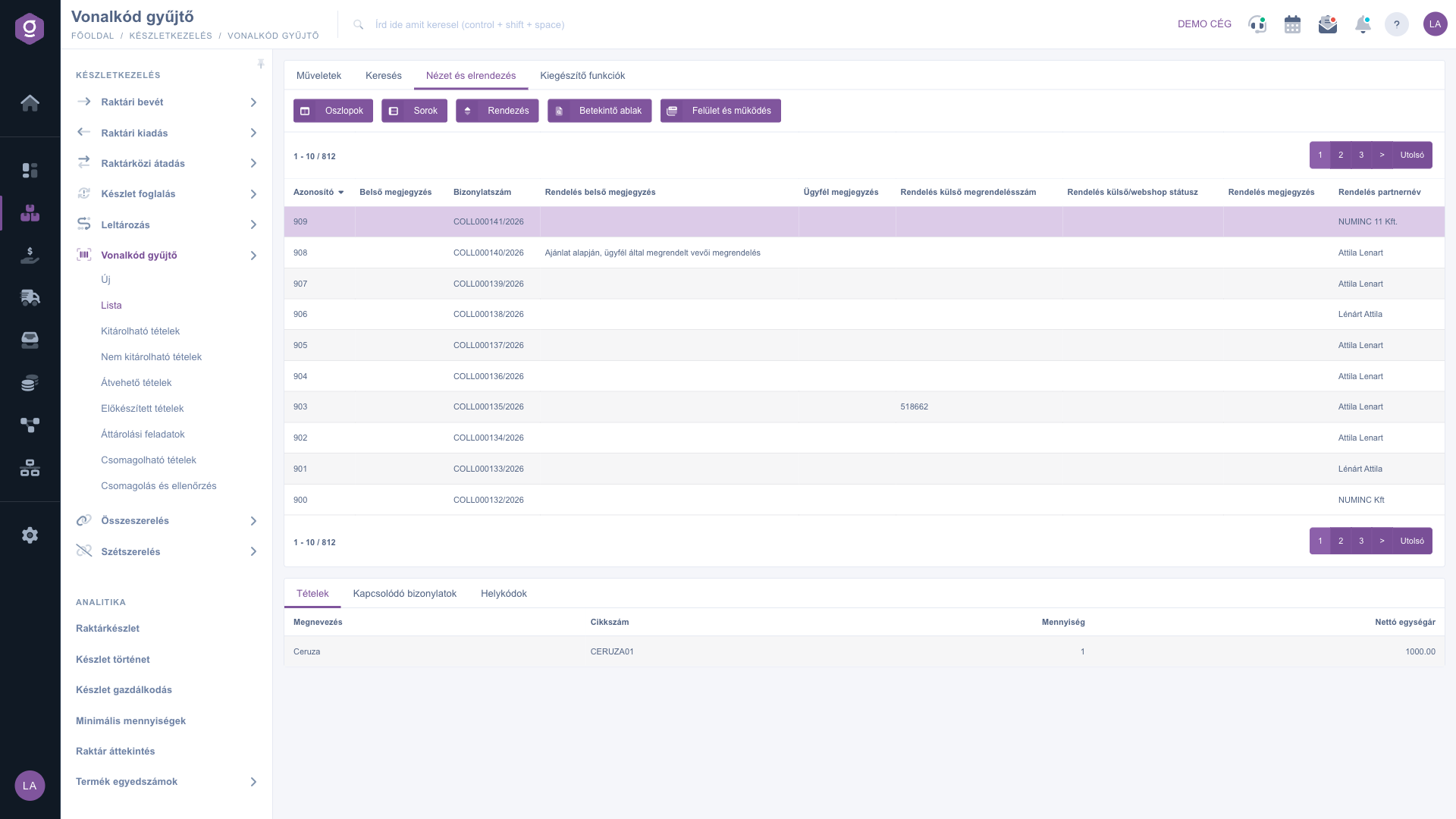
Barcode collector list – View and layout tab
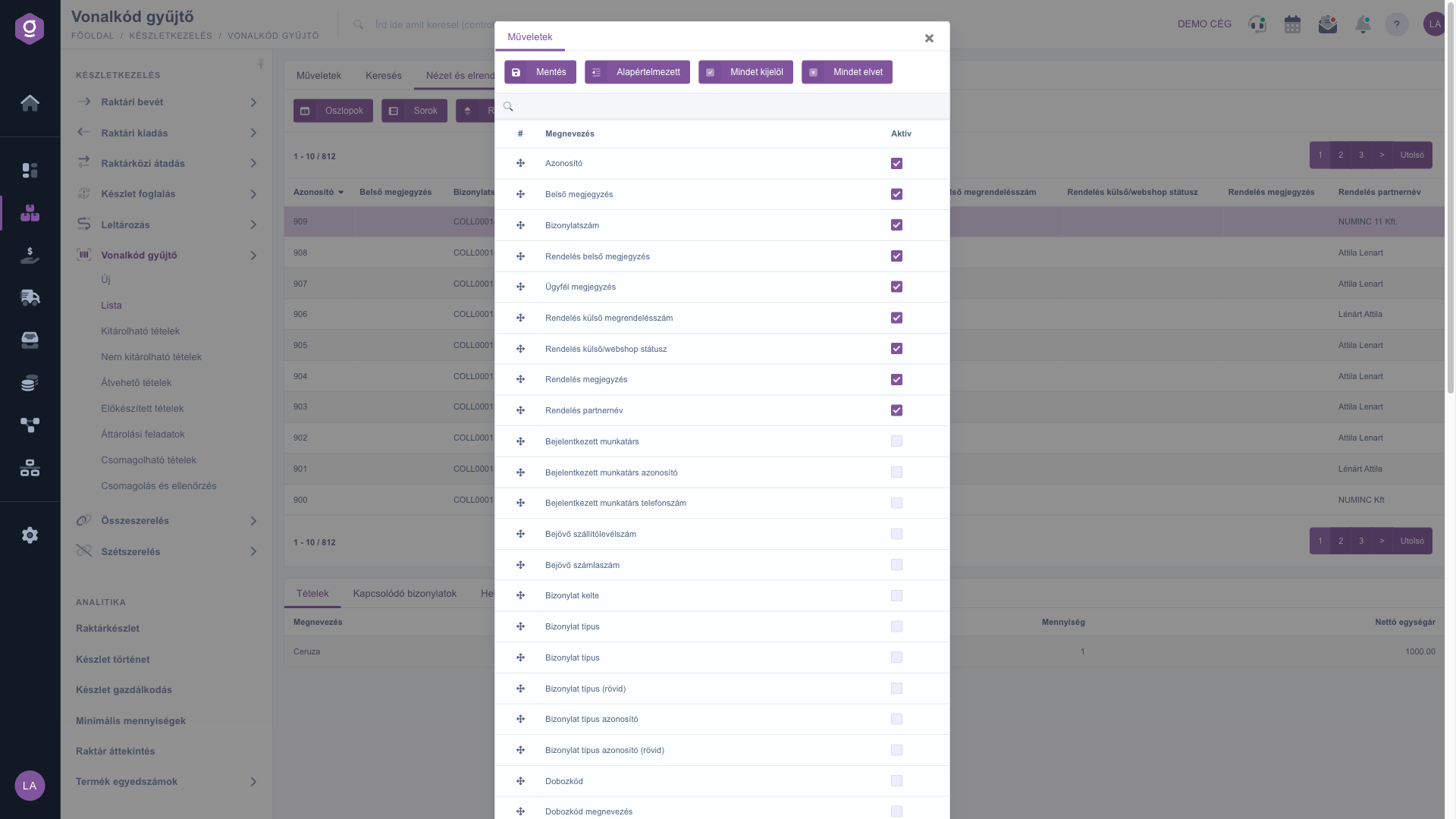
Barcode collector list – Column settings

5. The preview window

In the panel below the list you can view the details of the selected document without opening it:

  • Items: name, item number, quantity and net unit price of the products on the collector.
  • Related documents: other documents linked to the collector (for example the customer order or the invoice created from it).
  • Location codes: warehouse, location code and pallet data of the items.

6. Filtered views from the menu

Under Main menu / Stock management / Barcode collector, besides the List, further menu items open the same list screen with a preset filter, without separate pages. The filter can be changed freely on the Search tab:

  • Items ready to ship: goods issue collectors in the Ready to ship state.
  • Items not ready to ship: goods issue collectors in the Not ready to ship state — those for which an error was reported during packing.
  • Items ready for pickup: goods issue collectors in the Ready for pickup state.
  • Prepared items: collectors in the Prepared state.
  • Relocation tasks: Relocation type collectors in the Closed state.
  • Items ready to pack: goods issue collectors in the Ready to pack state.

Additional functions

On the Additional functions tab you will find extra options for the selected document:

  • Sent items: view the e-mails sent earlier for the document.
  • New email: write a new message using the External mail client or the Internal mail client.
  • New task: create a task related to the document.
  • Partnerkarton: the detailed card of the partner on the document.
  • CRM: view the CRM notes of the partner.
  • Box/crate and location code modification: replaces the box/crate (pallet) and location code of all items of the selected goods issue at once. Note: the entered value applies to every item.
  • Reference documents modification: subsequent modification of the reference numbers of the selected document (Customer order number, Supplier order number, Incoming invoice number, Incoming delivery note number).

Right-clicking a row of a document opens the same quick actions from a context menu.

Tip


If you use the same filter every day (for example you only look at collectors ready to pack), you do not have to set it up each time: open the matching filtered view from the menu, or save the search with the save icon next to the Search button so the list always loads that way.


You can read about creating a collector document and managing its items in the Barcode collector document guide, and about the packing process in the Packing and check guide. If the shipping starts from the warehouse issue side, also see the Warehouse issue list guide.

Field descriptions

The columns of the default table and their meaning (note: the column names of this list are displayed in Hungarian in the Columns window; the translated names are used here):

Field / Element Required Description
IdentifierThe internal serial number given to the collector by the system (for example 909).
Document numberThe unique identifier of the barcode collector document (for example COLL000141/2026).
Internal commentThe internal comment recorded on the document, which the customer does not see.
Customer commentThe comment recorded on the document that is meant for the customer.
Order internal commentThe internal comment of the customer order linked to the collector, for example a warehouse instruction.
Order external order numberThe identifier of the linked order in an external system (for example a webshop).
Order external/webshop statusThe state of the linked order in the external system.
Order commentThe comment attached to the linked order.
Order partner nameThe name of the partner (customer) of the linked order.

The set of visible columns can be customized under View and layout > Columns — the list above shows the default view. Among others the Logged-in colleague, Incoming delivery note number, Incoming invoice number, Document date, Document type and Box code columns can also be selected.

The columns of the Items tab of the preview window and their meaning:

Field / Column Required Description
NameThe name of the product on the item.
Item numberThe item number of the product, which identifies it in the master data.
QuantityThe quantity of the product to be moved (received, issued or relocated).
Net unit priceThe net price of one unit of the product on the document.

Frequently asked questions

Only a Draft document can be closed; if closing stops with an error message, check the items (warehouse, location code, quantity) and try again. A collector in any phase of the process can be deleted except for Cancellation and Cancelled documents, but review the related documents in the confirmation window: deletion can also affect the proforma invoice and the customer order as you request, and documents that are already finalized may need manual handling.

The buttons depend on the status of the selected row and are grey if no row is selected or the status does not fit. Ready to ship works from the Closed, Prepared or Not ready to ship state; Shipped from Ready to ship, Awaiting preparation, Prepared or Ready to pack (goods issue type only); Prepared from Awaiting preparation; Ready to pack and Ready for pickup from Ready to ship, Awaiting preparation or Prepared; and Picked up from Ready for pickup. The Packing and check button is active for a Ready to pack or Ready for pickup collector. Note: when switching to Ready to pack or Ready for pickup, the shipping and payment method settings of the linked order may change the target state, and the system can also report an error if the preparation location is missing.

These actions are available only for a document in the Closed state (or any later state), because until then the collector can still change. For a draft you can use the PDF preview and the XLSX exports. Also check that a row is selected in the table, because without a selection the buttons are not active.

The List does not contain them by default. The Not ready to ship state is set during packing by the Error, cannot be released button, and the comment entered for the error is stored in the Internal comment of the document. Open the Main menu / Stock management / Barcode collector / Items not ready to ship view, or select the status on the Search tab. After the problem is solved, you can move the document back into the process with the Ready to ship button.

Box/crate and location code modification changes the box/crate (pallet) and location code of all items of the selected goods issue at once — for example when the prepared goods were moved to another box or shelf. Reference documents modification corrects the customer and supplier order numbers and the incoming invoice and delivery note numbers of the document afterwards. Both are on the Additional functions tab.

The Barcode collector module appears under Main menu / Stock management only if it is assigned to your user. If you cannot see it, ask the system administrator to check the module assignment in your user settings.

Need personalized help?

Don't want to spend hours searching for a solution? Choose the most efficient way: book a personalized, 45-minute online training session dedicated entirely to you. Whether it's a walkthrough of the basics or a detailed setup of a specific module, our expert colleague will guide you through the whole process, step by step.

Don't waste your time - ask for help!
Our goal is to get you using our system as quickly and efficiently as possible. Whether you're completely new to us or stuck on a specific setting, don't hesitate to ask for help!

Logzi warehouse management software

Get in touch with us

Interested in our software? Feel free to write to us!

Need help?

If you can't find the answer and need assistance

Create your account now,
pay later!

Try it free for 3 days, no risk, no obligation!
