Customer order document

Learn how to record a new customer order, add items and close it in Logzi.

Feature overview

In this module you learn about the edit page of a single Customer order document. A customer order records what your partner has ordered from you; fulfillment starts from here: stock reservation, warehouse issue, shipping and invoicing. This guide shows how to record a new order, how to add items, and how to close it and carry it forward into the next document.

  • Header and partner: the document date, the performance date, the status, the currency, as well as the partner, the contact person, the shipping and payment method, and the billing and shipping address can all be set in one place.
  • Several ways to add items: you can add items manually (New), with a simplified window (Quick add), with a search (Product search), from a list of barcodes (Barcode collector) or from an XLSX file (Import).
  • Save and close are separate: saving only records the data, the order becomes final when you close it — until then you can change it freely.
  • Carrying forward: from a closed order you can create an invoice, a proforma invoice, a warehouse issue, a delivery note or a stock reservation with the Document management menu, and hand the order over to the warehouse with the Issue for fulfillment menu.
  • Webshop orders: orders arriving from the webshop open on this same page, and the Webshop link button takes you to the order page in the webshop.

The possible statuses of Customer order documents are: Draft, Closed, Cancelled, Fulfilled, Partially fulfilled, Ready to ship — a new order always starts in Draft status; the meaning and restrictions of each status are explained in the Frequently asked questions section.

Step by step

1. Opening a new customer order

Click Main menu / Sales / Customer orders / New and an empty order opens. You can open an existing order from Main menu / Sales / Customer orders / List. At the top of the page you find the Actions, Additional functions and View and layout tabs (with the CRM link on the right), below them the document header, then the Items tab and the further tabs.
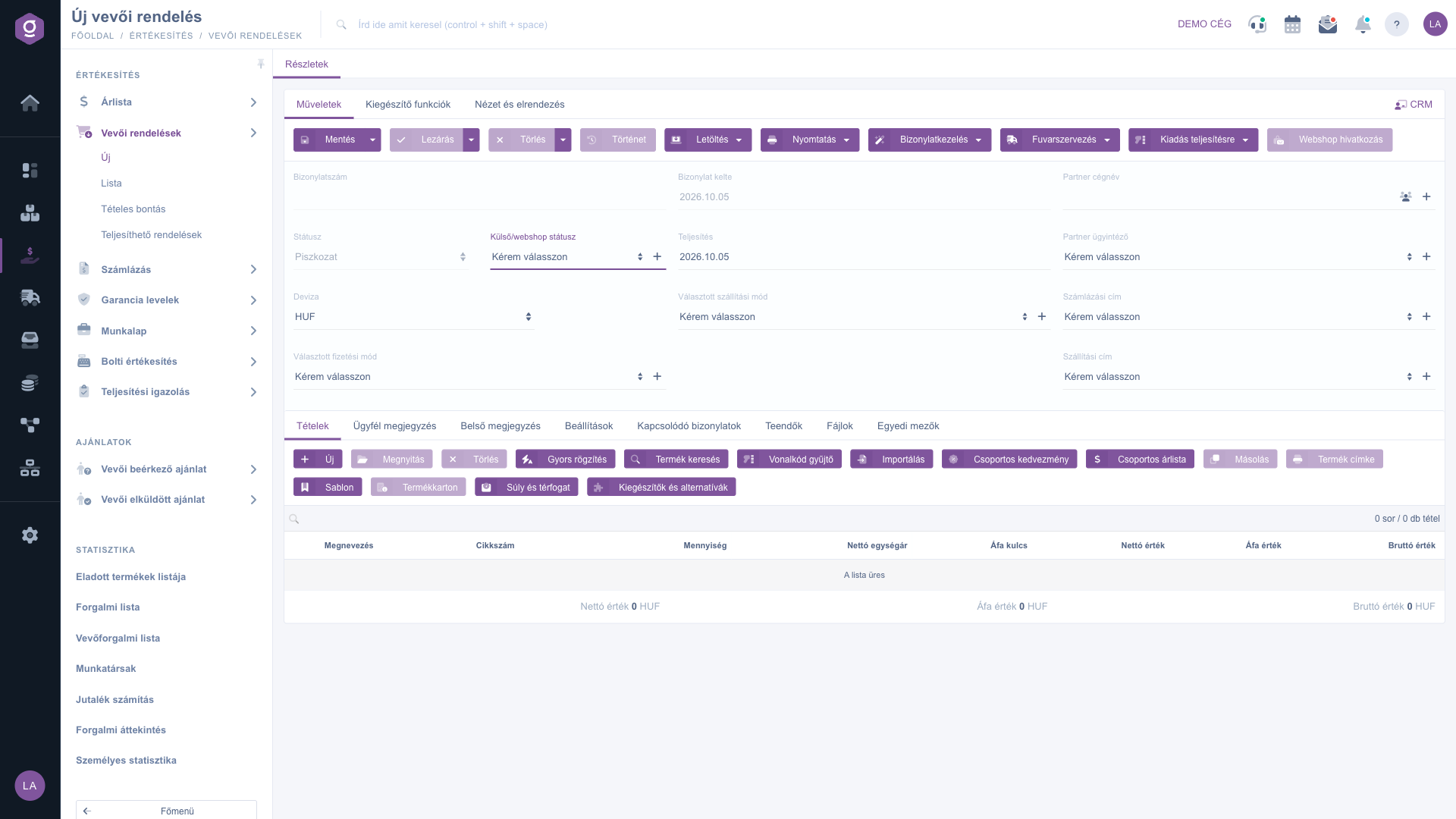
New customer order – header and Items tab

2. Filling in the header

You find the following fields in the header — the detailed description of the required and optional fields is in the Field descriptions section:

  • Document number: empty before saving, the system assigns it automatically on the first save, and it cannot be changed manually.
  • Document date and Performance date: the creation date of the document is filled in automatically; change the Performance date if the order has to be fulfilled on another day.
  • Status and External/webshop status: the Status is the status marked within the system that triggers events (Draft for a new order); the External/webshop status is the status sent by the webshop and external systems.
  • Partner company name, Partner contact person: select the partner (the customer) and then the related contact person. If the partner is not yet in the system, you can add it on the spot with the icon next to the field, and you can open the partner card with the partner card icon.
  • Currency (and Exchange rate): the company base currency is set by default; for another currency select it, and the exchange rate can be entered as well.
  • Selected shipping method and Selected payment method: the method specified on the order in the webshop, which you can also change on the invoice or another document.
  • Billing address and Shipping address: choose from the addresses of the selected partner.

3. Adding items

You record the content of the order on the Items tab with the buttons above the item table. You can choose from several methods — pick the one that is the fastest in the given situation:

  • New: the item edit window opens, where you select the product by part number or name and enter the quantity and the price. Choose it when you want to record an item in detail, with all its data.
  • Quick add: a simplified item window that reopens right after the item is saved — this is the fastest for many consecutive items.
  • Product search: you can search among the products and choose from the results if you do not know the exact part number.
  • Barcode collector: in a text field you can type or scan barcodes and quantities line by line, and the system adds the items from them at once. The format of the lines is: [barcode];[quantity].
  • Import: bulk entry of items from an XLSX file; in the window you can also download the expected structure of the file.
  • Group discount and Group price list: you can set the discount, or the price according to a price list, for the items at once, without going through them one by one.

Further buttons above the table: Open edits the selected item, Delete removes it, Copy duplicates it, Product label prints a label, Template loads a saved item template, Product card opens the data sheet of the selected product, Weight and volume works with the weight and volume data of the items, and Add-ons and alternatives shows the add-on and replacement products related to the product. Below the item table the system shows the Net, VAT and Gross value totals.

4. Comments, settings and attachments

Besides the Items tab there are further tabs:

  • Customer comment: a text for the partner that also appears on the printed or downloaded version of the document.
  • Internal comment: a note visible only within the company.
  • Settings: here you can set the Billing address and Shipping address of your own company, the Project, Job number and Department number classification, the Customer order number (the own order number of the customer), the Direct shipping marking and the Shipping/Parcel dispatch rule.
  • Related documents: the documents that were created from this order; with the icon at the end of the row you can open them directly.
  • Tasks: the list of tasks recorded for the order.
  • Files: managing the documents attached to the order.
  • Custom fields: the additional fields of the company, created individually, for the document.
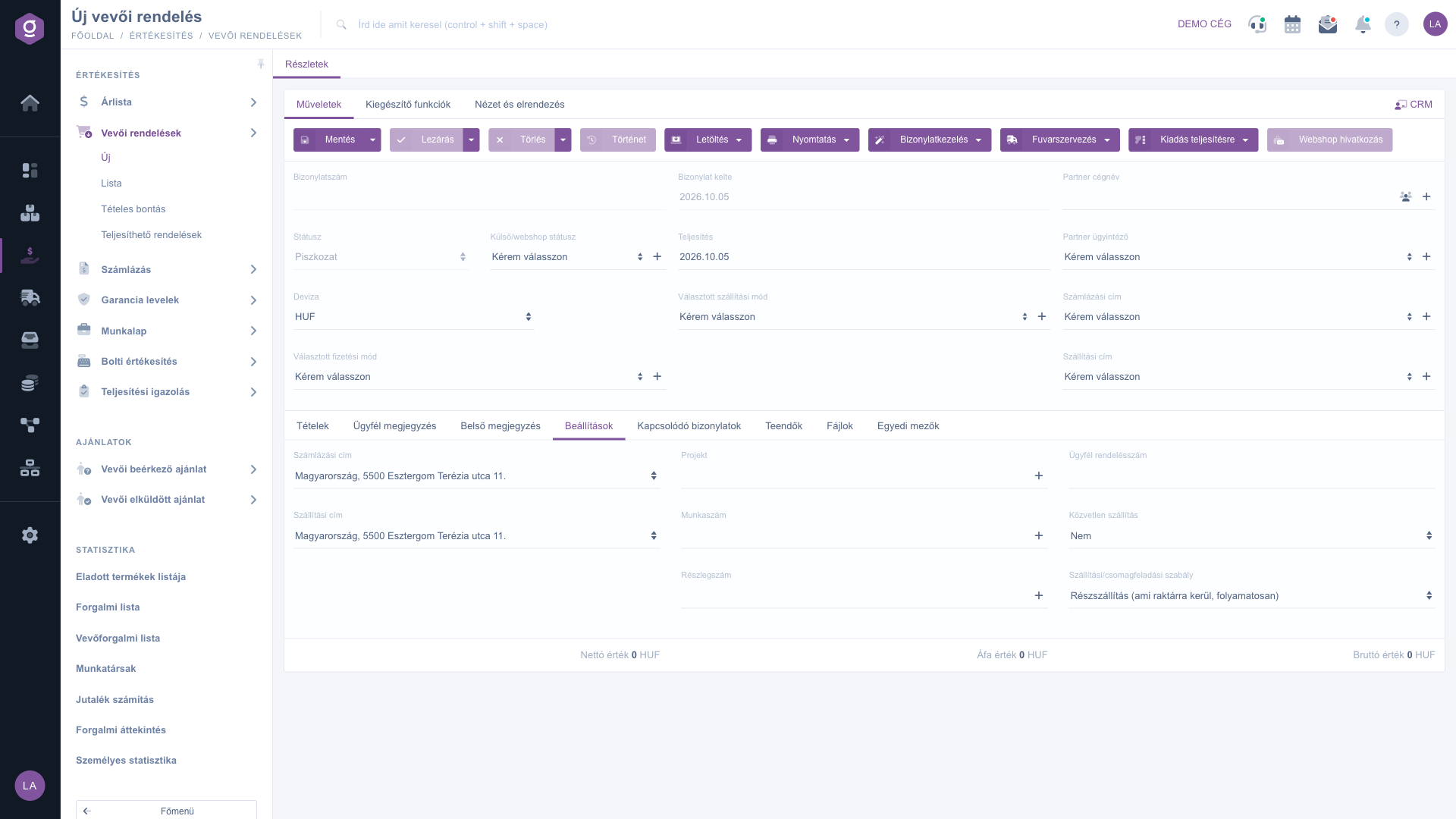
Settings tab
Settings tab

5. Saving, closing and deleting

On the Actions tab you find the buttons that control the life cycle of the document:

  • Save: the data is recorded, but the order remains in Draft status and can be edited further. In the dropdown menu of the button, Save and close saves and closes the order in one step.
  • Close: finalizing the order — from then on the items can no longer be changed. It is available only for an order in Draft status. In the dropdown menu, Close and print or Close and download produce the printout right after closing.
  • Delete: the order can be deleted if it is in Draft, Closed, Partially fulfilled or Fulfilled status. The Delete and copy option of the dropdown menu also makes a copy besides the deletion, and Permanent deletion removes the order permanently.
  • History: viewing the history related to the order.

6. Download, print, document management and fulfillment

  • Download: the document can be downloaded, or you can view it in a PDF preview without downloading.
  • Print: the Document prints the whole order, the Product label prints the labels of the items.
  • Document management: you can create a new related document from the order: Invoicing, Proforma invoice, Advance invoice, Warehouse issue, Delivery note, Stock reservation, Worksheets, Quote sent to supplier, Supplier orders and others, and with Cloning you can start a new order based on the order. The created document also appears on the Related documents tab.
  • Transport organization: New parcel label creates a new parcel label for the order, and Parcel labels opens the list of the labels already recorded.
  • Issue for fulfillment: you can hand the order over to the warehouse with Issue to barcode collector, Issue for packing or Issue for packing and pack, or with Fulfillment handover.
  • Webshop link: for an order that arrived from the webshop, it opens the order page in the webshop.

Attention: for a new order that has not been saved yet these buttons are greyed out — save the order first. The Issue for fulfillment functions do not check the payment status or the stock.
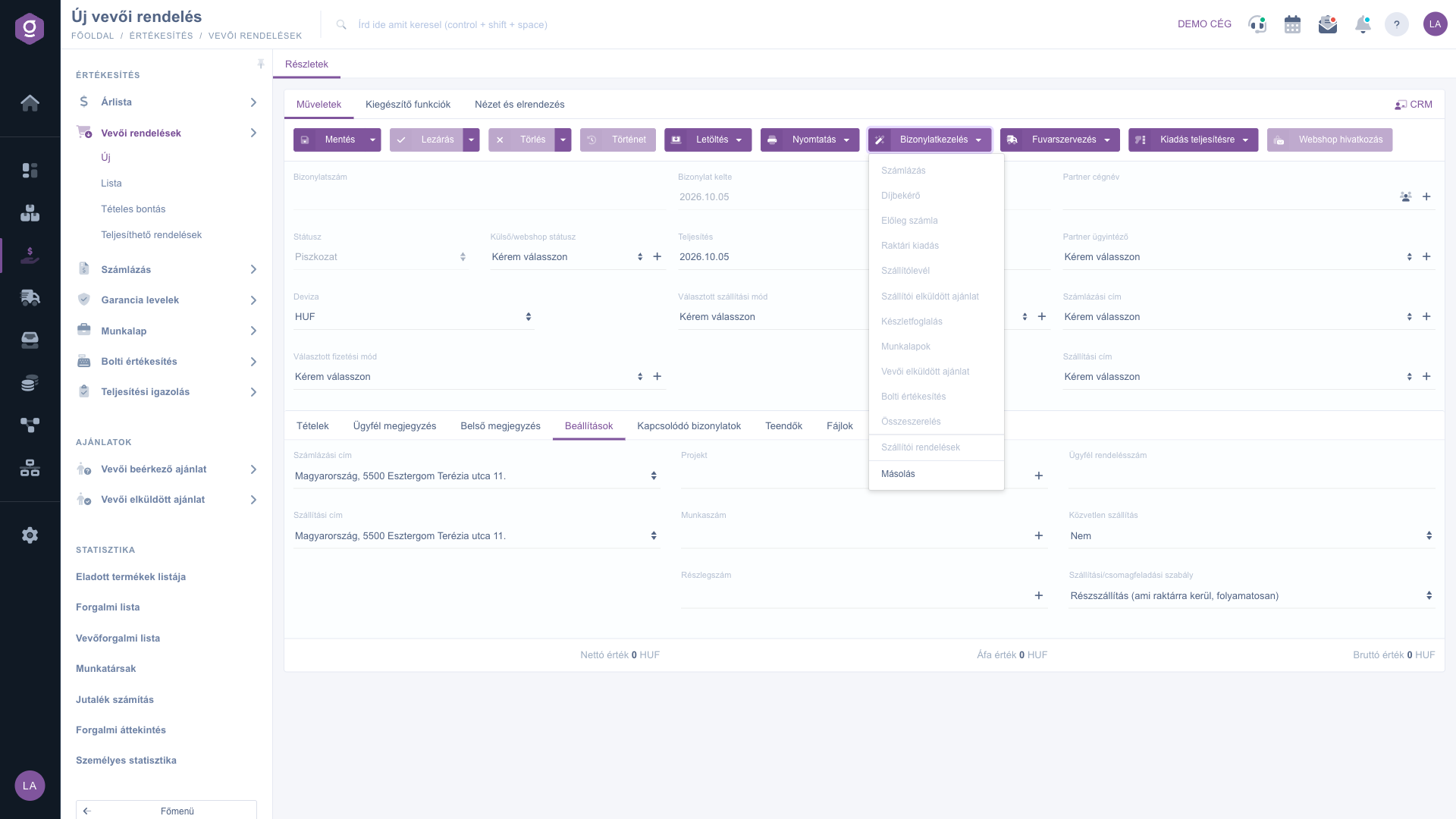
New, unsaved order – greyed out Document management menu

7. Additional functions and customizing the view

On the Additional functions tab you find extra options that help the daily work, for example viewing the sent emails, sending a new email, creating a new task for the order, and opening the partner card. On the View and layout tab you can customize the display of the data sheet and the columns of the item table; these settings are saved for your user.
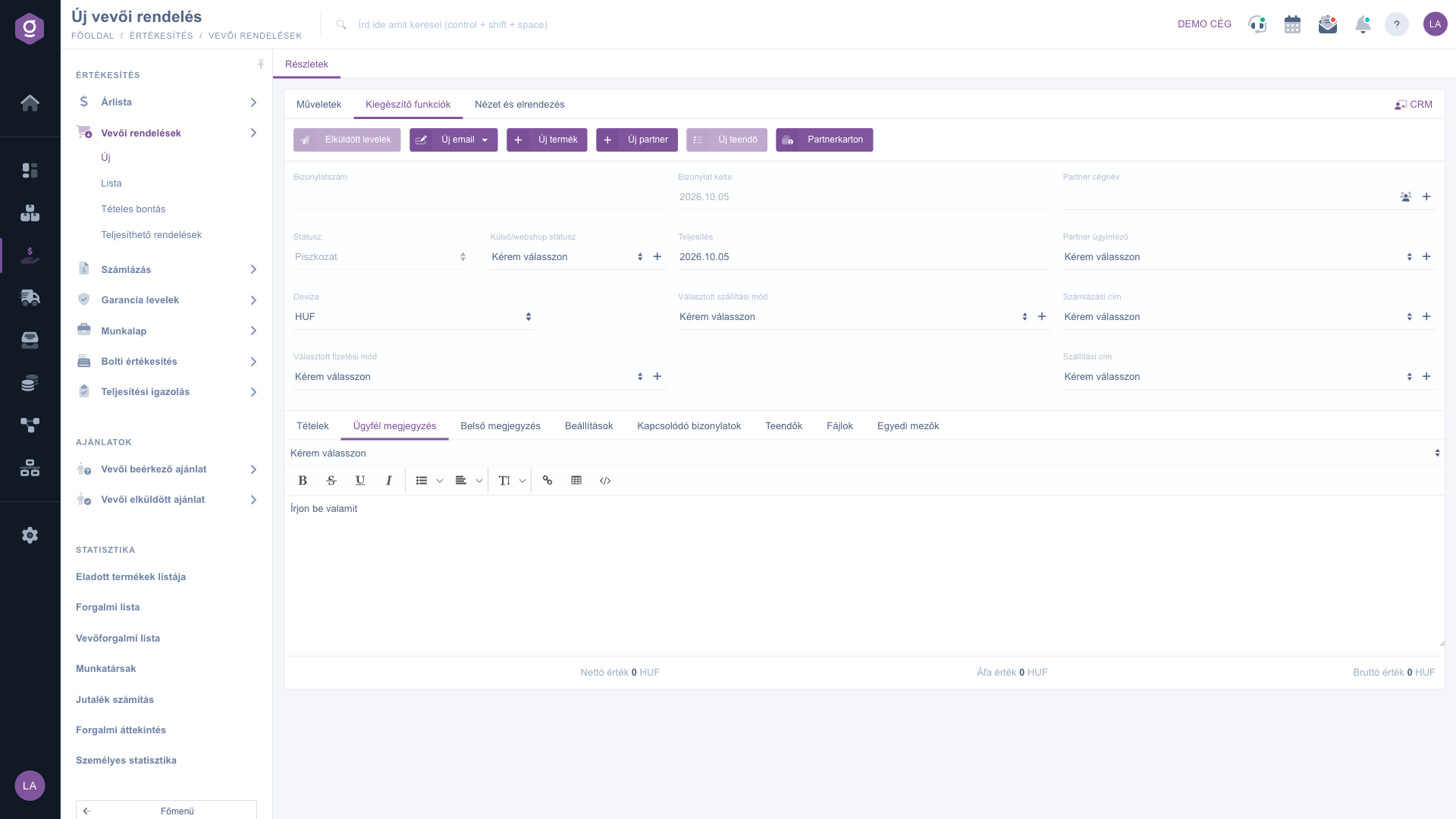
Additional functions tab and Customer comment tab

Tip


If you have to add many items, use the Quick add or the Barcode collector function: you do not have to click the button again for every item. If you also enter the own order number of the customer on the Settings tab, you can easily find the order in the list later.


If you want to list or search the orders already recorded, or manage several orders at once, see the Customer orders list guide. You can read about editing the warehouse issue created from an order in Warehouse issue document, and about reserving stock in Stock reservation list.

Field descriptions

The fields of the order header and settings (the system checks the required fields when you save):

Field / ElementRequiredDescription
Document numberThe identifier of the order; it is assigned automatically on the first save and cannot be changed manually.
Document dateThe creation date of the order, filled in automatically.
Performance dateThe date on which the order is to be fulfilled.
StatusThe status of the order within the system (Draft for a new order); its change triggers the events.
External/webshop statusThe status sent by the webshop and external systems.
Partner company nameThe partner (customer) placing the order; a new partner can also be added with the icon next to the field.
Partner contact personThe contact person of the selected partner.
CurrencyThe currency of the order; the company base currency by default. For another currency the exchange rate can also be entered.
Selected shipping methodThe shipping method specified in the webshop or on the order.
Selected payment methodThe payment method specified in the webshop or on the order.
Billing address, Shipping address (header)The billing and shipping address of the selected partner.
Billing address, Shipping address (Settings tab)The billing and shipping address of your own company that appears on the document.
Project, Job number, Department numberInternal classification data; if they do not exist yet, you can add them on the spot with the icon next to the field.
Customer order numberThe own order number of the customer or the order number of the webshop.
Direct shippingWith yes the order counts as direct shipping, so it does not appear in the Fulfillable orders list; the default is no.
Shipping/Parcel dispatch rulePartial shipping (continuously, as items arrive in stock) or All at once (when everything is in stock); the default is partial shipping.

The columns of the table on the Items tab:

Field / ColumnRequiredDescription
NameThe name of the product on the order.
Part numberThe part number of the product.
QuantityThe ordered quantity.
Net unit priceThe net unit price of the product on the order.
VAT rateThe VAT rate applied to the item.
Net value, VAT value, Gross valueThe value of the item as net, VAT and gross amount; the totals are shown below the table.

The further fields of the item edit window (for example storage data, accounting data) come from the window shared with the other documents; the columns of the table can be customized on the View and layout tab.

Frequently asked questions

As long as the order is not saved, it has no document number, so the Document management, Transport organization, Issue for fulfillment and the download/print buttons cannot be used. Save the order with the Save button and they become available; to create an invoice, a warehouse issue and the other documents, the order must also be closed.

The data and items of the order can be edited only in Draft status. Closing finalizes the order; if you find an incorrect piece of data, you can delete the order with the Delete and copy option, which deletes it and recreates it as a draft in one step.

Close is available only for an order in Draft status. Delete is possible in Draft, Closed, Partially fulfilled and Fulfilled status; if the order already has a warehouse issue task for which the products have been collected, deletion is not allowed and that task has to be deleted first. You can set the Fulfilled marking only for a Closed or Partially fulfilled order, on the list page.

The Status is the status marked within the system that triggers events. The External/webshop status is the status sent by the webshop and external systems; with an active webshop integration, the external status you set is also sent back to the webshop.

With the icon next to the Partner company name field you can add a new partner on the spot, and the partner data of the order is filled in automatically. You also find a button for adding a new partner on the Additional functions tab.

Close the order, then in the Document management menu choose Warehouse issue or Invoicing; the system takes over the items. You can read about editing the warehouse issue in Warehouse issue document. If you want to reserve the products first, choose Stock reservation; the reservations are described in Stock reservation list.

Orders marked as Direct shipping do not appear in the Fulfillable orders list. The Shipping/Parcel dispatch rule chooses between Partial shipping (continuously, as items arrive in stock) and All at once (when everything is in stock); it determines whether the order is shipped in parts or all at once.

The module appears in the menu only if it is assigned to your user. If it is missing, ask the administrator of your company to check the module assignment of your user.

Need personalized help?

Don't want to spend hours searching for a solution? Choose the most efficient way: book a personalized, 45-minute online training session dedicated entirely to you. Whether it's a walkthrough of the basics or a detailed setup of a specific module, our expert colleague will guide you through the whole process, step by step.

Don't waste your time - ask for help!
Our goal is to get you using our system as quickly and efficiently as possible. Whether you're completely new to us or stuck on a specific setting, don't hesitate to ask for help!

Logzi warehouse management software

Get in touch with us

Interested in our software? Feel free to write to us!

Need help?

If you can't find the answer and need assistance

Create your account now,
pay later!

Try it free for 3 days, no risk, no obligation!
