1. Opening a new incoming invoice
Click Main menu / Procurement / Incoming invoices / New, or the New button of the Incoming invoice list. The Új bejövő számla (new incoming invoice) sheet opens with Draft status and an empty Items table. You can open an existing invoice from the list with the Open button.
There are three tabs at the top of the sheet: Actions (save, close, cancellation, history, download, print, document management, settlement), Additional functions (sent items, new email, new product, new partner, new task, partner card, delivery note usage) and View and layout (interface and behavior, columns).
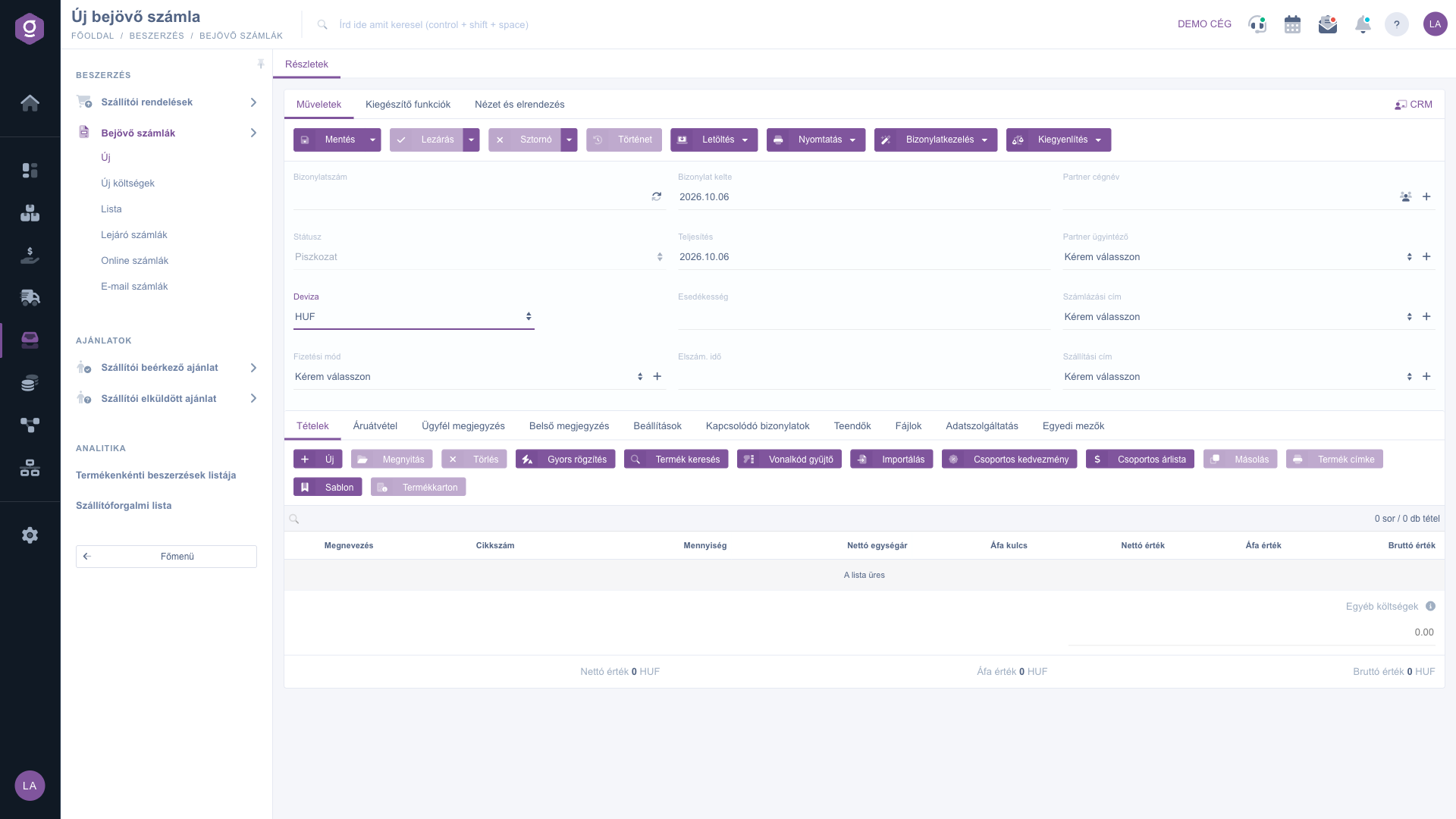
New incoming invoice sheet – Draft state, empty Items table (Új bejövő számla)
2. Filling in the header data
Fill in the invoice header based on the invoice received from the supplier:
- Partner company name: select the supplier. If it is not yet in the master data, you can add it right away with the + icon next to the field, and with the partner card icon you can open the record of the selected partner. After the partner is selected, the Billing address and Shipping address fields can be filled in; these also have a + icon to add a new address.
- Document number: enter the serial number shown on the supplier's invoice. With the refresh icon next to the field you can check whether this serial number is already in the system (see below).
- Currency and Exchange rate: select the currency of the invoice. The Exchange rate field appears only for a foreign currency. The currency cannot be changed after the first save of the invoice.
- Payment method: selectable from the dropdown; with the + icon next to it a new payment method can be created.
- Document date, Performance date, Due date, Settlement time: the dates on the invoice, which can be set with a date picker.
- Partner contact person: the contact person of the partner, which can also be added with the + icon.
- Status: view only, filled in by the system.
3. Checking the document number
Click the refresh icon (the Document number check button) next to the Document number field and the system checks whether an incoming invoice has already been recorded with the entered serial number. If so, the warning "Iktatásra került már egy másik bejövő számla ezen a sorszámon!" (another incoming invoice has already been filed under this serial number) appears; with the Újat kezdek (I start a new one) button you can restart the recording, with the Folytatom (I continue) button you can keep the data so far. If the serial number is still free, you get the message "A sorszámon még nem került iktatásra számla!" (no invoice has been filed under this serial number yet). This check helps you avoid recording the same supplier invoice twice; when saving, the system also warns separately if the document number already exists ("A bizonylatszám már létezik a rendszerben!").
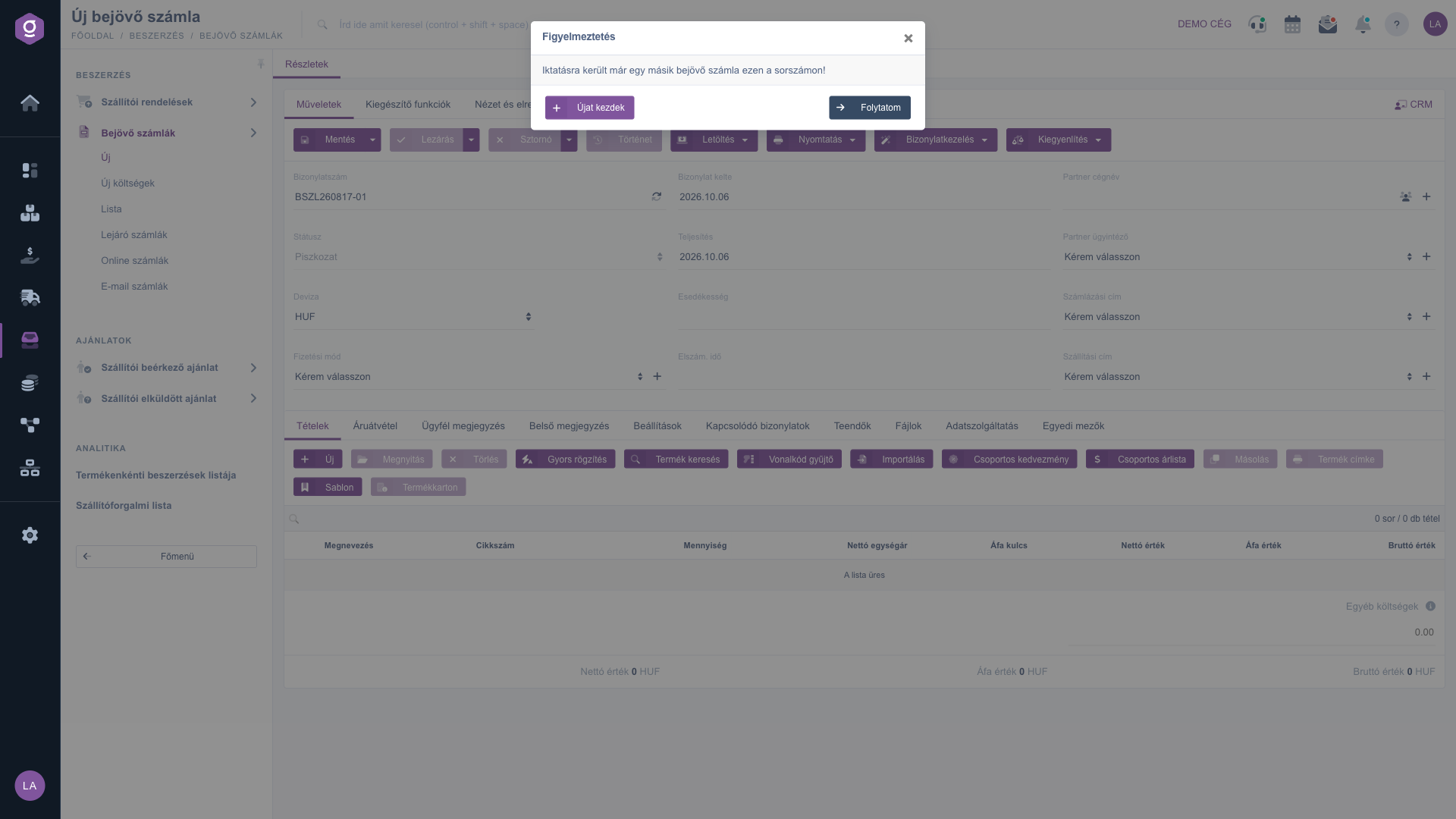
Document number check – warning for an already filed serial number (Figyelmeztetés)
4. Recording items
On the Items tab add the products and services on the invoice. The buttons of the toolbar above the table:
- New: add a new item in the item editor window.
- Open: edit the selected item.
- Delete: remove the selected item (only in Draft state).
- Quick add: quick, consecutive entry of items.
- Product search: select a product from the master data.
- Barcode collector: add items with a barcode reader.
- Import: load items from an XLSX file.
- Group discount: apply a discount or surcharge to several items at once.
- Group price list: apply a price list to several items at once.
- Cloning: duplicate the selected item.
- Product label: print the product label of the item.
- Template: add items from the product template window.
- Product card: the master data sheet of the product of the selected item.
- AI processing: see step 6.
The columns of the table: Name, Item number, Quantity, Net unit price, VAT rate, Net value, VAT value and Gross value. Below the table you can see the number of rows and items, the Other costs field (for example shipping or customs cost), which is distributed proportionally over the cost prices of the items (cost price = purchase price + proportional other cost), and the Net value, VAT value and Gross value totals of the invoice.
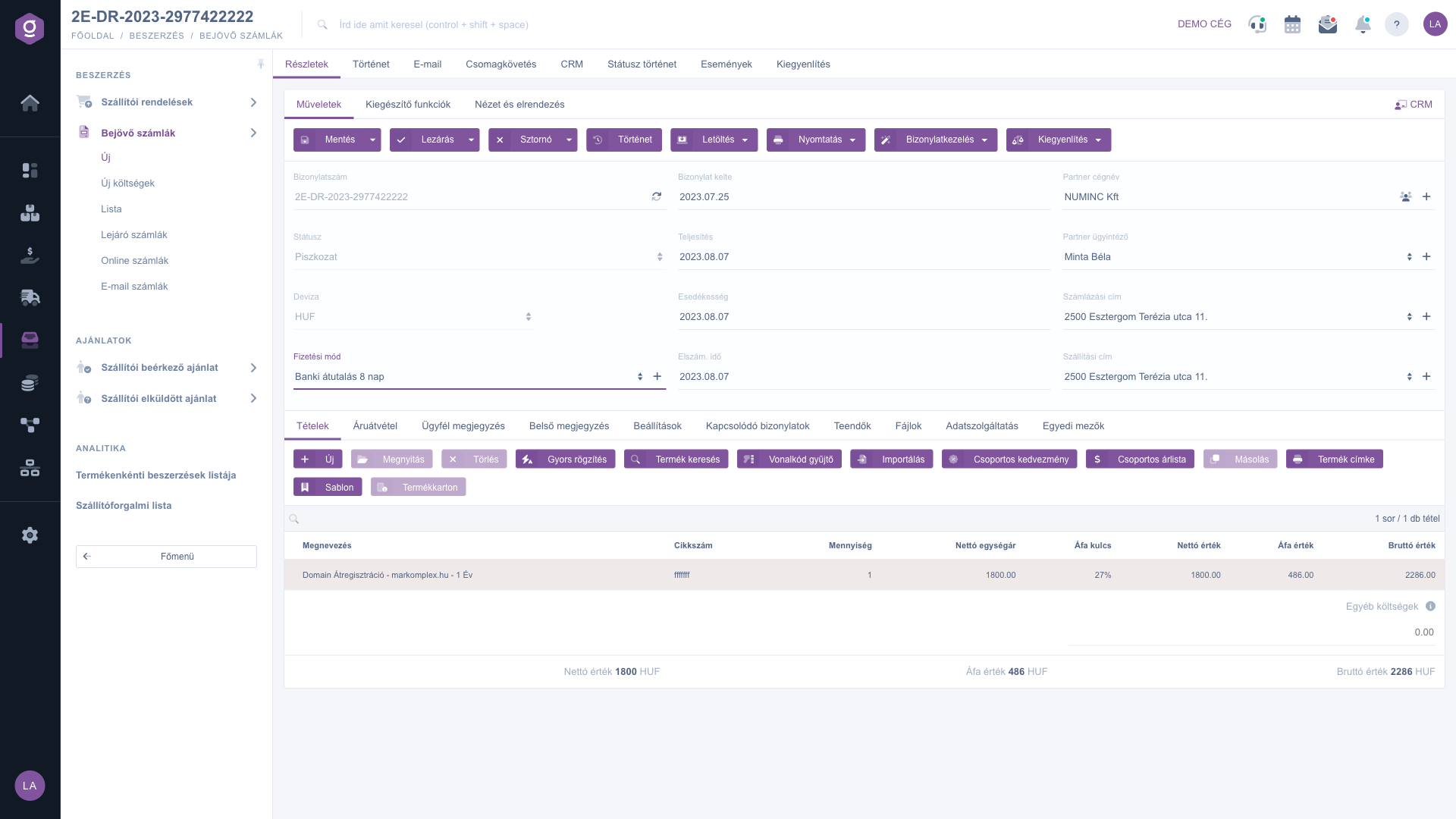
Incoming invoice sheet – with an item in the Items table (Tételek)
In the item editor window that opens with New, you can enter the data of the item on the Tulajdonságok (Properties) tab: Item number, Name, Quantity, VAT rate, Nettó alapár (net base price), Kedvezmény / Felár (%) (discount / surcharge), Net unit price, Bruttó egységár (gross unit price) and Tétel megjegyzés (item comment). The data of Raktározási alapadatok (basic warehousing data) and Könyvelés (accounting) can be set on further tabs. The right-hand panel shows on the Alapadatok (basic data) tab the price and stock data of the selected product (selling and purchase price, physical, reserved, available and incoming stock), and further information on the Egyéb (other) tab. At the bottom of the window you see the net, VAT and gross value of the item. With the Hozzáadás (Add) button the item goes onto the invoice, and with Hozzáadás és új termék (Add and new product) you can start creating a new product that is not yet in the master data right after adding the item.
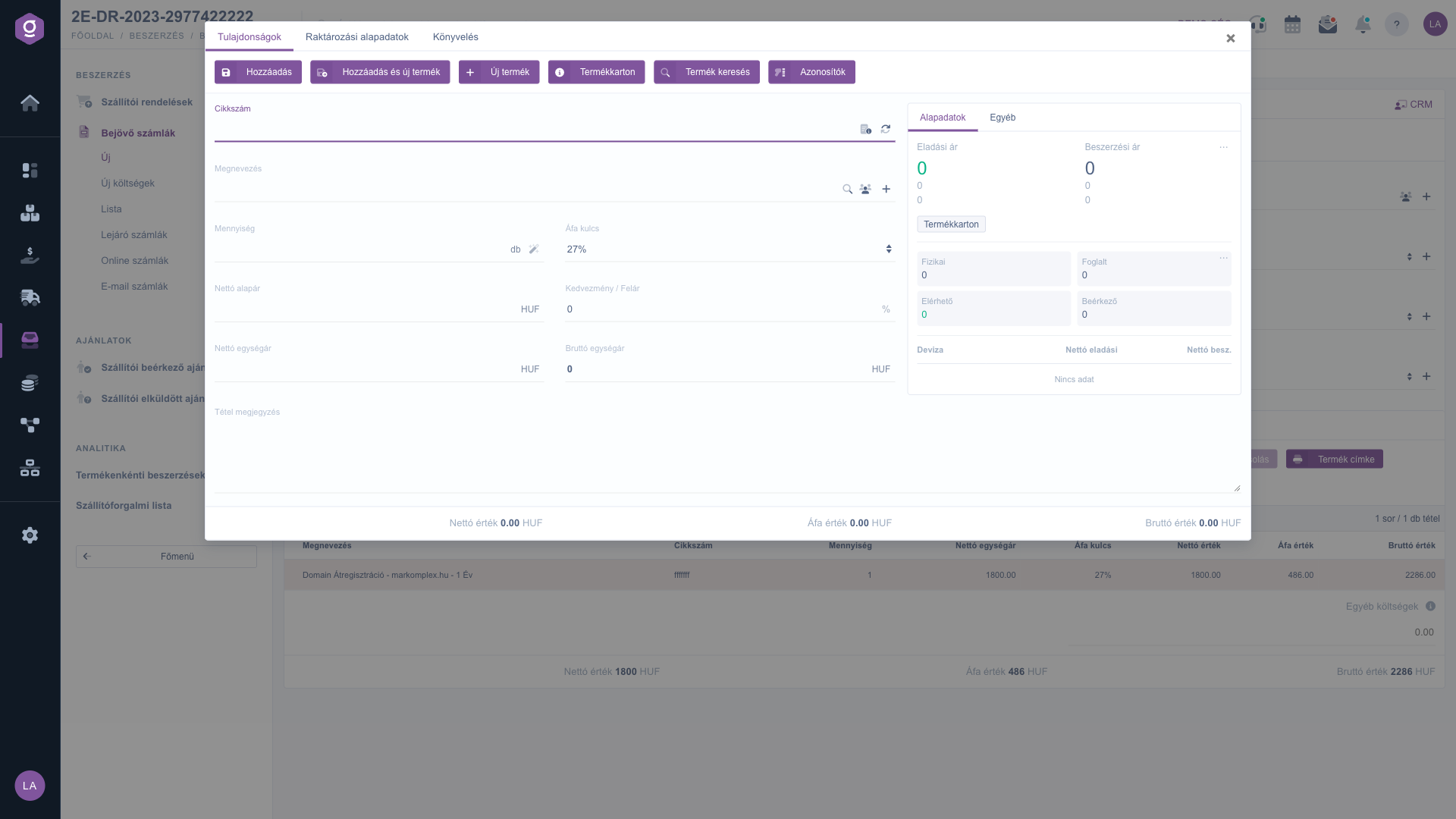
Item editor window – Properties tab (Tulajdonságok)
5. Delivery note usage
If you have already recorded an incoming delivery note from the supplier, you do not have to retype its items. Select the partner, then on the Additional functions tab click the Delivery note usage button. The window that opens lists, from the closed, not yet invoiced incoming delivery notes of the given partner (at most 99), the Document number, Partner company name and Gross value data. Tick the delivery notes you want to use and click Save: the items of the delivery notes are added to the Items table of the invoice. The items are permanently recorded when you save the invoice. If no partner is selected, the system shows the warning "Kérlek válassz egy partnert!" (please select a partner). The function is available only on an invoice in Draft state. The handling of delivery notes is described in the Incoming delivery note document guide.
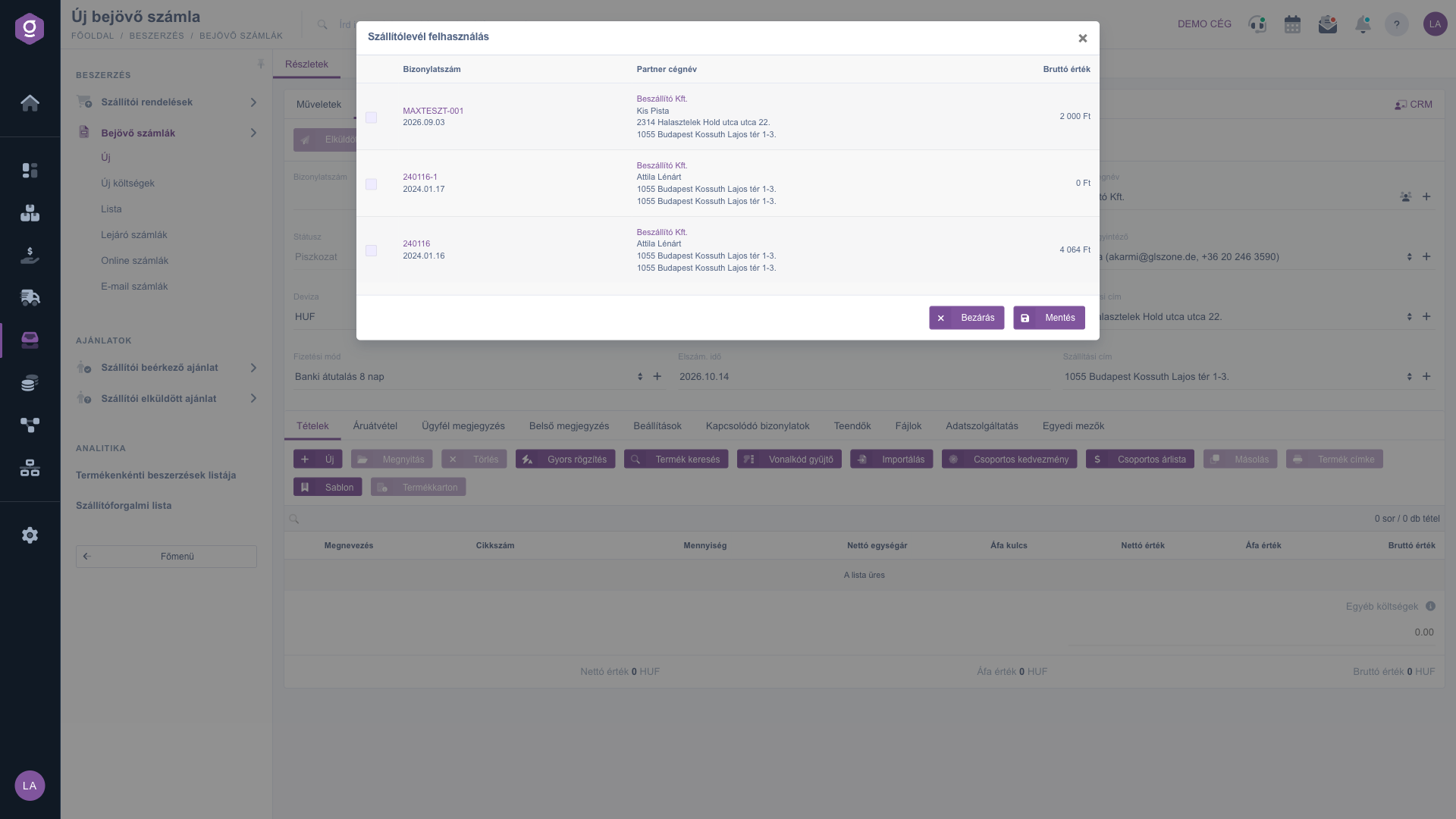
Delivery note usage window with the partner's delivery notes (Szállítólevél felhasználás)
6. AI processing (PDF invoice received by email)
The AI processing button on the toolbar of the Items tab appears only if you opened the sheet from an invoice received by email with a PDF attachment (see the Email invoices guide); in that case the PDF is also visible on the right side of the sheet. The button starts the recognition of the items of the attached PDF invoice using AI. The system asks for confirmation ("Ez néhány másodpercig tarthat, a felismert tételek automatikusan bekerülnek a listába, ellenőrizd mentés előtt. Folytatod?" — this may take a few seconds, the recognised items are added to the list automatically, check them before saving), then loads the recognised items into the Items table. If a recognised product is not in the master data, the system gives a warning. If the AI finds no processable item, you get the message "Az AI nem talált feldolgozható tételt a számlán" (the AI found no processable item on the invoice), and in case of an error "Az AI feldolgozás sikertelen, próbáld újra!" (the AI processing failed, try again). The result of the recognition always needs checking, so compare the items with the original invoice before saving.
7. Further tabs
- Goods receipt: shows the quantities of the invoice items from the side of the incoming invoice, the goods receipt and the supplier order (Item number, Name, Incoming invoice, Goods receipt, Supplier order).
- Customer comment and Internal comment: free-text comments.
- Settings: the billing and shipping address on the side of your own company, and the Project, Job number and Department number.
- Related documents: other documents related to the invoice (Document number, Document date, document type, issuing employee).
- Tasks: the tasks recorded for the invoice.
- Files: the files attached to the invoice.
- Data reporting: the state of the NAV Online invoice data reporting, and per item the accounting ledger accounts (Stock / Cost ledger (Debit), Deductible VAT ledger (Debit), Suppliers ledger (Credit)).
- Custom fields: the custom fields set up at your company.
8. Saving and closing
On the Actions tab the Save button records the data, but the invoice stays in Draft state, so it can still be edited. Save and close in the dropdown closes the invoice immediately after saving. If you want to finalise an already saved draft, use the Close button. On closing, the invoice is finalised and no further modification is possible. If the pre-closing check is enabled at your company, the system warns you of possible discrepancies before closing. From the dropdown of the Close button you can print (Close and print) or download (Close and download) right after closing.
9. Settlement
In the dropdown of the Settlement button you can choose from the following: Bank document, Bank transaction and Settlement (the Cash register document option is currently not selectable). The Settlement command can be used on an invoice in Draft or Closed state, the bank and cash options on a closed invoice. In the Settlement window you see the partner, the invoice number, the payment method, the gross total of the invoice and the remaining amount; if you have not recorded a settlement yet, the message "A bizonylatra még nem könyveltünk kiegyenlítést!" (no settlement has been posted for this document yet) is shown. Enter the Settlement amount and the Settlement date, then click Save for a partial settlement, or Mentés teljes kiegyenlítéssel (Save with full settlement) if you want to settle the entire remaining amount of the invoice.
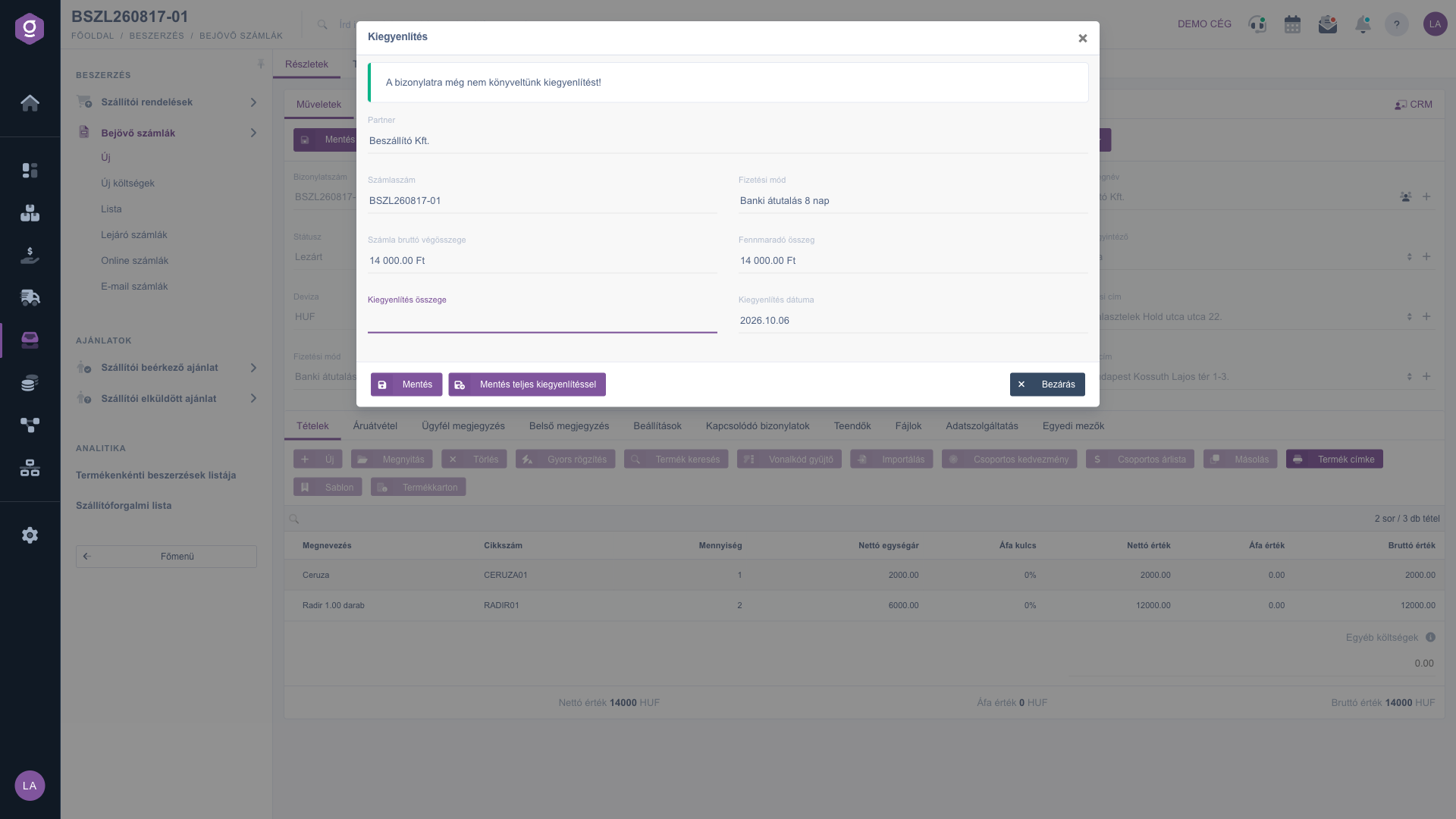
Settlement window – entering the amount and date (Kiegyenlítés)
10. Cancellation
The Cancellation button cancels an invoice in Draft or Closed state, and Cancel and copy is also available in the dropdown. Since the cancellation of an incoming invoice is also issued by the supplier, the Rendszerüzenet (System message) window that opens asks for the serial number of the cancellation invoice: fill in the Cancellation invoice number field (by default the original document number with the "-S" suffix is filled in), if needed the Performance date, Internal comment and Customer comment fields too, then click Save. In the upper part of the window you see the identifier, issue date, performance date and total amount of the original invoice. After saving, the invoice counts as cancelled and it cannot be restored.
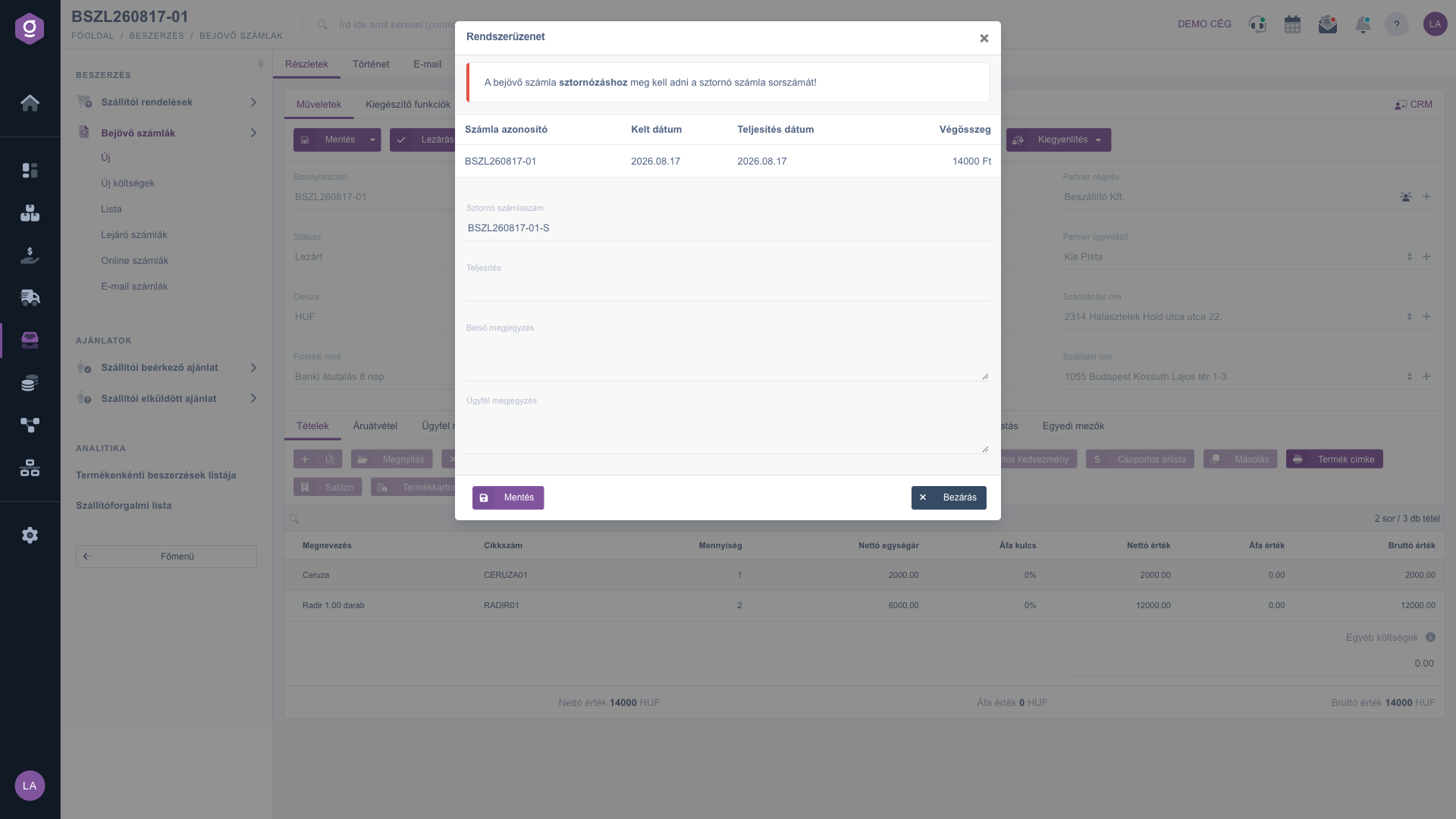
Cancellation window – entering the cancellation invoice number (Rendszerüzenet)
11. Document management, download, print
From a closed invoice, in the Document management menu you can start a Warehouse receipt (see the Warehouse receipt document guide) or Worksheets document, and with the Cloning command you can start a new incoming invoice taking over the data. From the Download menu you can request a PDF or XLSX export, the PDF preview shows the invoice without downloading, and from the Print menu you can print the document or the product label. The History button shows the documents related to the invoice.
Tip
Before you start recording a longer invoice, enter the supplier's serial number in the Document number field and check it with the icon: this way you cannot record the invoice twice. Save the draft regularly, and wait to close it until you have compared the items with the original invoice, because it cannot be modified after closing.



