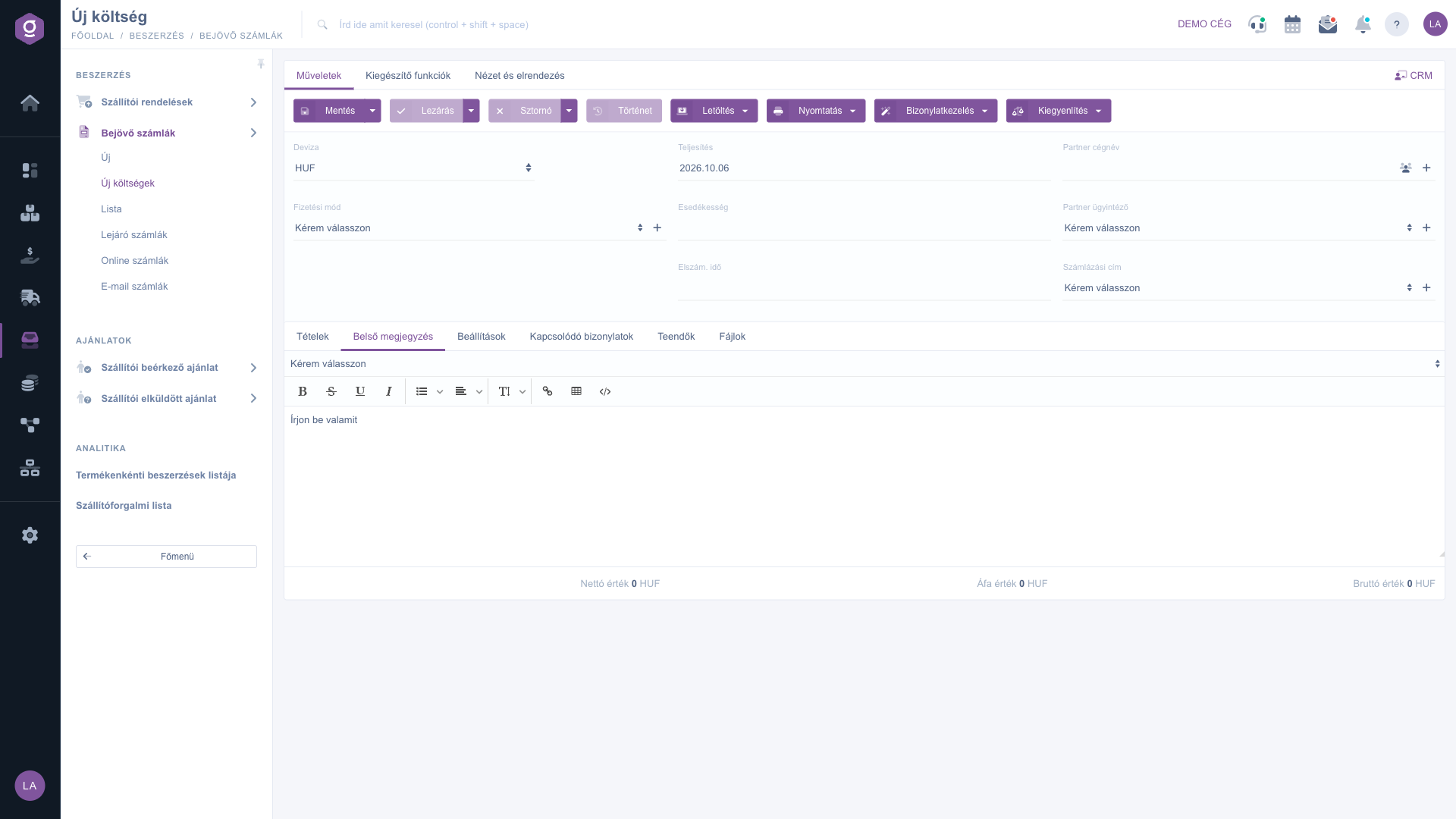
On this sheet, opened from Main menu / Procurement / Incoming invoices / New expenses, you can record an expense among the incoming invoices, for example a cost for which no supplier invoice arrived, or for which you do not want to enter a supplier invoice number (small purchases, travel costs, service fees). The screen is similar to the incoming invoice sheet but simpler: there is no supplier invoice number, no PDF preview and no AI processing, only the essential data and items of the expense. Note: the screenshots are from the Hungarian interface; Hungarian labels are shown in parentheses in the image descriptions.
KLTS-YYYYMMDD-random number (for example KLTS-20261006-4821). The field is not visible on the sheet, so you do not have to invent it and you cannot change it.Which page should you use?
Click Main menu / Procurement / Incoming invoices / New expenses. The New expense sheet (Új költség) opens with an empty draft. On the Operations tab you find the Save, Close, Cancellation, History, Download, Printing, Document management and Settlement buttons, below them the header data and further down the item table.
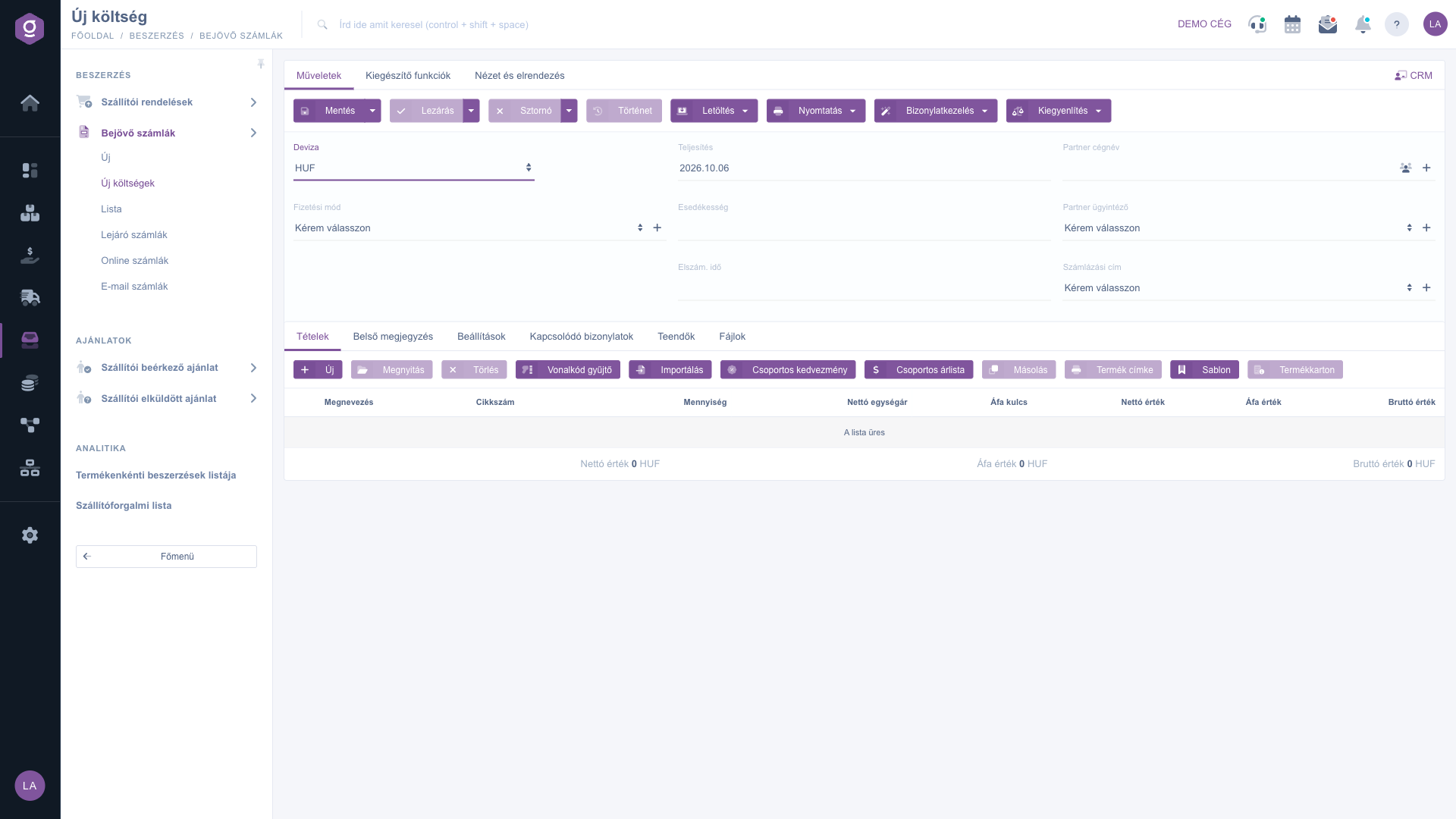
Fill in the header. Example: a taxi ride of 12,700 HUF that you paid on the same day:
HUF (the default currency is preselected; for another currency the exchange rate field also appears).On the Items tab, use the New button to add an item (in the example: "Taxi ride", quantity 1, net unit price and VAT rate according to the taxi receipt). Edit the selected item with Open or remove it with Delete. Helper functions: Import, Barcode collector, Group discount, Group price list, Cloning, Product label, Template and Product card. Below the table you see the Net value, VAT value and Gross value totals in the currency of the expense.
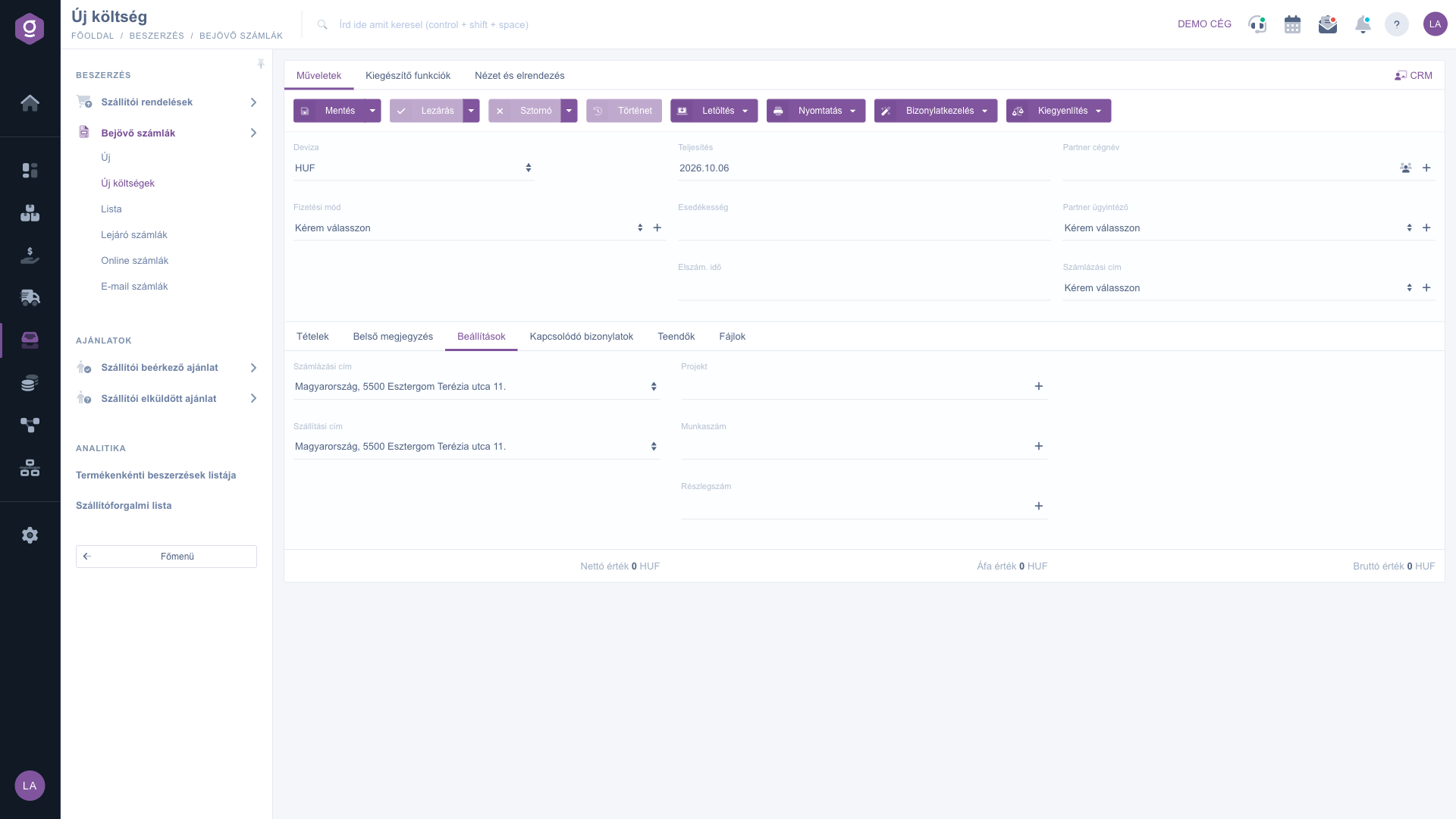
Among the tabs below the items, the Settings tab lets you set the billing and shipping address, the Project, the Job number and the Department number, so you can link the expense to a project or department. On the Internal comment tab you can write a free-text note (or choose a prepared one) for internal use only. On the Related documents, Tasks and Files tabs you manage other documents, tasks and attached files (for example a photo of the receipt) belonging to the expense.
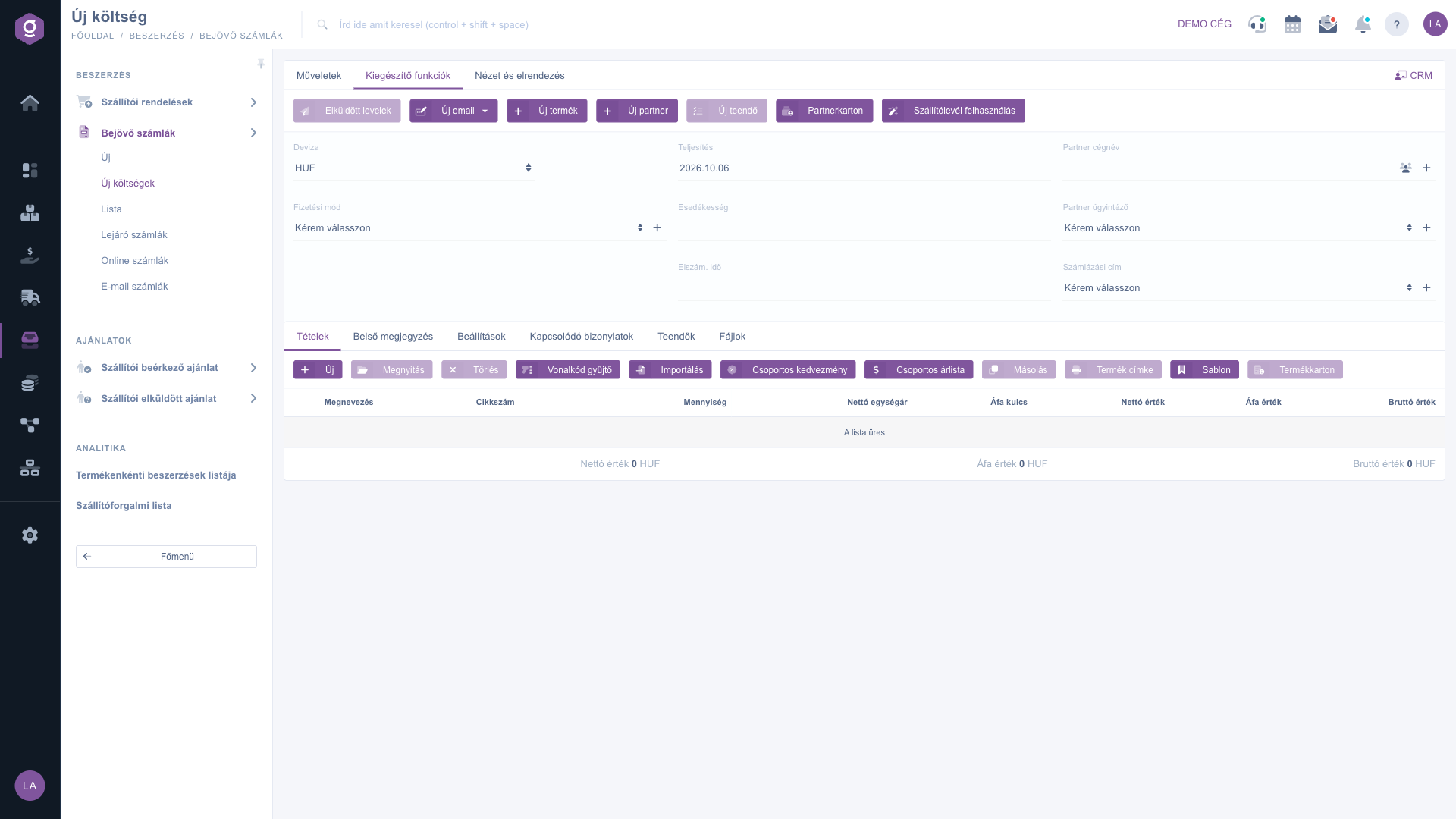
On the Additional functions tab you can, without leaving the sheet, open the Sent items list, write a New email, add a New product or a New partner, create a New task, open the Partner card, and use Delivery note usage to pull a delivery note into the expense. The CRM link at the top right leads to the notes of the partner.
With Save you record the expense as a Draft; nothing is stored in the system until you save. When everything is correct, finalize it with Close. A wrongly recorded, already closed expense can be reversed with Cancellation. With Settlement you settle the expense with a cash register or bank document, and History shows the changes of the document.
If a supplier invoice exists for the cost, do not record it twice: use the incoming invoice sheet or file it from the online / email invoices instead. Keep the New expenses page for costs that have no supplier invoice number. For small recurring costs you can reuse items saved with the Template button.

Header fields and their meaning:
| Field / Element | Required | Description |
|---|---|---|
| Document number | Generated automatically (KLTS-YYYYMMDD-random number), not visible on the sheet. | |
| Currency | Currency of the expense. By default the base currency of the company; for another currency the exchange rate field appears. | |
| Payment method | How the expense was or will be paid. A new payment method can be added with the + button next to it. | |
| Performance date | The day the expense was performed, today by default. | |
| Due date | The payment deadline. It starts empty and must be filled in to save. If an unsettled expense falls in the near future, it may also appear in the Expiring invoices list. | |
| Settlement time | The time to which you account the expense. It starts empty. | |
| Partner company name | The partner of the expense. Selectable from the partner master data, or add a new partner immediately with the + button. | |
| Partner contact person | The contact person of the partner from the partner master data. | |
| Billing address | The billing address of the partner; selectable after choosing the partner. |
Columns of the item table:
| Field / Element | Required | Description |
|---|---|---|
| Name | Name of the item, for example "Taxi ride". | |
| Part number | The part number of the product, if the item comes from the product master data. | |
| Quantity | Quantity of the item. | |
| Net unit price | The unit price without VAT. | |
| VAT rate | The VAT rate applicable to the item. | |
| Net value, VAT value, Gross value | Calculated by the system from quantity, unit price and VAT rate; also shown as totals below the table. |
The lower tabs: Items, Internal comment, Settings (billing address, shipping address, project, job number, department number), Related documents, Tasks and Files. The tabs found on the incoming invoice sheet for goods receipt, customer comment, data reporting and custom fields are not available on the expense sheet.
An expense is not tied to a supplier invoice number: the system gives it a KLTS-... identifier automatically. On the incoming invoice sheet you record with the supplier own invoice number, and when filing online or email invoices the data comes from NAV or the PDF. If you have a supplier invoice, do not record it as an expense.
Nowhere: the document number of an expense is generated automatically and the field is hidden. If you want to keep the number of an external document (for example a receipt), write it on the Internal comment tab.
To save, the Currency, Payment method, Performance date, Due date, Settlement time, Partner company name and Billing address fields must all be filled in. Most often the Due date and Settlement time are left empty, because they are not prefilled for a new expense.
Draft is a saved expense that can still be edited. After Close it becomes Closed and is considered final. If you recorded it by mistake, reverse it with Cancellation: a Cancellation document is created and the original expense becomes Cancelled.
Select the appropriate currency in the Currency field (for example EUR). The exchange rate field then appears on the sheet; check that it contains the rate valid for the performance date, because the values calculated in forints depend on it.
Yes. Opening the sheet does not create a document yet: it is stored only after the Save button and appears among the incoming invoices only then. If you leave the sheet without saving, the entered data is lost.
The module only appears in the menu if it is assigned to your user. If it is missing, ask your company administrator to check the module assignment of your user.
Don't want to spend hours searching for a solution? Choose the most efficient way: book a personalized, 45-minute online training session dedicated entirely to you. Whether it's a walkthrough of the basics or a detailed setup of a specific module, our expert colleague will guide you through the whole process, step by step.
Don't waste your time - ask for help!
Our goal is to get you using our system as quickly and efficiently as possible. Whether you're completely new to us or stuck on a specific setting, don't hesitate to ask for help!
Create your account now,
pay later!