1. Open the list
Click Main menu / Procurement / Incoming invoices / Email invoices. The list opens with the Invoices pending filing view and the period of the last month. If there is no invoice pending filing, the list is empty and the system tells you which email address to send the invoices to for filing. There are three tabs: Operations, Search and Additional functions. The screenshots in this article come from the Hungarian user interface; the Hungarian labels are shown in parentheses in the image descriptions.
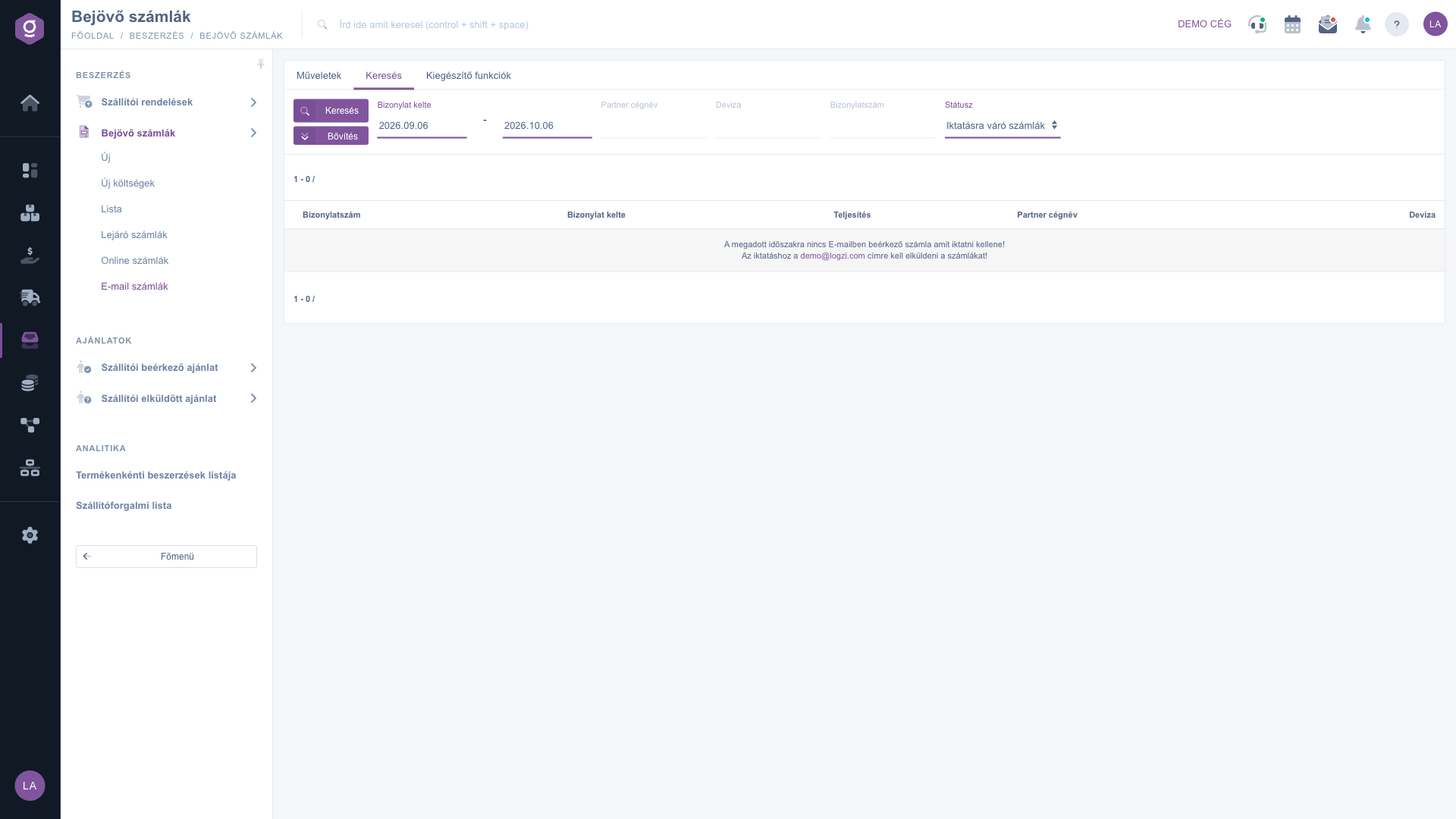
Email invoices (E-mail számlák) – Search tab (Keresés), empty list showing the invoice mailbox address
2. Send the invoice to the invoice mailbox address
Send (or forward) the message you received from the supplier to the invoice mailbox address displayed in the empty state of the list, with the PDF invoice as an attachment. After the message has been processed, the invoice appears in the list as pending filing. If it does not appear, refresh the page and check that the Document date period covers the date of the invoice.
3. Search and filter
On the Search tab you can filter by Document date (from and to), Partner company name, Currency, Document number and Status. To find out whether an invoice has already been filed, select All invoices under Status and widen the Document date period. Example: in the demo, the All invoices view shows 6 filed rows, among them the one numbered E-DR-2023-29774 five times: this is a duplicate caused by sending the same invoice several times.
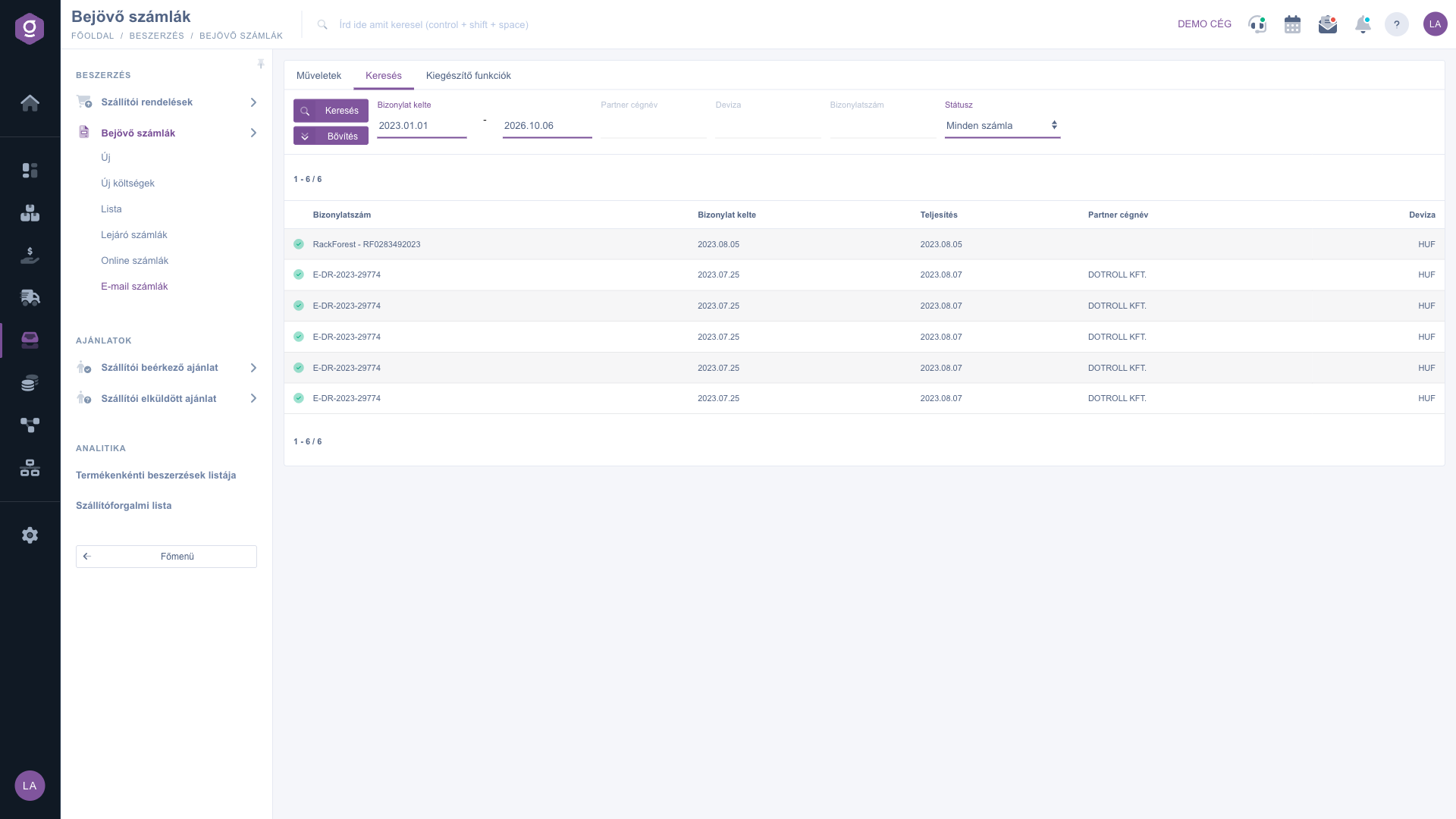
Search tab (Keresés) – All invoices view (Minden számla), filed rows with a green check mark (rows with the same document number are duplicates)
4. Select an invoice and use Filing
Click the row of the invoice to be filed, then click the Filing button on the Operations tab. If you have not selected a row, a Warning window asks you to choose an item from the list. Besides Filing, the Operations tab also contains the Delete and Send email buttons.
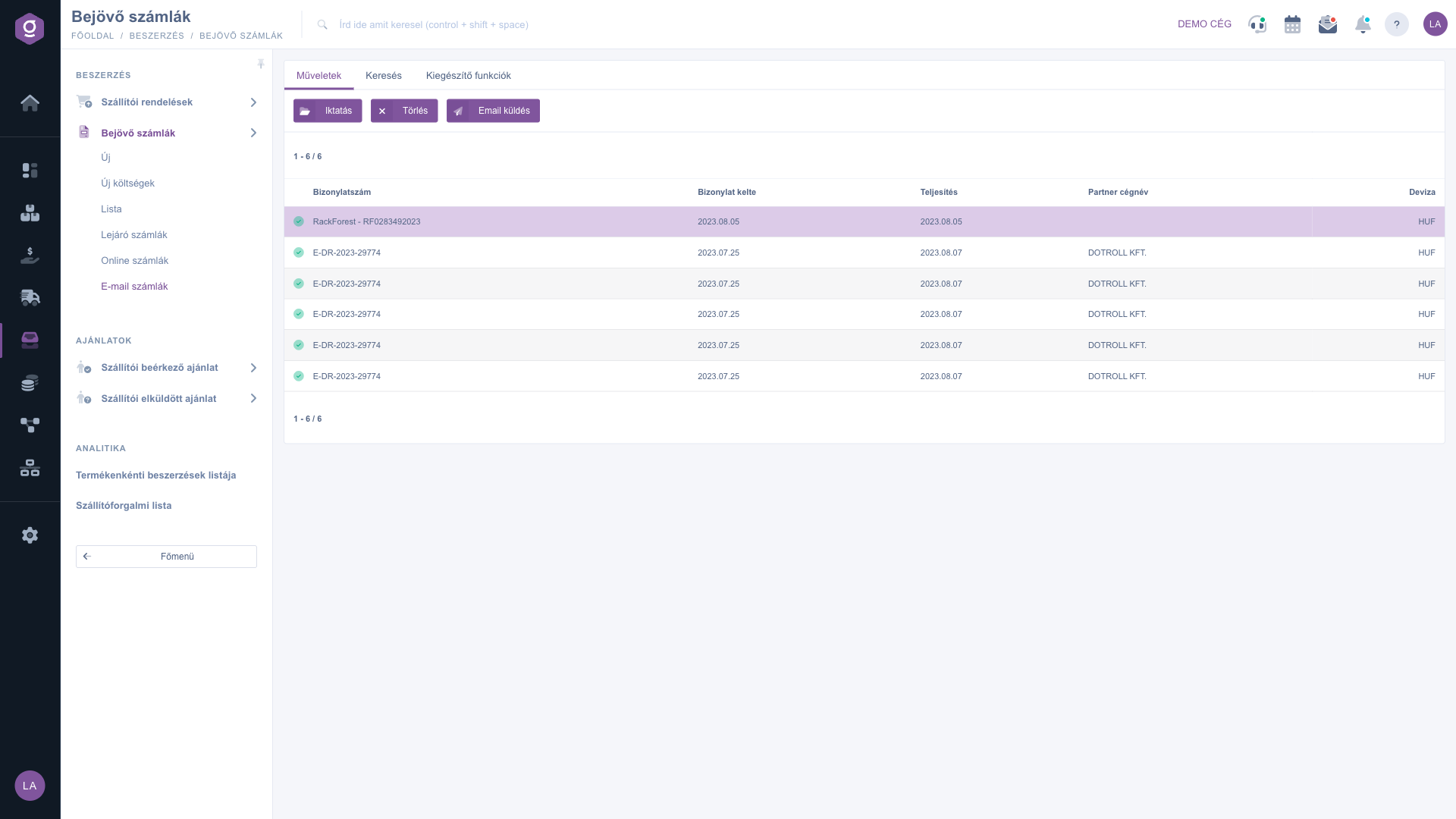
Operations tab (Műveletek) – Filing (Iktatás), Delete (Törlés) and Send email (Email küldés) buttons with a selected row
5. Check the prefilled draft
Filing always opens a new incoming invoice draft, even if you have already filed the same invoice before: there is no protection here like on the Online invoices page, where the system takes you to the existing invoice. The header shows the document number, dates, currency, default payment method and partner read from the message; the PDF invoice is displayed on the right so that you can compare the data. The item list is empty (with the message “The list is empty”): add the items manually, or click the AI processing button, which tries to fill them in from the PDF. Always check the values filled in by AI. Check the partner too: the system looks the partner up by tax number and then by name, based on the data read from the message, so it may offer your own company (the buyer) as the supplier. Example: in the demo, in the draft of the invoice numbered E-DR-2023-29774 the partner was the buyer company (NUMINC Kft), and this has to be corrected before saving. The invoice is only stored with the Save button.
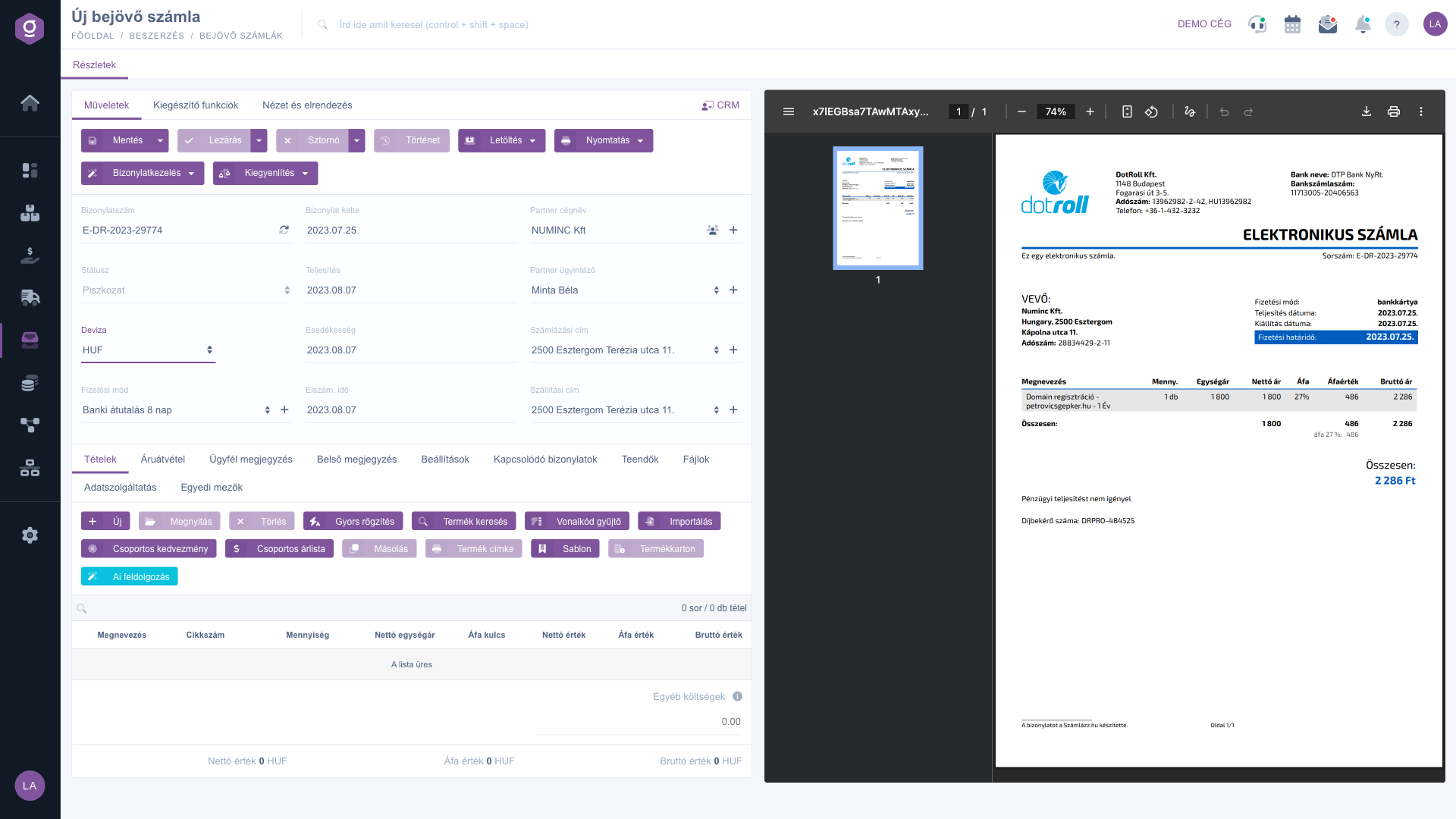
Draft opened after filing: PDF invoice on the right, empty item list and the AI processing (AI feldolgozás) button
6. Delete
If you do not want to file an invoice from a received message (for example it does not belong to you, or it is a duplicate), select the row and click the Delete button on the Operations tab. In the Warning window the system asks: “Are you sure you want to delete the data?” With the No button you go back, with the Yes button the row is removed from the list. Only confirm if you are sure.
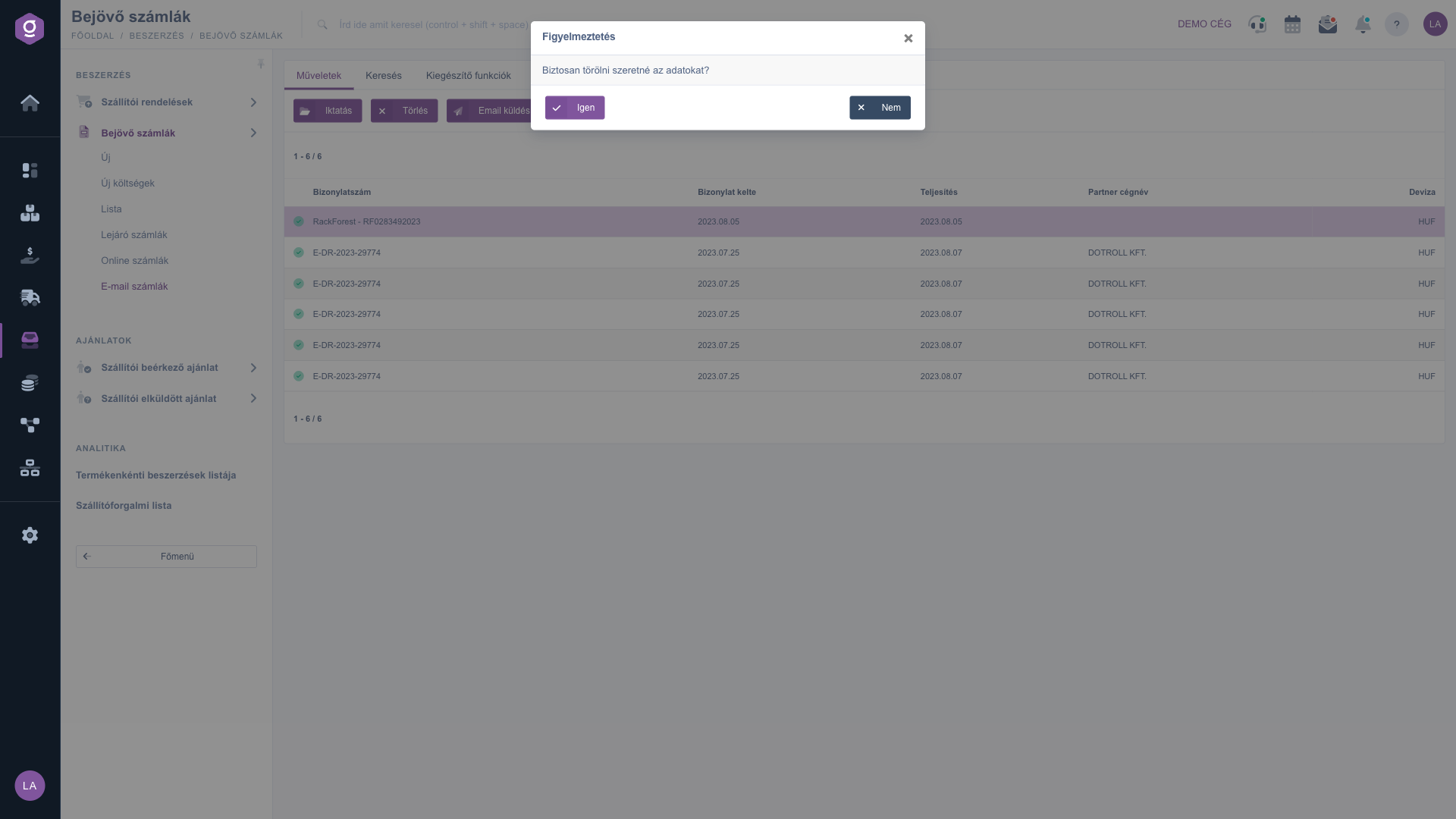
Delete confirmation window (Törlés): Warning (Figyelmeztetés), Yes (Igen) and No (Nem) buttons
On the Additional functions tab you can reach Sent items, New email, New task, Partner card and CRM, for example if you need to ask the supplier about the data of an invoice.
Tip
Before filing, always check in the All invoices view whether the same Document number is already listed as filed. If the invoice already exists, delete the message from the list instead of filing it again. Before saving the draft, compare the partner and the total amount with the PDF on the right.
If the invoice also exists in the NAV system, it is better to file it on the
Online incoming invoices page, because the items are transferred automatically there. Closing, cancelling and settling the saved draft are described in the
Invoice sheet guide. You can track the due dates of unpaid invoices on the
Expiring incoming invoices page; the shared elements of the lists are described in the
Invoice list guide.



