1. Open the sheet
To create a new department number, click Main menu / Master data / Production tracking / Department number / New. You can also use the New button on the Main menu / Master data / Production tracking / Department number / List page. To edit an existing department number, select it in the list and click Open.
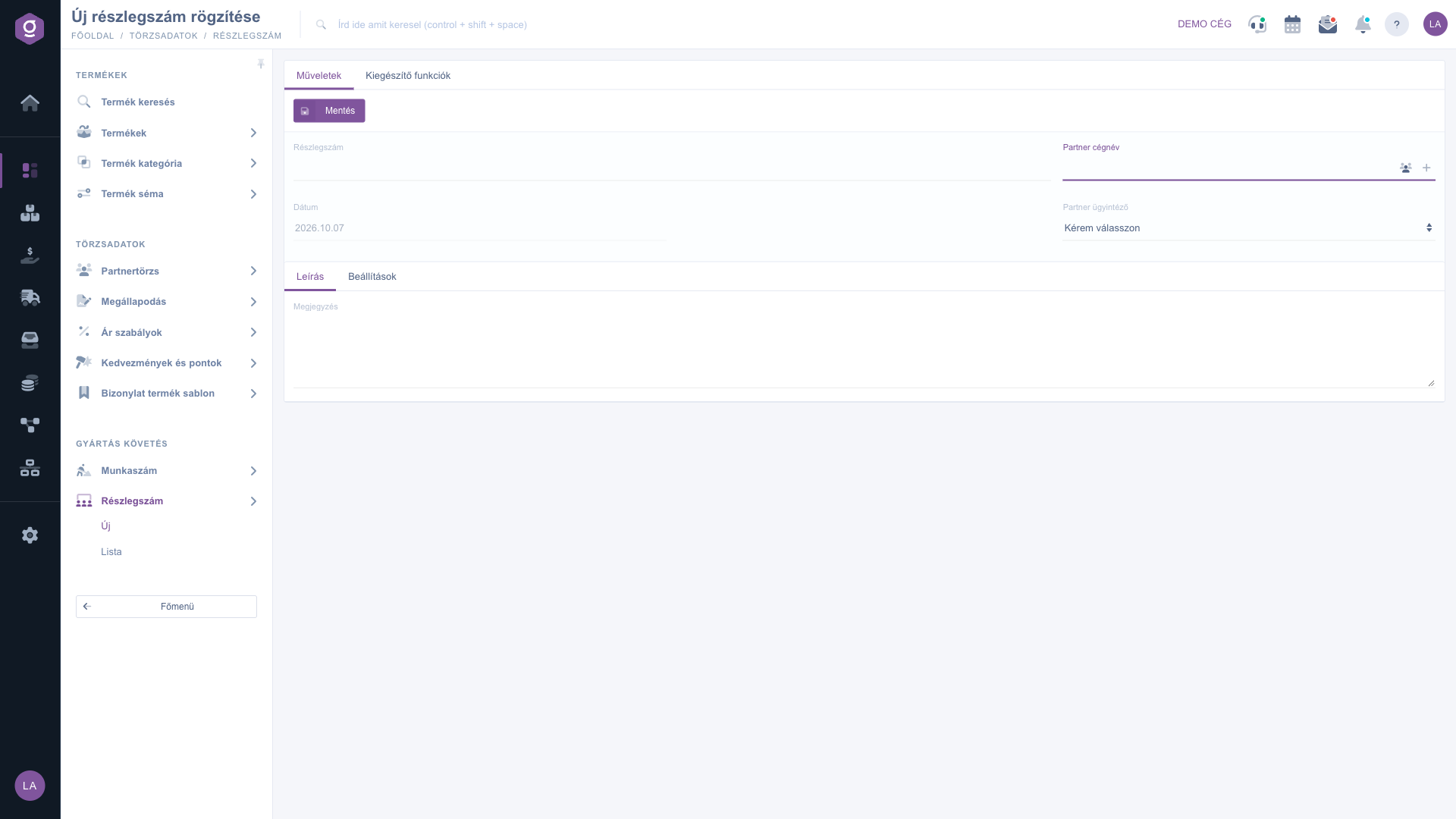
Department number sheet – Actions tab
2. Department number and date
- Department number: the name or code you give to the department. You see it in the list and select it on documents, so use a name you will easily recognise later.
- Date: the day of recording. It is filled in by the system and cannot be edited.
3. Select a partner (optional)
If the department belongs to a partner, start typing the partner name in the Partner company name field and pick the right one from the suggestions. The field is not required, so you can save the sheet without it. Two icons next to the field help you: the partners icon opens the selected partner sheet in a new browser tab (if you have not selected a partner yet, the system warns you), and the + icon lets you quickly create a new partner without leaving the sheet.
4. Partner contact person and comment
After you select a partner, the Partner contact person list is filled with the contact persons of that partner, and you can choose one from it (the default is Please choose). At the bottom of the sheet, on the Description tab, you can write free text about the department in the Comment field.
5. Set the invoice block
On the Settings tab you can choose from the Invoice block list which invoice block belongs to the department. The list items are shown in the form name (prefix) and contain your own invoice blocks. When a document sheet is opened for a document that has a department number, the system loads the invoice block of the document from the block set on the department. If you do not want to set an invoice block, leave the value on Please choose.
6. Save and additional functions
On the Actions tab, click Save to record the department number. No field on the sheet is marked as required, but it is worth always filling in the Department number, because that is what you see in the list and on documents. On the Additional functions tab, the New partner button opens the new partner form in a new browser tab, so you can continue editing the department number without interruption.
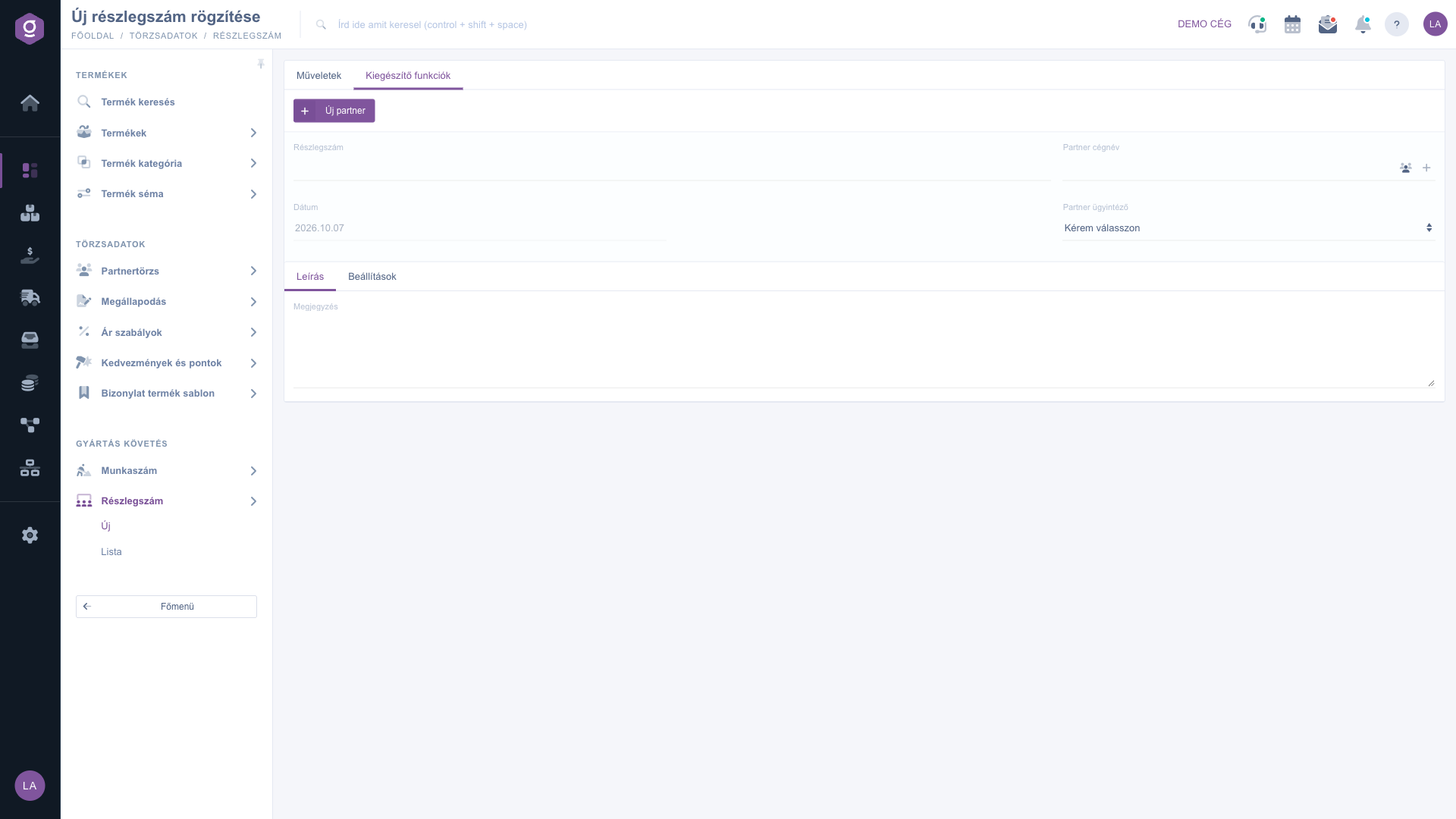
Department number sheet – Additional functions tab
Tip
If each of your departments has its own invoice block, set it on the Settings tab of the department number sheet: when you select the department on a document, the right invoice block is already there and you do not have to change it by hand.
To list, search and export the department numbers you have created, see the
Department number list guide. To learn how to use a department number on a document, read the
Invoice sheet guide.



