This list shows the recorded Department number records. A department number is an identifier you define (for example a code for a department, workshop or site). When you select it on documents, you can link all documents belonging to one department under a single identifier.
Click Main menu / Master data / Production tracking / Department number / List. Under Department number, the New menu item opens the sheet of a new department number directly.
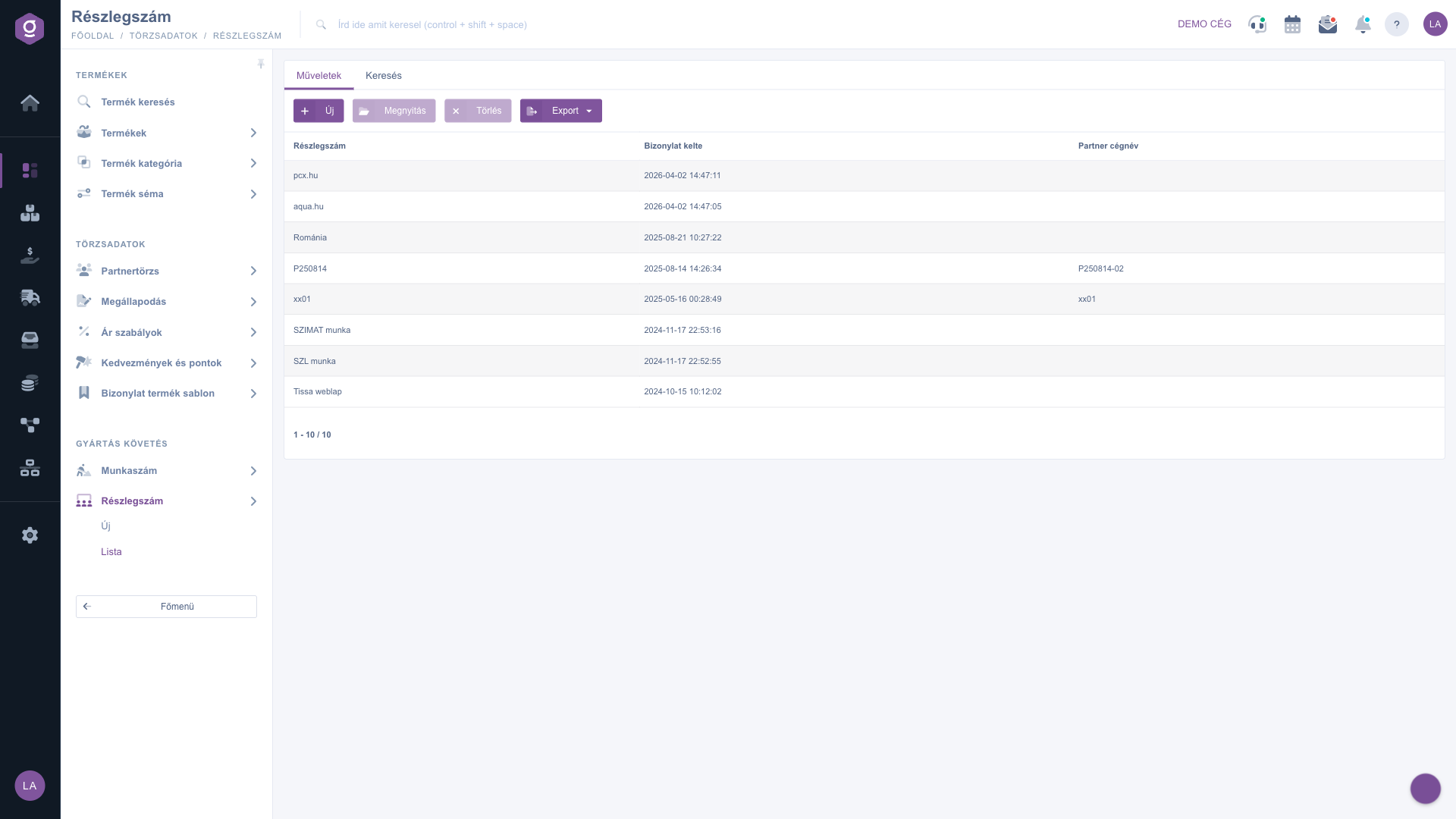
The same actions (New, Open, Delete) are also available in the context menu when you right-click a row.
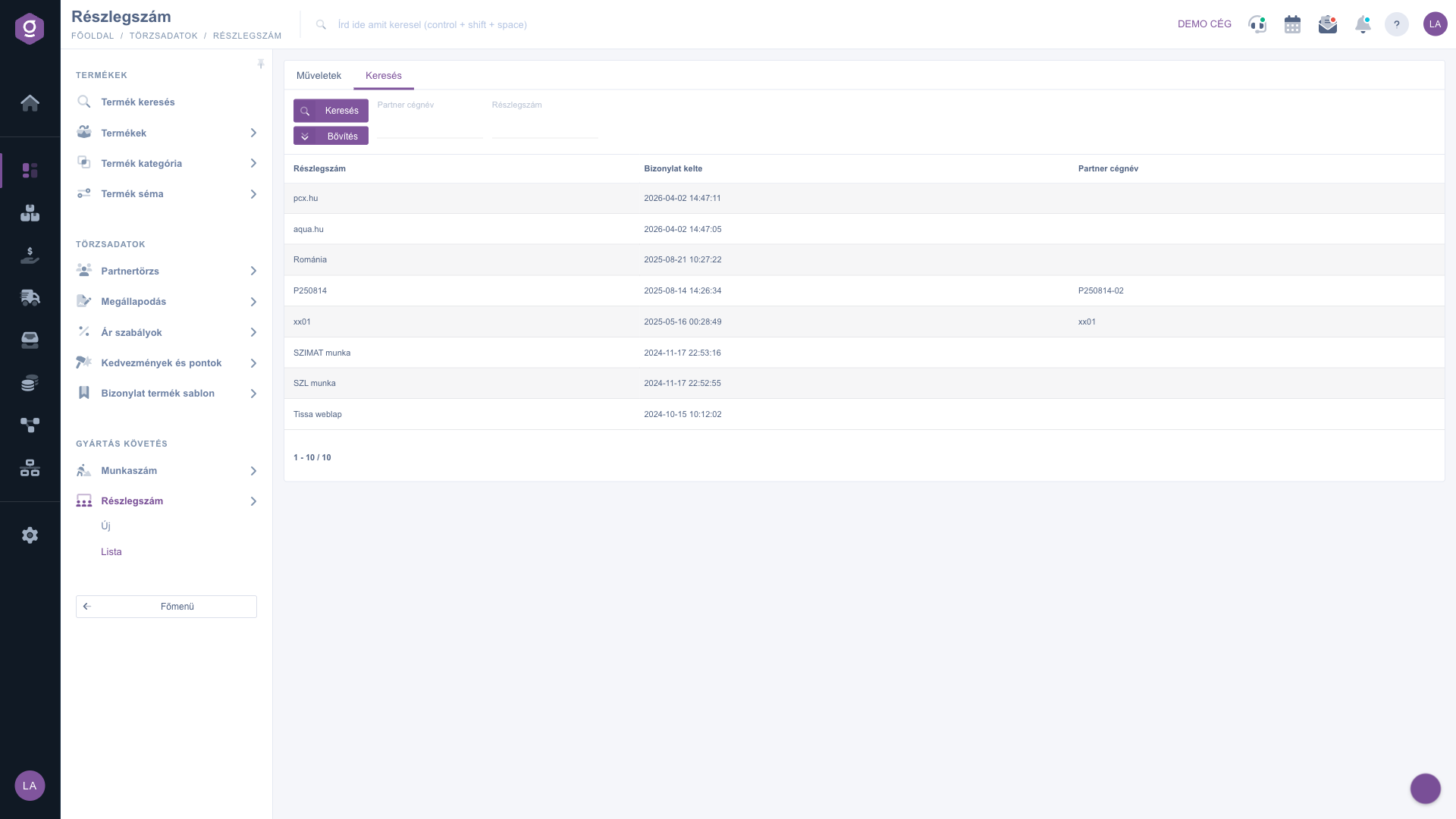
On the Search tab, enter filter criteria in the Partner company name and Department number fields, then click Search to refresh the list. The Expand button opens more filters: use the Document date pair of fields to filter by period, and the Employee list to filter by the colleague who recorded the department number. If the filter has no results, the list shows an empty-list notice with the possible reasons.
Select the row, then click Open. On the sheet you can edit the department number name, the partner, the partner contact person, the comment and the invoice block, and record the change with the Save button.
To see all department numbers of a partner, enter just a part of the name in the Partner company name field on the Search tab and click Search: the filter matches any part of the name.

The columns and buttons of the list:
| Column / Button | Description |
|---|---|
| Department number | The name or identifier of the department number. |
| Document date | The date and time the department number was recorded. |
| Partner company name | The name of the partner linked to the department number; empty if no partner is specified. |
| New, Open, Delete | Create a new department number, open the selected one, or delete it. |
| Export | Export of department numbers to an XLSX file. |
The filter fields of the Search tab:
| Field | Description |
|---|---|
| Partner company name | Filters by part of the partner name. |
| Department number | A field for filtering by the department number name. |
| Document date (Expand) | Two date fields (from and to) for filtering by period. |
| Employee (Expand) | A list for choosing the employee who recorded the department number. |
| Search, Expand | Start the search, or open the additional filters. |
The Department number module appears under Main menu / Master data / Production tracking only if it is assigned to your user. If you cannot see it, ask your system administrator to check the module assignment in your user settings.
The system shows a warning window asking you to select an item from the list. Click the row you want first to select it, then use the Open or Delete button.
After deletion the department number no longer appears in the list, and there is no restore button in the interface. So before using Delete, make sure you no longer need it. If you still need the same department, create it again with the New button.
Open the Search tab, enter the partner name (or a part of it) in the Partner company name field and click Search. The list then shows only the department numbers of that partner. To narrow the result to a period, use the Document date fields under the Expand button.
In the department number list, only the XLSX format is available in the Export menu, and the CSV item is inactive. Click Export and choose XLSX.
On document sheets, type into the Department number field and select the record from the suggestions; with the + button next to the field you can also create a new department number. Examples are the Invoice sheet, the Incoming invoice sheet and the Warehouse issue document.
Don't want to spend hours searching for a solution? Choose the most efficient way: book a personalized, 45-minute online training session dedicated entirely to you. Whether it's a walkthrough of the basics or a detailed setup of a specific module, our expert colleague will guide you through the whole process, step by step.
Don't waste your time - ask for help!
Our goal is to get you using our system as quickly and efficiently as possible. Whether you're completely new to us or stuck on a specific setting, don't hesitate to ask for help!
Create your account now,
pay later!

