Job number sheet

Learn how to create a new job number and how to fill in the sheet fields: job number, partner, partner contact person and comment.

Function overview

On this sheet you can create and edit Job number records. A job number is an identifier that you define and link to a partner. When you select it on documents (for example an invoice), you can manage all documents belonging to one job under a single identifier.

  • Fields: Job number, Date, Partner company name, Partner contact person and Comment.
  • Actions: the Save button is on the Actions tab, the New partner button is on the Additional functions tab.
  • New and existing records: the same sheet is used to create a new job number and to edit an existing one.
  • Required field: you must fill in the Partner company name to save.

Step by step

1. Open the sheet

To create a new job number, click Main menu / Master data / Production tracking / Job number / New. You can also use the New button on the Main menu / Master data / Production tracking / Job number / List page. To edit an existing job number, select it in the list and click Open.
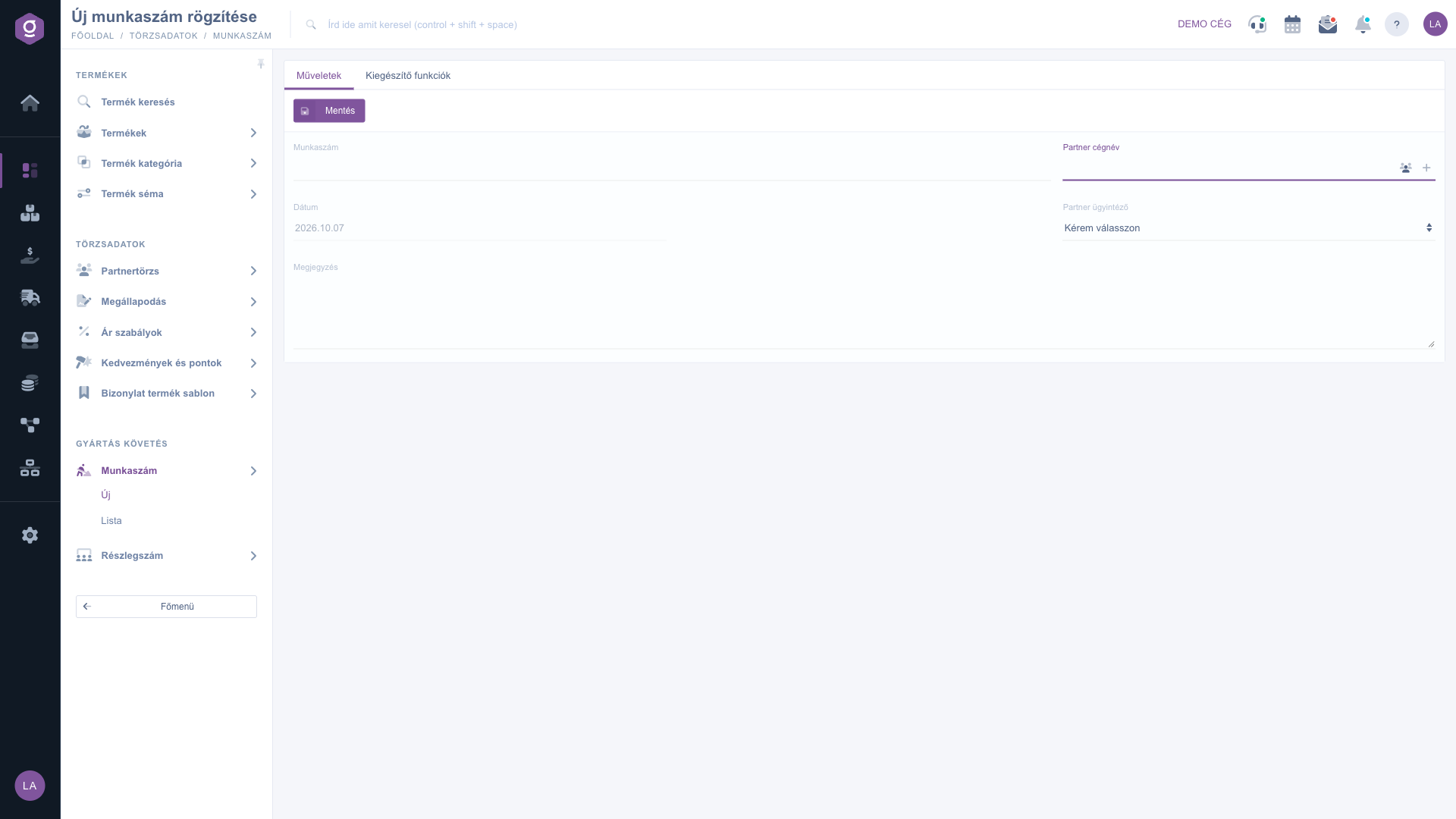
Job number sheet – Actions tab

2. Job number and date

  • Job number: the name or code you give to the job (for example a project code). You see it in the list and select it on documents, so use a name you will easily recognise later.
  • Date: the day of recording. It is filled in by the system and cannot be edited.

3. Select the partner

Start typing the partner name in the Partner company name field and pick the right one from the suggestions. This field is required. Two icons next to the field help you: the partners icon opens the selected partner sheet in a new browser tab (if you have not selected a partner yet, the system warns you), and the + icon lets you quickly create a new partner without leaving the sheet.

4. Partner contact person and comment

After you select a partner, the Partner contact person list is filled with the contact persons of that partner, and you can choose one from it (the default is Please choose). Use the Comment field to write free text about the job.

5. Save and additional functions

On the Actions tab, click Save to record the job number. Before saving, the system checks the required field: if the Partner company name is empty, a validation message about the missing value appears below the field and the system indicates that saving failed. After a successful save the record appears in the list. On the Additional functions tab, the New partner button opens the new partner form in a new browser tab, so you can continue editing the job number without interruption.
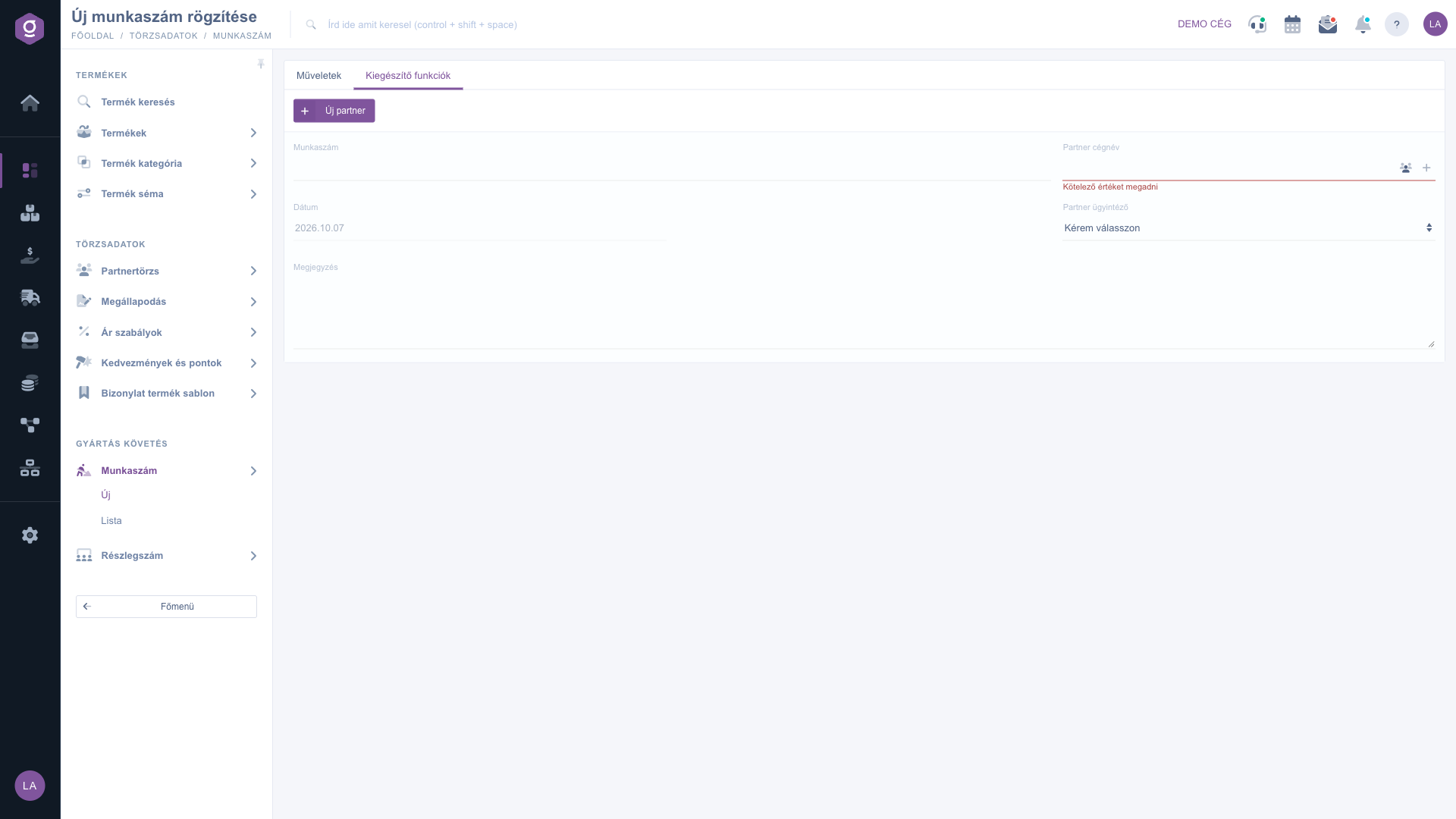
Job number sheet – Additional functions tab and required field message

Tip


If you need a job number for a new customer who is not yet in the system, do not close the sheet: create the partner with the + icon next to Partner company name, and you can save the job number right after.

To list, search and export the job numbers you have created, see the Job number list guide. To learn how to use a job number on a document, read the Invoice sheet guide.

Field descriptions

The fields of the sheet and their meaning:

Field / ElementRequiredDescription
Job numberThe name or identifier of the job; you see it in the list and on documents, so it is worth always filling in.
DateThe recording date; it is only displayed and cannot be edited.
Partner company nameThe partner linked to the job; select it from the suggestions while typing, open its sheet with the partners icon, or create a new one with the + button.
Partner contact personThe contact person of the partner; the default value of the list is Please choose.
CommentFree text comment about the job.
Save (button)Records the job number after checking the required field.
New partner (button)Opens the new partner form in a new browser tab (Additional functions tab).

Frequently asked questions

The Partner company name is a required field. If you leave it empty, a validation message about the missing value appears below the field and the record is not saved. Start typing the partner name and choose from the suggestions; if the partner is not in the system yet, create it with the + icon next to the field or with the New partner button on the Additional functions tab.

The Date shows the day the job number was recorded. It is filled in by the system and cannot be edited. In the list this value appears in the Document date column, and you can also filter by it when searching.

The partners icon opens the sheet of the selected partner in a new browser tab. If you have not selected a partner yet, the system warns you to select one first. The + icon is for quickly creating a new partner.

On document sheets, type into the Job number field and select the record from the suggestions. Examples are the Invoice sheet, the Incoming invoice sheet and the Warehouse issue document. The records you created are shown in the Job number list.

Both are identifiers you can select on documents, but on the Department number sheet the partner is not required, and you can also set an Invoice block. See the Department number sheet guide.

The Job number module appears under Main menu / Master data / Production tracking only if it is assigned to your user. If you cannot see it, ask your system administrator to check the module assignment in your user settings.

Need personalized help?

Don't want to spend hours searching for a solution? Choose the most efficient way: book a personalized, 45-minute online training session dedicated entirely to you. Whether it's a walkthrough of the basics or a detailed setup of a specific module, our expert colleague will guide you through the whole process, step by step.

Don't waste your time - ask for help!
Our goal is to get you using our system as quickly and efficiently as possible. Whether you're completely new to us or stuck on a specific setting, don't hesitate to ask for help!

Logzi warehouse management software

Get in touch with us

Interested in our software? Feel free to write to us!

Need help?

If you can't find the answer and need assistance

Create your account now,
pay later!

Try it free for 3 days, no risk, no obligation!

