1. Viewing the list and the actions available for documents
Click Main menu / Stock management / Assembly / List to see all assemblies created so far. Above the table, the Actions tab contains the buttons you can use with the selected document (click a row to select it; the selected row is highlighted):
- New: create a new assembly on an empty form — the same as the Main menu / Stock management / Assembly / New menu item.
- Open: open the detailed view of the selected document. For a draft you can edit the items and close it there; a closed document can only be viewed.
- Close: close the selected document — it works only for documents in Draft status. The arrow next to the button also offers the combined Close and print and Close and download actions.
- Status change: manually change the status of the document in a pop-up window (see below) — this does not replace Close.
- Cloning: create a new assembly from the data of the selected document — for repeated production this is faster than entering everything again.
- Download: in the List operation group the XLSX list exports the list and the XLSX item list exports the items of the documents; in the Document operation group the XLSX items and the XLSX serial number list give the items and serial numbers of the selected document; you can also download the PDF, the PDF preview and the Download attachments package.
- Print: three options — print the labels of the Ingredients, the labels of the Finished product, or the Document itself.
- Transport organization: New parcel label creates a new label for the document, Parcel labels opens the list of labels already recorded.
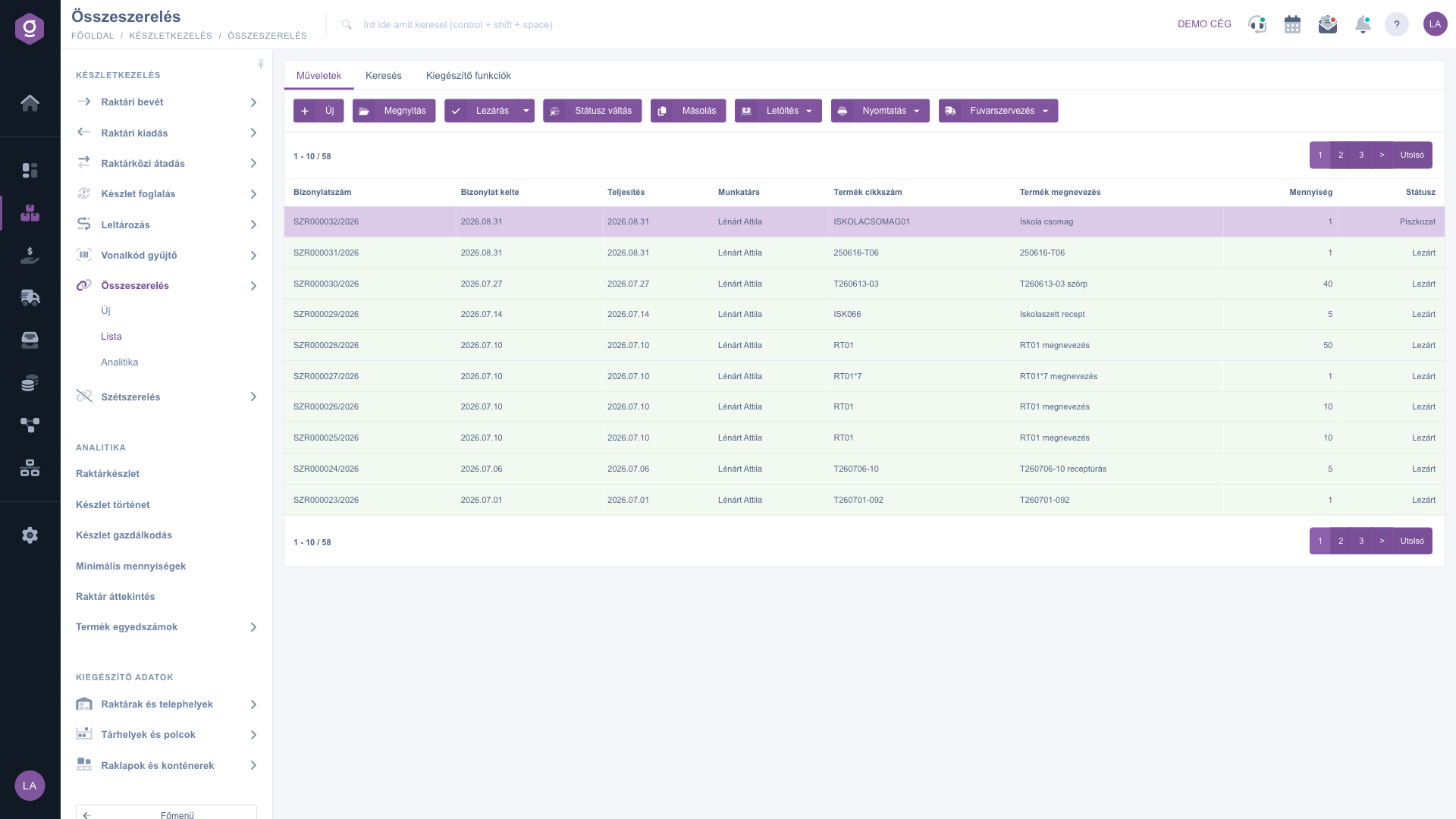
Assembly list – Actions tab (Műveletek)
2. What happens when you Close?
Close is the most important step of an assembly, because this is when stock moves. In one single process the system:
- creates and closes a warehouse issue document for the components — the stock of the components decreases;
- creates and closes a warehouse receipt document for the finished product — the stock of the finished product increases by the quantity entered on the document, at the price in the Purchase unit price field of the document;
- if the finished product requires serial numbers, automatically generates a serial number in the form
GEN-YYYYMMDD-id;
- finally sets the status of the assembly to Closed.
If any step of the process fails (for example there is not enough stock of a component), the system rolls everything back: the document stays a Draft, no stock movement happens and you get an error message.
3. The Status change window
Clicking Status change opens a pop-up window. In the Status drop-down list you can choose any status (Draft, Closed, Cancellation, Cancelled); the Save button saves it, and the Close button closes the window without saving.
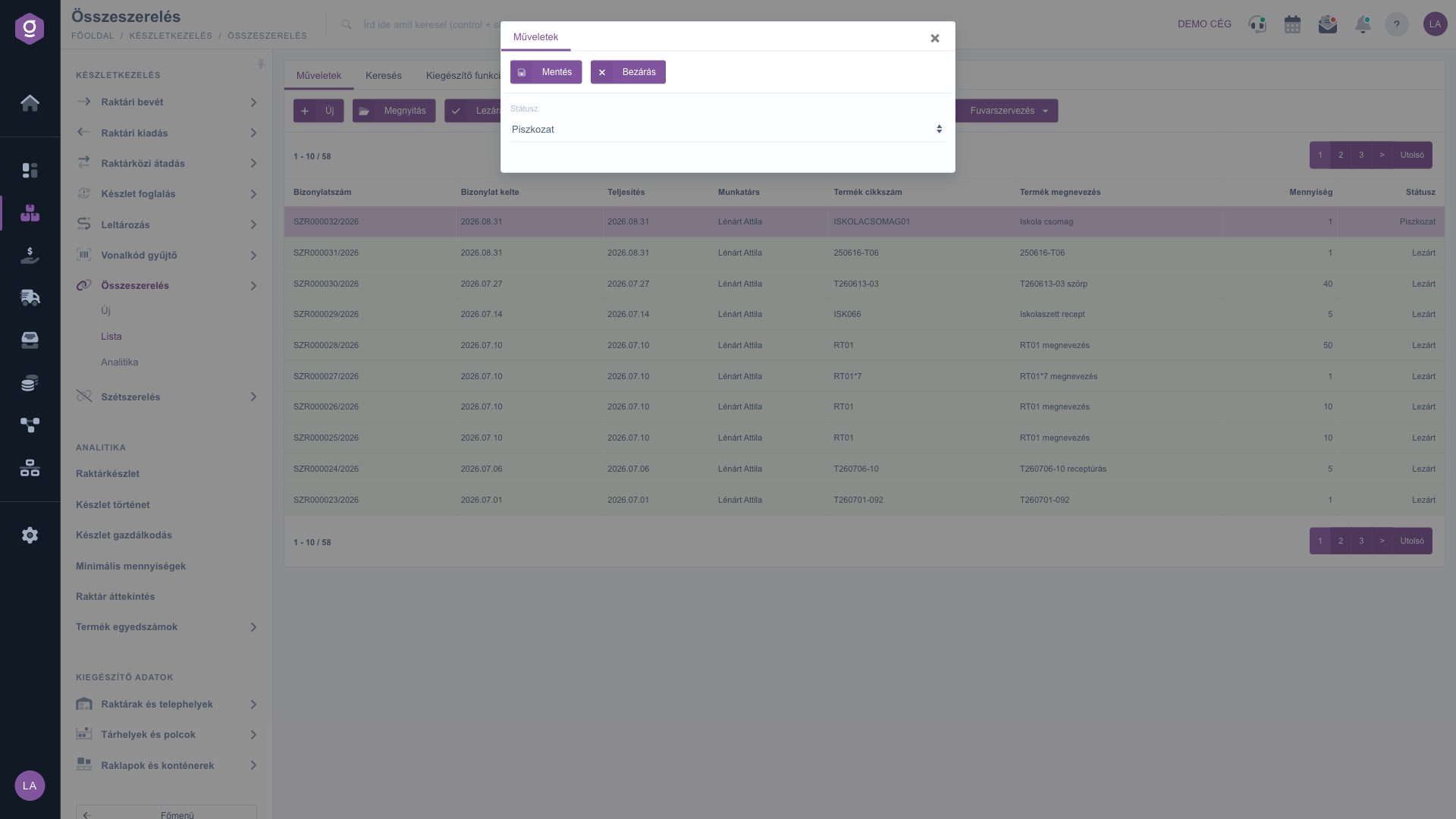
Assembly list – Status change window (Státusz váltás)
Tip
Do not try to “close” a document with the Status change button! It only rewrites the status of the document and does not perform any stock movement — the products would not be received into the warehouse and the components would not be used up. To finish an assembly always use the Close button.
4. Searching among the documents
Click the Search tab above the table to see the filter options. By default the Document number and Status fields are visible — for status you can select several states at once, for example to list only the still open Draft assemblies. The “Expand” button opens further filters: the period of the Document date and of the Performance date (from / to), the Employee and the Internal comment. Use the Search button to apply the conditions. With the floppy-disk icon next to it you can save the current search (the list will then always load according to it), and with the X icon you delete the saved search so the full list is shown again.
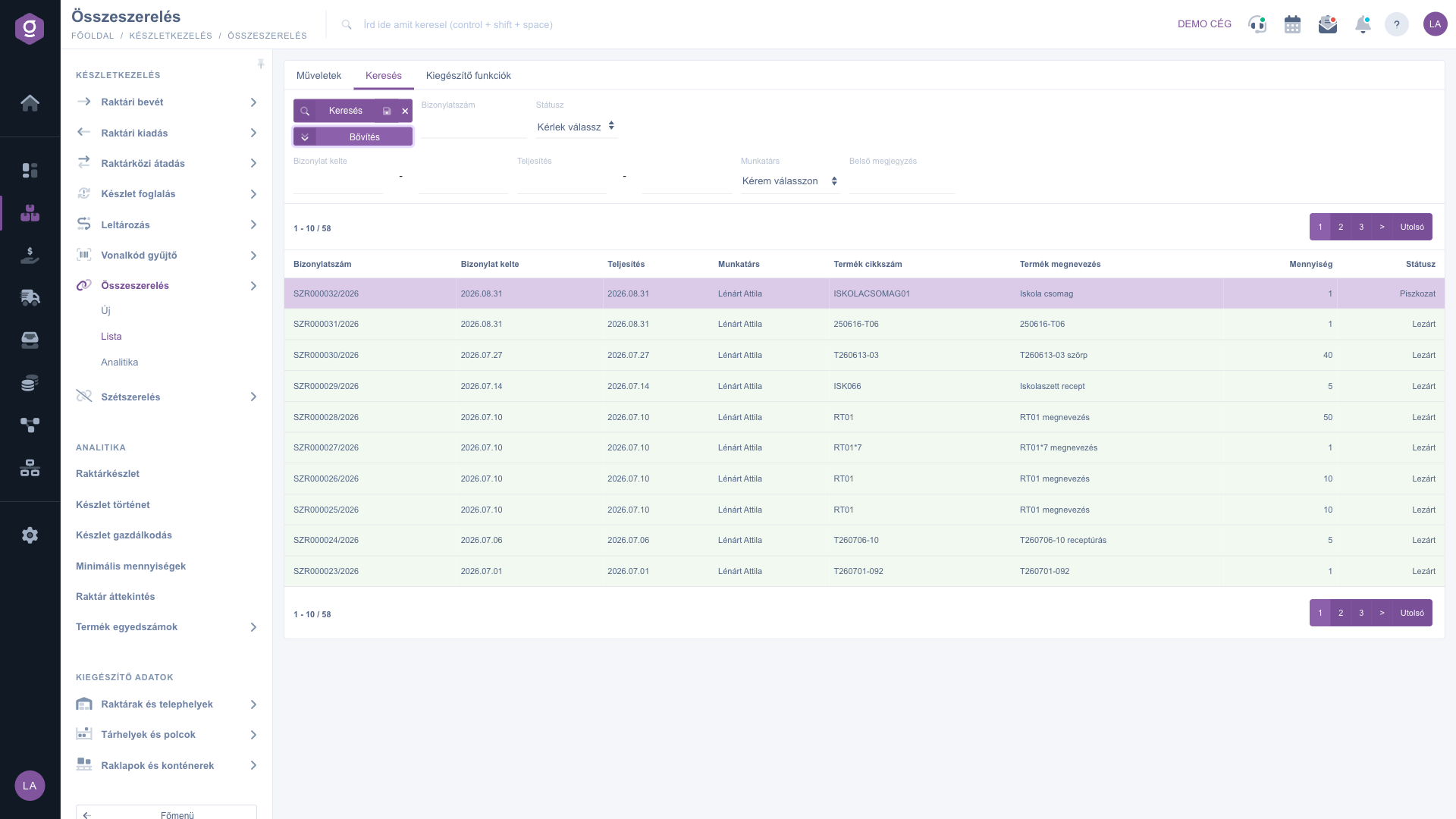
Assembly list – Search tab (Keresés)
5. Additional functions and the context menu
On the Additional functions tab there are two shortcut buttons: New task creates a task related to the selected document, and Partner card opens the data sheet of the partner on the document. (An assembly usually has no partner, so the Partner card is rarely usable.)
Right-clicking a row opens a context menu with the most common actions: New, Open, Close, Cloning, History, Print, Attached files, Parcel labels, Partner card and CRM. There is also a Delete item, but deleting assembly documents is not supported — a closed document can never be deleted; for a faulty draft use Cloning and Status change instead (see the Frequently asked questions).
Please note that the assembly list has no preview panel for the items and no View and layout tab either: to see the items, open the document or download the XLSX items list.
6. Analytics: who assembled how much?
The Main menu / Stock management / Assembly / Analytics menu item gives a summary report. On its single Search tab you can filter by the period of the Document date and of the Performance date (from / to) and by one Colleague. The table sums up the Closed assemblies per colleague and product: Colleague, Product name, Product part number, Quantity. Only closed documents count, drafts do not. A colleague who has no assembly in the filtered period may also appear in the list — in that row the product is empty and the quantity is 0. Analytics is view-only: there is no Actions tab and the rows cannot be opened.
Tip
If you want to know at the end of the month how many School package items were made, open Analytics, enter the first and last day of the month in the Performance date fields and click Search. You immediately see the quantities per colleague. You can move the full document list to a spreadsheet with Download > XLSX list.



