Disassembly list

Learn how to list, search and manage disassembly documents in Logzi, and what Close and Analytics do.

Function overview

The Disassembly list shows all disassembly documents in one place. Disassembly is the reverse of Assembly: you take a finished product apart and return its ingredients (components) to stock. When the document is closed, the stock of the finished product decreases and the stock of the ingredients increases.

  • Clear list: document number, date, performance date, employee, product and quantity in one table.
  • Quick actions: open, close, clone, print and download for the selected row.
  • Search with saving: filter by document number, status, dates and employee; frequently used searches can be saved.
  • Analytics: a separate report showing which employee disassembled how much of which product.

Possible statuses

  • Draft – the document can still be edited and does not affect stock.
  • Closed – the stock movement has been made and the document cannot be modified.
  • Cancellation – a cancellation document.
  • Cancelled – the original, cancelled document.

Step by step

1. Opening the list

Click Main menu / Stock management / Disassembly / List. The table columns are: Document number (e.g. DSZR000005/2025), Document date, Performance date, Employee, Product part number, Product name, Quantity and Status. If there are no documents yet, the list is empty.
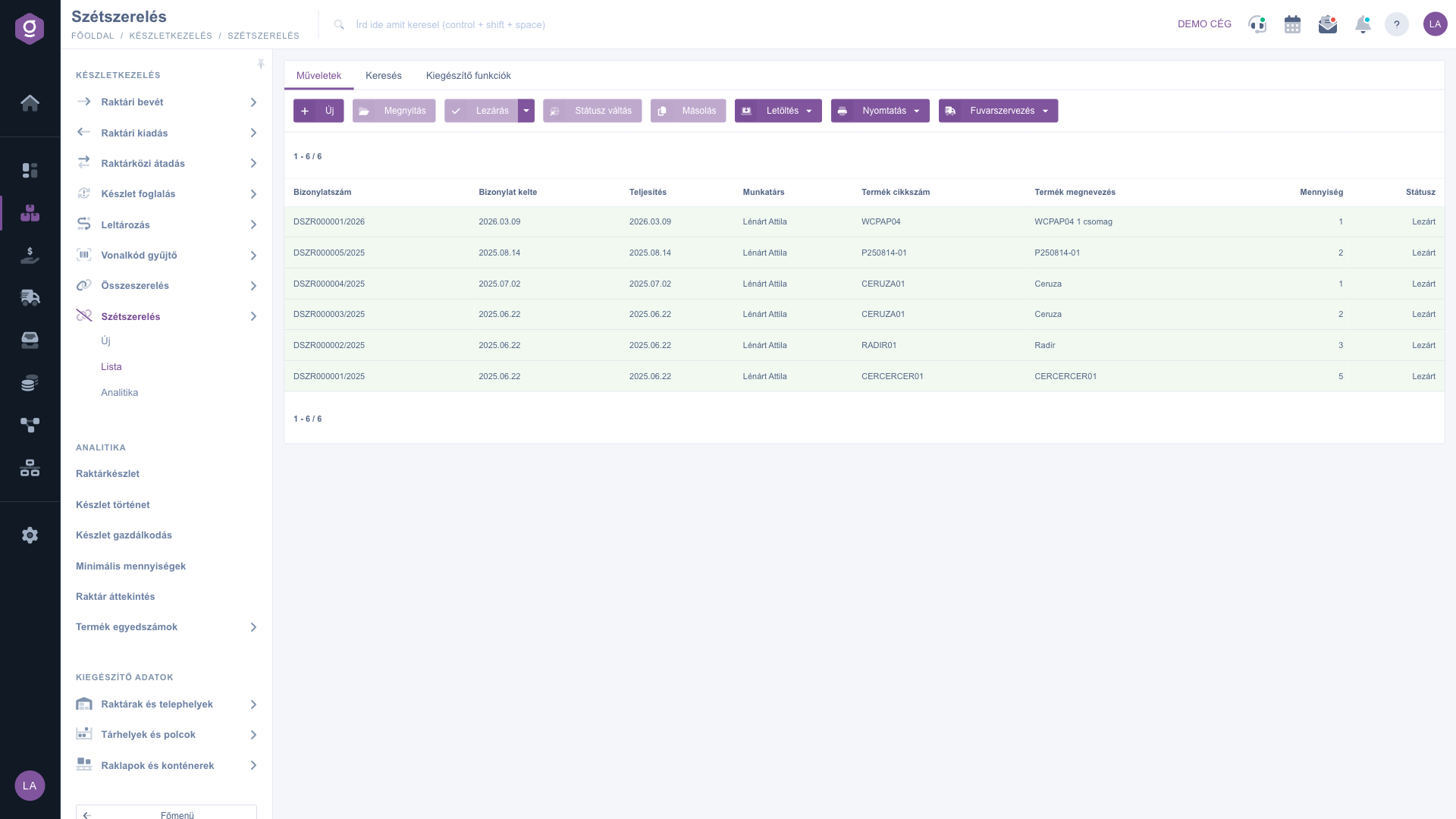
Disassembly list – Actions tab with no row selected

2. Actions on the selected document

On the Actions tab most buttons are grey until you select a row in the list. Click a document row and the buttons become active:

  • New – creates a new disassembly document (same as Main menu / Stock management / Disassembly / New).
  • Open – opens the selected document.
  • Close – finalizes the draft; the dropdown also offers Close and print and Close and download. Only a Draft document can be closed.
  • Status change – changes the status of the document.
  • Cloning – makes a copy of the selected document; useful when you repeat the same disassembly.
  • Download – in the List operation group: XLSX list and XLSX item list (export of the whole list); in the Document operation group: XLSX items and XLSX serial number list; also PDF, PDF preview and Download attachments.
  • Print – see step 4.
  • Transport organization – New parcel label and Parcel labels, if you need a parcel label for the document.

Delete is not on the toolbar: right-click the selected row to open the context menu, which also contains New, Open, Close, Cloning and History.
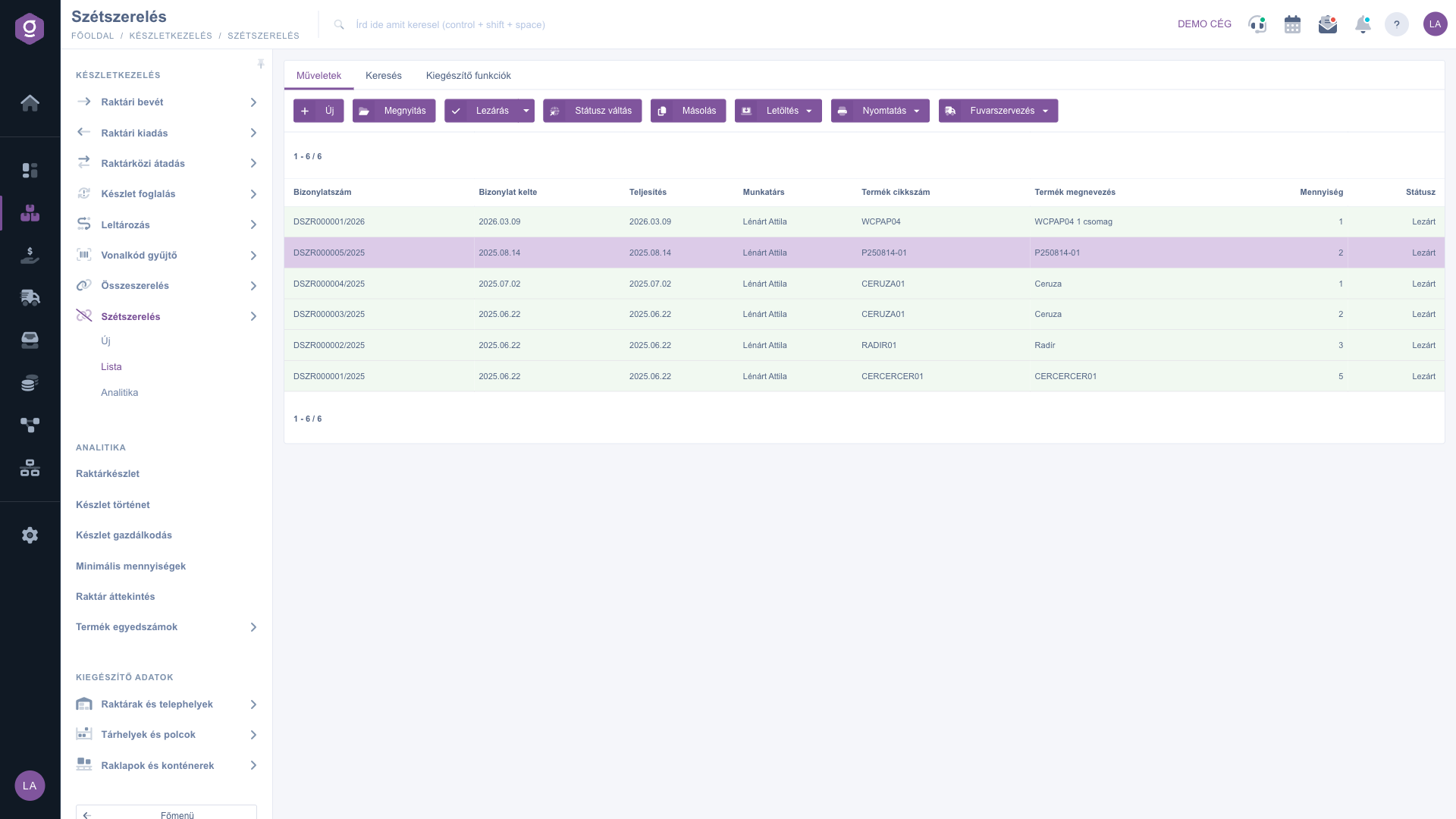
Disassembly list – Actions tab with a row selected

3. Search and filtering

The Search tab has two basic fields: Document number and Status (several statuses can be selected at once). The Expand button opens more filters: Document date and Performance date (from, to), Employee and Internal comment. Next to the Search button there are two icons: one saves the current search, the other deletes the saved search.
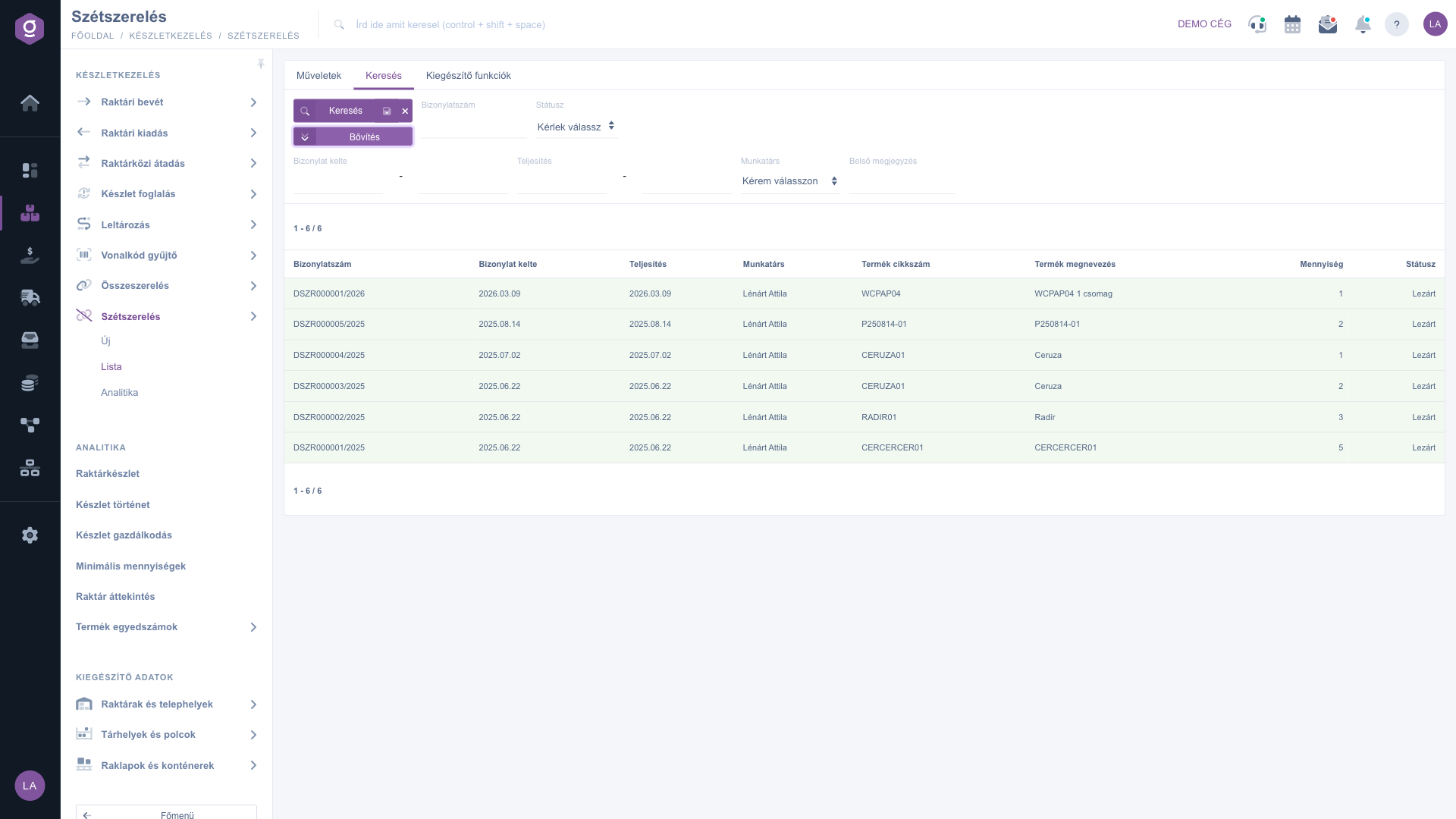
Disassembly list – expanded search

4. Print

The Print menu offers three printouts: Ingredients prints the list of components to be returned to stock, Finished product prints the product being disassembled, and Document prints the whole disassembly document. For warehouse work the Ingredients printout is usually the most practical, for record keeping the Document.
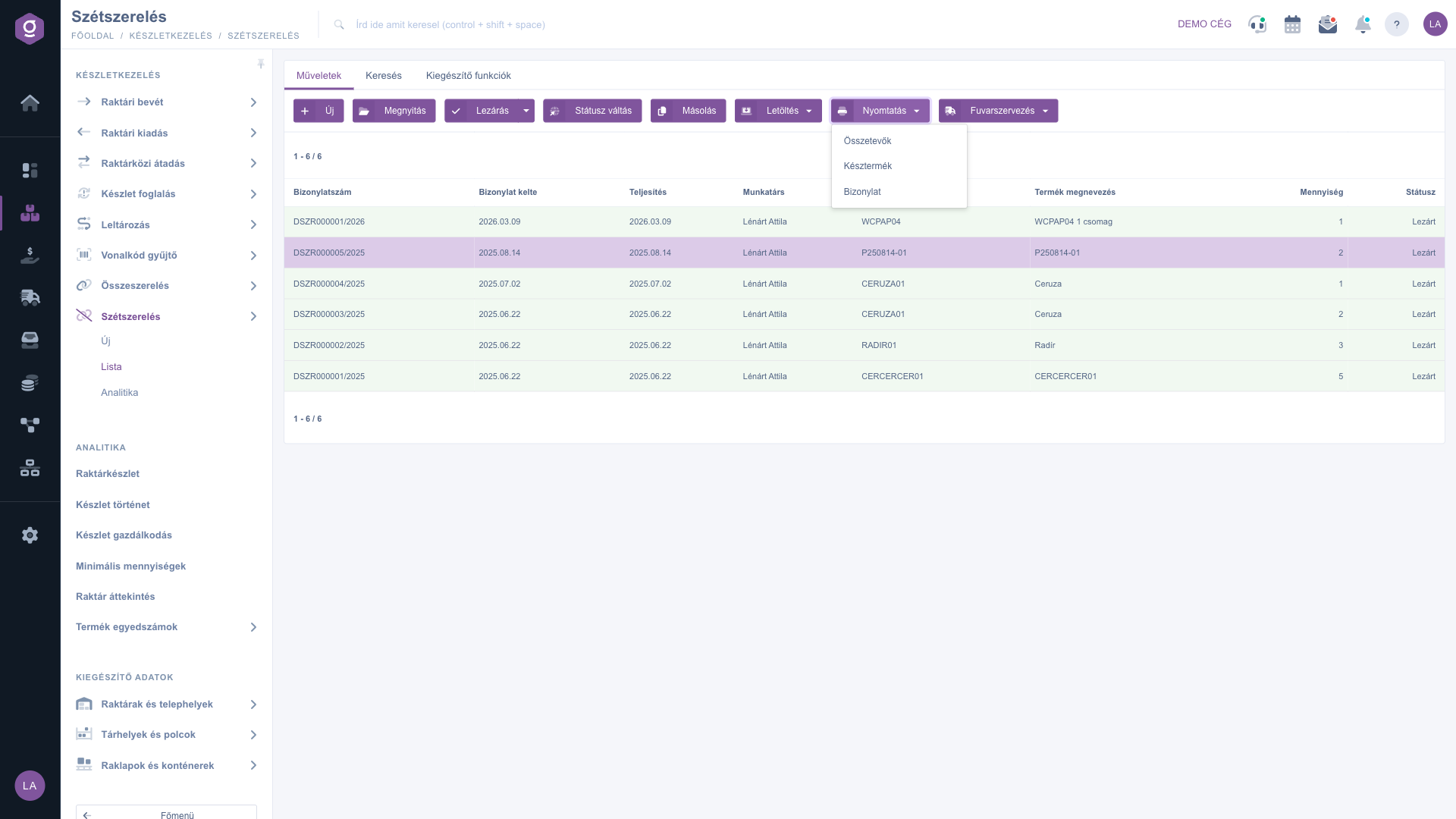
Disassembly list – Print menu

5. Additional functions

The Additional functions tab has two shortcuts: New task creates a task for the document, and Partner card opens the partner record linked to the document.
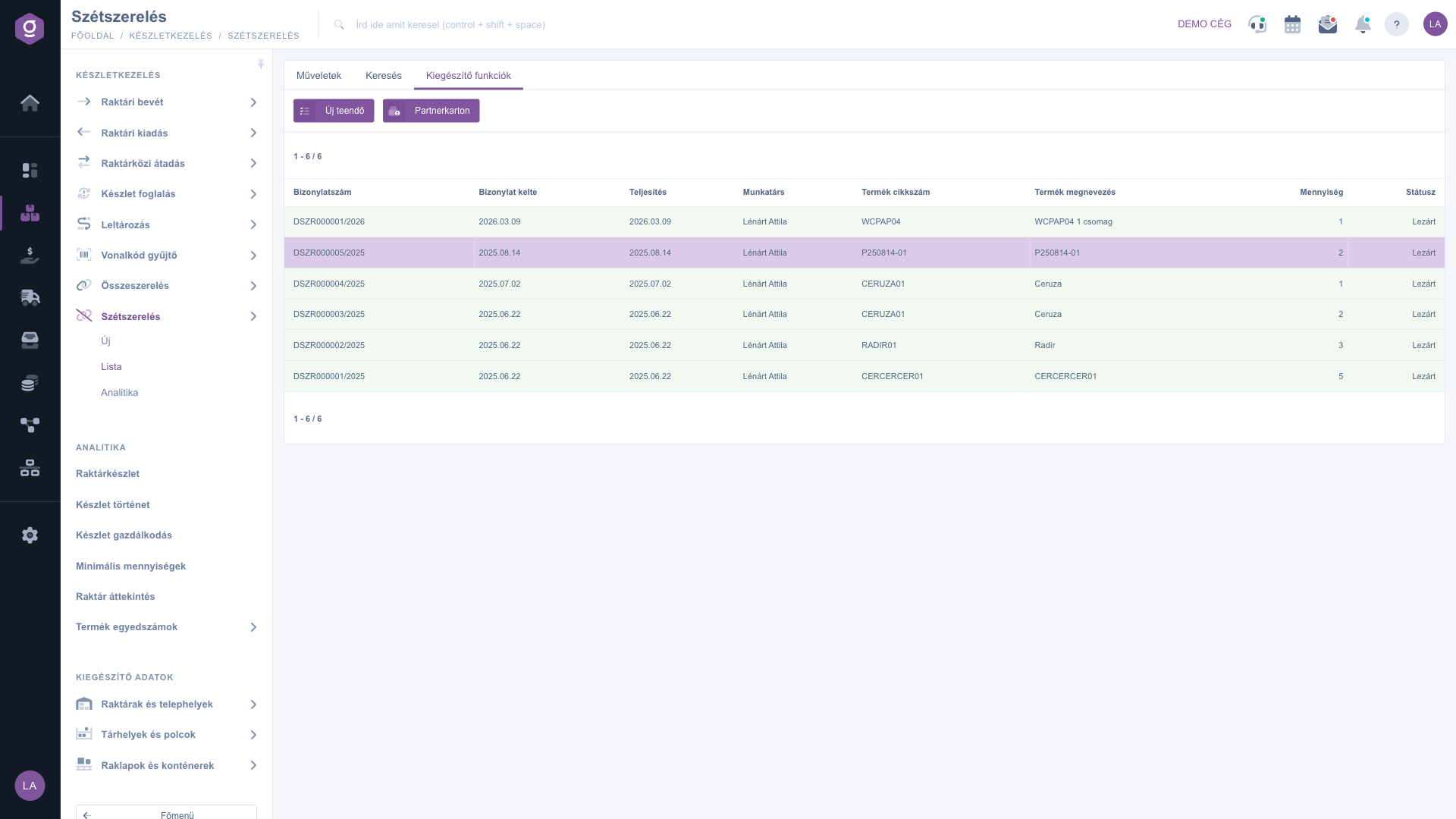
Disassembly list – Additional functions tab

6. Analytics

The Main menu / Stock management / Disassembly / Analytics menu item opens a summary report: it adds up the quantities of Closed disassembly documents per employee and product. You can filter by the Document date and Performance date periods (from, to) and by Colleague. The columns are: Colleague, Product name, Product part number, Quantity. Drafts are not counted, so the report shows only disassemblies that were actually carried out.

Tip


Save frequently used filters (for example only Draft documents) with the save icon next to the Search button, so you can recall them with one click later.

For the opposite process, where a finished product is built from its components, read the Assembly list article.

When a disassembly is closed, the system automatically creates a warehouse issue (finished product) and a warehouse receipt (ingredients); see the Warehouse issue list and Warehouse receipt list articles.

Field descriptions

List columns

ColumnDescription
Document numberAutomatic identifier of the document, e.g. DSZR000005/2025.
Document dateThe day the document was created.
Performance dateDate the disassembly was carried out.
EmployeeThe employee responsible for the document.
Product part numberPart number of the finished product being disassembled.
Product nameName of the finished product being disassembled.
QuantityHow many pieces of the finished product are disassembled.
StatusDraft, Closed, Cancellation or Cancelled.

Search fields

FieldDescription
Document numberDocument number or part of it.
StatusSeveral statuses can be selected at once.
Document datePeriod (from, to); appears with the Expand button.
Performance datePeriod (from, to); appears with the Expand button.
EmployeeFilter by the employee responsible for the document.
Internal commentSearch in the internal comment of the document.

Analytics columns

ColumnDescription
ColleagueThe employee who carried out the disassembly.
Product nameName of the disassembled finished product.
Product part numberPart number of the disassembled finished product.
QuantityTotal quantity of disassemblies closed in the filtered period.

Analytics adds up Closed documents only.

Frequently asked questions

The Draft document becomes Closed and the system creates two stock documents: a warehouse issue, which decreases the stock of the finished product, and a warehouse receipt, which increases the stock of the ingredients. If there is not enough of the finished product in stock, closing may stop with an error.

It is a summary report: per employee and product it shows the total quantity of Closed disassemblies in the selected period. Use it to track who disassembled how much.

From the composition entered on the Ingredients tab of the finished product record. On the document the system loads it multiplied by the quantity of the finished product; the items can also be edited manually. Details are in the Disassembly document article.

Because no row is selected. Click a document row in the list and the buttons become active. The New button also works without a selection.

Assembly builds a finished product from its ingredients (ingredient stock decreases, finished product stock increases); Disassembly is the reverse (finished product stock decreases, ingredient stock increases).

No. A document can only be edited in Draft status; after closing, the stock movement has been made and no further modification is possible.

Need personalized help?

Don't want to spend hours searching for a solution? Choose the most efficient way: book a personalized, 45-minute online training session dedicated entirely to you. Whether it's a walkthrough of the basics or a detailed setup of a specific module, our expert colleague will guide you through the whole process, step by step.

Don't waste your time - ask for help!
Our goal is to get you using our system as quickly and efficiently as possible. Whether you're completely new to us or stuck on a specific setting, don't hesitate to ask for help!

Logzi warehouse management software

Get in touch with us

Interested in our software? Feel free to write to us!

Need help?

If you can't find the answer and need assistance

Create your account now,
pay later!

Try it free for 3 days, no risk, no obligation!

