1. Starting a new document
Click Main menu / Stock management / Disassembly / New, or the New button on the Main menu / Stock management / Disassembly / List page. The New disassembly sheet opens; the Site field is pre-filled with the default site.
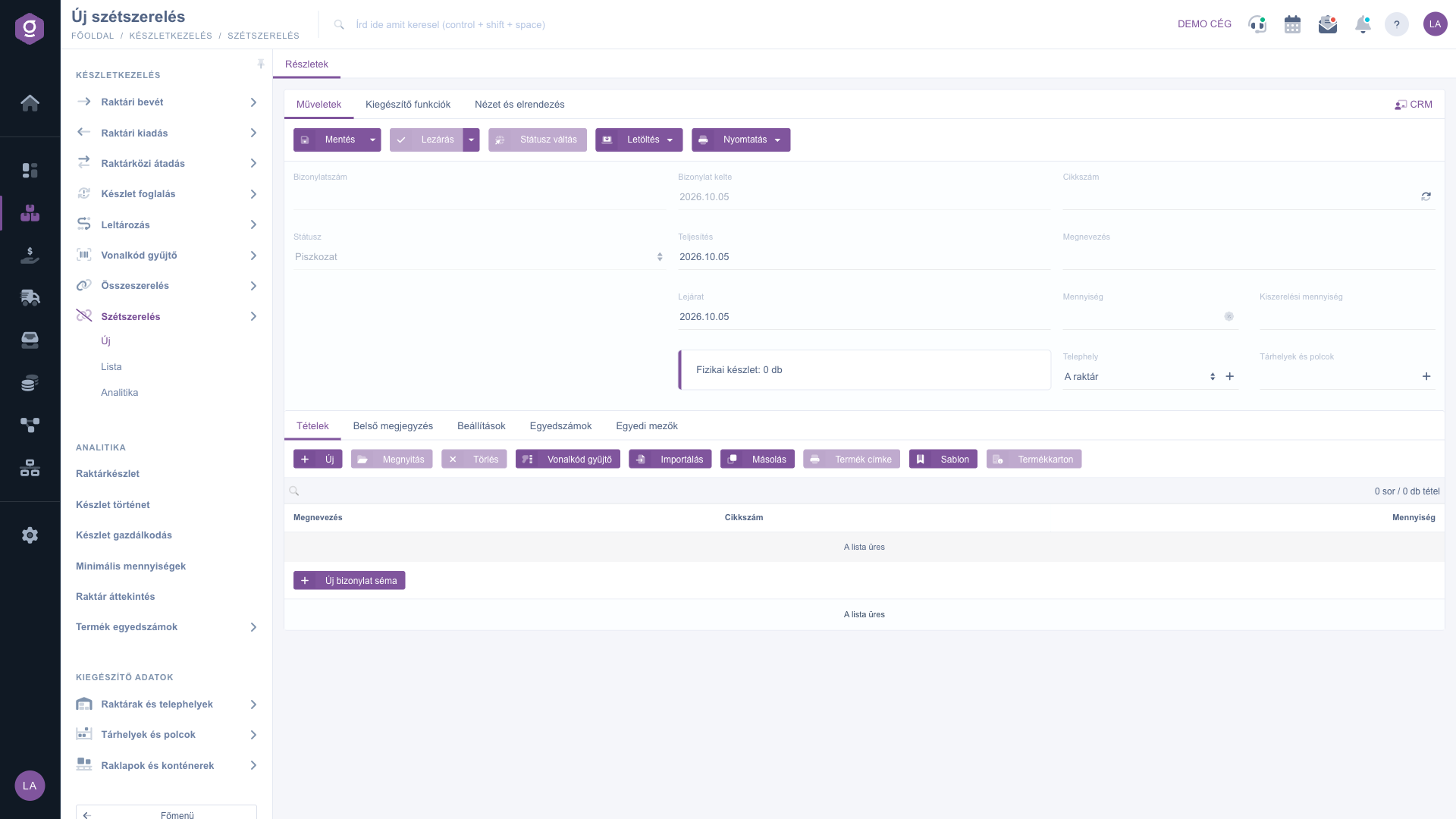
New disassembly sheet
2. Choosing the finished product
Fill in the Performance date and Expiration dates, then type the details of the finished product to disassemble into the Item number or Name field and select it from the results. Enter the Quantity (how many pieces you disassemble), the Packing quantity if needed, and check the Site. With Storage locations and shelves you can also specify the exact place of the stock. Next to the fields an info box shows the Physical stock of the product, so you can see immediately whether there are enough pieces to disassemble.
3. Loading the ingredients (items)
When you select the product, the Items tab is filled automatically with the ingredients of the product. The list comes from the Ingredients tab of the finished product record, and the system multiplies the quantities by the Quantity of the document: if a product consists of 2 screws and you disassemble 5 pieces, the item will be 10 pieces. The items are refreshed when you change the quantity, or you can reload them with the refresh button next to Item number. If the product has no composition, add the items manually. The buttons of the item bar:
- New – adds a new item; use it when a part also returns to stock that is not in the composition.
- Open – opens and edits the selected item.
- Delete – removes the selected item.
- Barcode collector – adds items by scanning barcodes, useful when you read in the parts you are holding.
- Cloning – copies the selected item.
- Product label – prints the label of the ingredient.
- Product card – opens the product card of the selected item.
At least one item is required to save the document.
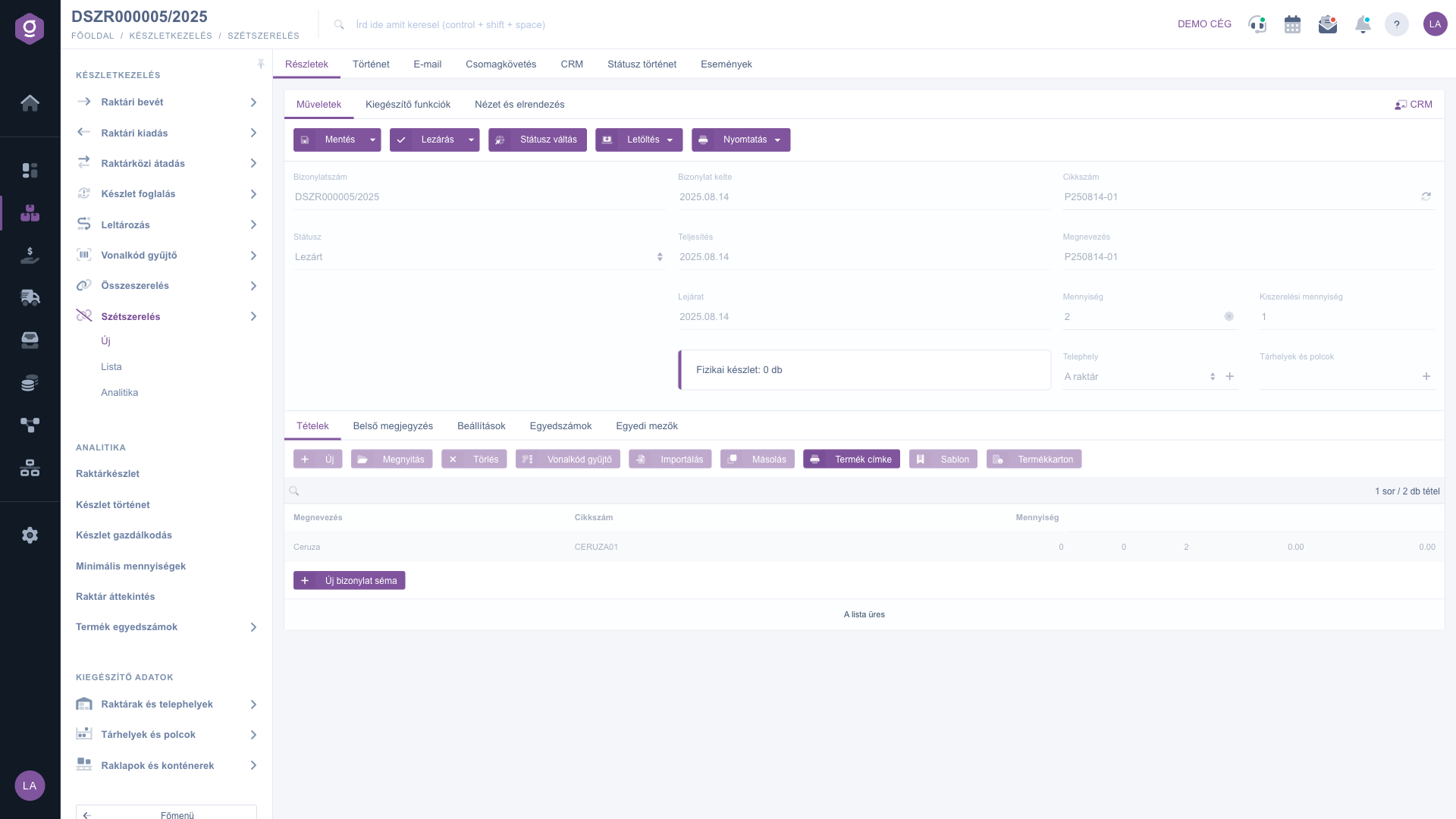
Saved disassembly document on the Items tab
4. Other tabs: Settings, Serial numbers
On the Settings tab you can enter the Billing address and the Employee. On the Serial numbers tab (Name, Item number, Quantity, Serial number, Expiration date) you record the data of products with serial numbers or expiry dates. The Internal comment tab is for a free-text note, and the Custom fields tab contains the custom fields defined by your company.
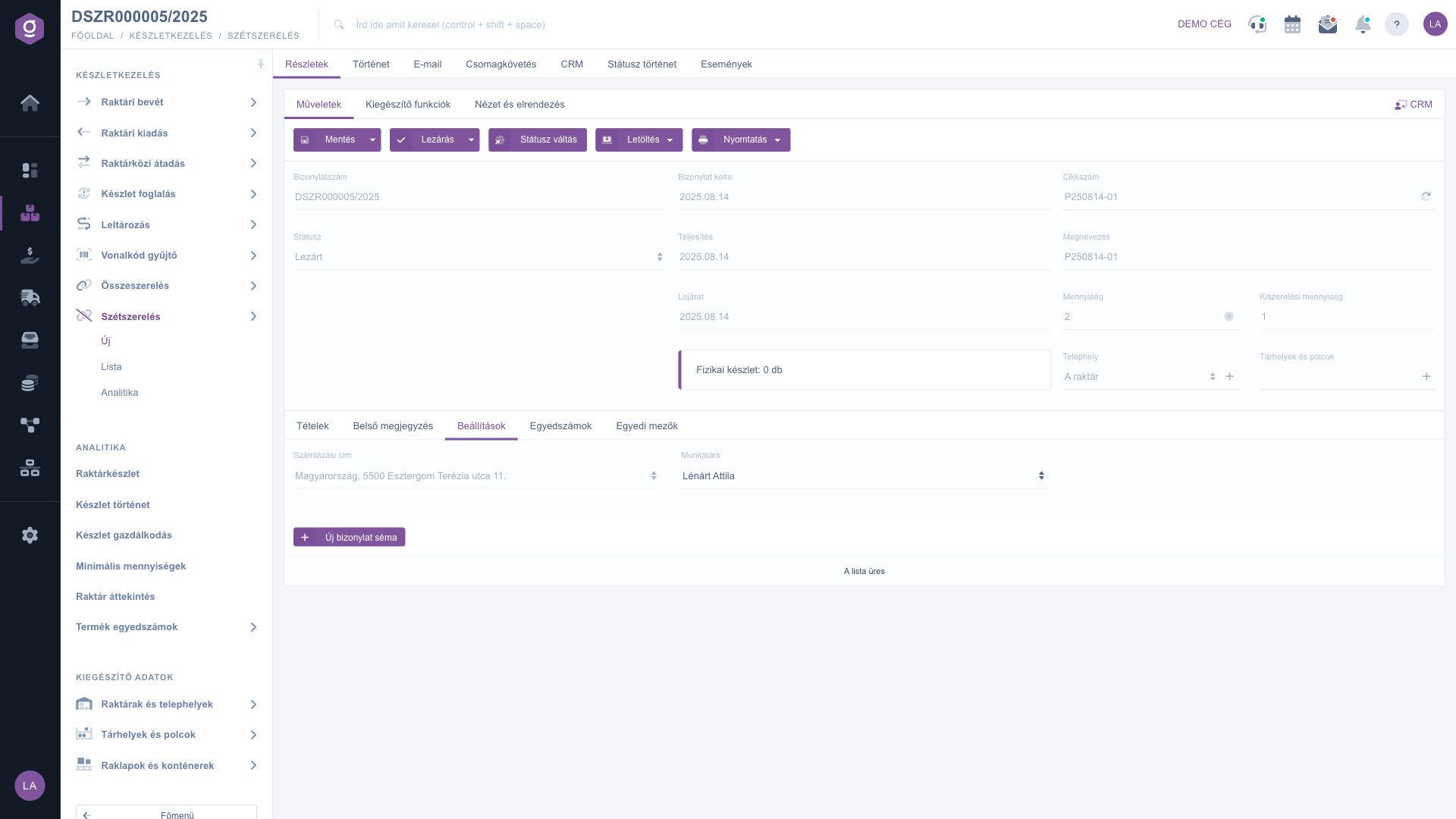
Disassembly document – Settings tab
5. Save and Close
On the Actions tab, the dropdown of the Save button offers Save and Save and close. When saving, the data is recorded, but the document stays in Draft and the stock does not change. The Close button (dropdown: Close, Close and print, Close and download) finalizes the document. On closing:
- the document gets Closed status;
- the system automatically creates a warehouse issue, which decreases the stock of the finished product;
- and a warehouse receipt, which increases the stock of the ingredients.
Only a Draft document can be closed, and after closing the document cannot be modified. If there is not enough of the finished product in stock, closing may stop with an error message: check the Physical stock value and the site.
6. Print, download, status
The Print menu offers the Ingredients printout (the list of parts to be returned, for warehouse work), the Finished product and the full Document. The Download menu gives you a PDF preview and download, and the Status change button changes the status. On a saved document further tabs appear at the top: Details, History, E-mail, Package tracking, CRM, Status history and Events. The Additional functions tab offers the shortcuts New product, New partner, New task and Partner card.
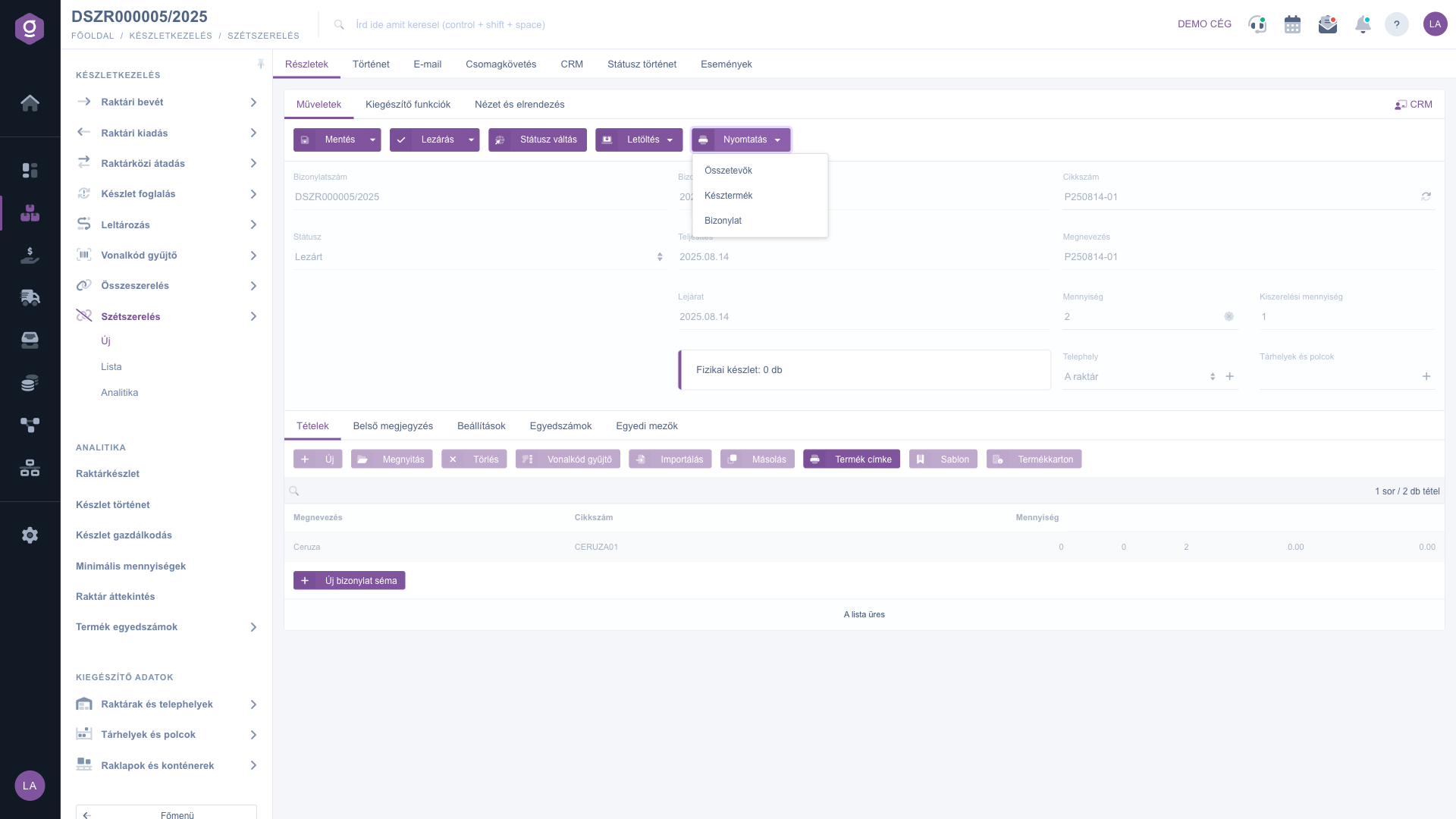
Disassembly document – Print menu
Tip
Before closing, print the Ingredients list and check in the warehouse that the parts really go back on the shelf. If there is a difference, you can still modify the items of the Draft.
For the opposite process, where a finished product is built from its components, read the
Assembly document article.



