Expiring incoming invoices

Learn how to track unsettled incoming invoices and expenses whose payment deadline is near or already overdue, and what you can do with them from the list.

Feature overview

Under Main menu / Procurement / Incoming invoices / Expiring invoices you see the incoming invoices (and expenses) that you have not yet settled and whose payment deadline is approaching or already overdue. The list helps you pay suppliers on time: you do not record new invoices here, you track and handle the ones already recorded. Note: the screenshots are from the Hungarian interface; Hungarian labels are shown in parentheses in the image descriptions where useful.

  • What does it show by default? Unsettled incoming invoices whose due date falls no later than 5 days from today (for example, today 2026.10.06 the Due date "to" value is 2026.10.11). Because there is only an upper limit, already overdue invoices (past due dates) are included as well.
  • Where do the invoices come from? Any incoming invoice recorded in any way appears here while it is unsettled: a manually recorded invoice, an invoice filed from Online invoices or Email invoices, or an expense that has a due date.
  • Statuses: Draft (saved, editable), Closed (finalized), Cancellation (the cancelling document) and Cancelled (the original document that was cancelled). Whether an invoice is settled is shown by the Settled column, independently of the status.
  • Totals: at the bottom of the list you see the net and gross values totalled per currency, so you immediately know how much you must pay in each currency.

Which page should you use?

  • Expiring invoices (this list): what must be paid soon or right now.
  • New expenses: recording a new cost without a supplier invoice number.
  • Online invoices: filing invoices downloaded from NAV Online.
  • Email invoices: filing PDF invoices that arrived at the invoice mailbox.

Step by step

1. Opening the list

Click Main menu / Procurement / Incoming invoices / Expiring invoices. The list opens with the default described above. At the top you see four tabs: Operations, Search, View and layout and Additional functions. The columns of the list are: Document number, Document date, Performance date, Partner company name, Net value, VAT rate, Gross value, Settled, Currency and Status.
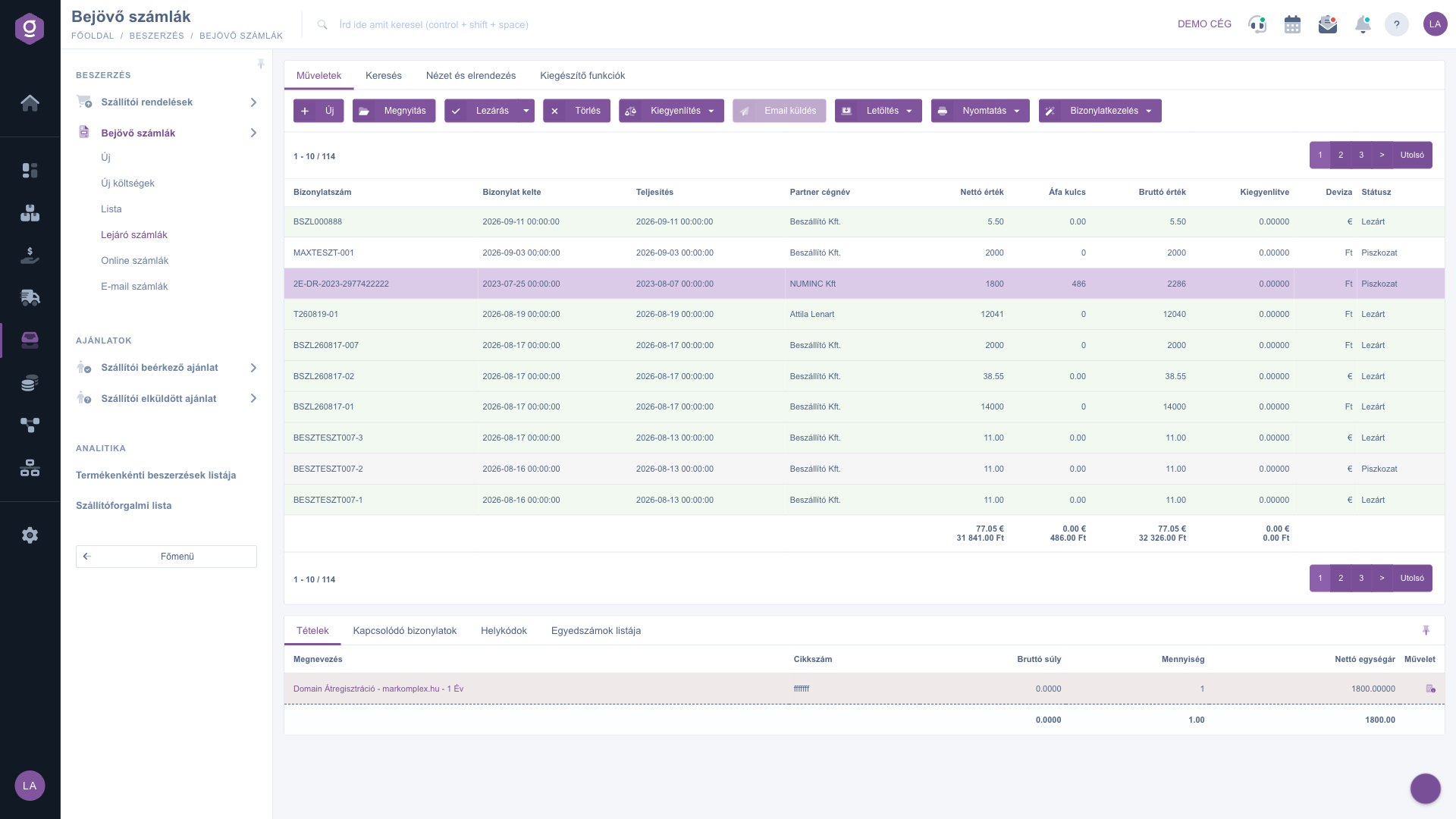
Expiring invoices – Operations tab (Műveletek), the list and the preview window

2. Filtering on the Search tab

On the Search tab you can narrow the list with these fields: Partner company name, Document number, Currency, Status (several can be selected at once) and Settled. Example: if you are interested in one supplier only, type its name into Partner company name and click Search. On this page the Settled field is fixed to "No", shown greyed out, and cannot be changed, because this page only shows unsettled invoices.
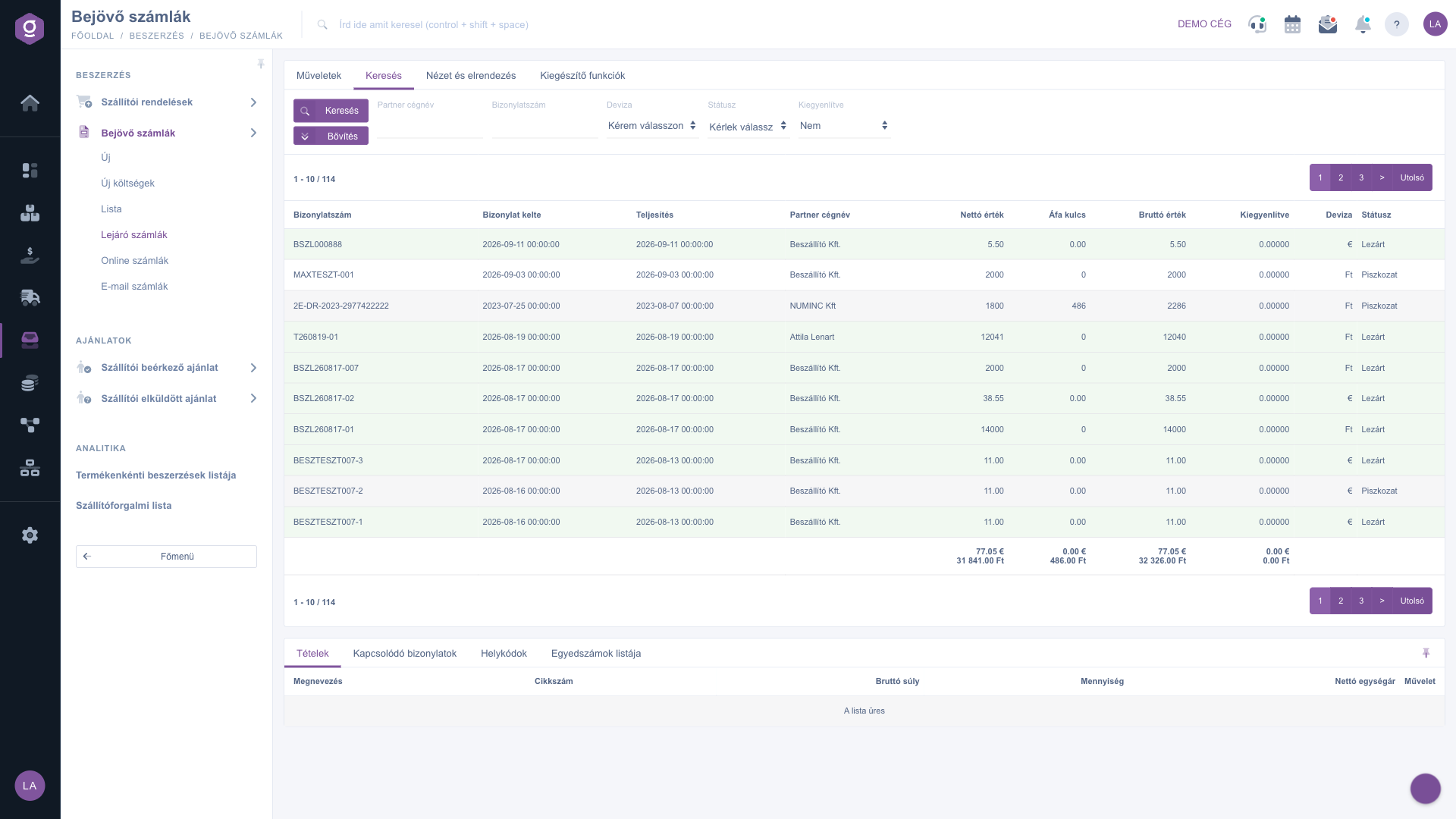
Search tab (Keresés) – basic fields

3. Extended search

The Expand button opens further filters: Document date, Performance date, Due date, Settlement time (each with a "from" and a "to" value), plus Employee and Part number. Here you can change the default Due date "to" value: for example, if you want to plan ahead to the end of next month, enter a later date; if you only want to see invoices that are already overdue, enter yesterday date.
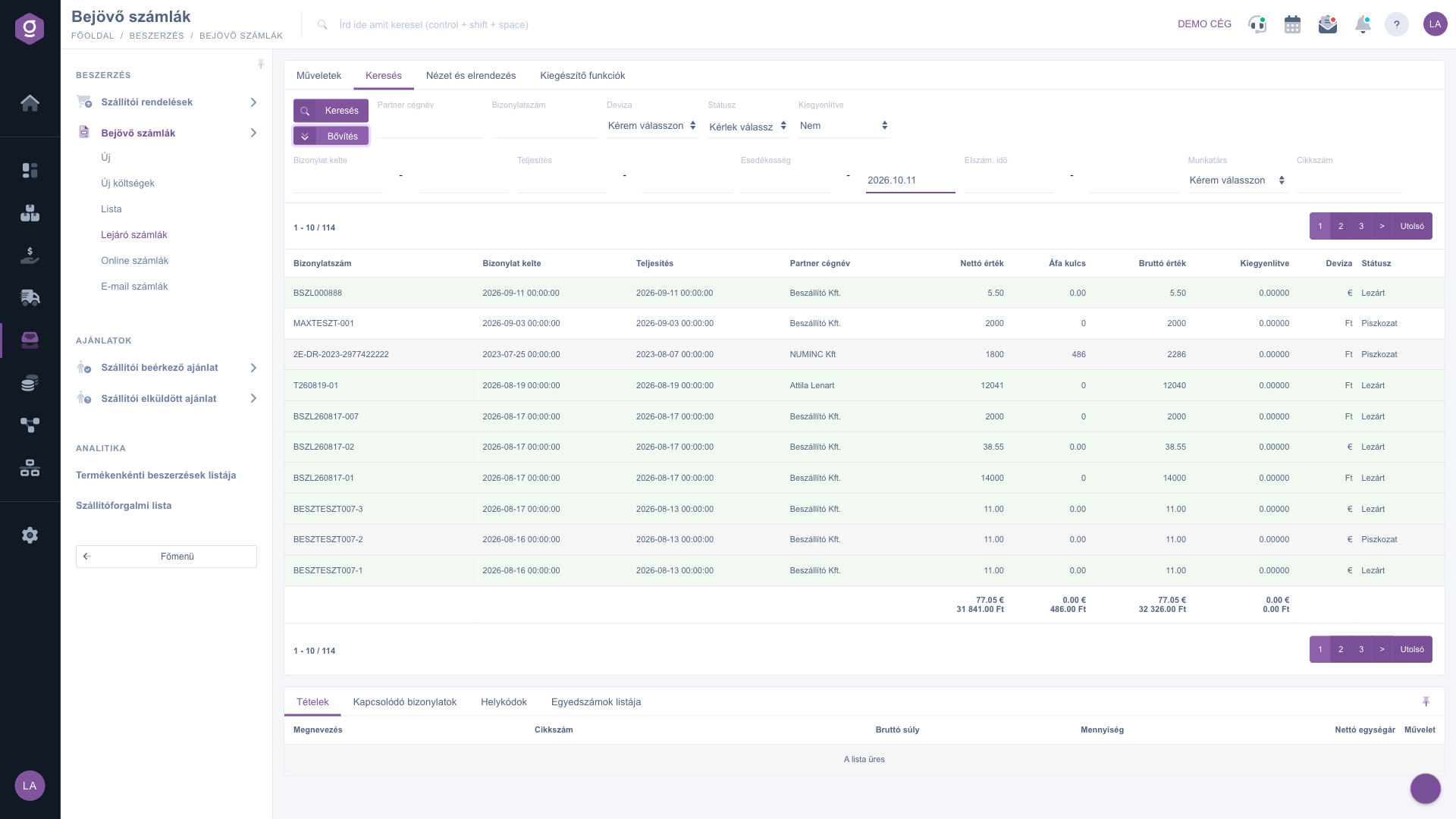
Search tab (Keresés) – Expand (Bővítés) opened

4. View and layout

On the View and layout tab you customize how the list looks: under Columns you choose which columns are visible and in what order; Rows sets the number of rows per page; Sorting sets the default sort column and direction; Preview window turns the preview panel below the list on, off or pins it; Interface and behavior contains further display settings. The settings are saved per user.
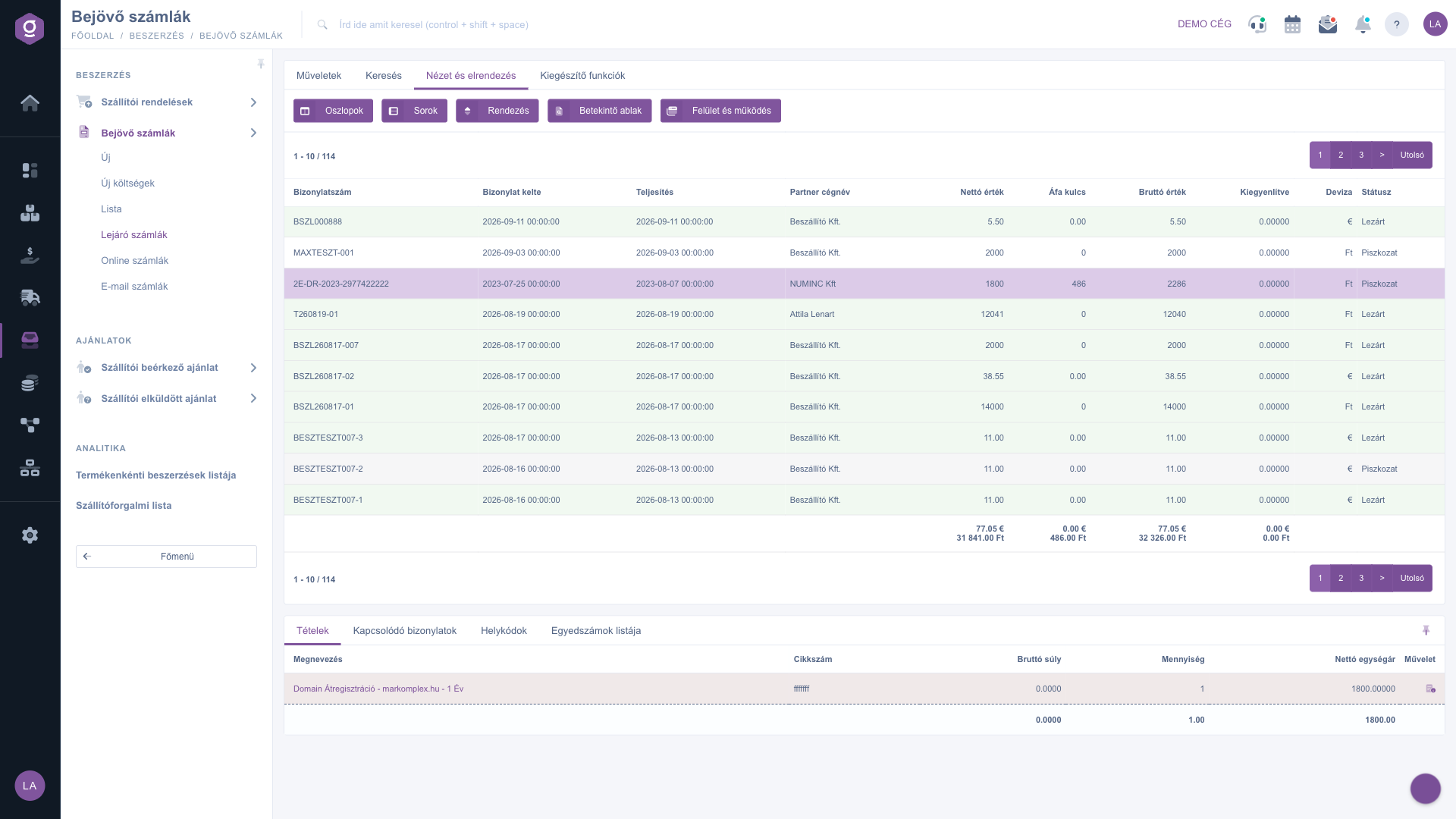
View and layout tab (Nézet és elrendezés)

5. Using the preview window

If you select an invoice in the list, the preview window below the list shows its details without opening it. Its tabs are: Items (columns: Name, Part number, Gross weight, Quantity, Net unit price, Action), Related documents, Location codes and List of serial numbers. This way you can quickly check what the invoice is for before you pay it.

6. Operations on the selected invoice

On the Operations tab you find the following buttons (they apply to the selected invoice):

  • New: create a new incoming invoice.
  • Open: open the invoice sheet for editing or viewing.
  • Close: finalize a draft; the dropdown also offers Close and print and Close and download.
  • Delete: delete the selected document; use it only when you are sure.
  • Settlement: settle the invoice; the dropdown offers Cash register document or Bank document. A settled invoice leaves this list at the next refresh.
  • Send email: send an email related to the invoice.
  • Download and Printing: download the document as PDF or print it.
  • Document management: manage documents attached to the document.
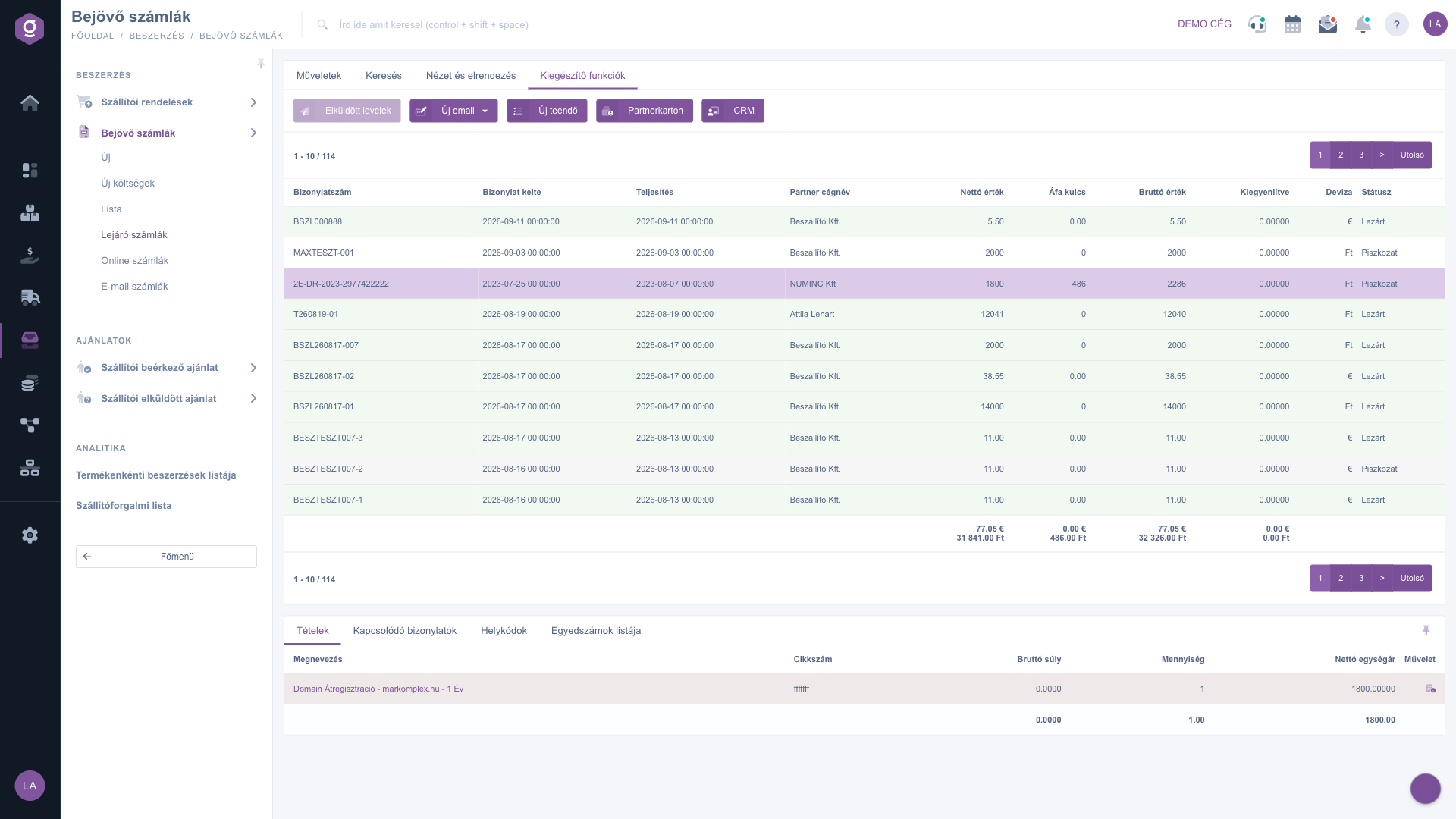
Additional functions tab (Kiegészítő funkciók)

On the Additional functions tab you find Sent items, New email, New task, Partner card and CRM, for example to create a task for the payment deadline or to look at the partner card of the supplier.

Tip


Open this list once a week and set the Due date "to" value to the end of the next week: this way you see not only overdue invoices but also those payable in the coming days, and you can transfer in time. The per-currency totals at the bottom show how much you must prepare in each currency.


The shared elements of handling the list (search, columns, preview window) are described in the Invoice list guide. Closing, cancelling and settling an invoice is covered in the Invoice sheet guide. To add new incoming invoices see the Online incoming invoices, Email invoices and Incoming invoice expense sheet guides.

Field descriptions

The columns of the list (they can be changed on the View and layout tab):

Field / ElementRequiredDescription
Document numberThe number of the incoming invoice (supplier invoice number; for an expense the KLTS-... identifier).
Document dateThe day the invoice was issued.
Performance dateThe day of performance.
Partner company nameThe name of the supplier.
Net valueThe net amount of the invoice in the invoice currency.
VAT rateThe VAT rate shown on the invoice.
Gross valueThe gross amount to be paid.
SettledShows whether the invoice is settled. On this page the filter is fixed to "No".
CurrencyThe currency of the invoice.
StatusDraft, Closed, Cancellation or Cancelled.

The search fields (none of them is required):

Field / ElementRequiredDescription
Partner company name, Document number, CurrencyFilter by supplier, invoice number or currency.
StatusSeveral statuses can be selected at once.
SettledFixed to "No", cannot be changed.
Document date, Performance date, Due date, Settlement timeUnder Expand, with "from" and "to" values. The Due date "to" value is by default today + 5 days.
Employee, Part numberUnder Expand: filtering by employee or by part number.

The Items table of the preview window: Name, Part number, Gross weight, Quantity, Net unit price and Action.

Frequently asked questions

Because the list filters on the Due date "to" value (by default today + 5 days) without a lower limit. So every unsettled invoice whose deadline falls no later than that date is shown, including long overdue ones. This is intentional: your debts do not disappear.

On this page the Settled field is fixed to "No" and greyed out, because the list only shows unsettled invoices. You can find already settled invoices in the other incoming invoice lists.

Online invoices show data downloaded from NAV that is still waiting to be filed or has already been filed, and that is where you file invoices. Expiring invoices shows already recorded incoming invoices by payment deadline: here you do not file, you pay and track.

There are three common reasons: the invoice is already settled; its due date is later than 5 days (change the Due date "to" value under Expand); or you have not recorded it yet, so it is waiting to be filed among the Online invoices or Email invoices and only appears here after filing.

Select the invoice, then on the Operations tab click Settlement and choose Cash register document or Bank document depending on how you paid. Check the data of the document that appears before you save it.

The module only appears in the menu if it is assigned to your user. If it is missing, ask your company administrator to check the module assignment of your user.

Need personalized help?

Don't want to spend hours searching for a solution? Choose the most efficient way: book a personalized, 45-minute online training session dedicated entirely to you. Whether it's a walkthrough of the basics or a detailed setup of a specific module, our expert colleague will guide you through the whole process, step by step.

Don't waste your time - ask for help!
Our goal is to get you using our system as quickly and efficiently as possible. Whether you're completely new to us or stuck on a specific setting, don't hesitate to ask for help!

Logzi warehouse management software

Get in touch with us

Interested in our software? Feel free to write to us!

Need help?

If you can't find the answer and need assistance

Create your account now,
pay later!

Try it free for 3 days, no risk, no obligation!
