Online incoming invoices

Learn how to file incoming invoices downloaded from NAV Online: the list of invoices pending filing and filed invoices, the steps of Filing and Simple registration, pitfalls and frequently asked questions.

Feature overview

On the Main menu / Procurement / Incoming invoices / Online invoices page you see the incoming invoices that Logzi downloaded for your company from the NAV Online Invoicing system. This is where you decide which downloaded invoice becomes an incoming invoice in your books: you select a row and use the Filing button to open a prefilled incoming invoice sheet from it. The page does not create an invoice from nothing; it helps you carry over data already received from NAV. Note: the screenshots are from the Hungarian interface; the Hungarian labels are given in brackets in the image descriptions where helpful.

  • Where does the data come from? From the NAV Online data service download. If the list is empty, the invoices first have to be downloaded on the data service page (the empty state also shows a link to it). An invoice that was already downloaded is not downloaded twice.
  • Statuses: the Status filter has three values: Filed invoices (green check icon: an incoming invoice already exists for it), Invoices pending filing (yellow warning triangle icon: not filed yet; this is the default view) and All invoices (both together).
  • What is the result of filing? A new incoming invoice in Draft status. The invoice is only saved with the Save button, and can later be closed in the usual way (Draft, Closed, Cancellation / Cancelled).

Which page should you use when?

  • Online invoices (this page): filing invoices downloaded from NAV, without manual data entry.
  • Email invoices: filing PDF invoices forwarded to the company invoice mailbox.
  • New expenses: recording an expense when there is no separate supplier invoice.
  • Expiring invoices: following already recorded, not yet settled invoices by due date.

Step by step

1. Opening the list

Click Main menu / Procurement / Incoming invoices / Online invoices. The list opens with the Invoices pending filing view: a yellow triangle at the start of each row shows that the invoice is not filed yet. At the top you find three tabs: Operations, Search and Additional functions. The page has no View and layout tab and no preview window.
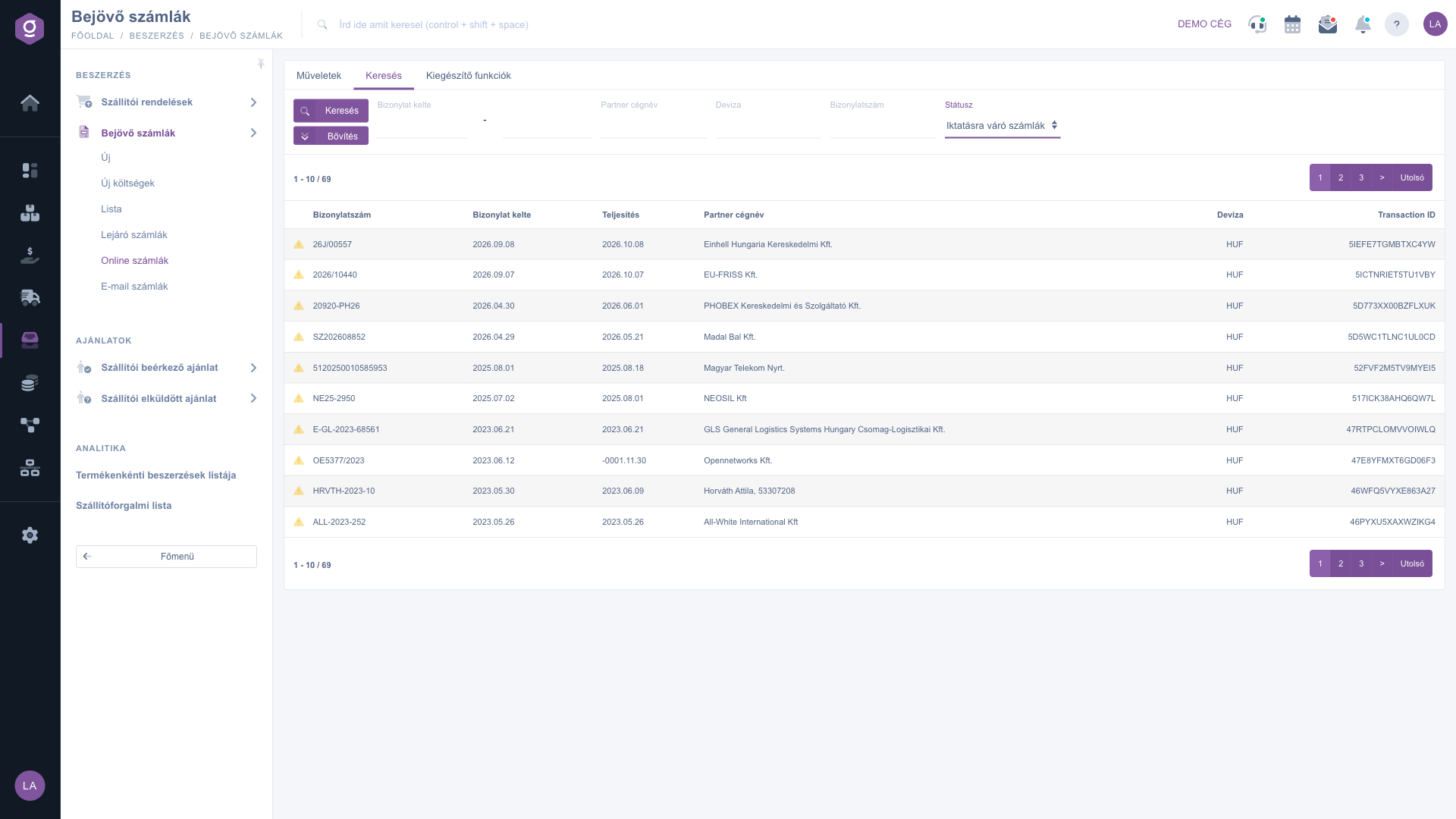
Online incoming invoices – Search tab (Keresés), invoices pending filing with a yellow triangle icon

2. Searching and filtering

On the Search tab you can filter by Document date (from and to), Partner company name, Currency, Document number and Status. The Status values are Filed invoices, Invoices pending filing and All invoices. For example, if you are looking for one supplier invoice, type the name into Partner company name, choose All invoices under Status and click Search: you immediately see whether the invoice is already filed. In the Filed invoices view a green check marks the invoices that already have an incoming invoice.
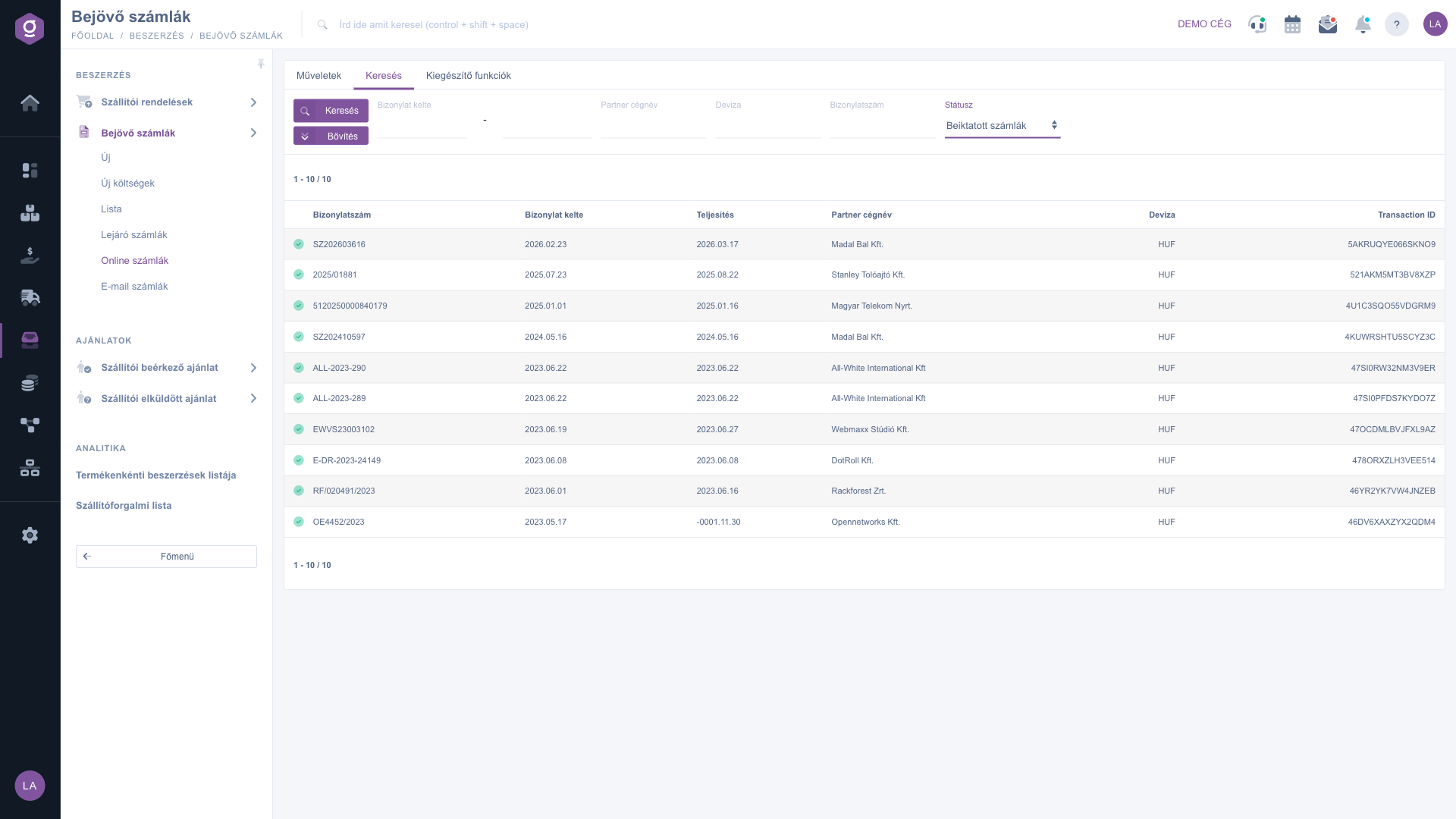
Search tab (Keresés) – Filed invoices with a green check icon

3. Selecting an invoice and Filing

Click the row of the invoice to be filed, then click Filing on the Operations tab. If no row is selected, the system shows a Warning window asking you to choose an item from the list, which you close with OK. Besides Filing and Simple registration, the Operations tab also has the Send email button.
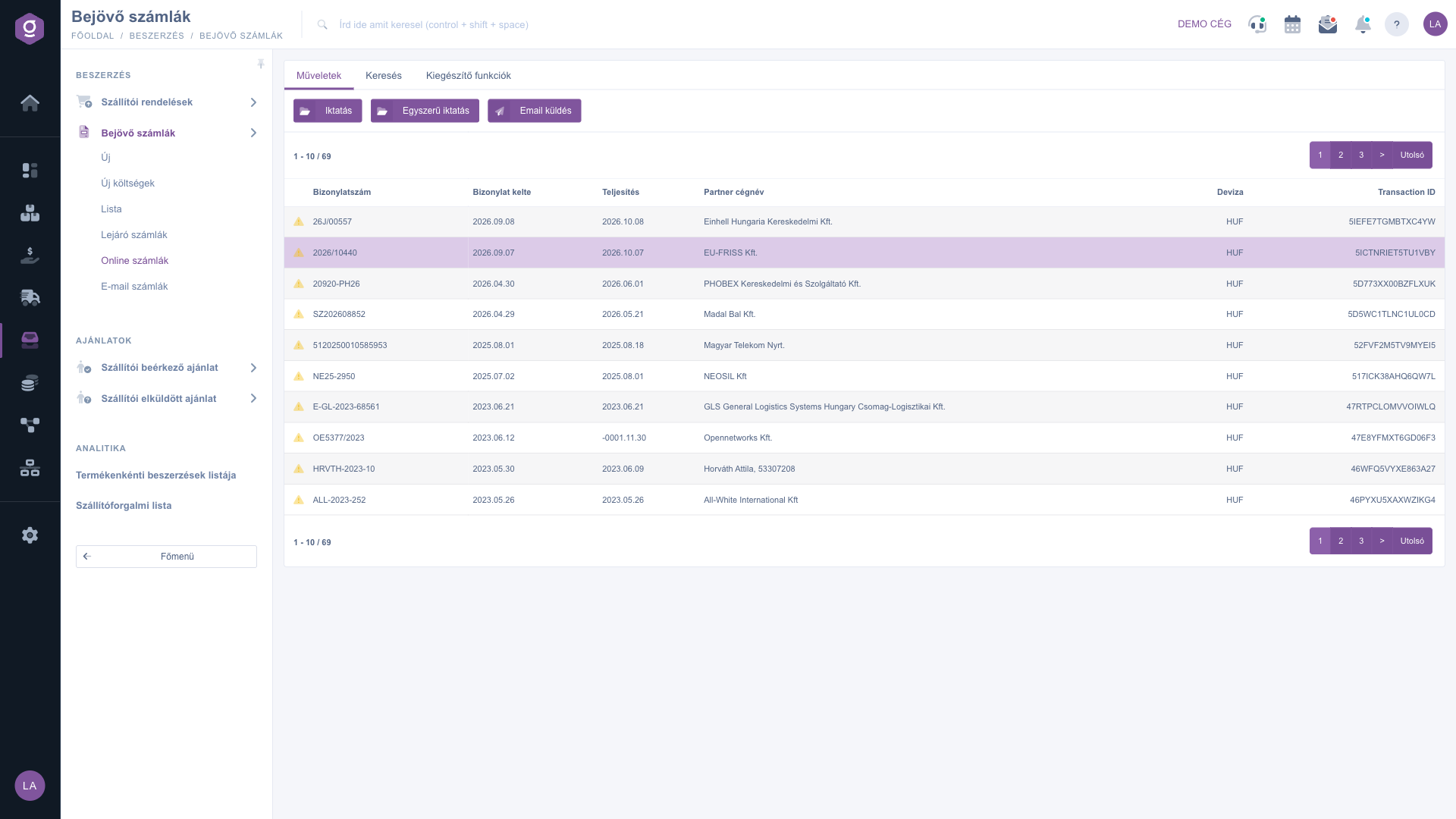
Operations tab (Műveletek) – Filing, Simple registration and Send email buttons with a selected row

The Filing button can do two things:

  • If the selected invoice is not filed yet, a prefilled, new incoming invoice sheet opens (in a new browser tab, depending on your settings). The document number, dates, currency, partner and items are filled in from the NAV data.
  • If the invoice is already filed, the system does not create a second one but takes you to the existing incoming invoice.

4. Checking the prefilled sheet

The sheet header reads New incoming invoice and its status is Draft. Warnings may appear at the top of the sheet: if the supplier is not in the partner master data, or the part numbers of the items are not in the product master data, you should sort these out before saving (create the partner, assign the product). Example: the invoice 2026/10440 of EU-FRISS Kft. produced a sheet with 10 items and warnings about the partner and the product master data. Check the header data and the items, correct anything that differs, then click Save. Until you save, nothing is stored in the system.
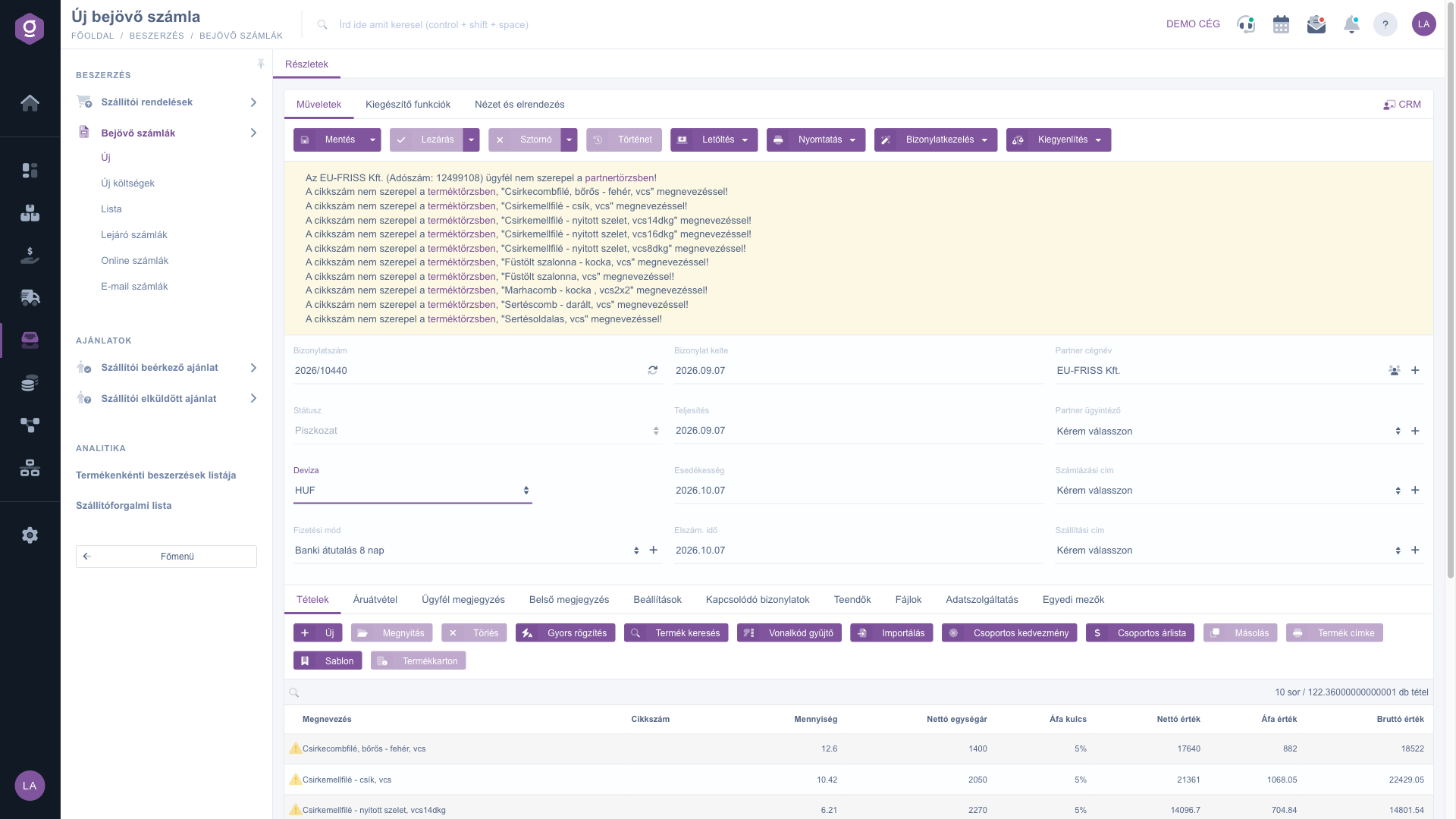
The prefilled New incoming invoice sheet (Új bejövő számla) opened after Filing, with warnings

5. Simple registration

Simple registration carries the same invoice over not item by item but with one combined line per VAT rate: every line becomes the Universal service item (part number USERVICE01). Example: if the invoice shows both 5% and 27% VAT, you get two lines. It is useful when you do not need detailed item records and the summarized value is enough.
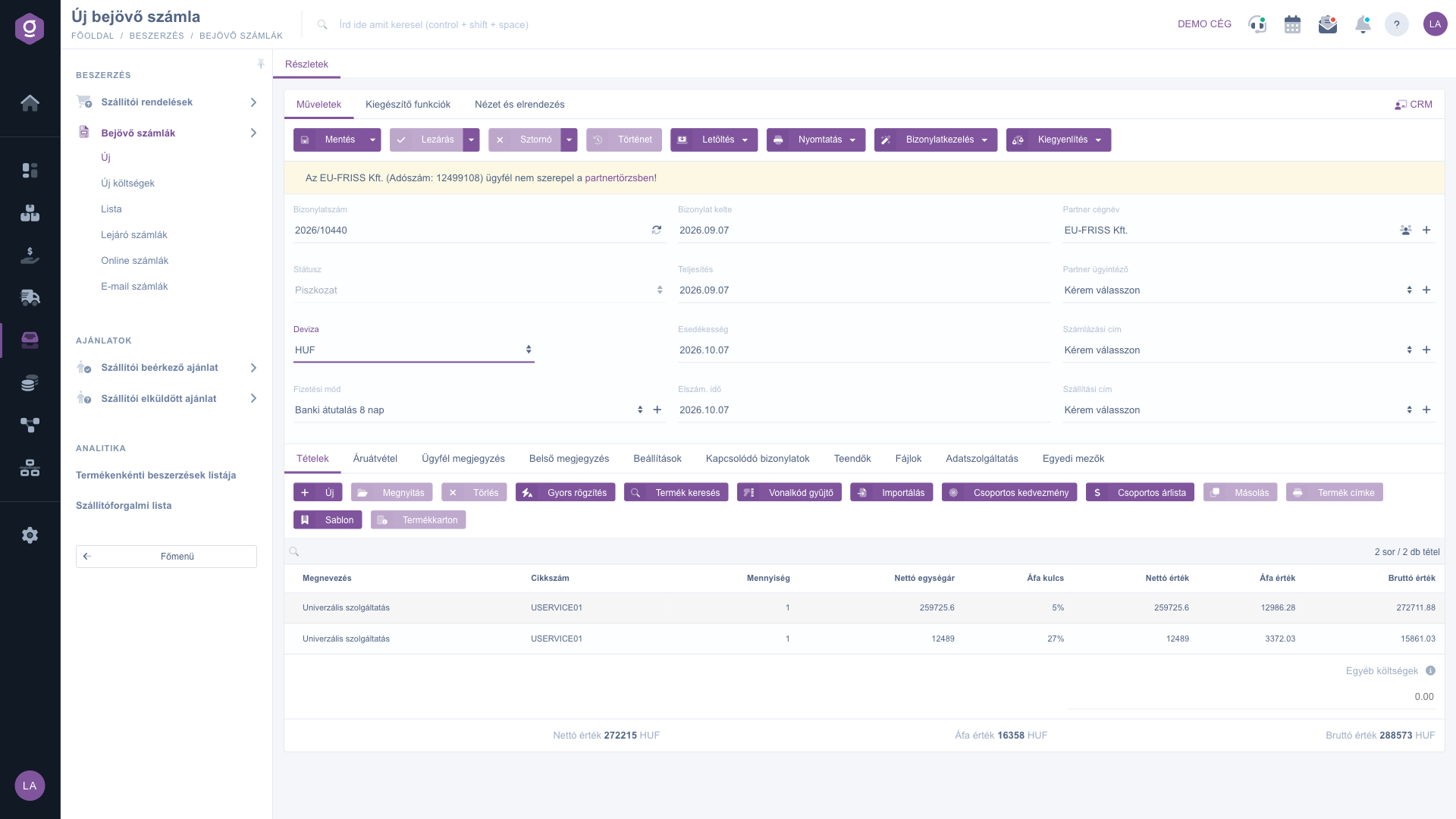
After Simple registration (Egyszerű iktatás): one Universal service line per VAT rate

6. After saving

The saved invoice is a Draft incoming invoice. From then on the list row shows a green check, and the Filing button leads to the existing invoice. Closing, cancelling and settling the invoice is described in the Invoice sheet guide. On the Additional functions tab you find Sent items, New email (external or internal mailer), New task, Partner card and CRM.

Tip


Before filing, keep the Status on the default Invoices pending filing and work through the list from top to bottom. If you are unsure whether you already recorded an invoice, search for the Document number in the All invoices view: the green check shows it immediately.

If you receive the invoice by email instead of through NAV, use the Email invoices page. You can follow the due dates of recorded but not yet settled invoices on the Expiring incoming invoices page. The shared handling elements of the lists are presented in the Invoice list guide.

Field descriptions

The columns of the list:

Field / ElementRequiredDescription
Status iconGreen check: the invoice is filed. Yellow triangle: waiting for filing.
Document numberThe number of the supplier invoice according to the NAV data.
Document dateThe day the invoice was issued.
Performance dateThe payment / performance date received from NAV. If NAV supplied no date, the value -0001.11.30 is displayed: this is not an error in your data.
Partner company nameThe name of the supplier.
CurrencyThe currency of the invoice.
Transaction IDThe NAV transaction identifier; the system uses it to avoid duplicates when downloading.

The search fields (none of them is required):

Field / ElementRequiredDescription
Document datePeriod from and to.
Partner company nameFilter by the supplier name.
CurrencyFilter by currency.
Document numberFilter by invoice number.
StatusFiled invoices, Invoices pending filing (default) or All invoices.

Main data of the sheet prefilled after Filing:

Field / ElementRequiredDescription
Document number, Document date, Performance date, CurrencyFilled in from the NAV data; check them before saving.
PartnerIf the supplier is not in the partner master data you get a warning and have to create it.
ItemsWith Filing, the items of the invoice; with Simple registration, one Universal service line per VAT rate. A warning appears if a part number is not in the product master data.
StatusDraft after saving.

Frequently asked questions

The list is filled from the NAV Online data service download. If you have not downloaded the incoming invoices yet, or all invoices are already filed under the default Status (Invoices pending filing), the list is empty. In the empty state a link to the NAV Online data service page appears. Try setting the Status to All invoices and widening the Document date period.

Filing carries over the items of the invoice one by one, so you get part-number-level records. Simple registration creates a single Universal service line per VAT rate. Choose Filing if you need the products and quantities (for detailed item records); choose Simple registration if the summarized cost is enough.

No. Filing only opens a prefilled, new incoming invoice sheet. The invoice is created when you click Save on the sheet. If you close the sheet without saving, the list row stays pending filing.

The column shows the payment date received from NAV. If the NAV data contains no such date, the empty value is displayed as -0001.11.30. It is not a real date: it does not prevent filing, but check the actual performance date on the sheet.

The supplier or part number in the NAV data cannot be found in your own partner or product master data. The warning does not prevent filing, but it is worth creating the partner and assigning the right product to the items so that later reports and stock are accurate.

Online invoices contain structured data downloaded from NAV, so the items are carried over automatically. Email invoices are PDFs received at the invoice mailbox: the header can be prefilled, but you have to enter the items manually or with AI processing.

The system does not create another invoice but opens the existing incoming invoice. So you cannot file the same invoice twice on this page.

The menu item only appears if the module is assigned to your user. If it is missing, ask your company administrator to check the module assignment of your user.

Need personalized help?

Don't want to spend hours searching for a solution? Choose the most efficient way: book a personalized, 45-minute online training session dedicated entirely to you. Whether it's a walkthrough of the basics or a detailed setup of a specific module, our expert colleague will guide you through the whole process, step by step.

Don't waste your time - ask for help!
Our goal is to get you using our system as quickly and efficiently as possible. Whether you're completely new to us or stuck on a specific setting, don't hesitate to ask for help!

Logzi warehouse management software

Get in touch with us

Interested in our software? Feel free to write to us!

Need help?

If you can't find the answer and need assistance

Create your account now,
pay later!

Try it free for 3 days, no risk, no obligation!

