Case management list

Get to know the Logzi Case management list: the table view of email cases, filtering by email address, content, employee, priority and status, and opening cases.

Feature overview

The Case management (Ügykezelés) list is the table view of email cases. Here you search and filter among the cases, see at a glance the subject, recipients, priority, responsible person, status of every case and whether the recipient has read the email, and from here you open a case with its full email conversation.

  • Filtering: the Search (Keresés) tab offers five filters: Email address, Email content (E-mail tartalma), Employee, Priority and Status.
  • Overview: row by row the table shows the subject and recipients, the priority and the responsible employee, the sending status and time, and whether the email has been read.
  • Opening: you open a case with the Open (Megnyitás) button on the Actions (Műveletek) tab, with a double click, or by clicking the monogram at the start of the row.

Case statuses: New (Új), Waiting (Várakozik), Sent (Elküldve) and Closed (Lezárt). Priority values: Low, Normal and High.

Step by step

1. Opening the list

Click Main menu / CRM / Correspondence / Case management. The list opens on the Search tab, with the Actions tab next to it. By default the cases handled by you, that is delegated to you, are shown, ten rows per page, with pagination at the bottom of the page.

2. Searching and filtering

On the Search tab fill in the filters you need, then click the Search button. The filters work together, so the list shows only the cases that meet every condition you entered. The Expand button is currently not active on this page, so there are no extended filters.
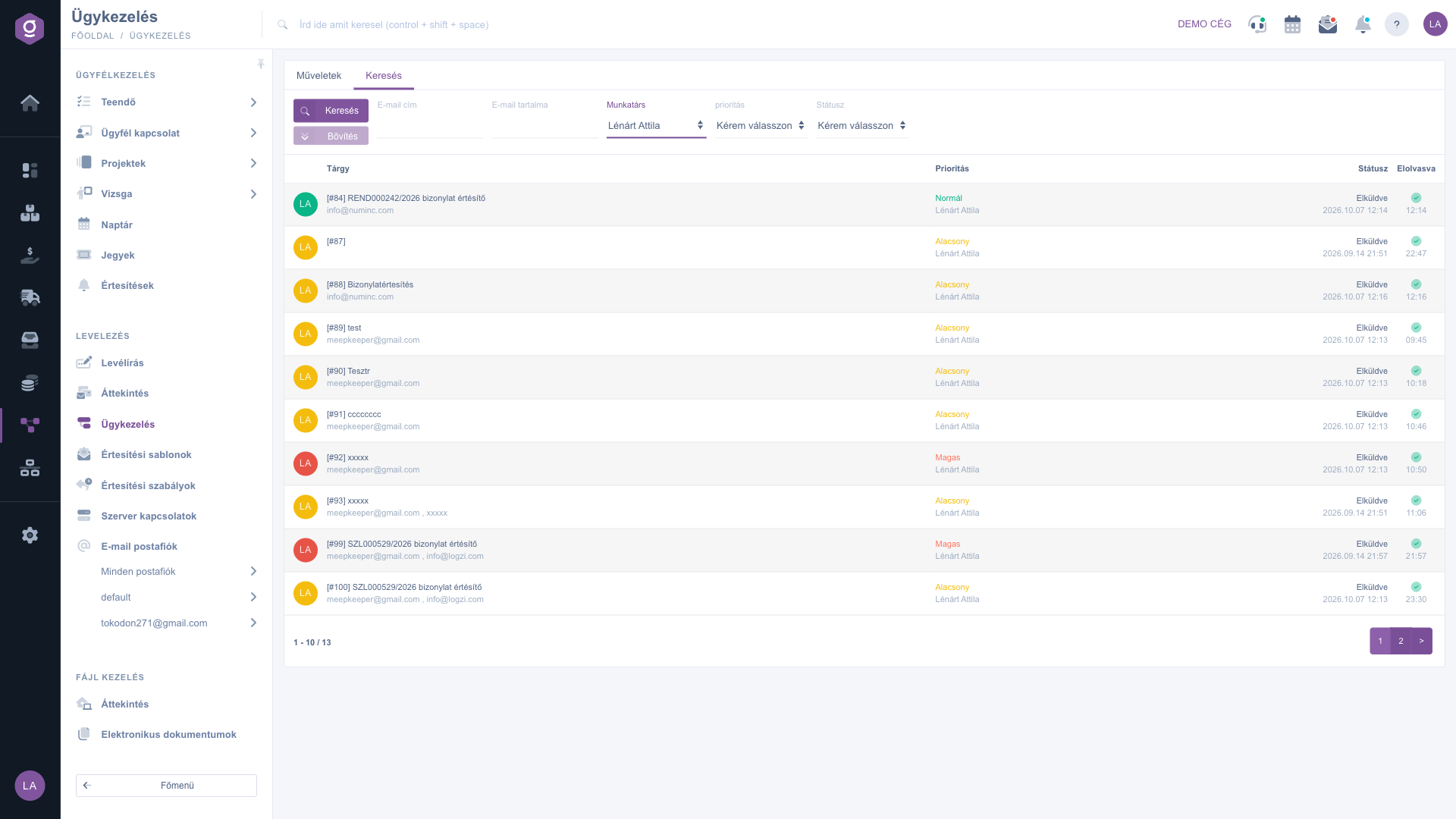
Case management list – Search tab with the filters and the table of cases
  • The Email address and Email content (E-mail tartalma) fields look for an exact match: enter the full address in the email address field (recipient, CC and BCC addresses all count). If you only search for a piece of text, put the % sign before and after it, for example %invoice%.
  • From the Employee list you choose the colleague whose cases you want to see. If you do not choose anyone, the list shows your own cases.
  • From the Priority and Status lists you can choose one value each. "Please choose" means there is no filtering by that criterion.

3. Reading the table

Every case is one row. At the start of the row there is a round monogram: it shows the initials of the responsible employee, and its colour shows the priority of the case (yellow for low, green for normal, red for high priority). The rest of the row:

  • Subject: the subject of the email, and below it in grey the recipient and the CC and BCC addresses.
  • Priority: the name of the priority and below it the name of the responsible employee.
  • Status: Sent means the email has gone out, Sending in progress means it is still being sent. Below it you see the date and time of the email.
  • Read (Elolvasva): a green check mark means the recipient has read the email (below it the time of reading, and hovering over the check mark shows the full date). A yellow question mark means there is no information about reading yet.

Rows of emails that have not been read yet are shown in bold. If the filter finds nothing, the text "The list is empty" appears in place of the table.

4. Opening a case

Click a row to select it, then press the Open button on the Actions tab. A faster way is to double-click the row or click the monogram at the start of the row. The case opens in the same window on the Email thread and composing an email page, where you can read the conversation, reply, write a note, change the priority, delegate or close the case. The Open button stays grey until you select a row.

Case management list – Actions tab with the Open button

Tip


If you have to take over a colleague's cases, for example during holidays, choose them from the Employee list and filter by Status so that you only see the cases that are still open. With the Priority filter you can bring the most urgent ones forward with one click.


The card (kanban) view of cases is described in the Email list guide. The texts that can be used for cases are covered in the Notification templates guide, the automatic notifications in the Notification rules guide.

Field descriptions

The filters of the Search tab:

FieldDescription
Email addressThe recipient, CC or BCC address of the emails of the case. Looks for an exact match, use the % sign to search for a part.
Email content (E-mail tartalma)The text of the emails of the case. Looks for an exact match, use the % sign to search for a part.
EmployeeThe employee handling the case. If you leave it empty, your own cases are shown.
PriorityThe importance of the case: Low, Normal or High.
StatusThe state of the case: New (Új), Waiting (Várakozik), Sent (Elküldve) or Closed (Lezárt).

The columns of the table:

ColumnDescription
Monogram (first column without a title)The initials of the responsible employee, its colour shows the priority. Click it to open the case.
SubjectThe subject of the email and the recipients below it.
PriorityThe name of the priority and the name of the responsible employee.
StatusThe sending status (Sent or Sending in progress) and the date and time of the email.
Read (Elolvasva)A green check mark with the time of reading if the recipient has read the email, otherwise a yellow question mark.

Frequently asked questions

The list always shows the cases of one employee. If you do not choose anyone in the Employee field, the system loads the cases marked as handled by you. To see a colleague's cases, choose them from the Employee list and click Search. Cases that have not been delegated to anyone yet can be found in the kanban view of the Email list.

Both fields expect an exact match. Enter the full address in the Email address field, and in the Email content (E-mail tartalma) field put the % sign before and after the piece of text (for example %invoice%), otherwise the list stays empty.

The button is only active when you have selected a row. Click the row of the case, then press the Open button, or double-click the row, or click the monogram at the start of the row.

The question mark means that no feedback about the reading of the email has arrived yet. As soon as the system records the reading, a green check mark and the time of reading appear in its place.

The Main menu / CRM / Correspondence / Case management menu item only appears if the CRM module is assigned to your user. If it is missing, ask your company administrator to check the module assignment.

Need personalized help?

Don't want to spend hours searching for a solution? Choose the most efficient way: book a personalized, 45-minute online training session dedicated entirely to you. Whether it's a walkthrough of the basics or a detailed setup of a specific module, our expert colleague will guide you through the whole process, step by step.

Don't waste your time - ask for help!
Our goal is to get you using our system as quickly and efficiently as possible. Whether you're completely new to us or stuck on a specific setting, don't hesitate to ask for help!

Logzi warehouse management software

Get in touch with us

Interested in our software? Feel free to write to us!

Need help?

If you can't find the answer and need assistance

Create your account now,
pay later!

Try it free for 3 days, no risk, no obligation!
