1. Writing a new email
Click Main menu / CRM / Correspondence / Write email. The form of the new email opens with a single Email sending tab. Select which of your email addresses you send from (Sender, Feladó), enter the recipient and the subject, then write the text of the email in the editor. If needed, fill in the CC and BCC addresses and attach files through the Attachment field. In the Attachment field you can select several files at once, the selected files appear as small labels and can be removed one by one.
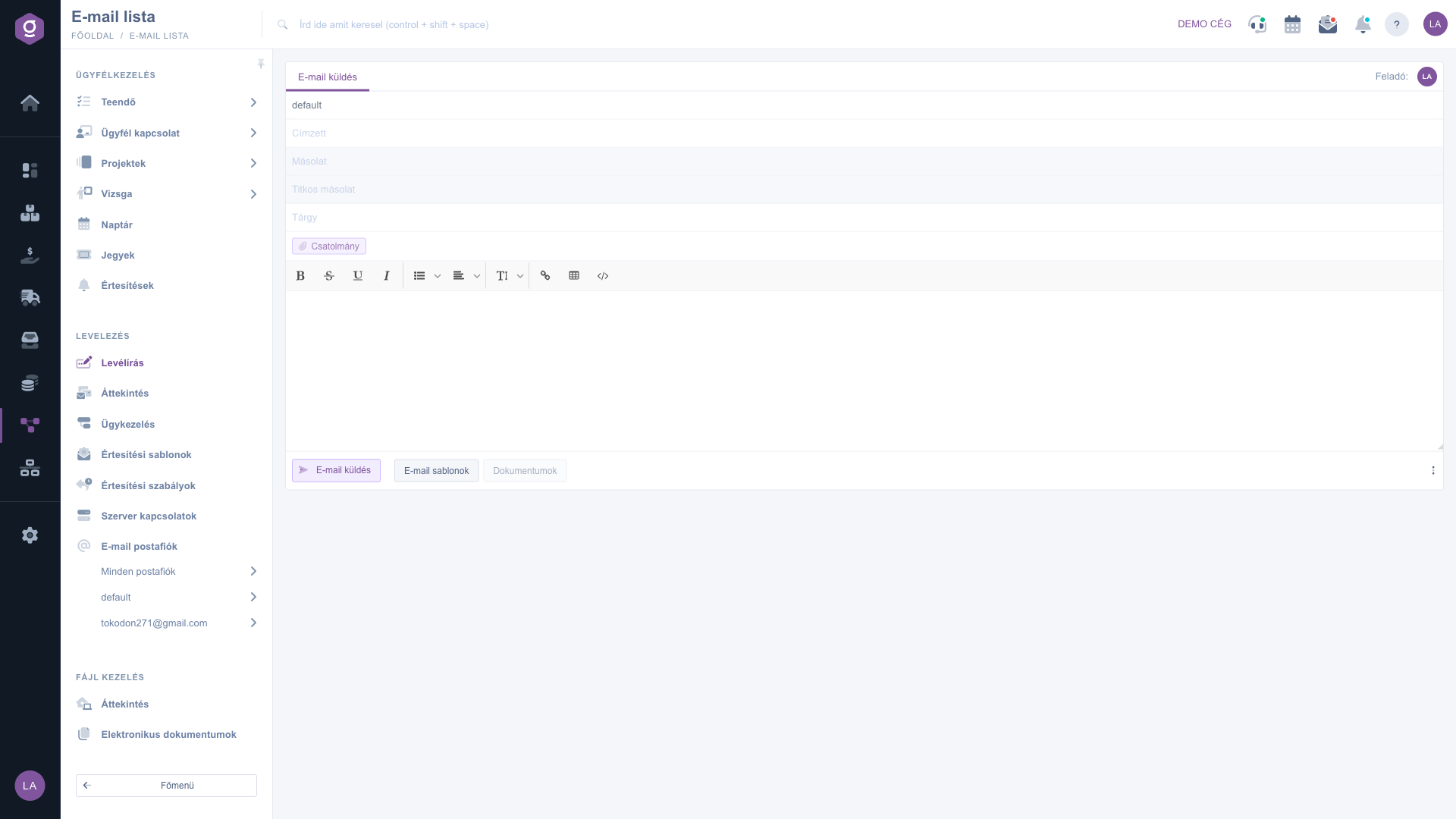
Writing a new email – the Write email form
From the Email templates (E-mail sablonok) drop-down list you can insert prepared text into the email, so you do not have to retype repeating texts every time. Start sending with the Email sending (E-mail küldés) button. After a successful send the system takes you to the page of the newly created case, where you can follow the correspondence further.
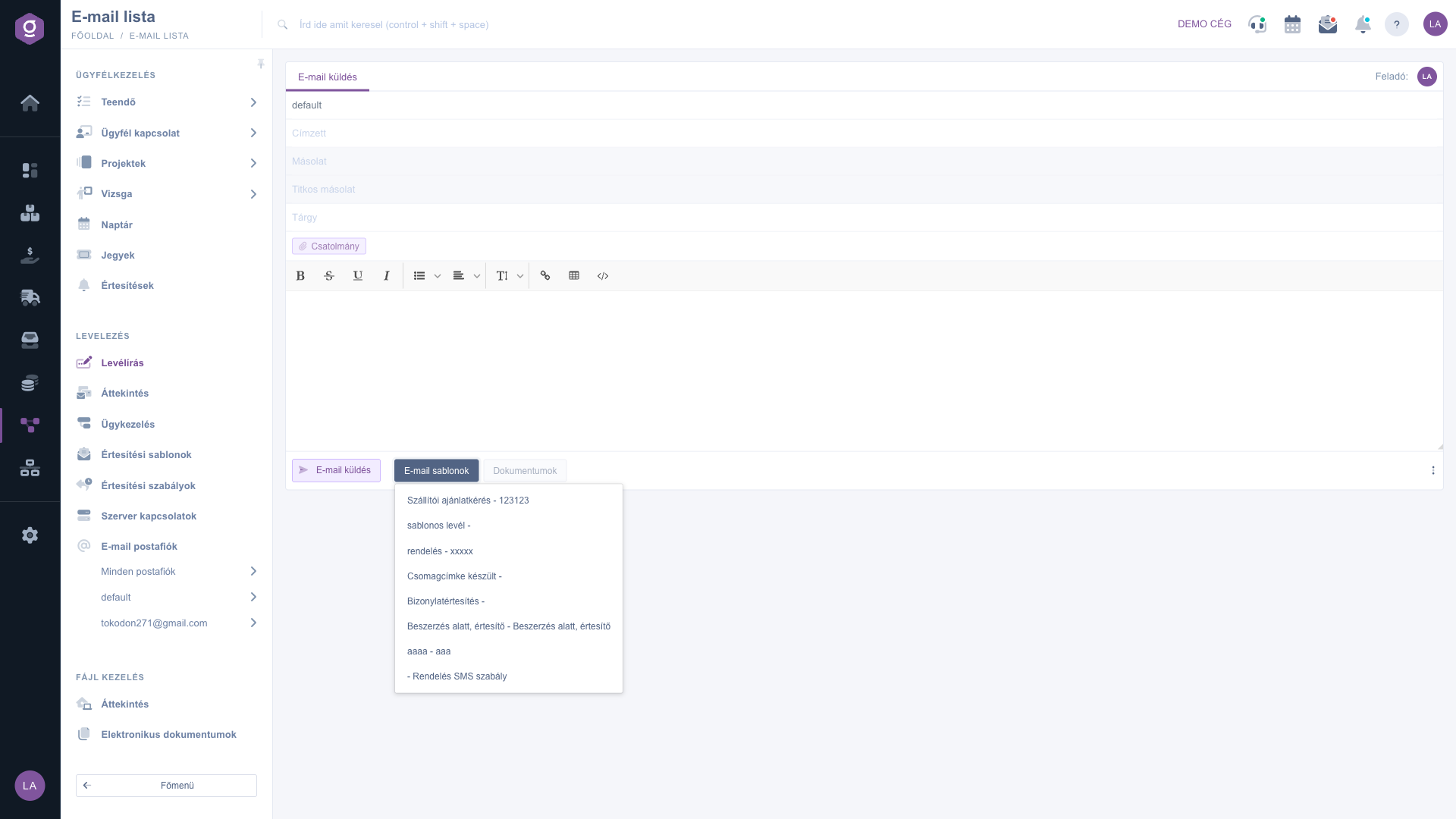
Writing a new email – the expanded Email templates list
Tip
For quick access to templates and email settings use the three-dot ⋮ menu next to the send button: from there you can open the Email settings (E-mail beállítások) and Email reply templates (E-mail válasz sablonok) pages directly, so you do not have to leave the composer and look for them in the menu. The Documents (Dokumentumok) button is currently not active.
2. Opening a case
You can open an existing case by clicking its card on the Main menu / CRM / Correspondence / Overview page, or in the Main menu / CRM / Correspondence / Case management list by clicking the round initial at the beginning of the row or the Open (Megnyitás) button. The case opens in a new browser tab. If the case does not have a responsible person yet, the system assigns you as the responsible person when you open it and marks the case as read.
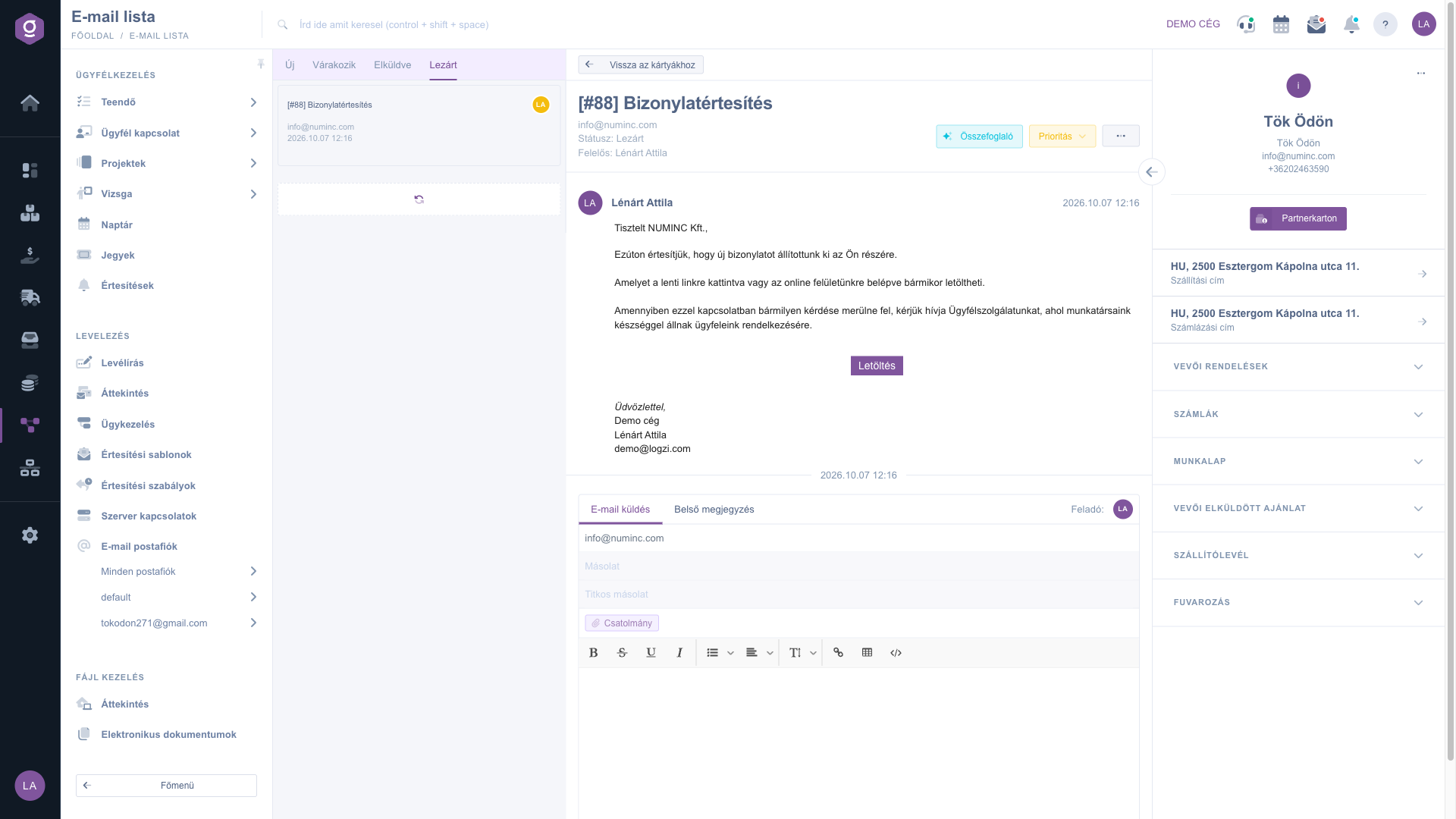
Email case page – conversation, reply and partner data
In the list on the left you can switch between cases with the New (Új), Waiting (Várakozik), Sent (Elküldve) and Closed (Lezárt) tabs. The New tab shows all new cases, the other tabs only your own cases delegated to you. In the middle part at the top the Back to cards button takes you to the Email list, below it you see the subject of the case, the recipient and the Status: and Responsible: data (if the case is not delegated, None is shown at the responsible person). Click the header of a message to collapse or expand it.
3. Writing a reply
Below the messages the reply form is available on two tabs: Email sending and Internal comment. On the Email sending tab the recipient is prefilled with the address of the partner; you can enter the CC and BCC fields, the Attachment files and the text of the email. Send the reply with the Email sending button. The Create draft (Piszkozat készítése) button prepares a suggested reply using artificial intelligence and inserts it into the editor, which you can freely rewrite before sending. From the Email templates list you can insert ready-made texts.
4. Saving an internal comment
On the Internal comment tab write the note, then click the Save comment button. The partner does not receive the comment, only colleagues see it: on the Email list the beginning of the comment appears on the card of the case in red letters.
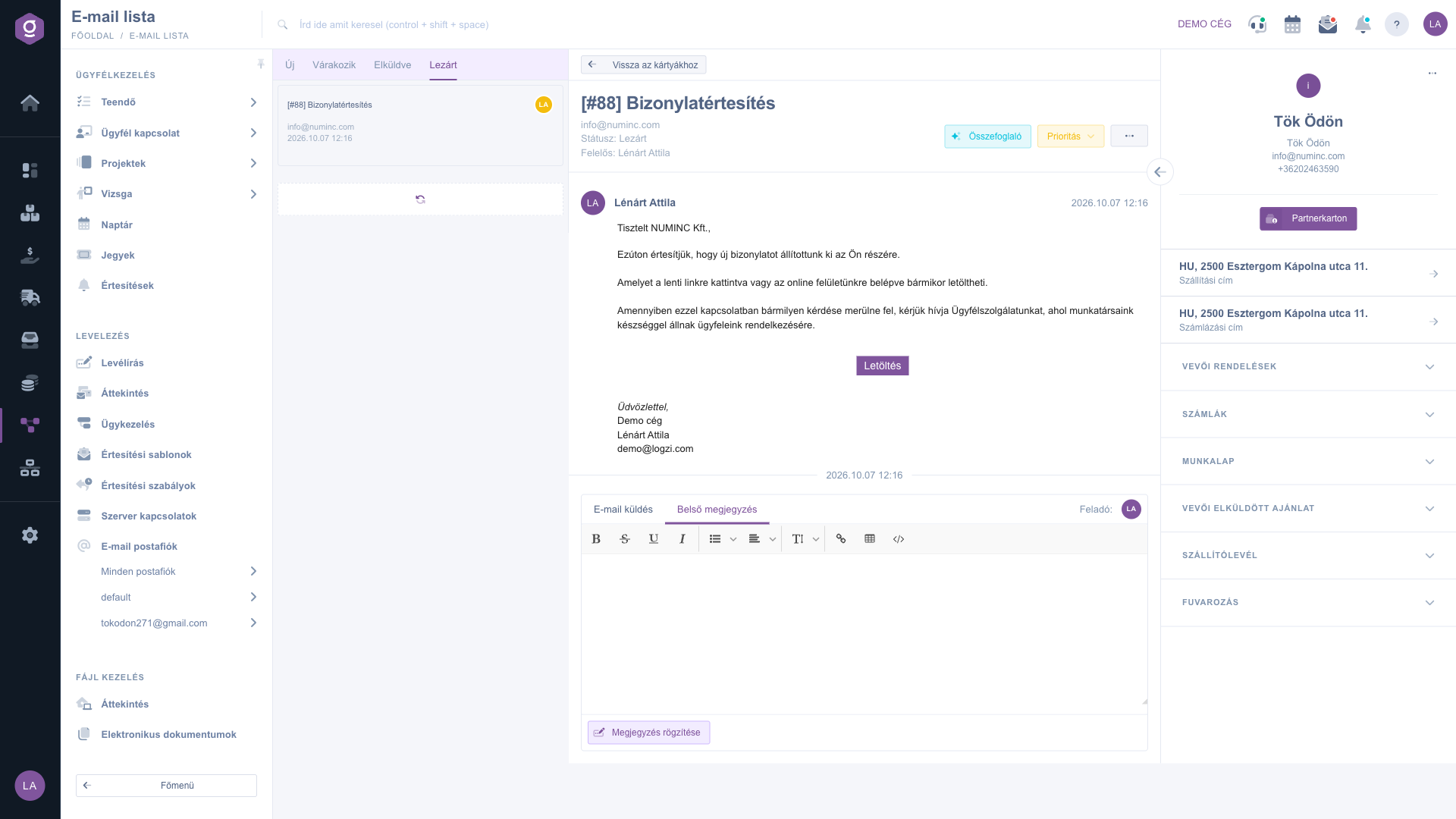
Internal comment tab with the Save comment button
5. Setting the priority
Click the Priority button and the list drops down: Low, Normal and High. The selected value is shown in every view of the case: on the card in the Email list the color of the round initial is yellow (Low), green (Normal) or red (High).
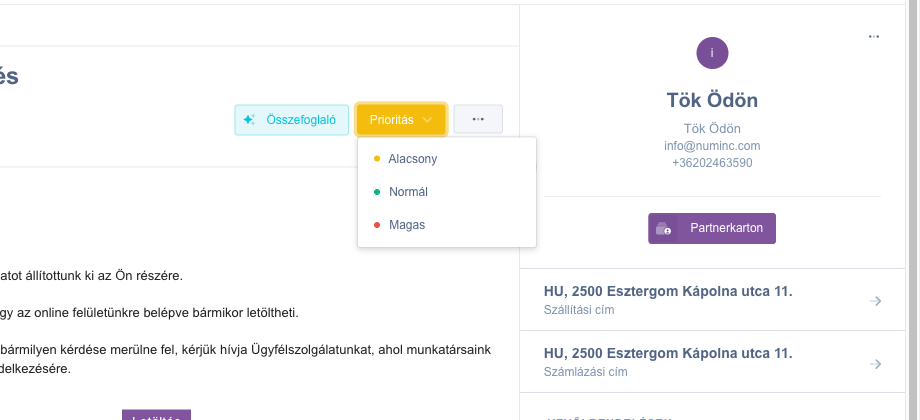
Priority drop-down list: Low, Normal, High
6. Summary, delegating and closing
The Summary button uses artificial intelligence to prepare a short summary of the whole conversation, which you can read in a pop-up window. The three-dot ... menu contains three actions: Summary, Delegate and Close. Delegate opens the "Munkatárs kiválasztása" (select an employee) window, where you select the colleague, can add a comment and hand over the case with the "Mentés" (Save) button. Close sets the case to Closed (Lezárt) status, after which the page reloads.
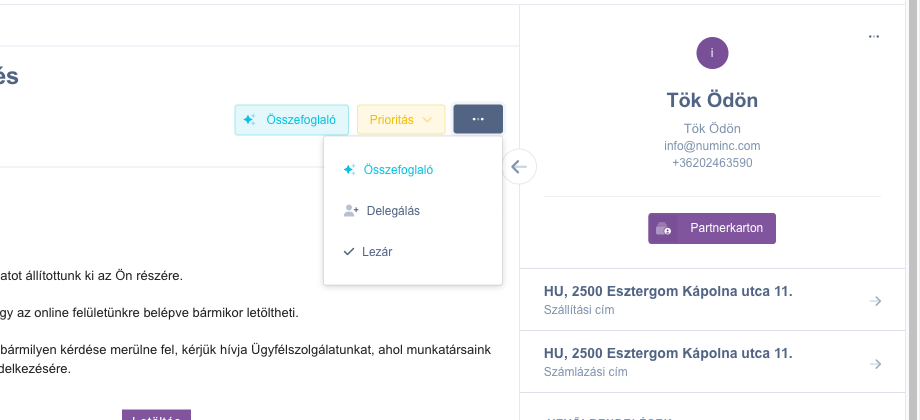
The three-dot menu: Summary, Delegate, Close
7. Partner data and related documents
The right-hand panel shows the name, contact person, email address and phone number of the partner, and below it the addresses of the partner. In the three-dot menu of the panel Partner data sheet opens the data sheet of the partner and Customer orders opens the orders of the partner, and the Partner card button opens the partner card. These options are active only if the system recognizes the partner by the sender email address. In the collapsible sections: Customer orders, Invoices (Számlák), Worksheet (Munkalap), Customer quotation sent (Vevői elküldött ajánlat), Delivery note (Szállítólevél) and Transport (Fuvarozás), you find the latest 10 documents of the given partner in each.
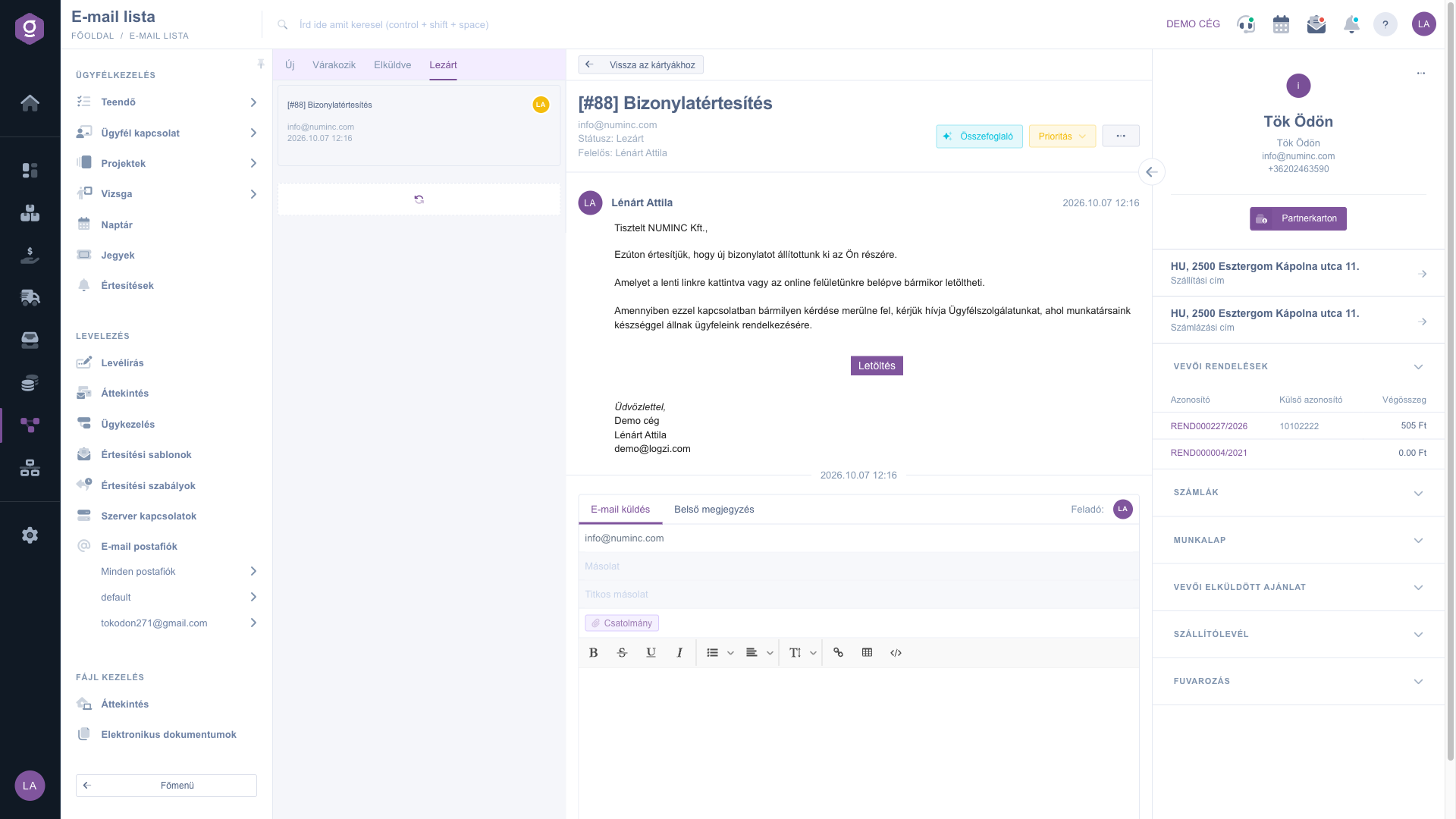
Partner panel – expanded Customer orders section



