On the Email list page you see the incoming and outgoing email cases of your company on a kanban board. A card always represents one case (an email conversation), not a single email: if a customer replies several times to the same email, the replies stay in the same card and the same case.
The statuses of the cases are: New (Új), Waiting (Várakozik), Sent (Elküldve) and Closed (Lezárt). The columns follow exactly these statuses, in this order.
Click Main menu / CRM / Correspondence / Overview and the kanban board appears. There are two tabs at the top of the page: Actions (Műveletek) and Search (Keresés); when you open the page, the Search tab is visible. The columns of the board from left to right are: New (Új), Waiting (Várakozik), Sent (Elküldve), Closed (Lezárt).
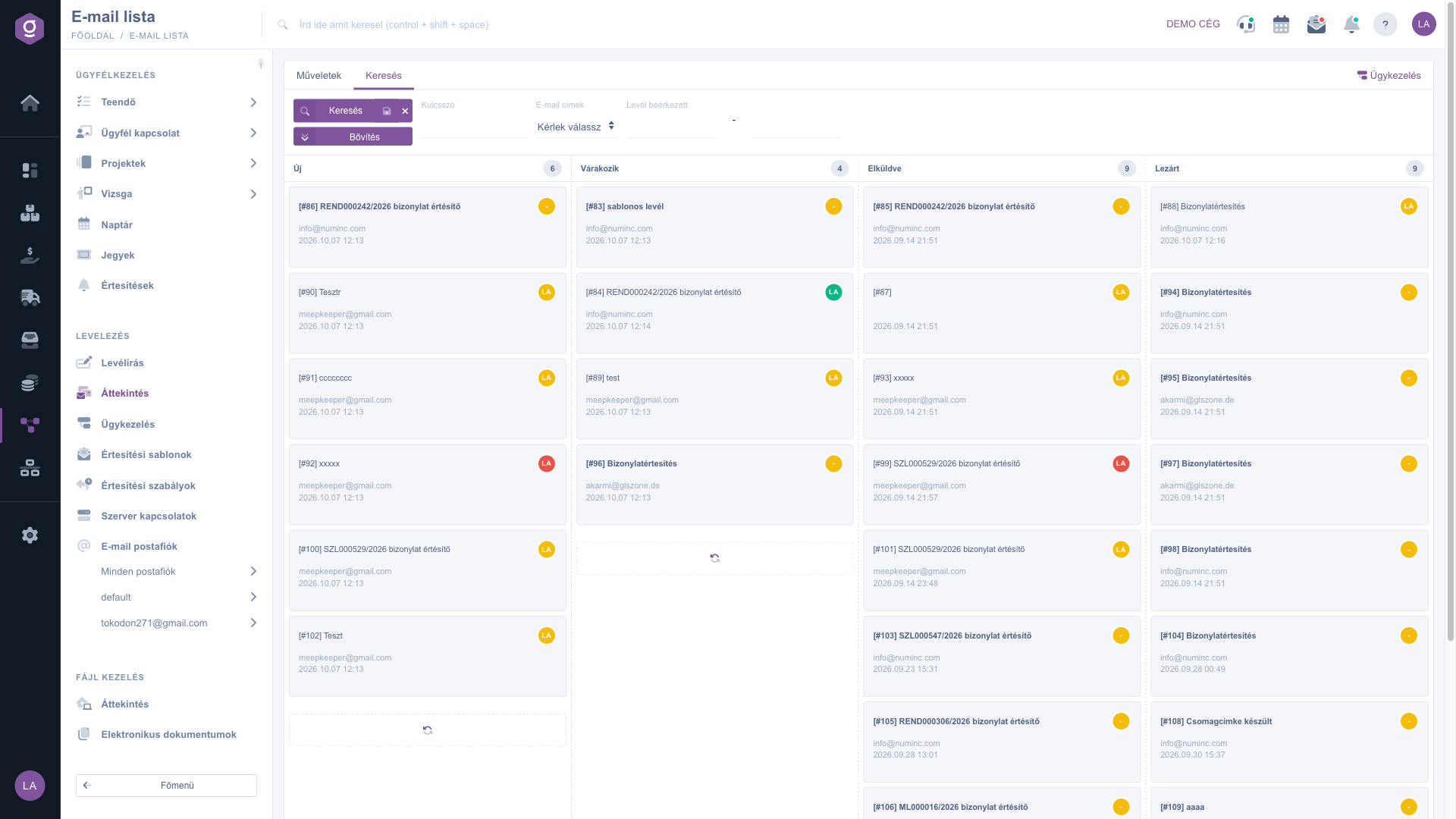
Every card shows the same information:
[86] Bizonylatértesítés). A bold subject means that nobody has read the case yet; after opening it becomes normal.At start every column loads at most 10 cards. If you want to see more, click the circular arrow (refresh) icon at the bottom of the column: every click loads another 10 cards to the bottom of the column.
Grab the card with the mouse, drag it into the right column, then release it. The system saves the new status immediately, there is no extra confirmation. This way you can, for example, set a processed case to Closed (Lezárt), or park a case that waits for an answer in the Waiting (Várakozik) column. If you made a mistake, drag the card back to the original column.
On the Search tab the following fields are available: Keyword (Kulcsszó, searches in the text of the email, in the recipient field and in the subject), Email addresses (E-mail címek, you can select more than one address) and the Email received (Levél beérkezett) period (from and to date). With the Expand (Bővítés) button further filters open for the partner data: Company name (Cégnév), Contact person (Kapcsolattartó), Contact email address (Kapcsolattartó E-mail cím) and Contact phone number (Kapcsolattartó telefonszám). Click the Search button to filter with the set conditions, after that the cards show only the results.
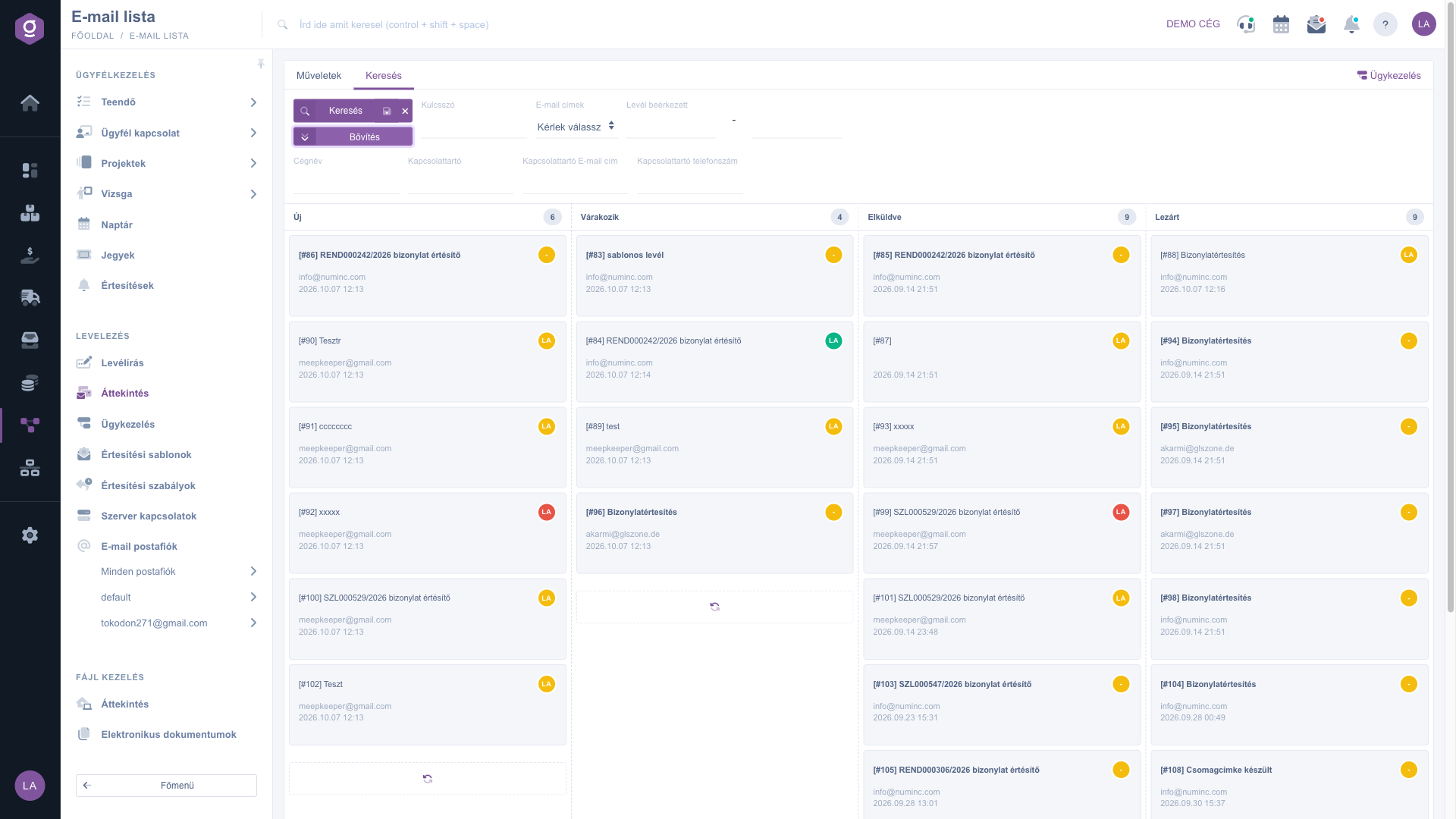
If a customer calls you and you want to see the correspondence with them immediately, open the Expand (Bővítés) filters, enter their number in the Contact phone number field (or their email address in the Contact email address field), then click Search. Only their cases remain on the board.
Clicking a card opens the detailed view of the case in a new browser tab, so the Email list stays open unchanged in the background. In the detailed view you can read the whole conversation, reply, change the priority and delegate the case.
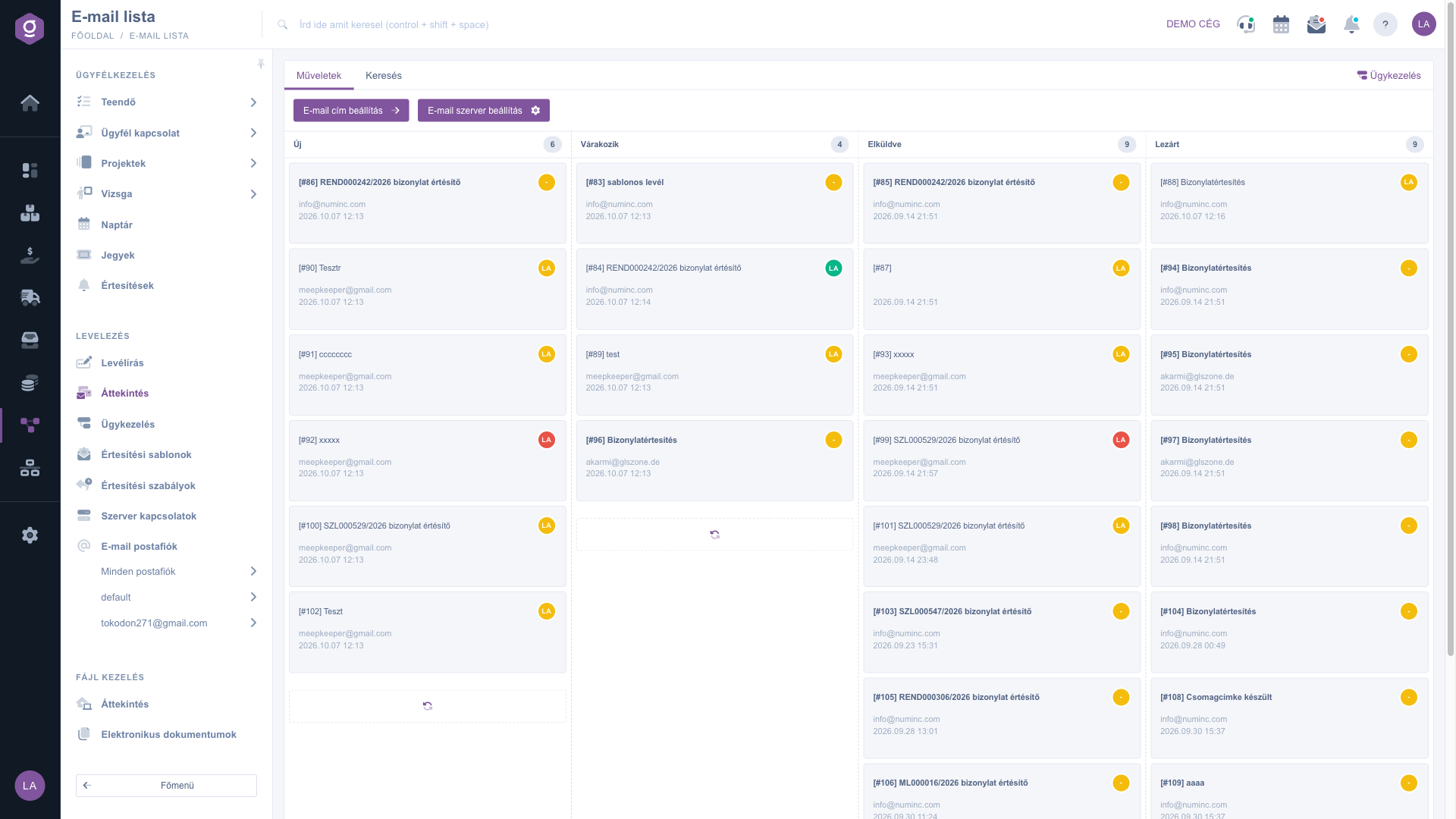
On the Actions (Műveletek) tab there are two quick buttons for setting up correspondence: the Email address setup (E-mail cím beállítás) button takes you to adding and editing your email addresses, the Email server setup (E-mail szerver beállítás) button takes you to the server connection settings of the mailbox. Use them if no emails arrive on the board yet, or if you want to connect a new mailbox.
The fields of the Search tab and their meaning (none of them is required, if left empty they do not narrow the results):
| Field / Element | Required | Description |
|---|---|---|
| Keyword (Kulcsszó) | Free text: searches in the text of the emails, in the recipient field and in the subject. | |
| Email addresses (E-mail címek) | Drop-down list of the saved email addresses, more than one can be selected. With it you can narrow the results to emails of a given mailbox. | |
| Email received (Levél beérkezett) | Filtering by period: enter the start date in the first field and the end date in the second one. Filling in only one of them is enough too. | |
| Company name (Cégnév) | Expand filter: filters by the company name of the partner. | |
| Contact person (Kapcsolattartó) | Expand filter: filters by the name of the contact person of the partner. | |
| Contact email address (Kapcsolattartó E-mail cím) | Expand filter: filters by the email address of the contact person. | |
| Contact phone number (Kapcsolattartó telefonszám) | Expand filter: filters by the phone number of the contact person. |
The elements of the board and their meaning (you do not have to fill them in, they are read-only information):
| Element | Description |
|---|---|
| Column header and number | The name of the status and next to it the total number of cases in that status. |
| Subject of the card | The ID of the case and the subject of the email. Bold if still unread. |
| Round initial | The initial of the responsible colleague, its color is yellow, green or red by priority. Dash: not delegated. |
| Refresh icon | At the bottom of the column: loads another 10 cards. |
| Case management (Ügykezelés) | The link in the top right corner, takes you to the case list in table form. |
The status of the case changes immediately to the status of the column you dragged it into, and your colleagues see this status as well. The system does not ask for confirmation, so be careful where you release the card. If you dropped it into the wrong column, just drag it back.
There are two common reasons. First, a filter may be set on the Search tab (keyword, email address, date or partner data); in that case only the results are shown, so clear the fields and search again. Second, a column loads at most 10 cards at a time, and you can load the rest with the refresh icon at the bottom of the column. The number in the header always shows the total number of cases in that status.
The dash means that the case does not have a responsible colleague yet, that is, it is not delegated to anybody. If you open such a case, the system automatically assigns you as the responsible person. You can select another colleague in the detailed view of the case with the Delegate (Delegálás) function, see the Email thread and composing an email guide.
The Email list shows the cases on a kanban board in columns by status, and they can be rearranged quickly by dragging. The Case management list shows the same cases in a table, with priority, responsible person and read indicator, and by default only your own cases are visible there. You can switch between the two views with the Case management link in the top right corner or with the Main menu / CRM / Correspondence / Case management menu item.
First check that no filter is set on the Search tab. If there is none, on the Actions tab you can use the Email address setup and Email server setup buttons to check whether your email address and the server connection of the mailbox are set correctly.

The Main menu / CRM / Correspondence / Overview menu item is shown only if the CRM module is assigned to your user. If it is missing, ask the administrator of your company to check the module assignment of your user.
Don't want to spend hours searching for a solution? Choose the most efficient way: book a personalized, 45-minute online training session dedicated entirely to you. Whether it's a walkthrough of the basics or a detailed setup of a specific module, our expert colleague will guide you through the whole process, step by step.
Don't waste your time - ask for help!
Our goal is to get you using our system as quickly and efficiently as possible. Whether you're completely new to us or stuck on a specific setting, don't hesitate to ask for help!
Create your account now,
pay later!

