In this module you create and manage Notification templates. A template is a ready-made message pattern: it defines the subject and the text of the message, and you can write variables into the text (for example {{ partner_company_name }}) that the system replaces with the data of the given document when the message is sent. This way a single template can produce many personalised messages.
{{ variable_name }} can be used in both the subject and the text; a collapsible list on the form shows all available ones.A template does not send anything on its own. For a message to go out automatically when something happens (for example when an order is closed), you have to create a rule under Notification rules that assigns the template to a document type and an event.
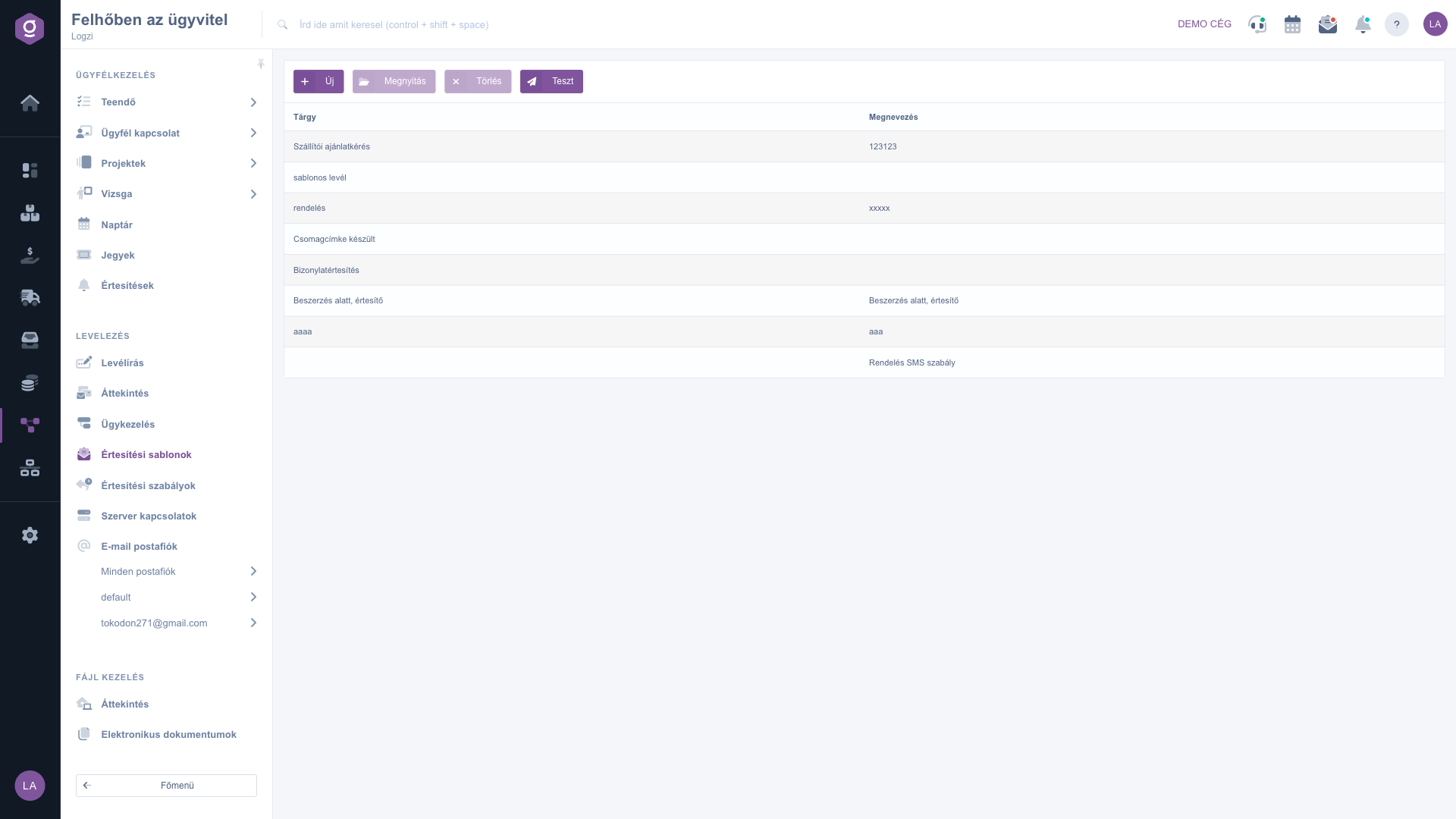
Click Main menu / CRM / Correspondence / Notification templates to see the list of existing templates with the Subject and Name columns. Above the table there are four buttons: New (new template), Open (edit the selected template), Delete (delete the selected template) and Test (try out the selected template). For Open, Delete and Test, first select a row in the table.
Click New. At the top of the form, on the Actions tab, you will see the Save and Close buttons. Enter the Rule name (this appears as Name in the list), choose the Notification channel (E-mail or SMS) and, for the e-mail channel, fill in the Subject and choose the Type of the template. You can use variables in the subject as well.
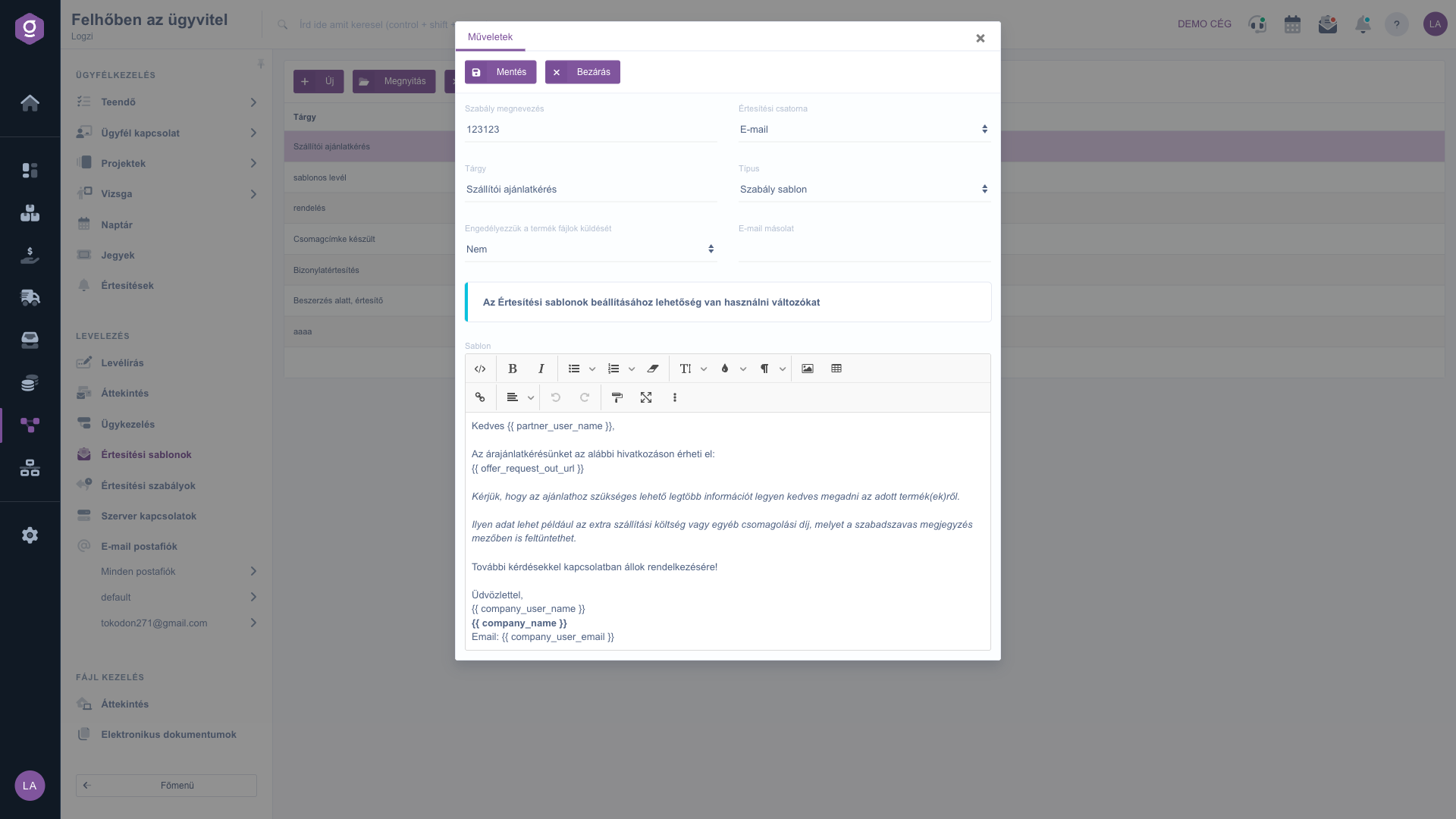
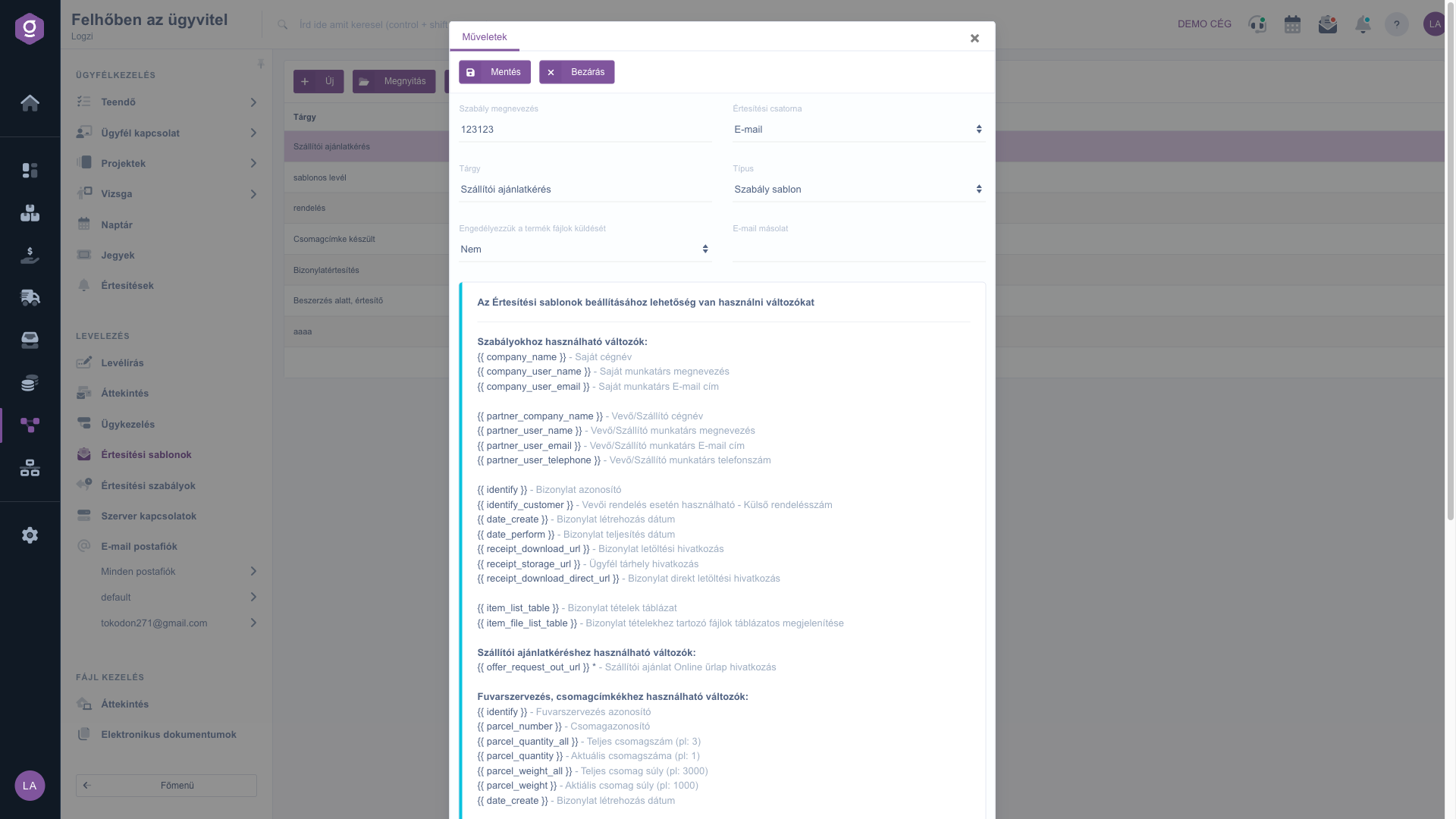
In the middle of the form there is a blue information bar reading "Variables can be used when setting up Notification templates". Click the bold text to expand the list of available variables, divided into groups. Type the variable exactly as shown, in double curly brackets with one space on the inner side of each pair, into the subject or the Sablon (Template) text box, for example: Dear {{ partner_user_name }},. The text box is a text editor, so you can format the message. The full list of variables can be found in the Field descriptions section.
Use Save to store the template and Close to close the window. After saving, the template appears in the list and can be selected under Notification rules.
Select the template in the list and click Test. In the window that appears, enter the address where you want the test message sent in the e-mail address field (labelled "E-mail cím"), then click Test (the "Mégse" button takes you back). The system fills the saved template with sample data (for example "Teszt Partner Kft.") and sends it to the address you entered; the subject is prefixed with [TESZT]. After a successful send the system confirms it. The test is only available for templates with the E-mail channel.
To change an existing template, select its row and click Open; after the change, store it with Save. The Delete button deletes the selected template, which then disappears from the list. If a rule still refers to the template, assign the rule to another template before deleting.
Before using a template for real, always try it with the Test button on your own email address and check that every variable was replaced. Also give the template a descriptive Rule name: on the rule form the template drop-down shows templates as Subject - Name, so a clear name makes the right one easy to find.
The fields of the template form and their meaning:
| Field / Element | Required | Description |
|---|---|---|
| Rule name | The name of the template. It is shown as the Name column in the list and next to the subject in the template drop-down of the rule form. It is worth always filling in. | |
| Notification channel | E-mail or SMS. E-mail is selected by default. For SMS, the Subject, Type, Enable sending product files and Email CC fields are hidden. | |
| Subject | Shown only for the e-mail channel. The subject of the message; variables can be used here too. In practice it should be filled in for e-mails. | |
| Type | Shown only for the e-mail channel. Possible values: Szabály sablon (rule template), Rendelés visszaigazolás sablon (order confirmation template), Fuvarszervezés, csomagcímke sablon (shipping organisation and parcel label template); the type names appear in Hungarian. A template of the order confirmation type is used by the order-related confirmation message; if you have several templates of this type, the system takes the first one for that message. | |
| Enable sending product files | Shown only for the e-mail channel; No or Yes. With Yes, the table of product files belonging to the document items becomes available in the message ({{ item_file_list_table }} variable). | |
| Email CC | Shown only for the e-mail channel. The message is also sent as a copy to the address entered here. | |
| Sablon (Template) | The text of the message. For e-mail you can format it in a text editor, and this is where you write the variables. In practice it must always be filled in. The label of this field is shown in Hungarian ("Sablon"). |
Variables can be used in the form {{ name }} in the subject and in the text. The list is displayed on the form in three groups:
| Variable | Meaning |
|---|---|
| Variables usable in rules | |
{{ company_name }} | Own company name |
{{ company_user_name }} | Own colleague name |
{{ company_user_email }} | Own colleague E-mail address |
{{ partner_company_name }} | Customer/Supplier company name |
{{ partner_user_name }} | Customer/Supplier colleague name |
{{ partner_user_email }} | Customer/Supplier colleague E-mail address |
{{ partner_user_telephone }} | Customer/Supplier colleague phone number |
{{ identify }} | Document identifier |
{{ identify_customer }} | Usable for customer orders - External order number |
{{ date_create }} | Document creation date |
{{ date_perform }} | Document fulfillment date |
{{ receipt_download_url }} | Document download link |
{{ receipt_storage_url }} | Customer storage link |
{{ receipt_download_direct_url }} | Document direct download link |
{{ item_list_table }} | Document items table |
{{ item_file_list_table }} | Tabular display of files belonging to document items |
| Variables usable for supplier quote requests | |
{{ offer_request_out_url }} | Supplier quote online form link |
| Variables usable for shipping organization, package labels | |
{{ identify }} | Shipping organization identifier |
{{ parcel_number }} | Package identifier |
{{ parcel_quantity_all }} | Total package count (e.g.: 3) |
{{ parcel_quantity }} | Current package number (e.g.: 1) |
{{ parcel_weight_all }} | Total package weight (e.g.: 3000) |
{{ parcel_weight }} | Current package weight (e.g.: 1000) |
{{ date_create }} | Document creation date |
{{ partner_company_name }} | Recipient company name |
{{ partner_user_name }} | Recipient colleague name |
{{ partner_user_telephone }} | Recipient colleague phone number |
{{ partner_user_email }} | Recipient colleague E-mail address |
{{ partner_address_name }} | Recipient shipping address |
{{ shipper_partner_company_name }} | Shipper company name (GLS, MPL, etc.) |
For the e-mail channel a template also has a subject, a type, an e-mail copy address and the product file option. For the SMS channel these fields are hidden and only the name and the text remain. The Test send is not available for SMS templates: the system then shows the message "test sending is not available for SMS-type templates!".
{{ ... }} text appear literally in the message?The system only replaces placeholders that match the form in the list character for character: double curly brackets with one space on the inner side of each pair, for example {{ partner_company_name }}. If you misspell the name or leave out the spaces, the text is sent unchanged. The safest way is to copy the variable from the expandable list.
Check the following: is the template row selected in the list; has the template been saved (the test sends the saved version, unsaved changes are not included); did you enter a valid e-mail address (otherwise you get the message "you must enter a valid email address for testing!"); and is the channel of the template E-mail, because the test is not available for SMS.
The test message is not sent through your own e-mail mailbox but from the Logzi system address (noreply@logzi.com, with your company name as the sender name), and its subject starts with the [TESZT] prefix. The message contains sample data (for example "Teszt Partner Kft.", "TESZT-2026-000123"), not the data of a real document. So the test shows the appearance of the template and the replacement of variables, but not which of your mailboxes the real message will be sent through.
The template only defines the content of the message. For automatic sending you have to create a rule under Notification rules that selects the document type, the event and this template. Sending also requires the Email mailbox and its Server connection to be set up. Details: Notification rules.
The menu item is under Main menu / CRM / Correspondence. If you cannot see it, the required module or permission is probably not assigned to your user; ask your system administrator to check your settings.
Don't want to spend hours searching for a solution? Choose the most efficient way: book a personalized, 45-minute online training session dedicated entirely to you. Whether it's a walkthrough of the basics or a detailed setup of a specific module, our expert colleague will guide you through the whole process, step by step.
Don't waste your time - ask for help!
Our goal is to get you using our system as quickly and efficiently as possible. Whether you're completely new to us or stuck on a specific setting, don't hesitate to ask for help!
Create your account now,
pay later!


