1. Opening the list of notifications
Click Main menu / CRM / Customer management / Notifications to display all notifications. There is a faster way, too: click the bell icon in the top right corner of the screen to open a short list of your active notifications, and the All link at its bottom takes you to this page. The table starts with the newest notification, and the sort order cannot be changed. By default 10 rows are shown per page; at the bottom of the page you can see which items you are viewing (for example "1 - 10 / 1269"), and you can move between pages with the pagination buttons. The screenshots were taken in the Hungarian interface.
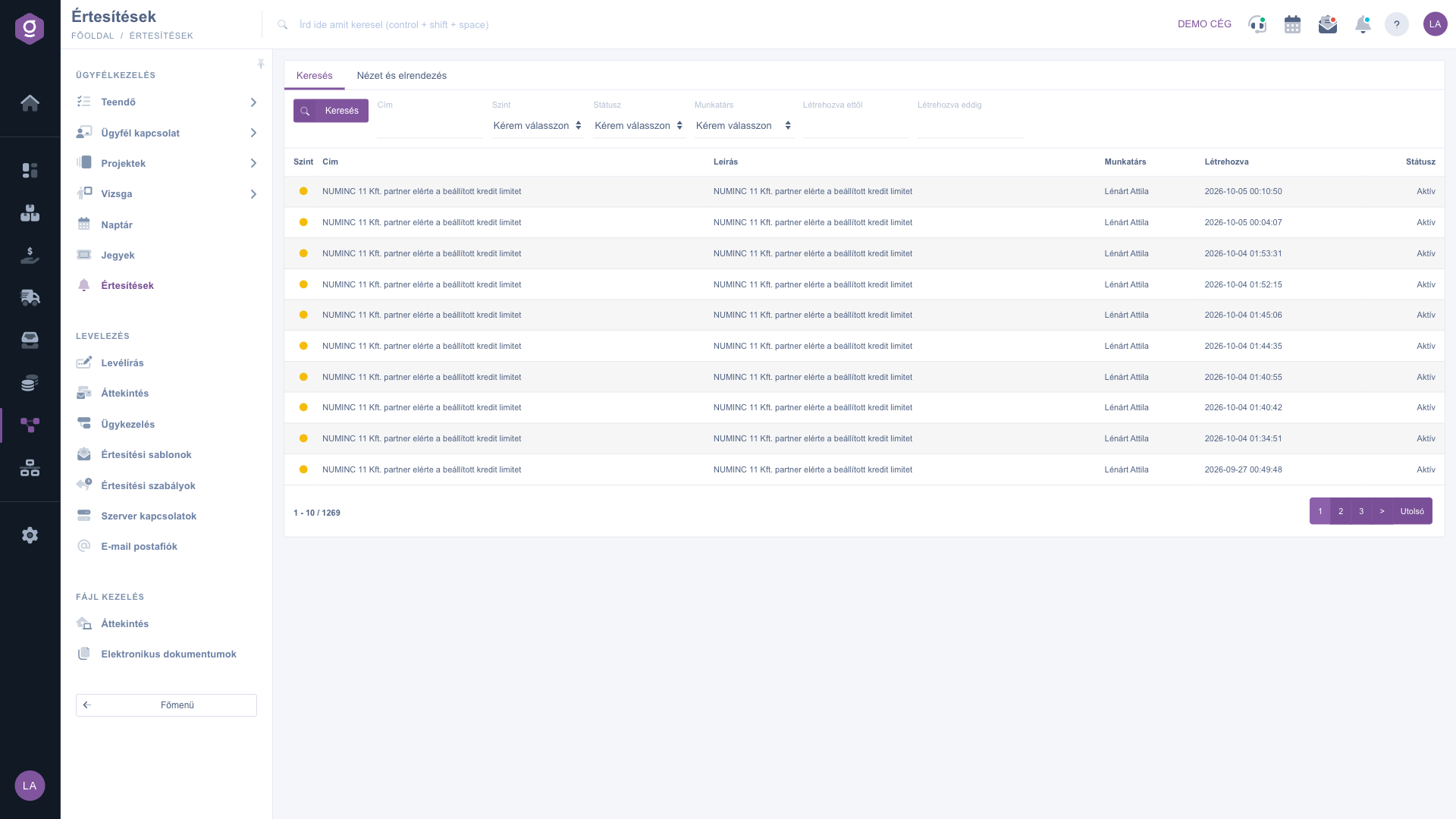
Notifications list – Search (Keresés) tab with the results table
2. Searching among the notifications
The filters are on the Search tab above the table. After entering the conditions you want, start filtering with the Search button; you can use several conditions at once, in which case only the notifications that meet all of them remain in the list.
- Title: a piece of text contained in the title of the notification — you do not have to type the whole title, a fragment is enough (for example a partner name or a document number).
- Level (Szint): only notifications of the given importance are shown (Info, Reminder or Hiba) — choose it when, for example, you are only interested in errors.
- Status: filter by Active or Closed notifications.
- Employee: the notifications assigned to the given colleague. Notifications meant for the whole company do not appear with this filter, because no employee is assigned to them.
- Created from and Created to: the period in which the notification was created; both days are included in the results (you can also pick the date from the calendar).
3. Customising the view
On the View and layout tab, click the Rows (Sorok) button to choose in a pop-up window how many notifications are displayed on a page (in the Visible rows list you can choose 10, 25, 50 or 100), then save the setting with the Save button. The setting is stored for your user, so it is kept the next time you log in. If you want to overview many notifications at once, it is worth choosing a higher value.
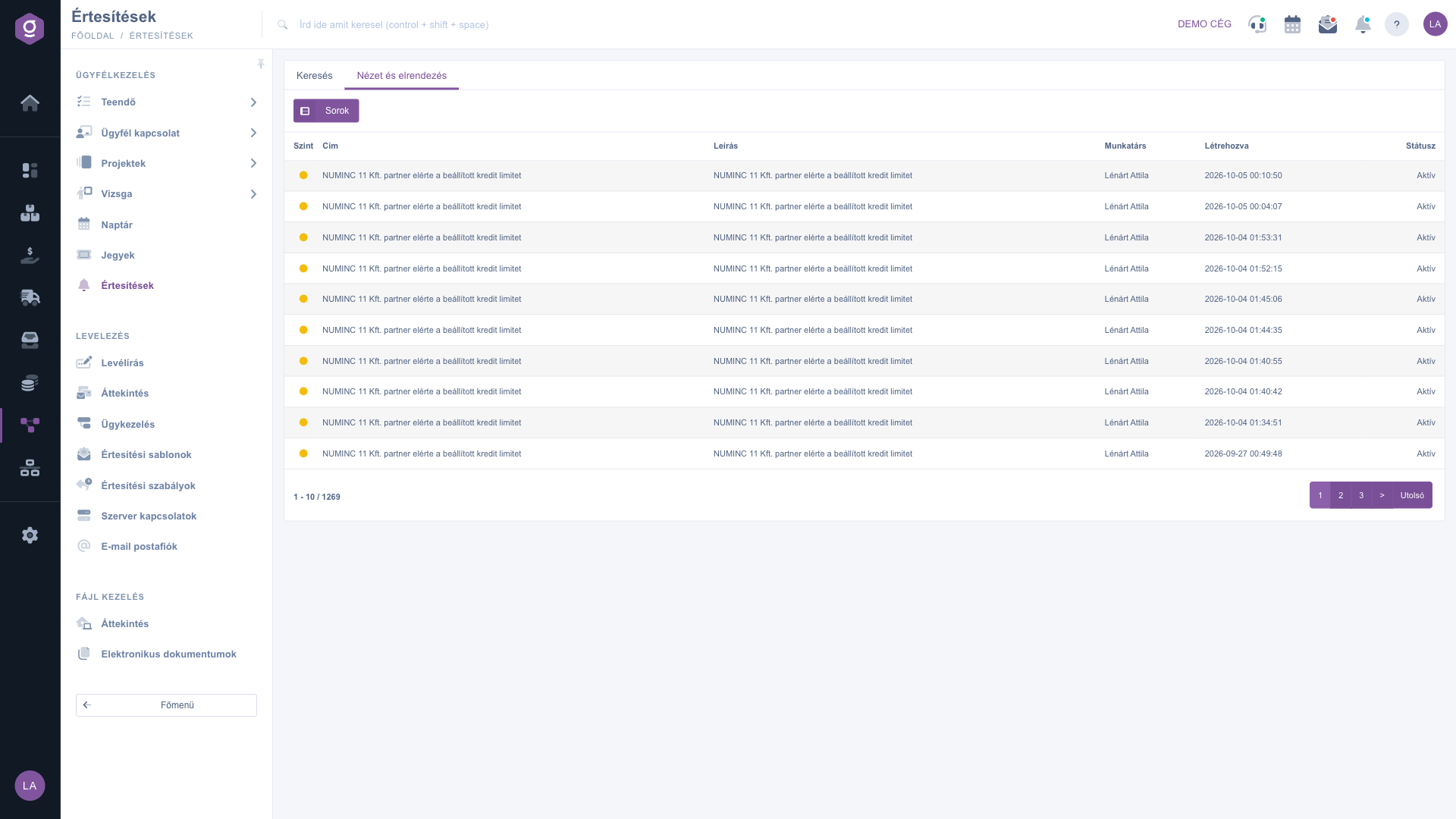
Notifications list – View and layout (Nézet és elrendezés) tab with the Rows (Sorok) button
4. Opening the related document
Double-click a notification row to open the document the notification belongs to (for example the task or the invoice). If the notification is not linked to a document — for example a general system message — the program shows a warning window (in Hungarian: "Ehhez az értesítéshez nem tartozik megnyitható bizonylat!", meaning that there is no document to open for this notification). This is not an error, it only means that the notification is informative in itself.
5. Where do the notifications come from?
You do not create the notifications yourself; the system generates them automatically. For example:
- Task for today: the daily automatic run creates a notification (Reminder level) about the tasks whose alert date falls on today.
- Bank settlement: when an invoice is settled on a bank document, an information message (Info level) about it also appears.
- NAV error: if a technical error occurs during the NAV Online Invoice data reporting, you receive an error-level (Hiba) notification that also contains the document identifier.
- System warnings: for example when a partner reaches the credit limit set for them (this is what you can see in the screenshots above).
The automatic runs are controlled by the
Notification rules — you can read about them in detail in the
Notification rules guide. You can find more about handling tasks due today in the
Task list help, and about viewing them over time in the
Calendar help.
Tip
If you want to quickly check in the morning what needs immediate action, choose Hiba in the Level (Szint) field and Active in the Status field, then click the Search button — only the error messages that are not yet closed (for example NAV errors) remain in the list, and routine information does not distract you.



