Calendar

Learn how to see your tasks in a calendar view, filter by calendars, task types and colleagues, and create or edit tasks.

Feature overview

This module shows your tasks in a calendar view: your to-dos, meetings and deadlines. You can review a month, a week or a single day in one place, filter by calendars, task types and colleagues, create new tasks, manage your own calendars and even connect your Google calendar.

  • Four views: switch between the Month, Week, Day and Weekly list views with one click (the buttons are labelled Hónap, Hét, Nap and Heti lista in the interface).
  • Filters: use the Calendars, Task type and Colleagues menus to show only what you need right now.
  • Colours: tasks are coloured by their calendar or by their own custom colour, so they are easy to tell apart at a glance.
  • Quick creation and editing: create a task with the New task tab, and open an existing one by clicking it.

The items in the calendar are tasks: they are the same tasks you can manage under the Task menu item.

Step by step

1. Opening the calendar and the views

Click Main menu / CRM / Customer management / Calendar and the calendar opens on the current month (on a narrow screen, such as a phone, it opens in the Weekly list view). The week starts on Monday. The view buttons are in the top right corner:

  • Today (Ma): jumps back to today.
  • Month (Hónap): the full month as a grid. At most two tasks are shown per day; to see the rest, click the link for further tasks within the day, which opens the Day view.
  • Week (Hét): the days of the week on an hourly grid, with a line marking today and the current time.
  • Day (Nap): a single day on an hourly grid.
  • Weekly list (Heti lista): the tasks of the week in chronological order, grouped by day. On a phone this is the clearest view.

Next to the view buttons, the two arrows move to the previous and next period, and the title on the left shows the period you are looking at.
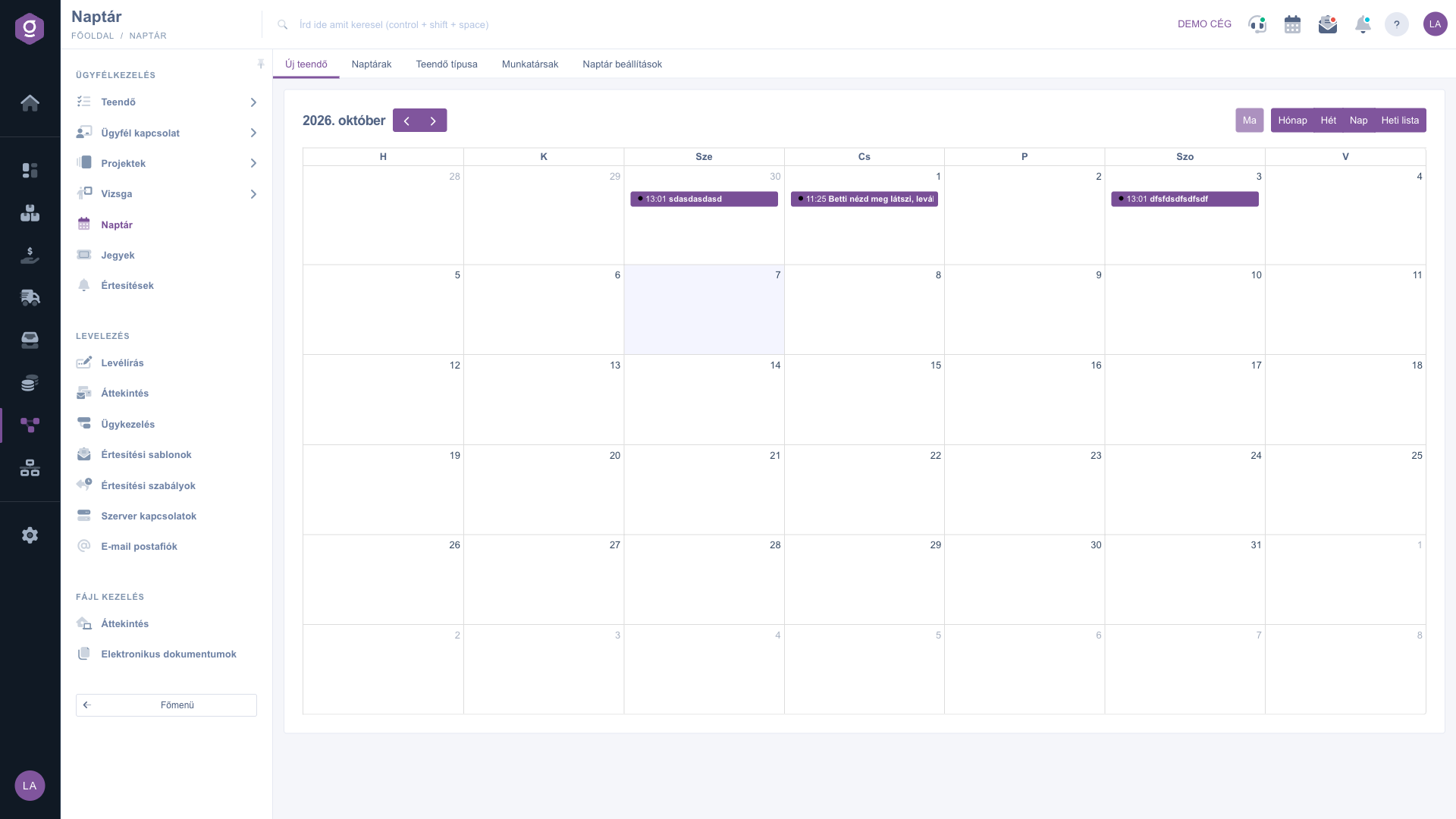
Calendar – Month view with tasks
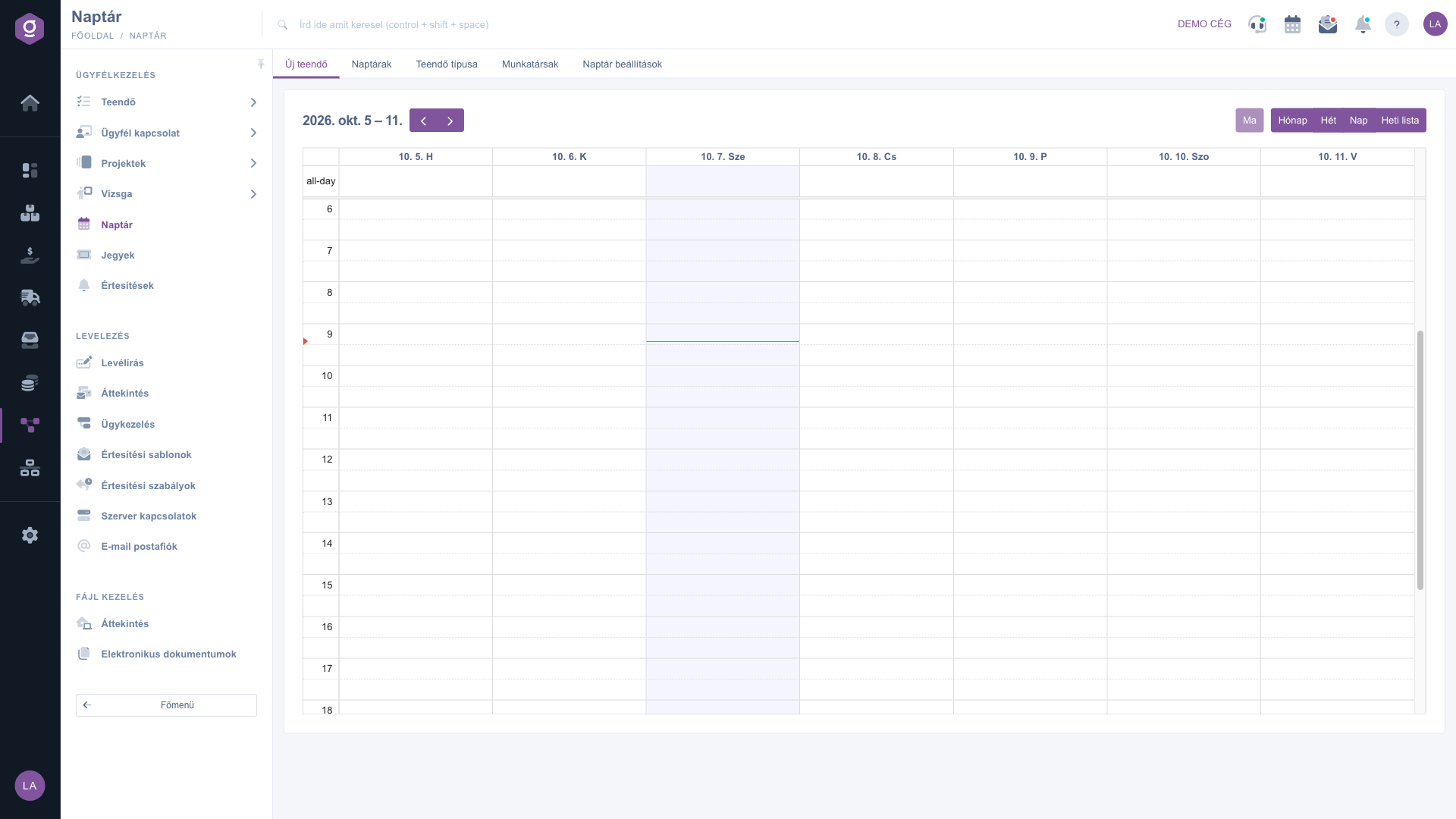
Calendar – Week view with an hourly grid
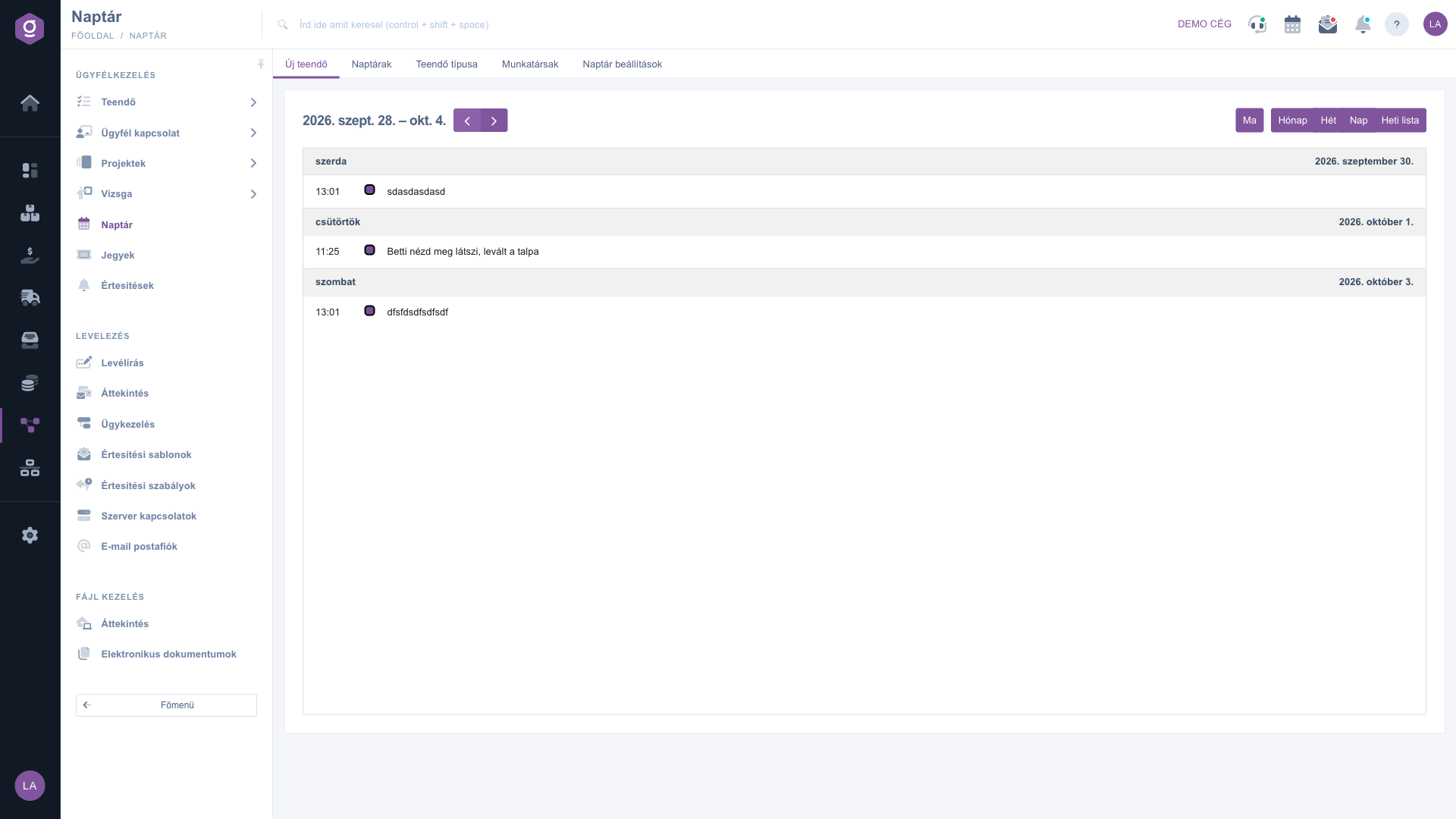
Calendar – Weekly list view

Each task appears with its time and subject. Its colour is the task's own custom colour, or the colour of its calendar if there is none; if neither is set, the default purple is used. Hover over a task to see its type and the name of its calendar. Click a task to open its editing window.

2. Filtering by calendars, task types and colleagues

Among the tabs above the calendar, Calendars (Naptárak), Task type (Teendő típusa) and Colleagues (Munkatársak) each open a list with checkboxes. The calendar refreshes immediately after you change any selection.

  • Calendars: the list contains your own calendars and the corporate calendars (marked with a K next to the name). The coloured mark before the name is the calendar colour, and the gear icon opens the calendar for editing (see step 4). When All is ticked, every task is shown, including those without a calendar. To see only certain calendars, untick All and keep only the ones you want ticked; tasks without a calendar stay hidden in that case.
  • Task type: task types appear with their own colours. Filtering by type works when exactly one type remains selected (untick All and the other types); when two or more types are selected at once, the calendar shows all types.
  • Colleagues: the default is Everyone. If you select one or more colleagues, you see the tasks created by them or for which they are responsible. Selecting a specific colleague clears Everyone, and vice versa.
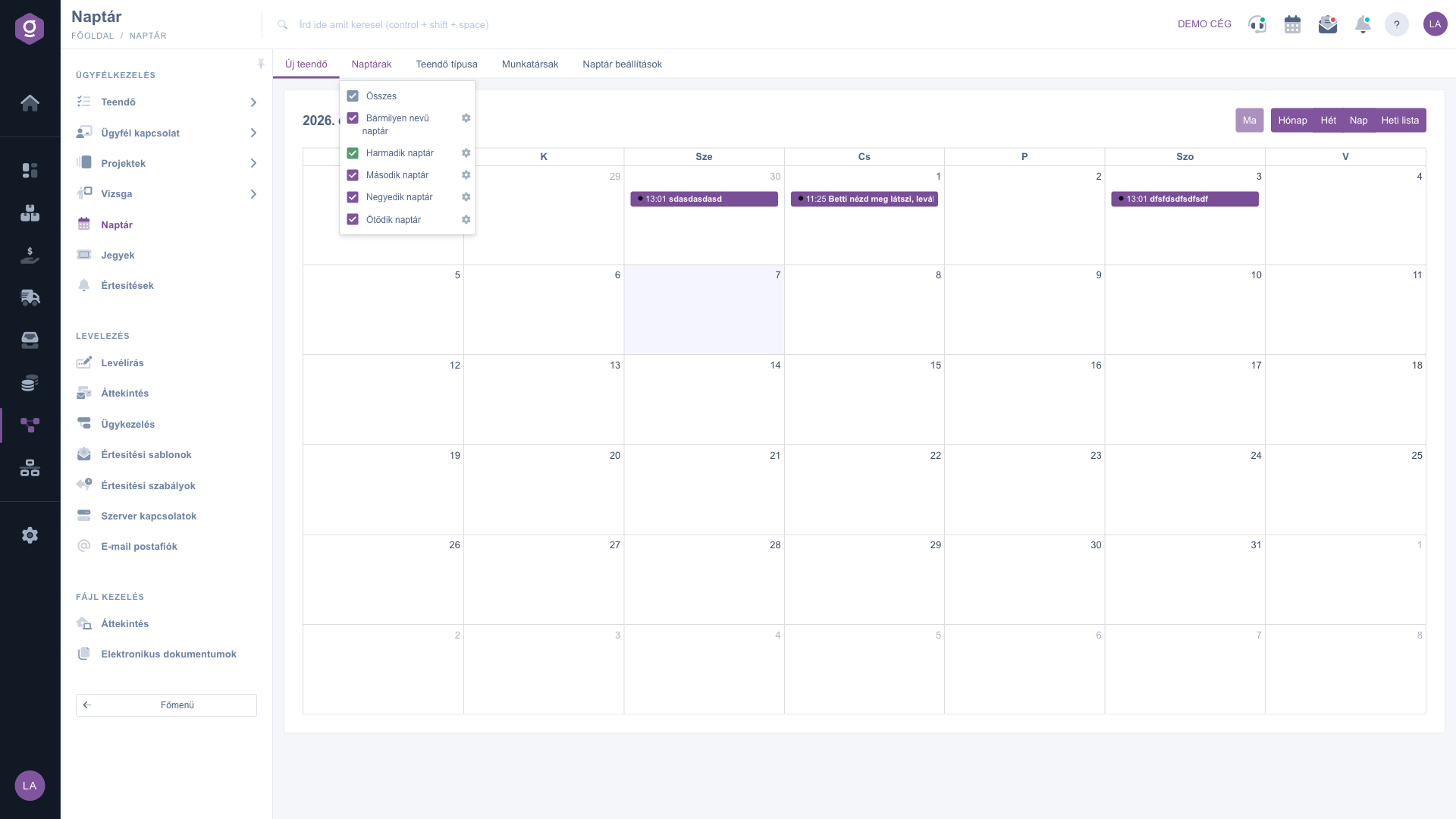
Calendars filter list with calendar colours and the edit icon
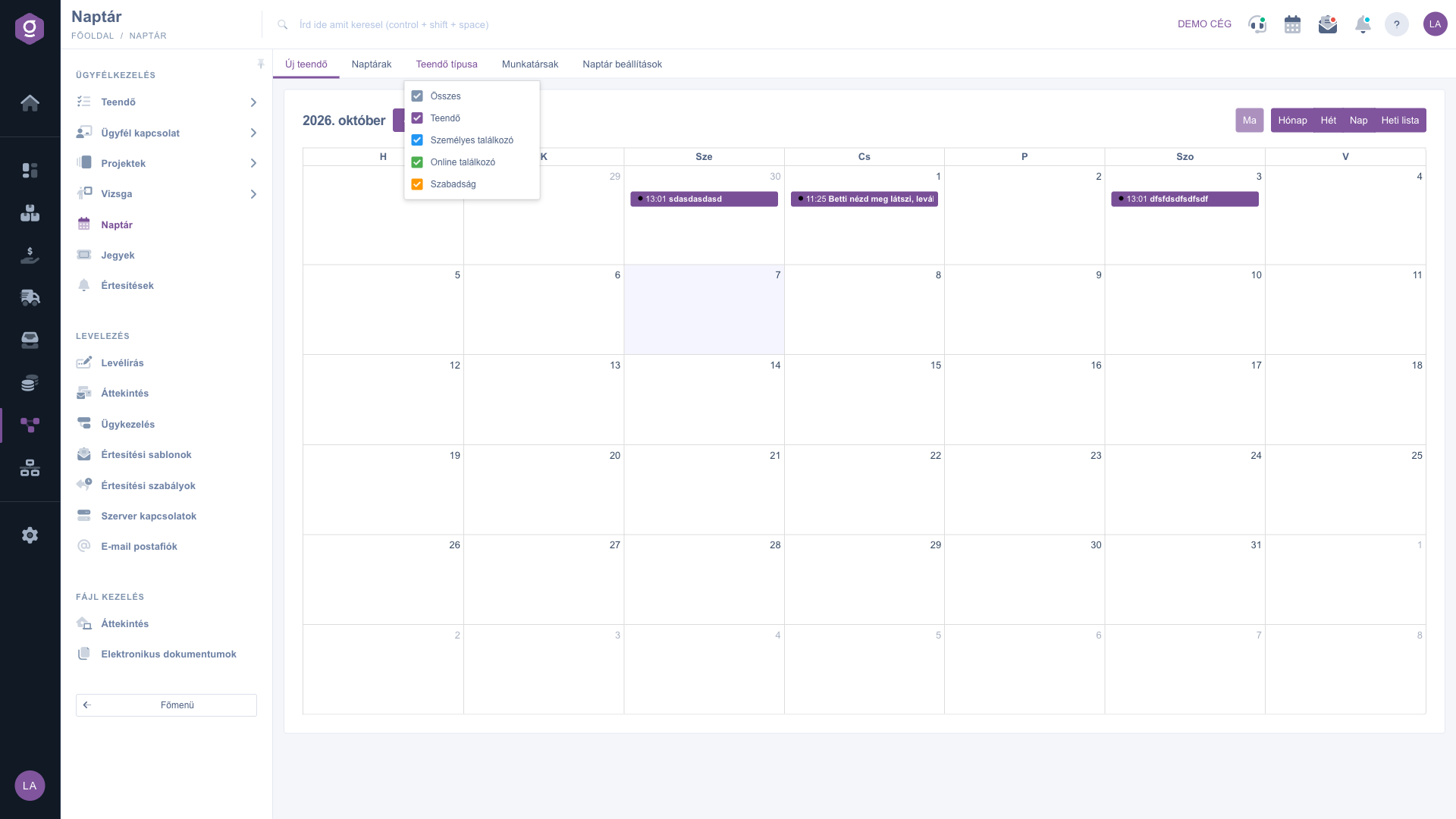
Task type filter list
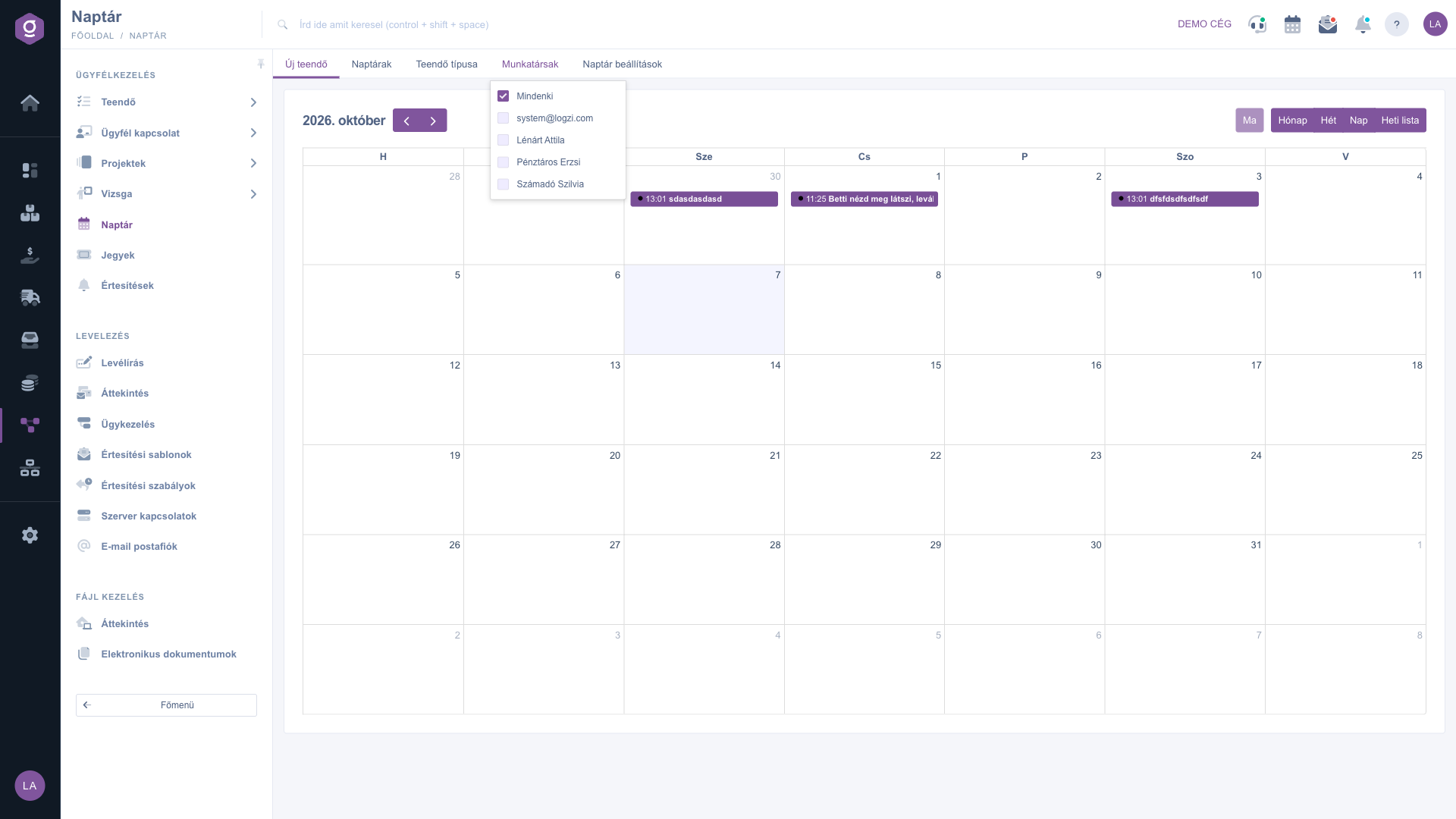
Colleagues filter list

3. Creating and editing a task

Click the New task (Új teendő) tab and a pop-up window opens; the same window appears when you click an existing task in the calendar. On the Actions tab at the top of the window you find the Save and Close buttons, and below them the basic data of the task:

  • Subject (Tárgy): the name of the task, shown in the calendar (required).
  • Reminder (Figyelmeztetés): the date and time of the task. In the calendar the task appears on the matching day and hour, so this must be filled in as well (required).
  • Status and Priority: by default Folyamatban (in progress) and Normál (normal). The calendar shows tasks with the Folyamatban status.

Below the basic data you can fill in the rest on three tabs:

  • Comment (Megjegyzés): the text description of the task, in a formatting editor (bold, italic, list, link, table). Required.
  • Customer data: the Partner company name and Partner contact person related to the task.
  • Other settings: the Responsible colleague, the Task type, the Calendar in which the task appears, and the Custom color (optional), which overrides the calendar colour.
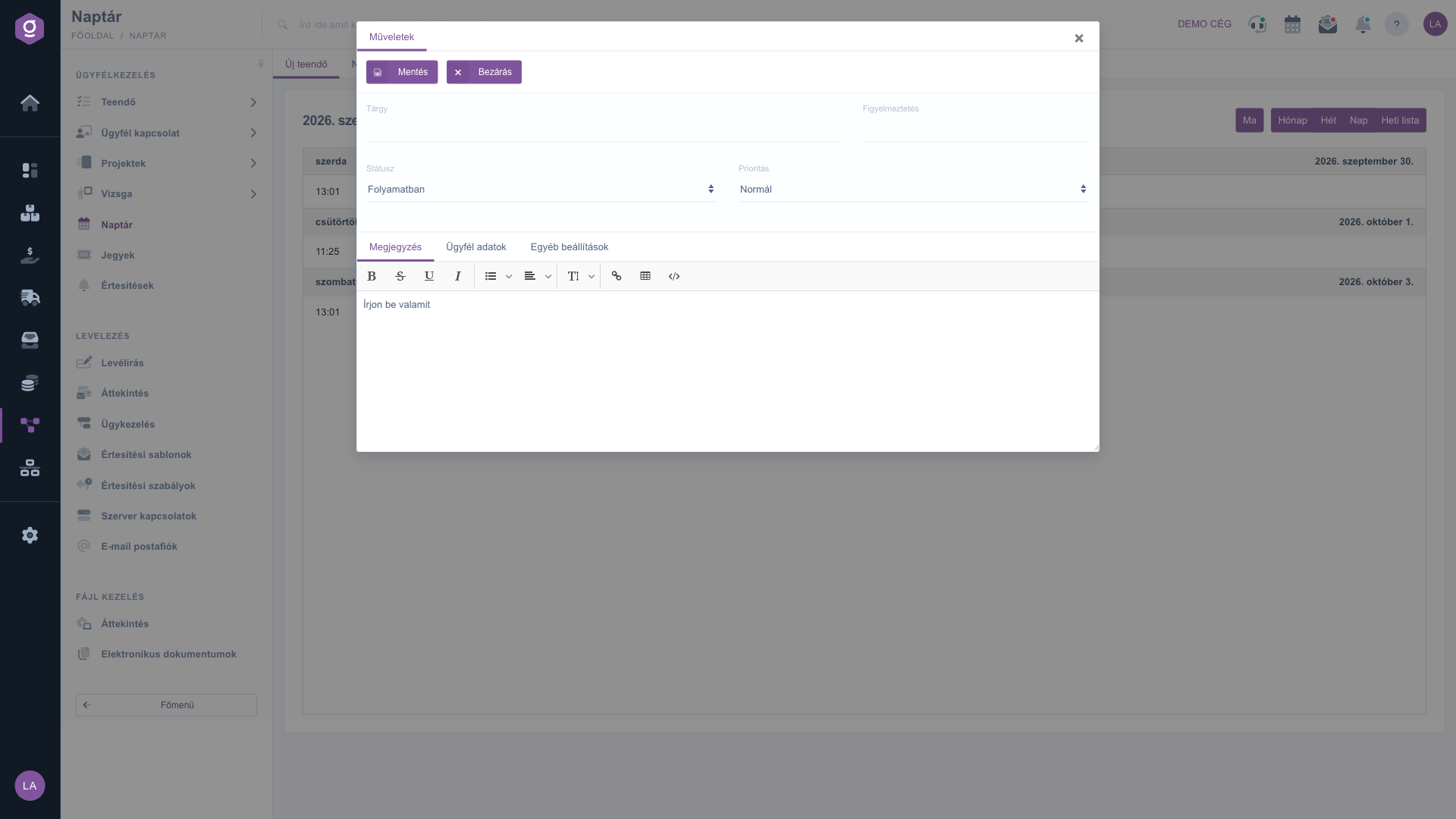
New task window – Comment tab
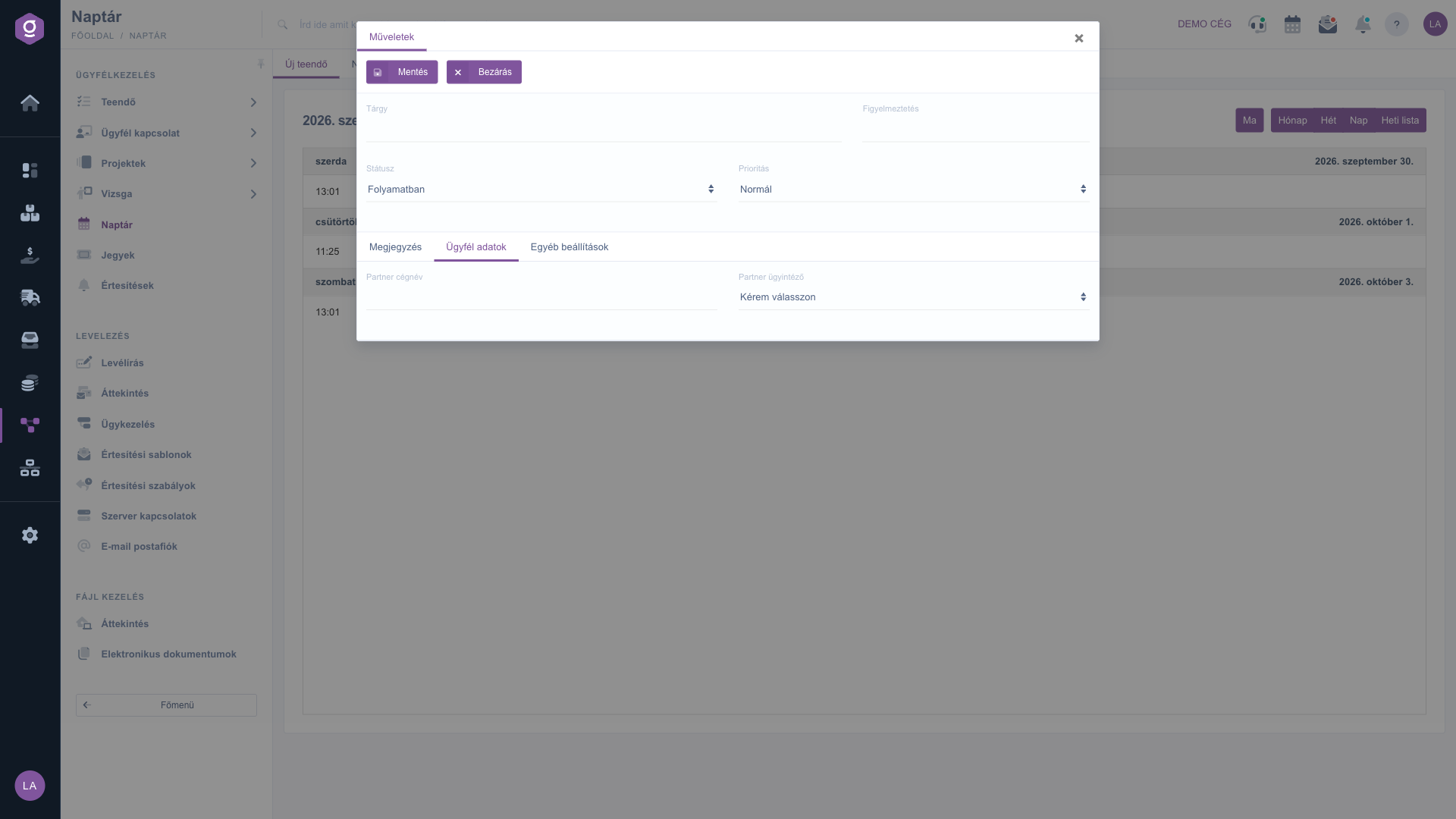
New task window – Customer data tab
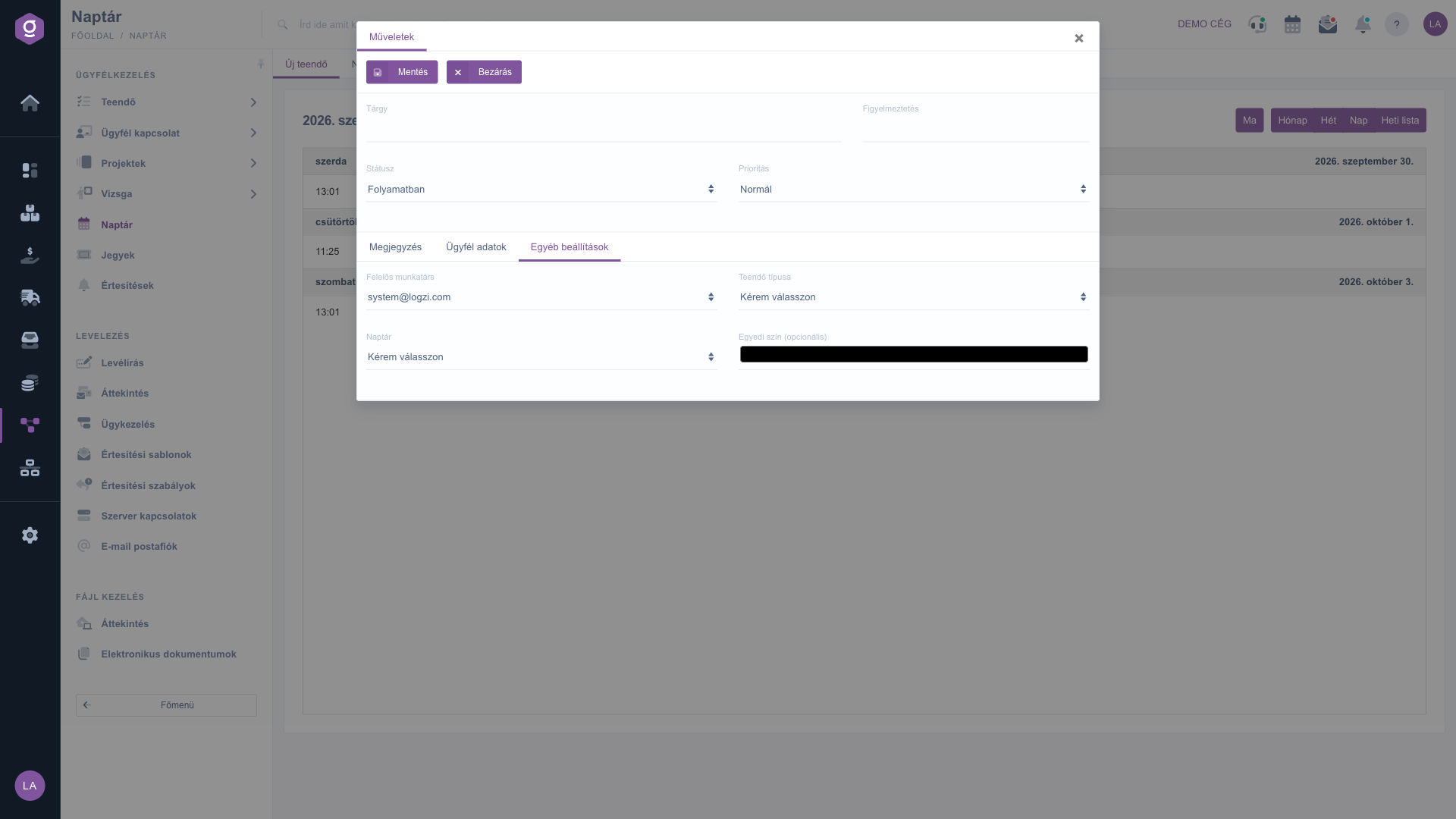
New task window – Other settings tab
You can find every task field and the task list described in detail in the Task sheet and Task list guides.

4. Creating and editing calendars

You can organise your tasks into calendars, for example by keeping separate calendars for sales and delivery. Click the Calendar settings tab and the following items appear:

  • New calendar: creates a new calendar. In the pop-up window enter the Calendar name (required) and choose a Color, then click Save. After saving, the page reloads and the new calendar appears in the Calendars list. The system assigns the new calendar to your own user.
  • Google connection: opens the setup of the Google calendar integration. After authentication, your Google calendar is synchronised with the Logzi calendar in both directions every few minutes. To connect, you need an OAuth client ID created in the Google Cloud Console; the setup page contains a step-by-step guide.
  • Apple connection: shown in grey and currently not usable.

To change the name and colour of an existing calendar, click the gear icon next to it in the Calendars list. A calendar is visible to you if you created it or if it is a corporate calendar (marked with K).
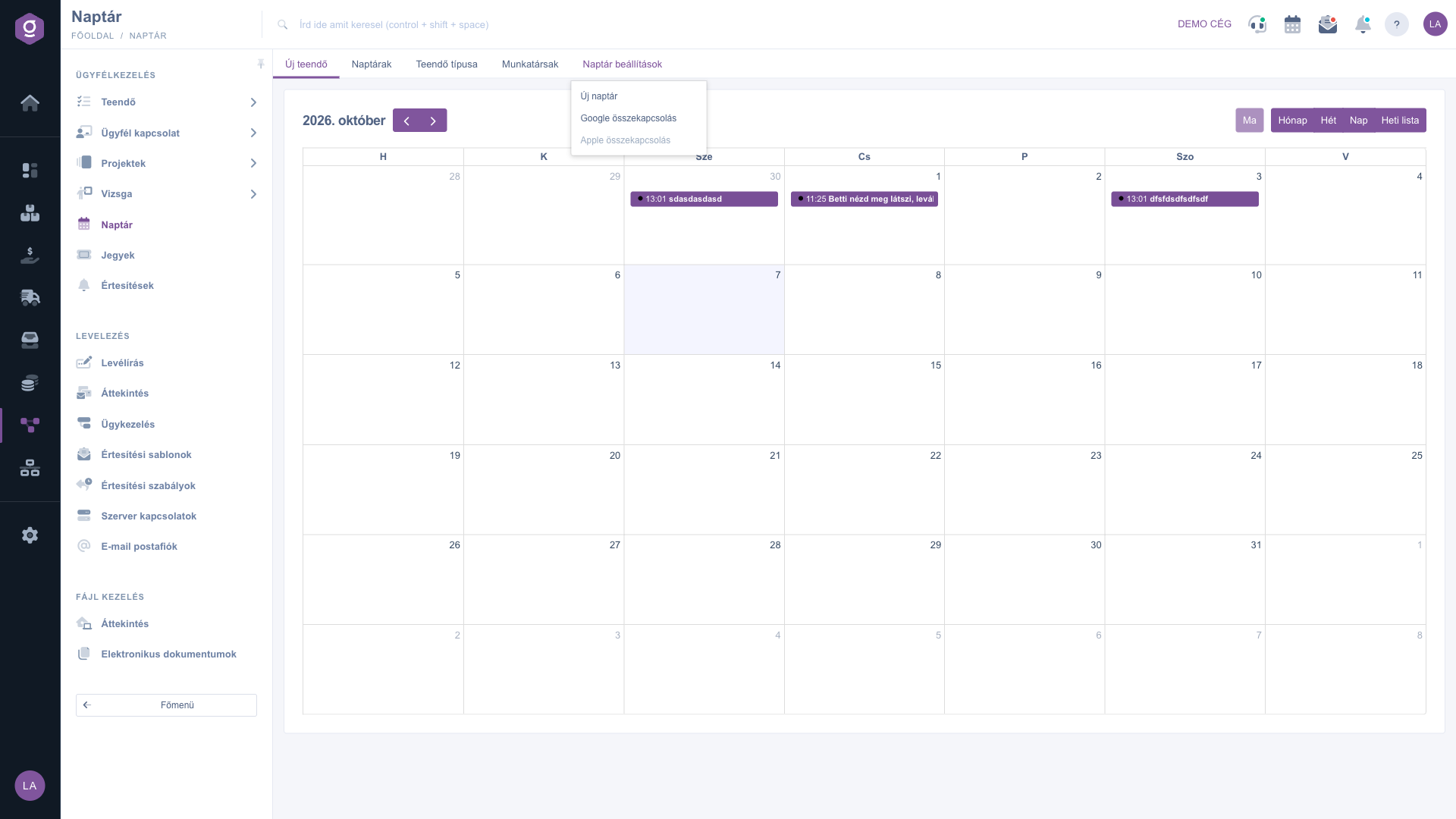
Calendar settings menu – New calendar, Google and Apple connection

Tip


Create a separate calendar for each area of work, for example Sales and Delivery, and give each a different colour. If you choose the right Calendar on the Other settings tab of your tasks, you can tell by colour in the month view which task belongs to which area, and in the Calendars list you can hide the ones you are not interested in with one click.


Field descriptions

The tabs above the calendar and the view buttons:

Field / Element Required Description
New task Opens the window for creating a new task.
Calendars The list of your own and corporate calendars, for filtering and editing.
Task type The list of task types, for filtering.
Colleagues The list of colleagues, for filtering by the creator or the person responsible for the task.
Calendar settings Creating a new calendar, Google and Apple connection.
Ma, Hónap, Hét, Nap, Heti lista Jump to today, and switch the display view (Today, Month, Week, Day, Weekly list).

The fields of the task window:

Field / Element Required Description
Subject (Tárgy) The name of the task, shown in the calendar.
Reminder (Figyelmeztetés) The date and time of the task; the task appears in the calendar accordingly.
Status The state of the task, Folyamatban (in progress) by default. The calendar shows tasks with the Folyamatban status.
Priority The importance of the task, Normál (normal) by default.
Comment (Megjegyzés) The text description of the task, in a formatting editor.
Partner company name The partner related to the task (Customer data tab).
Partner contact person The partner's contact person (Customer data tab).
Responsible colleague The colleague who has to carry out the task (Other settings tab). The Colleagues filter takes this into account as well.
Task type The category of the task; the Task type filter works on this.
Calendar The calendar in which the task appears; it provides the base colour of the task.
Custom color (optional) If you set a colour, the task is shown with it instead of the calendar colour.

The fields of the calendar editing window:

Field / Element Required Description
Calendar name The name of the calendar, shown in the Calendars list.
Color The colour of the calendar; tasks assigned to it appear in this colour unless they have a custom colour.

Frequently asked questions

The Calendar module only appears in the menu if it is assigned to your user. If you cannot see it, ask your system administrator to check the module assignment in your user settings.

Check the following in order: whether the Reminder date of the task falls within the period you are viewing; whether the task status is Folyamatban (in progress), because the calendar only shows those; and whether the Calendars, Task type and Colleagues filters exclude it (if All is not ticked among the calendars, tasks without a calendar stay hidden). The calendar loads at most 500 tasks per query, so if you have a very large number of tasks, narrow the filters or switch to a view that shows a shorter period.

The K mark (hover over it to see Corporate) denotes a calendar that does not belong to a specific colleague. Every colleague sees it in the Calendars list, whereas the other calendars are visible only to the person who created them.

Click the task in the calendar, change the date or time in the Reminder field, then click Save. The task will appear in the calendar at the new time.

The Apple connection menu item is currently not usable, which is why it is shown in grey. The Google connection, on the other hand, is available.

Need personalized help?

Don't want to spend hours searching for a solution? Choose the most efficient way: book a personalized, 45-minute online training session dedicated entirely to you. Whether it's a walkthrough of the basics or a detailed setup of a specific module, our expert colleague will guide you through the whole process, step by step.

Don't waste your time - ask for help!
Our goal is to get you using our system as quickly and efficiently as possible. Whether you're completely new to us or stuck on a specific setting, don't hesitate to ask for help!

Logzi warehouse management software

Get in touch with us

Interested in our software? Feel free to write to us!

Need help?

If you can't find the answer and need assistance

Create your account now,
pay later!

Try it free for 3 days, no risk, no obligation!
