The screenshots show the Hungarian user interface; where useful, the Hungarian label is given in parentheses.
1. Viewing the list and the actions available for a task
Clicking Main menu / CRM / Customer management / Task / List shows the list of tasks of the active board. Above the list you can choose a board from the tabs named after the boards; the icon on the far right takes you to the Board management page. With the buttons on the Actions tab (Műveletek) you work with the selected task:
- New: create a new task on a blank form — choose this when you want to record a new piece of work.
- Open: opens the sheet of the selected task.
- Cloning: copies the selected task.
- History: shows the history related to the selected task.
If you right-click a task row, the quick actions (New, Open, Close, Cloning) are also available from a context menu. Close sets the status of the task to the status with ID 2, which by default is Kész (Done). With the clipboard icon at the right end of the tabs you can copy the table to the clipboard, and the Analytics link takes you to the analytics page of tasks.
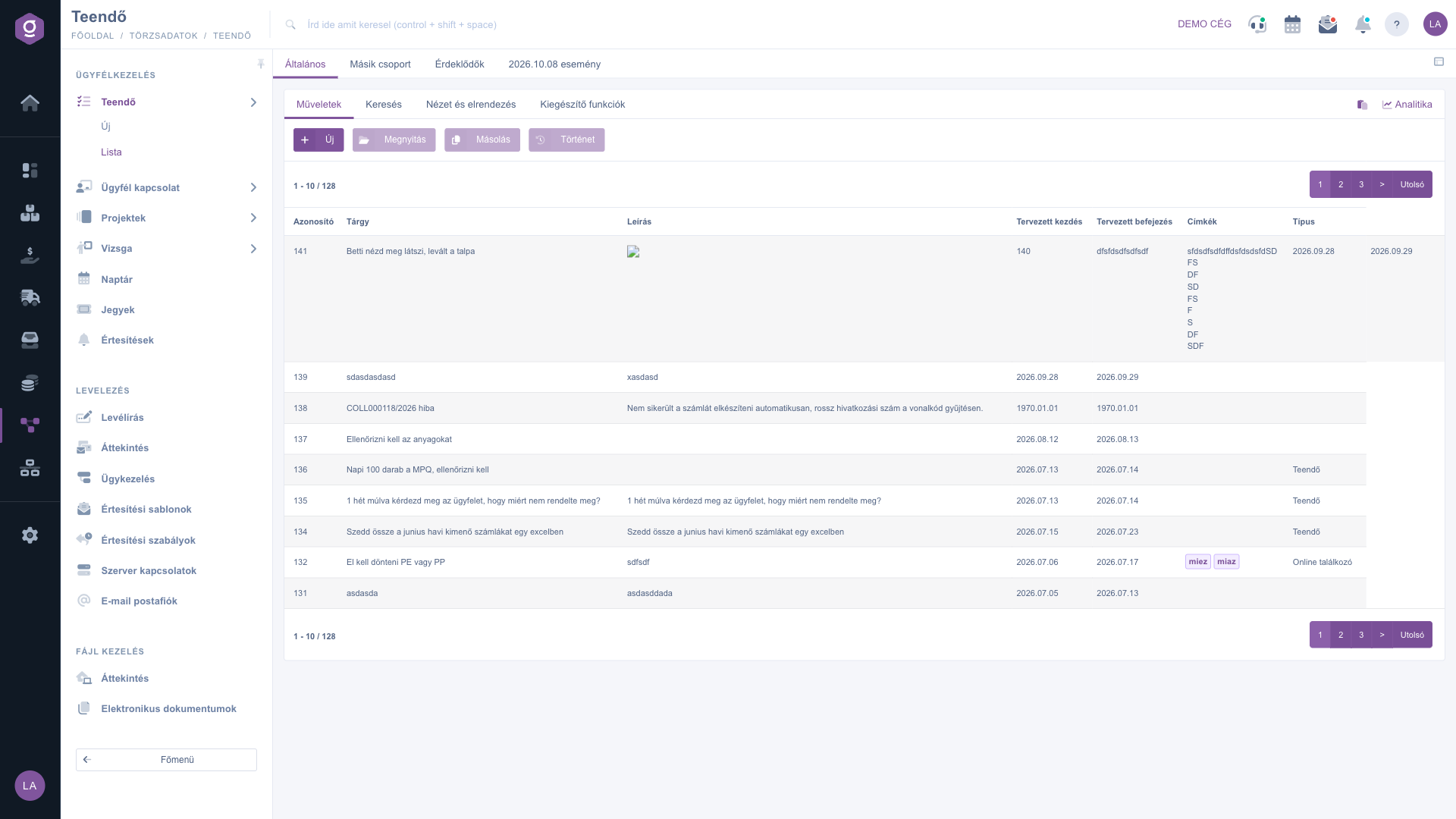
Task list – Actions tab (Műveletek)
Searching among tasks
Click the Search tab (Keresés) above the table to show the filter options. The fields visible right away are Partner company name, Subject, Status, Priority, Recorded by and Responsible (for the last two you can select several colleagues at once). The Expand button (Bővítés) opens further filters: Document date and Reminder, each searchable by a from and to date. Use the Search button to apply the conditions.
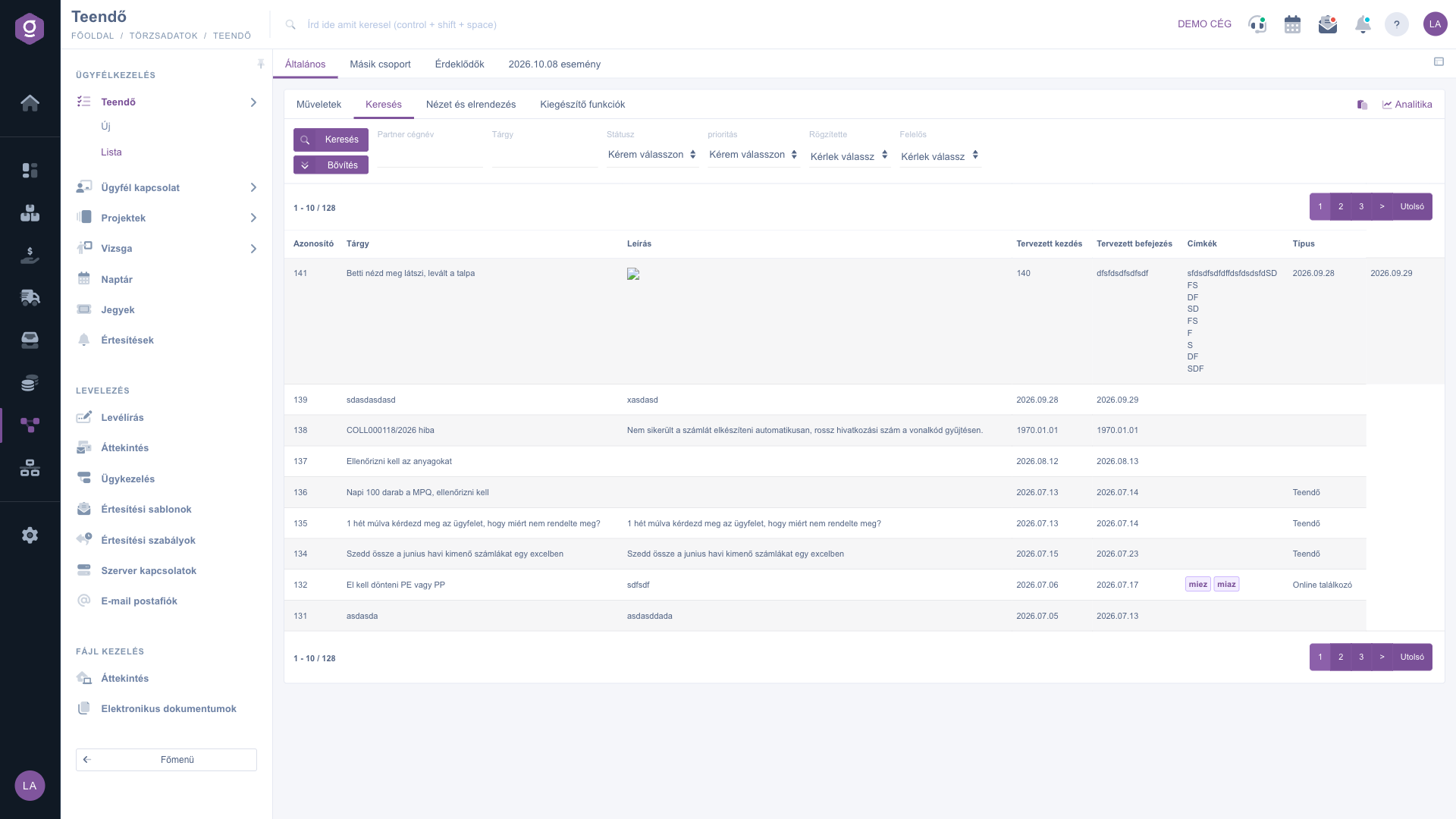
Task list – Search tab (Keresés)
Customizing the view
On the View and layout tab (Nézet és elrendezés) you set how the list is displayed for you:
- Columns (the button label appears in Hungarian, Oszlopok): choose which columns are shown in the table. If you have not set anything yet, you see the Document number, Subject, Document date, Reminder, Partner company name and Status columns.
- Rows (Sorok): set how many tasks are shown per page.
- Sorting: choose by which column and in which direction the list is sorted by default.
- Preview window: opens the settings of the preview window.
- Interface and behavior: other display-related settings of the list interface.
- Table / Kanban / Gantt: choose the display mode of the list, see below.
These settings are saved per user, so they are kept the next time you sign in.
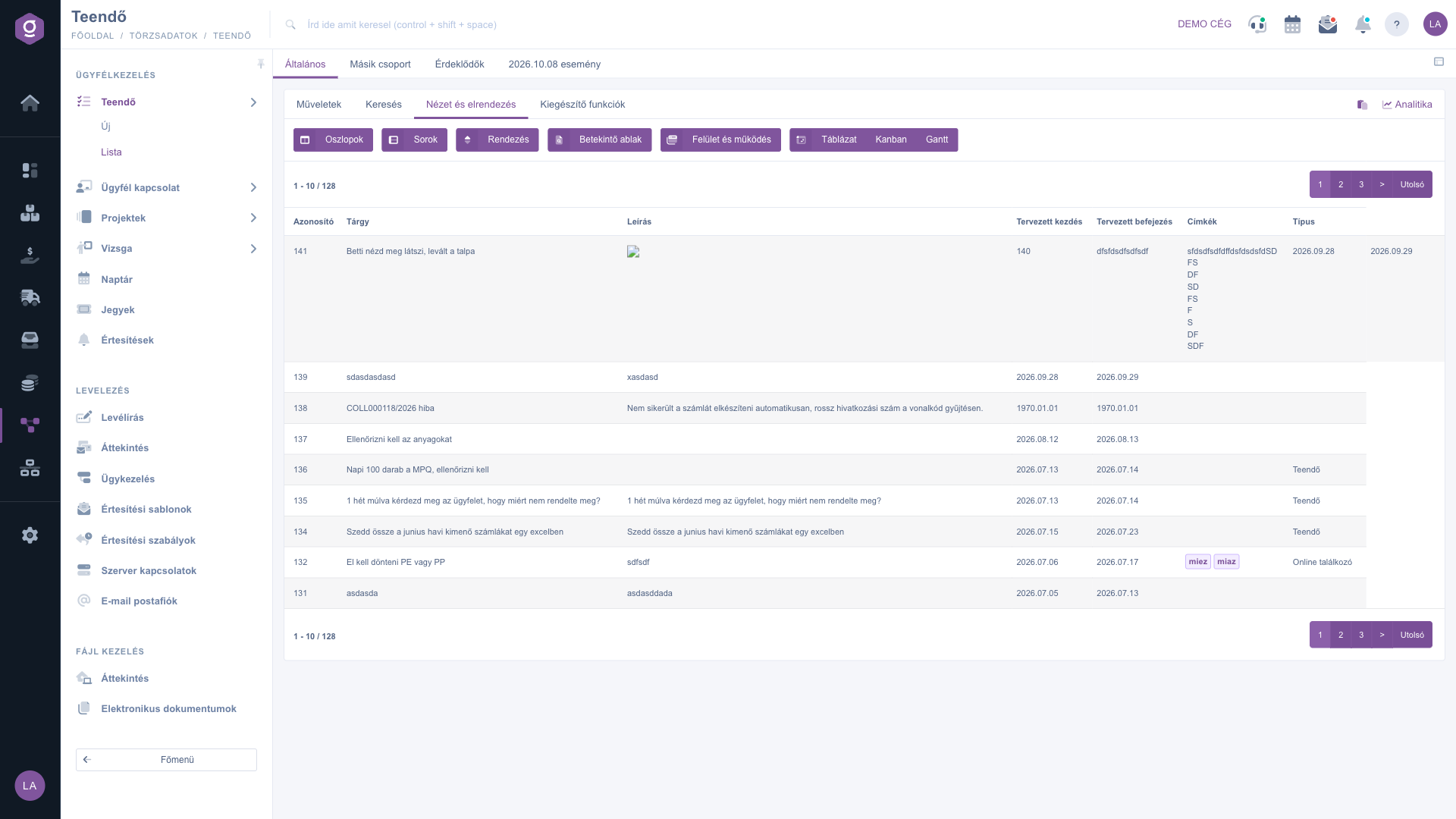
Task list – View and layout tab (Nézet és elrendezés)
Kanban and Gantt view
On the View and layout tab, the Table, Kanban and Gantt buttons let you choose the display mode (the Kanban and Gantt labels appear as shown):
- Kanban: the statuses of the active board appear as columns and the tasks as cards: a card shows the document number, the subject, the creation date and the tags. If you drag a card into another column, the status of the task changes immediately, without opening the sheet.
- Gantt: a timeline view with the Identifier, Subject, Start and End columns on the left. If you change the start or end date of a task on the timeline, the system saves the planned start and completion of the task. In Gantt view the + and - zoom buttons appear among the settings.
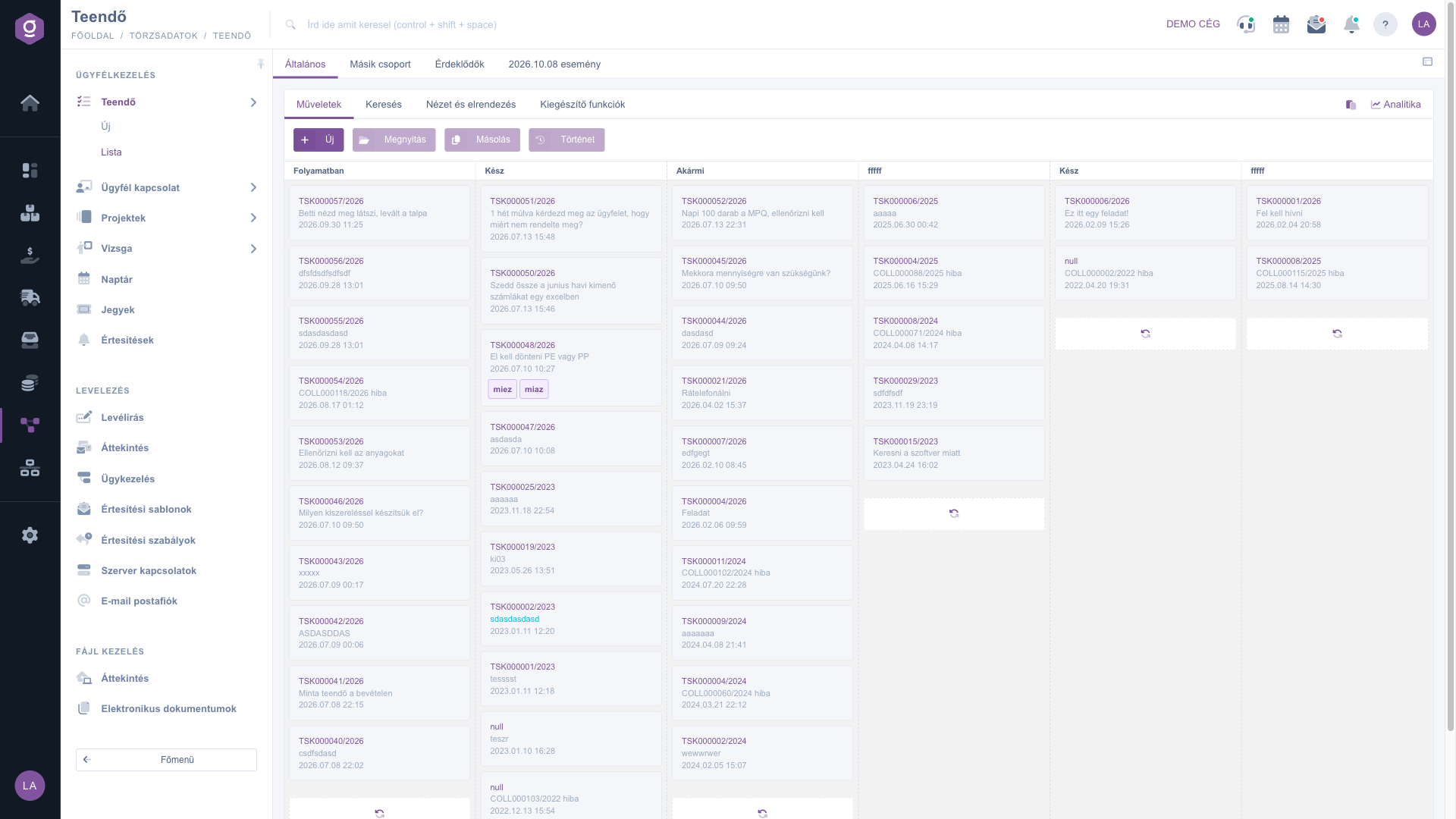
Task list – Kanban view
Additional functions
On the Additional functions tab (Kiegészítő funkciók), the New status button lets you add a new status to the active board. After you save the status entered in the window that opens, it appears among the statuses, and in Kanban view as a new column.
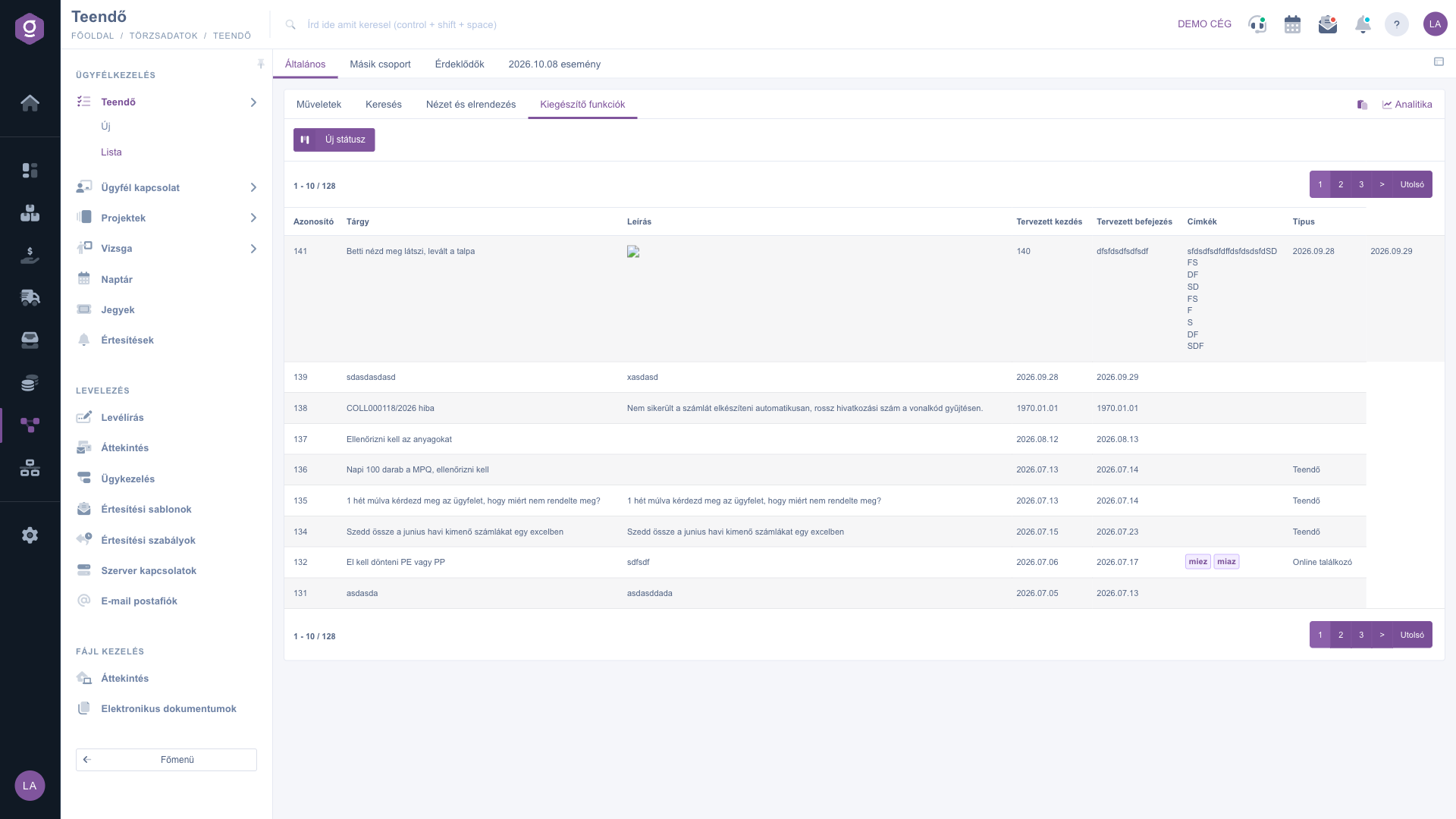
Task list – Additional functions tab (Kiegészítő funkciók)
Tip
If you need to review many tasks quickly, switch the view to Kanban: you can then change statuses by simple dragging and see at a glance how many tasks are in each column. You can open the sheet at any time with the Open button.
The details of creating and editing a task are described in the
Task sheet guide.



