Email mailbox

Learn how to add and manage the email mailboxes used for correspondence in Logzi: choosing a server, the default mailbox, BCC, reply-to address and assigning a mailbox to a user.

Feature overview

In this module you add and manage your Email mailbox entries. A mailbox is the email account through which Logzi sends and receives messages: an email address, its login details, and an E-mail szerver (email server) connection that you have already created under Server connections. If your company has several email addresses (for example info and invoicing), you can add a separate mailbox for each.

  • Choosing the server: the mailbox connects through the server connection you select in the E-mail szerver field.
  • Default mailbox: with the Default field you mark which mailbox the system uses first when it has to choose between several.
  • BCC and reply-to address: you can enter a BCC email address that also receives a copy of outgoing mail, and a Reply-to email address to which recipients' replies are sent.
  • Assigning to a user: with the User account field you decide whether everyone can use the mailbox or only one selected colleague.
  • Automatic folders: when you save a new mailbox, the system creates its mail folders (incoming, sent, deleted, drafts and spam), which appear in the left-hand menu.

A mailbox has no separate status, but depending on the Default field it is either Yes (default) or No (not default). Default mailboxes always come first in the list. A deleted mailbox disappears from both the list and the menu.

Step by step

1. Opening the mailbox list

Click Main menu / CRM / Correspondence / Email mailbox to see the list of mailboxes. A red warning is shown at the top of the page: Overwriting the "default" values may mean stopping the email sending! It refers to the default mailbox created by the system, whose details you should not change. The list has a single column, Name (Megnevezés), which shows the email address of each mailbox. Above the table there are three buttons: New (add a new mailbox), Open (edit the selected mailbox) and Delete (delete the selected mailbox). For Open and Delete, first click the row in the table to select it. In the left-hand menu, under Email mailbox, you find All mailboxes and each mailbox you have added; click one to expand its mail folders.
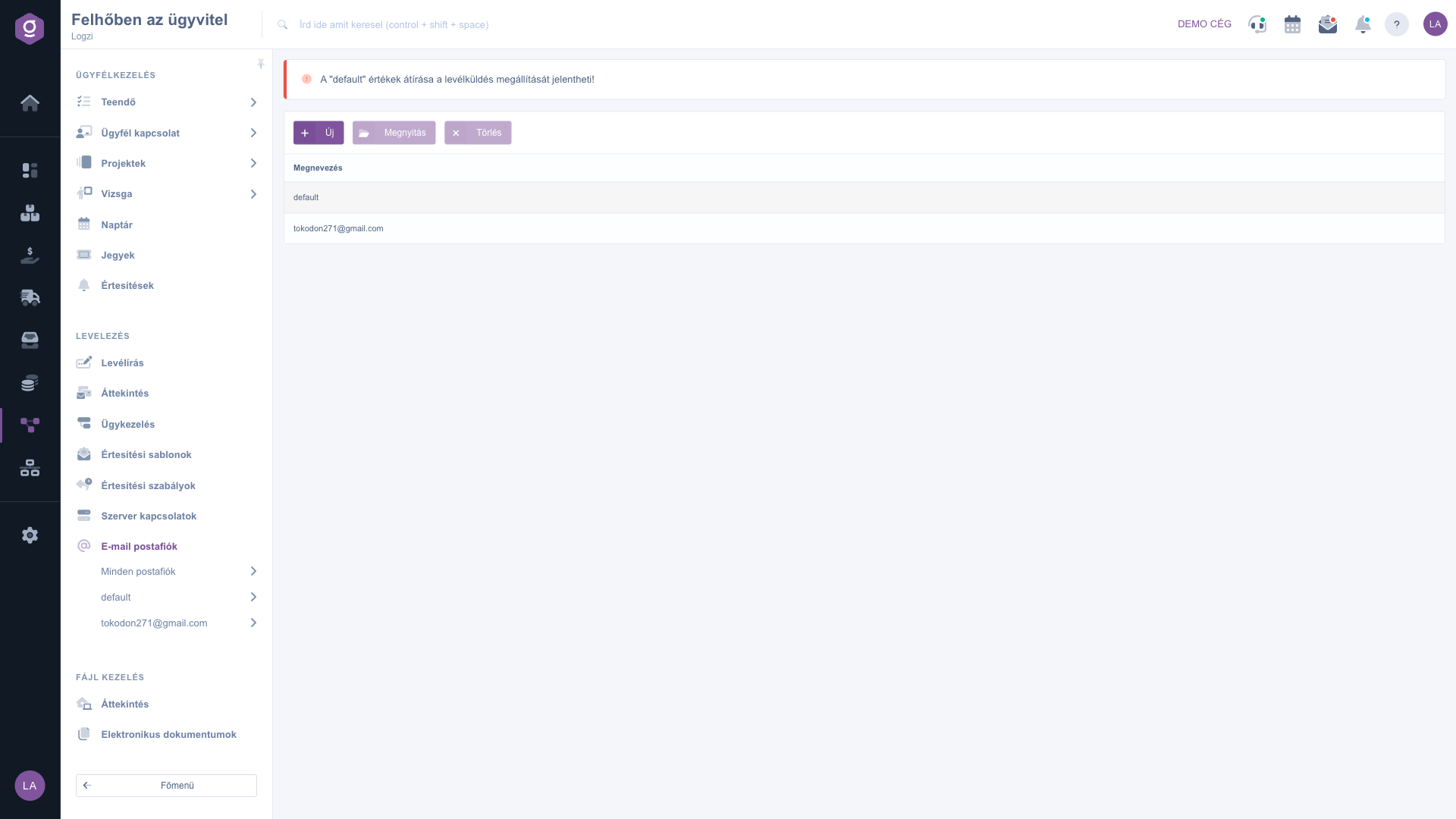
Email mailbox list with the red warning

2. Adding a new mailbox

Before you add a mailbox, make sure the mail server you want to use is already listed under Server connections; otherwise you cannot pick a server in the E-mail szerver list. Then click New. The form opens, with the Actions (Műveletek) tab at the top showing the Save and Close buttons. Fill in the fields:

  • Name (Megnevezés): any name for the mailbox, for example Customer service.
  • E-mail szerver: choose the server connection from the list (it shows Please choose at first, and you must change it).
  • Username and Password: the login details for the mail server. The password is not displayed in readable form.
  • Email address: the address of the mailbox, shown in the list and in the left-hand menu.
  • Default: Yes or No. For a new mailbox No is preselected.
  • BCC email address: optional; a copy of outgoing mail is also sent to this address.
  • Reply-to email address: optional; the recipient's reply goes to this address instead of the sending mailbox.
  • User account: All users by default; if the mailbox is meant for one colleague only, select their name.
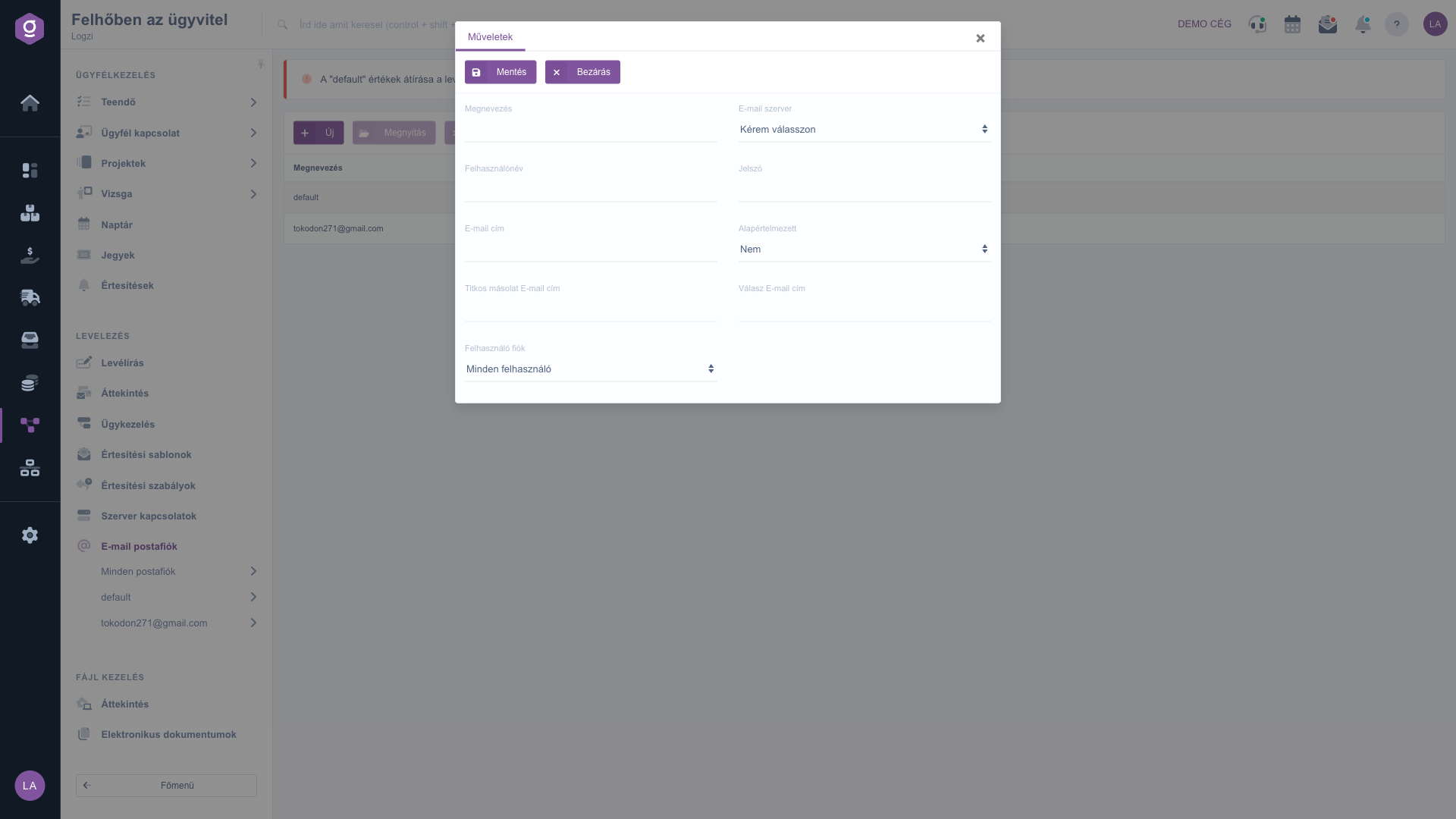
New mailbox form
New mailbox form

3. Saving

Use the Save button to record the mailbox; Close closes the window without saving. The E-mail szerver and Default fields are required, so always fill them in. After a successful save the page reloads and the new mailbox appears in the list and in the left-hand menu. For a new mailbox the system also creates its folders automatically, which you find under the mailbox name. If something goes wrong, a warning window (Figyelmeztetés) shows the reason; close it with the Rendben (OK) button.

4. Editing

To change an existing mailbox, select its row in the list, click Open, change the fields you need and click Save. If no row is selected, the system shows the message "Kérlek válassz egy tételt a listából!" (Please select an item from the list).

5. Deleting

Select the mailbox you want to remove and click Delete. The system does not ask for confirmation: the mailbox is deleted immediately, the page reloads, and the mailbox disappears from the list and from the left-hand menu. If you deleted it by mistake, you have to add it again as a new mailbox.

6. How does the system choose a mailbox?

When Logzi sends an email for a document, it first looks among the mailboxes of the user the document belongs to (based on the User account field). If there are several, the one with Default set to Yes comes first. If no mailbox is assigned to that user, it chooses among the company's mailboxes, again putting the default one first. That is why it is worth setting the Default and User account fields carefully.

Tip


If the whole company uses one shared address (for example info), add one mailbox with the All users setting. If every colleague has their own address, add a separate mailbox for each and assign it to their name in the User account field, so emails related to their documents are sent from their own address. Set Default to Yes for only one mailbox per user, so it is clear which one the system uses.


You can learn about the server used by a mailbox in the Server connections guide. For handling incoming and sent emails, see the Email list and Email thread and composing an email guides, and for ready-made message texts see the Notification templates guide.

Field reference

The fields of the mailbox form and what they mean:

Field / ElementRequiredDescription
Name (Megnevezés)The name of the mailbox. Not required, but a descriptive name helps when you have several mailboxes.
E-mail szerverChoose from the servers created under Server connections. Required: select the server before saving.
UsernameThe login name on the mail server. It is often the same as the email address, but this varies by provider. In practice it must always be filled in.
PasswordThe mailbox password; the field does not show it in readable form. In practice it must always be filled in.
Email addressThe address of the mailbox. It identifies the mailbox in the list and in the left-hand menu, so always fill it in.
DefaultYes or No. The default mailbox takes priority when sending email and is listed first. The default for a new mailbox is No.
BCC email addressA blind copy (BCC) of outgoing mail is sent to this address; the recipient does not see it.
Reply-to email addressIf filled in, the recipient's reply is sent to this address instead of the sending mailbox.
User accountAll users or a specific colleague. All users is preselected. The list and the left-hand menu show only mailboxes set to All users and those assigned to your own account.

The list column and the buttons above the list:

Field / ColumnRequiredDescription
Name (Megnevezés, column)Shows the email address of the mailbox. Default mailboxes come first, the rest follow in the order they were added.
NewOpens the new mailbox form.
OpenEdits the selected mailbox. You must select a row first.
DeleteDeletes the selected mailbox without confirmation. You must select a row first.

Frequently asked questions

According to the red warning at the top of the list, overwriting the "default" values may stop email sending. The row named default is a basic setting created by the system, so do not change its details. If you want to send email from your own address, add a new mailbox with the New button and assign it to the right user.

The E-mail szerver and Default fields are required, so check that both are selected. If the E-mail szerver list only contains Please choose, first add a server under Main menu / CRM / Correspondence / Server connections. If saving fails, the Figyelmeztetés (Warning) window shows the reason.

A mailbox set to All users is shared: everyone sees it in the list and in the left-hand menu. If you choose a specific user in the User account field, only that user sees the mailbox, and the system picks it first for emails related to that user's documents.

The list and the left-hand menu show only mailboxes set to All users and those assigned to your own account. A mailbox assigned to another colleague is visible only to them. If everyone needs to see it, set the User account field to All users.

The Delete button removes the selected mailbox immediately, with no confirmation window. So always check that the right row is selected before you click. If you delete a mailbox by mistake, you have to add it again as a new mailbox. Be especially careful with the default mailbox, because removing it may stop email sending.

Under Main menu / CRM / Correspondence / Email mailbox, the All mailboxes item shows the emails of all mailboxes (Incoming mail, Sent, Deleted items, Drafts, Spam mail), while under a mailbox's own name only the folders of that mailbox open. For what you can do with the emails, see the Email list guide.

Need personalized help?

Don't want to spend hours searching for a solution? Choose the most efficient way: book a personalized, 45-minute online training session dedicated entirely to you. Whether it's a walkthrough of the basics or a detailed setup of a specific module, our expert colleague will guide you through the whole process, step by step.

Don't waste your time - ask for help!
Our goal is to get you using our system as quickly and efficiently as possible. Whether you're completely new to us or stuck on a specific setting, don't hesitate to ask for help!

Logzi warehouse management software

Get in touch with us

Interested in our software? Feel free to write to us!

Need help?

If you can't find the answer and need assistance

Create your account now,
pay later!

Try it free for 3 days, no risk, no obligation!
