Server connections

Learn how to add an IMAP/SMTP server connection in Logzi, what the fields mean, and why you should not overwrite the "default" values.

Feature overview

On the Server connections page you record the mail server details Logzi uses to receive (IMAP) and send (SMTP) email. A server connection is added once and can then be used by several Email mailboxes: you choose it in the E-mail szerver (email server) field on the mailbox sheet.

  • Server list: the saved connections sorted by name, with the New, Open and Delete buttons above it.
  • Server sheet: the name, the type, the IMAP and SMTP server details, the authentication and the encryption protocol.
  • "default" connection: the default sending setting used by the system; when emails are sent through Logzi's own sender, this is what is used.
  • Connecting to Gmail: an information banner at the top of the sheet about the Gmail connection settings.

Server connections directly affect sending and receiving email, so make every change carefully!

Step by step

1. Opening the server list

Click Main menu / CRM / Correspondence / Server connections. A red warning is shown at the top of the list: Overwriting the "default" values may mean stopping the email sending! The list has a single column, Name (Megnevezés). Above the table are three buttons: New (a new server connection), Open (edit the selected connection) and Delete (delete the selected connection). Select a row in the table before using Open or Delete. If you have not added any server yet, the list is empty. The screenshots were taken in the Hungarian interface; in the other languages, the names of buttons and menus are given with the Hungarian label in brackets where needed.
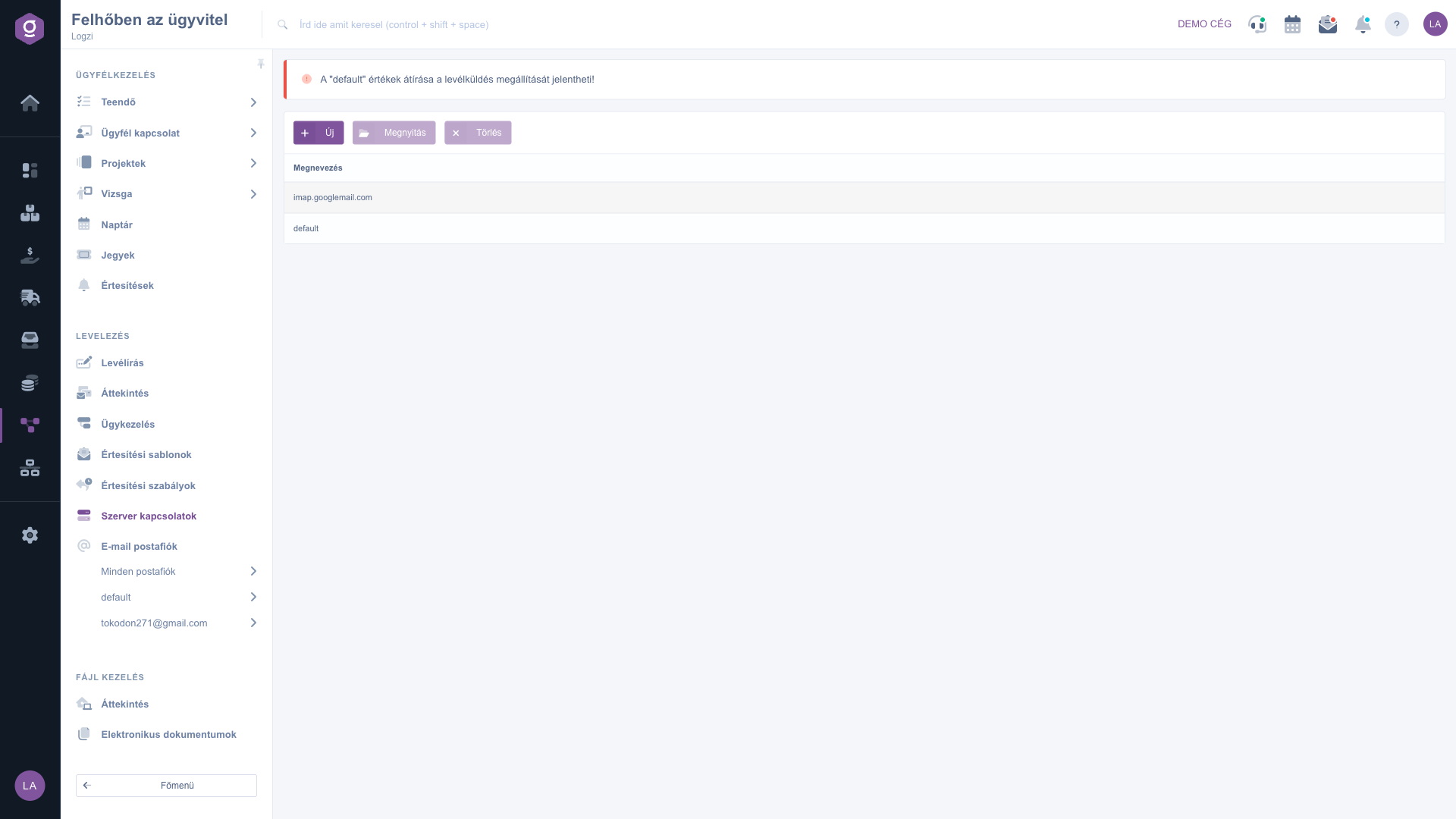
List of server connections

2. Adding a new server connection

Click the New button. On the Actions tab of the window you find the Save and Close buttons, below them the Connection settings (Csatlakoztatási beállítások) information banner (it links to a Logzi blog post about the Gmail settings and opens in a new tab), and then the data fields: Name, Type, IMAP host, IMAP port, SMTP host, SMTP port, SMTP username, SMTP password and Encryption protocol.
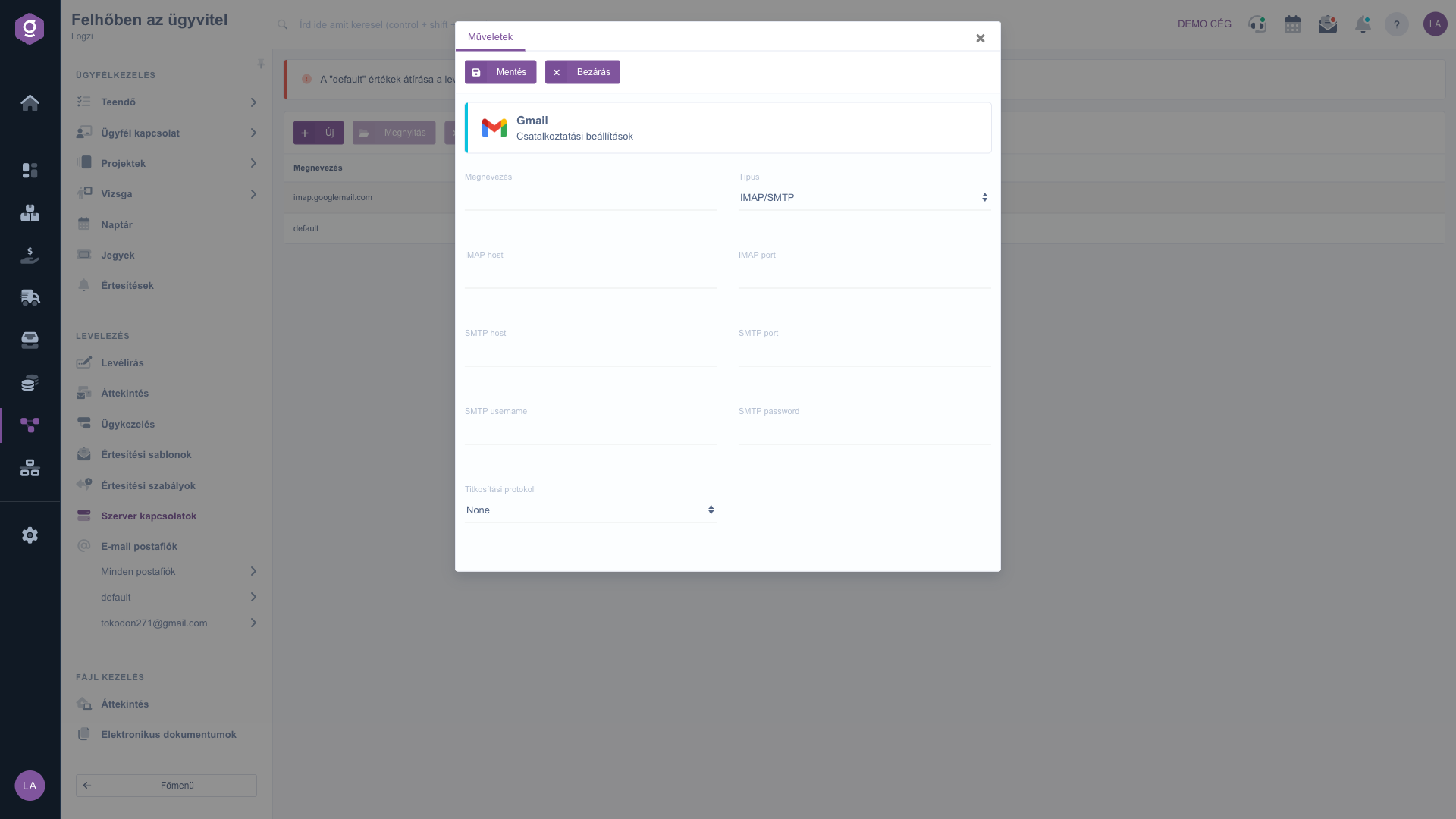
New server connection window

3. Filling in the server details

Enter a descriptive Name (for example the provider's name), select the Type (currently IMAP/SMTP is the only choice), then enter the details given by your provider: IMAP host and IMAP port are needed to receive incoming email, SMTP host and SMTP port to send email. The SMTP username is usually the full email address, and the SMTP password field hides the characters you type. You can find the exact server names and ports in the help of your email provider.

4. Encryption protocol

In the Encryption protocol field you choose one of three values: None (no encryption), SSL or TLS. Set it as your provider requires; Logzi applies it when sending (SMTP) and also when receiving (IMAP) if you selected an encryption. With a wrong value the connection cannot be established.

5. Saving, editing and deleting

Use the Save button to record the connection and Close to close the window. To change an existing connection, select its row, click Open and save the change. The Delete button removes the selected connection from the list immediately, without a separate confirmation, so make sure the right row is selected before you click.

6. Assigning the server to a mailbox

A server connection on its own does not send or receive email. On the sheet of the Email mailbox, choose the saved connection in the E-mail szerver (email server) field and enter the mailbox's own details.

Tip


Do not overwrite the connection called "default": if its host and username are "default", Logzi sends email through its own sender, and changing these values can stop email sending. For your own mail server, always add a separate new connection.


The content of the emails is described in the Notification templates guide, the conditions of automatic sending in the Notification rules guide, and the handling of received and sent emails in the Correspondence overview guide.

Field descriptions

The fields of the server connection sheet and their meaning.

Field / ElementRequiredDescription
Name (Megnevezés)The name of the connection, shown in the list and in the server selector of the mailbox. The form does not check it, but it is worth filling in so you can recognise it later.
Type (Típus)The type of the connection. Currently only IMAP/SMTP can be selected.
IMAP hostThe address of the server that receives incoming email (for example imap.googlemail.com), given by your provider.
IMAP portThe port number of the IMAP server, as required by the provider.
SMTP hostThe address of the sending server. If the value is "default", the system uses Logzi's own sender.
SMTP portThe port number of the SMTP server, as required by the provider.
SMTP usernameThe username used for sending, usually the full email address. If the value is "default", Logzi's own sender is used.
SMTP passwordThe password used for sending. The characters you type stay hidden.
Encryption protocol (Titkosítási protokoll)The encryption of the connection: None, SSL or TLS. Choose it as your provider requires.

Frequently asked questions

If both the SMTP host and the SMTP username of the connection are "default", Logzi sends email through its own sending service, and the sender appears under your company name. If you overwrite them, the system uses the SMTP settings you entered instead, and wrong data stops email sending. That is why the red notice is shown at the top of the list. For your own server, add a new connection instead.

At the top of the new server connection window, click the Connection settings banner: it opens a Logzi blog post in a new tab that describes the settings required for Gmail. Enter the server details according to that post, then choose the appropriate encryption protocol.

Check the host, port and encryption protocol, as well as the SMTP username and password. A common mistake is a wrong encryption and port pair (for example TLS instead of SSL). Also make sure you assigned the connection to an Email mailbox, because a server connection cannot be used on its own.

Yes: select the row, then click the Delete button. Deletion happens immediately, without a separate confirmation, and the mailboxes that use this server can no longer send or receive email through it. Before deleting, switch those mailboxes to another server.

Logzi currently supports the IMAP (receiving) and SMTP (sending) protocols, so the Type list contains only IMAP/SMTP. Most email providers offer these two protocols.

The menu item is under Main menu / CRM / Correspondence. If you cannot see it, your user probably has not been assigned the required module or permission; ask your administrator to check the settings.

Need personalized help?

Don't want to spend hours searching for a solution? Choose the most efficient way: book a personalized, 45-minute online training session dedicated entirely to you. Whether it's a walkthrough of the basics or a detailed setup of a specific module, our expert colleague will guide you through the whole process, step by step.

Don't waste your time - ask for help!
Our goal is to get you using our system as quickly and efficiently as possible. Whether you're completely new to us or stuck on a specific setting, don't hesitate to ask for help!

Logzi warehouse management software

Get in touch with us

Interested in our software? Feel free to write to us!

Need help?

If you can't find the answer and need assistance

Create your account now,
pay later!

Try it free for 3 days, no risk, no obligation!
