1. Open a new document and fill in the header
You can create a new customer relations document with Main menu / CRM / Customer management / Customer relations / New, or with the New button of the list. The header data at the top of the form:
- Document number (Bizonylatszám): read-only; the system issues it on the first save, until then it is empty.
- Status (Státusz): the state of the document; for a new document it is Request sent by default. The + link next to the field takes you to the status settings.
- Document date (Bizonylat kelte): read-only, shows today's date.
- Source (Forrás): required. Where the inquiry came from (in the demo account for example E-mail, In person, Letter, Phone). You can edit the sources with the + link next to the field.
- Partner company name (Partner cégnév): start typing a partner name and the system suggests matching partners. The buttons next to the field open the sheet of the selected partner or let you add a new partner.
- Partner contact person (Partner ügyintéző): choose from the contacts of the selected partner; the + button adds a new contact.
- Direction (Irány): required. Incoming or outgoing inquiry (Incoming by default).
- Priority (Prioritás): required, for example Normal, Urgent, Low (Normal by default).
- Subject (Tárgy): a short free-text name for the inquiry.
The operations you can perform on the document are on the Actions tab (Műveletek) above the form (see step 9). The tabs below the form are described in the following steps.
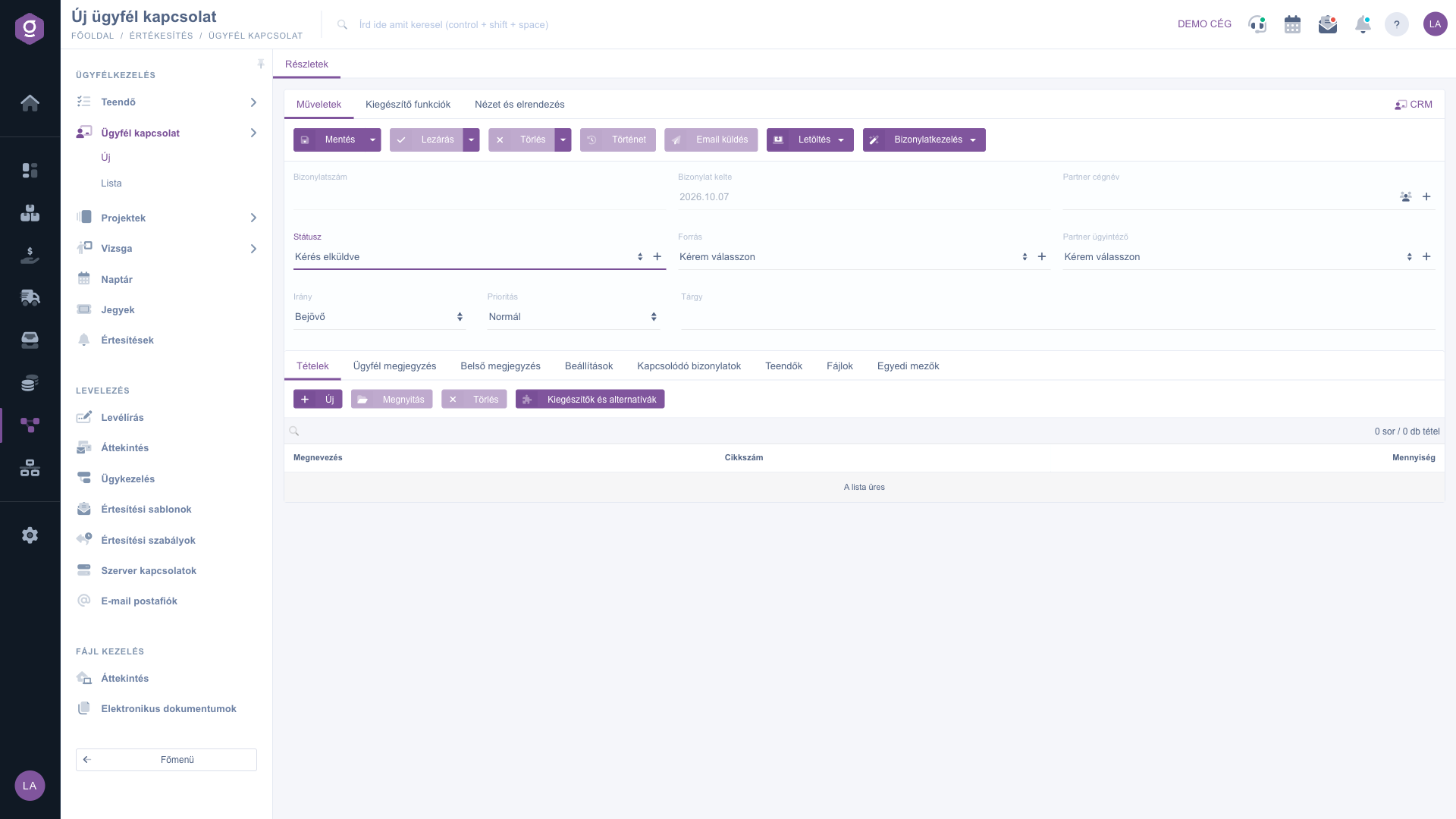
Customer relations sheet – Actions tab and Items
2. Add items
On the Items tab (Tételek) you record what the customer asked for. The buttons of the tab:
- New (Új): add a new product or service to the document.
- Open (Megnyitás): open the selected item for editing.
- Delete (Törlés): remove the selected item from the document.
- Add-ons and alternatives (Kiegészítők és alternatívák): manage the add-ons and alternatives of the item.
The items table shows the Name, Item number and Quantity columns. Above the table a search box filters the items, and below it a counter shows how many rows and how many pieces are on the document (for example 0 rows / 0 items).
3. Customer comment and Internal comment
The Customer comment and Internal comment tabs (Ügyfél megjegyzés, Belső megjegyzés) each contain a text editor. Above the editor you can pick a ready-made text template from the Please choose list (Kérem válasszon). The editor toolbar lets you format the text (bold, strikethrough, underline, italic, list, alignment, font size, link, table, source code). The customer comment is the text addressed to the customer, the internal comment is a note that stays inside your company.
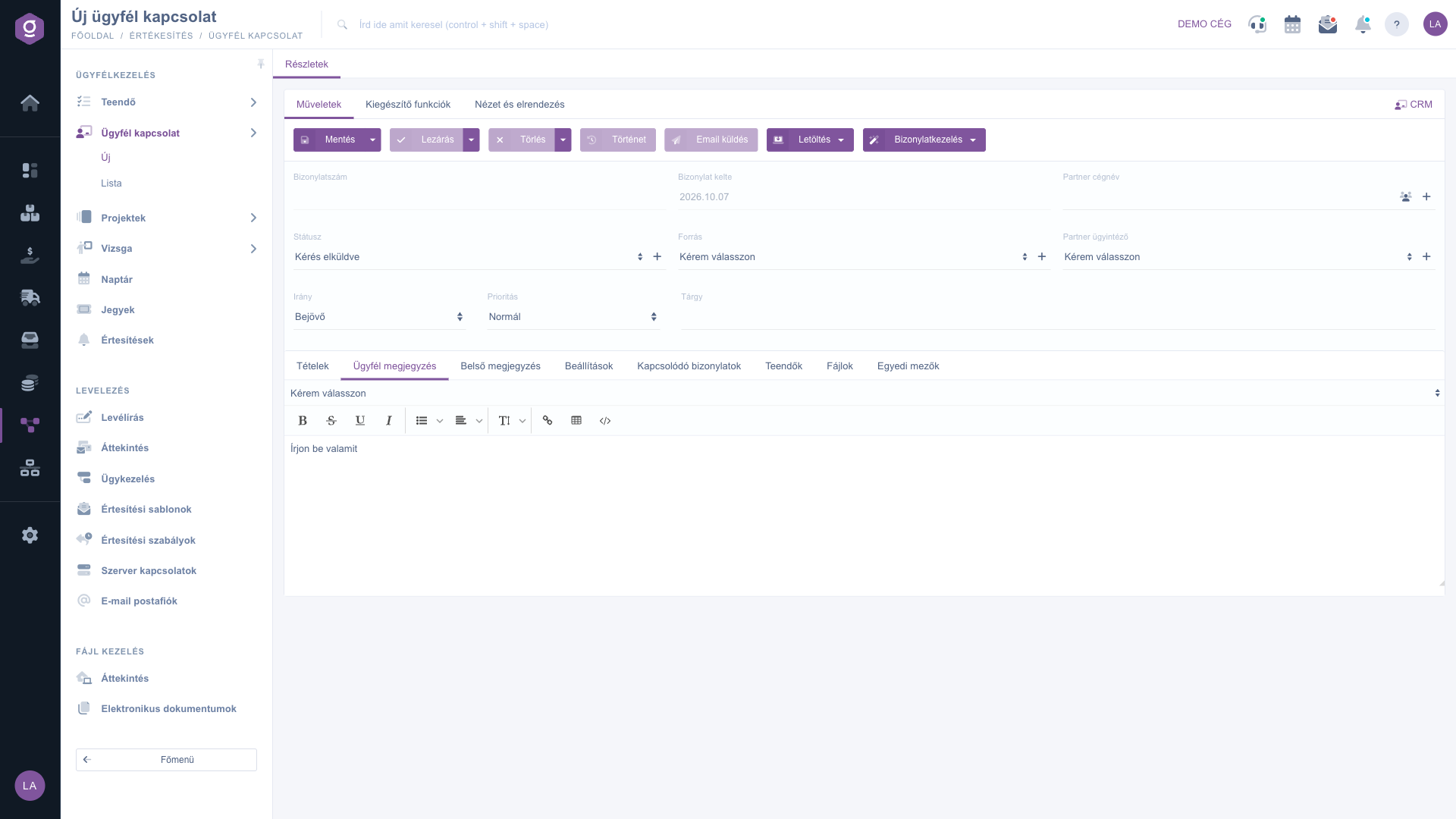
Customer relations sheet – Customer comment tab
4. Settings tab
On the Settings tab (Beállítások) you enter the other data of the document:
- Billing address (Számlázási cím): required. Choose one of the billing addresses recorded in your company data.
- Project (Projekt): assign the inquiry to a project; the + button creates a new project (opens in a new tab).
- Job number (Munkaszám): the job number of the inquiry; the + button adds a new one.
- Department number (Részlegszám): the department number of the inquiry; the + button adds a new one.
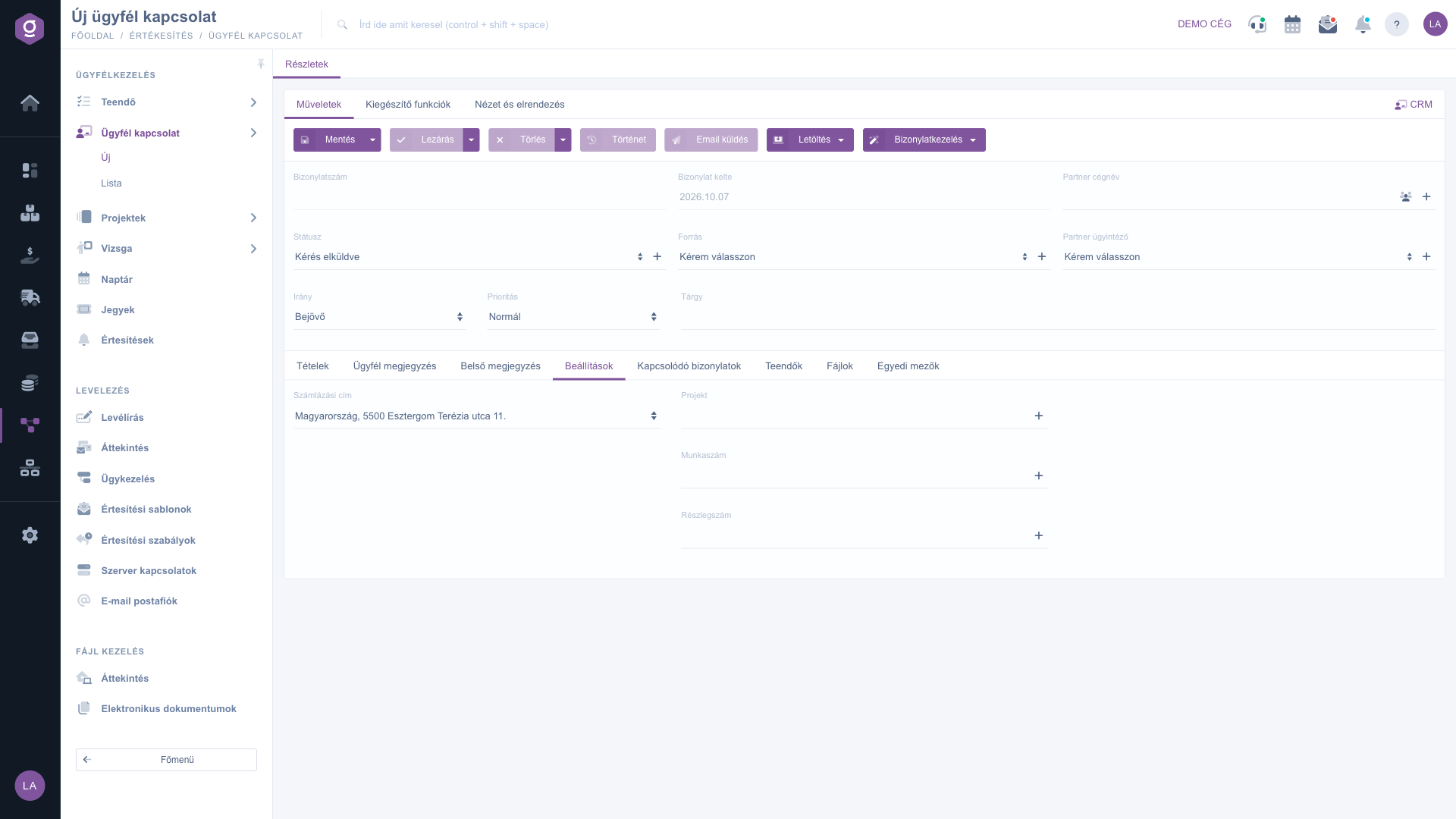
Customer relations sheet – Settings tab
5. Related documents
The Related documents tab (Kapcsolódó bizonylatok) lists the documents created from this customer relations document or linked to it (for example a quote or invoice created from the Document management menu). The columns of the table: Document number, Document date, Document type, Issuing employee and Action.
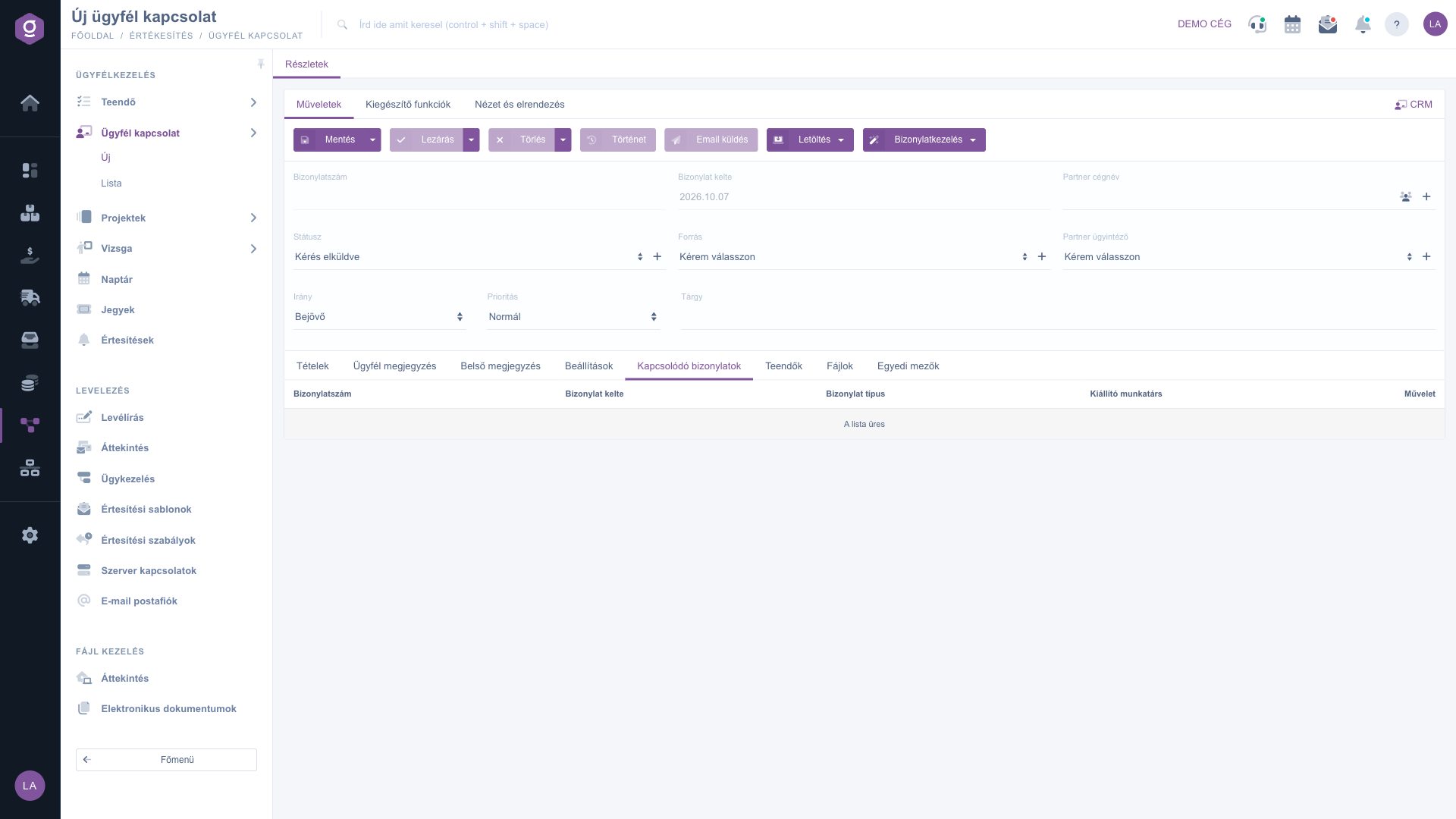
Customer relations sheet – Related documents tab
6. Tasks
The Tasks tab (Teendők) shows the tasks created for the inquiry, with the columns Document date, Subject, Comment and Issuing employee. You add a new task with the New task button (Új teendő) on the Additional functions tab (Kiegészítő funkciók); it becomes available after the first save. For details on tasks, see the Task sheet article.
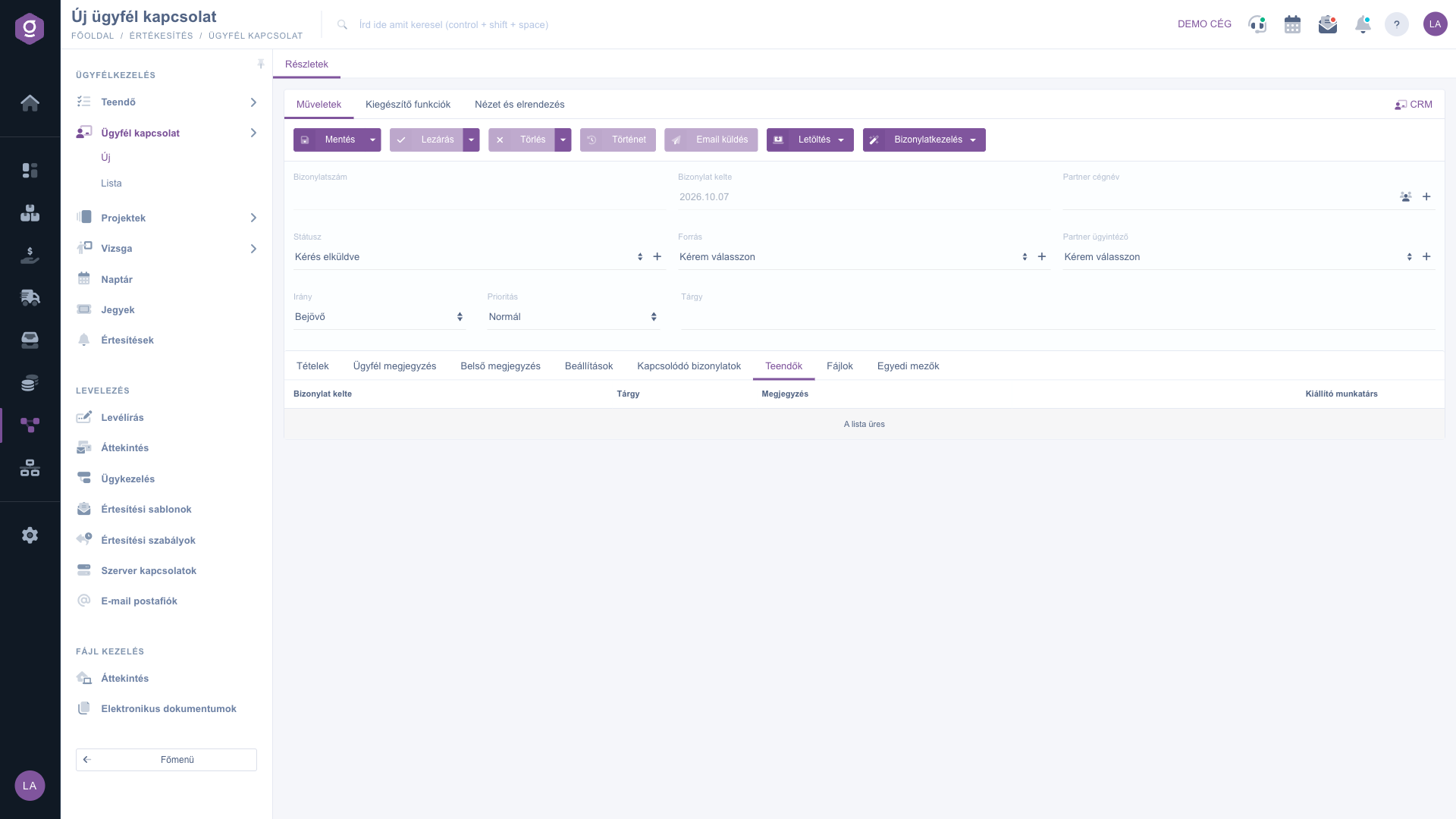
Customer relations sheet – Tasks tab
7. Attach files
On the Files tab (Fájlok) you manage the files attached to the document. The buttons: New, Open, Delete, Classification and Browse; the table columns: Added, Classification and Name. On a new document the New and Browse buttons are greyed out: you can upload files only after the first save.
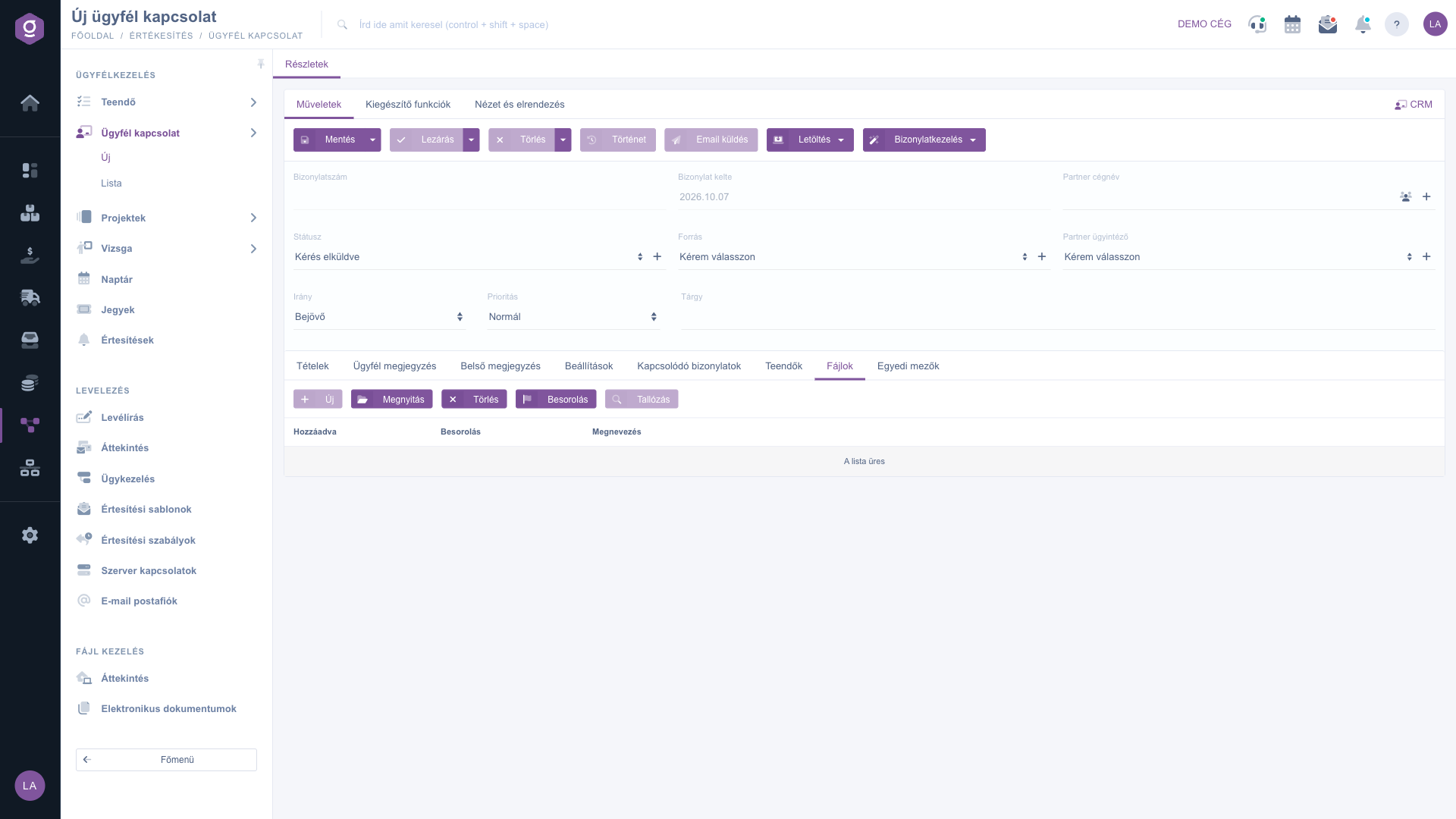
Customer relations sheet – Files tab
8. Custom fields
On the Custom fields tab (Egyedi mezők) you can use your own fields tailored to your company on the document. If you do not have such a scheme yet, you can create one with the New document scheme button (Új bizonylat séma).
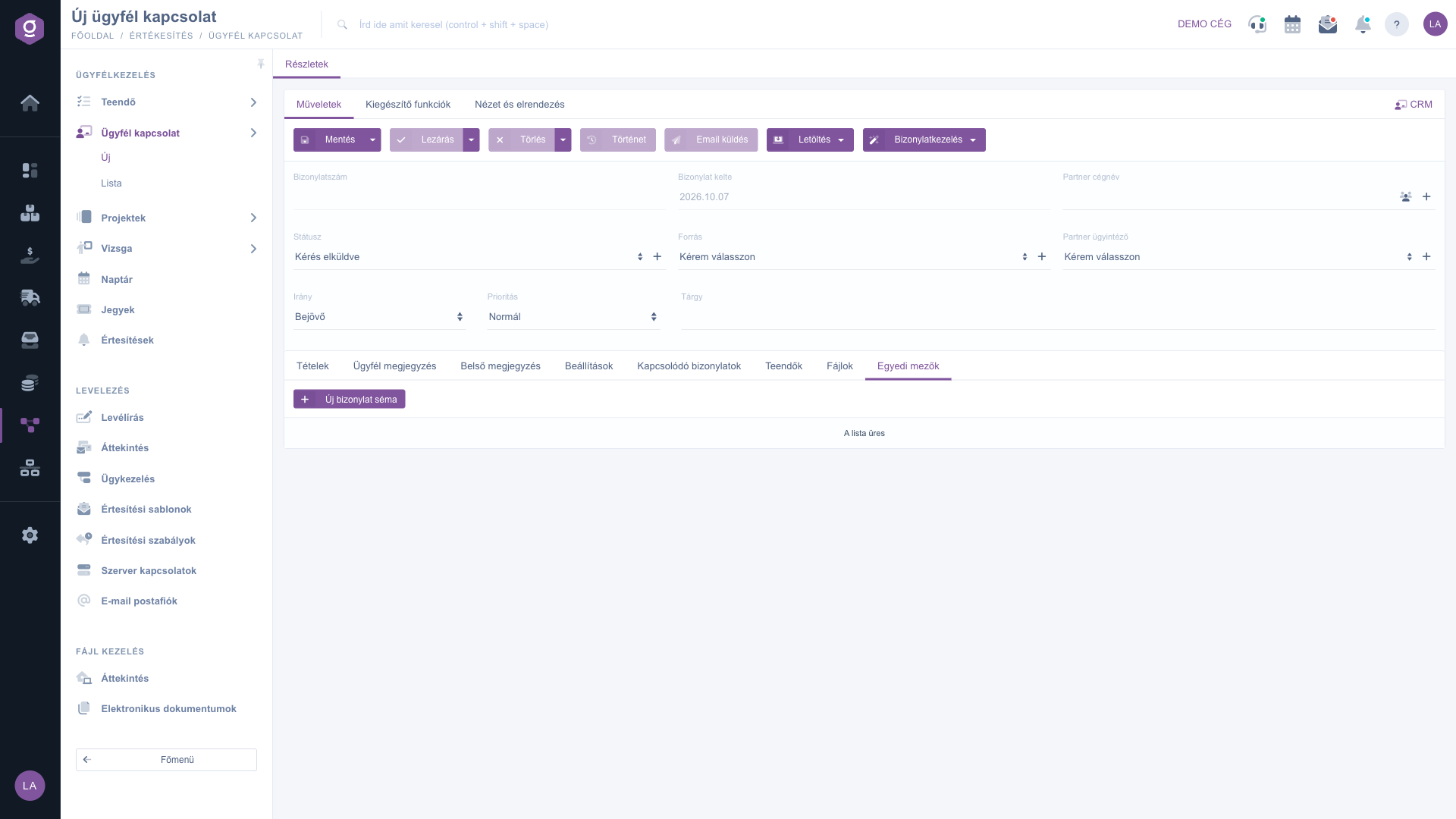
Customer relations sheet – Custom fields tab
9. Save, close, delete and other actions
On the Actions tab (Műveletek) above the sheet you find the operations for the document:
- Save (Mentés): records the data, but the document does not become final. The Save and close option (Mentés és lezárás) in the dropdown saves and closes the document in one step. After the first save the sheet reloads and the document number appears.
- Close (Lezárás): finalizes the document; afterwards its data can no longer be edited (only the Status field). The dropdown also offers Close and print and Close and download. It can only be used on a document with the default status.
- Delete (Törlés): deletes the document (the dropdown also offers Delete and copy); a deletion cannot be undone. It can be used on a document with the default status or a closed document.
- History (Történet): shows the history of the document.
- Send email (Email küldés): sends the document by email (on a closed document).
- Download (Letöltés): downloads the document as CSV, XLSX or PDF, or shows a PDF preview.
- Document management (Bizonylatkezelés): from a closed document, create a Quote sent to customer, Customer orders, Invoicing, Delivery note or Worksheets document; the partner, items and comments are carried over to the new document.
On a new, unsaved document the operations that need a saved document (for example the items of Document management) are greyed out, as you can see in the picture.
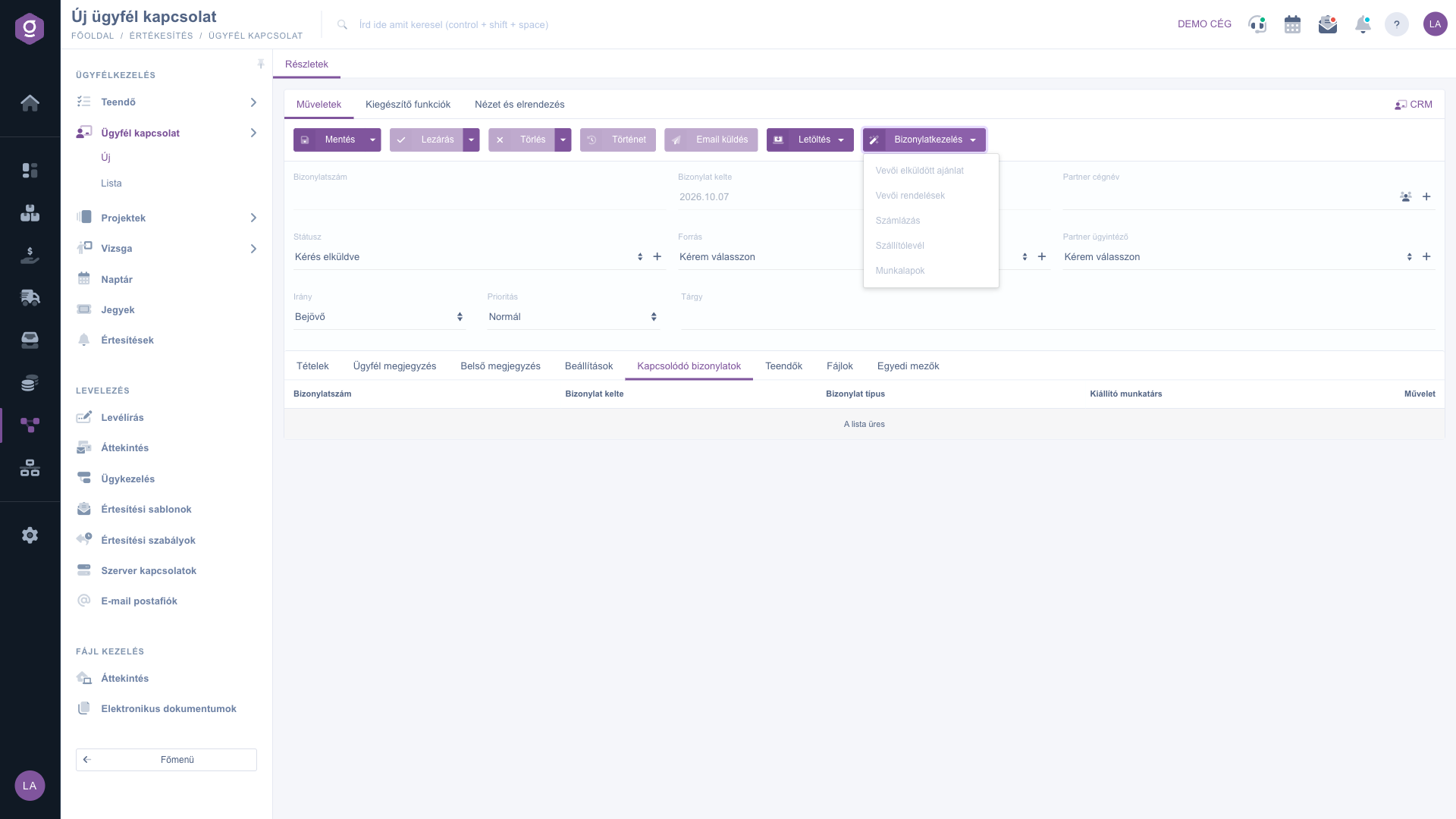
Customer relations sheet – Document management menu
10. Additional functions and view
On the Additional functions tab (Kiegészítő funkciók) you find further options related to the document:
- Sent items (Elküldött levelek): the emails previously sent for the document (after the first save).
- New email (Új email): write a new email for the document, using the External mail client or the Internal mail client.
- New product (Új termék): add a new product in a new tab if the requested item is not yet in your master data.
- New partner (Új partner): add a new partner in a new tab.
- New task (Új teendő): create a task for the document (after the first save).
- Partner card (Partnerkarton): open the sheet of the selected partner.
On the View and layout tab (Nézet és elrendezés) you find the Interface and behavior settings. The CRM button at the right end of the tab row opens the CRM notes panel of the document.
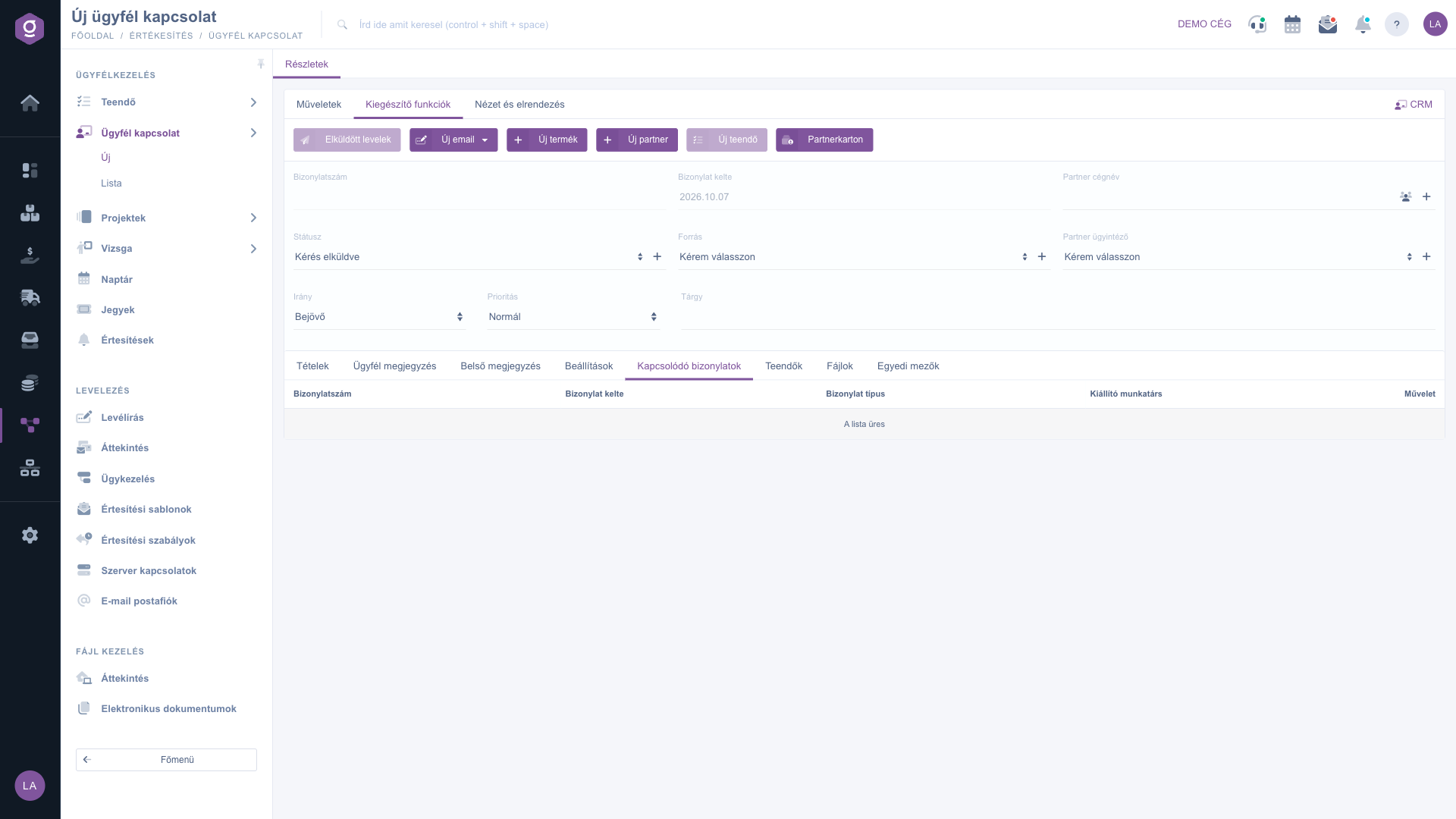
Customer relations sheet – Additional functions tab
Tip
If you want to take quick notes during a phone call, it is enough to fill in the required fields (Source, Direction, Priority, Billing address) and write the essentials on the Internal comment tab. You can add the partner and the items later, as long as the document is not closed.



