1. Creating a new project and filling in the header
You can create a new project with the menu item Main menu / CRM / Customer management / Projects / New, or with the New button on the project list. On the Actions tab you find the Save, Delete and Document management buttons. For a new project Delete and Document management are grey, because there is no saved project yet. In the header you can enter the following:
- Document number: assigned by the system, it cannot be edited.
- Status: for a new project the default is Tervezés alatt.
- Document date: the current date, it cannot be edited.
- Expected completion: required, entered with a date picker.
- Partner company name: required. While you type, the system offers the partners; the buttons next to it open the sheet of the selected partner or let you create a new partner.
- Partner contact person: choose from the contact persons of the partner, or add a new one with the + button.
- Subject: required, the short name of the project.
- Tags: you can add any tags to the project.
After filling in the fields, click Save. After a successful save the system moves to the sheet of the saved project, where further tabs appear at the top of the page (statistics, tasks, Gantt, workflow, stock movements, revenues, expenses, calendar, CRM, history). If the save fails (for example a required field is missing), a warning window shows the reason.
2. Project goal
On the Project goal tab you describe the goal of the project in an editor. If you have saved text templates, you can load the text by choosing a template and then edit it further.
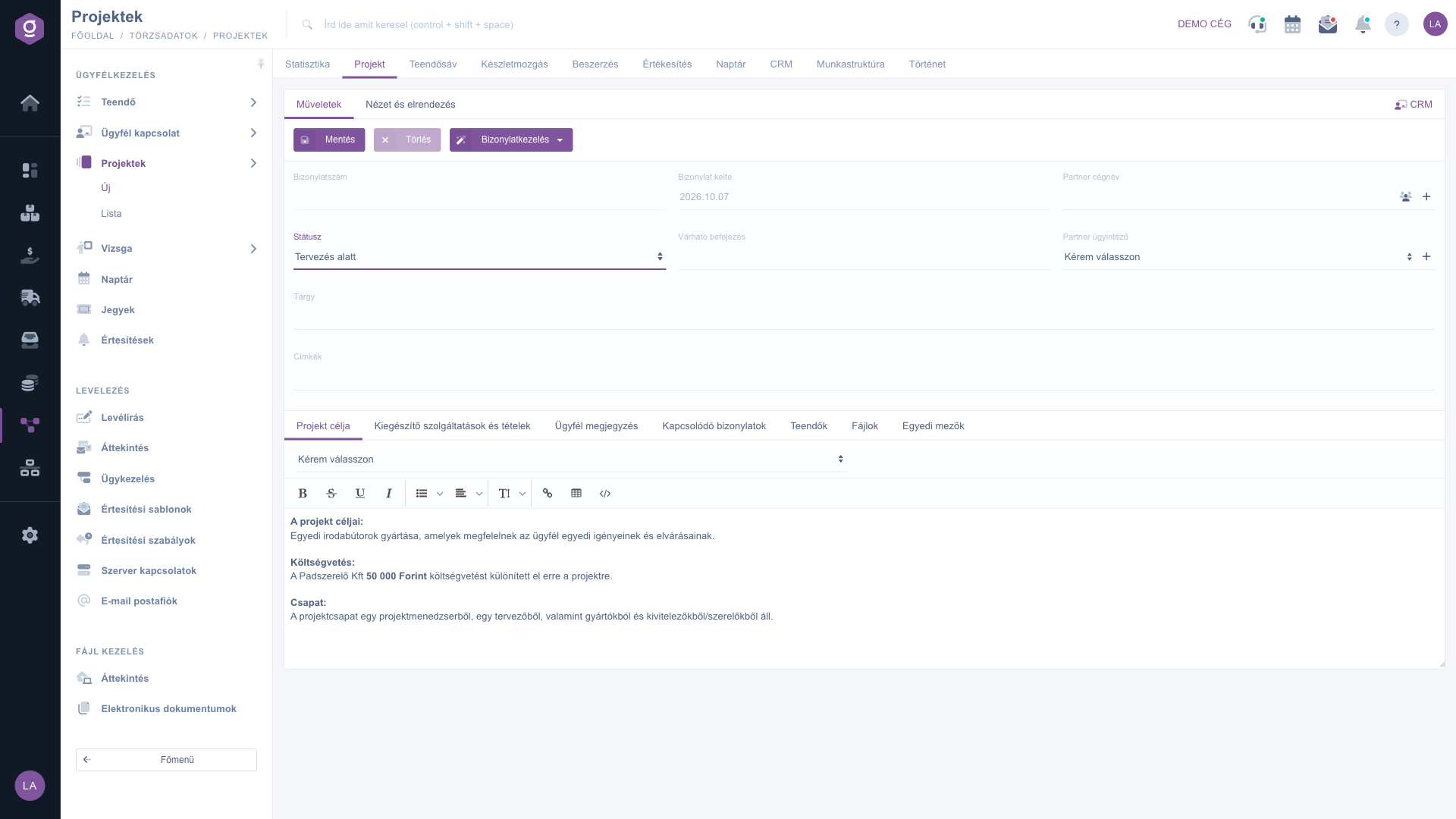
Project sheet – Project goal tab
3. Additional services and items
On the Additional services and items tab you add the items of the project with the New, Open and Delete buttons. The columns of the table are Date, Item number, Name, Price and Quantity. The New button is active only if the status of the project is the status with the ID 1 or 7. In the item window you enter the item number, the product name, the date, the price, the quantity, the comment and the tax.
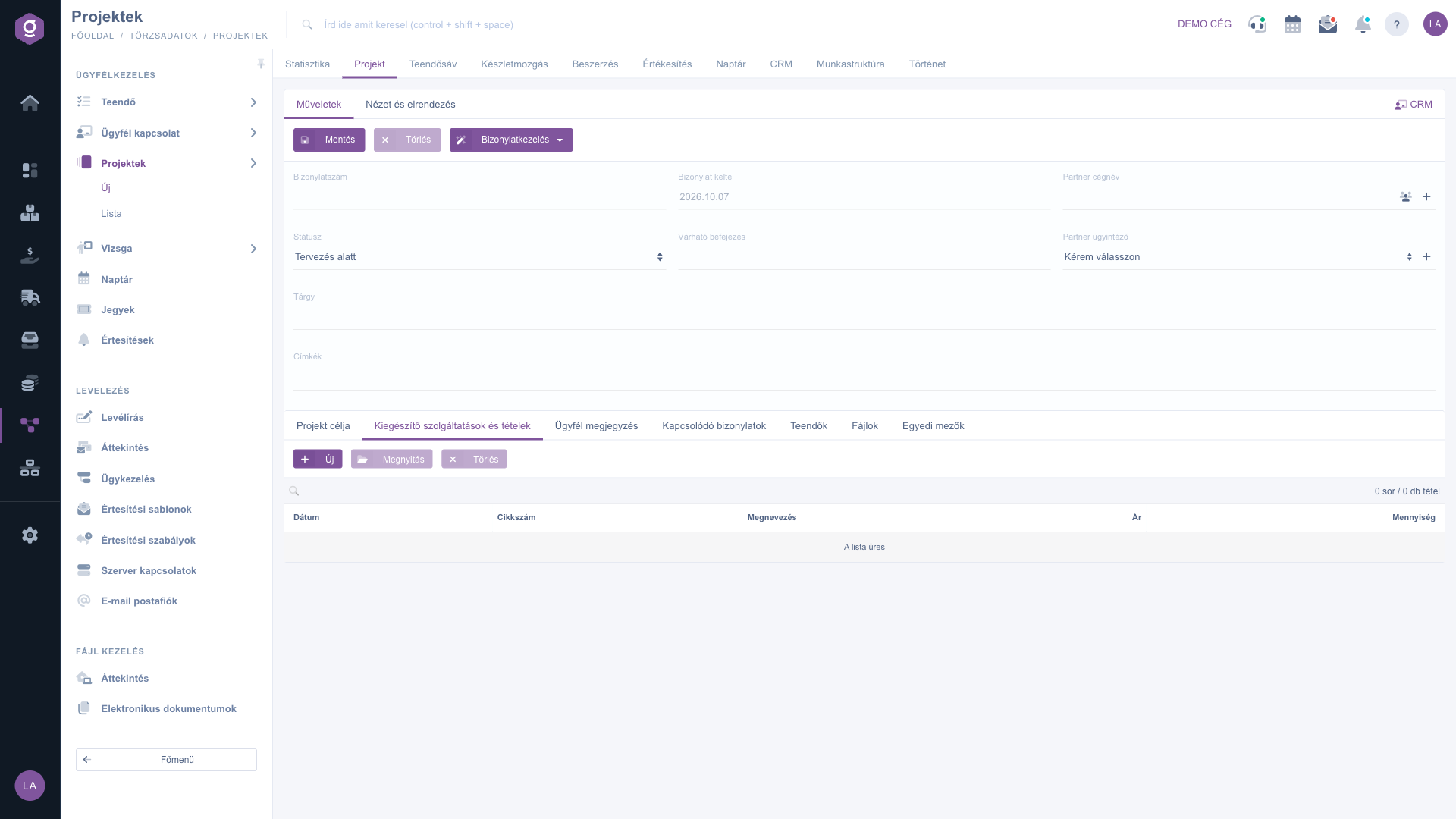
Project sheet – Additional services and items tab
4. Customer comment
On the Customer comment tab you can also load text from a template, or write text directly in the editor, which is recorded with the project.
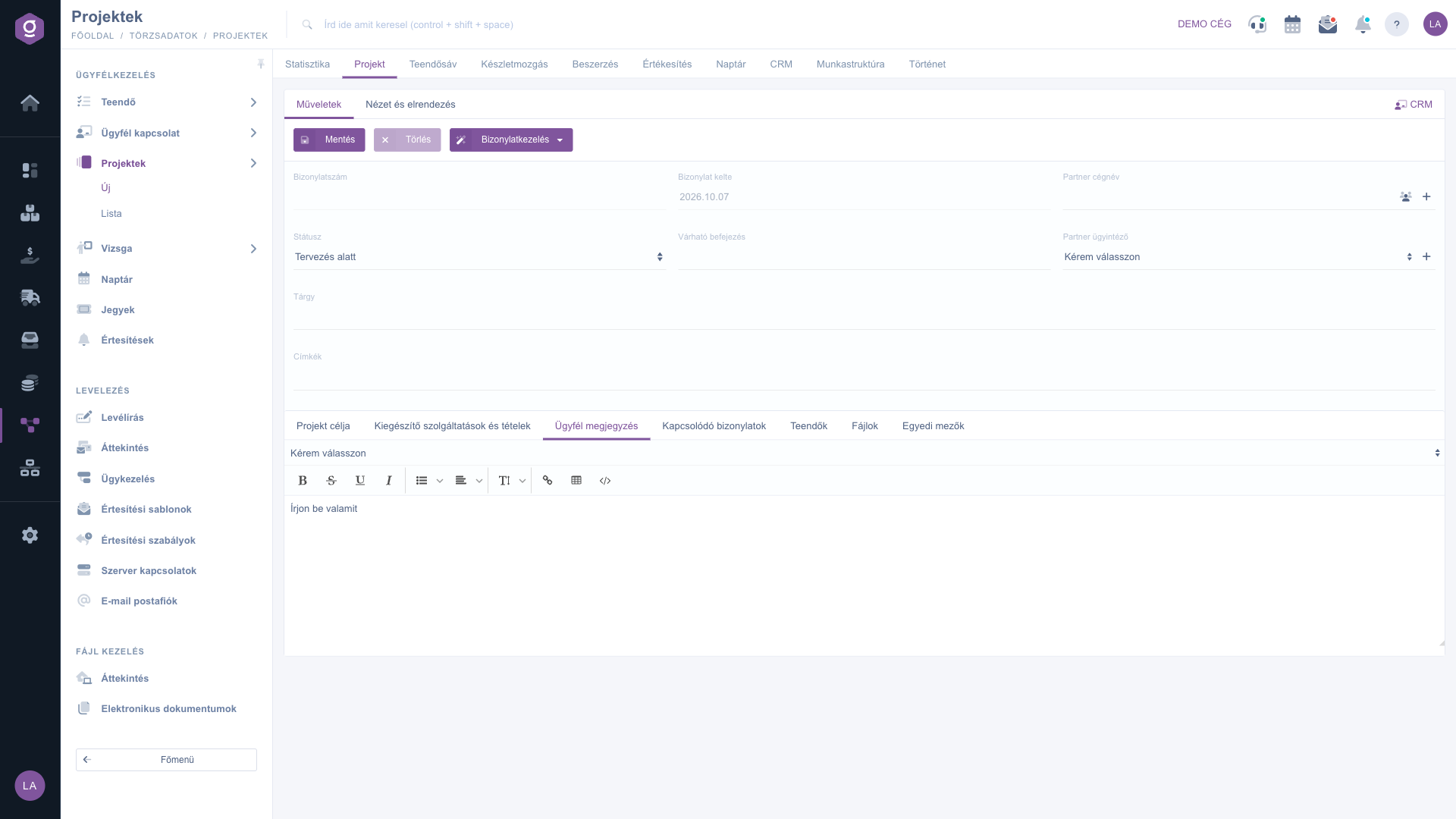
Project sheet – Customer comment tab
5. Related documents
On the Related documents tab you keep track of the existing documents that belong to the project. The Link document button opens a window where you choose the Document type, find the document by typing in the Document number field, and record the link with Save (the Close button closes the window). The columns of the table are Document number, Document date, Document type and Action.
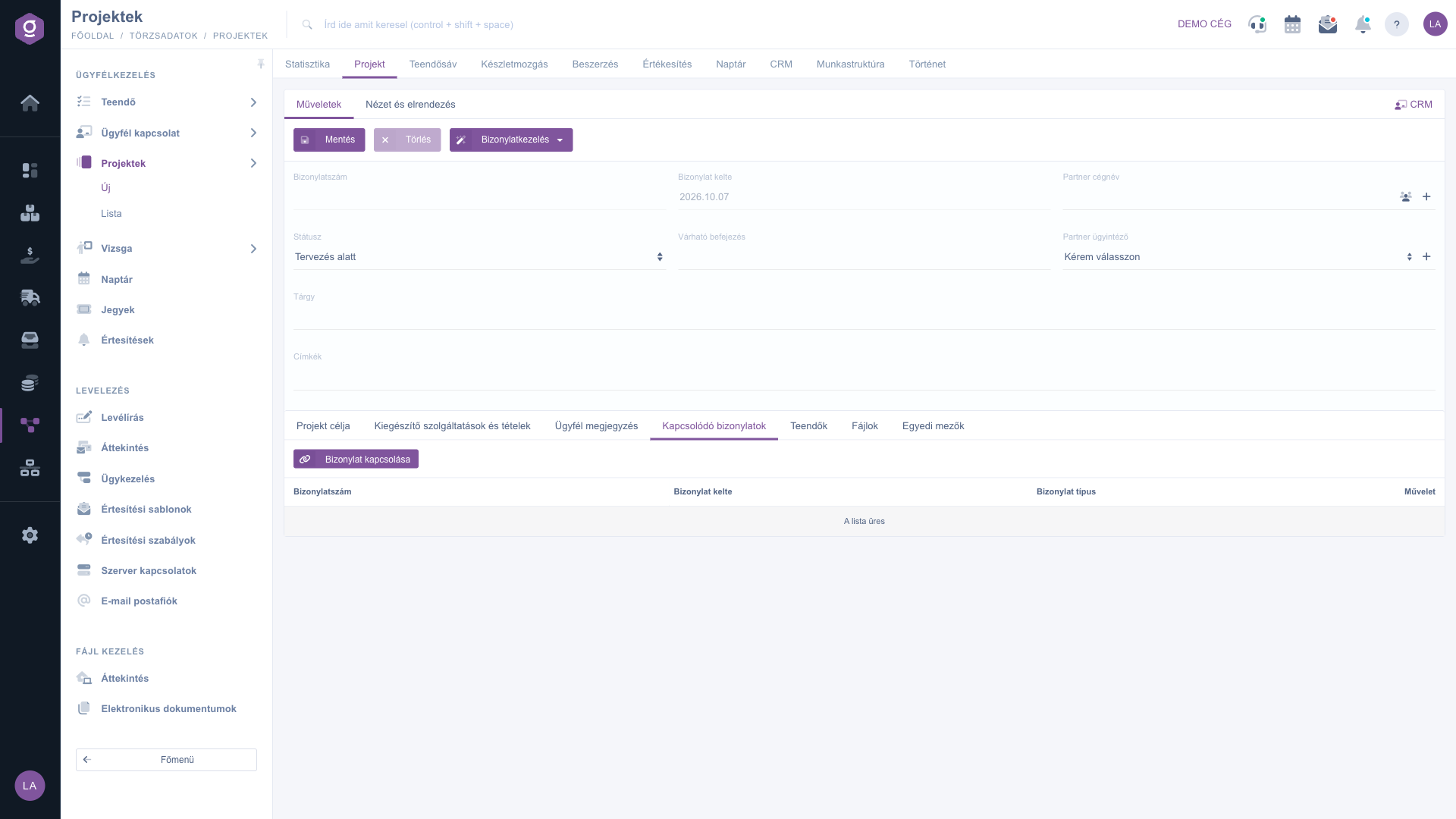
Project sheet – Related documents tab
6. Tasks
On the Tasks tab you see the list of tasks belonging to the project, with the columns Document date, Subject, Comment and Issuing employee. Creating and managing tasks is described in the Task list guide.
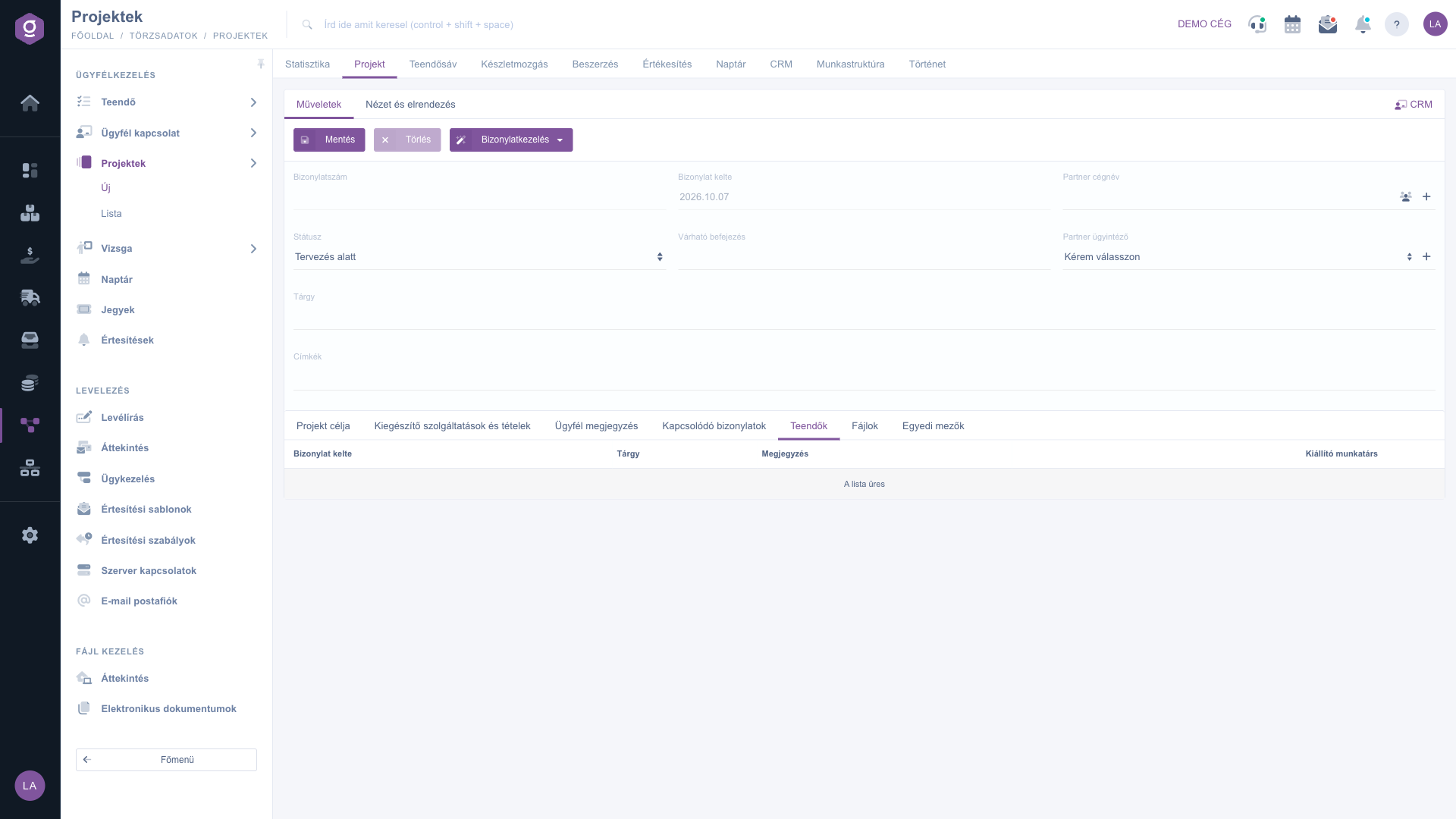
Project sheet – Tasks tab
7. Files
On the Files tab you manage the files of the project with the New, Open, Delete, Classification and Browse buttons. The columns of the table are Added, Classification and Name.
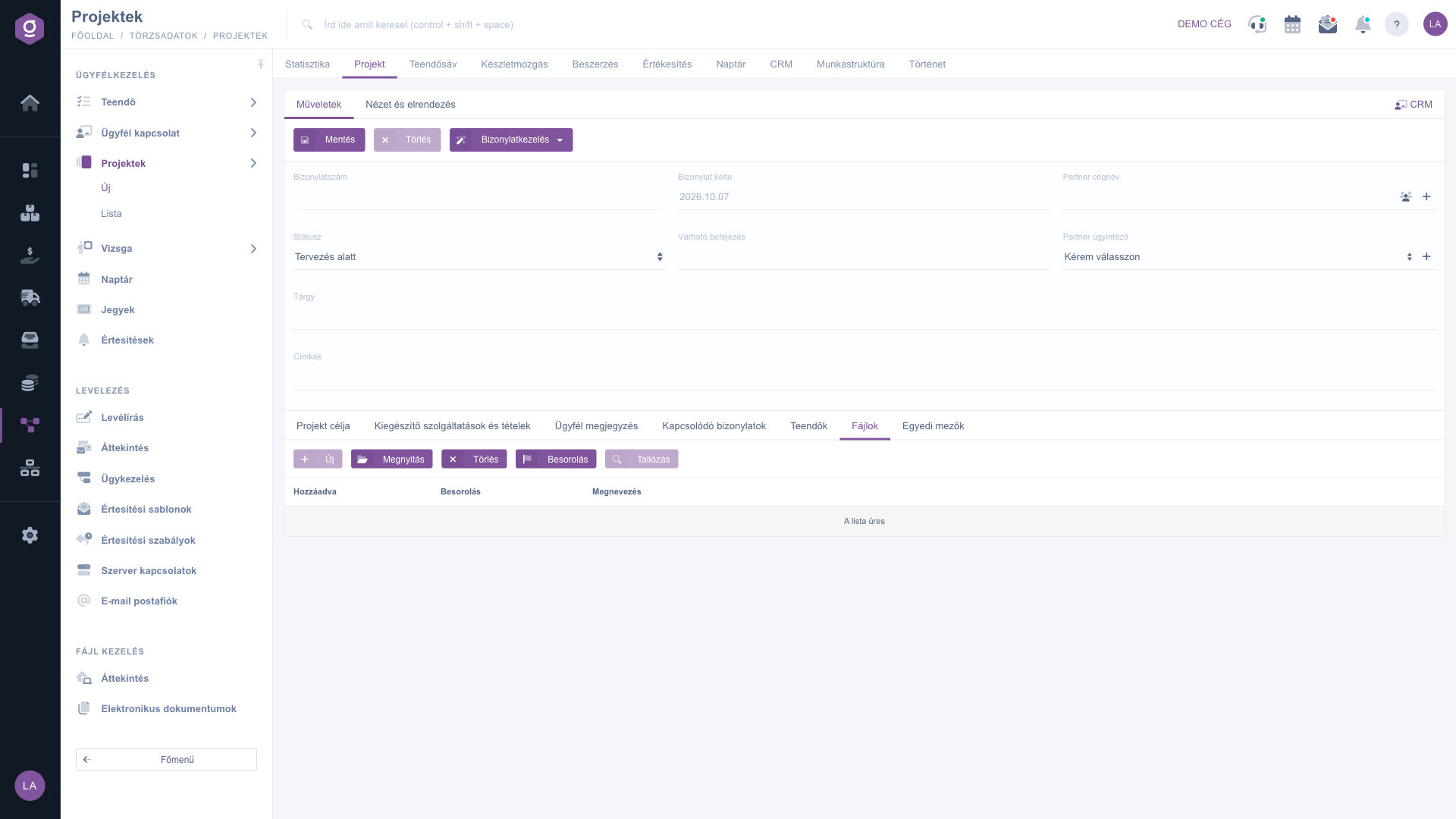
Project sheet – Files tab
8. Custom fields
On the Custom fields tab the custom fields defined for the project appear. If there are none yet, the list is empty (The list is empty). The New document schema button opens the document parameter schema settings in a new browser tab, where you can define your own fields.
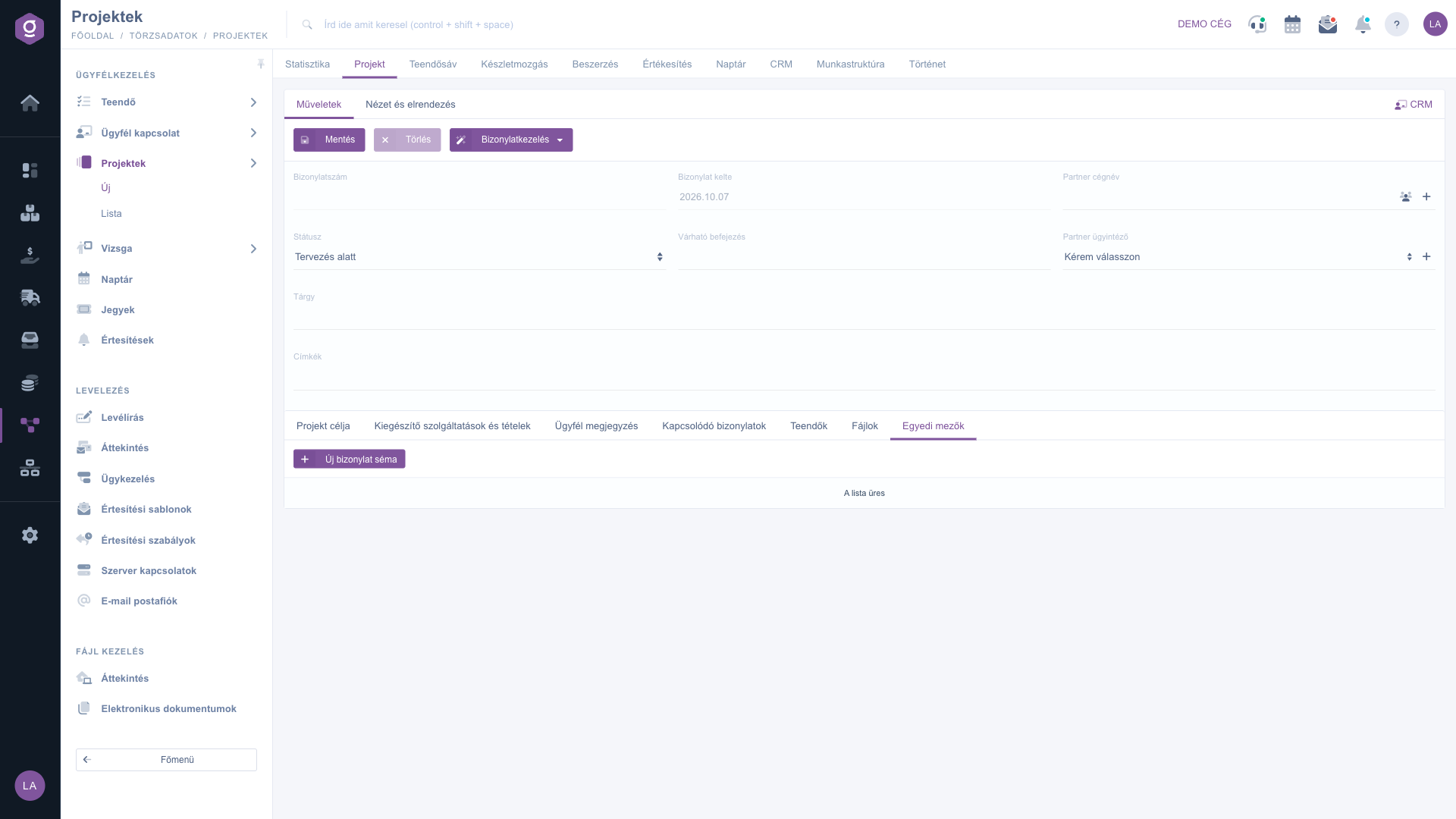
Project sheet – Custom fields tab
9. Creating a document from the project
In the dropdown of the Document management button on the Actions tab you can choose Invoicing (Számlázás), Warehouse issue (Raktári kiadás) or Delivery note (Szállítólevél). The system opens the new sheet of the chosen document pre-filled with the data of the project. The items are active only for a saved project whose status ID is at least 2. For a new, unsaved project they are grey, as shown in the image.
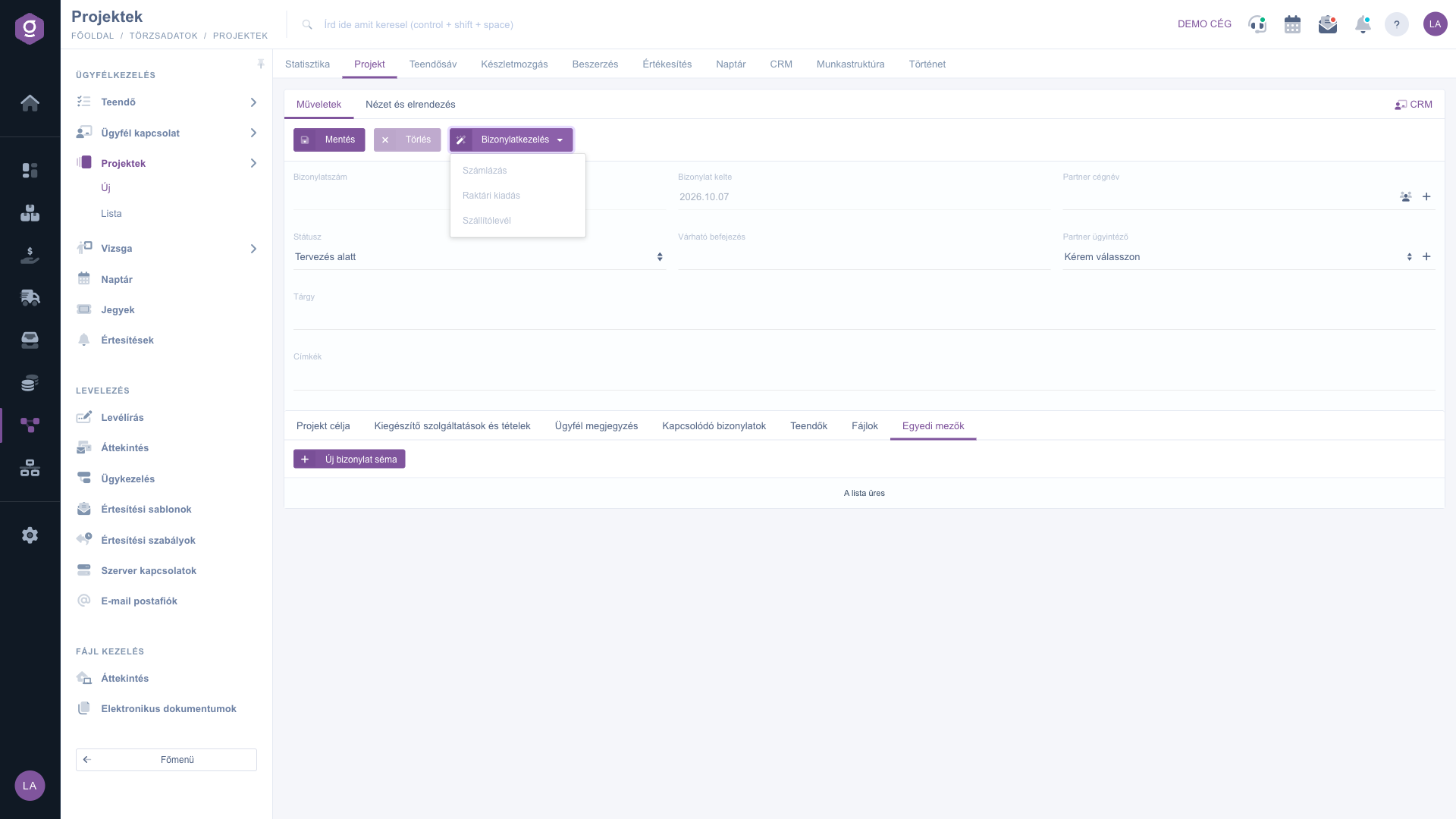
Project sheet – Document management menu
Tip
Save the project before you work with files, tasks and document linking, because these parts belong to the saved project. Keep the Subject short and clear, so you can easily find the project in the project list.
Reviewing, searching and closing projects is covered in the
Project list guide.



