1. Viewing the list and the actions available for documents
Click Main menu / CRM / Customer management / Customer relations / List to see all customer relations documents created so far. Above the table, the Actions (Műveletek) tab holds the buttons you can use on the selected document:
- New: creates a new customer relations document on an empty form — choose it when you want to record a new inquiry.
- Open: opens the detailed view of the selected document so you can edit the header data and the items.
- Close: closes the document, optionally combined with printing (Close and print) or downloading (Close and download) — available only for a document in the initial status.
- Delete: deletes the document, or deletes it and creates a copy in one step (Delete and copy) — handy if you entered wrong data but want to create the document again.
- Cloning (Másolás): creates a new document based on the data of the selected one — faster than entering everything again with the New button for recurring inquiries.
- History: shows the history related to the selected document.
- Send email: sends the selected document by email — available for closed documents.
- Download: offers options in two groups. Under List operation, XLSX list and XLSX item list export the whole list; under Document operation, XLSX items, XLSX serial number list, PDF, PDF preview and Download attachments apply to the selected document.
- Document management (Bizonylatkezelés): creates a related document from the selected, closed document: Quote sent to customer, Customer orders, Invoicing, Delivery note or Worksheets. The partner, the items and the comments are carried over to the new document.
- Transport organization (Fuvarszervezés): manages the parcel labels of the document — New parcel label creates a new label, Parcel labels opens the list of labels already recorded.
At the right end of the row of tabs there is a clipboard icon that copies the contents of the table to the clipboard, and next to it the Analytics link opens the CRM statistics page.
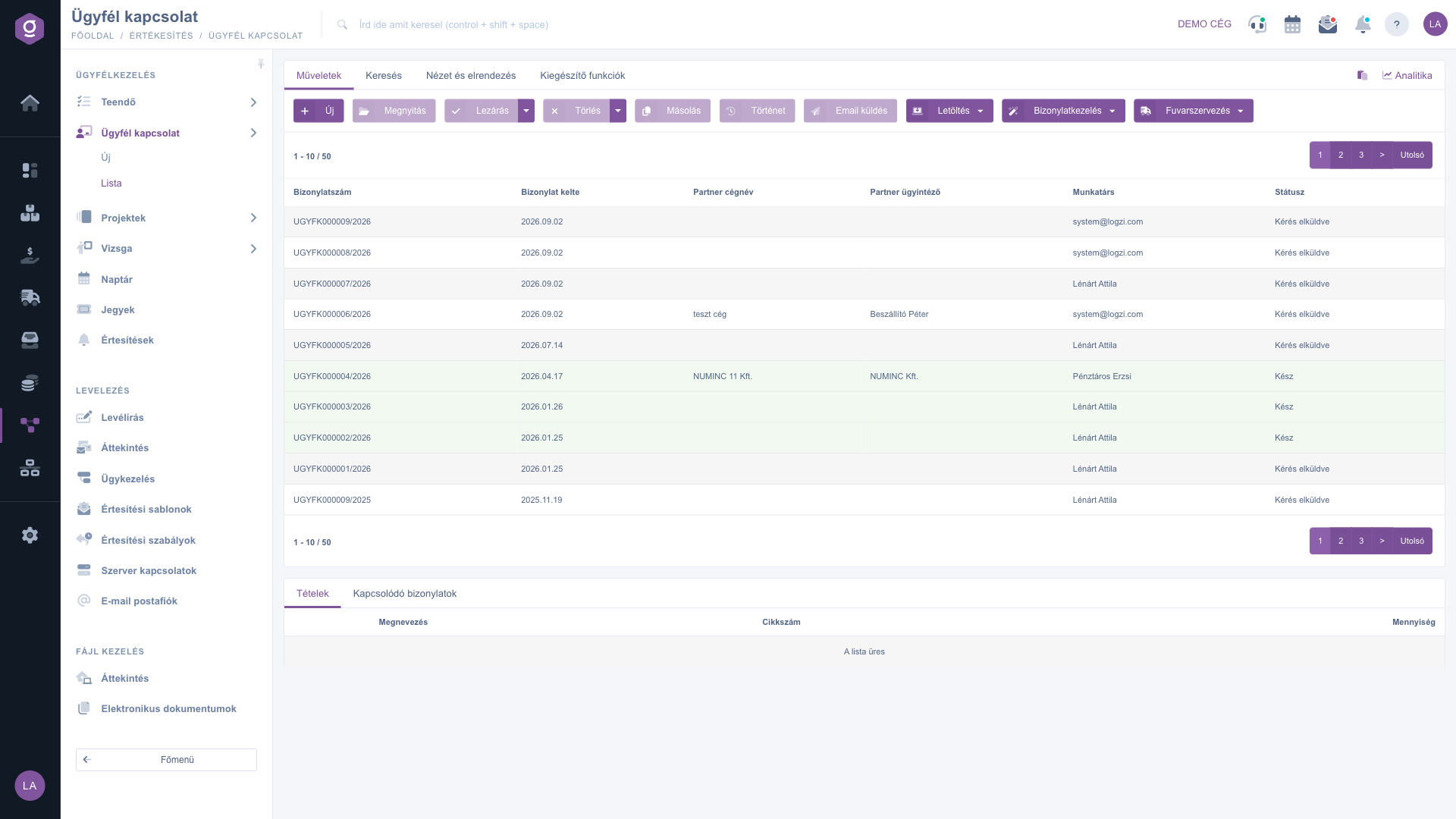
Customer relations list – Actions tab
Searching among documents
Click the Search (Keresés) tab above the table to see the filters. The most common fields are visible right away: Partner company name, Document number, Status (several values can be selected), Direction and Priority. The “Expand” (Bővítés) button opens more filters: Document date (with a start and an end date), Employee, Project, Job number, Department number, Subject, Contact person name, Contact phone number, Customer comment and Internal comment. Click the Search button to filter by the conditions you set.
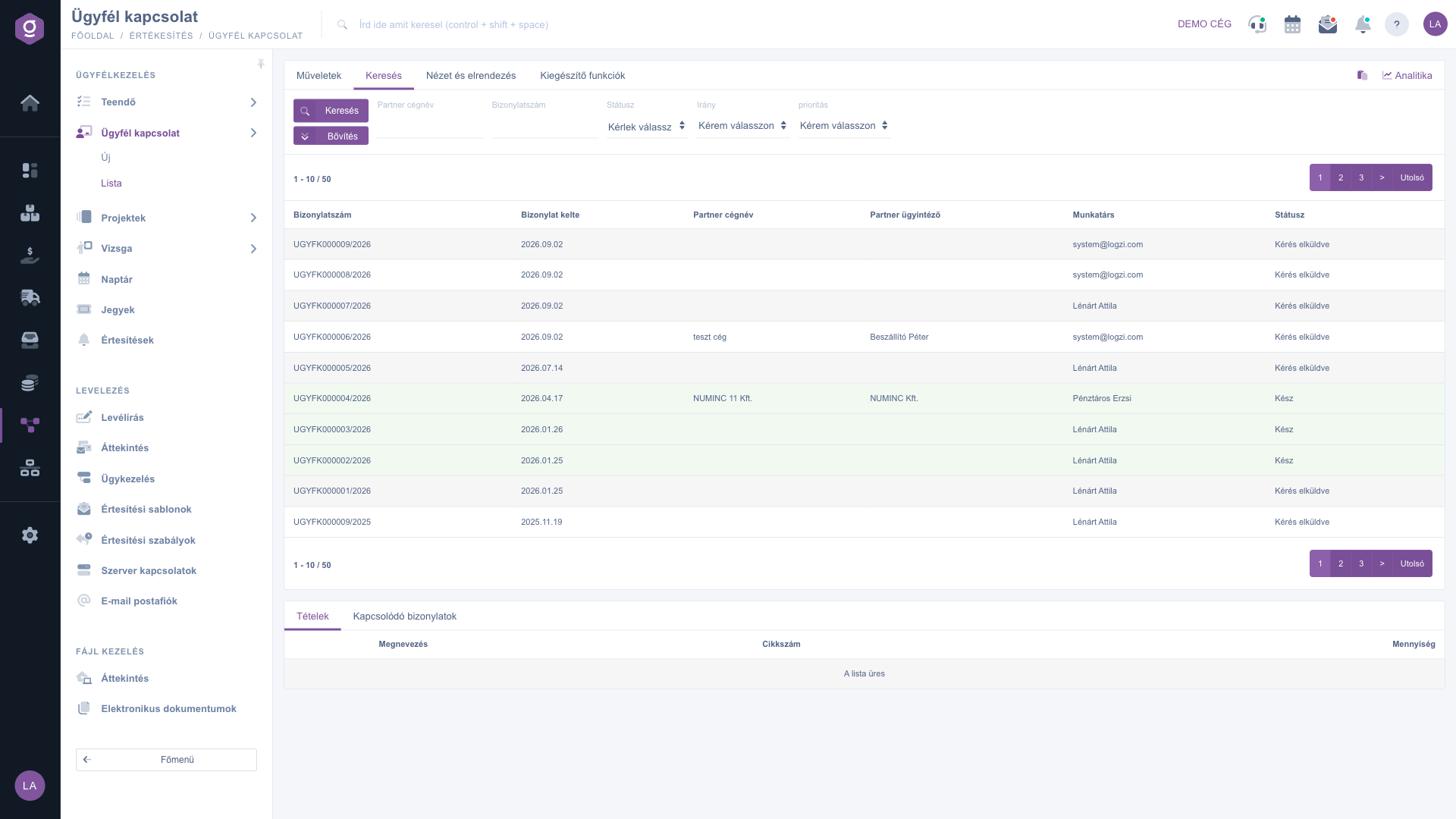
Customer relations list – Search tab
Customizing the view
On the View and layout (Nézet és elrendezés) tab you set how the list is displayed for you:
- Columns (Oszlopok): choose which fields appear in the table and in which order.
- Rows (Sorok): set how many documents appear on one page.
- Sorting: choose which column and in which direction the list is sorted by default.
- Preview window: turn the preview panel below the list and its tabs on or off (see below).
- Interface and behavior: other display and behavior settings of the list.
These settings are saved per user, so they are kept the next time you sign in. The row colors follow the status of the document — in the screenshot, for example, rows with the Kész (done) status have a green background.
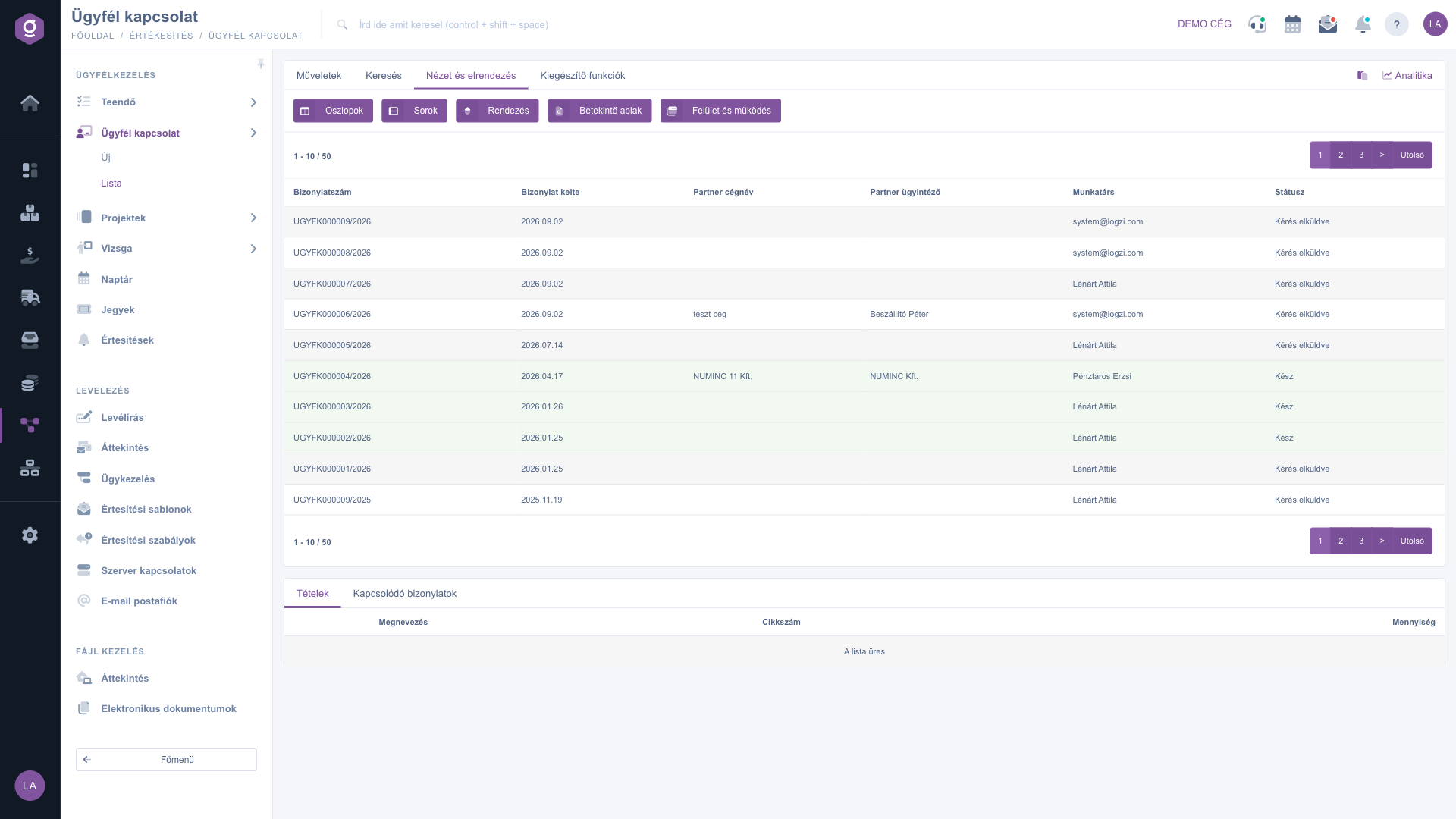
Customer relations list – View and layout tab
The preview window
In the panel below the list you can quickly look at the details of the selected document without opening it. The tabs of the panel can be switched on in the Preview window setting:
- Items: the name, item number and quantity of the items on the document.
- Related documents: the document number, date, type and issuer of other documents linked to this one.
Additional functions
On the Additional functions (Kiegészítő funkciók) tab you find extra options related to the selected document that help with your daily work:
- Sent items: shows the emails previously sent for the document.
- New email: write a new email related to the document, either with the External mail client or with the Internal mail client built into the system.
- New task: create a task related to the document.
- Partner card (Partnerkarton): opens the detailed data sheet of the partner on the document.
- CRM: shows the CRM notes of the document.
If you right-click a row, the same quick actions are available from a context menu as on the Actions tab.
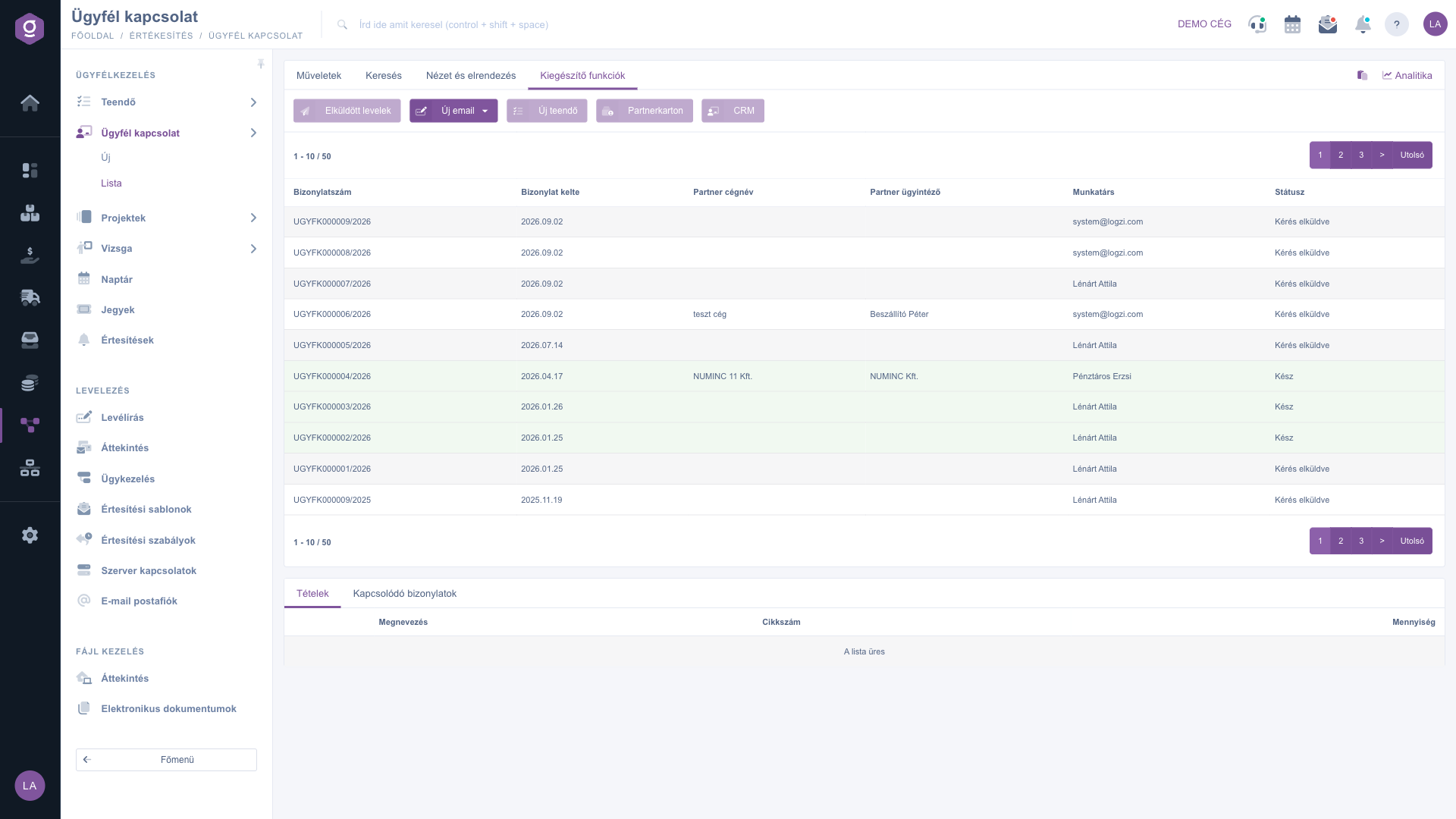
Customer relations list – Additional functions tab
If you want to record a new inquiry or get to know the fields of a document in detail, read the guide
Customer relations sheet. You can read about the tasks linked to a customer relation in the
Task list article.
Tip
To get a quick overview of your inquiries, select the initial status (Kérés elküldve) in the Status field on the Search tab, so that only the inquiries that are not closed yet remain in the list. After filtering, Download > List operation > XLSX list exports the list you are currently seeing into a single spreadsheet.



