Delivery note document

Learn how to create, edit and close a delivery note in Logzi.

Feature overview

On this page you can create a new Delivery note document and open or edit the ones you have already recorded. A delivery note records which goods, and in what quantity, you hand over to your partner - the document accompanies the goods during transport. In the header you enter the partner, the addresses, the currency and the performance date, and in the items you list the products being handed over.

  • Everything in one place: the document header, the items, the comments, the settings, the related documents, the tasks, the files and the custom fields are available on separate tabs.
  • Fast item entry: you can add items one by one, with product search, with a barcode collector or with quick add, and you can apply a group discount or a price list to them.
  • Easy to carry forward: from a closed delivery note you can create an invoice, a proforma invoice, an advance invoice or a warehouse issue with one click, or hand it over to your partner in their Logzi system.
  • Traceable: the History, Status history and Events tabs show who did what with the document and when.

The possible statuses of a Delivery note are: Draft, Closed, Cancellation, Cancelled, Used, Approved. Only a document in Draft status can be edited - once closed, it can no longer be modified. The meaning of each status is explained in the Frequently asked questions section.

Step by step

1. Opening a new document and filling in the header

Click the Main menu / Transport / Delivery note / New menu item, or the New button on the list - the empty document opens. In the header you need to provide the following data:

  • Partner company name: select the partner you are issuing the delivery note to. With the icons next to the field you can open the partner sheet or add a new partner if they are not in the system yet. After you select the partner, their addresses are loaded automatically.
  • Partner contact person: the partner contact - with the button next to the field you can add a new one as well.
  • Billing address and Shipping address: the partner billing and shipping addresses. Both are required, and with the button next to them you can record a new address for the partner.
  • Currency and Exchange rate: the currency of the document (required). If you choose a currency other than the base currency of your company, you also need to enter the exchange rate.
  • Performance date: the actual date of the handover (required), which you can pick from a calendar.
  • Document number, Status and Document date: these are filled in by the system and cannot be edited. The delivery note receives its document number when you save it.
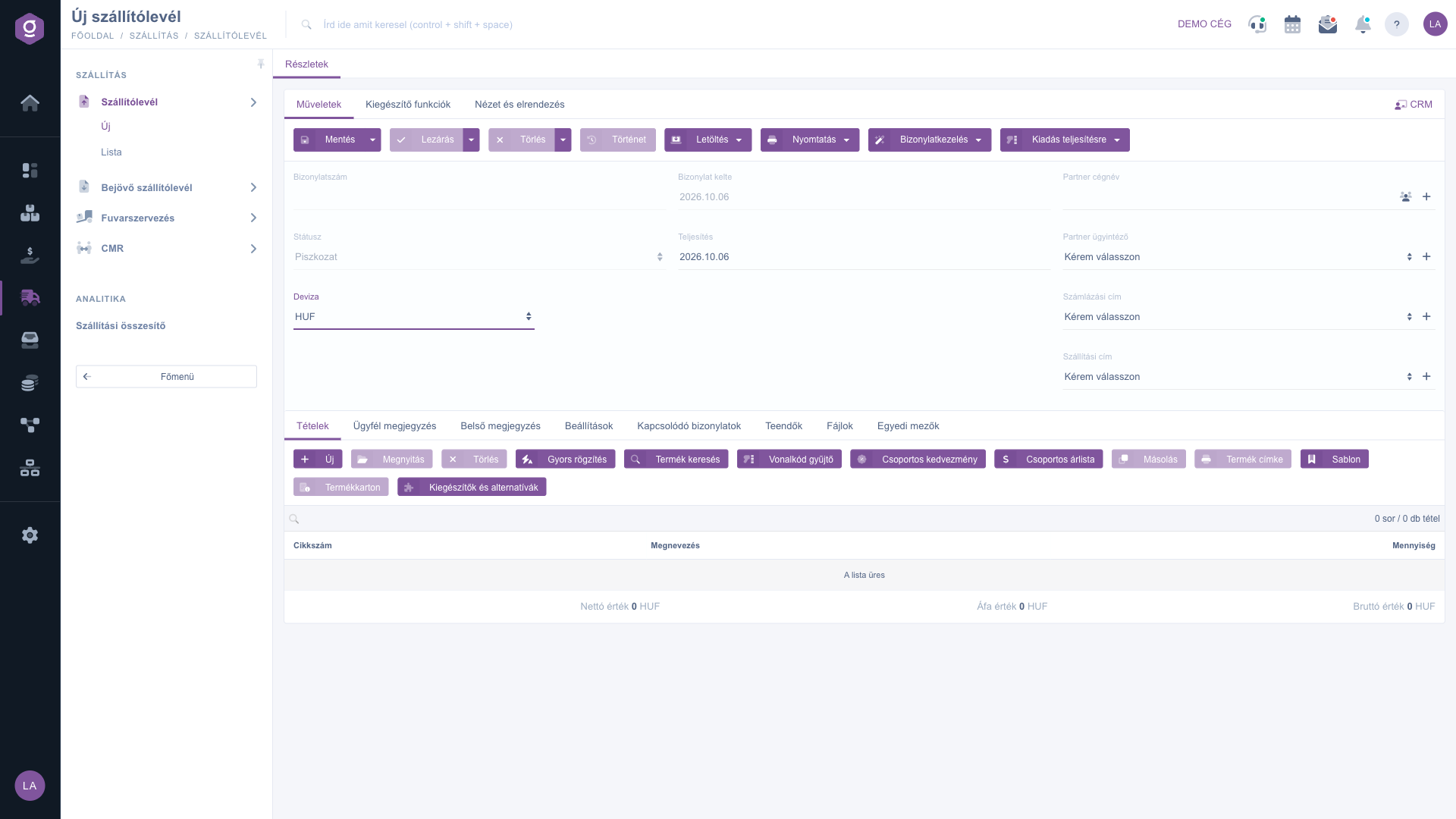
Delivery note document - new, empty document

2. Adding items

Below the header, on the Items tab, you can add the products you hand over. The buttons of the tab:

  • New: add a new item in the item editor window.
  • Open: edit the selected item.
  • Delete: remove the selected item from the document.
  • Quick add: add several items quickly one after another, without the editor window.
  • Product search: add items by searching in the master data.
  • Barcode collector: add items with a barcode scanner.
  • Group discount: set a discount or surcharge on the items in one step.
  • Group price list: set the price of the items based on a selected price list.
  • Cloning: duplicate the selected item.
  • Product label: print the product labels of the items.
  • Template: save the items as a template or load them from a template.
  • Product card: open the sheet of the selected product.
  • Add-ons and alternatives: add the add-on and alternative products recorded for the product.

In the item editor window, on the Properties tab you enter the main data of the item: Part number, Name, Quantity, VAT rate, prices and comment. The Warehousing master data tab shows the warehousing properties, and the Serial numbers tab appears for products that have serial number tracking set up. The Basic data and Other panels on the right side of the window show the current prices and stock of the product. With the Add button the item is added to the document, and with Add and new product you can start the next item right away. If the product is not yet in the master data, you can create it with the New product button.
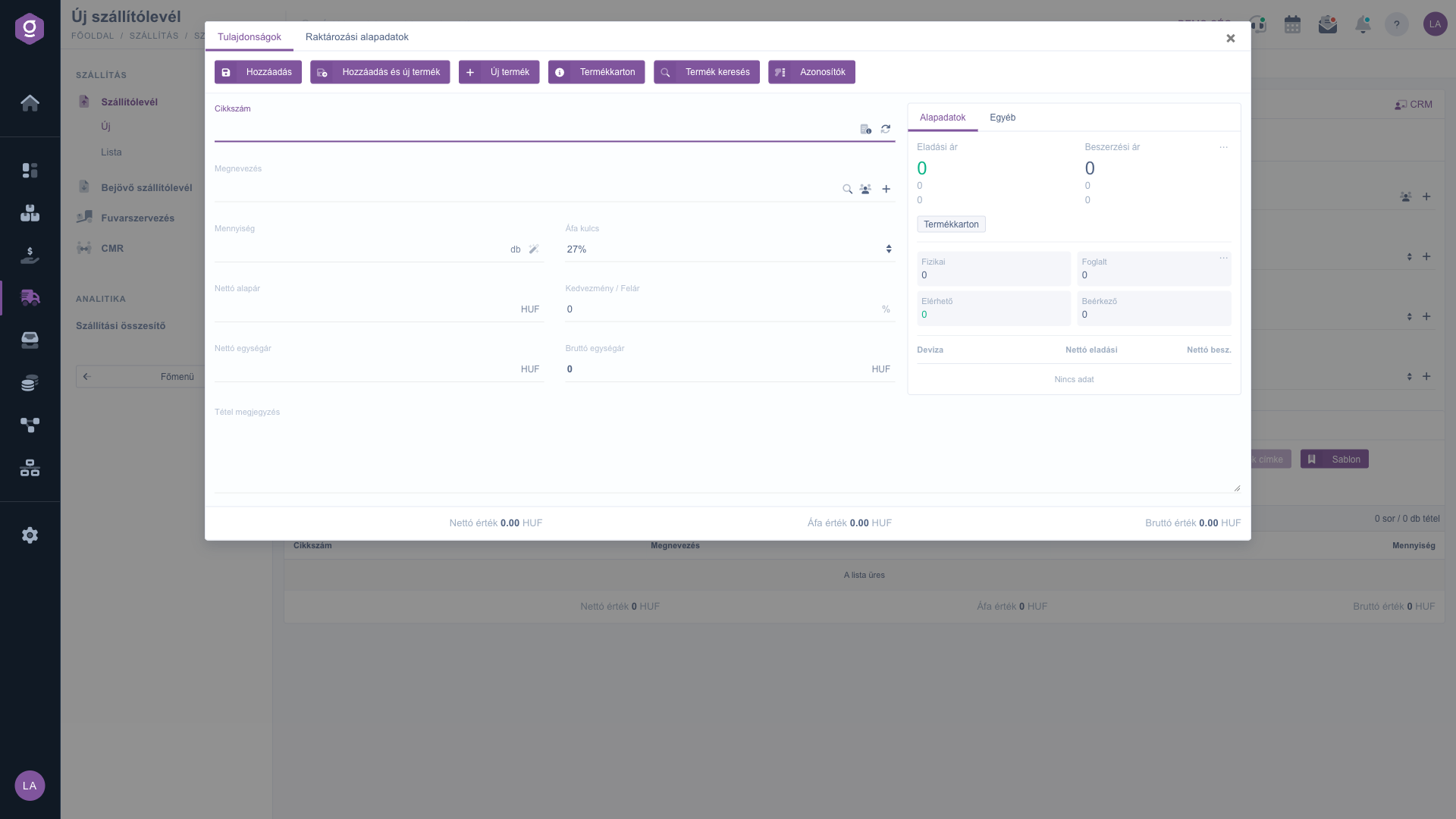
Delivery note document - editing an item

3. Comments and settings

The text you write on the Customer comment tab appears on the printed document, while the Internal comment is visible only inside your company. In both editors you can also choose a template. On the Settings tab you find the company Billing address and Shipping address (both required) as well as the Project, Job number and Department number fields - with the + button next to the fields you can add a new one. On the Tasks tab you see the tasks related to the document, on the Files tab you can attach documents, and on the Custom fields tab you can fill in the custom fields introduced at your company.

4. Saving and closing

On the Actions tab, with the Save button you can save the document as a draft - with the Save and close option you can also close it in one step. The Close button closes the saved draft: after that the delivery note can no longer be modified. From the arrow next to the button you can also choose Close and print or Close and download. With the Delete button you can delete the document, and with the Delete and copy option you get a new, copied document right after the deletion. Deletion cannot be undone. The History button shows the history of the document and of the other documents related to it.

After closing, the document can be downloaded (Download: CSV, XLSX, PDF, PDF preview) and printed (Print: Product label, Document). The PDF preview and the XLSX are available from a draft as well, while the final PDF and the CSV are available only from a closed document. If your partner is also a Logzi user, after closing the system offers to send the delivery note to them (Yes, Yes, with closing or No).
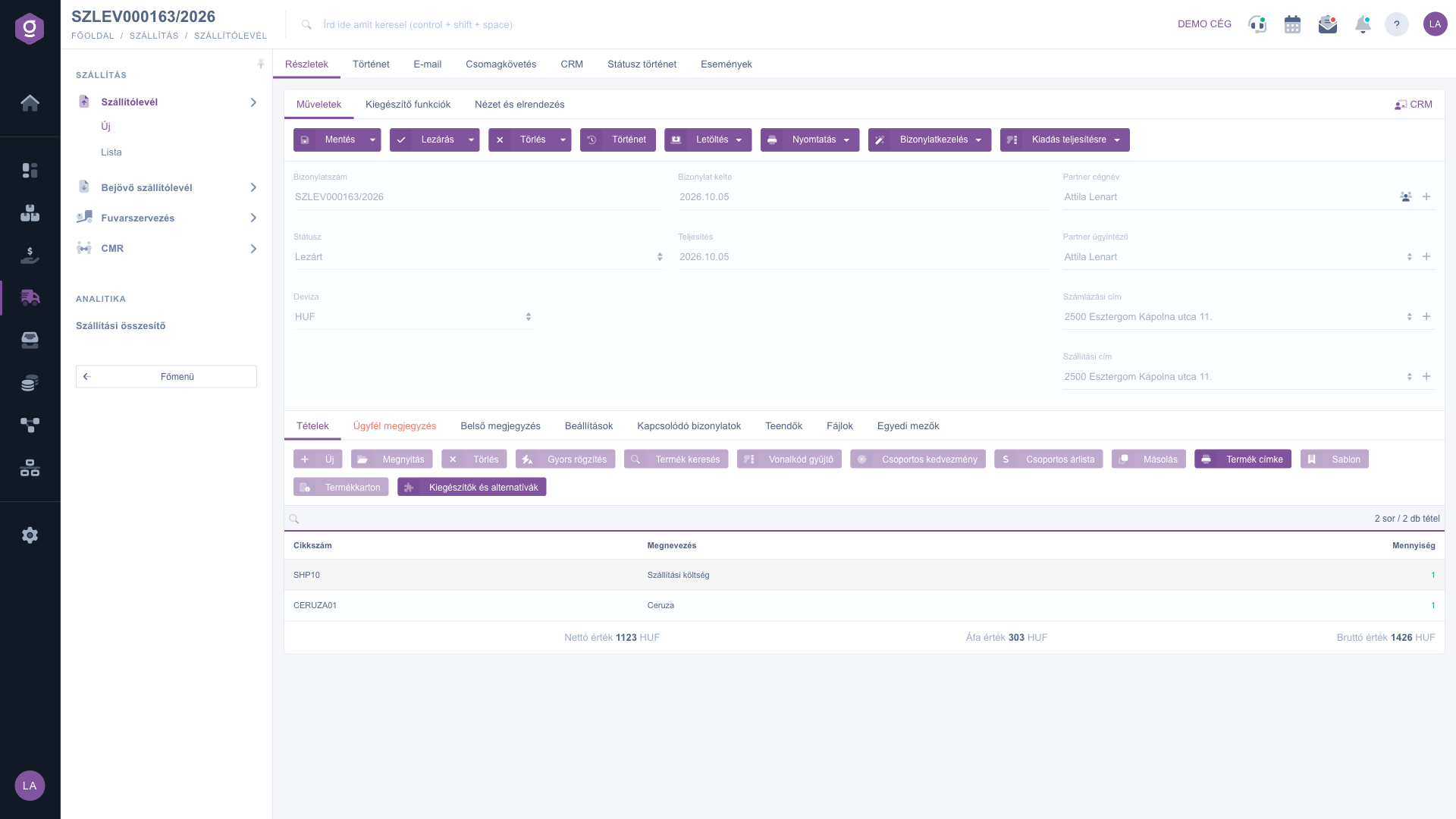
Delivery note document - saved, closed delivery note

5. Document management: invoice, warehouse issue and other documents

From a closed delivery note you can create a new document with the Document management button, taking over the items: Invoicing, Proforma invoice, Advance invoice, Warehouse issue or Worksheets. The Cloning option creates a copy of the delivery note. With the Issue for fulfillment button you can pass the closed delivery note on: Transfer between Logzi systems sends it to your partner in their Logzi system, and Fulfillment handover hands it over to the fulfillment provider. These options are available only for a closed (or further progressed) document.
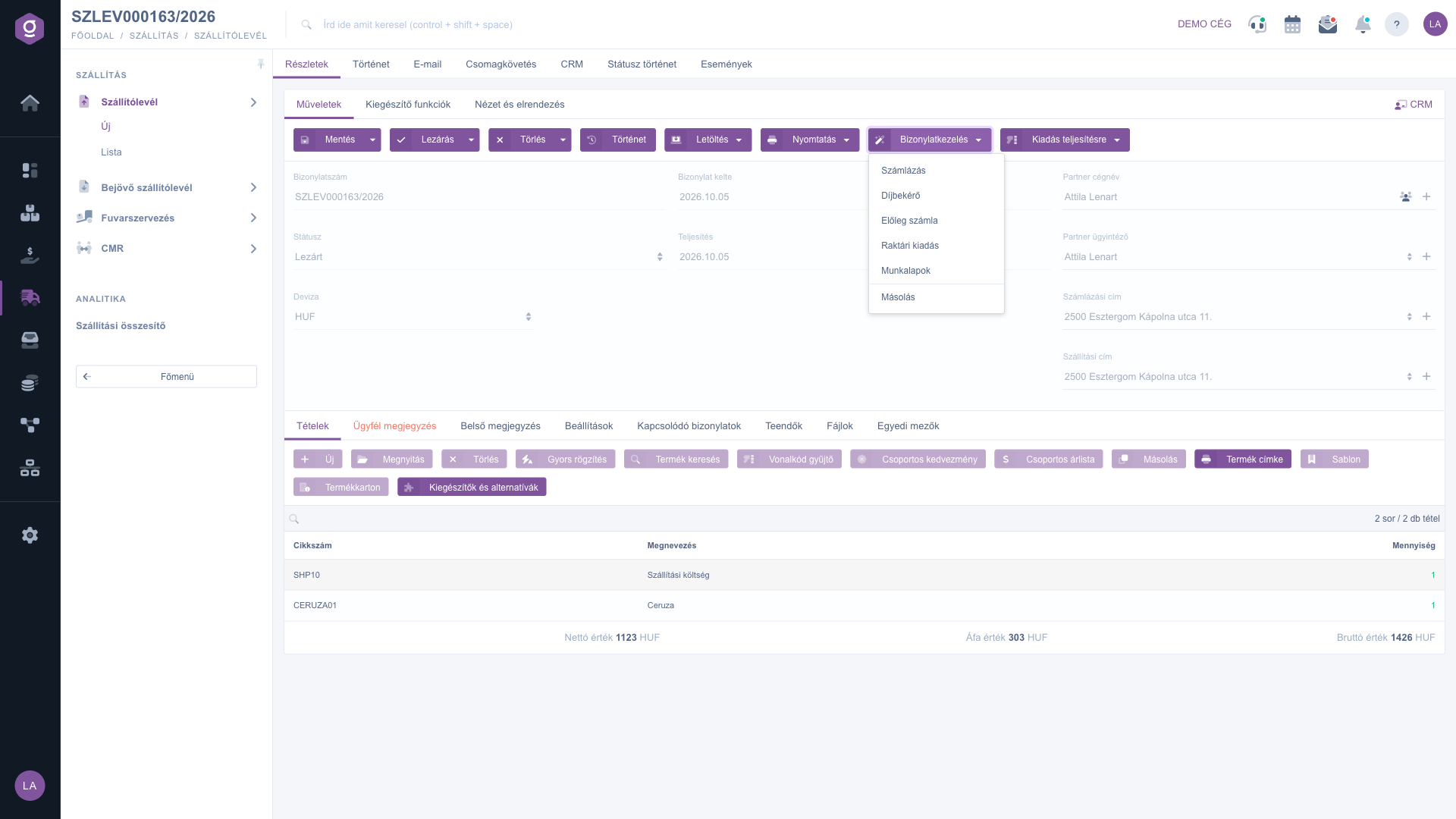
Delivery note document - Document management menu

6. Related documents

On the Related documents tab you see the documents connected to the delivery note - for example the invoice or warehouse issue created from it. The columns of the table are: Document number, Document date, Document type, Issuing employee and Action. At the bottom of the tab the Net value, VAT value and Gross value totals of the delivery note are shown.
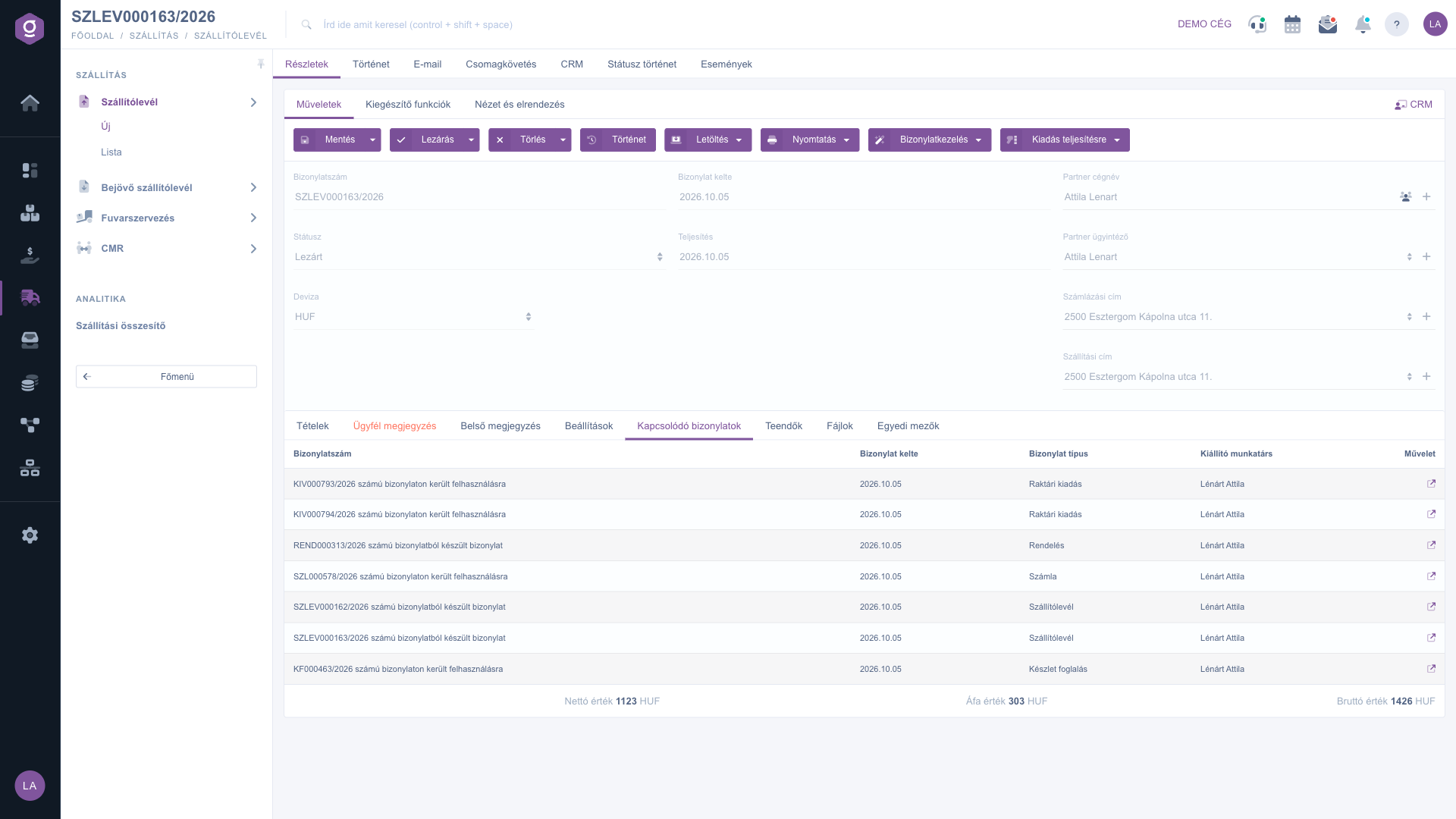
Delivery note document - Related documents tab

7. Additional functions

On the Additional functions tab you find buttons for the daily tasks around the document:

  • Sent items: the emails previously sent for the document.
  • New email: write a new email for the document using the External mail client or the Internal mail client.
  • New product and New partner: create master data without leaving the document.
  • New task: create a task related to the document.
  • Partner card: the detailed sheet of the partner.
  • Document cross-connection: connect the delivery note with another document.
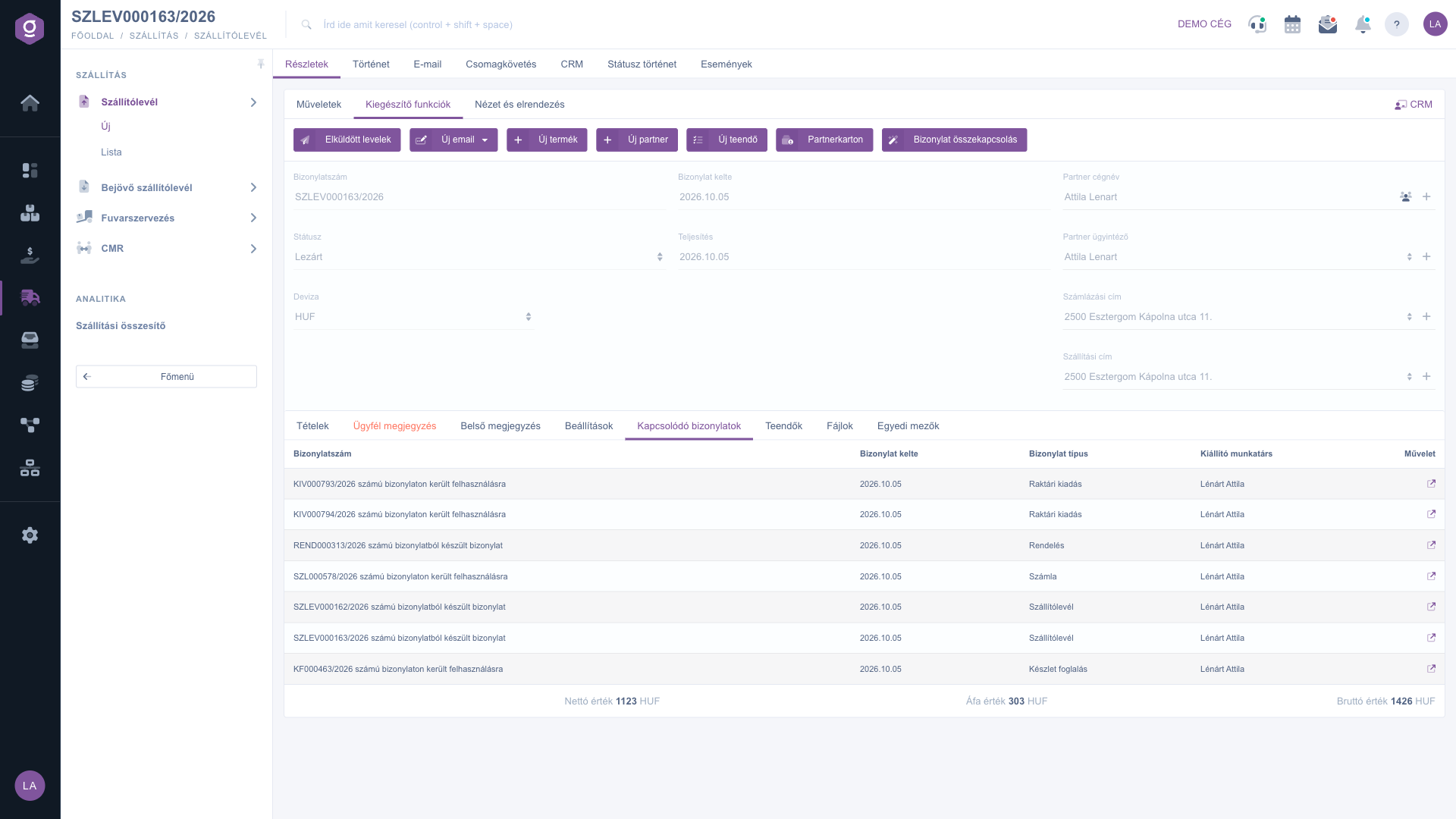
Delivery note document - Additional functions tab

8. View and layout

On the View and layout tab you can set how the document looks: with the Interface and behavior and Columns settings you decide how the interface works and which columns appear in the items table. The settings are saved per user. With the CRM link on the right you can open the CRM records of the partner, and from the top tabs of the document you can reach the History, Email, Parcel tracking, CRM, Status history and Events tabs.
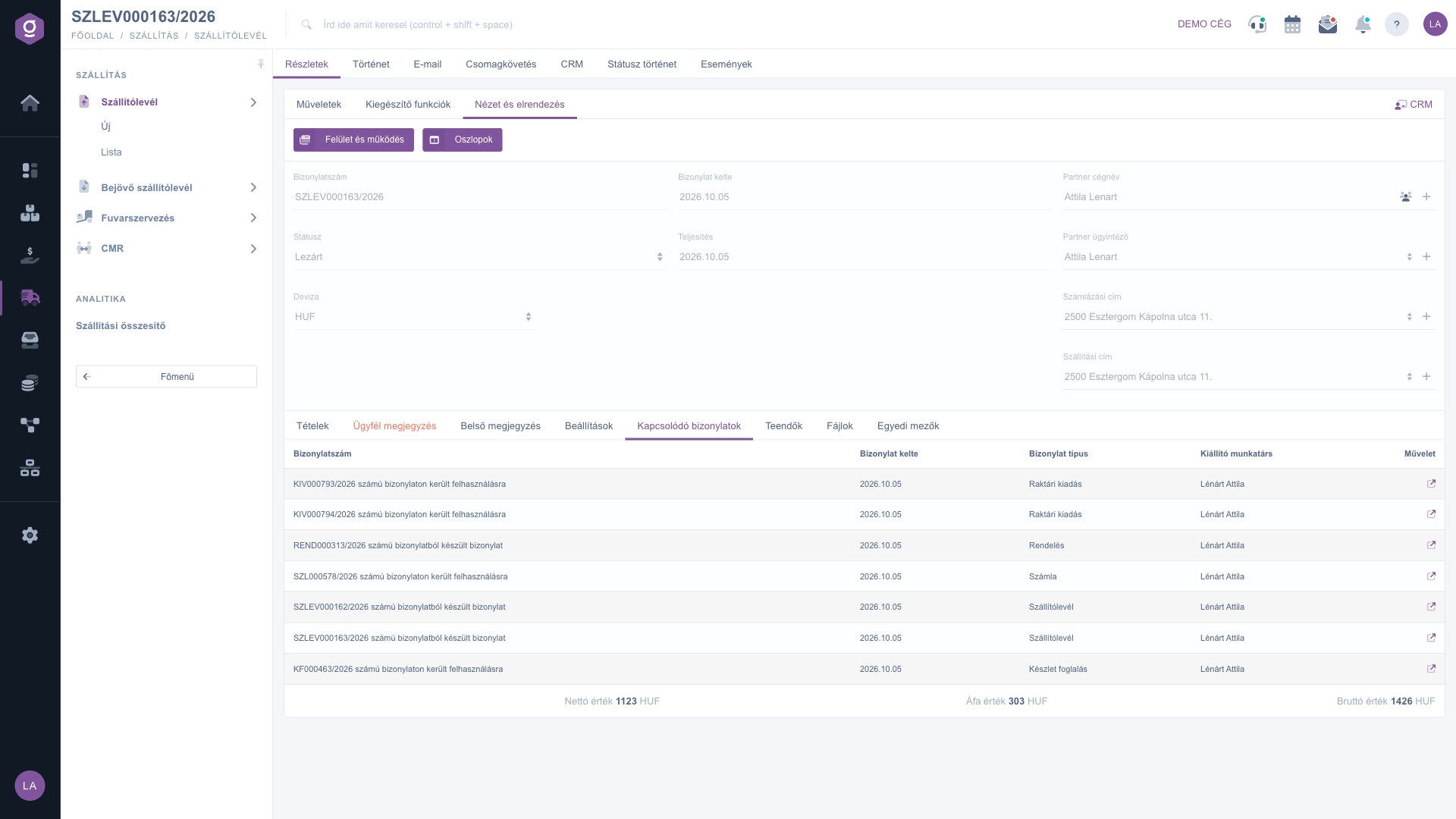
Delivery note document - View and layout tab

Tip


If you regularly ship similar goods to the same partner, do not enter the items again: with the Cloning button of the list or the Template function of the items you can put together a new delivery note in minutes. And when closing, the Close and print option puts the accompanying paper in your hand right away.


To review and search your documents, use the Delivery note list help. Recording the delivery note that accompanies incoming goods is described in the Incoming delivery note document article, and you can read about the warehouse issue that can be created from a delivery note in the Warehouse issue document article. If you also want to organize the shipping, see the Transport organization list, and for international transport the CMR list help.

Field descriptions

The fields of the document header:

Field / ElementRequiredDescription
Document numberThe unique identifier of the delivery note, assigned automatically by the system (for example SZLEV000163/2026). It cannot be edited.
StatusThe current state of the document (Draft, Closed, Cancellation, Cancelled, Used, Approved). Managed by the system.
CurrencyThe currency of the document (for example HUF, EUR).
Exchange rateThe exchange rate applied on the document if the currency differs from the base currency of the company.
Document dateThe date the document was created, filled in by the system.
Performance dateThe actual date of the handover, selectable from a calendar.
Partner company nameThe partner you hand the goods over to. With the icons next to the field you can open the partner sheet or add a new partner.
Partner contact personThe contact person of the partner for the shipment.
Billing addressThe billing address of the partner, which is also the basis when an invoice is issued.
Shipping addressThe shipping address of the partner, where you deliver the goods.
ProjectThe project the delivery note belongs to, which can be set on the Settings tab.
Job numberThe internal job number, which can be set on the Settings tab.
Department numberThe department number, which can be set on the Settings tab.

The fields of the item editor window (Item fields):

Field / ElementRequiredDescription
Part numberThe unique part number of the product, by which it can be identified in the master data. The product data is loaded automatically based on the part number.
NameThe name of the product as it appears on the document.
QuantityThe quantity handed over, in the unit of the product (for example pcs). Depending on the product master data it can also be a fractional number.
VAT rateThe VAT rate that applies to the item (for example 27%).
SiteThe site you issue the goods from. It can be set on the Warehousing master data tab.
Net base priceThe net price of the product without discount or surcharge.
Discount / SurchargeThe discount or surcharge given on the item, in percent.
Net unit priceThe net price of one unit after the discount or surcharge.
Gross unit priceThe gross price of one unit including VAT.
Item commentA free-text comment attached to the item.

If a required field (Currency, Performance date, Partner company name, Billing address, Shipping address) is missing, the document cannot be saved - the system tells you which field you need to fill in.

Frequently asked questions

Draft: the document is saved but can still be edited. Closed: the document is finalized and can no longer be modified. Cancellation: the document is a cancellation document that voids another delivery note. Cancelled: the document has been cancelled. Used: there is nothing more to do with the closed delivery note, for example you have settled it. Approved: the document has been approved.

Only a document in Draft status can be edited. A Closed delivery note cannot be modified - if you recorded wrong data, you can delete it with the Delete and copy option and immediately create a corrected copy. That is why it is worth checking the partner, the addresses and the items once more before closing.

Most likely one of the required fields is empty: in the header the Currency, Performance date, Partner company name, Billing address and Shipping address must be filled in, and on the Settings tab the company Billing address and Shipping address as well. For an item the Name, VAT rate, Site and Quantity are required. Fill in the missing field and save again.

Document management (Invoicing, Proforma invoice, Advance invoice, Warehouse issue), Issue for fulfillment, as well as the final PDF and CSV download are available only for a closed document, because on a draft the items can still change. The PDF preview and the XLSX download also work from a draft. If you need the final copy, close the document.

A delivery note in Draft, Closed or Used status can be deleted. The deleted document goes into a deleted or cancelled state, and the deletion cannot be undone. If you only want to correct it, use the Delete and copy option: after the deletion it immediately creates a new, editable copy.

If your partner is also a Logzi user, when you close the document the system asks whether to send it to them (Yes, Yes, with closing, No). If you skipped this, you can do it later with Issue for fulfillment > Transfer between Logzi systems. This way your partner does not have to enter the received goods by hand again.

Need personalized help?

Don't want to spend hours searching for a solution? Choose the most efficient way: book a personalized, 45-minute online training session dedicated entirely to you. Whether it's a walkthrough of the basics or a detailed setup of a specific module, our expert colleague will guide you through the whole process, step by step.

Don't waste your time - ask for help!
Our goal is to get you using our system as quickly and efficiently as possible. Whether you're completely new to us or stuck on a specific setting, don't hesitate to ask for help!

Logzi warehouse management software

Get in touch with us

Interested in our software? Feel free to write to us!

Need help?

If you can't find the answer and need assistance

Create your account now,
pay later!

Try it free for 3 days, no risk, no obligation!
