Transport organization list

Learn how to list, search and manage transport organization documents in Logzi.

Feature overview

In this module you can review and manage Transport organization documents. A transport organization document collects the shipments handed over to a carrier (a courier service or a logistics company): it records, address by address, which parcel goes where, and produces the parcel labels and the manifest for it. The list shows all documents in one place and is the starting point for searching, opening, closing, deleting, downloading and printing.

  • Clear overview list: documents by number, date, direction, carrier company, contact person, colleague, number of addresses and status in one table.
  • Quick actions: create a new document, open, close and delete it, and download or print (parcel labels, manifest, document) for the selected row.
  • Preview window: the parcel labels and related documents of the selected document are visible without opening it.
  • Search and filter: by partner, document number, parcel number, direction and status.
  • Customizable view: set the columns, the number of rows, the sorting, the preview window and the behavior of the interface to your needs.

The possible statuses of Transport organization documents are: Draft, Closed, Cancellation, Cancelled — a new document always starts as a Draft; the actions available in each status are summarized in the Frequently asked questions section.

Step by step

1. Opening the list

Click Main menu / Transport / Transport organization / List to open the list of transport organization documents. At the top of the page you find the Actions, Search, View and layout and Additional functions tabs, below them the table of documents, and at the bottom the preview window of the selected document.
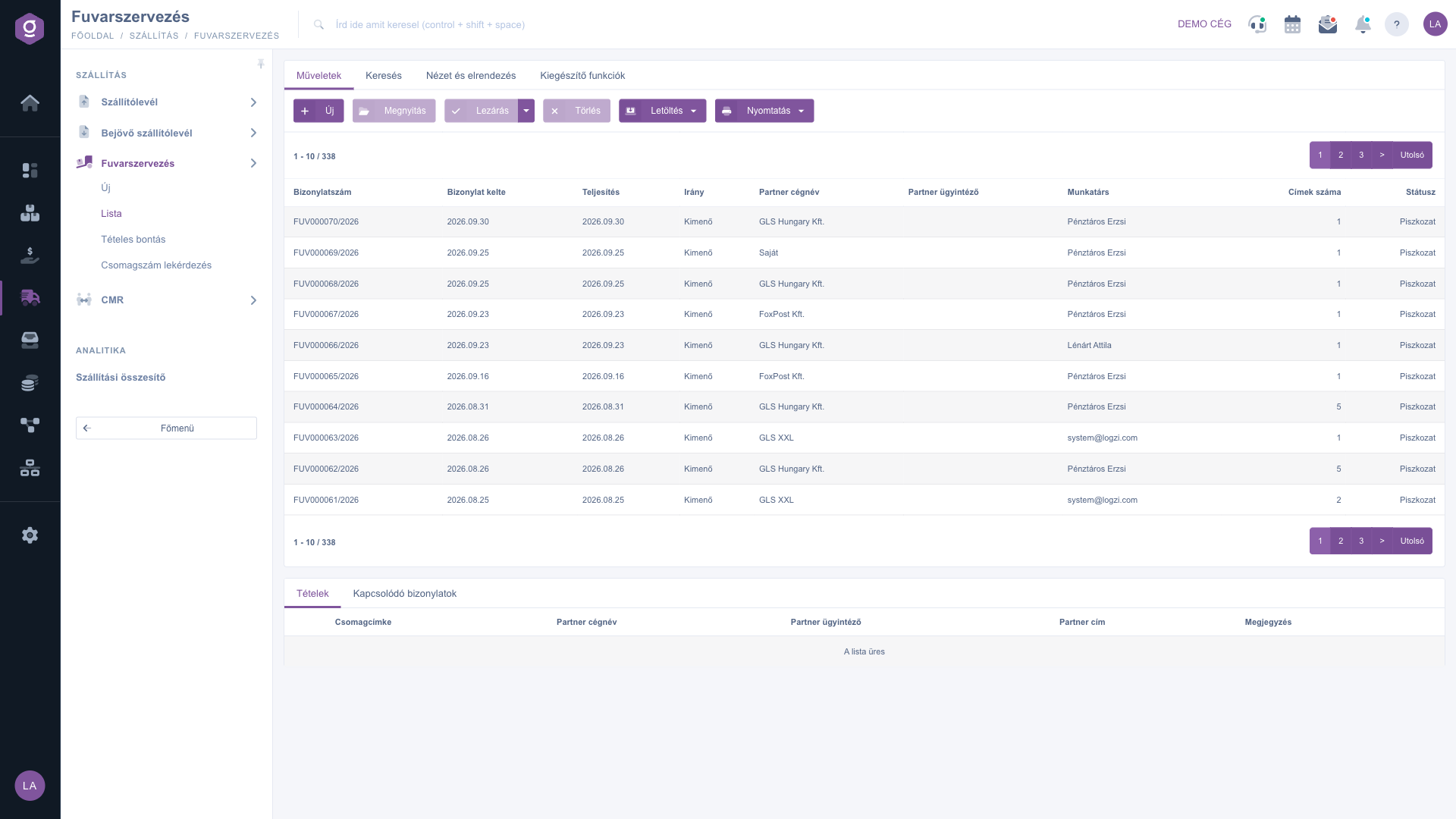
Transport organization list – Actions tab and preview window

2. Searching among the documents

On the Search tab you can use the following fields — you can fill in several at once:

  • Partner company name: the name of the logistics/carrier company recorded on the document.
  • Document number: the identifier of the document.
  • Parcel number: the number of a parcel label on the document — this way you find the freight that contains the parcel.
  • Direction: narrow the list to Outgoing or Incoming documents.
  • Status: you can select one or more statuses (Draft, Closed, Cancellation, Cancelled).

Start the search with the Search button. The Expand button is inactive in this list, so there is no extended search.
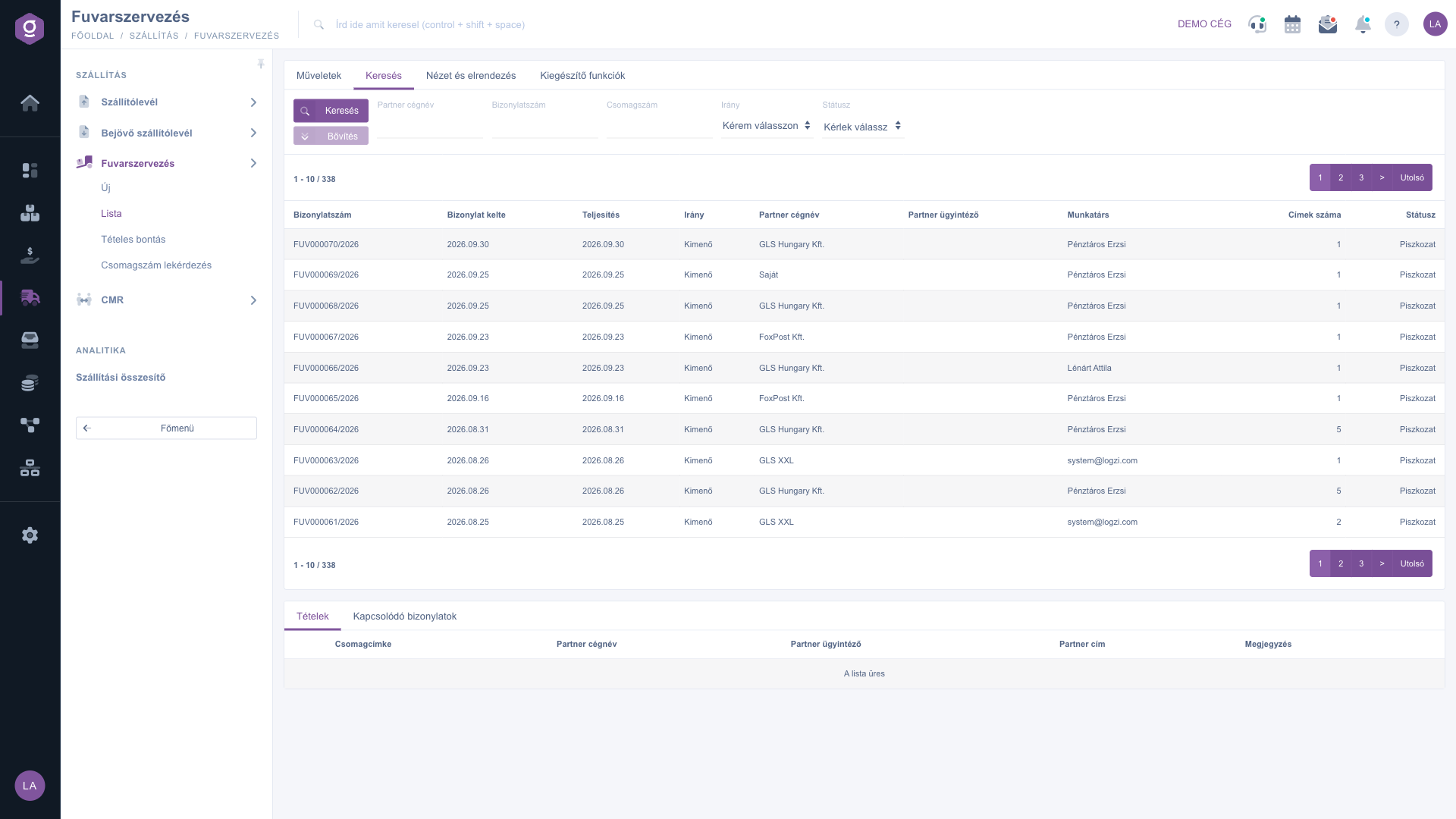
Search tab – search fields

3. Creating, opening, closing and deleting a document

The buttons of the Actions tab:

  • New: opens an empty transport organization document — you find the details of filling it in in the Transport organization document guide.
  • Open: opens the selected document. It is active only when a row is selected — that is why it is grey in the picture.
  • Close: finalizes the selected document and works only for a Draft document. From the arrow next to the button you can also choose Close and print or Close and download, which produce the printout right after closing.
  • Delete: deletes the selected document, only in Draft or Closed status.

The Close and Delete buttons can be clicked on a selected row even if the status of the document is not suitable — in that case the system shows an error message that the action cannot be performed in that status.

4. Download and print

The Download menu has two groups: the List operation group exports the list, while the Document operation group and the items below it refer to the selected document.

  • XLSX list and XLSX item list: XLSX export of the list, and of the items of the documents in the list; usable without a selected row.
  • XLSX items: the items of the selected document in an XLSX file; active in Draft status too.
  • PDF: the PDF version of the selected document; only for a closed document (grey in Draft status).
  • PDF preview: a sample printout of the document without downloading; active in Draft status too.
  • Download attachments: downloads the files attached to the selected document; active in Draft status too.
  • Manifest: the list of shipments handed over to the carrier; active only for a closed document, grey in Draft status.

You will not find a CSV export in the list; CSV is available on the edit page of the document, in the Download menu (see: Transport organization document).

The items of the Print menu:

  • Parcel labels: produces all parcel labels of the selected document in a single PDF; active in Draft status too, so you can print the labels before closing.
  • Document: the printable version of the document; active only for a closed document.

In the window shown before the PDF, the PDF preview and the Document printout you can choose the language and the template. Here the term “closed” covers not only the Closed status but also Cancellation and Cancelled: the actions of a closed document are available for these as well.

5. Customizing the view

On the View and layout tab you find the following buttons:

  • Columns: selecting the columns shown in the table and their order.
  • Rows: the number of rows shown per page.
  • Sorting: the default sorting criterion of the list.
  • Preview window: the tabs and appearance of the panel below the list.
  • Interface and behavior: the general appearance and behavior of the list.

These settings are saved per user, so they are kept the next time you sign in.
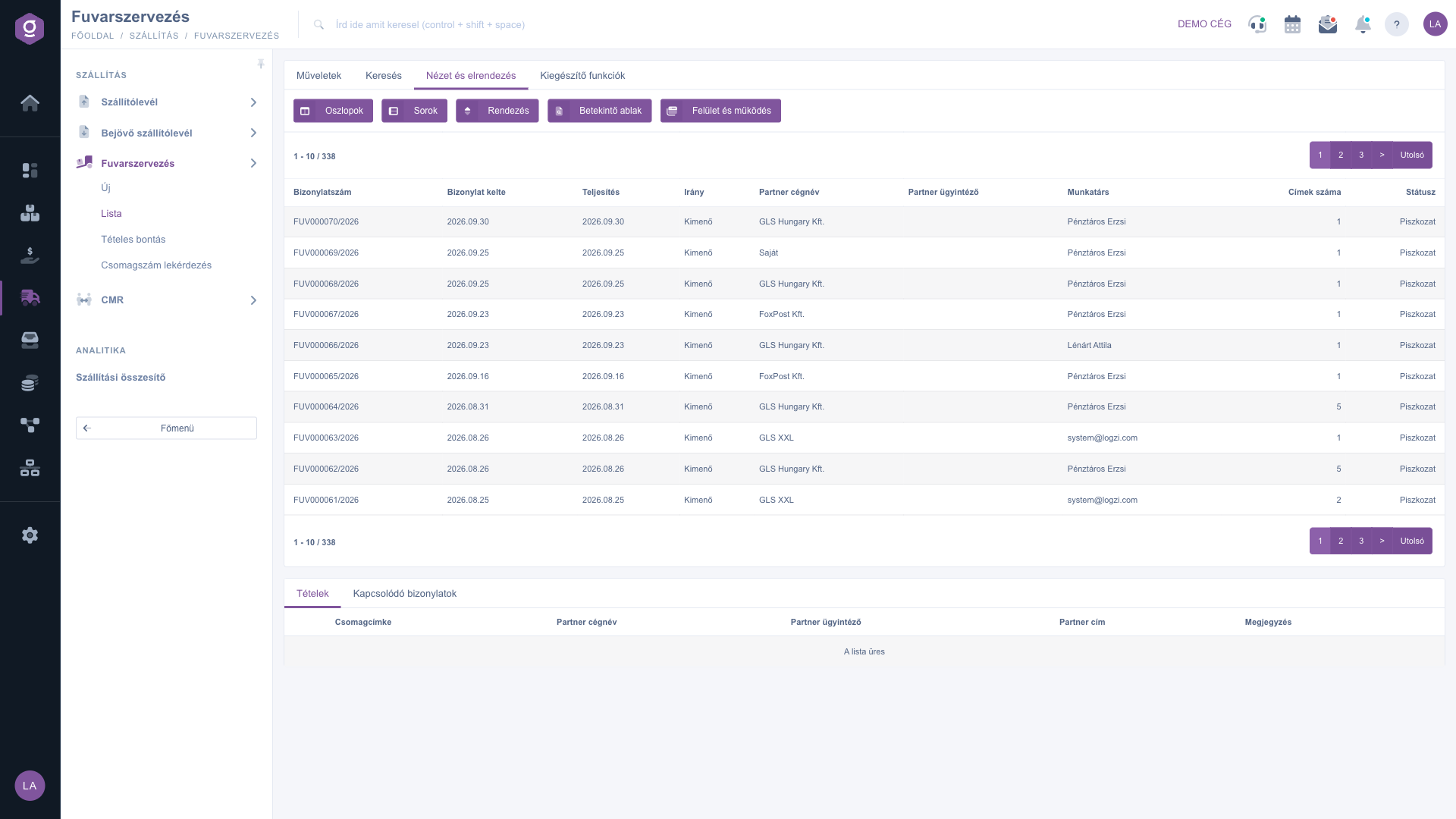
View and layout tab
View and layout tab

6. Preview window

In the preview window below the list you can see the data of the selected row without opening the document. While no row is selected, the panel is empty. It has two tabs: the Items tab shows the addresses and parcel labels of the document, and the Related documents tab shows the other documents linked to it. Editing is always done in the opened document.

7. Additional functions

On the Additional functions tab you can view the Sent items, send a New email (using the External mail client or the Internal mail client), create a New task, and open CRM for the selected document.

Tip


You do not have to wait for the document to be closed to get the parcel labels: Print / Parcel labels works for a Draft document too, while PDF, Manifest and the Document printout work only after closing. If you filter by status and direction together, you can quickly find, for example, all outgoing freights that are not closed yet.


You can read about creating and editing documents in the Transport organization document guide, and the itemized search of parcels is described in the Transport organization itemized breakdown guide.

Field descriptions

The search fields and their meaning:

Field / ElementRequiredDescription
Partner company nameThe name of the logistics/carrier company recorded on the document.
Document numberThe identifier of the document.
Parcel numberThe number of a parcel label on the document; the result is the freight that contains the parcel.
DirectionFilter for Outgoing or Incoming documents.
StatusMulti-select field: Draft, Closed, Cancellation, Cancelled.

The default columns of the list and their meaning:

Field / ColumnRequiredDescription
Document numberThe unique identifier of the transport organization document (e.g. FUV000064/2026).
Document dateThe date the document was created.
Performance dateThe date of performance of the freight.
DirectionThe direction of the freight: Outgoing or Incoming.
Partner company nameThe name of the logistics/carrier company (courier service) recorded on the document.
Partner contact personThe contact person of the carrier company.
ColleagueThe name of the colleague who recorded the document.
Number of addressesThe number of addresses (items) on the document.
StatusThe current status of the document (Draft, Closed, Cancellation, Cancelled).

The set of visible columns can be customized under View and layout / Columns — the list above shows the default view.

The items of a transport organization document are not products but addresses and parcel labels. The columns of the Items tab of the preview window (item fields):

Field / ColumnRequiredDescription
Parcel labelThe number of the parcel label belonging to the address; the label can be created on the document.
Partner company nameThe name of the recipient or pickup company.
Partner contact personThe contact person of the recipient company.
Partner addressThe delivery or pickup address.
CommentFree-text comment for the given address.

The columns of the Related documents tab of the preview window: Document number, Document date, Document type and Issuing employee.

Frequently asked questions

Only a Draft document can be closed, and only a Draft or Closed document can be deleted. Cancellation and Cancelled documents can be neither closed nor deleted. The buttons can always be clicked on a selected row; the system tells you in the error message if the action is not allowed in the given status.

Draft: a new, still editable document; it can be closed and deleted. Closed: the finalized document; it cannot be edited but it can be deleted. Cancellation and Cancelled: the statuses of cancellation; such a document can no longer be closed or deleted. PDF, Manifest and the Document printout are available in every status after Draft.

These actions are available only for a closed document. In Draft status you can still use PDF preview, XLSX items and the Parcel labels printout. Once you close the document, the grey items become active too. Without a selected row none of the document actions can be used.

There is no CSV option in the list: here you can download in XLSX and PDF format. CSV is available on the edit page of the document, in the Download menu, for a closed document.

The Direction field shows whether the freight covers shipments leaving your company towards partners (Outgoing) or arriving at your company from partners (Incoming). The direction is mandatory in the header of the document, and you can filter by it in the list.

The Partner company name is the name of the logistics/carrier company (for example a courier service) recorded on the document, and the Partner contact person is the contact person of that company. The delivery addresses (the actual recipients) are among the items of the document.

The panel loads only for a selected row. If a document is selected but the Items tab is empty, you have not added an address and parcel label to the document yet.

The module appears in the menu only if it is assigned to your user. If it is missing, ask the administrator of your company to check the module assignment of your user.

Need personalized help?

Don't want to spend hours searching for a solution? Choose the most efficient way: book a personalized, 45-minute online training session dedicated entirely to you. Whether it's a walkthrough of the basics or a detailed setup of a specific module, our expert colleague will guide you through the whole process, step by step.

Don't waste your time - ask for help!
Our goal is to get you using our system as quickly and efficiently as possible. Whether you're completely new to us or stuck on a specific setting, don't hesitate to ask for help!

Logzi warehouse management software

Get in touch with us

Interested in our software? Feel free to write to us!

Need help?

If you can't find the answer and need assistance

Create your account now,
pay later!

Try it free for 3 days, no risk, no obligation!
