Warehouse stock list

Learn the Warehouse stock list: the current, periodic, production, location code, slow-moving and historical views, stock valuation, the meaning of physical, reserved and available stock, and the location code, pallet, serial number, analytics and inter-warehouse transfer actions.

Feature overview

In this module you can review the stock of your products by site. The list shows the same stock in eight views: the current state, the state on an earlier day, the producible quantity of manufactured products, the breakdown by location code, the mismatch between stock and location codes, the value of the stock, slow-moving items, and the full history of stock changes. For the selected product you can start an inter-warehouse transfer right from here, or open the product card, the location codes, the serial numbers or the stock history.

  • Physical stock: the quantity actually found in the warehouse.
  • Reserved stock: the total of the reservations recorded in the Stock reservation menu item. This quantity is still in the warehouse but is already committed.
  • Available stock: physical stock minus reserved stock, that is, what you can still freely promise or issue.
  • Incoming stock: the quantity ordered from the supplier that is still on its way.
  • Open order: the quantity ordered in a customer order that is in open status.

An example: if there are 100 pieces on the shelf and you have reserved 30 of them, the physical stock is 100, the reserved stock is 30 and the available stock is 70. Using a location code is not mandatory: stock is tracked per site even without one. You only need the location code views if you also manage the stock by storage locations and shelves.

Step by step

1. Opening the list and the Current warehouse stock view

Click Main menu / Stock management / Warehouse stock. At the top of the page you will see the tabs of the views: Current warehouse stock, Periodic warehouse stock, Production warehouse stock, Warehouse stock by location code, Warehouse stock without location code, Stock valuation, Slow-moving warehouse stock and Historical warehouse stock. The first one, Current warehouse stock, shows today stock per product and site.

On the Search tab you can filter by Name, Item number, Sites, Company name and Product category. The Warehouse stock drop-down narrows the range of items: Every item, Products with physical and reserved stock, No available stock or Products with physical stock. The Expand button opens further filters: Product parameters, Product manufacturer and Primary carrier. If you save the search, the list loads with the saved filter the next time you open it.
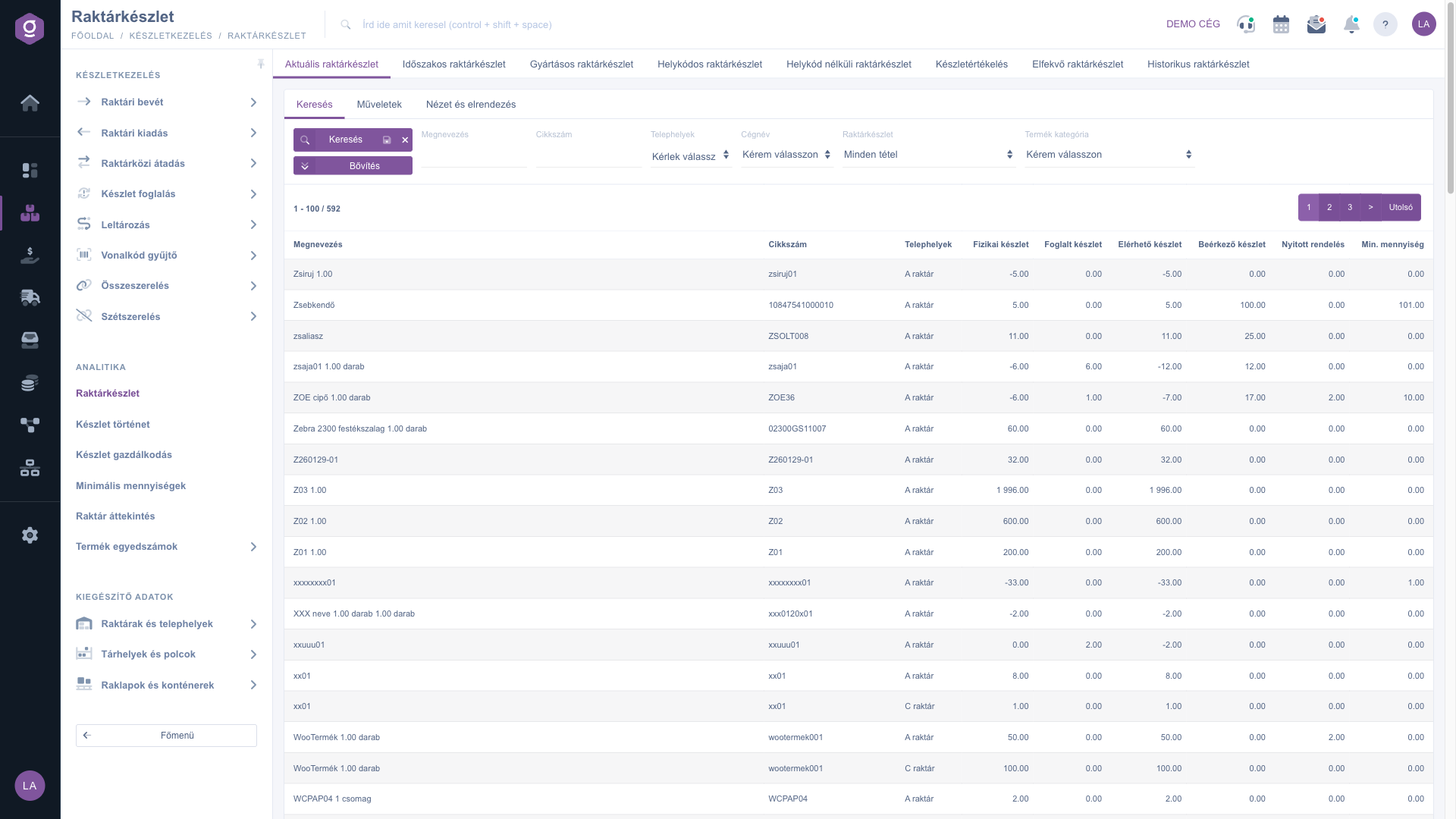
Warehouse stock list – Current warehouse stock view with the Search tab filters (Hungarian UI: Aktuális raktárkészlet)

2. Actions on the selected product

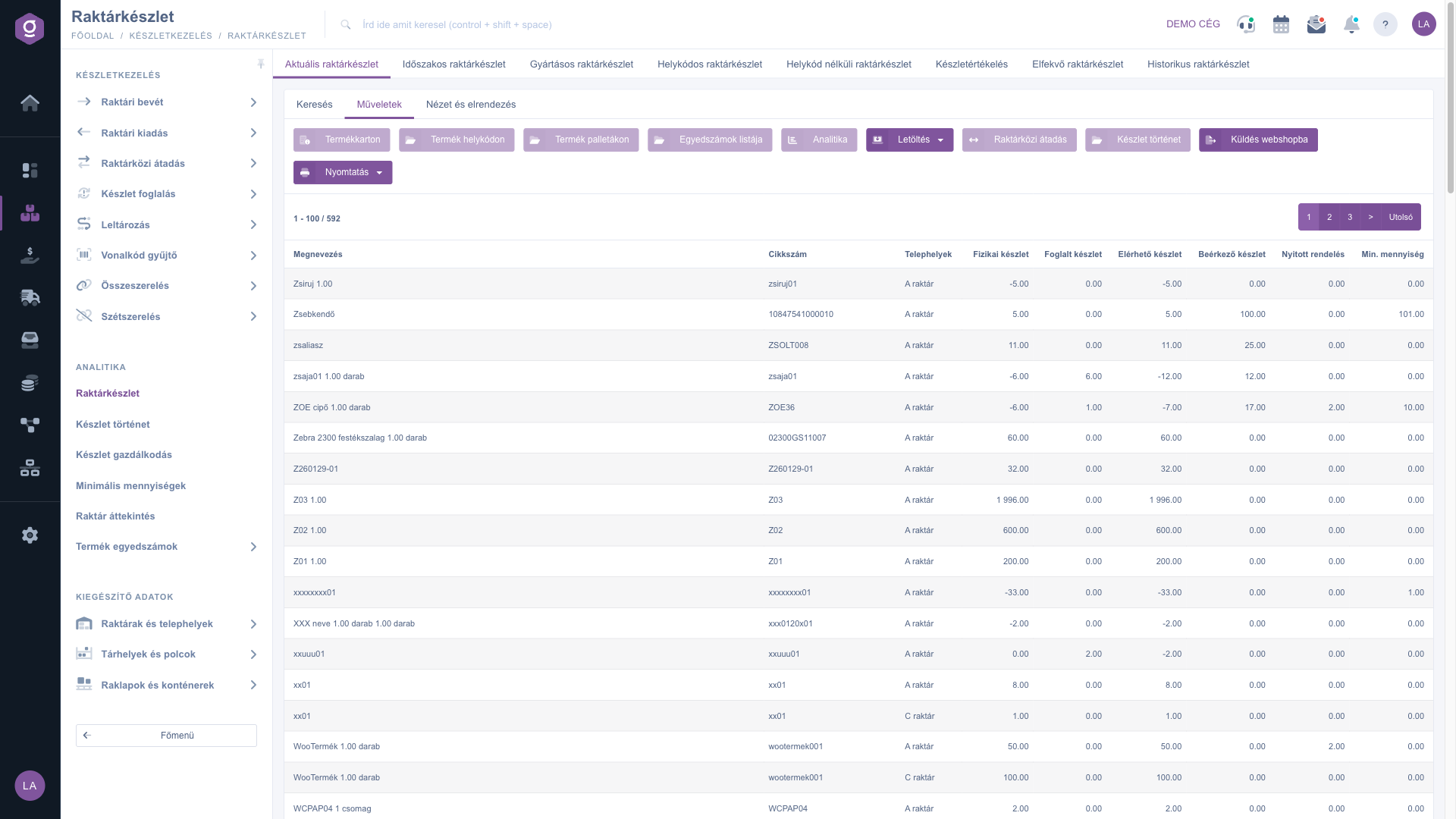
Click a row in the table, then choose the action you need on the Actions tab. If no row is selected, the system warns you to choose an item from the list.

  • Product card: the detailed data sheet and analytics of the product.
  • Product at location code: the stock of the product by location code.
  • Product on pallets: where the product is located by pallets and containers.
  • List of serial numbers: the serial numbers of the product.
  • Analytics: turnover rate calculation.
  • Download: export as XLSX, XLSX - Extended or PDF.
  • Inter-warehouse transfer: moving the selected product to another site or storage location.
  • Stock history: opens the movements of the product in the Stock history list.
  • Send to webshop: synchronises the stock of the product towards the webshop.
  • Print: prints the Product label.
Warehouse stock list – Actions tab (Hungarian UI: Műveletek)

3. Location codes, pallets and serial numbers

The Product at location code window shows the stock of the selected product by location code, with the total of all location code stock at the bottom. If it differs from the physical stock, the total is shown in red and a warning appears that the physical stock does not match the location code stock. At the bottom of the window the summary cards Physical stock, Reserved stock, Available stock and Incoming stock are also shown. The Product on pallets window lists the pallets and containers of the product with barcode and quantity, and the List of serial numbers window shows the serial numbers, whether they have already been used and when they were created.

4. Analytics: turnover rate

In the Analytics window you can set the Quantity to examine (by default the current physical stock of the product) and the Period (30, 90, 180 or 365 days). On Search the window calculates the product Item number, its sales value, Physical stock, Last purchase price and the Turnover rate (FSF), that is, roughly how many days the given quantity would last at the pace of the recorded sales. The value is informative; use it to prepare your ordering decisions.

5. Inter-warehouse transfer directly from the list

Select a row, then click the Inter-warehouse transfer button. In the window the Item number and the Name are read-only, the Quantity is pre-filled with the physical stock; overwrite it with the quantity you want to transfer. On the source tab the site of the row is preset, and the Storage locations and shelves and Pallets and containers fields specify the source place. In the Destination block the destination Site is mandatory, the storage location and the pallet are optional. Save creates the transfer and closes it immediately, so the stock moves to the destination right away.

6. Periodic warehouse stock

This view shows the state on an earlier day. Up to and including the day given in the Date field it lists the state of the last stock closing per product and site, only for stock-managed products with positive stock. You can filter by Product/Item number, Sites, Company name and Product category. In the Download menu, besides XLSX, the XLSX - With zero stock export is also available.

7. Production warehouse stock

For manufactured products the stock results from the components. The view shows the Number of components and the Producible stock columns: the producible stock is the largest number of pieces you can make from the current component stock according to the recipe. The Purchase price is the sum of the net purchase prices of the components.

8. Warehouse stock by location code and without location code

The Warehouse stock by location code view shows one product and one location code per row with the stock of that location code, so here you can see how much is on which shelf. You can also filter by the Location code field.
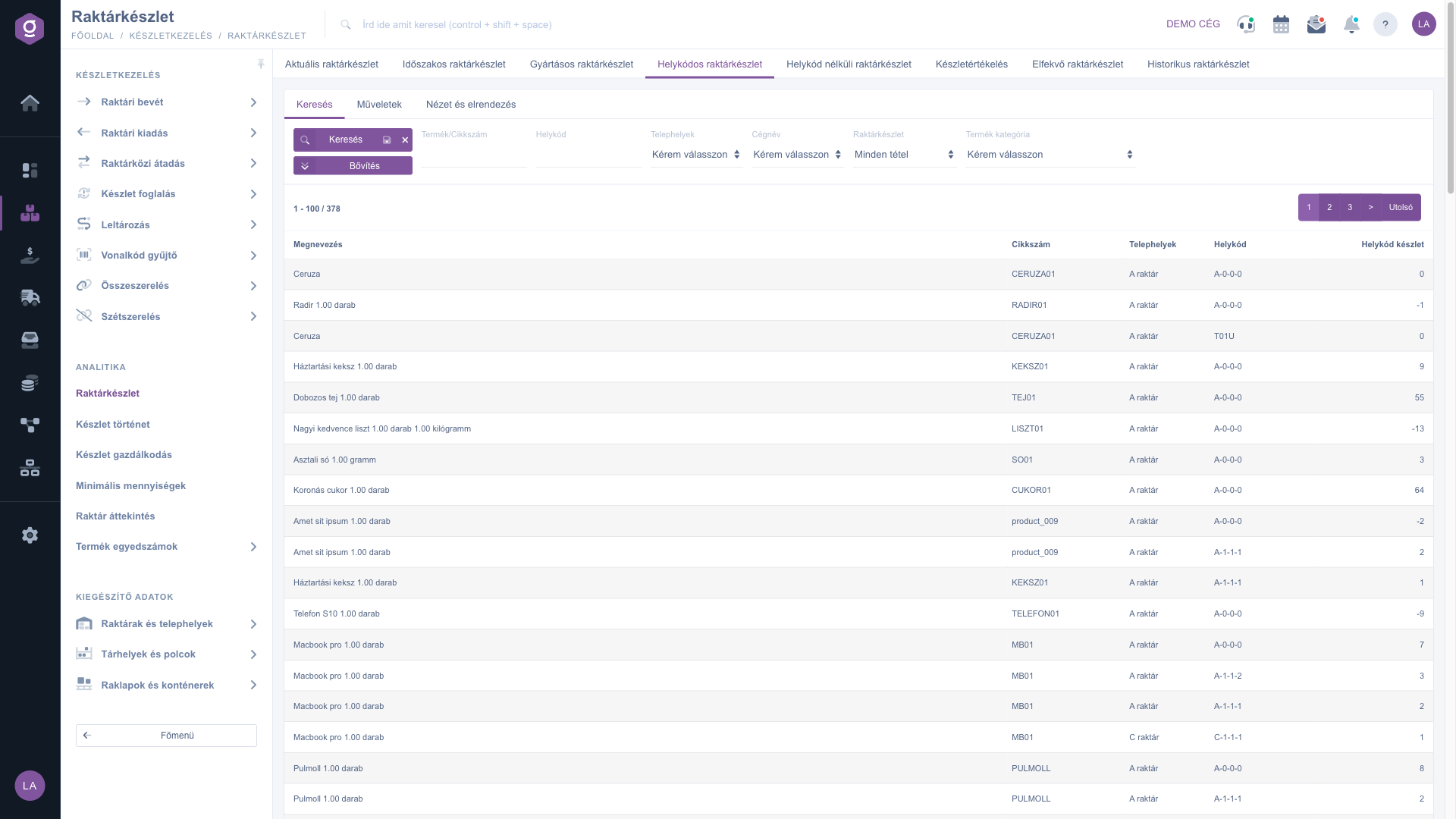
Warehouse stock by location code view (Hungarian UI: Helykódos raktárkészlet)

The Warehouse stock without location code view lists the mismatches: the products where the Physical stock does not equal the sum of the Location code stock, that is, part of the stock is not assigned to a location code or it is over-assigned. This is where you find what needs to be straightened out.

9. Stock valuation

The Stock valuation view shows the value of the stock for a period: opening and closing stock, sales and purchases in quantity and value. You choose the period by entering the dates, and you can filter by item number and site. The values are calculated with the average purchase price.
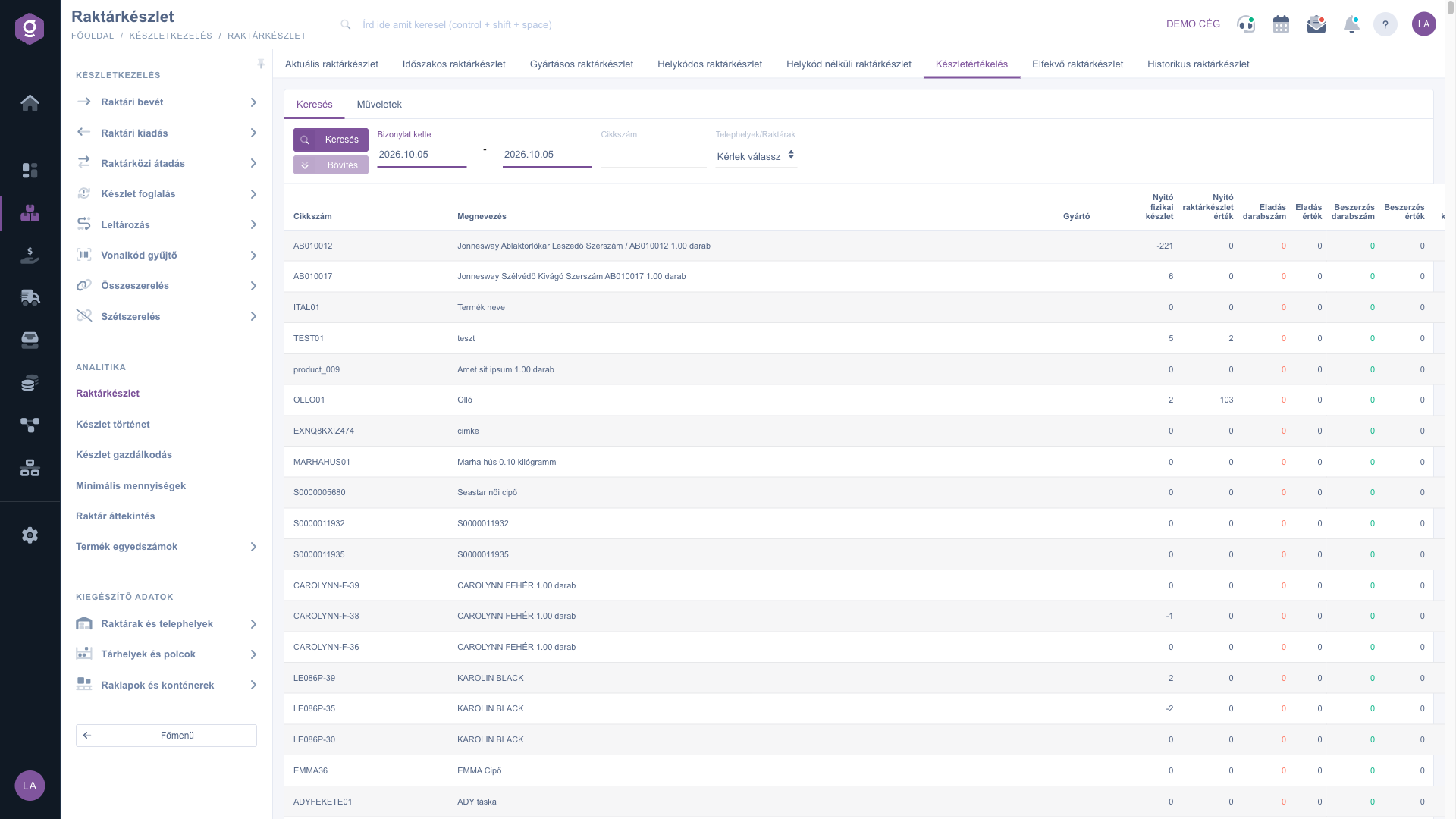
Stock valuation view (Hungarian UI: Készletértékelés)

10. Slow-moving warehouse stock

The Slow-moving warehouse stock view shows the products in stock whose stock last moved before the given date. The default date is 60 days before today; change it to make the filter stricter or looser. This way you can filter out the items that have not moved for a long time and tie up capital.
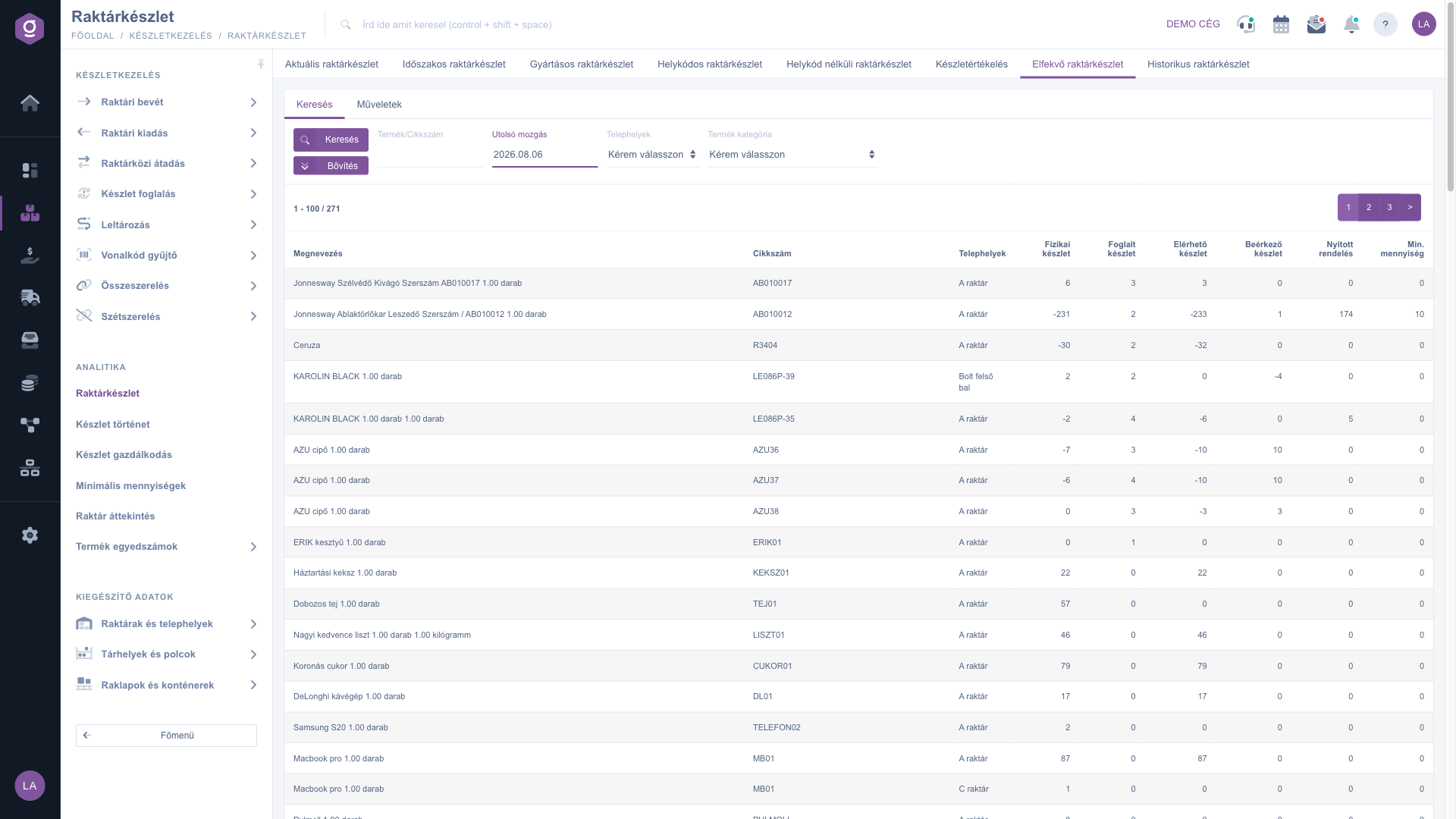
Slow-moving warehouse stock view (Hungarian UI: Elfekvő raktárkészlet)

11. Historical warehouse stock

The Historical warehouse stock view lists the state recorded after every stock movement: Date, Item number, Name, Sites, and the current and Old physical, reserved and available stock. The default period is the last 90 days, and you can filter by product, site, category and date. The chart plots the development of the Physical stock and the minimum and maximum stock, so it is most telling when you filter to a single product and site.
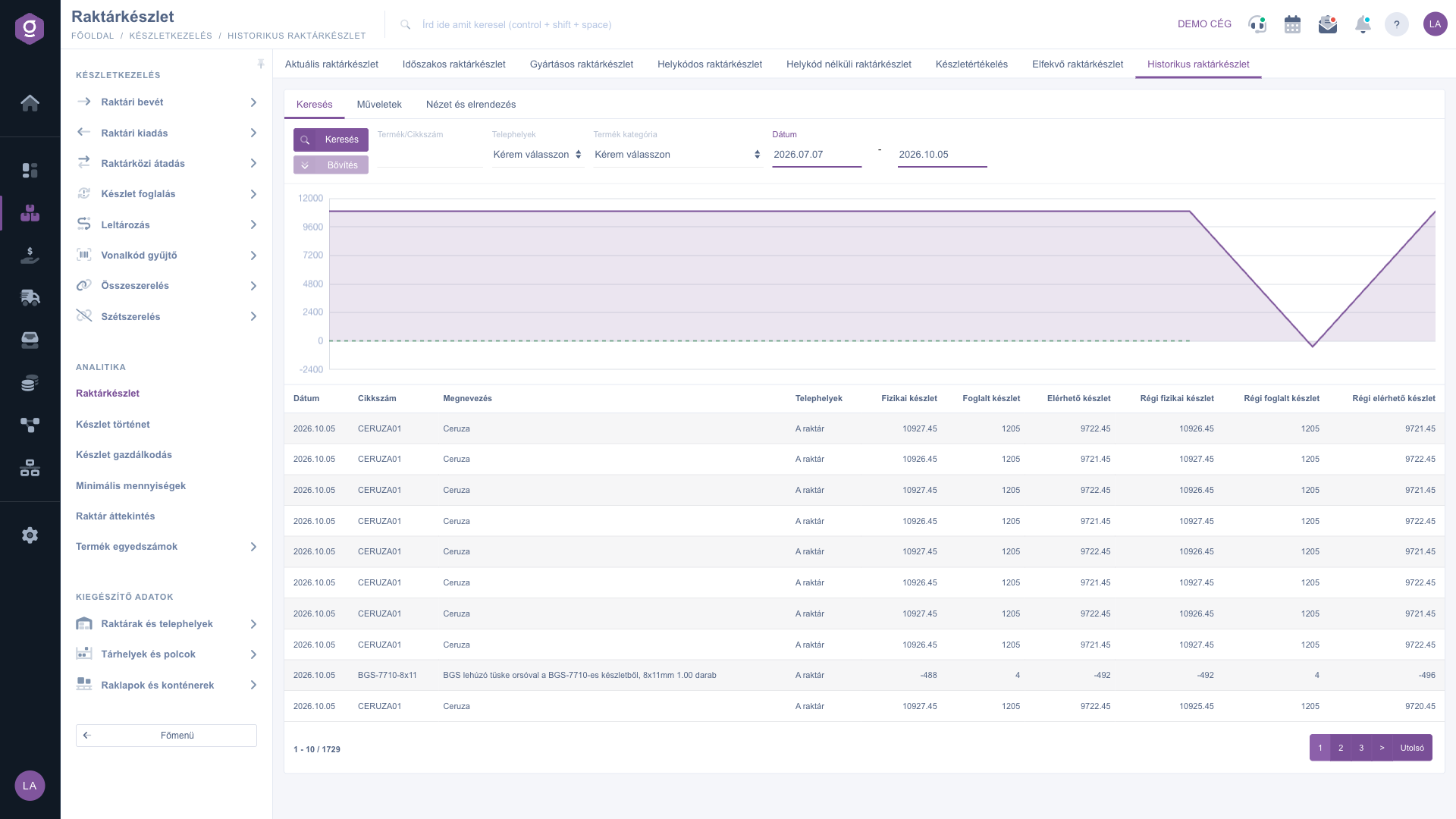
Historical warehouse stock view with the chart (Hungarian UI: Historikus raktárkészlet)

12. View and layout

On the View and layout tab you have three buttons. In the Columns window you choose which columns are displayed and can reorder them by dragging (Save, Default, Select all, Deselect all). In the Rows window the number of visible rows is 10, 25, 50 or 100. In the Sorting window you set the Selected column and the Sort order (Ascending or Descending). The system remembers the settings per user.
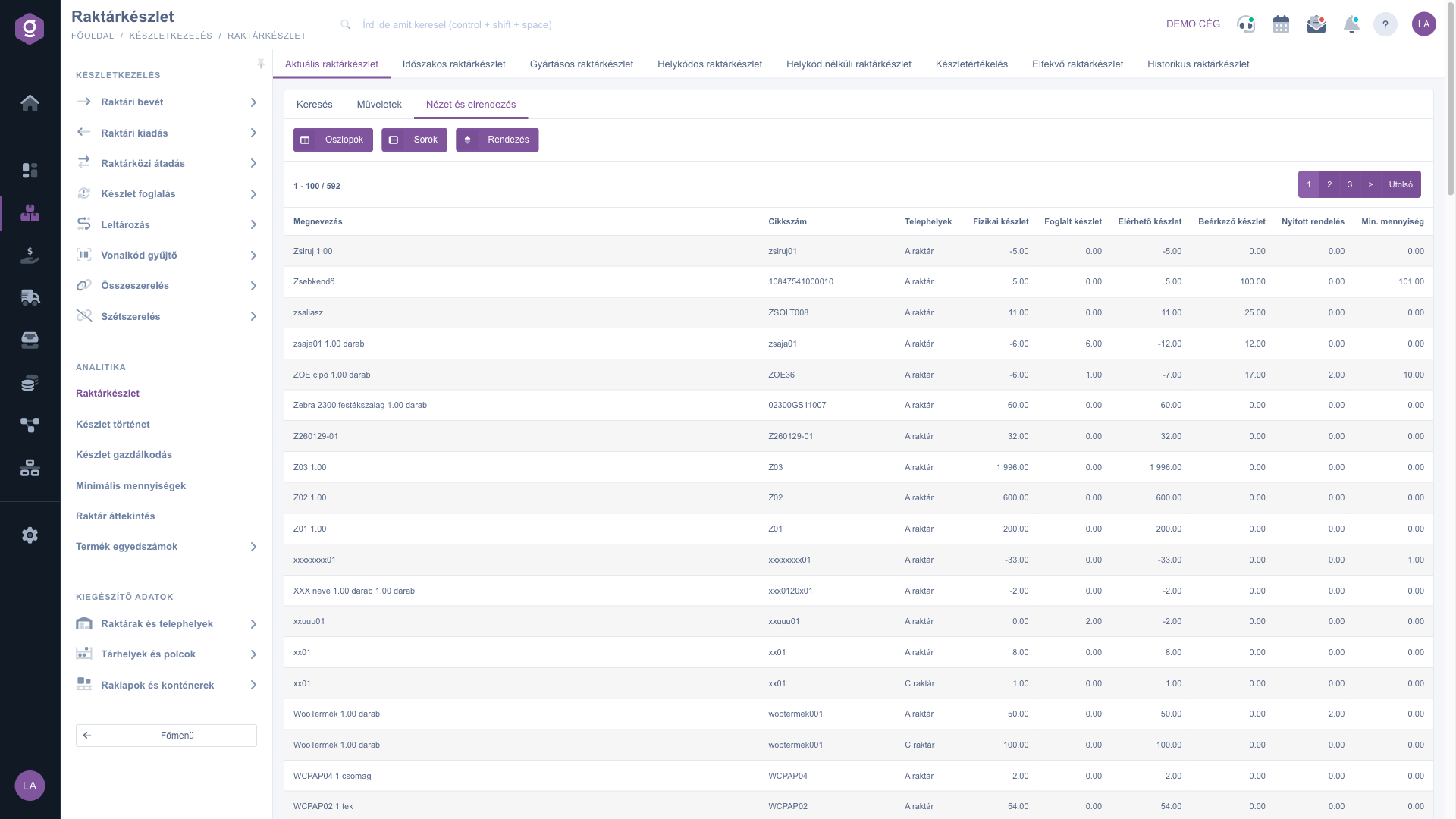
Warehouse stock list – View and layout tab (Hungarian UI: Nézet és elrendezés)
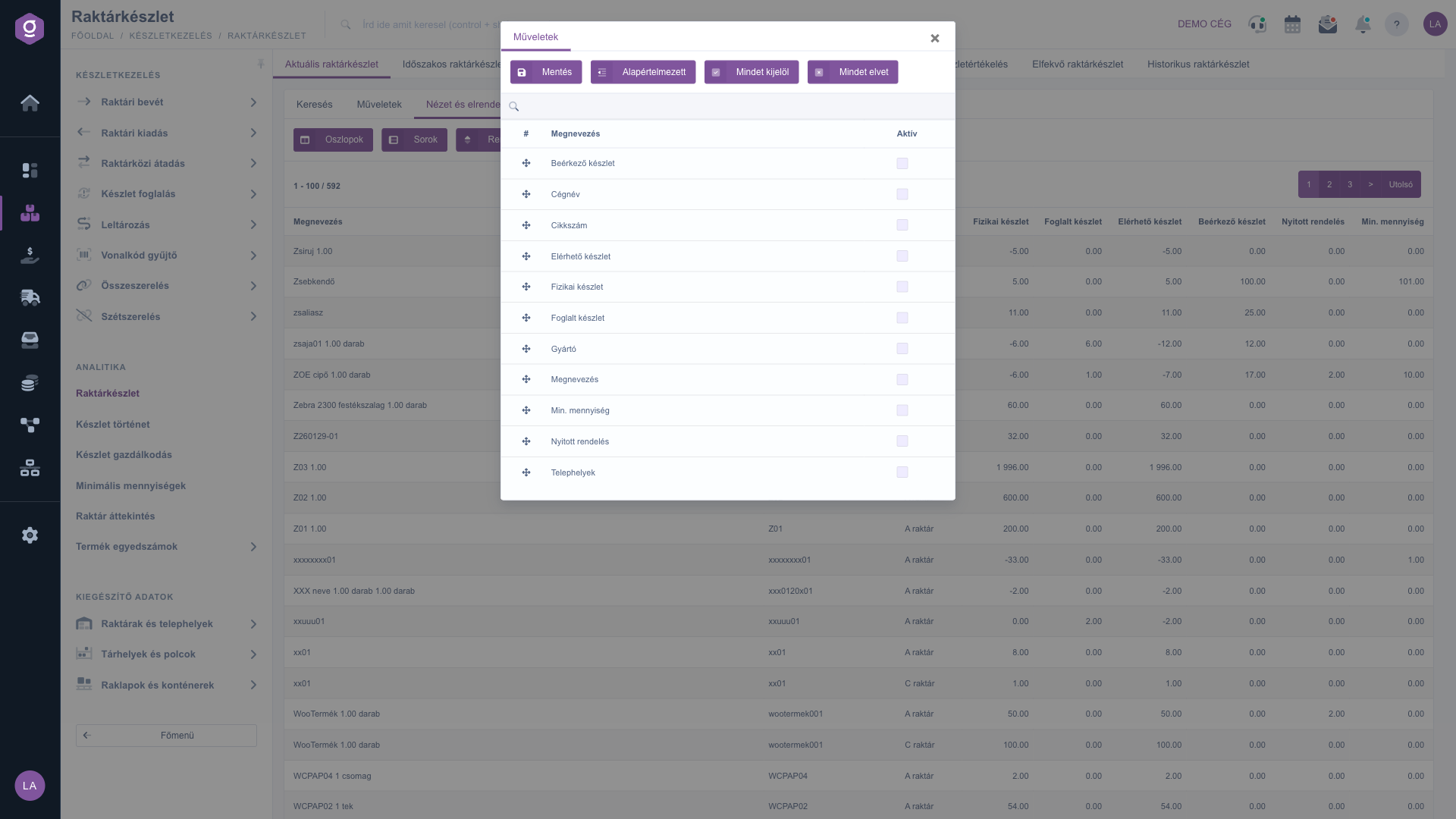
The Columns settings window (Hungarian UI: Oszlopok)

Tip


If the stock of a product does not add up, do not browse the current list: open the Historical warehouse stock view filtered to the product and site, and the chart immediately shows on which day the stock changed. You can then find the exact document from the selected row with the Stock history button.


You can read about setting the minimum stock levels in the Minimum quantities list guide and about the overall picture in the Warehouse overview guide. Managing inter-warehouse transfers is covered in the Inter-warehouse transfer list guide.

Field descriptions

Fields of the Search tab:

Field / ElementRequiredDescription
NameFilters by the name of the product.
Item numberFilters by the item number or barcode of the product.
SitesNarrows the list to one or more sites.
Company nameFilters by the company assigned to the product.
Warehouse stockNarrows the range of items: every item, those with physical and reserved stock, those without available stock, or only those with physical stock.
Product categoryFilters by the category of the product.
Product parametersOpened with the Expand button; filters by the value of product parameters.
Product manufacturerOpened with the Expand button; filters by the name of the manufacturer.
Primary carrierOpened with the Expand button; filters by the primary supplier of the product.

Default columns of the Current warehouse stock view:

Field / ElementRequiredDescription
NameThe name of the product.
Item numberThe item number of the product.
SitesThe site where the stock is located.
Physical stockThe physically available quantity found in the warehouse.
Reserved stockThe total of the reservations recorded in the Stock reservation menu item.
Available stockPhysical stock minus reserved stock.
Incoming stockThe quantity ordered from the supplier that is on its way.
Open orderThe quantity ordered in a customer order in open status.
Min. quantityThe minimum stock level set for the product.

Columns of the Stock valuation view:

Field / ElementRequiredDescription
Opening physical stockThe stock on the first day of the period.
Opening warehouse stock valueThe value of the opening stock.
Sales quantity / Sales valueInvoiced and receipted sales in the period.
Purchase quantity / Purchase valueThe quantity and value received on incoming invoices in the period.
Closing physical stockThe stock on the last day of the period.
Closing warehouse stock valueThe value of the closing stock.

You can hide or bring forward the Reserved stock, Incoming stock and the other columns on the View and layout tab.

Frequently asked questions

The physical stock is the quantity actually found in the warehouse. The reserved stock is the quantity committed in the Stock reservation menu item, which is still in the warehouse. The available stock is the difference of the two, that is, what you can still issue or promise.

No. Stock is tracked per site even without a location code. If you also manage it by storage locations and shelves, the location code view shows the stock by shelf, and the view without location code shows where the location code stock and the physical stock do not match.

Use the Current view for daily work. The Periodic view is for the state on an earlier day and the Historical view for tracing back the changes of a product. The Production view shows the producible quantity, the location code views show the stock by shelf and the mismatches, Stock valuation the monetary value of the stock, and Slow-moving the items that have not moved for a long time.

Most likely a receipt or issue was recorded without a location code, or the quantity on the location code was not updated. In the Warehouse stock without location code view you can find the affected products. Straighten out the location code stock on the receipt, issue or transfer documents and the mismatch disappears.

In the Periodic warehouse stock view enter the desired Date and the system shows the state of the last stock closing up to and including that day. To follow the daily changes of a product, use the Historical warehouse stock view.

On the Actions tab choose XLSX, XLSX - Extended or PDF in the Download menu. In the Periodic view the XLSX - With zero stock export is also available. The download follows the filters set in the search.

First select a row in the table, then click the Inter-warehouse transfer button. The destination Site is mandatory. Because saving also closes the transfer immediately, the stock moves right away, so check the quantity before saving.

These are products in stock whose stock last moved before the given date. The default date is 60 days before today, but you can change it.

The Warehouse stock module only appears under Main menu / Stock management if it is assigned to your user. If you do not see it, ask your system administrator to check the module assignment in your user settings.

Need personalized help?

Don't want to spend hours searching for a solution? Choose the most efficient way: book a personalized, 45-minute online training session dedicated entirely to you. Whether it's a walkthrough of the basics or a detailed setup of a specific module, our expert colleague will guide you through the whole process, step by step.

Don't waste your time - ask for help!
Our goal is to get you using our system as quickly and efficiently as possible. Whether you're completely new to us or stuck on a specific setting, don't hesitate to ask for help!

Logzi warehouse management software

Get in touch with us

Interested in our software? Feel free to write to us!

Need help?

If you can't find the answer and need assistance

Create your account now,
pay later!

Try it free for 3 days, no risk, no obligation!