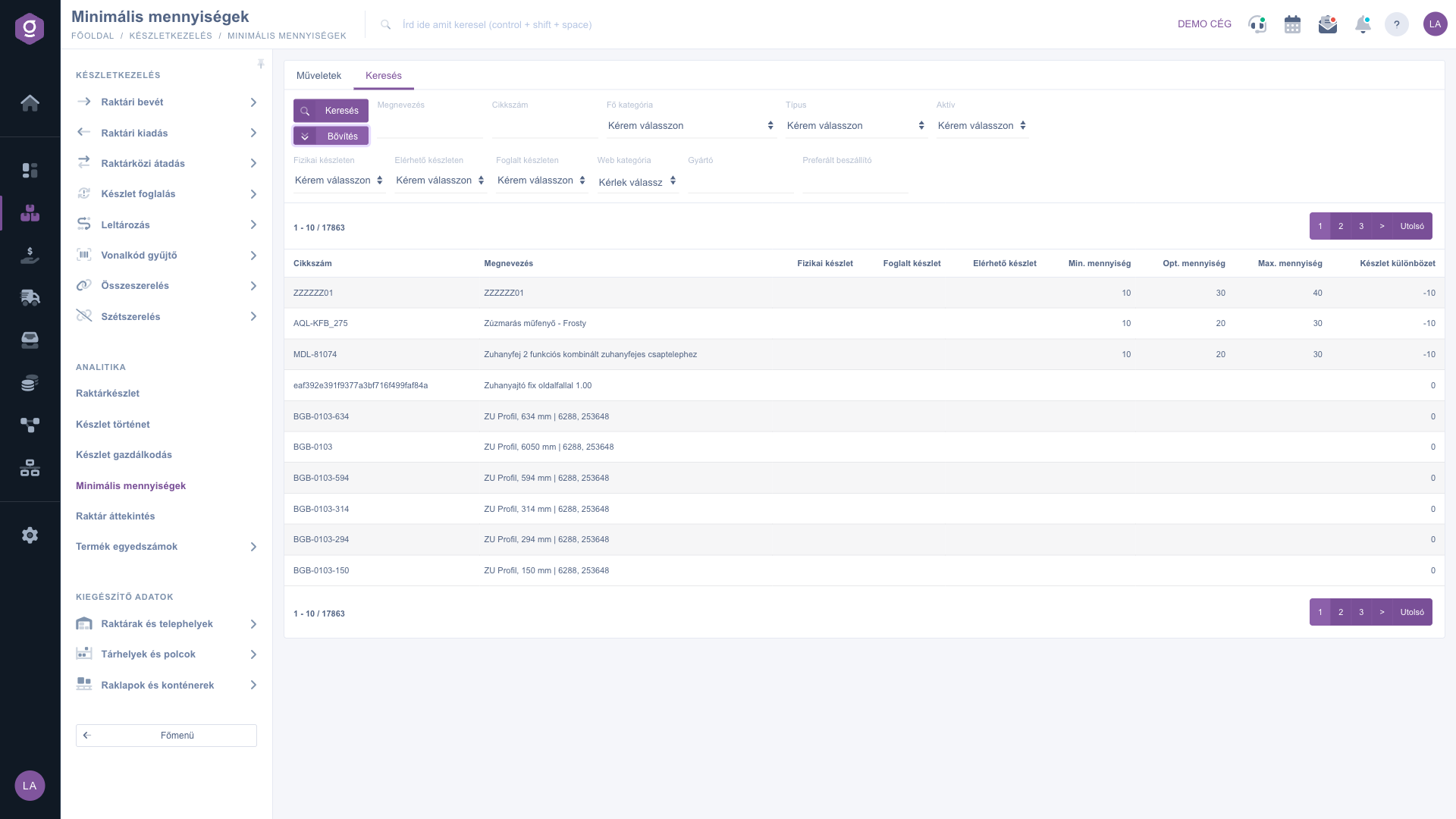
In the Minimum quantities module you record per product how much stock there should be of it: the Min. quantity (the lower limit), the Opt. quantity (the desired, optimal stock) and the Max. quantity (the upper limit). The Stock management module is built on these: there you see which products fell below the set level, and from there you can start a procurement pre-order or a relocation.
If you are new to the system, first enter the levels for the products you have to reorder most often. The views of Stock management can only highlight products for which the selected level (Min., Opt. or Max.) has not been left empty.
Click Main menu / Stock management / Minimum quantities. The list shows the stocked products, in pages of ten, in reverse (Z–A) order of the name. Above the table there are two tabs: Actions and Search. To find the product, open the Search tab, enter one or more filters, then start the search. You can filter by Name, Item number, Main category, Type and Active, as well as by In physical stock, On available stock and On reserved stock (that is, whether there is the corresponding stock of the product). The Expand button opens further filters: Web category, Manufacturer and Preferred supplier.
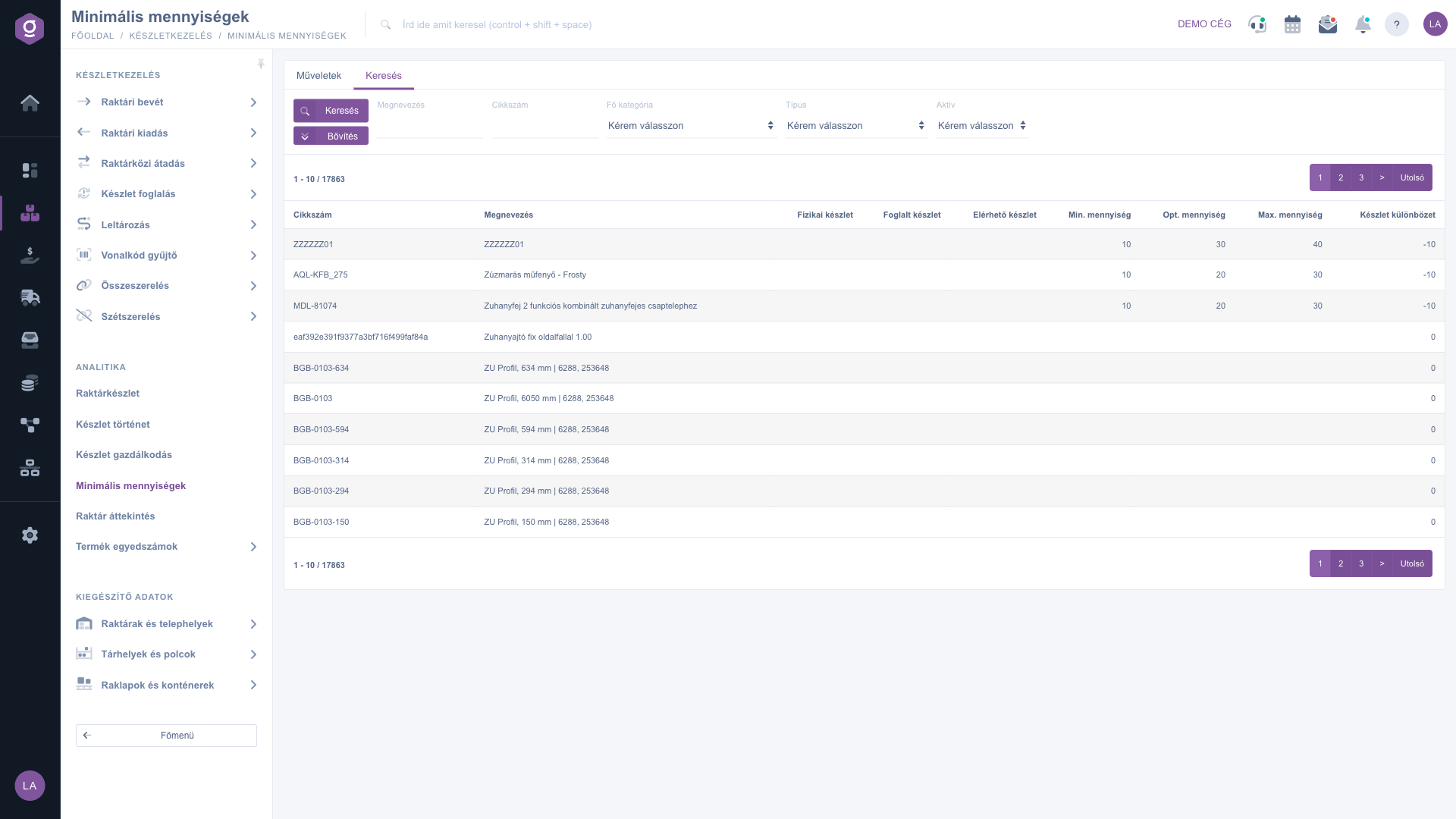
Click the row of the product to be modified, then click the Modify quantities button on the Actions tab. Without a selected row the button does not start; instead you get the warning “Kérlek válassz egy tételt a listából!” (displayed in Hungarian). With the Product card button you can open the detailed stock data of the selected product.
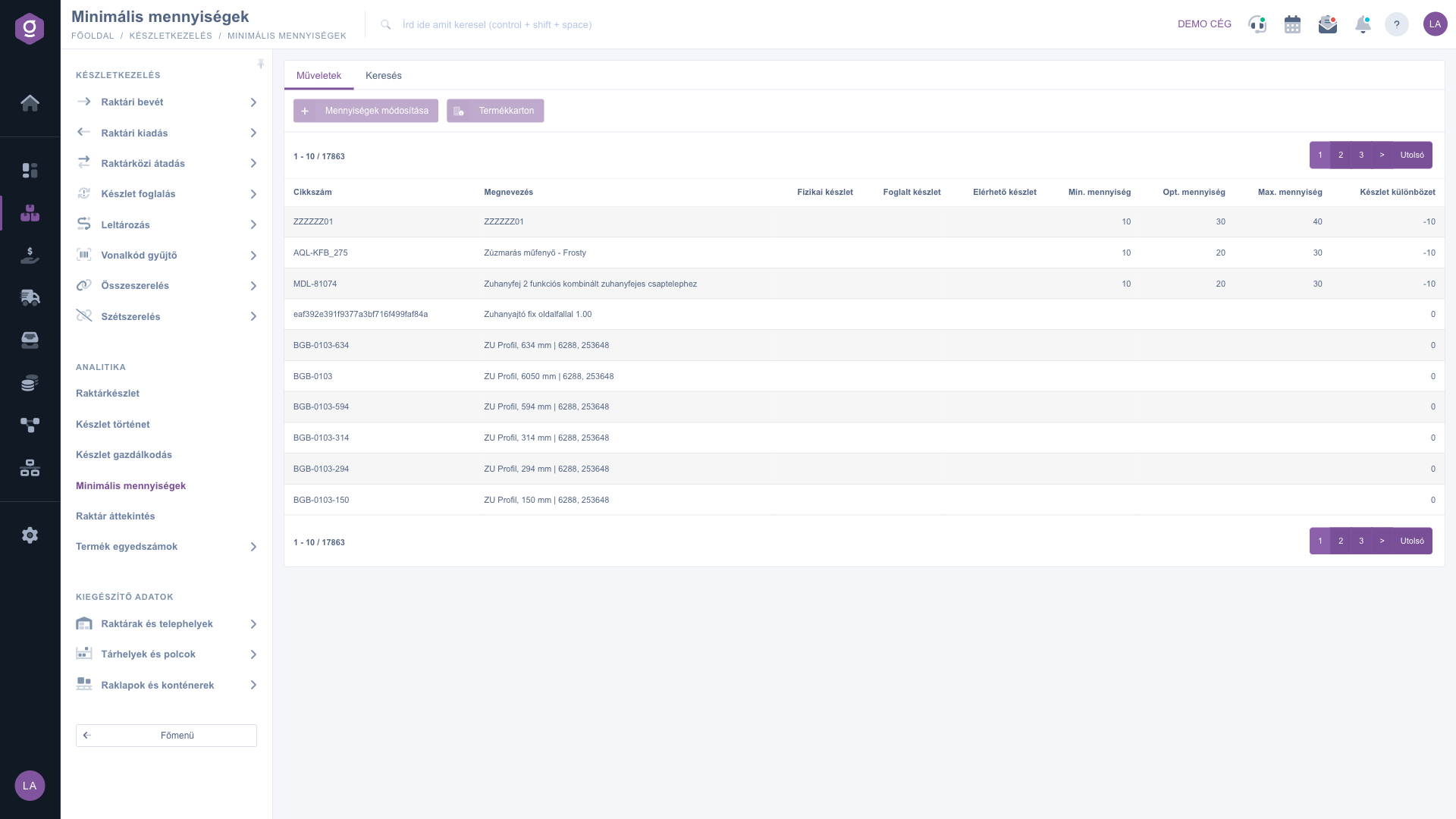
In the window that opens you can enter quantities in two places:
The Save button saves both the global and the per-warehouse values; the Close button closes the window without saving.
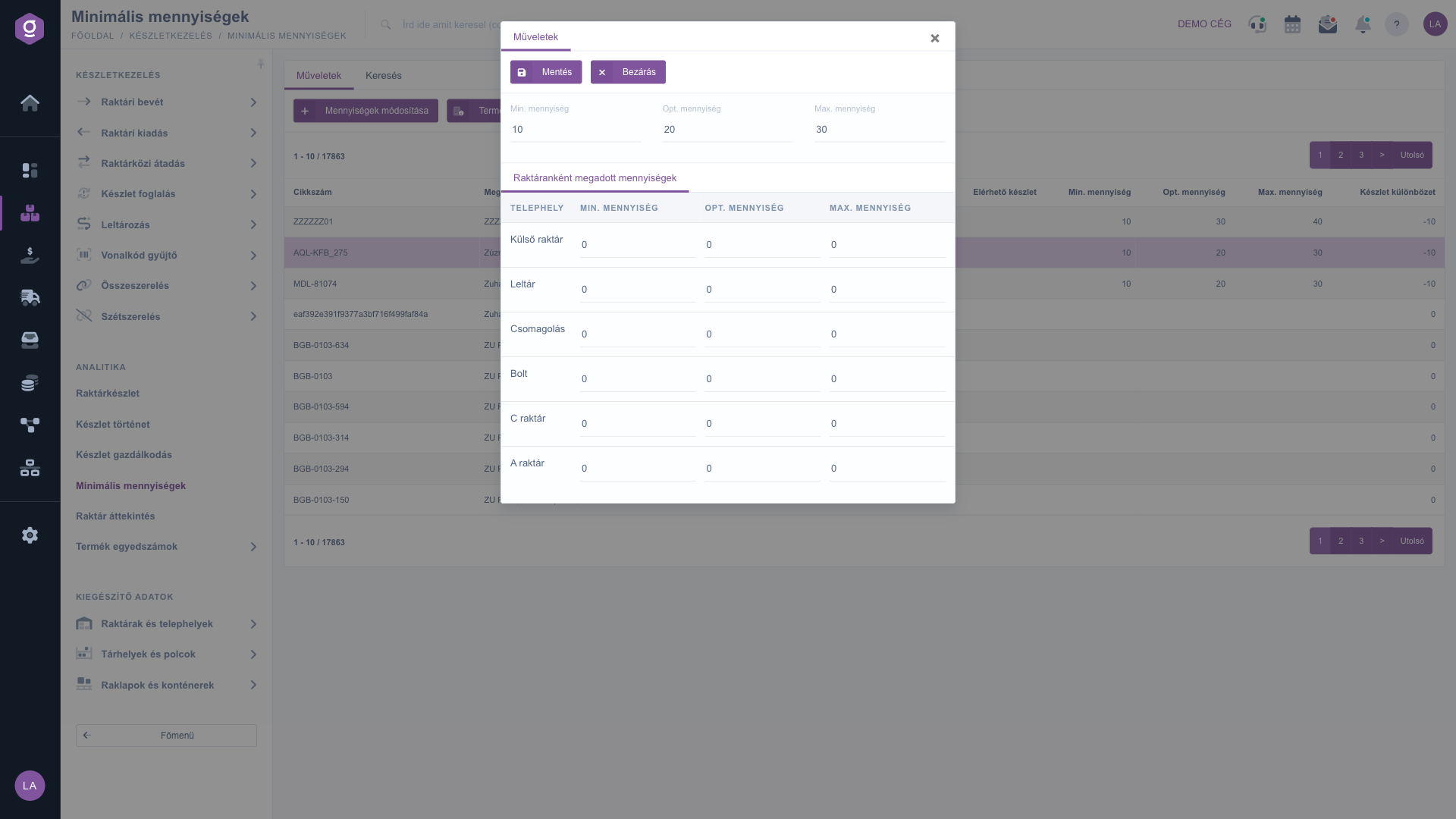
Suggested interpretation: the Min. is the lower limit below which you do not want the stock to fall; the Opt. is the desired, normal stock level (usually what you fill up to); the Max. is the upper limit. The Stock management module is built on these values, but it uses only the global quantities:
The Quantities specified per warehouse are not taken into account by the views of Stock management; in the system they currently appear only in the Modify quantities window. If you use the views of Stock management, always fill in the global values.

| Column | Description |
|---|---|
| Item number, Name | The identifiers of the product. |
| Physical stock | The actual stock of the product, summed over all warehouses. |
| Reserved stock | The already reserved quantity in all warehouses together. |
| Available stock | The quantity that can still be freely used, in all warehouses together. |
| Min. quantity, Opt. quantity, Max. quantity | The global levels given for the product. |
| Stock difference | The difference between the Reserved stock and the Min. quantity (Reserved stock – Min. quantity). It is not calculated from the Available stock. Example: if the Reserved stock is 8 and the Min. quantity is 10, the Stock difference is –2; if the Reserved stock is 15 and the Min. quantity is 10, it is 5. |
| Field / Element | Required | Description |
|---|---|---|
| Min. quantity | The global lower limit of the product for all warehouses. | |
| Opt. quantity | The global optimal stock level of the product. The Items awaiting procurement view of Stock management uses this by default. | |
| Max. quantity | The global upper limit of the product for all warehouses. | |
| Telephely (Min., Opt., Max.) | A separate Min., Opt. and Max. quantity can be given per warehouse (site). Saving records the value by product and site: if a value already existed for that warehouse, it is overwritten. |
The Save button saves the global and the per-warehouse values at once, so you do not need a separate step to save them.
The Stock difference is the difference between the Reserved stock shown in the row and the Min. quantity. The calculation does not use the Available stock. If you want to see how the Available stock relates to the Min. quantity, compare the two columns side by side in the table.
The global Min./Opt./Max. quantity applies to the product, it is the one shown in the list, and it is the one used by the views of Stock management. The Quantities specified per warehouse are values stored separately per warehouse; the views of Stock management do not take them into account. The stock columns of the list (Physical, Reserved, Available) always show the sum of all warehouses.
The list contains only stocked products, so non-stock products (for example services) are not in it. Also check the filters on the Search tab: the Active, In physical stock, On available stock or On reserved stock filter may exclude the product you are looking for.
Stock management only shows a product whose stock has really fallen below the selected level and which has no open procurement pre-order yet. The conditions of the views are described in the Stock management article. Also check that you entered the quantities in the global fields, because the values specified per warehouse are not used there.
The buttons apply to the selected row. First click the row of the product in the table, then the button can be used on the Actions tab.
The Minimum quantities module only appears under Main menu / Stock management if it is assigned to your user. If you cannot see it, ask the system administrator to check the module assignment in the settings of your user.
Don't want to spend hours searching for a solution? Choose the most efficient way: book a personalized, 45-minute online training session dedicated entirely to you. Whether it's a walkthrough of the basics or a detailed setup of a specific module, our expert colleague will guide you through the whole process, step by step.
Don't waste your time - ask for help!
Our goal is to get you using our system as quickly and efficiently as possible. Whether you're completely new to us or stuck on a specific setting, don't hesitate to ask for help!
Create your account now,
pay later!