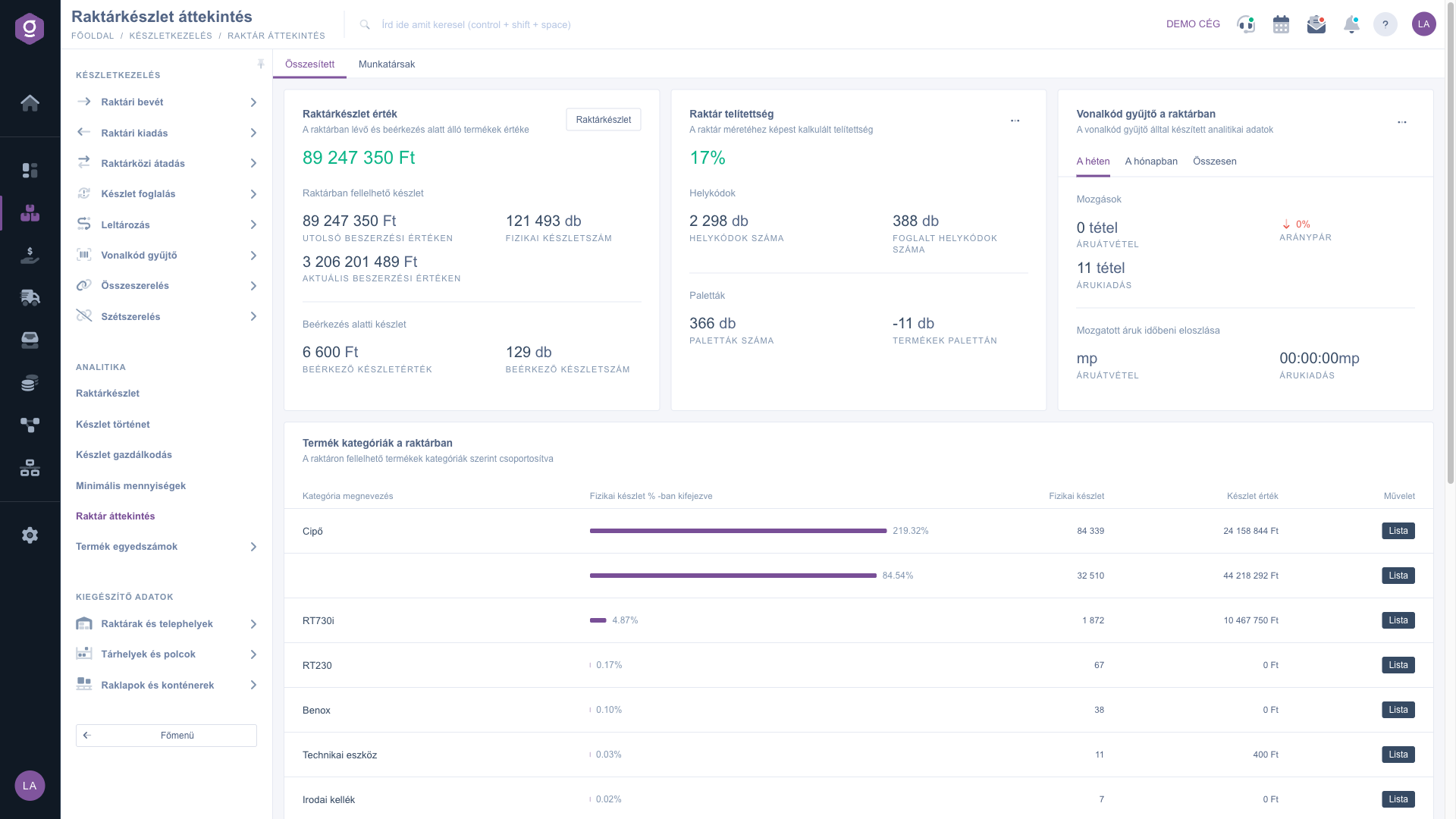
The Warehouse overview page shows the current state of your warehouse on a single screen: what the stock is worth, how full the warehouse is, how many movements were made with the barcode collector, and which product category holds the most goods. The page is read-only, so there is nothing for you to fill in or save.
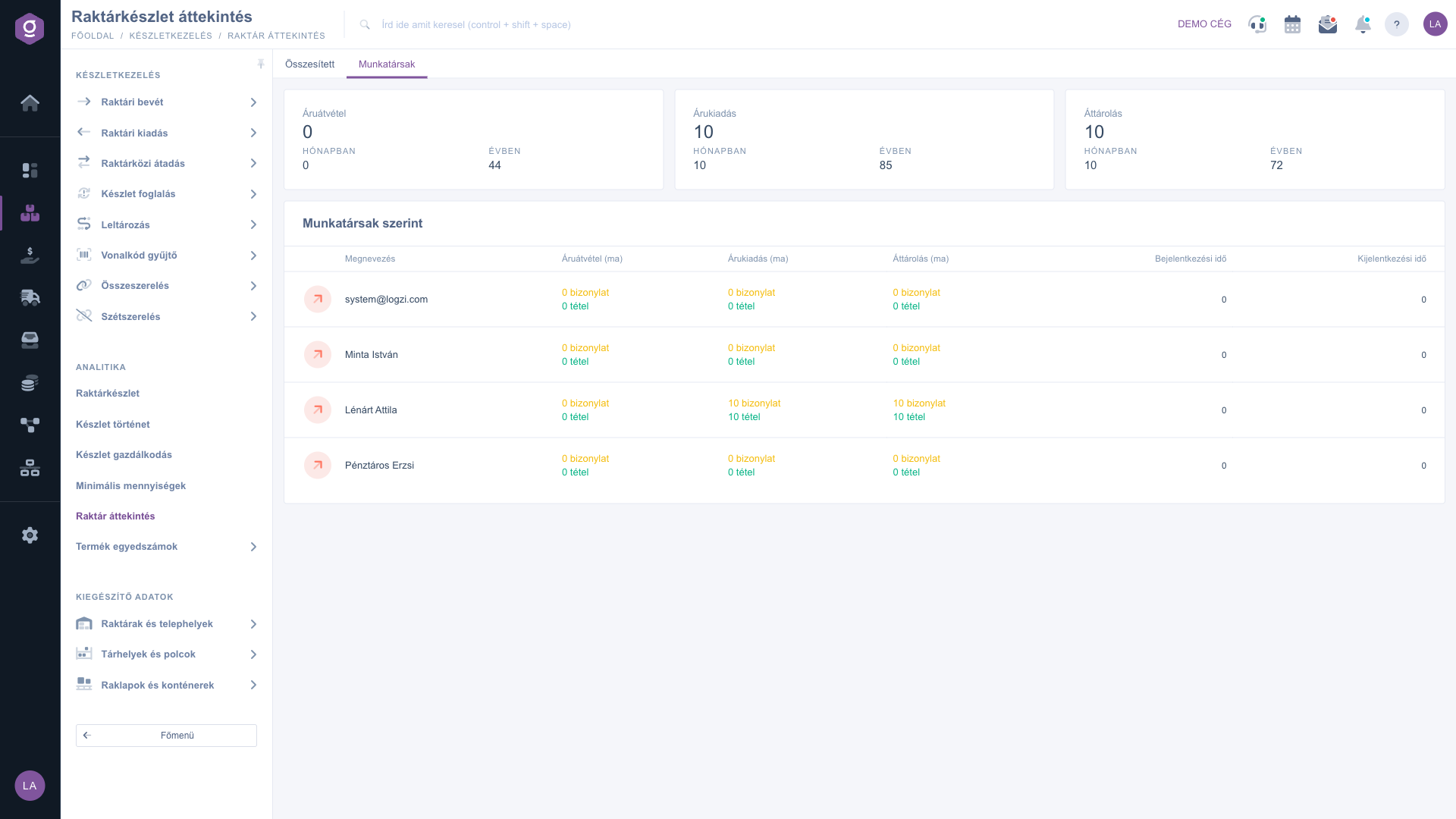
The page has two tabs: the Summarized tab shows the warehouse as a whole, while the Colleagues tab shows who has performed how many goods receipts, goods issues and relocations.
Where to find it: Main menu / Stock management / Analytics / Warehouse overview
Note: the screenshots show the Hungarian interface. The labels are the same in your language.
The large amount on the Stock value card is the combined value of the products in the warehouse and those in transit. Below it, the numbers are split into two parts:
With the Warehouse stock button in the top right corner of the card you can open the detailed warehouse stock list, which shows only the products that are in stock.
The percentage on the Warehouse fullness card shows how full the warehouse is relative to its size. Below it you can see the number of Location codes and of reserved location codes, as well as the number of Pallets and the quantity of products on pallets. The card "…" menu takes you straight to Warehouses and sites, Storage areas and shelves or Pallets and containers.
On the Barcode collector in the warehouse card you can choose between three tabs: This week, This month and Total. On each tab, under Movements, you see the item count of Goods receipt and Goods issue, with the Ratio pair percentage next to it: an upward arrow means you issued more than you received. The Time distribution of moved goods shows the time spent on each movement type. The card "…" menu offers the List of daily movements, the List of open goods receipts and the List of goods that can be released.
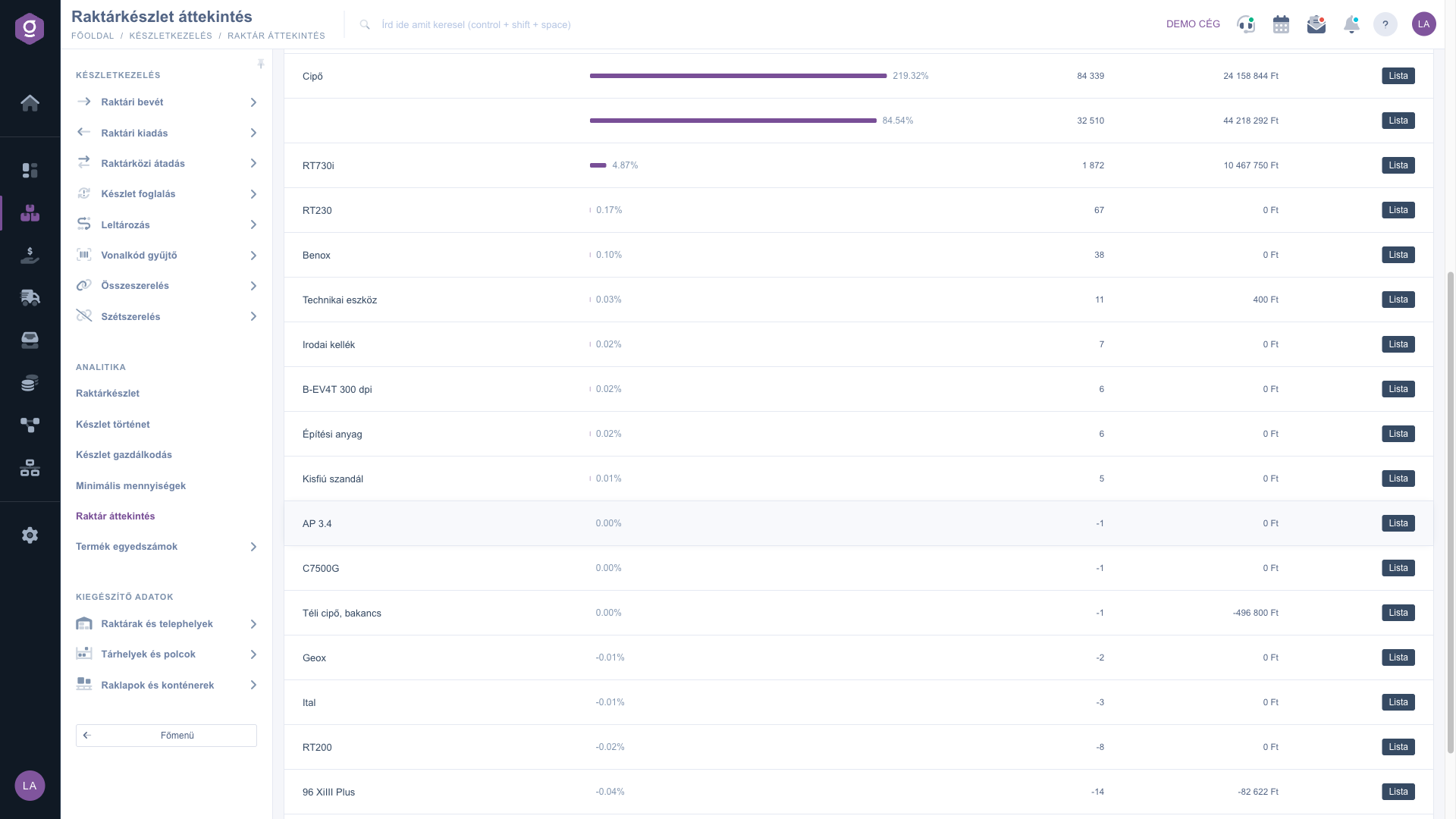
The Product categories in the warehouse table shows, per category, what percentage of the total physical stock it holds, the physical stock and the stock value. The Lista button at the end of the row opens the warehouse stock list filtered to that category.
On the Colleagues tab, three cards show the count for today of Goods receipt, Goods issue and Relocation, with the monthly and yearly totals next to it. Further down, the By colleagues table shows the number of documents and items per colleague for today. This tab refreshes itself every minute.
If a category share is strikingly high, click the Lista button at the end of its row and see which products take up most of your stock.

| Element | Required | Description |
|---|---|---|
| Stock value | The combined value of the products in the warehouse and those in transit. | |
| At last purchase value | The value of the stock on hand, calculated with the last purchase price of each product. | |
| At current purchase value | The value of the stock on hand, calculated with the current purchase price from the price list. | |
| Physical stock count | The number of pieces physically in the warehouse. | |
| Incoming stock value | The value of the goods in transit. | |
| Incoming stock count | The number of pieces of the goods in transit. | |
| Warehouse fullness | Fullness in percent, calculated relative to the size of the warehouse. | |
| Number of location codes | The number of location codes (storage places) that exist in the warehouse. | |
| Number of reserved location codes | The number of location codes that currently hold stock. | |
| Number of pallets | The number of pallets recorded in the system. | |
| Products on pallet | The total quantity of products placed on pallets. | |
| Movements | The item count of Goods receipt and Goods issue made with the barcode collector in the selected period (This week, This month, Total). | |
| Ratio pair | The ratio of the Goods issue item count to the Goods receipt item count in percent. Above 100% an upward arrow appears, below it a downward arrow. | |
| Time distribution of moved goods | The time spent on Goods receipt and Goods issue. | |
| Category name | The name of the product category in the category table. | |
| Physical stock expressed in % | The share of the category in the total physical stock, shown with a progress bar. | |
| Physical stock | The number of pieces in stock in the category. | |
| Stock value (category table) | The value of the category stock at the last purchase price. | |
| Login time and Logout time | The last two columns of the By colleagues table. They are not calculated at the moment and always show 0. |
The menu item is shown based on module permissions. Ask your company administrator to enable the Warehouse overview module for your user and to check that your subscription includes the Stock management features.
Negative stock appears when you have issued more of a product than you have received. In that case the stock value and the category shares can be distorted, so a percentage can go above 100. Check that every purchase was recorded according to the Warehouse receipt list, and run a stocktake if needed.
The two numbers use different prices. At last purchase value uses the price of the most recent actual purchase, while At current purchase value uses the current purchase price stored for the product in the price list. If you have not updated the price list for a long time, the two amounts can differ a lot.
These two columns of the By colleagues table do not calculate any data at the moment, so they show 0. The document and item counts for today, however, are live data.
The Colleagues tab reloads every minute. To refresh the data of the Summarized tab, reload the page.
You can find the serial numbers and the expiring items on the List of warehouse products by serial number page.
Don't want to spend hours searching for a solution? Choose the most efficient way: book a personalized, 45-minute online training session dedicated entirely to you. Whether it's a walkthrough of the basics or a detailed setup of a specific module, our expert colleague will guide you through the whole process, step by step.
Don't waste your time - ask for help!
Our goal is to get you using our system as quickly and efficiently as possible. Whether you're completely new to us or stuck on a specific setting, don't hesitate to ask for help!
Create your account now,
pay later!