1. Opening the page and filtering
Click Main menu / Stock management / Analytics / Warehouse overview to open the page. The tab bar starts with the two earlier tabs (Summarized and Colleagues), followed by the new ones: Movements, Goods receipt, Goods issue, Transfer, Picking, Products, Warehouses, Process, Workload and Audit. The Goods receipt, Goods issue, Transfer and Picking tabs are visible only if the matching module (Warehouse receipt, Warehouse issue, Inter-warehouse transfer, Barcode collector) is assigned to you. On the Search tab you can narrow the data with the Document date field pair, with a name part typed in the Supplier / Customer / Partner company name field, and with the Employee and Site lists, then click the Search button. When you open the page, the period from 1 January of the current year until today is shown. The partner field is available only on the Movements, Goods receipt, Goods issue, Products, Warehouses, Workload and Audit tabs, and filtering by it leaves out the transfer and picking documents, because they have no partner. The Site filter refers to the warehouse of the receipt and issue items, and to the source or target warehouse in case of a transfer. The labels of the screen are shown in your language, the screenshots of the help come from the Hungarian demo interface.
2. Movements
The top bar shows the number of documents Today, This week, This month, This year and All, split by type with slashes (receipt / issue / transfer / picking); it does not depend on the filter. Below it the Received quantity, Issued quantity, Net movement, Relocated quantity, Moved products and Moved items indicators are shown compared to the previous period of the same length (+/- %), followed by the Draft count and the Storno rate. The Monthly stock movement chart shows the receipts and issues, the line is the net movement. The Split by pretense chart divides the items into receipt, issue, relocation, inventory and assembly, the Daily movement chart shows the last 30 days of the selected period, and the table at the bottom summarizes by document type (Valid, Closed, Draft, Storno).
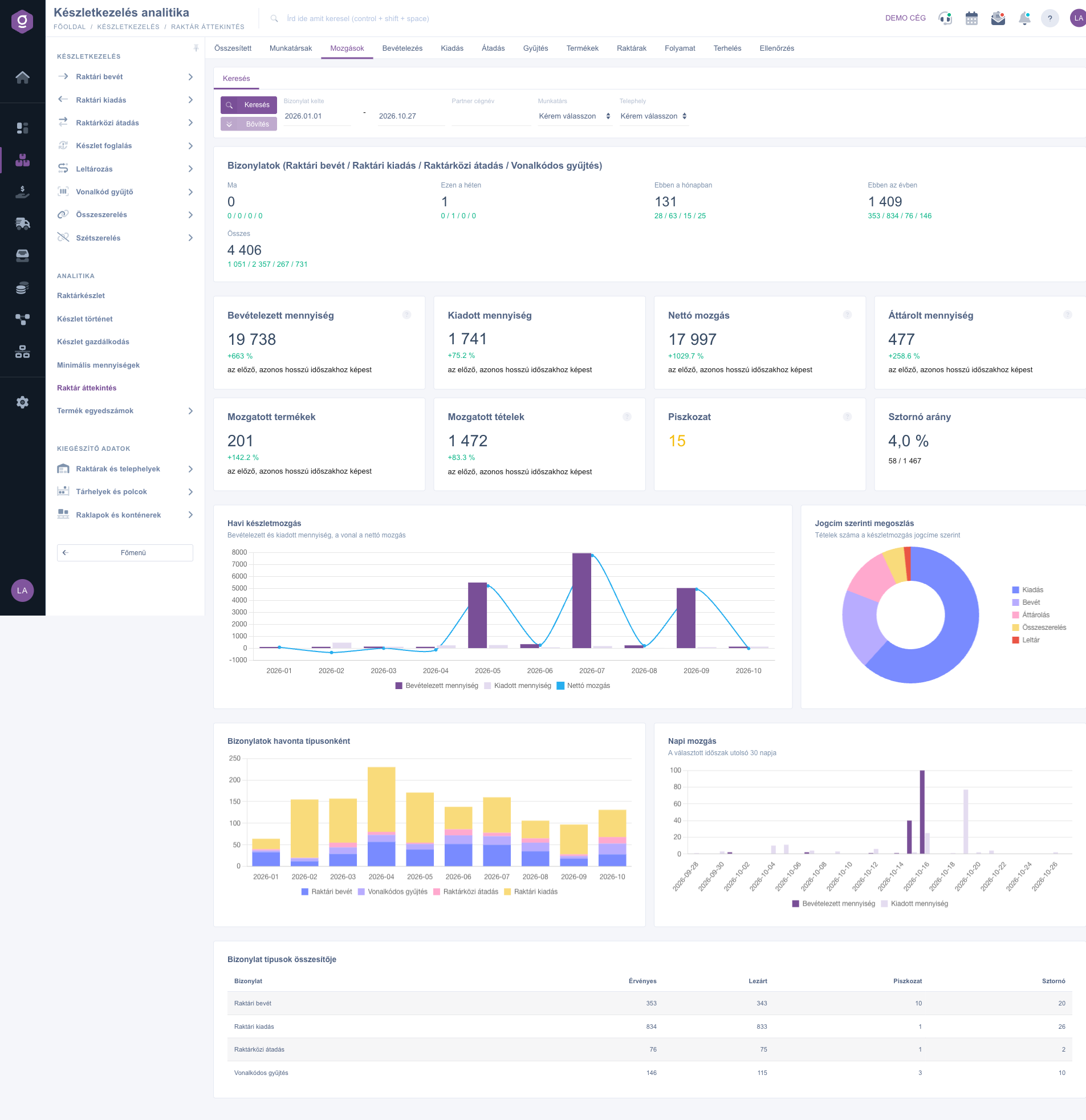
Inventory analytics – Movements tab
3. Goods receipt
It analyzes the closed stock receipt documents: Documents, Items, Received quantity, Purchase value, the average items per document, and the With supplier and Linked to invoice ratios. The Documents without link indicator counts the receipts recorded manually, without any other document. The Origin of the receipts chart shows whether the receipt is linked to an incoming invoice, an incoming delivery note, a supplier order, a goods receipt or a transfer. The Top suppliers and Most received products tables give the quantity, the value and the current stock. The Purchase price variances table lists the products received at least twice with different unit prices (in the default currency), so you can quickly spot a price change or a typing error.
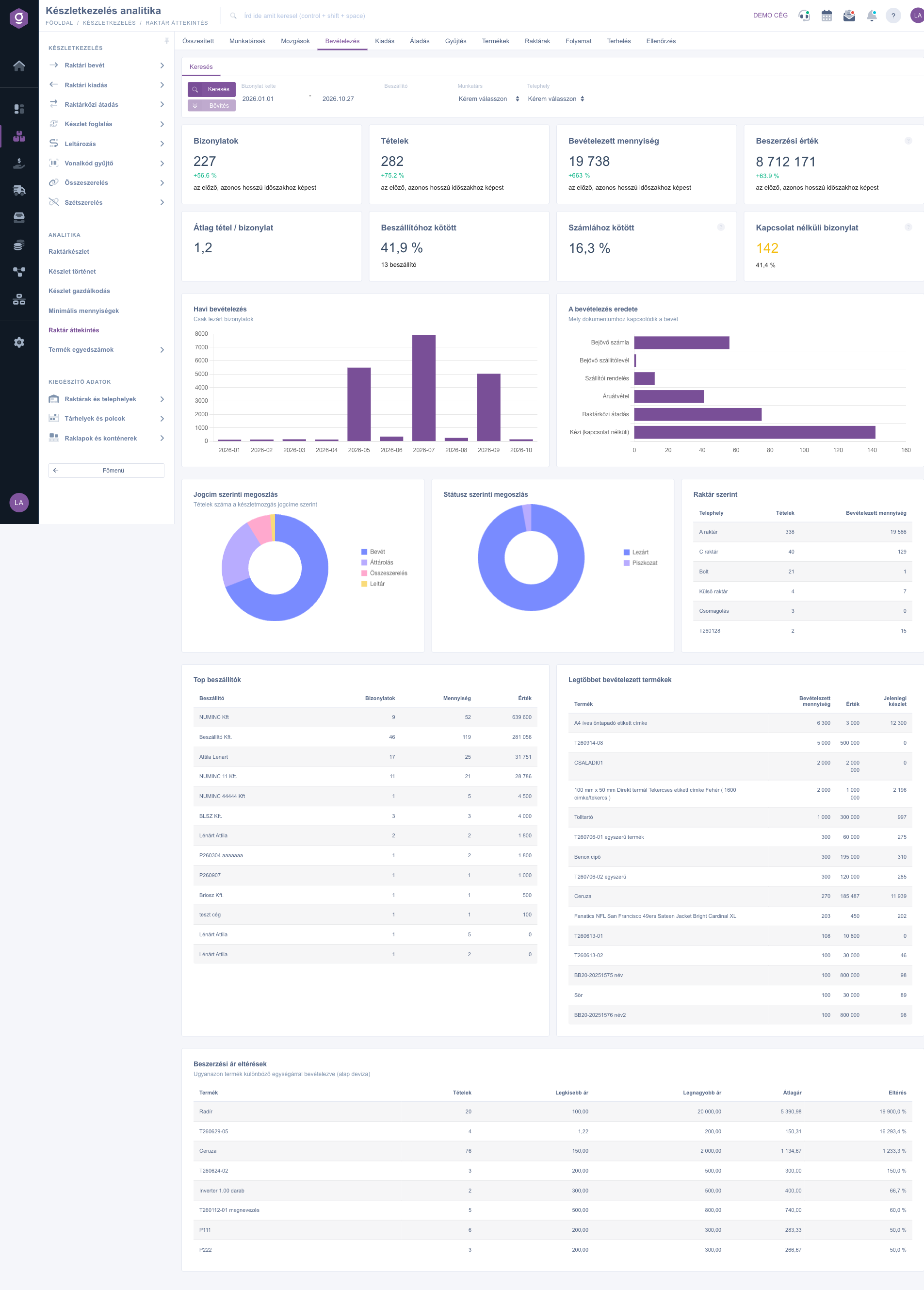
Inventory analytics – Goods receipt tab
4. Goods issue
Statistics of the closed stock issue documents. Value of issues is the net value, Issues without partner shows internal use, scrapping or manual issues (the document has no customer). The Reason of the issues chart shows the linked order, shop sale, delivery note, invoice or picking. Besides the Top customers and Most issued products tables, the Uninvoiced issues chart and list show the issues of a partner without an invoice or shop sale by age (within 7 days, 8–30, 31–90, over 90 days) and the oldest ones with the document number; click the document number to open the issue and create the invoice.
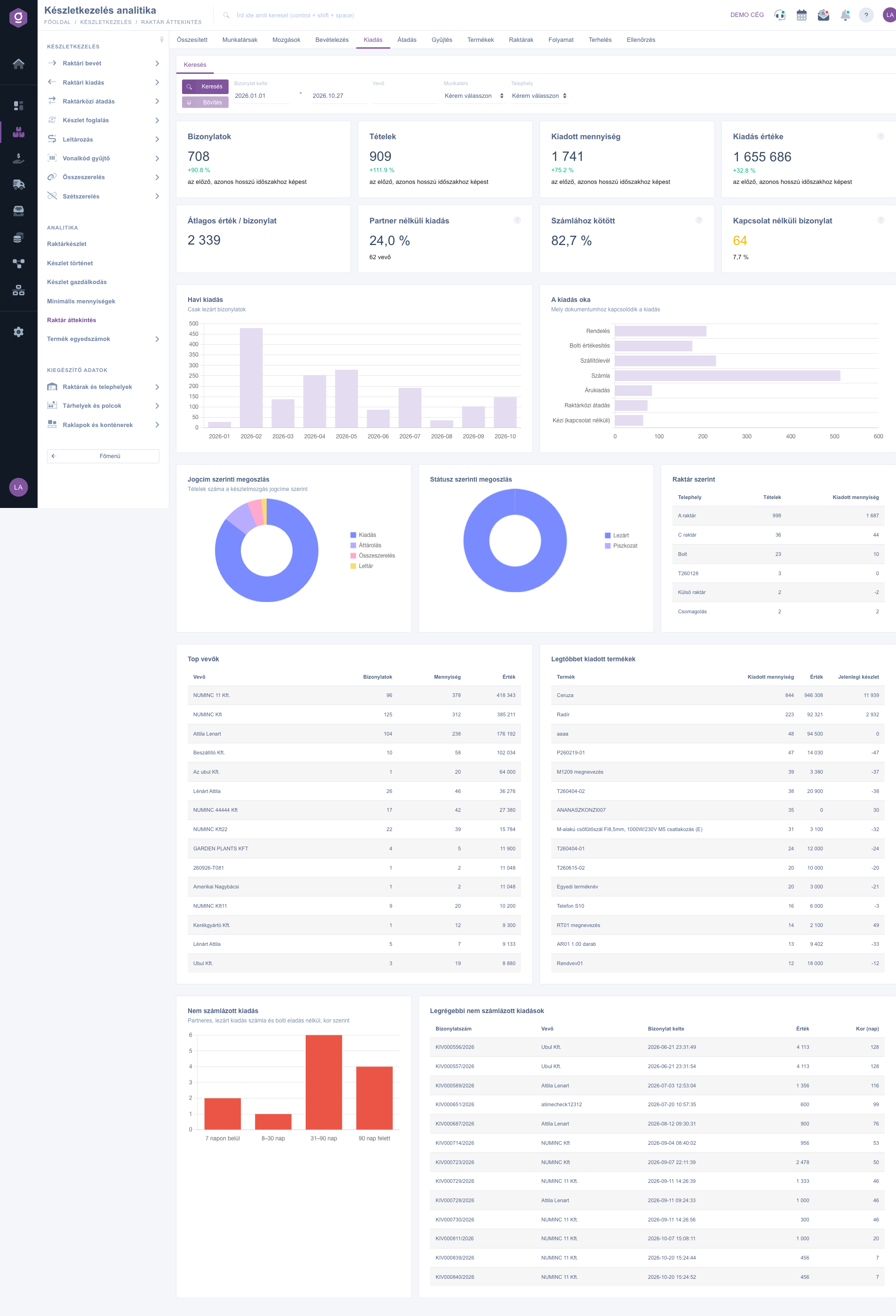
Inventory analytics – Goods issue tab
5. Transfer
Indicators of the warehouse transfers: Transfers, Items, Quantity, Moved products, the Average lead time (the time between creation and performance), the Paired transfers ratio (both the receipt and the issue side documents exist), the Documents without items and the Drafts older than 7 days. The Kind of the transfers chart separates relocation inside a warehouse from transfers between warehouses, the Routes table shows the source → target warehouse pairs (e.g. warehouse A → Packaging), and the Most transferred products table shows the frequently moved goods.
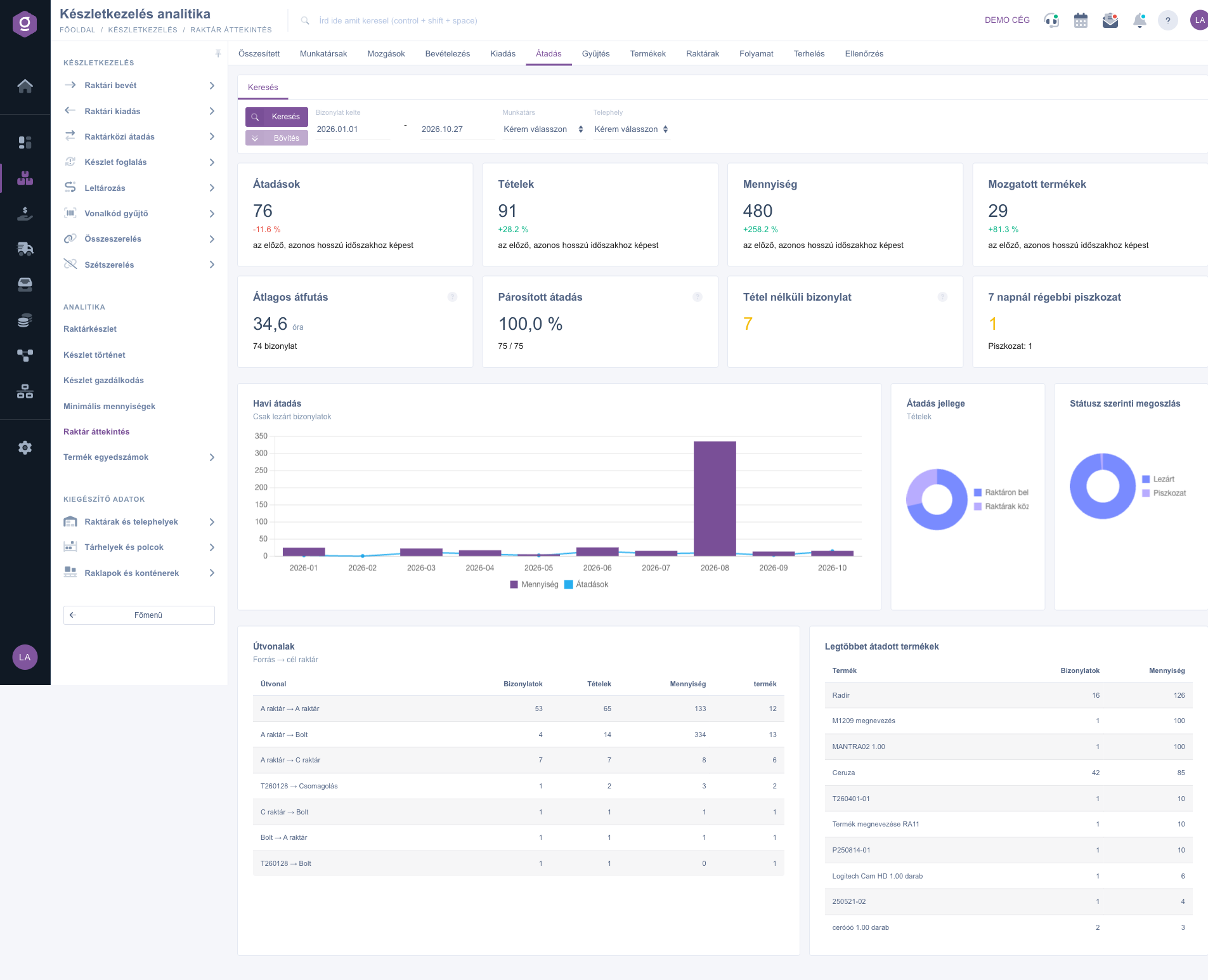
Inventory analytics – Transfer tab
6. Picking
The Picking by type table splits the Goods issue, Goods receipt and Relocation picking documents: documents, Finished ratio, Open for over 7 days, items, quantity, and the ratio of Checked items and Stalled items. The Order → picking lead time is the median and the distribution in bands of the time between the order and the creation of the goods issue picking document, and the heatmap shows the creation of the picking documents by weekday and hour. The Stalled picking documents are the unfinished documents older than 7 days (click the document number to open them), the Busiest locations show the most picked shelves, and the Picking by colleague table shows the items, the checked and stalled ratio and the average time. The average time counts only items of at least 1 minute finished within 8 hours, because a longer time is not a real picking but a stalled processing.
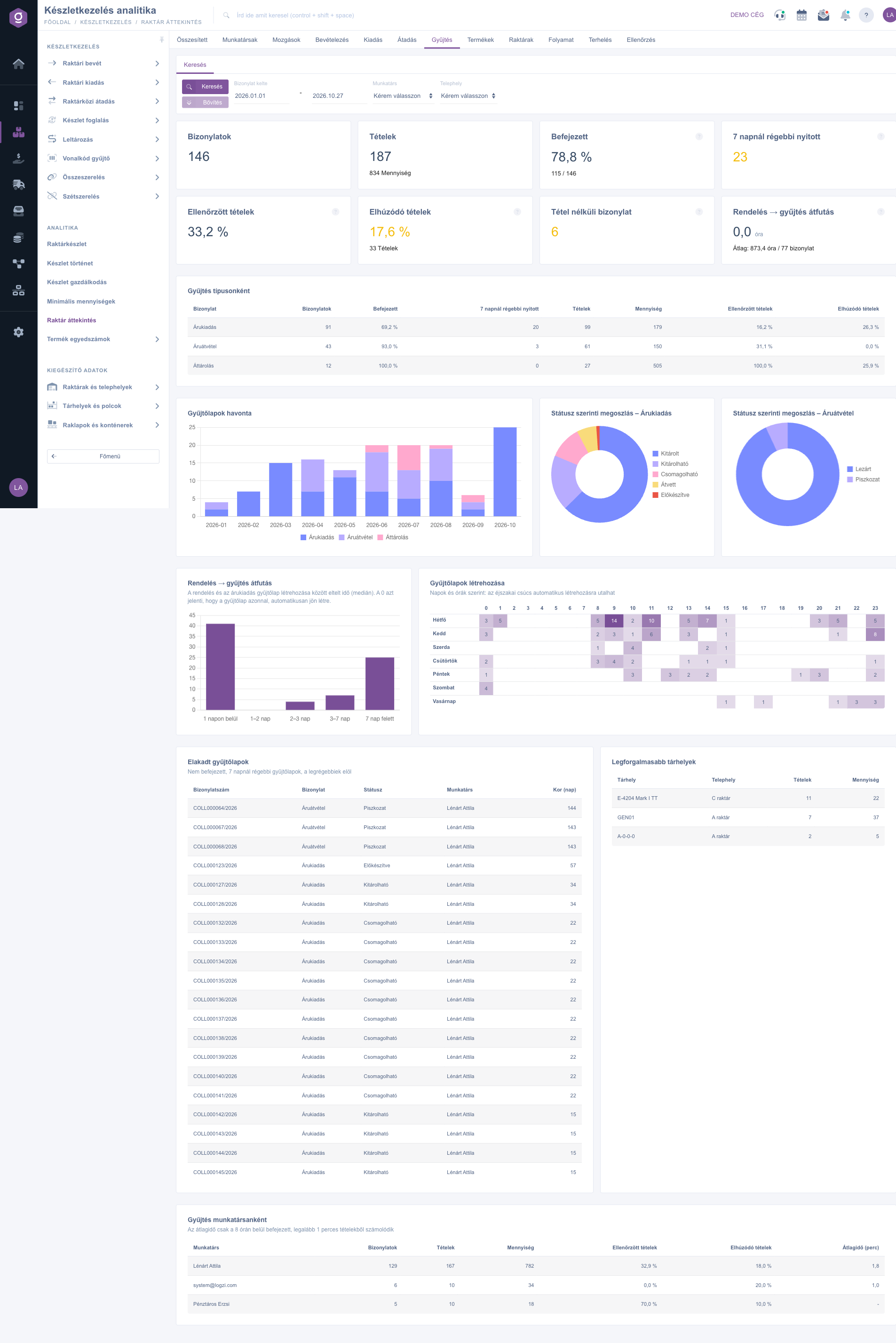
Inventory analytics – Picking tab
7. Products
The Most moved products chart compares the received and issued quantity. The ABC analysis ranks the issued products by value: class A gives 80 % of the value, B the next 15 %, C the rest, so you see which few products your turnover relies on. The Movement by product category shows the receipts and issues by category. Only received products is the number of products received in the period but never issued. The Dead stock lists the products in stock without any issue for 180 days, and the Reorder signals list the products issued in the last 30 days whose available stock ran out or fell below the minimum. These two lists and their counts do not depend on the filter and always show the current state.
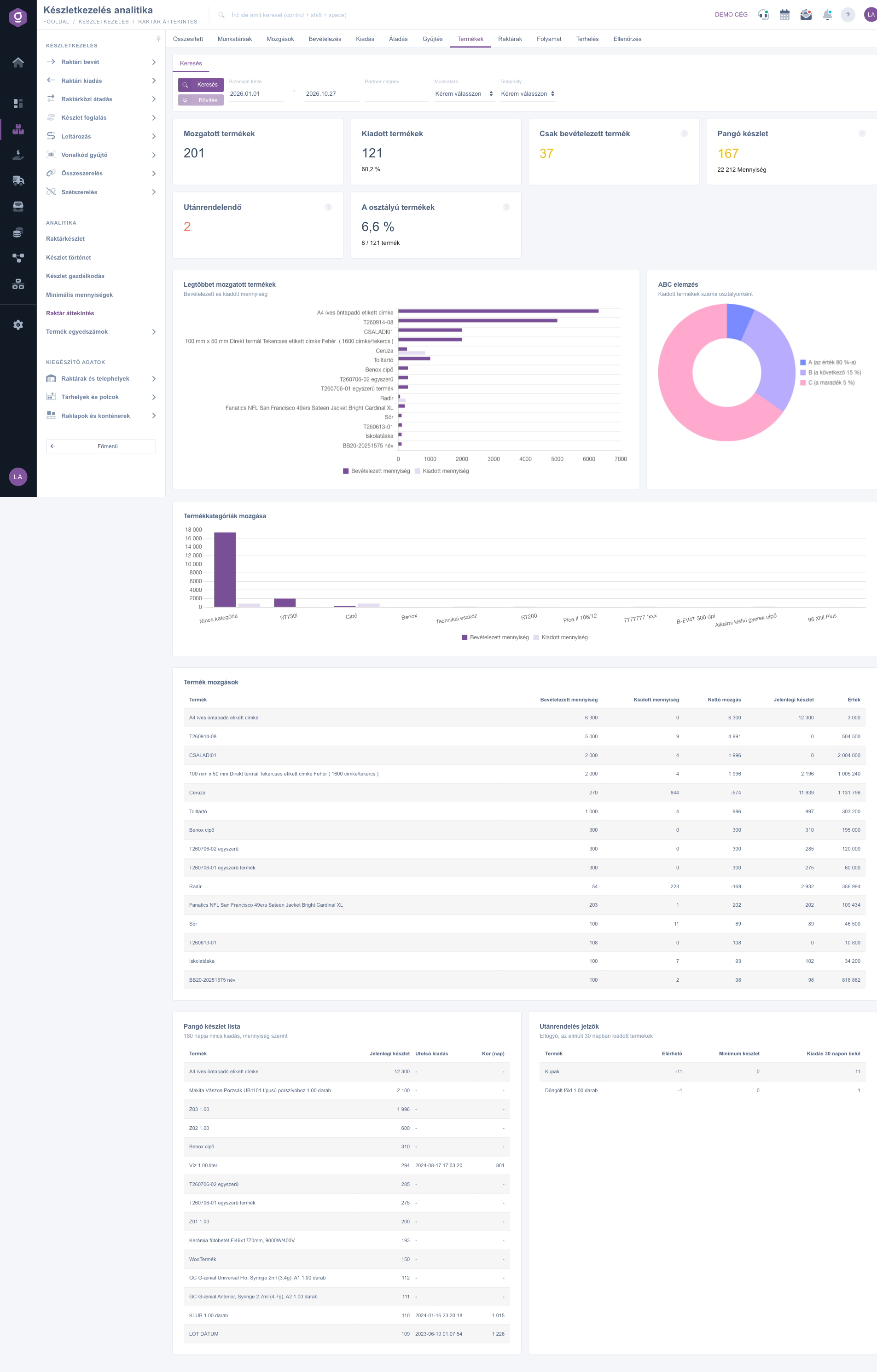
Inventory analytics – Products tab
8. Warehouses
The Warehouse traffic chart shows the received and issued quantity and the transfer in and out quantity by warehouse. The Warehouse matrix table gives the same in numbers with the net movement. The Location coverage shows for what percentage of the items a location is recorded: without a location you cannot follow where the goods are. The Busiest locations lists the most used shelves. The Pallet movement is the share of the items recorded on a pallet.
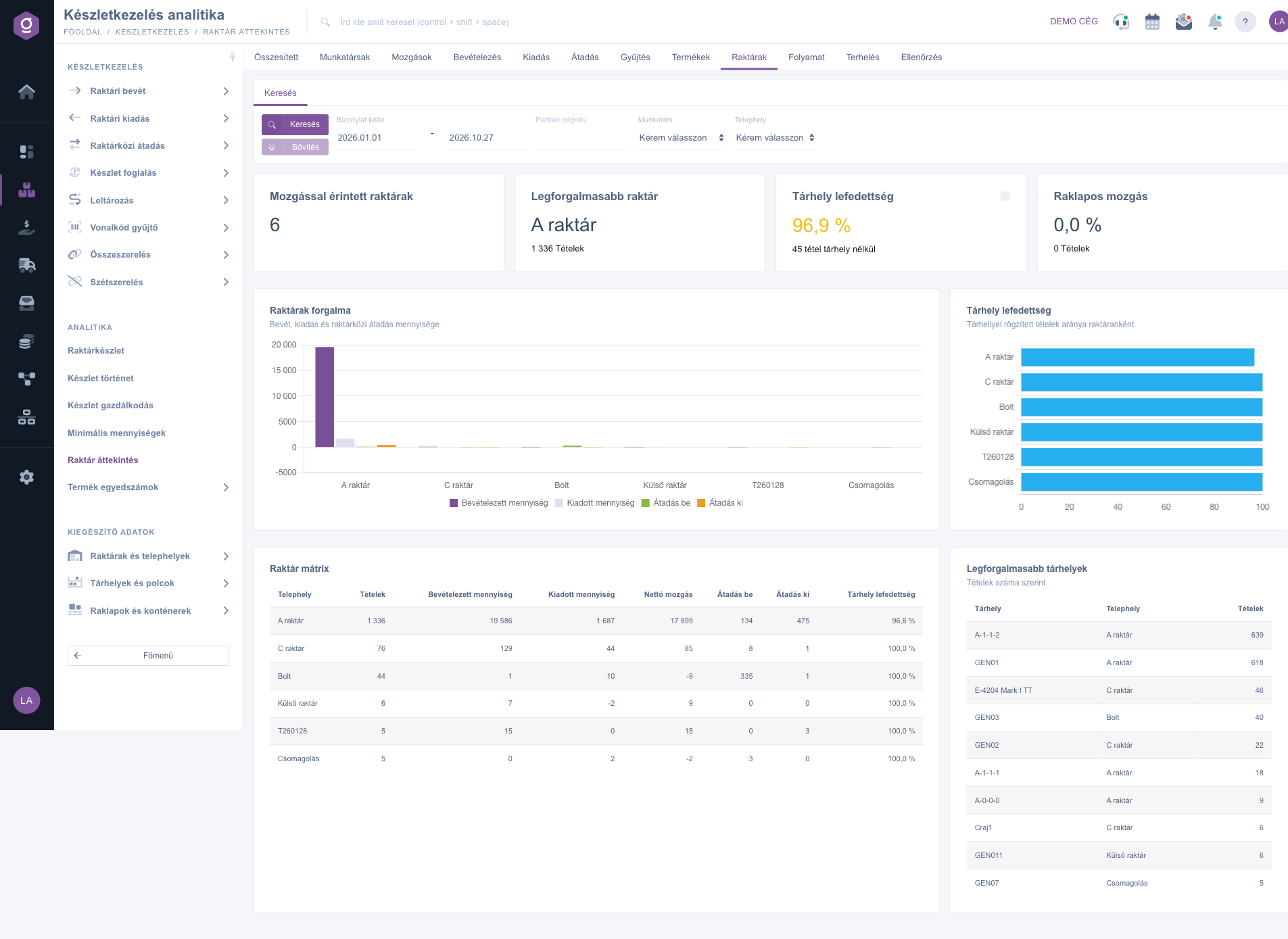
Inventory analytics – Warehouses tab
9. Process
The Linked documents table shows how many receipt, issue, transfer and picking documents have an order, invoice, delivery note or picking in the same process. The Lead times by step (e.g. Order → Goods issue, Goods issue → Stock issue, Stock issue → Invoice) give the average and median time in hours. The Documents without link is the ratio of the manually recorded movements: there is no order or invoice behind them, so it is worth reviewing them from time to time.
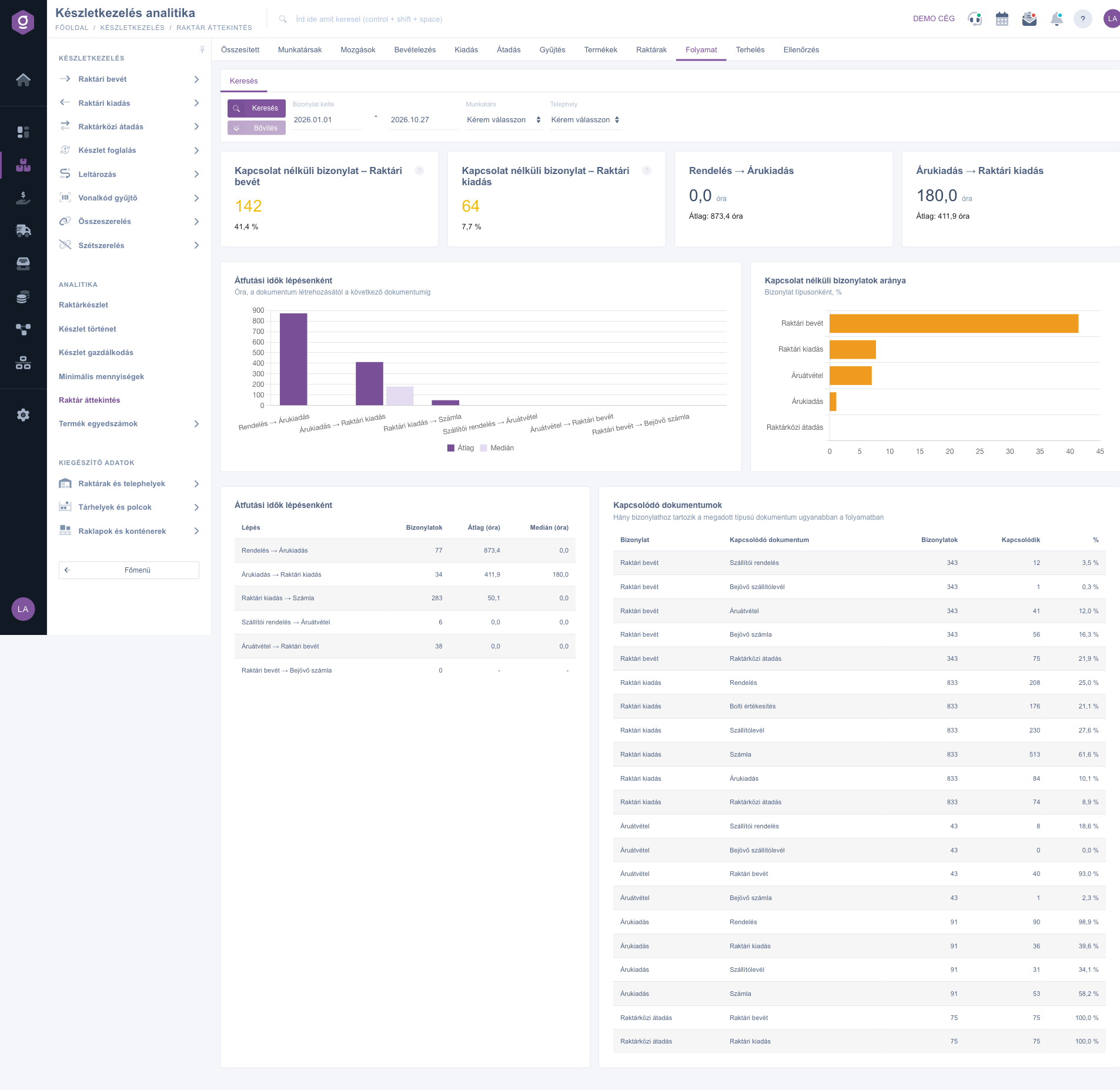
Inventory analytics – Process tab
10. Workload
The heatmap shows the creation of the documents by weekday and hour, the Outside working hours indicator gives the share of the documents created on weekends or between 20:00 and 06:00. The Peak day and the Average per active day measure the daily workload, the Daily workload chart shows the last 30 days stacked by colleague. The Colleagues and document types table counts the created documents by document type, including the system user. The chart by job number and department number shows which job number or department the movements are booked to; documents without a value are in a separate row.
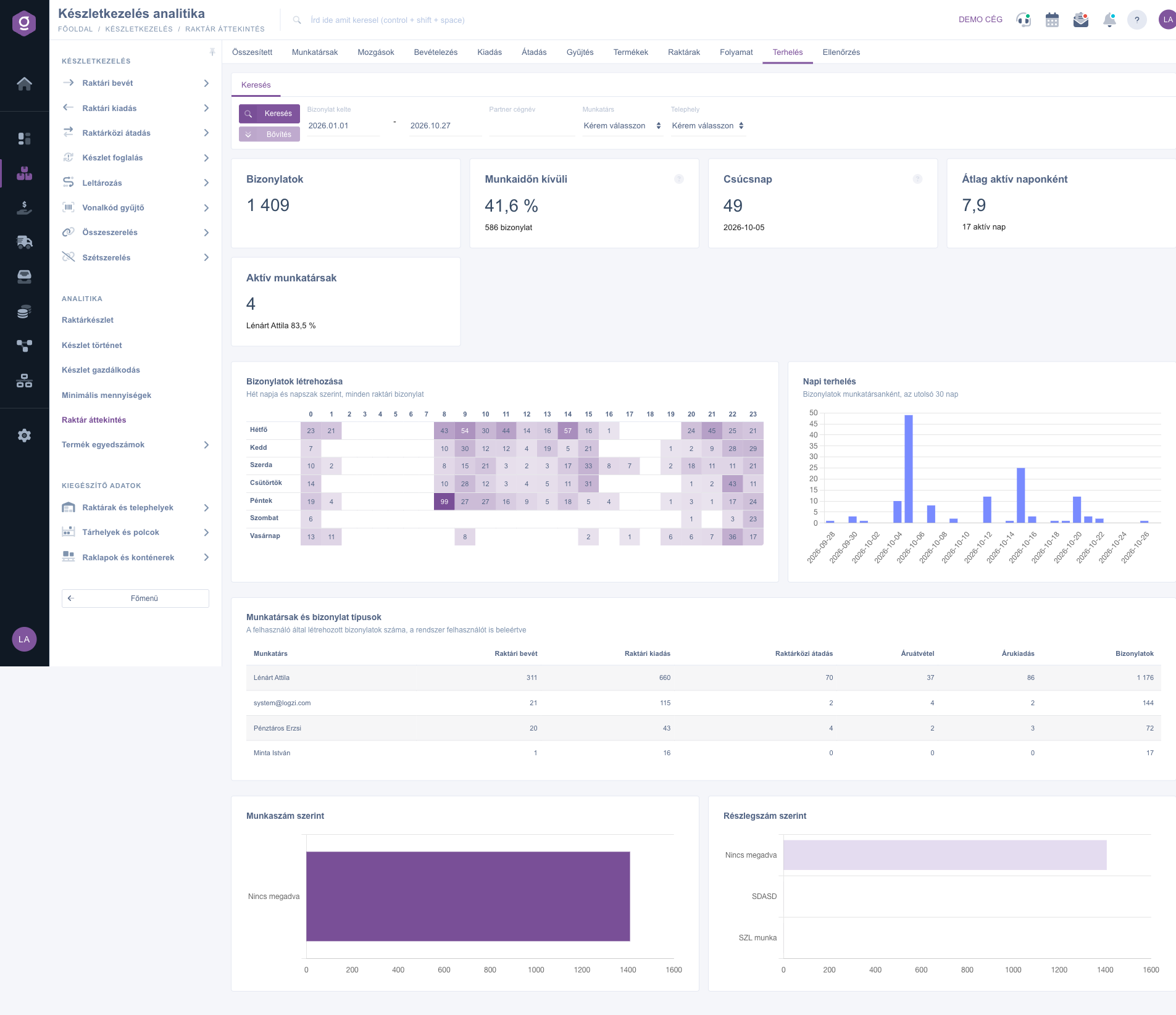
Inventory analytics – Workload tab
11. Audit
The Audit tab collects the errors of the records: Drafts older than 7 days, Storno rate, Documents without items, items without location, Negative physical stock and Negative available stock rows, and the Negative stock events recorded in the stock history. The Numbering audit shows the used, removed and missing serial numbers by year and type; in the Old drafts and Documents without link lists click the document number to open the document, then close, correct or delete it. The Negative stocks list shows the current state, the Negative stock events by product shows the events of the selected period.
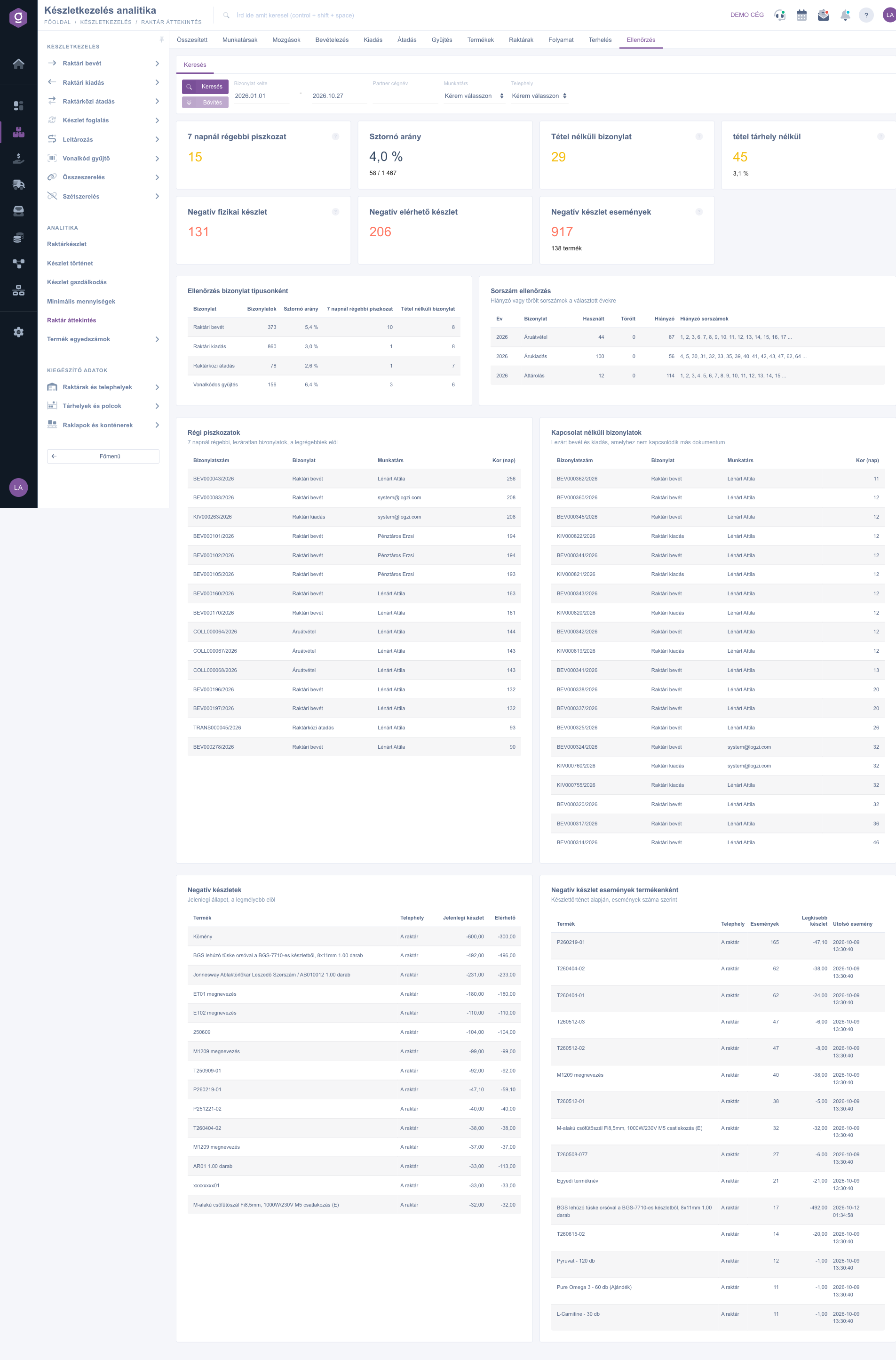
Inventory analytics – Audit tab
Tip
Before the monthly closing, open the Audit tab with the dates of the previous month: going through the Drafts older than 7 days and Documents without link lists, you can close the pending documents before the closing, and the Negative stocks list shows which product needs an inventory or a correction. On the Products tab, review the Reorder signals list weekly so that the fast-moving goods do not run out.



