Stock management

Learn the five views of Stock management: which product needs a procurement pre-order, which one has to be relocated from one warehouse to another, and how each view relates to the Min./Opt./Max. quantities.

Feature overview

In the Stock management module you can see which products have run out or are running out, and you can start the next step directly from here: a procurement pre-order (ordering the missing quantity from the supplier) or a relocation (moving stock from one warehouse to another). The list itself does not change the stock: it only gives a suggestion, and the actual task is created from the item you select.

The module consists of five views; you switch between them with the tab bar above the list. Each one answers a different question, so it is worth knowing when to use which:

ViewWhen to use itRelation to the Min./Opt./Max. quantityWhat it leads to
Items awaiting procurementWhen you want to know which products have to be ordered because the available and incoming stock together fell below the selected level.The Stock level filter decides which level (Minimum, Optimal or Maximum) the list is compared with. Default: Optimal.Procurement pre-order (Procurement button).
Items recommended for procurementWhen you look, based on the issues, for products of which a lot was issued recently, which are now running out, and of which no shipment is on the way yet.It uses the Min. quantity: products whose physical stock is below it (or zero) are listed.Procurement pre-order (Procurement button).
Review of warehouse quantitiesWhen you want to check, for products that have already run out, whether the set Min./Opt./Max. quantities are right.Only products appear for which at least one of the Min., Opt. or Max. quantity is set.Review; you can change the levels in the Minimum quantities list.
Replenishment between warehousesWhen the reserved stock in the main warehouse is higher than the physical stock and stock has to be moved between warehouses.It does not use the Min./Opt./Max. quantities.Relocation task (Create transfer button).
Stock replenishmentWhen you want to fill up a selected warehouse (for example the sales floor or the webshop warehouse) to a given level from the stock of another warehouse.It compares the level selected in the Threshold field (Minimum, Optimum or Maximum) with the Min./Opt./Max. quantity of the product.Relocation task (Create transfer button).

You do not set the Min./Opt./Max. quantities here but under Main menu / Stock management / Minimum quantities. If they are not filled in, the views based on levels stay empty.

Tip


Start with the Items awaiting procurement view and set the Stock level filter to Minimum stock level if you only want to see the really critical products. The Optimal stock level also shows products below the “replenishment target”, so it gives a longer list.

You can read about setting the Min./Opt./Max. quantities in the Minimum quantities list article. The current state of the stock is shown by the Warehouse stock list, the summarised picture of the warehouses by the Warehouse overview.

Step by step

1. Opening the module and choosing the view

Click Main menu / Stock management / Stock management. Above the list you see a tab bar with the names of the five views; click the tabs to switch between views. Above the table there are three tabs: the Actions tab holds the buttons that work with the selected row, the Search tab holds the filters, and the View and layout tab holds the Sorok setting (shown in Hungarian), with which you set the number of rows per page. Most buttons are only active once you have clicked a row.
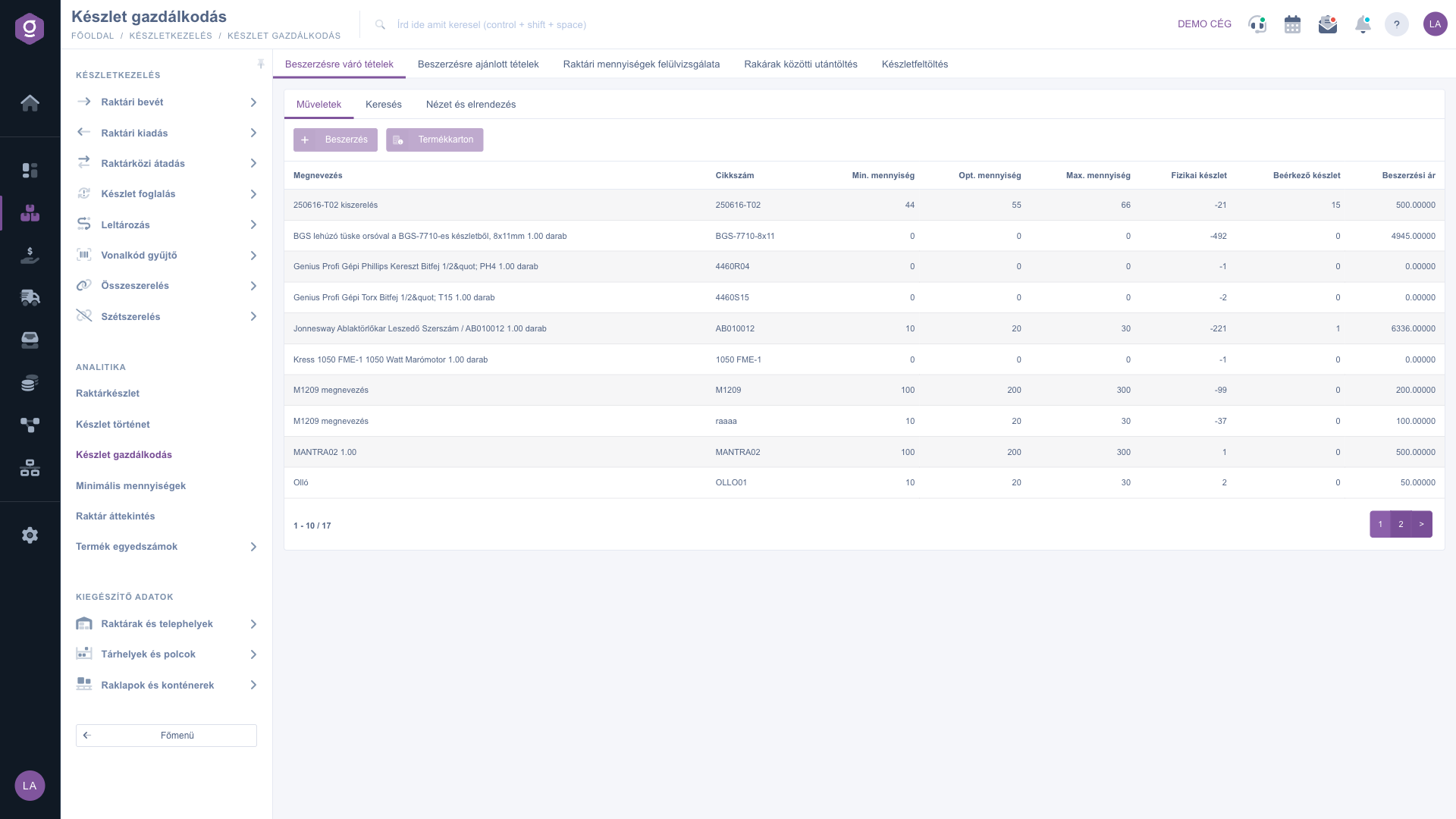
Stock management – Items awaiting procurement, Actions tab

2. Items awaiting procurement – what has to be ordered?

This view lists the stocked products for which the sum of the available and the incoming stock (counted over all warehouses together) is lower than the selected level. You choose the level in the Stock level field on the Search tab: Minimum stock level, Optimal stock level or Maximum stock level. If you choose nothing, the system uses the Optimal level.

A product is also left out of the list if that level is not set for it, if it already has an open procurement pre-order, or if the incoming stock alone reaches the level. Example: a product has a Min. quantity of 10 and an Opt. quantity of 30, its available stock is 12 and nothing is incoming. With the Minimum stock level filter it is not on the list (12 is not less than 10), with the Optimal stock level filter it is (12 is less than 30).

Besides Stock level, on the Search tab you can filter by Name, Item number (barcodes are accepted too), Product category, Product manufacturer and Primary supplier.
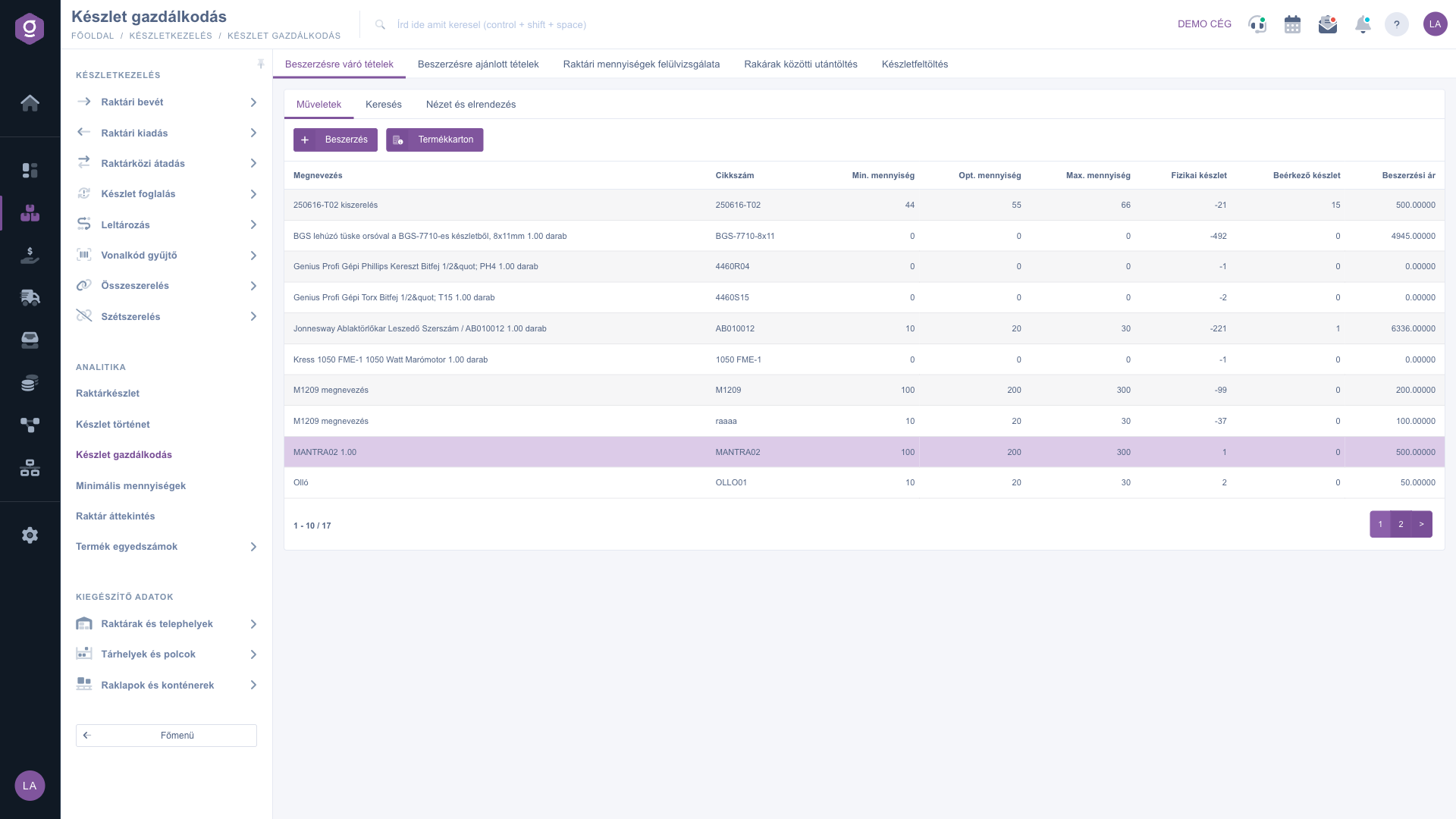
Items awaiting procurement – selected row, active Procurement and Product card buttons

To start the pre-order:

  • Click the row of the product to be ordered, then click the Procurement button on the Actions tab.
  • At the top of the window that opens you see four cards with the Physical stock, Reserved stock, Available stock (with the sum of open orders next to it) and Incoming stock of the product. On the Product information tab you also see the stock per warehouse and per location code, as well as the Min./Opt./Max. quantity of the product.
  • Enter the Quantity to purchase and select the supplier in the Shipping company field. If needed, change the Purchase net price and the Purchase currency.
  • Click the Save button.

On saving, the system checks whether the supplier has a not yet closed Supplier order created on the same day in the same currency. If there is one, the item is added to it; if not, a new Supplier order is created. If the price of the product is listed in the Product feed of the selected supplier, the system uses that price. You find the saved item under Main menu / Procurement / Supplier orders / Items awaiting procurement.

Attention, two lists with the same name! The Items awaiting procurement view of the Stock management module is the suggestion: there is no order yet. The Procurement / Supplier orders / Items awaiting procurement menu item already shows the items recorded with the Procurement button. This is why a product also disappears from the Stock management list after procurement.

3. Items recommended for procurement – what sells fast?

This view works from the Warehouse issue documents: it shows the products that were issued in the given period and whose stock has run out or fell below the Min. quantity. You specify the period with the Document date field pair (from, to) on the Search tab; the default is the last 90 days. A product appears here if:

  • its physical stock is zero or negative, or does not exceed the Min. quantity (it also appears without a Min. if it has run out);
  • it is a stocked product;
  • it has no open procurement pre-order;
  • there is no incoming stock of it.

The list helps you see the real turnover of the product before ordering: the rows come in descending order of the number of issues, so the products issued most often that have run out are at the top. Based on the Average quantity per warehouse issue and Quantity issued in the period columns you can estimate what quantity is worth ordering. The order starts the same way as in the previous view: select the row, Procurement, fill in, Save.
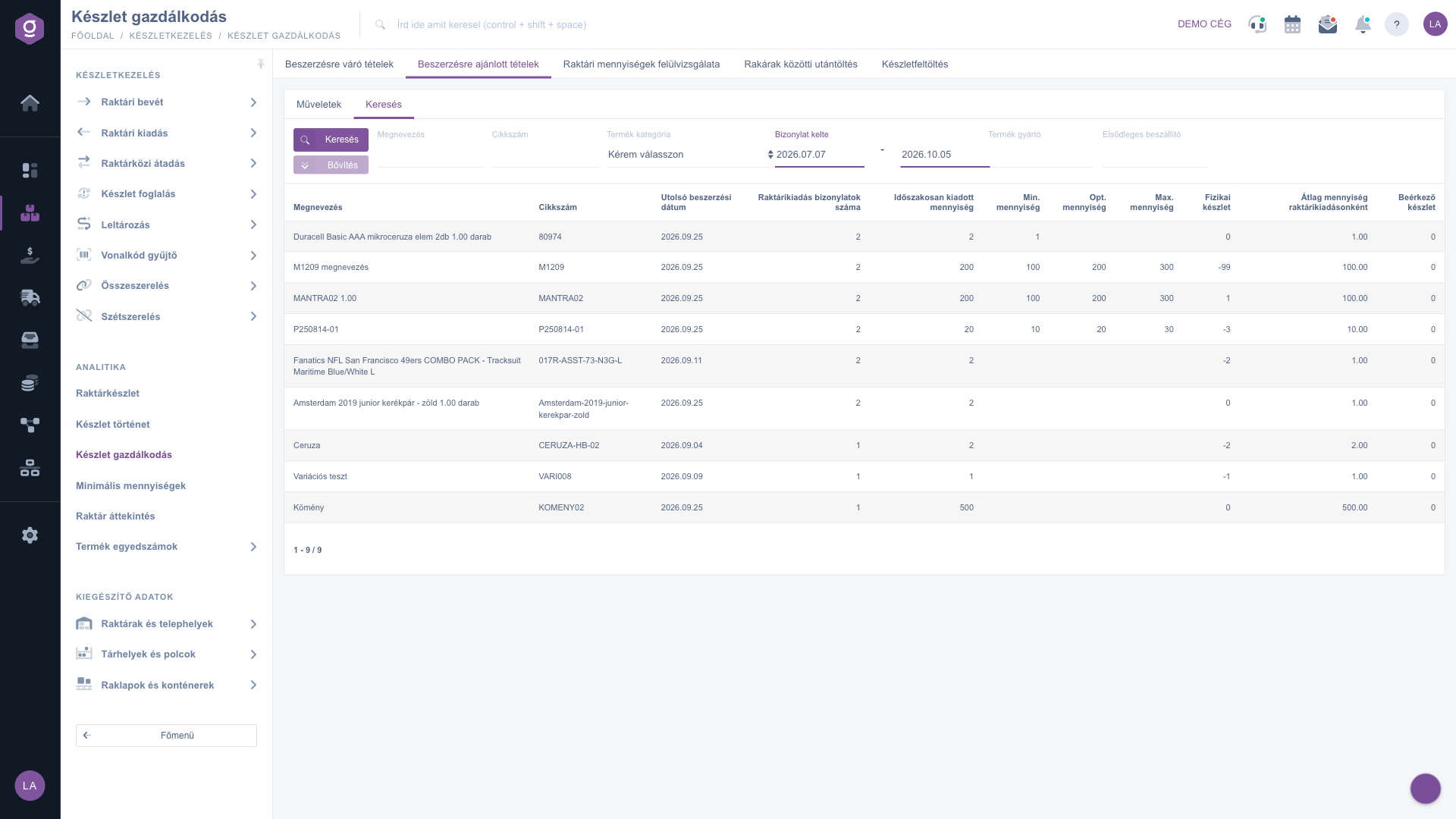
Items recommended for procurement – Search tab with the period filter

4. Review of warehouse quantities – are the levels right?

This view uses the same columns and filters as Items recommended for procurement, but its purpose is different: it shows the products that have run out (zero or negative physical stock), that had an issue in the selected period, and for which at least one of the Min., Opt. or Max. quantity is set. So here you can examine whether a product ran out despite the preset level, that is, whether the level is too low. This view does not exclude products that are already ordered or on the way either. You can change the levels in the Minimum quantities list.
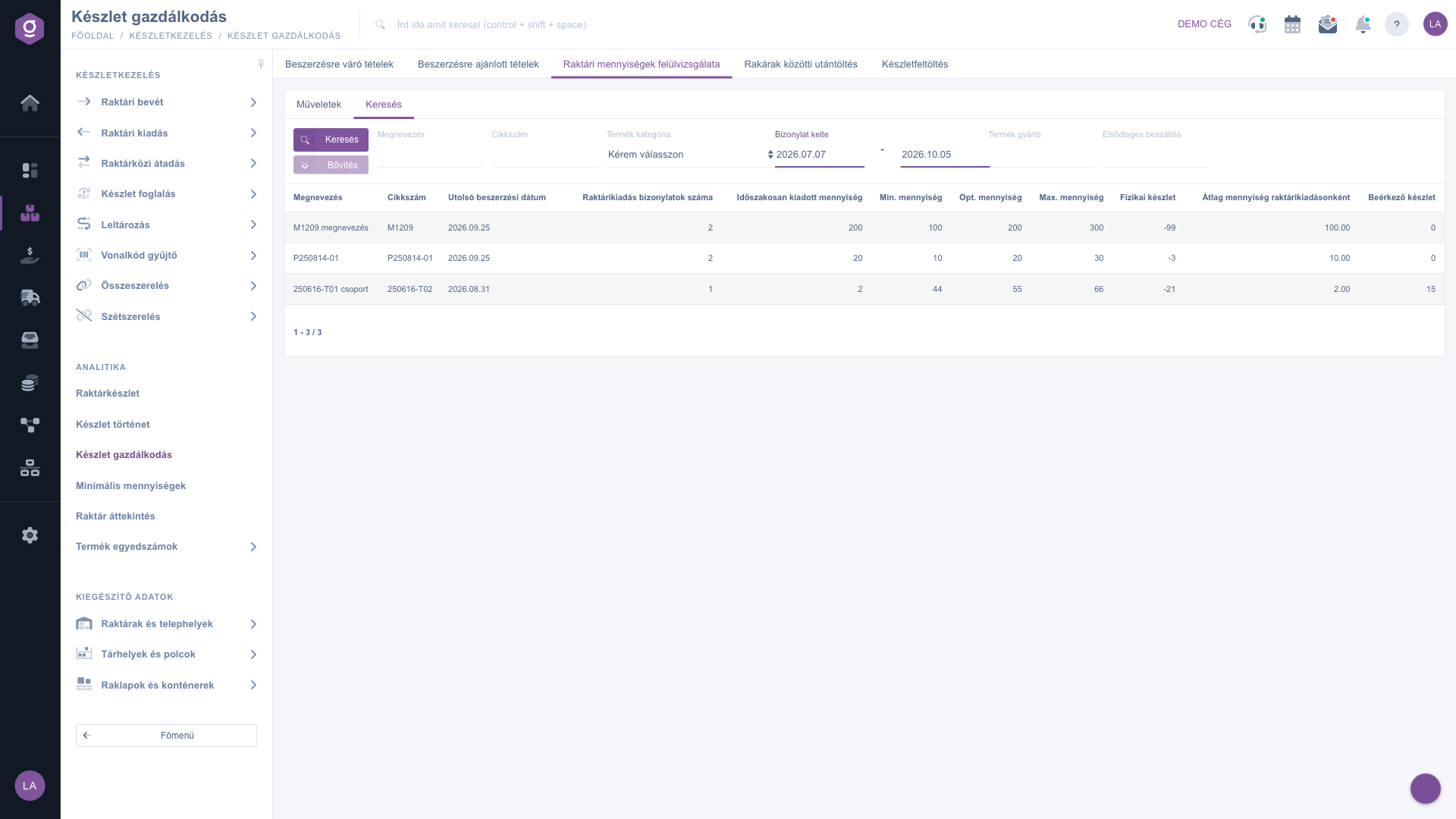
Review of warehouse quantities – Search tab

Besides the Product card button, this view also has a Product data sheet button; the latter opens the same procurement window as the Procurement button.

5. Replenishment between warehouses – reserved is more than physical

This view does not start from the Min./Opt./Max. quantities. It looks for the situation in which the reserved stock of a product is higher than its physical stock while there is physical stock on the To replenish side. On the Search tab you specify the two warehouses with the Source and To replenish fields. In the table, the Main warehouse - reserved stock and Main warehouse - physical stock columns show the data of the source side, the Picking column shows the physical stock on the replenished side, and the Part numbers column shows the barcoded location codes where the product can be found. Products that are already in an open relocation task are not listed.
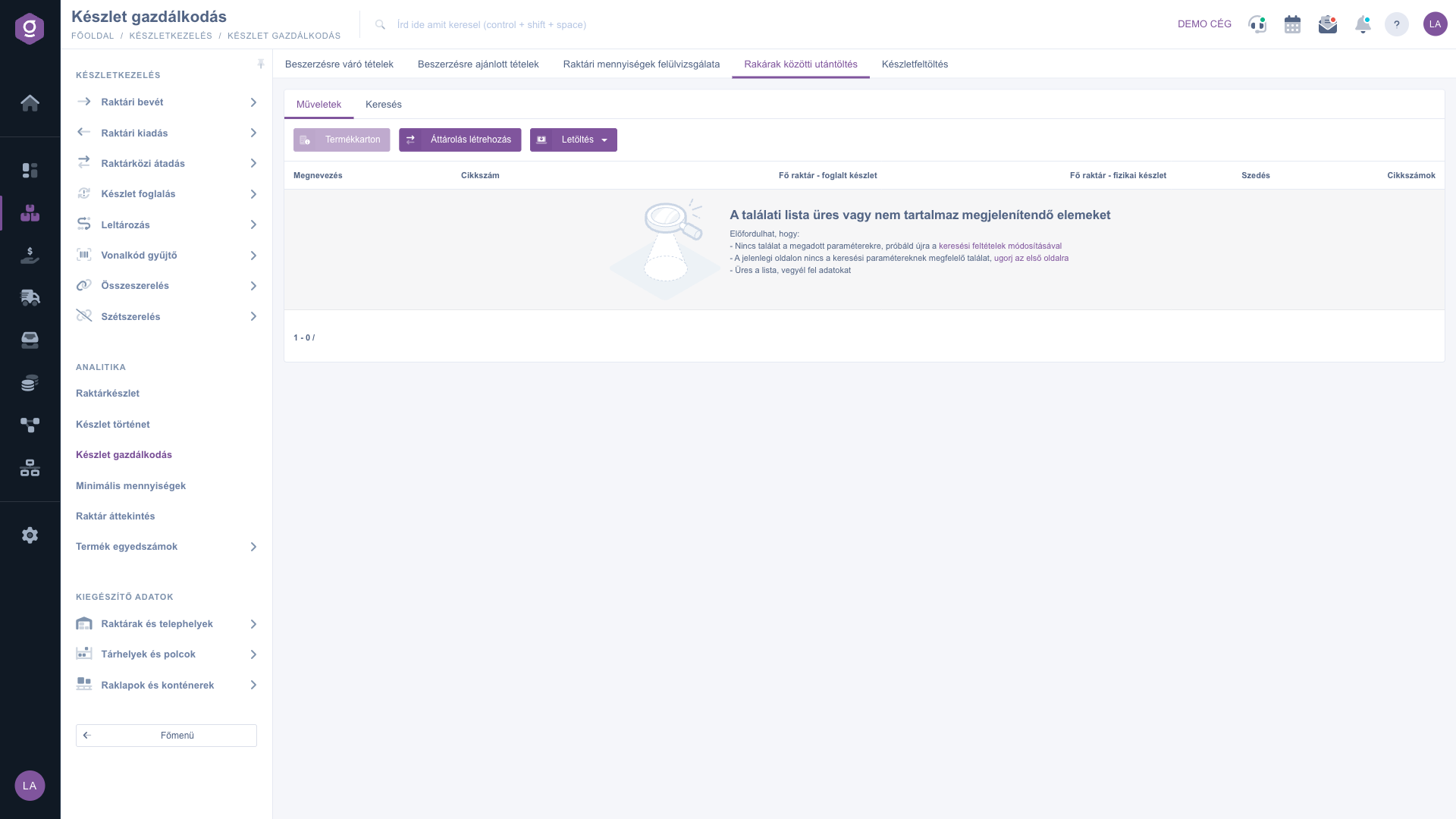
Replenishment between warehouses – Actions tab (empty list in the demo system)

In the drop-down menu of the Download button, the XLSX lista option (shown in Hungarian) saves the content of the view to an Excel file, for example as a printable picking list.

6. Stock replenishment – filling a warehouse up to a level

Here you fill up the Warehouse to replenish from a Source warehouse. The list works in two Modes:

  • Stock level based: in the Threshold field you choose whether the product is compared with its Minimum, Optimum or Maximum quantity. A product gets on the list if there is physical stock of it in the source warehouse, but less than the selected level in the warehouse to be replenished (and the level is greater than zero). The Shortage column shows the difference between the level and the physical stock of the warehouse to be replenished. Example: if the Opt. quantity is 30 and there are 12 pieces in the warehouse to be replenished, the Shortage is 18, and the relocation is also for 18 pieces.
  • Order based: it lists the items of open customer orders for products of which there is no physical stock in the warehouse to be replenished but there is in the source warehouse. The Order column holds the link to the customer order, the Rendelt db column (shown in Hungarian) the ordered quantity.

In both modes the products that are already in an open relocation task are left out. The list only loads if you have specified the Source warehouse and the Warehouse to replenish in the filter: with an empty list the system reminds you of this. On the Search tab you can also filter by Name, Item number / barcode, Category and Web category.
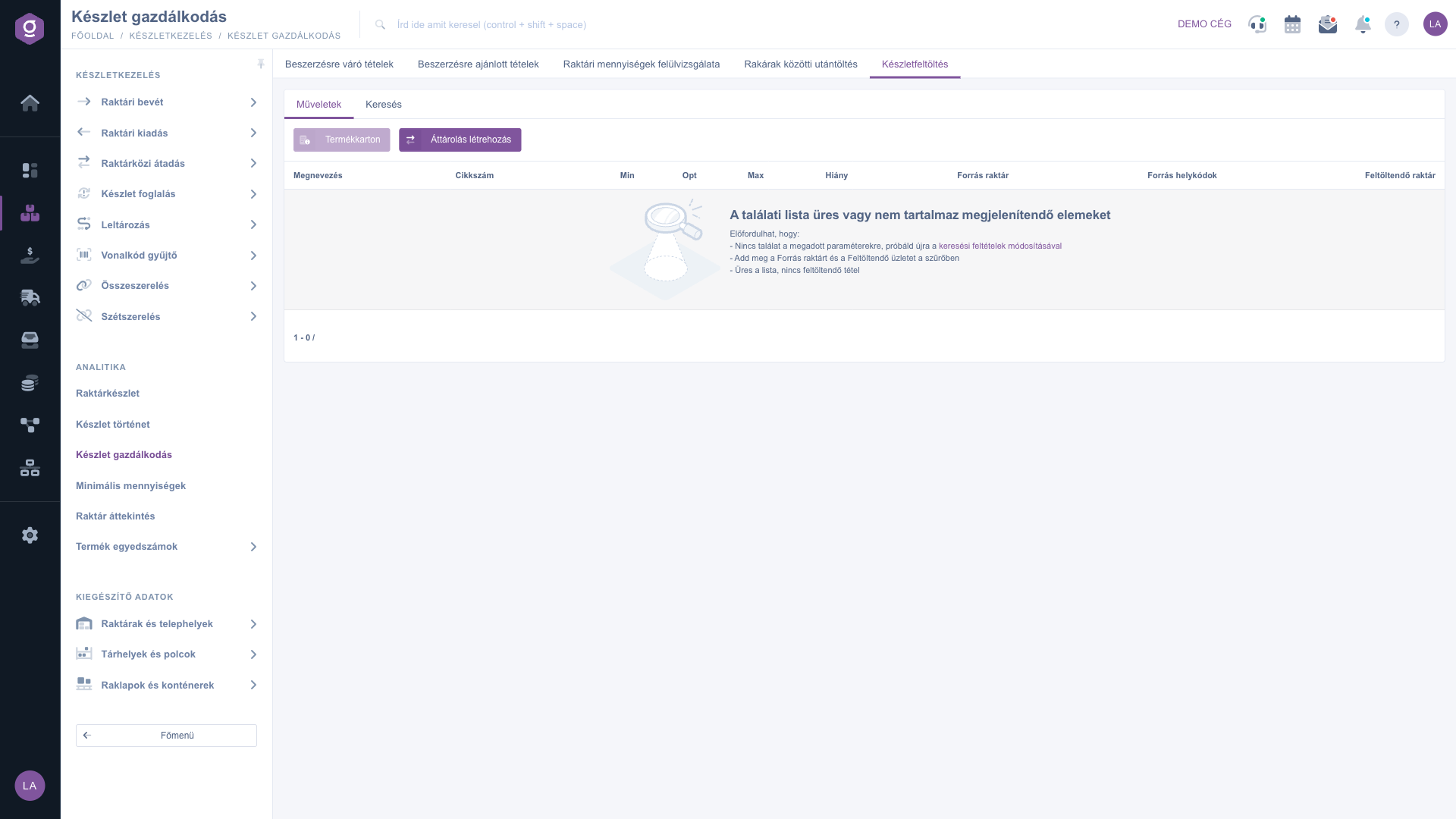
Stock replenishment – Actions tab (empty list in the demo system)
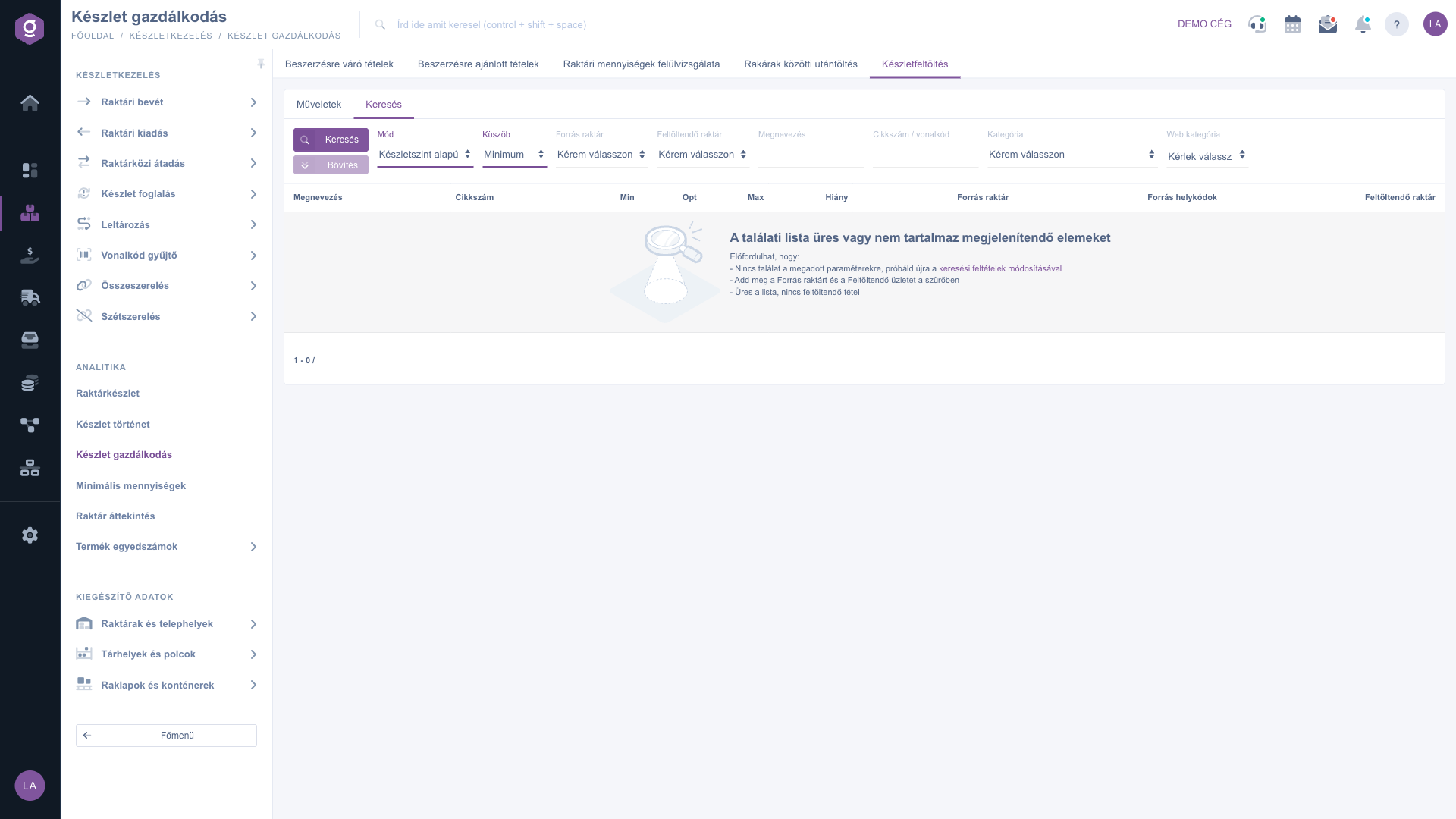
Stock replenishment – Search tab: Mode, Threshold, Source warehouse and Warehouse to replenish

7. Creating a relocation

Both the Replenishment between warehouses and the Stock replenishment view have a Create transfer button. Select the row (without a selection the system shows the warning “Kérlek válassz egy tételt a listából!”, displayed in Hungarian), then click the button. From the selected product the system creates a Relocation task from the source warehouse to the warehouse to be replenished, with the quantity taken from the table row (for Stock replenishment, the Shortage quantity). You find the task under Main menu / Barcode collector / Relocation tasks. The page then reloads and the product disappears from the list, because it is already in an open relocation.

A Relocation is not the same as an Inter-warehouse transfer document. You record the latter under Main menu / Stock management / Inter-warehouse transfer; its details are in the Inter-warehouse transfer list article.

Field descriptions

Items awaiting procurement – columns

ColumnDescription
Name, Item numberThe identifiers of the product; the list is sorted by name.
Min. quantity, Opt. quantity, Max. quantityThe levels of the product set in the Minimum quantities list (global values, independent of the warehouses).
Physical stockThe actual stock of the product in all warehouses together.
Incoming stockThe quantity on the way that has not arrived yet.
Purchase priceThe purchase price of the product recorded in the price list.

Items recommended for procurement and Review of warehouse quantities – columns

ColumnDescription
Name, Item numberThe identifiers of the product.
Last purchase dateThe date of the latest item issued for the product in the selected period. Despite the name of the column, it shows the date of an issue, not of a purchase.
Number of warehouse issue documentsOn how many issue items the product appeared in the period. The list is shown in descending order of this value.
Quantity issued in the periodThe total quantity issued in the period.
Average quantity per warehouse issueThe average quantity per issue.
Min. quantity, Opt. quantity, Max. quantityThe set levels of the product.
Physical stock, Incoming stockThe stock of the product in all warehouses together, and the quantity on the way.

Replenishment between warehouses – columns

ColumnDescription
Main warehouse - reserved stock, Main warehouse - physical stockThe reserved and physical stock of the Source side. If you leave the Source field empty, you see the sum of all warehouses.
PickingThe physical stock of the To replenish side.
Part numbersThe barcoded location codes of the product where there is stock of it.

Stock replenishment – columns

ColumnDescription
Min, Opt, MaxThe global levels of the product.
ShortageThe level selected in Threshold minus the physical stock of the warehouse to be replenished; this many pieces go onto the relocation item.
Source warehouseThe physical stock of the product in the source warehouse.
Source location codesThe barcoded location codes of the source warehouse where the product can be found.
Warehouse to replenishThe physical stock of the product in the warehouse to be replenished.
Order, Rendelt dbOnly in Order based mode: the link to the customer order and the ordered quantity.

Procurement window – fields

Field / ElementRequiredDescription
Item number, NameThe data of the selected product; they cannot be edited.
Selling net priceThe selling net price of the product; shown for information only, it cannot be edited.
Purchase net priceThe unit price of the purchase. It is pre-filled from the price list of the product, but you can change it.
Purchase currencyThe currency of the purchase price.
Quantity to purchaseThis is the quantity you order from the supplier; the system does not fill it in for you.
Shipping companyThe supplier whose Supplier order has to be created or extended.

On the other tabs of the Procurement window (Product feed, Related documents, Agreement, Incoming invoices) you can look at earlier purchase prices and related documents of the product before deciding.

Frequently asked questions

Items awaiting procurement starts from the stock level: based on the difference between the selected level (Min., Opt. or Max.) and the available plus incoming stock, it shows what has to be ordered. Items recommended for procurement starts from the turnover: among the products issued in the period it highlights those that have run out or fell below the Min. quantity and of which no shipment is on the way. If levels are set, the first view is more precise; if the levels are still incomplete, the second is also a good starting point.

Check in order: (1) whether the product is stocked, because services and non-stock products are left out; (2) whether the Min./Opt./Max. quantity is set in the Minimum quantities list and the Stock level filter points to that level; (3) whether the product already has an open procurement pre-order under Supplier orders / Items awaiting procurement; (4) whether the product has any stock data at all; (5) in the Items recommended for procurement view, whether an issue falls into the Document date period and there is no incoming stock; (6) in the replenishment views, whether you specified the warehouses and the product is not already in an open relocation.

The saved item counts as an open procurement pre-order, and the system does not suggest the same product again. You find the item under Main menu / Procurement / Supplier orders / Items awaiting procurement, and the Supplier order belonging to it among the Supplier orders.

The views of Stock management use only the global Min./Opt./Max. quantity given on the product, not the values that can be recorded per warehouse in the Minimum quantities window. None of the views of the module takes those into account.

Stock replenishment only shows an item if you have specified the Source warehouse and the Warehouse to replenish, and the warehouse to be replenished really has a product below the level while the source warehouse has stock. Replenishment between warehouses only gives a result for the difference between reserved and physical stock described above; if there is no such product, the list is empty.

The Stock management module only appears under Main menu / Stock management if it is assigned to your user. If you cannot see it, ask the system administrator to check the module assignment in the settings of your user.

Need personalized help?

Don't want to spend hours searching for a solution? Choose the most efficient way: book a personalized, 45-minute online training session dedicated entirely to you. Whether it's a walkthrough of the basics or a detailed setup of a specific module, our expert colleague will guide you through the whole process, step by step.

Don't waste your time - ask for help!
Our goal is to get you using our system as quickly and efficiently as possible. Whether you're completely new to us or stuck on a specific setting, don't hesitate to ask for help!

Logzi warehouse management software

Get in touch with us

Interested in our software? Feel free to write to us!

Need help?

If you can't find the answer and need assistance

Create your account now,
pay later!

Try it free for 3 days, no risk, no obligation!

