On the Personal statistics page you can follow your own sales performance in a period you choose: how many customer orders you entered, how many invoices you issued, how many in-store sales you booked and how many new partners you added. The page is read-only, so you do not need to fill in or save anything.
The page has two tabs: the Actions tab contains the Download button, and on the Search tab you set the period. When you open the page, it shows today by default.
Only finalized documents are counted; documents that are not final (for example drafts) are left out. Amounts are gross values in the default currency; documents in a foreign currency are converted with the exchange rate stored on the document.
Click Main menu / Sales / Statistics / Personal statistics to open the page. The screenshots come from the Hungarian demo interface, so some labels appear in Hungarian there (the Hungarian label is given in brackets where it helps). At the top of the screen the page title is shown as Colleagues while the menu item is called Personal statistics; this is normal. When the page opens, the Search tab (Keresés) is active: you see the chart at the top, and below it the payment method cards and the daily table.
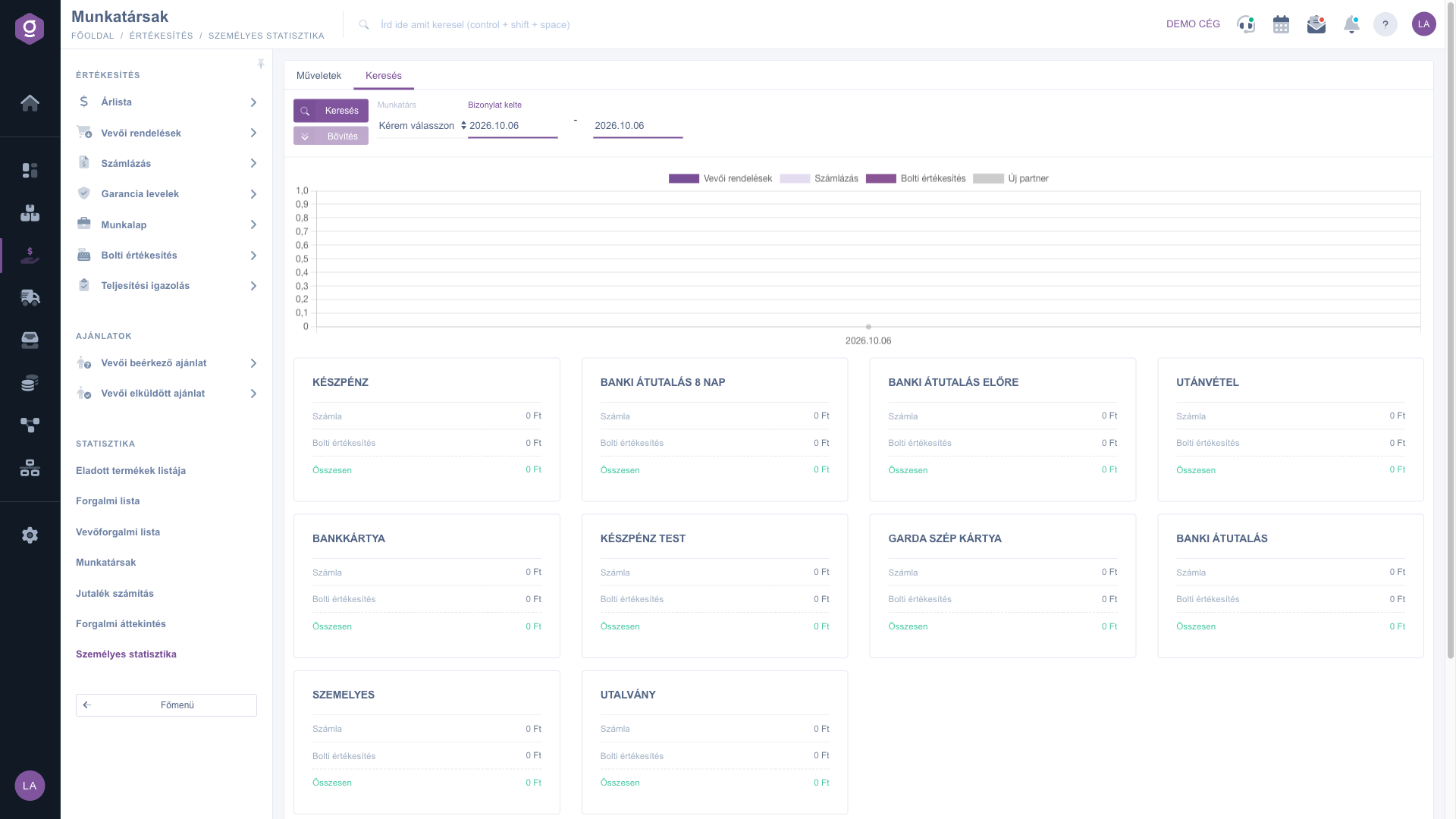
On the Search tab there are two date fields under the Document date label (Bizonylat kelte): the first is the first day of the period, the second is the last day. Click a field and pick the day from the calendar, or type the date in YYYY.MM.DD format, then click the Search button.
2026.10.01 - 2026.10.31. Both of the entered days are included in the period.The Employee field has no effect on this page, because the statistics always show your own data. The Expand button is inactive, as this page has no further search conditions.
For every day the chart draws bars for Customer orders, Számlázás (invoicing) and Bolti értékesítés (in-store sales) in gross amounts, and a line shows the number of Új partner (new partners) added that day. Some of these legend labels are always shown in Hungarian. Click a legend label to hide or show a data series.
The cards below the chart summarize the whole selected period by payment method (for example cash, bank card, bank transfer): the gross amount of Invoice and Retail sales, and their sum as Total. The amount of customer orders does not appear on the cards, only on the chart and in the table.
The table below the cards shows one day per row, even if there was no activity that day (it then shows 0). Its columns are: Date, Colleague, Customer order count, Customer order, Invoice count, Invoice, Receipt count, Retail sales and New partner. If you hover over the header of an amount column, the Gross amount label appears. The last row is Summarized: the counts and amounts for the whole period.
Below the table you see the Invoice and cash register receipt amount. When you filter for a single day, it is the combined amount of invoices and in-store sales; for a period of several days, use the Summarized row or the Total values on the cards to get the exact amount.
Switch to the Actions tab (Műveletek), click the Download button and choose XLSX lista. The downloaded personal-traffic-list.xlsx file contains the daily table data for the period currently entered on the Search tab, so check the dates before downloading. The first row of the file contains the column identifiers, and the file also includes data that is not visible on the screen (for example the profit of invoices and in-store sales).
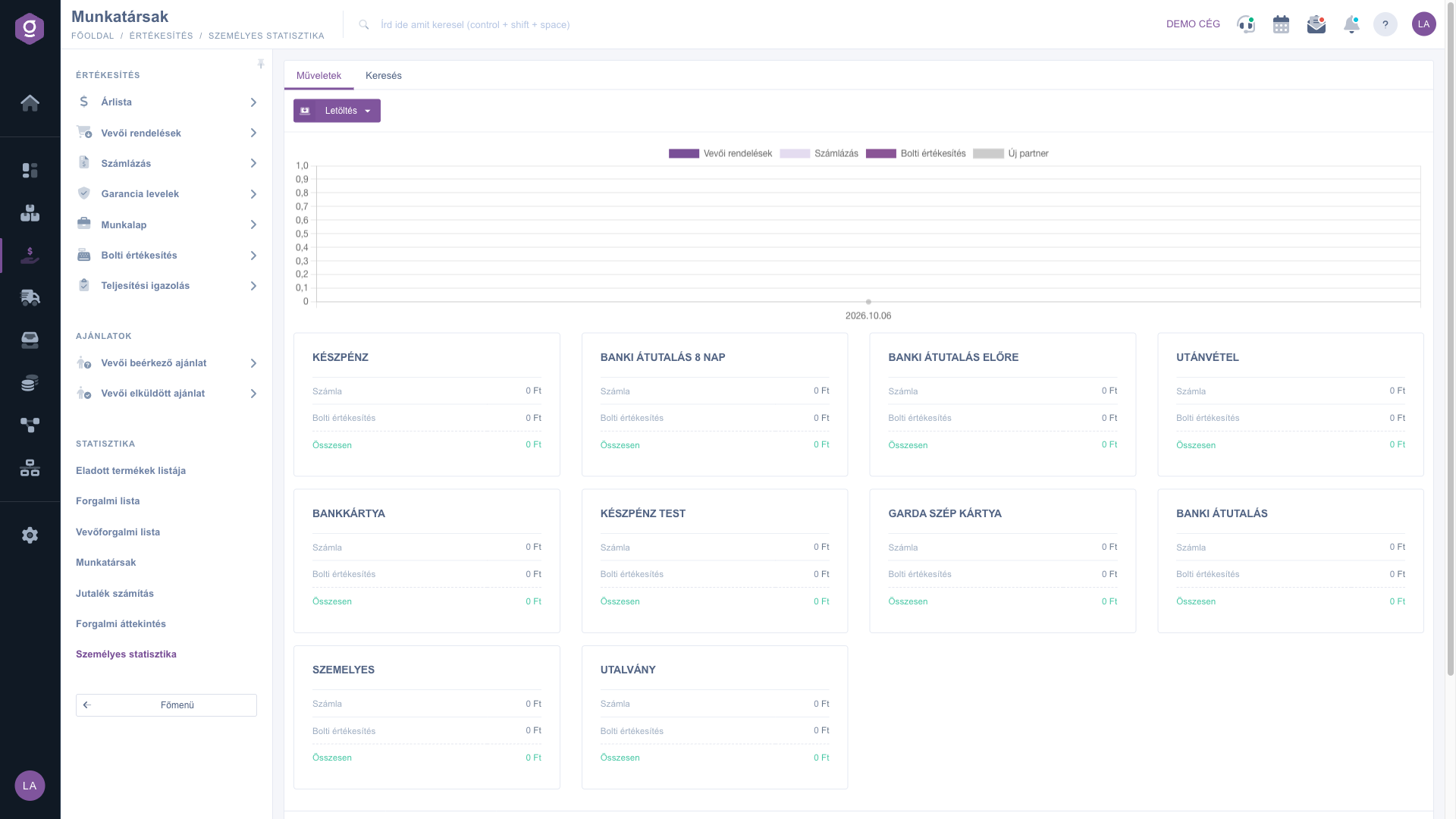
For month-end reporting, set the period to the first and last day of the month (for example 2026.10.01 - 2026.10.31), click Search and read the Summarized row. If you want to pass the numbers on, download them as XLSX: besides the daily breakdown the file also contains the profit data.

Elements of the Search and Actions tabs:
| Element | Required | Description |
|---|---|---|
| Employee | It has no effect on this page: the statistics always show the data of the logged-in user. | |
| Document date (first field) | The first day of the period. If you leave it empty, today is used. | |
| Document date (second field) | The last day of the period; this day is included too. If you leave it empty, today is used. | |
| Search | Refreshes the chart, the cards and the table with the entered period. | |
| Expand | Inactive on this page, because there are no further search conditions. | |
| Download / XLSX lista | Downloads the daily table as an XLSX file for the period entered on the Search tab (Actions tab). |
Columns of the daily table and their meaning:
| Column | Required | Description |
|---|---|---|
| Date | The day the row refers to. Documents are assigned to the day of their document date. | |
| Colleague | Your own name, as the page shows only your data. | |
| Customer order count | The number of finalized customer orders you entered on that day. | |
| Customer order | Their gross amount in the default currency. | |
| Invoice count | The number of finalized invoices you issued on that day. | |
| Invoice | Their gross amount in the default currency. | |
| Receipt count | The number of finalized in-store sales you entered on that day. | |
| Retail sales | Their gross amount in the default currency. | |
| New partner | The number of new partners you added on that day. | |
| Summarized (last row) | The sum of the columns for the whole selected period. |
Elements of the payment method cards:
| Element | Required | Description |
|---|---|---|
| Card title | The name of the payment method (for example cash, bank card, bank transfer). | |
| Invoice | The gross amount of your invoices issued with that payment method in the period. | |
| Retail sales | The gross amount of your in-store sales entered with that payment method in the period. | |
| Total | The sum of Invoice and Retail sales shown on the card. |
This menu item does not need a separate module permission; it appears for every user in the Statistics group of the Sales tile. If you cannot see the Sales tile itself in the main menu, ask your company administrator to assign at least one sales-related module to you.
When it opens, the page shows only today, so if you have no finalized document today, every number is zero. Set a wider period with the Document date fields and click Search. Also keep in mind that only your own finalized documents are counted: a draft, or a document entered by a colleague, does not appear.
On this page the Employee field does not change the list: the statistics always refer to the logged-in user. You can see the turnover of other employees under Main menu / Sales / Statistics / Colleagues, if you have access to it.
The page uses the statistics table of the Colleagues page, but filtered to your data only, so the page title says Colleagues. The content is still your personal statistics: your own customer orders, invoices, in-store sales and new partners.
Here only the finalized invoices issued by you are included, in gross amounts, by the day of the invoice date, and invoices in a foreign currency are converted to the default currency. The Invoice list, on the other hand, can also show the invoices of all your colleagues and works with other filters, so the two amounts can only be compared under the same conditions.
When you filter for a single day, the two values are equal. For a period of several days the amount below the table is not reliable; in that case use the Invoice and Retail sales columns of the Summarized row, or the Total values on the payment method cards.
The download uses the dates currently typed on the Search tab, even if you have not yet clicked the Search button. If you changed the dates, the download gives the new period. Click Search as well, so that the screen and the file refer to the same period.
Don't want to spend hours searching for a solution? Choose the most efficient way: book a personalized, 45-minute online training session dedicated entirely to you. Whether it's a walkthrough of the basics or a detailed setup of a specific module, our expert colleague will guide you through the whole process, step by step.
Don't waste your time - ask for help!
Our goal is to get you using our system as quickly and efficiently as possible. Whether you're completely new to us or stuck on a specific setting, don't hesitate to ask for help!
Create your account now,
pay later!

