This page is the first view of the Commission calculation module, Partner-linked commission. It tells you how much commission is due to the colleagues you set as the Contact colleague on the partner records: for the selected period the system adds up the invoices of the partners assigned to each colleague and then applies the commission percentage set on the partner. The page answers the business question "how much commission do we owe the colleagues who look after our customer relationships for this period?". The page is read-only: you do not record or modify any data here.
The Commission calculation module consists of two views (tabs): this article describes the Partner-linked commission view, while the Sales representative commission view summarises item by item according to the sales representative marked on the documents. Within this page there is a single Search tab.
The page is a statistic, so it has no statuses of its own. The status of the invoices, however, affects the totals: invoices in Draft, Closed, Cancellation and Cancelled status are all counted – see the details in the Frequently asked questions section.
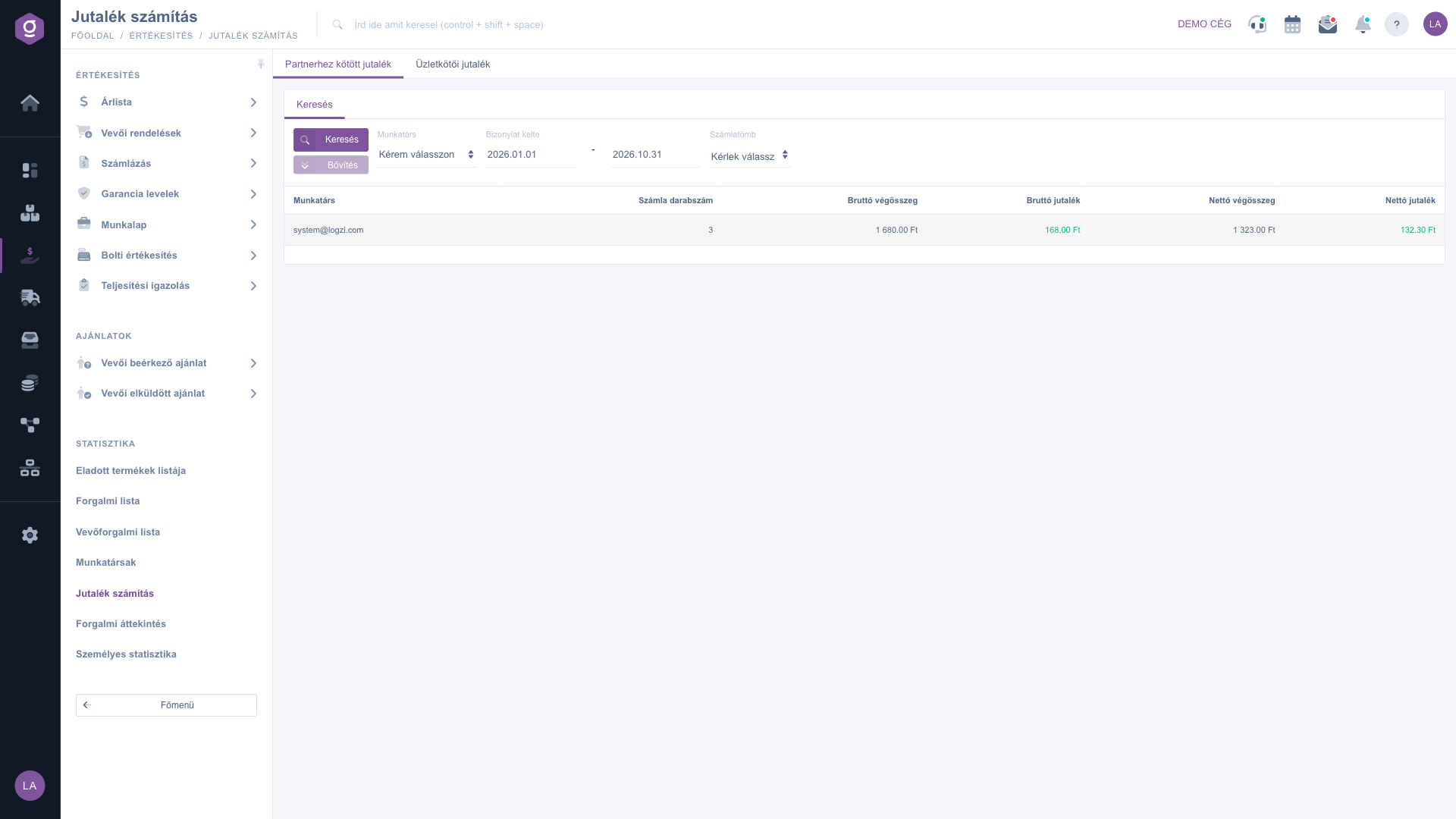
Click Main menu / Sales / Statistics / Commission calculation; the Partner-linked commission tab opens first. The menu item is located in the Sales sidebar under the Statistics heading; it does not appear in the Analytics block. When opened, the page calculates from the first day of the year to the last day of the current month, so you immediately see the commissions of the year so far.
Only a colleague who is set as the contact colleague on at least one partner record, where the commission percentage is also filled in, appears on the page. To set this, open Main menu / Master data / Partner master data / List, then the partner record, and fill in these two fields:
10. According to the field tooltip this is the commission calculated from the gross total. If it is 0 or empty, the partner is not included in the commission calculation.Example: if the contact colleague of Sample Ltd. is Eve Smith and the commission is 10, then 10% of every invoice of Sample Ltd. appears as commission for Eve Smith.
If a colleague looks after several partners, enter the same percentage on each of them. The page summarises all partners of a colleague into a single row and applies a single commission percentage to it, so different percentages can get mixed up. With different percentages, check the totals by splitting them into separate periods or separate invoice blocks.
On the Search tab you have three filter fields; after setting them, refresh the result table with the Search button:
2026.09.01 – 2026.09.30). Both boundary days are included. For monthly settlement, set the first and last day of that month.The Expand button is inactive on this page: there are no further filter fields, the three filters above are enough to determine the commission.
The table shows one row per colleague. The data of a row: Colleague, Invoice count, Gross total, Gross commission, Net total and Net commission. The commission columns are shown in green so you can find them easily.
How the calculation works: the system finds the partners that have a contact colleague and a commission percentage greater than zero; adds up the invoices and advance invoices of these partners in the selected period; then multiplies the totals by the commission percentage (divided by one hundred).
In the example of the screenshot, on the 3 invoices of the colleague the gross total is 1 680.00 Ft and the net total is 1 323.00 Ft. With the 10% commission set on the partner, the gross commission is 168.00 Ft (1 680 × 10%) and the net commission is 132.30 Ft (1 323 × 10%).
Before the monthly commission settlement, close the invoices still left in Draft status in the Invoice list or delete the unnecessary ones – drafts are also included in the totals of this page. Then set the first and last day of the month to be settled and copy the totals into your settlement spreadsheet. The totals are always calculated from the current commission percentage of the partner, so a later change of the percentage also changes the values of earlier periods.
This view has no download or export button, and below the list there is no column setting, sorting or paging: the summary of the colleagues appears in a single table. If you want to use the numbers further in a spreadsheet, select the content of the table in the browser, copy it and paste it into the spreadsheet.

The filter fields and buttons of the Search tab:
| Field / Element | Required | Description |
|---|---|---|
| Employee | Drop-down list with the employees of the company. The "Please choose" value means there is no filter by colleague. | |
| Document date (from – to) | The period of the invoice dates; both boundary days are included. Pre-filled by default: the first day of the year and the last day of the current month (for example 2026.01.01 – 2026.10.31). If you clear the fields, the date does not restrict the result, and then the commission colleagues who have no invoices yet are also listed, with 0 values. | |
| Invoice block | Multi-select list from which you can choose among the invoice blocks of the invoice and advance invoice document types. If you select none, the invoices of all blocks are counted. | |
| Search button | Applies the set filters and refreshes the result table. | |
| Expand button | Inactive (grey) on this page; it does not open any further filter field. |
The columns of the result table and their meaning:
| Field / Column | Required | Description |
|---|---|---|
| Colleague | The contact colleague set on the partner record, i.e. the colleague who is due the commission. A colleague appears in a single row even if he or she looks after several partners. Calculated value, cannot be modified. | |
| Invoice count | The number of invoices and advance invoices of the commission partners assigned to the colleague in the filtered period. It also includes documents in draft, cancellation and cancelled status. | |
| Gross total | The sum of the gross totals of the invoices; for foreign-currency invoices converted to the default currency with the exchange rate recorded on the invoice. This is the gross basis of the commission. | |
| Gross commission | Gross total × commission percentage ÷ 100. The commission due to the colleague based on gross turnover (highlighted in green). | |
| Net total | The sum of the net (VAT-exclusive) totals of the invoices, with the same conversion. This is the net basis of the commission. | |
| Net commission | Net total × commission percentage ÷ 100. The commission due to the colleague based on net turnover (highlighted in green). |
A colleague only appears if he or she is the Contact colleague of at least one partner, the Contact colleague commission (%) field of that partner is greater than zero, and the partner has an invoice or advance invoice in the selected period. Check in order: (1) are the contact colleague and the commission percentage filled in on the partner record; (2) is there an invoice in the period according to the Document date fields (the default is the beginning of the year to the end of the month); (3) is the Invoice block filter too narrow; (4) have you narrowed the list with the Employee field. If the message "the results list is empty or contains no items to display" appears instead of the table, no colleague matches the given conditions.
A zero row appears if you have cleared the Document date fields: in that case the system does not restrict the period and also lists the commission colleagues whose partners have no invoices yet. If you specify a period, colleagues without invoices are not listed. If the count is not zero but the commission is, check that the commission percentage of the partner is really filled in.
The page only summarises the invoices of commission partners (contact colleague and commission percentage set) and only takes invoices and advance invoices into account – not proforma invoices or other document types. The Invoice list, by contrast, shows every invoice according to the set filters. A difference can also come from the fact that this page also sums draft and cancelled invoices, and adds up foreign-currency invoices converted to the default currency.
Yes, the page takes every invoice and advance invoice into account regardless of its status. An invoice in Draft status increases the total and the count with its total amount, so before settlement it is worth closing or deleting the drafts. If you have cancelled an invoice, the original (Cancelled) invoice appears with a positive amount and the related Cancellation document with a negative amount, so their values cancel each other out in the total – but both increase the count.
Yes. The page does not store previously calculated commissions: it always calculates with the Contact colleague commission (%) currently set on the partner record, for the whole selected period. If you have already settled a closed month, save the totals separately before you modify the percentage. The same applies to changing the contact colleague: the earlier invoices of the partner move to the new colleague.
The page calculates both with the same percentage so that you can use the appropriate one according to the agreement of your company. The tooltip of the percentage field on the partner record mentions the commission calculated from the gross total, but if you agreed on a net-based commission with the colleague, use the Net commission column.
In the Partner-linked commission view the commission goes to the contact colleague assigned to the partner, regardless of who issued the invoice, and you set the percentage on the partner record. The Sales representative commission tab, in contrast, shows the sales item by item according to the sales representative marked on the documents. If the commission goes to the colleague assigned to the partner, use this view.
There is no download button in this view. The result table has one row per colleague, so with a few rows you can simply select the content of the table in the browser, copy it and paste it into a spreadsheet.
Commission calculation appears under Main menu / Sales / Statistics only if the statistics module is assigned to your user – the same module controls the other menu items of the Statistics group. If you do not see those either, ask the system administrator to check the module assignment of your user.
Don't want to spend hours searching for a solution? Choose the most efficient way: book a personalized, 45-minute online training session dedicated entirely to you. Whether it's a walkthrough of the basics or a detailed setup of a specific module, our expert colleague will guide you through the whole process, step by step.
Don't waste your time - ask for help!
Our goal is to get you using our system as quickly and efficiently as possible. Whether you're completely new to us or stuck on a specific setting, don't hesitate to ask for help!
Create your account now,
pay later!

