1. Open the Sales representative commission view
Click Main menu / Sales / Statistics / Commission calculation to open the page. At the top of the page choose the Sales representative commission tab (the other tab, Partner-linked commission, is the view of the commission linked to partners). On opening, the Search tab is active and the period by default runs from the first day of the year to the last day of the month, so you see the items recorded in this period. The screenshots are taken from the Hungarian demo interface.
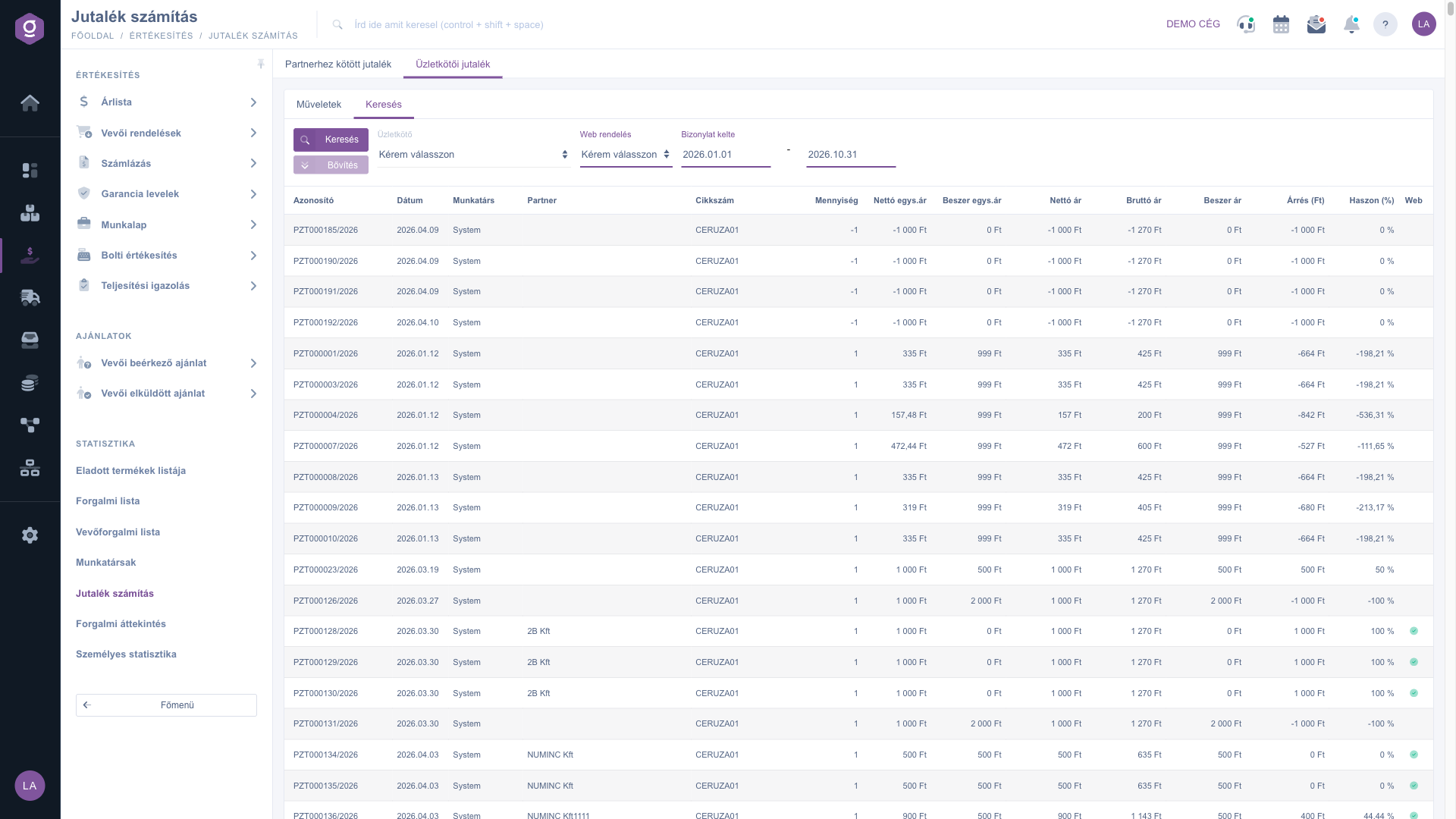
The Sales representative commission view (Üzletkötői jutalék) of the Commission calculation page with the search fields and the item-level list
2. Filter the items
On the Search tab you can narrow the list with the following fields, then refresh it with the Search button:
- Sales representative: shows the items of one sales representative. If you choose the Empty/not set option next to the name of the first user, the items that have no sales representative assigned are shown as well.
- Web order: Yes shows only items from web shop orders, No shows only non-web items. With the default please choose value both are shown.
- Document date: the start and the end of the period. Items falling between the two dates are shown, including the boundary days.
The Expand button is inactive on this page and does not open any additional filter field.
3. Read the item rows
Each row is a document item; the meaning of the columns is detailed in the Field descriptions card. In practice, pay attention to this:
- The Colleague column shows the sales representative entered on the document. If none is assigned, System is shown.
- If the Partner column is empty, the item comes from a sale without a partner (for example an anonymous in-store sale).
- A yellow triangle next to Haszon (%) (profit %) shows that there is no purchase price either on the item or in the product master data, so the margin may be distorted.
- The green tick in the Web column marks an item that comes from a web order.
- A row with a negative quantity and amount is usually a returned or cancelled item, which reduces the totals.
4. Check the totals
In the totals row at the bottom of the list you see the number of displayed documents (Bizonylatok), the total quantity, and the sums of the net and gross prices, the purchase price and the margin. If sales were made in several currencies, the sums are shown per currency in separate lines. The totals always refer to the filter currently set, so for a commission settlement first set the right sales representative and period.
5. Download the list or open the cards
On the Actions tab you have three options:
- Download / XLSX list: saves the list to an Excel file with the filters currently set on the Search tab. Choose it when you continue calculating the commission in a spreadsheet or send it to the sales representative.
- Product card: select a row of the list (click on the row) and it opens the data and turnover of the product of that item. It is useful when you want to check why the profit of an item is so low or high.
- Partnerkarton (partner card): shows the turnover and data of the partner of the selected row. Use it when you want to see how much the partner bought in total. It makes sense only for a row where the Partner column is filled in.
The Product card and the Partnerkarton work only with a selected row. If no item is selected, the system asks you to choose one from the list first.
Tip
For a monthly commission settlement, set the Document date fields to the first and last day of the month (for example 2026.09.01 - 2026.09.30), choose the sales representative, click Search, and only then download the XLSX list. Before that, go through the rows marked with the yellow triangle: if the purchase price is missing, the profit is shown at around 100 percent, which would needlessly inflate the commission base.
The items shown here come from invoices and in-store sales. You can read about them in detail in the
Invoice list and
In-store sale list guides. The commission calculated from the commission percentage assigned to the partner is shown on the
Partner-linked commission tab.



